My Infinity
 General
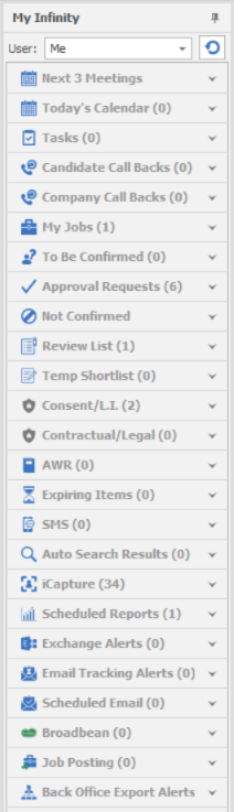
My Infinity is a panel that shows on the left of your screen by default.
This part of the screen will guide you through what activities need to be done and what the current status of your jobs and applications are.
 Suggestion – Use this part of Infinity to help you start your day. Used properly the My Infinity panel will make sure that you never forget anything and always know the current status.
You can remove any of the titles from this panel by right hand clicking anywhere on the sections.
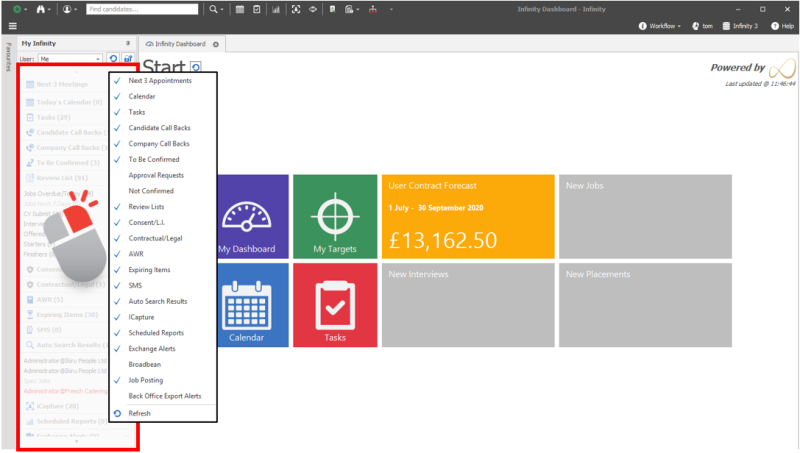
This will bring up a list of all the sections. Remove the ticks from those that you are not interested in viewing. (This is also available under user options from the application menu.)
NOTE - It is a panel and therefore can be moved and docked to wherever you would prefer to see it. If you accidentally delete it you can get it back by toggling My Infinity and/or Favourites available in the application menu.
User
This is the name of the user who’s My Infinity you are currently viewing, Click on the drop down box to choose a different name. You will only be able to view those users that have granted you access via Permissions
Permissions
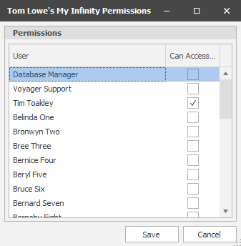
 To grant access to other users click on the padlock icon and choose who you would like to be able to view your My Infinity. Once you have entered the ticks, press Save
Refresh
 Use this icon to manually refresh your My Infinity screen. You can set an auto refresh under admin, general settings ‘My Infinity Refresh’, it can be set to auto refresh any time between 1 and 10 minutes.
Next 3 meetings
 This shows the next 3 meeting that you have in your calendar
Calendar
 This splits your calendar events into:
- Internal interviews – Candidate meeting with you
- Client visits – Visiting clients on site
- Other meetings – Internal meetings
- Appointments – Personal appointments
Any that have a number in brackets can be clicked on. These will show in a list that can be worked through, or simply viewed.
Tasks
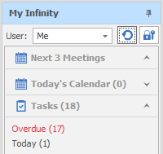
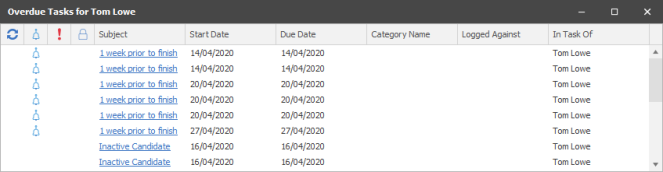
 You are able to click on any group that has a number in brackets; this will give a list of tasks to complete
The tasks show your tasks that are due to be done today, or those that are already overdue.
Please see the tasks section for more details.
Candidate call backs
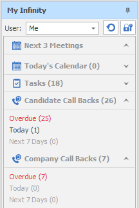
 This shows your call backs that are due for candidates that you have already added to the system. This area will remind you about the call backs that you have created in Infinity.
 They are split
- Overdue
- Today
- Next 7 days
Any that have a number in brackets can be clicked and you will show a list of call backs to work through, if they are red then this indicates they are overdue.
To call the candidate you can double click on the candidates name and the event logger will open showing the candidates telephone number. You can also add permission from here for colleagues to be able to view or make calls on your behalf. If you want to look at the candidate record before calling back then you can select the review list button and view them from here.
See the Managing Call Backs section and Call Back Section for more details
Company call backs
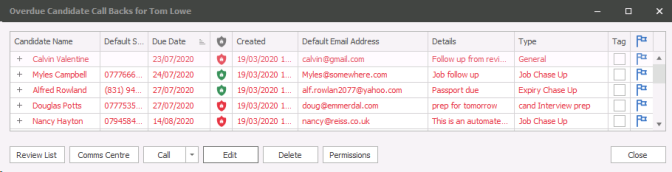
This shows the call backs that are due for companies that you have already added to the system. This area will remind you about the call backs that you have created in Infinity.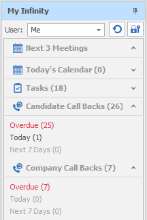
- Overdue
- Today
- Next 7 days
Any that have a number in brackets can be clicked and will show you a list of call backs to work through, if they are red then this indicates they are overdue calls. Callbacks can be made and logged as above or you could choose to select the review list and view each page before calling back.
See the Managing Call Backs section and Call Back Section for more details
My Jobs (Perm/Contract/Fixed term)
This section in My Infinity called 'My Jobs' (n) with a number count in brackets for the links within shows the users their current job details
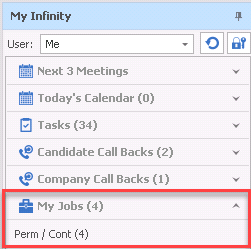
This section is on as default
There is a link called ‘Perm/Cont’ (n) that shows the number of jobs that match the following criteria:
- Type perm, contract or fixed term
- Jobs owned by the user
- Excludes closed Jobs
- Excludes spec Jobs
There is a second link for Temp Shortlist jobs, this will display live Temp jobs that have been marked as Job Shortlist (this offers similar shortlist steps that are available in Perm / Contract jobs).
Clicking on the link displays a list of those jobs with default fields as follows:

The grid has standard grid filtering, sorting and column chooser/save layout. Double-clicking on code field link will open the job page
The fields available are as follows:
- Job Code
- Job Title
- Client Job Title
- Company
- Location
- Main Contact
- Age
- Start Date
- End Date
- No of Places
- Remaining Places
- Pay = Min salary/rate
- Charge – Contract jobs only
- Per = Min salary/rate
- Fee - Min fee – perm / fixed term only
- Slst - number of candidates on the shortlist inc. cancelled ones
- CSub - number of candidates whose CV has been submitted
- Intv – number of candidates who’ve had at least one interview (excludes cancelled and deleted)
The toolbar has the following functionality:

- Refresh – refreshes / updates the list
- Comms Centre – loads the Job Comms Centre for selected rows
- Event logger – loads the Job List Event Logger for selected rows
- Review Job – opens the job page in review mode for the selected row
To be confirmed
 Each shortlist entry has a user(s) who is the ‘owner’ of the shortlist entry.
The ‘owner(s)’ is used to determine which user(s) will receive ‘My Infinity’ notifications e.g. Interviews to follow up.
The ‘owner’ works as follows:
- If a placement exists, the Placement owner(s) is the owner(s) of the shortlist entry.
- If no placement exists, but an interview exists, the interview owner(s) are the owner(s) of the shortlist entry.
- If no placement exists and no interview exists, the job owner(s) are the owner(s) of the shortlist entry.
Interviews – Your Interviews which have been created but have not been confirmed with the candidate and client, these reminders will go to the interview owning consultant(s), default is the user who creates the interview record

See the interview section for more detail.
Placements – Your Placements which have been created but have not been confirmed, reminders will go to the Placement consultants within the splits box, default is the creator of the placement
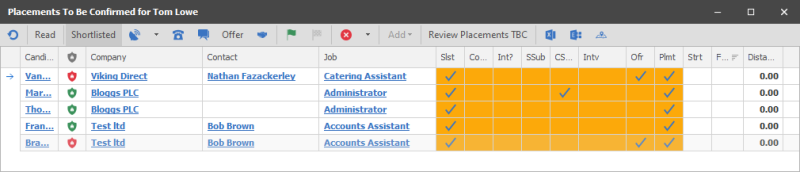
Approval Requests (if applicable)
Infinity’s Placement Approval feature allows the Consultant to progress an accepted Offer / Placement through to a confirmed status. Approval works alongside My Infinity and prompts a Manager to review any Offers / Placements which have not been approved; these are displayed in a new panel called ‘Approval Requests’.
When an Offer / Placement is ready to be confirmed the Consultant can mark it as ‘Awaiting Confirmation’. This action triggers an entry in ‘Approval Requests’ for all users with the permission to change the Placement to Confirmed, see Placement Approval for more detail.
Not Confirmed (if applicable)
If an approval has not been granted, please see the Placement Approval section for more detail.
Review list
 Each shortlist entry has a user(s) who is the ‘owner’ of the shortlist entry.
The ‘owner(s)’ is used to determine which user(s) will receive ‘My Infinity’ notifications e.g. Interviews to follow up.
The ‘owner’ has been changed to work as follows:
- If a placement exists, the Placement owner(s) is the owner(s) of the shortlist entry.
- If no placement exists, but an interview exists, the interview owner(s) are the owner(s) of the shortlist entry.
- If no placement exists and no interview exists, the job owner(s) are the owner(s) of the shortlist entry.
These are:
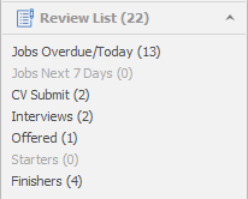
- Job overdue/ Today - Review dates are overdue
- Jobs next 7 days - Review dates are becoming due in the next week
- CV Submit – These are CV’s that have been sent that need to be followed up, reminders will go to the Job owner(s), spec CV submissions will go to the user who completed the submission
- Interviews – These are interviews that have passed their date and time and therefore are awaiting feedback, reminders will go to the interview owning consultant(s), will default to the interview creator
- Offered – These are the candidates that are currently at offer stage and need to be progressed through the shortlist process, reminders will go to the Placement consultants within the splits box, default is the creator of the placement
- Starters – These are the candidates that have accepted jobs and the start date of the placement has passed. Infinity is asking you to check that these candidates have started, reminders will go to the Placement consultants within the splits box, default is the creator of the placement
- Finishers – These are candidates that have been started on placements and their end dates are either blank or have passed, reminders will go to the Placement consultants within the splits box, default is the creator of the placement
Click on any of the ticks to be taken to the relevant part of Infinity.
Temp Shortlist
Will display any appropriate entries for the users Temp jobs marked as Shortlist Job within the job record
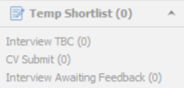
|
Interview TBC | Will display any interviews created but not confirmed, these have the status of "Awaiting Confirmation" |
| CV Submit | Will display any CV submissions completed against Temp jobs that have not progressed or been rejected | |
| Interview Awaiting Feedback | Will display any interviews that have been confirmed and has passed the start date and time recorded within the interview record |
Privacy Audit

 Displays lists of candidates that require some action to comply with GDPR, if auto restrictions is on then candidates that expire or have refused consent they will not be available to view within Infinity (system administrators only can access expired / refused candidates). Once expired you will not be able to utilise the record without resetting their Privacy Audit status and will depend on your permissions.
To utilise the Privacy Audit feature fully you will need to garner consent or legitimate interest and complete the process within Infinity, this will ensure the cycle of consent / legitimate interest can be used to renew at regular intervals (every 2 years for example).
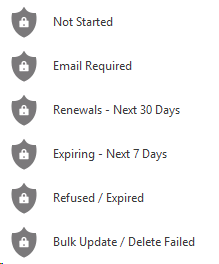
|
Consent / Legitimate Interests process has not started |
| Displays candidates which have had verbal consent or 1st request has been sent but no consent logged within the record | |
| Consent is coming to end of retention period | |
| Consent or Expiry is due to pass in the next 7 days | |
| Consent or Expiry has now passed | |
|
This lists all candidates that you have attempted to bulk update / delete, but have failed e.g. the candidate was being edited by another user. NB:- This is not based on the owner of the candidate, but based on the user who ran the bulk update / delete |
See GDPR section for more details
See Candidate Privacy Audit section for more details
See Suppression Lists for more details
Contractual / Legal
Displays Expired list of candidates that has passed the Retention Period (default set to 7 years) for Contractual / Legal lawful basis for holding their personal information.
See GDPR section for more details
See Candidate Privacy Audit section for more details
See Suppression Lists for more details
AWR
 It is here that you are able to see the candidates that are reaching 10 -12 weeks or over 12 weeks on a your placement. This is only meant to be an estimate of number of weeks worked as the database will not know if they have had a break in the working period or changed job role. To confirm the accurate amount of weeks work we would recommend that you double check the work history and notes against the candidate record.
Once the placement has started the report will start to count the number of weeks worked. Once you have confirmed whether AWR applies you can tick the AWR checked to remove them from the list.
Expiring items
 These are your items that are due to expire,
Quals & Certs
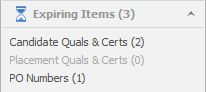
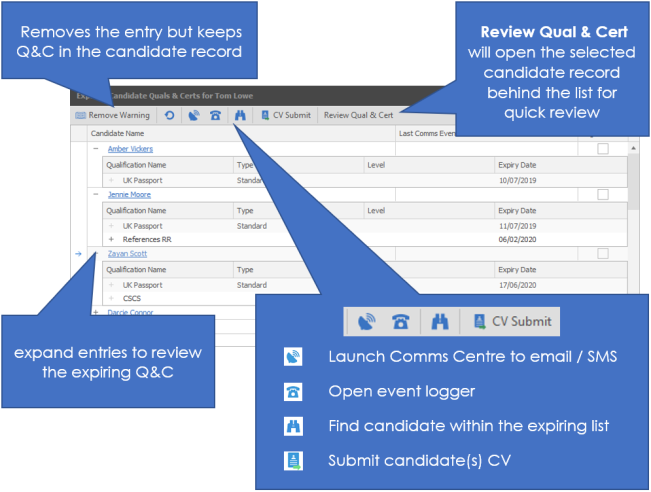
- Candidate Quals & certs – reviews all candidates who have either an expired Q&C or due to expire (triggered by the review date), see Q&C dictionary for setting up Q&C's. You can use the Comms Centre to email individually or in bulk to chase up the Q&C's that have passed the review date.
- Placement Quals & Certs - reviews candidates with expiring Q&C's for current placements, using Q&C's recorded within job records. You can use the Comms Centre to email individually or in bulk to chase up the Q&C's that have passed the review date.
NOTE:- the merge code used to pull through the Q&C that has passed the review date, will pull through all Q&C's that have passed the review date not just the Q&C's that are displayed within the Placement Q&C list
PO Numbers
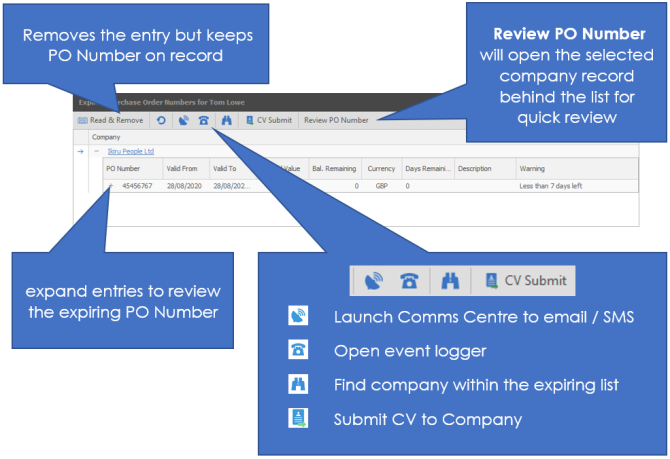
- PO Numbers – The review date for this will be set per company see section on Purchase Order Numbers General for more details
Each options will give you a list of those that are due to be reviewed. We can use the comms centre from here if necessary to chase the candidates for updated Q&C or the Contacts for new purchase orders.
- To assist with the reviewing of Expiring Items we’ve added a “Read & Remove” option to both Quals & Certs and PO Number Expiring Items toolbars.
- Click “Read & Remove” and the select expiring item will be removed from the Expiring Item Grid.
TrustID RTW Checks
- Link Expiring in XX days - displays candidates that have been sent the Guest Link but not completed the check and is coming up to expiration. The number of days prior expiration can be set within the TrustID setup.
- Link Expired Last 7 Days - displays candidates that been sent the Guest Link but not completed the check and has past the expiration. They will need to be resent the Guest Link. Note that TrustID credits are only charged on completion of a check.
- Rejected Last 7 Days - displays candidates that the RTW check has been rejected, it will display the reason for the rejection.
- Completed Last 7 Days - displays candidates that the RTW check has been completed successfully.
For more information please see the TrustID section
SMS
 Infinity has the ability to have your incoming and outgoing SMS (Text) messages. This section of My infinity shows you
- Incoming overdue – SMS messages from yesterday (and older) that are routed to you, that you haven’t read
- Incoming Today – SMS messages that have been received today that you haven’t read
- Outgoing Overdue - SMS messages that are awaiting to be sent, either setup manually or via Scheduled Automated Comms
- Non deliveries overdue – Failed SMS messages that are from yesterday (or older) that you haven’t look at
- Non Deliveries Today – Failed SMS messages that have failed today that you haven’t looked at.
Auto search results
 If the Autosearch facility is activated, see Search section for more details, this section of My Infinity will display the job title and company name. Within the brackets it will display a number, which indicates the number of new or updated candidates process through iCapture that have matched the criteria that was previously searched on. The system utilises the date and time recorded when a search is run in the job.
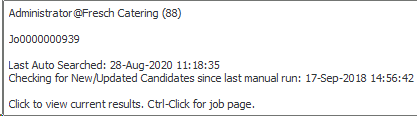 By hovering your mouse on the job within autosearch you will see a tool tip which give you key details regarding that search.
The autosearch entries can be clicked on to go to the results to review and add (thumbs up) or reject (thumbs down) for the shortlist. You can also use control and click to open the job record.
The flags / results will remain within the My Infinity panel until you complete the accept or reject action or run the search from the criteria or a candidate accepts the offer within the placement record. Alternatively you can switch off the autosearch facility from the criteria tab, you will be prompted to run you search again for this action to be completed.
See the Search section for more details on putting candidates from the results into the shortlist
iCapture
 Shows activity that has gone on in i-capture.
The results that you view will be dependent upon the access rights you have to folders.
- To be processed today – CV’s that have been added to iCapture today that are still to be processed
- To be processed – CV’s that are in iCapture to be processed of any dates
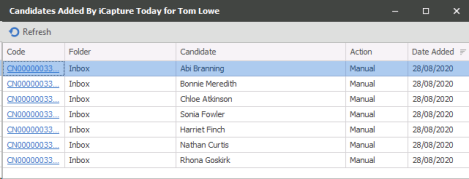
- Added today – CV’s that have been added to Infinity through iCapture today
- Added last 7 days – CV’s that have been added to Infinity through iCapture in the last 7 days. Click on the links to view the candidate record. This is a rolling list and you will not be able to remove them until they are over 7 days old, in which time they drop off on their own.
Scheduled Reports
 These are the results of the reports that you set to run at specific times. See the System Administration manual for more details.
Exchange Alerts
 This is an area that notifies you if your email, Calendar / meeting request or a task that has failed to sync with exchange.
Email Tracking Alerts
This section shows the user their email tracking alerts. The number in brackets displays the totals for the links within the section.
See Email Tracking for more details.
Scheduled Emails
This section shows the user their scheduled email alerts for any automated emails that are overdue and likely to fail. The number in brackets displays the totals within the section.
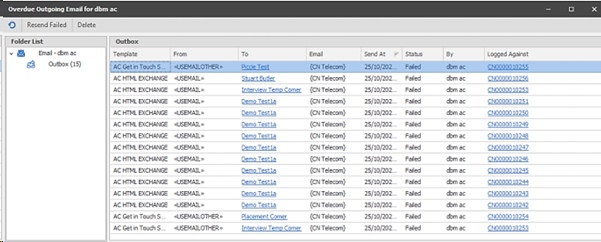
This shows the number of messages in the Outbox folder of the My Infinity user that haven’t sent as follows:
- At status ‘Invalid’ that were queued more than 1 hour ago
- At status ‘Failed’
The hyperlink opens the Overdue Outgoing Email window listing those messages. The user can correct the invalid data, correct failure issues, resend failed messages or delete them
See SMS section for details on failed Automated SMS messages
See Scheduled Automated Comms section more details.
Broadbean / LogicMelon
If you have Broadbean or LogicMelon integration you will see a snapshot of your Broadbean / LogicMelon status here.
- Failed Posts - Today - These are the adverts that have failed to post today
- Failed Posts – Last 7 days - These are the adverts that have failed to post in the last 7 days
- Applications – Today – These are the applications that have been received for the jobs posted today
- Applications – Last 7 days – These are the applications that have received for job posted through in the last 7 days.
Own Jobsite Posting
 These are your job postings being forwarded to your own website.
This section will give you information relating to your posts which have failed today or in the last 7 days,
Astute Alerts
 Australian Version only
Contact Details
If you require further assistance please contact Ikiru People using the details published on www.ikirupeople.com
Visit our Customer Portal at https://portal.ikirupeople.com/ for future events and clinics.
FeedbackIf you would like to make suggestions or have found any errors with this Help section please contact our Support team.
Copyright © 2026 Voyager by Ikiru People Ltd. All rights reservedVersion 4.87
Voyager Software is a brand of Ikiru People Ltd, a subsidiary of Dillistone Group Plc. The group is a leading global provider of software and services that enable recruitment agencies and in-house recruiters to better manage their selection process and address the training needs of individuals. Across its brands – which include Voyager Software (recruitment software UK & Australia), Dillistone FileFinder executive search software, GatedTalent, the global database of the world’s leading executives, Talentis.Global – the next generation of recruitment software and also ISV.Online, provider of online pre-employment skills testing and training tools. Dillistone Group serves thousands of clients worldwide. Ikiru People Ltd: Registration Number 02043300. Registered in England & Wales.
 |  |  |  |