User Options
 General
User Options is available from the Application Menu
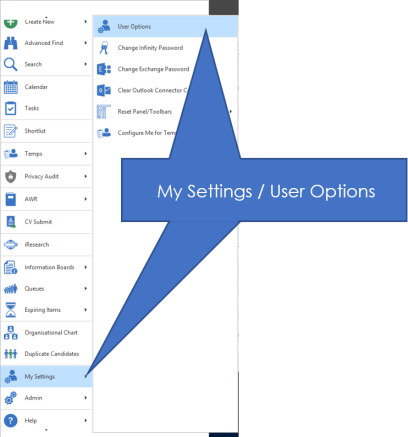
NB:- You may also wish to add the user options to your quick access toolbar, see the Quick Access Toolbar Options section for more details
The General Tab options
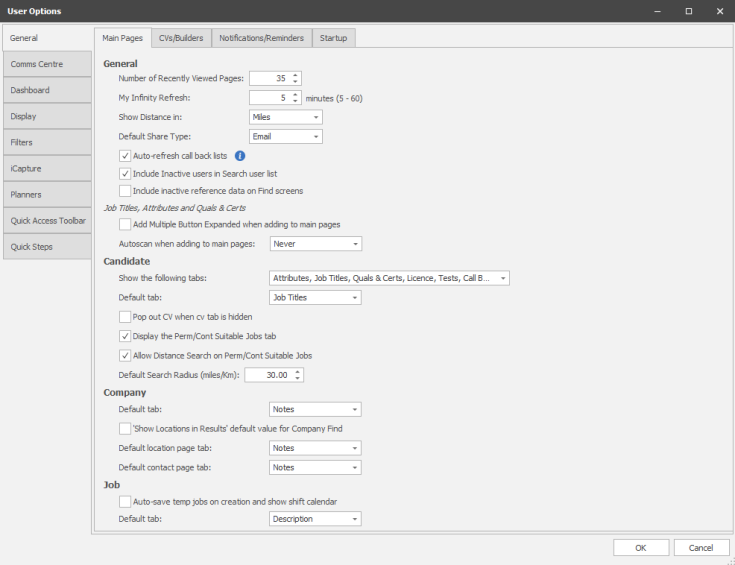
Main Pages
- Set the number of Recently Viewed Pages – this list is viewed from the Application Menu “Recently Viewed”
- My Infinity Refresh allows you to set the frequency that you wish My Infinity to refresh automatically
- Show Distance in MIles or Kilometers, this will effect distance searching

- Default Share Type - set to Teams or Email, this will effect how your share button
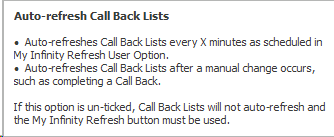
- Auto-refresh call back lists
- Include Inactive users in Search User list - allows you to see previous consultants searches even if their account has been disabled
- Include inactive reference data on Find screens, choose to display inactive dropdown options in the find screen, for example, if you had candidate statuses that are no longer required but are still recorded on records, then you may inactivate old statuses but in some instances may require to search for these
Job Titles, Attributes and Quals & Certs
- Add Multiples Button Expanded when adding Job Titles, Attributes and Quals & Certs to main pages check box
Candidate
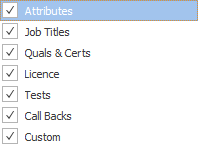
- Show the following tabs, set which tabs you require in candidate records
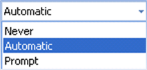
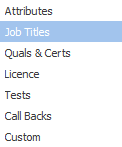
- Set Default candidate page tab - select from the following:
- Pop out CV on candidate page when CV tab is hidden - enables you to set whether you wish the CV to preview automatically when on the tab or click on a CV entry on the candidate record. If it is not ticked then you will need to click on the CV Preview tab on the right side of the record.
- Display the Perm/Cont Suitable Jobs tab, set whether you require the Suitable Jobs in candidate records
- Allow Distance Search on Perm.Cont Suitable Jobs
Set your Default Search Radius (miles/Km)
Company
- Default tab, set which tab should be displayed when launching Company records
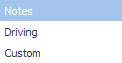
- Show Locations in Results for Company Find check box – The controls the “Show locations in results” tick box on the find company screen
- Default location page tab, set which tab should be displayed when launching a Location record

- Default Contact page tab, set which tab should be displayed when launching a contact record
Job
- Auto-save temp jobs on creation and show shift calendar, ticked this will immediately save newly created Temp jobs and launch the shift calendar, you will still be able to edit the job record but reduces the number of clicks
- Default tab, set which tab should be displayed when opening a job record

CVs / Builders
- Enable editing of PDF CVs in Word 2013 or later - allows CVs on the candidate page to be opened in Word if they are PDF. If ticked it will open PDF CVs in Word, it will prompt you prior to converting with the message below, if you are having any difficulties with this function please click here:

- Merge CVs and builder using

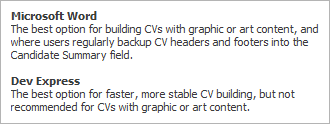
Prompt to select a builder when:
- Creating a New CV - allows you to define whether you wish to have a CV Builder prompt when creating a new CV
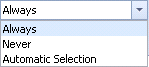
- Drag and Dropping a CV - allows you to define whether you wish to have a CV Builder prompt when dragging and dropping a CV into the CV box on a candidate record
Notifications / Reminders
- “Do not show Business Rules checks screen when all business rules have passed” check box – when ticked the business rules screen only appears if they have failed or if there are warnings
-
Show incoming SMS notifications*, see SMS section for more details. This will trigger an additional Windows notification and the SMS Notification will still go to the routing Consultant and be visible within their My Infinity.
*Incoming SMS feature is required
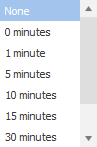
- Set Call Backs Reminder, set the amount of time prior you call back you require a notification:
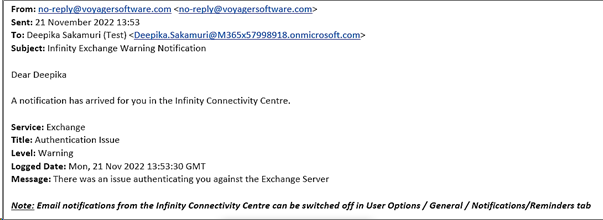
- Also send my Connectivity Centre Notifications as an email - enabled by default will send an email if there are any alerts from the connectivity centre. The email utilises SMTP and therefore SMTP will need to be setup
The email is sent for new notifications from the ‘noreplay@voyagesoftware.com’ address and contains details of the notification
Startup
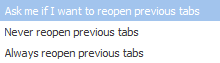
- Show the following pages on start-up:

- When Infinity opens:
The Comms Centre Tab Options
This section allows you to display which templates will appear as default when you access each of the comms centres or submit a CV, as well as Quick email defaults,
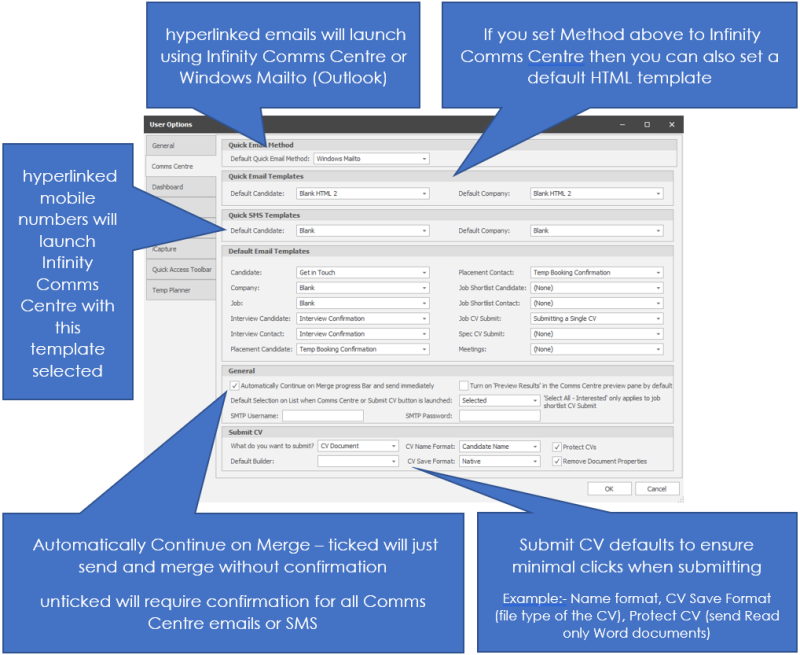
NOTE: - Quick SMS settings will not function if system is setup for 'Click to Call' or other telephony systems, you can still access SMS templates via Comms Centre button
The Default Quick Email Method setting allows you to set what happens when clicking on email addresses within candidate and contact records:
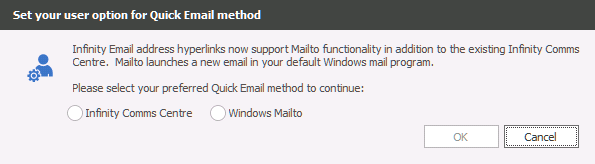
- Infinity Comms Centre - utilise an HTML template setup by your administrator
- Windows Mailto - utilise your default Windows default email program (usually Outlook)
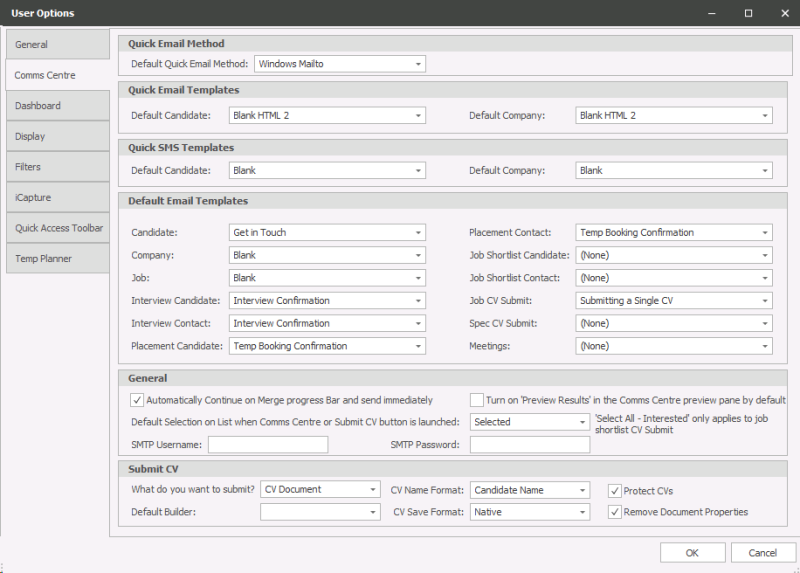
- Drop down options to allow you to set default templates for Email, SMS, Quick Email per Comms Centre.
- Check box option to automatically continue the merge process and send immediately, to avoid any delay when sending we recommend to tick this option.
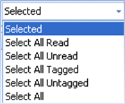
- Set the default selection on List when Comms Centre / Submit CV is launched – select from the following:
- Set Submit CV options:
- Set “What do you want to submit?” – select from:
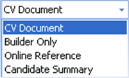
- Set “CV Name Format” – select from Candidate Name or Candidate Code
- Protect CV’s check box
- Set Default Builder – select from the list of available Builders
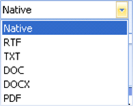
- Set CV Save Format – select from:
- Remove Document Properties check box
The Dashboard Tab Options
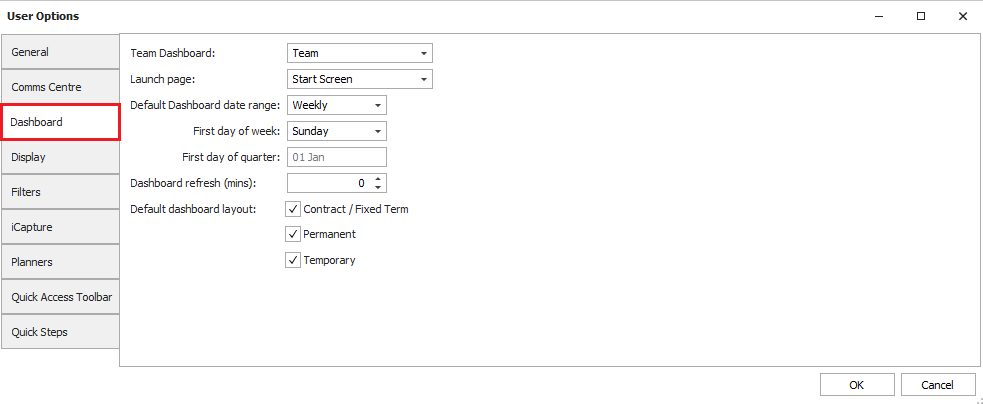
- Team Dashboard - allows you to select whether you wish to display the Team or Company or None (My Targets)
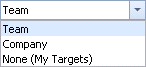
NB: It will depend on your user permissions whether you will be able to actually see the Team or Company dashboards, speak to your system administrator for more information
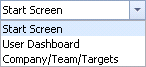
- Launch Page - allows you to set which part of the dashboard you wish it to first load up
- Default Dashboard date range - allows you to set your dashboard up for quarterly, monthly or weekly statistics and information
- First day of the week - If you select the weekly date range option then you can then set the start day
- First day of quarter - If you have selected the quarterly date range then you can set the first day
- Dashboard Refresh - Allows you to set the frequency of the refreshing of your dashboard automatically
- Default Dashboard Layout -
- Contract / Fixed Term - allows you to remove or include contract and fixed term statistics within the dashboard
- Permanent - allows you to remove or include permanent statistics within the dashboard
- Temporary - allows you to remove or include temp statistics within the dashboard
The Display Tab Options
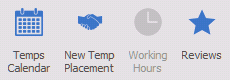
- Show Temp buttons on mail Toolbars - will display the Temps Calendar, New Temp Placement, Working Hours and Reviews buttons within the candidate ribbon bar:
- Show My Infinity Sections, set which My Infinity sections you require, you can also manually right click within the My Infinity panel to remove or add sections


Review List Mode: Show read-only screens where available – is the new Read Only mode
Review List Mode: Show full edit screens – is the old mode, where candidates are editable, but slower.
See Results (Ad Hoc) or Results (Re Job) sections for more details
The tick box for Preview CV by default on candidate review lists allows you to default whether the CV loads up with the records

The tick box for Show iResearch tabs on 'full-edit' candidate review list screens allows you to set whether the iResearch vertical tab is available when reviewing a list

- Default Job Shift View, set if you wish to add shifts to calendars using the painter in calendar or entering into the grid view

- Default Placement Shift View, set if you wish to manage shifts in calendar view or in the grid view
- Contact Navigator defaults,

Split contacts by locations, set whether you want contact lists to display grouped by location or not, this is default and can be adjusted within records
Show inactive locations and contacts, set whether locations and contacts that have been made inactive are displayed within Company records
Sort Order, set default ordering of your contact lists, this can be adjusted within records
Show contacts for owner, set contacts to display for the selected owning consultant as default. 'Any Owner' includes contacts with no owning consultant.
Colour Palette
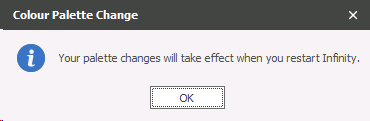
Enables you to select the appearance of Infinity, once selected it will prompt you:
Colour Palette Displays
Office White - is the default for new users
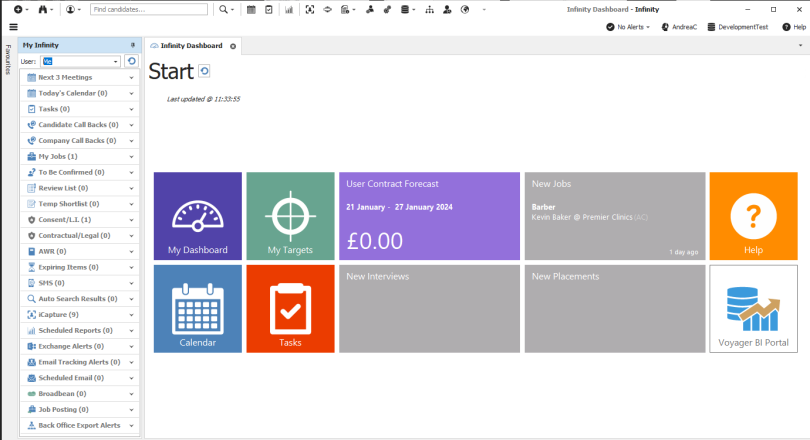
Art House
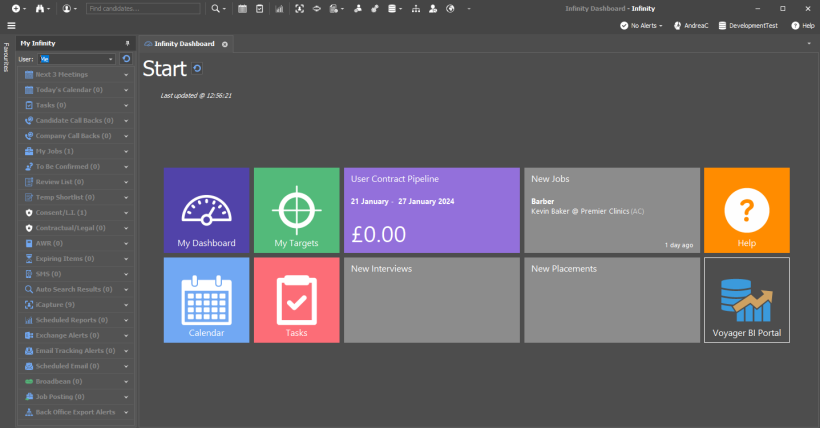
You can also reset the panel layout from here (i.e. if you have lost the My Infinity section)
Reset CV Preview Panel (i.e. if you have moved the CV panel off screen or resized the CV pane)
The Filters tab
Within the filters tab you are able to set the candidate and company filters to default to show
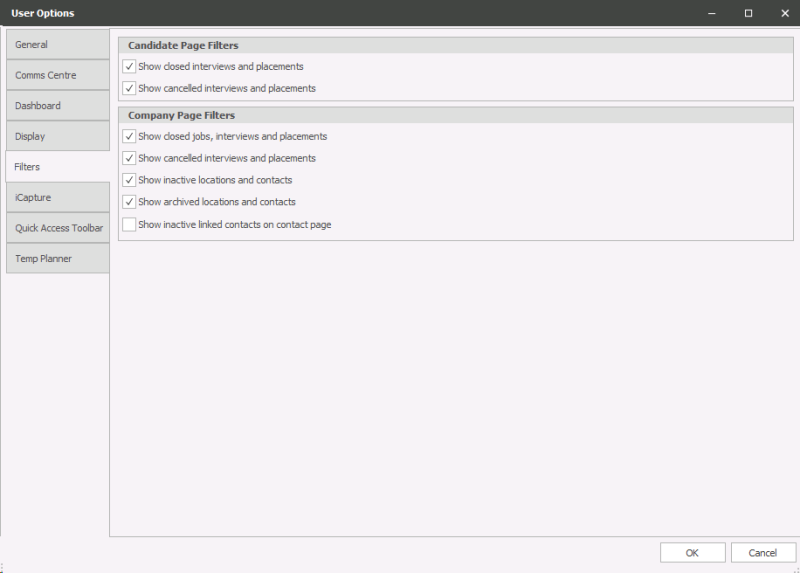
The iCapture Tab Options
You can set the system to automatically mark inbox items as read. You can set the system to return to the inbox when you post to Infinity or leave it unticked and it will automatically change to the next CV in the list.
Reset Panel Layout - will reset iCapture grid view and return to original columns sizes and show settings
Planners
Temp and Shift Planner Options
- AutoRun last search when Temp Planner is opened - This will run your last completed Temp Planner search when launching the Temp Planner
NB:- you can only have one instance of the Temp Planner open, using Signal R to "live" update changes being made by other users
- First day of week, set which day of the week you require the planners to start
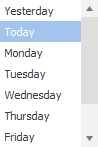
Temp Planner Options
Placement Appointment Label Text
Shift Times - will display the shift time within the red block of the gantt chart:

Job Title

Client Name

Tick all 3 and it displays in order and as many characters that can fit within the block, this would not be recommended unless working with very long shifts as it is unlikely to be able to display much more than the time, there is a facility to change the display via the Time Scales View options section

Unavailability appointment label text:
Times

Unavailability Reason

Ticking both will try to display both onscreen, although it is unlikely to be able to display much more than the time, there is a facility to change the display via the Time Scales View options section

Availability appointment label text
Times

Candidate Searching
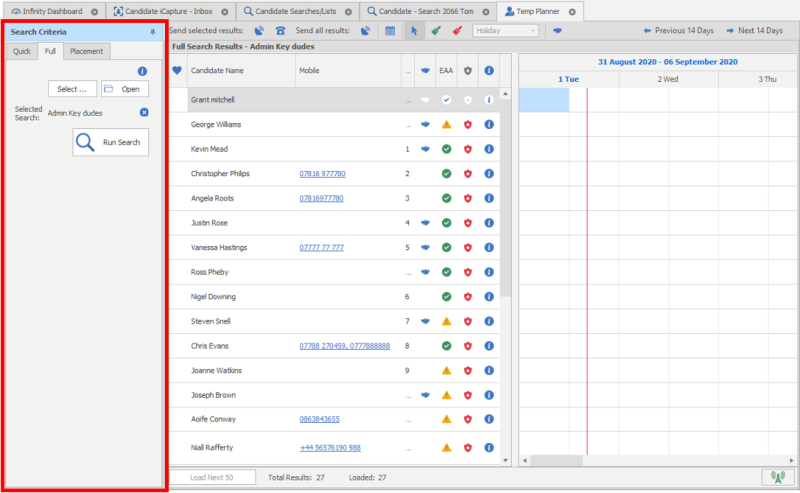
- Enable temp availability searching will activate the Temp availability searching within the candidate search builder
Enable temp availability candidate searching - switching this on will allow access to use Availability Search within your ad hoc searches, it is highly recommended that you switch this on if you are Temp user
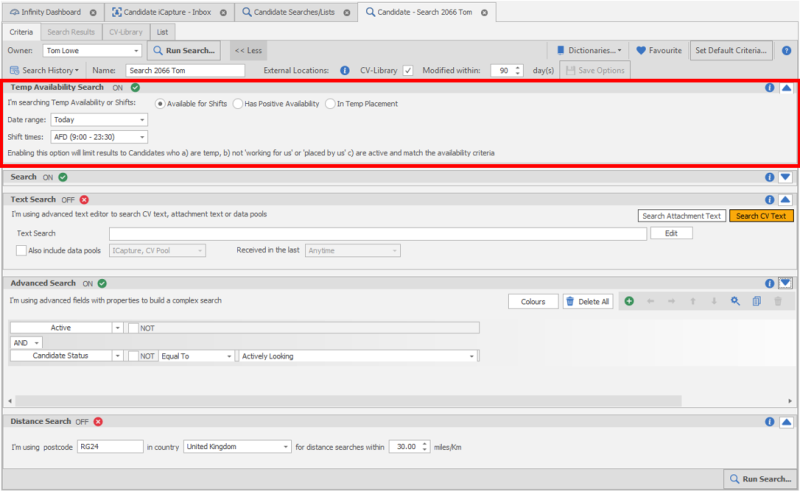
It will also allow you to use existing ad hoc searches within the Temp Planner:
- Remember filter row criteria when search re-run in current Temp Planner session, this will ensure that any filter applied to the grid are saved, to be applied when using the Temp Planner in future.
- Show all the info column fields in the Temp Planner Export, this will add candidate data into the Export report, note:- you will need the appropriate permission to access the report
- Default view
Set the default time frame that is viewed when launching the Temp Planner

- Default time scales, set default time scale setting for your Temp Planner
Changing the Time Scales view will allow you to view hourly breakdown of the gantt chart:
Hourly View (Placement)

Hourly View (Unavailability)

- Show captions, will hide or display the headings for the appropriate timescale
Shift Planner Options
Placement Appointment label text
Candidate Name will display the name of the candidate within the shift block

Time - will display the time of the shift within the shift block

Both ticked - will display name and time, hover over to view tooltip

Job Appointment label text
Filled Places / Total Places - will display the number of shifts filled with the total number of shifts

Times - will display the shift times within the shift block

Both ticked

- Remember shift totals status when search re-run in current Shift Planner session
- Remember filter row criteria when search re-run in current Shift Planner session
- Hide completely filled job shifts when running an unfilled search
Set the default time frame that is viewed when launching the Shift Planner
- Default time scales, set default time scale setting for your Shift Planner
Changing the Time Scales view will allow you to view hourly breakdown of the gantt chart:
Hourly View

- Show captions, will hide or display the headings for the appropriate time scale
Auto Search Candidate Results when job shifts are selected (Enable to for candidate search to automatically display appropriate candidates / Disabling will mean you will need to use the 'Search for Candidates button)

If auto search is enabled then you can then set:
- When unfilled job shifts are selected - Candidate search will automatically run and display on the right panel when clicking on an unfilled shift (at least 1 place unfilled)
- When filled job shifts are selected - Candidate search will automatically run and display on the right panel when clicking on a filled shift
The Quick Access Toolbar Tab Options
Here you can select any icon that you would like to appear on your quick access toolbar for ease of use or alternatively remove items from the toolbar. Use the Add button to add buttons to your Quick Access Toolbar, Remove will remove buttons from the Quick Access Toolbar (left column are buttons available to add to your Quick Access Toolbar the column on the right are your current buttons available within your Quick Access Toolbar:
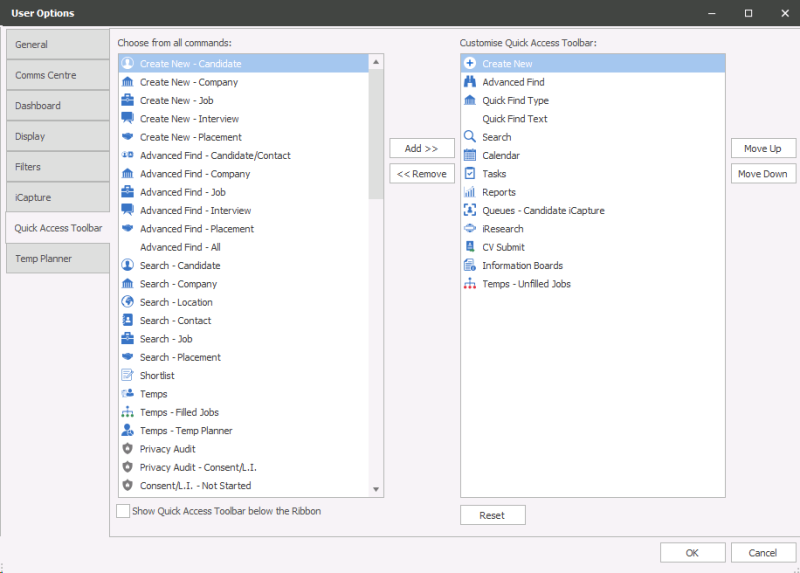
 Hint: if you reset the Panel / Toolbar it will reset the toolbar back to the original items, if you use the Reset Panel within the User Options \ Dashboard options it will leave the Quick Access Toolbar as you have set
Quick Steps tab
Setup personal automations for emails, SMS, Call Backs and Tasks using certain activity you do within Infinity. Note, Quick Steps can also be setup globally by admins and we would suggest you discuss with an admin prior to setting up these automations, as it may be considered for all users.
Contact Details
If you require further assistance please contact Ikiru People using the details published on www.ikirupeople.com
Visit our Customer Portal at https://portal.ikirupeople.com/ for future events and clinics.
FeedbackIf you would like to make suggestions or have found any errors with this Help section please contact our Support team.
Copyright © 2026 Voyager by Ikiru People Ltd. All rights reservedVersion 4.87
Voyager Software is a brand of Ikiru People Ltd, a subsidiary of Dillistone Group Plc. The group is a leading global provider of software and services that enable recruitment agencies and in-house recruiters to better manage their selection process and address the training needs of individuals. Across its brands – which include Voyager Software (recruitment software UK & Australia), Dillistone FileFinder executive search software, GatedTalent, the global database of the world’s leading executives, Talentis.Global – the next generation of recruitment software and also ISV.Online, provider of online pre-employment skills testing and training tools. Dillistone Group serves thousands of clients worldwide. Ikiru People Ltd: Registration Number 02043300. Registered in England & Wales.
 |  |  |  |