TrustID integration

TrustID integration for digital Right to Work checks (SaaS only)
Overview
The Infinity (SaaS only) integration provides optional TrustID digital Right to Work checks, with automated workflow and notifications, to help manage the process
Candidates who present with one of the following can use this service:
- An in-date UK or Irish Passport
- An in-date Irish Passport Card
- A Share Code from the Home Office
For details on TrustID’s Right to Work service, please see the following link Right to Work (RTW) software: HR checks made quick and simple (trustid.co.uk)
Note: For all other candidates, the customer must use their existing Infinity Right to Work process. Right to Work checks can be completed on a candidate by existing Infinity functionality OR TrustID
Account set up / Costs / Billing
For further information and to set up a TrustID account for Infinity integration, please contact the Client Success department at Ikiru People - clientsuccess@ikirupeople.com
 Infinity Setup - Administration
More Information
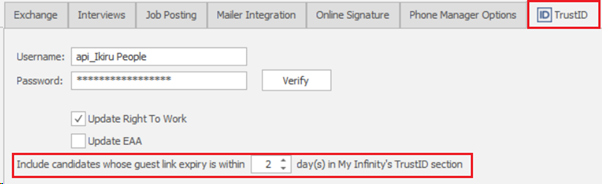
There is a tab in Administration / 3rd Party Integrations called ‘TrustID’
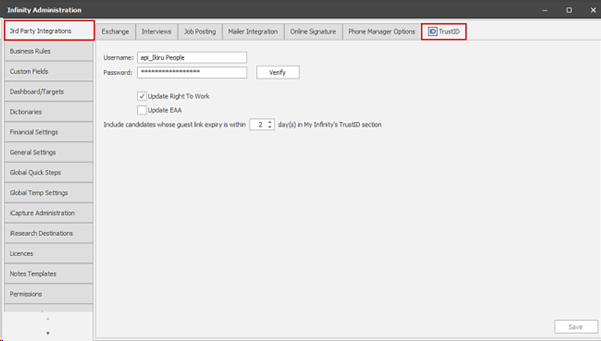
The username and password for the account provided by Ikiru People can be entered and verified in this screen. This will enable the integration on the Infinity database
As with existing Infinity Right to Work checks, it’s possible to choose which tick boxes to update on the candidate page – “Right to Work” and/or “EAA”. The default is ‘Right To Work’ only and it’s mandatory that one option is ticked
Infinity Setup - User Permission
There is a new user action permission called TrustIDRTWChecks in Administration / Permissions / Permission tab
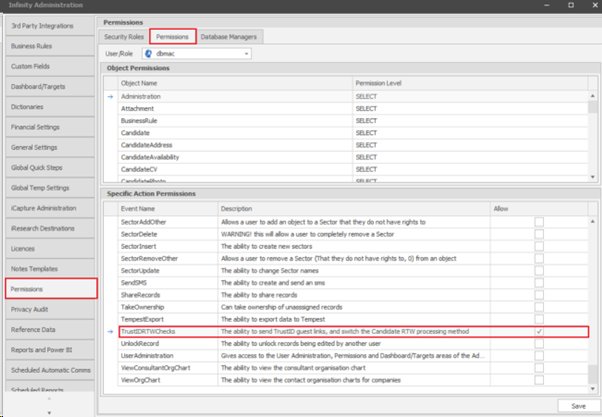
This controls whether users can send TrustID Guest Links to candidates and remove TrustID checks from candidates
The permission is off for all users / security roles as default
Infinity Candidate RTW/EAA control field
When the candidate page is opened a new non editable field is displayed in the RTW/EAA section that shows which Right to Work functionality the candidate is currently controlled by
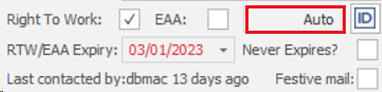
This can be existing Infinity functionality OR TrustID
Existing Infinity functionality will continue to work as configured on the database:
• Auto (the tick boxes and fields are automatically populated using the candidate’s quals and certs as configured in Administration / General Settings / RTW/EAA tab
OR
• Manual (users with permission can manually update the tick boxes and fields as required)
TrustID control will enable when the candidate is sent a TrustID Guest Link from Infinity
Infinity Candidate - Send TrustID Guest Links
More Information
The TrustID button on the candidate page RTW/EAA section can be accessed by all users
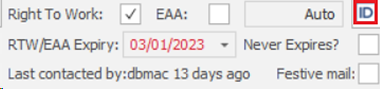
The button opens a window showing the TrustID status history of the candidate (if exists) along with a toolbar menu
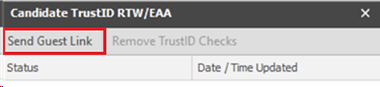
Users with permission can send a TrustID Guest Link to the candidate by clicking the ‘Send Guest Link’ button
A candidate must have an email address, as well as a forename or surname to send the Guest Link. If this is not present the button is disabled. If the candidate has multiple email addresses, the first “send as default” one is used
In the unlikely event that the details cannot be passed to TrustID due to an error, the candidate will remain under their existing RTW/EAA control and the user must try again
When the details are successfully passed to TrustID, the status update is recorded
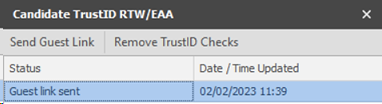
The latest status is visible on the TrustID button tooltip on the main page
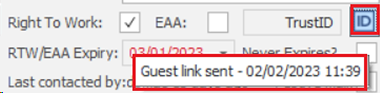
The control of the RTW/EAA fields passes to TrustID. The control field shows a value of ‘TrustID’, the RTW/EAA fields are non-editable and can only be updated by the TrustID service. There is a tooltip on all of the RTW/EAA fields that says ‘RTW/EAA has been configured to update by TrustID'

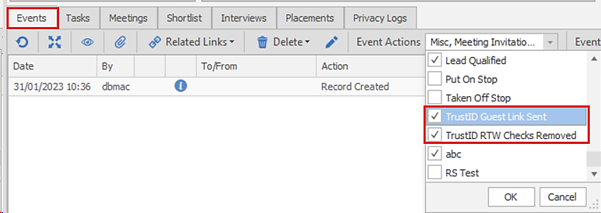
An ‘info’ event is logged on the candidate page for that user, with an event action of ‘TrustID Guest Link Sent’ and the expiry date (in 14 days’ time) is recorded in the event details field. This event cannot be deleted

Note: users must add the new TrustID system event actions to their candidate page event filter to see the events
A Guest Link is emailed to the candidate from the TrustID portal
TrustID Receiving Guest Links
More Information
Guest Links sent from Infinity will be visible in the Guest Link area on the customer’s TrustID account
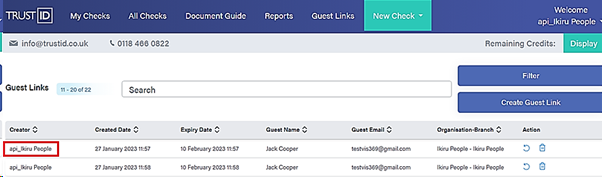
The ‘Creator’ field will be the API username as configured in the Infinity administration screen
The TrustID Guest Link is an email that gets sent from ‘cloud@trustid.co.uk’ asking the candidate to upload their identity documents using their mobile phone. Sending Guest Links does not incur any charges
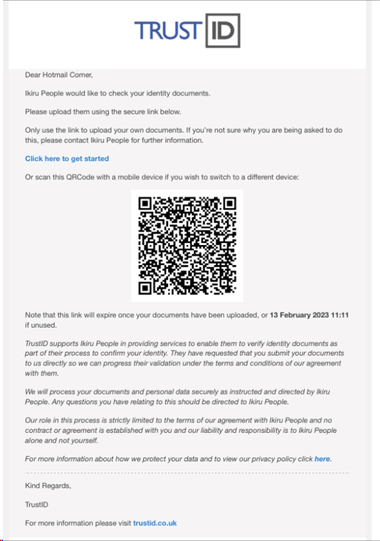
The email subject/contact can be customised with the customer’s company name and is done as part of the account setup by Ikiru People
The candidate is guided through the available options to upload their ID and take a selfie picture on their mobile phone
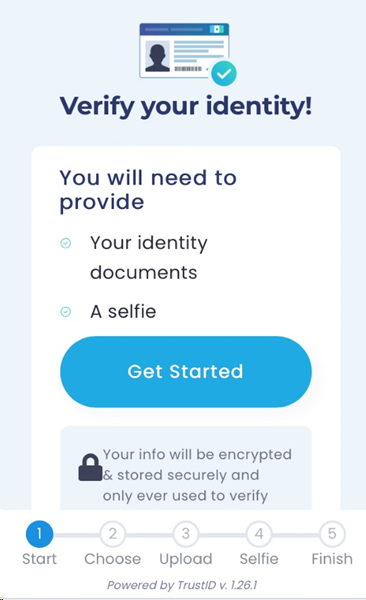
TrustID RTW/EAA Checks
The information uploaded by the candidate is sent to TrustID and is used to perform the digital Right to Work checks. The details will appear in the ‘Pending’ area initially whilst waiting to be checked

When the check is completed, the results will show in the My Checks / All Checks section along with the report attachments
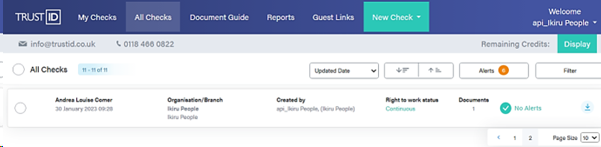
Candidate page – TrustID progress/updates
In Infinity the candidate TrustID RTW / EAA status is automatically updated by the service, along with any RTW/EAA fields and attachments if relevant
Guest link expired status
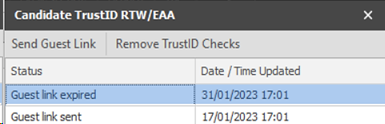
The Guest Link was not completed by the candidate within 14 days and has expired
Completed – Time Limited Status
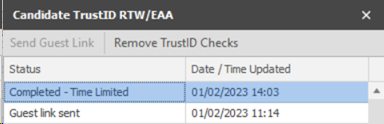
The candidate has passed the checks with ‘Time limited’ Right to Work
- The RTW/EAA fields are ticked as per the TrustID Admin setting
- Never Expires is un-ticked
- Expiry date is populated with the TrustID expiry date
- The supporting information is downloaded from TrustID and put in the candidate’s attachment area
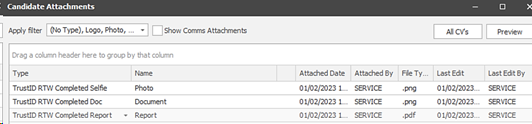
- The attachments are assigned the following types
o Report = TrustID RTW Completed Report
o Selfie = TrustID RTW Completed Selfie
o Document = TrustID RTW Completed Doc
- The attachment type cannot be changed and files cannot be edited
- Attachment size must adhere to the database limit (approx. 8mb). In the unlikely event that this is breached, the supporting document will not be attached to the candidate record and instead is replaced with a text file, the contents of which state that the file was too large and couldn’t be attached
- If the candidate is placed, the attachments cannot be deleted until their privacy audit Contractual/Legal Expiry Date
Completed – Continuous Status
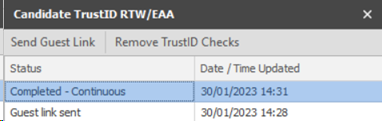
The candidate has passed the checks with ‘Continous’ Right to Work
- The RTW/EAA fields are ticked as per the TrustID Admin setting
- Never Expires? is ticked
- Expiry date is blanked
- Supporting information from TrustiD is downloaded and attached to the candidate record as per ‘Completed – Time Limited Status’
Rejected Status
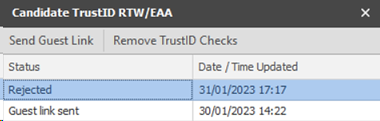
The candidate has failed the checks
- No RTW/EAA fields are updated
- The supporting information is downloaded from TrustID and put in the candidate’s attachment area
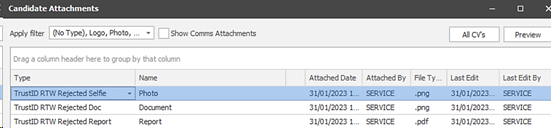
- The attachments are assigned the following types
o Report = TrustID RTW Rejected Report
o Selfie = TrustID RTW Rejected Selfie
o Document = TrustID RTW Rejected Doc
- Attachment type cannot be changed and files cannot be edited
- Attachment size must adhere to the database limit (approx. 8mb). In the unlikely event that this is breached, the supporting document will not be attached to the candidate record and instead is replaced with a text file, the contents of which state that the file was too large and couldn’t be attached
Candidate Page – removing TrustID checks
The ‘TrustIDRTWChecks’ user action permission allows a user to switch a candidate back to Infinity RTW / EAA control. This is done from the TrustID Status history screen
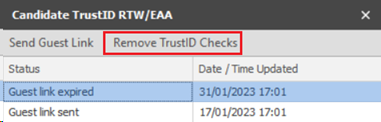
When the ‘Remove TrustID Checks’ button is pressed, the user is given a warning
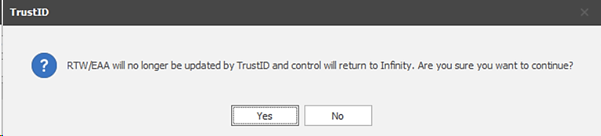
If the user proceeds, the following will happen:
- The control of the RTW / EAA fields will return to Infinity
- The control field value will display as Manual or Auto (as configured on the database)
- The change is recorded in the TrustID status history
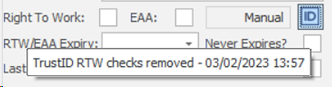
- Users can update RTW / EAA as per existing Infinity functionality
- TrustID no longer updates the candidate
- An info event is logged for that user with the event action of ‘TrustID RTW Checks removed’ and the event cannot be deleted

Note: Guest Links can be repeatedly sent to a candidate. This may be required if sent to the wrong email address or candidate did not receive / has deleted the email for example. A new Guest Link will be created each time, with the latest showing in the status history, but the old Guest Links will still be active and be included in Infinity reminders. It is therefore recommended that ‘Remove Trustid Checks’ is done immediately before sending another Guest Link when the candidate is currently at ‘Guest Link Sent’ status
My Infinity / Apps menu TrustID notifications / reminders
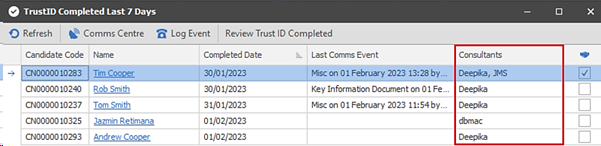
There is a My Infinity Section called ‘TrustID RTW Checks (x)’
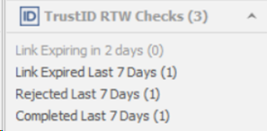
This is enabled as default for all users if the database is configured for TrustID
The section header (x) shows the total number from the hyperlinks within it
Hyperlinks are available that show the number of non-deleted, active candidates currently under TrustID RTW/EAA control that are owned by the consultant and that match the following status criteria:
- Link Expiring in X days (x)
- Link Expired Last 7 Days (x)
- Rejected Last 7 Days (x)
- Completed Last 7 Days (x)
All of the date periods include today in the calculation
There is a setting in Administration / 3rd Party integrations / TrustID to set the value for ‘X’ in the ‘Link Expiring in X days’ hyperlink. There are options of 1-6 days - default is 2
The hyperlinks open a window listing the candidate records that match the criteria

The My Infinity ‘Link Expiring in x days (x)’ hyperlink will not reflect the setting change until the user logs out and back in.
The following columns are shown; they can be sorted/filtered and column chooser functionality is available:
- Candidate Code
- Name
- Last Comms Event - shows details of the latest comms event from that list in format “{Event Action} on {event date/time} by {Event Consultant} {comms type}”
- Expiry Date if on an expiring list (if expired the date will show in red)
- Rejected Date if on a rejected list
- Completed Date if on a completed list
- Has Placement - current temp or contract placements. Current Temp Placements is defined as having a shift today or in the future. Current Contract is defined as having a status of Offered, Offer Accepted, Awaiting Confirmation, Confirmed, Started or On Hold
The following functionality is available on the toolbar menu:
- Refresh
- Comms Centre
- Event Logger
- Review Candidate
There is no functionality to remove a notification manually from these lists. Candidates will automatically drop off as they reach the end of the specified date period
As per My Infinity, the Application Menu shows the notifications for candidates owned by all owning consultants
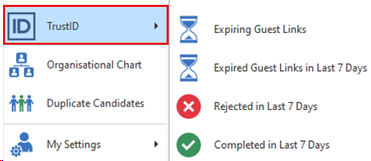
There is an extra column to show the owning consultant(s) of the candidate
Scheduled Automatic Comms – Reminders to candidates with expiring Guest Links
A Candidate Condition exists in Scheduled Automatic Comms called “Has TrustID Guest Link that is about to expire”
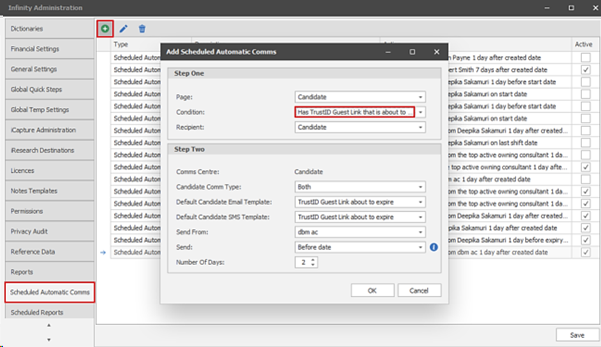
- The options can be configured as per existing candidate conditions with send values of
- X days before (this is x days before the guest link expires)
- When enabled, the system will check each day for candidates that are under TrustID RTW/EAA control, at a ‘Guest Link sent’ status and ‘send’ date is resolved as today
- The results found are queued into the Email / SMS outbox of the specified ‘send from’ consultant
- As per existing candidate conditions, deleted and restricted candidates are excluded
Imposter Checks via Comms Centre Email
The latest candidate’s TrustID Selfie photo stored in the attachments area can be merged in candidate related Comms Centres templates
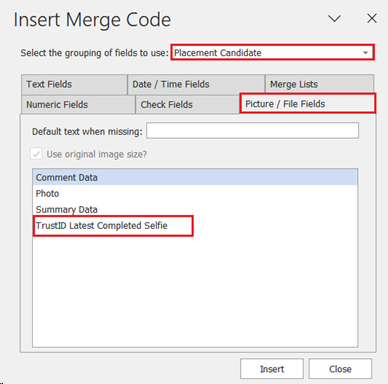
Example Comms Centre Templates
Navigate to 03:10 to review template creation:
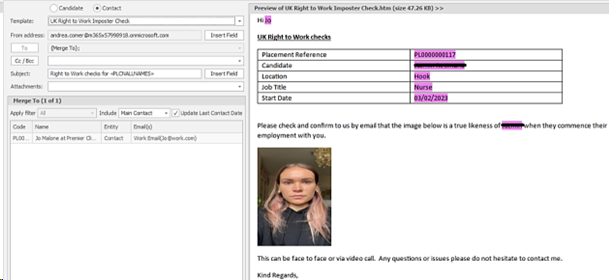
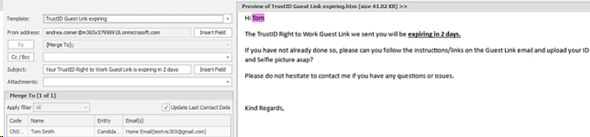
There are two new example Comms Centre templates available to download and use
Placement Contact Comms Centre – UK Right to Work Imposter Check
Candidate Comms Centre – TrustID Guest Link expiring
Disabling TrustID on Infinity
If the TrustID credentials are removed from the Administration / 3rd Party Integrations / TrustID tab and saved, all candidates’ RTW/EAA control will return to Infinity (manual or auto) and the TrustID functionality will be disabled
Candidate RTW/EAA control field
As part of the TrustID integration work, regardless of the presence of a TrustID licence, when the candidate page is opened, a new non-editable field is displayed in the RTW/EAA section, showing which Right to Work functionality the candidate is currently controlled by
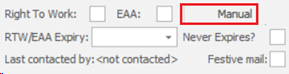
This will be Auto or Manual as configured on the database:
- • Auto (the tick boxes and fields are automatically populated using the candidate’s quals and certs as configured in Administration / General Settings / RTW/EAA tab)
OR
- • Manual (users with permission can manually update the tick boxes and fields as required)
Search for candidates using RTW/EAA expiry information
The candidate ‘RTW/EAA Expiry Date’ field is available in the Advanced Search Section / Candidate menu of candidate search criteria screens

- The search returns candidates with an RTW/EAA expiry date that matches the specified date criteria
- If the ‘NOT’ operand is used the search returns candidates with an RTW/EAA that does not match the specified date criteria
- To return candidates with a blank RTW/EAA expiry date, the ‘Is Blank' operator can be used
The candidate ‘RTW/EAA Never Expires?’ field is available in the Advanced Search Section / Candidate menu of candidate search criteria screens

- The search returns candidates with an RTW/EAA Never Expires? field that is ticked
- If the ‘NOT’ operand is used the search returns candidates with an RTW/EAA Never Expires? field that is un-ticked
Merge RTW/EAA expiry information in the Comms Centre
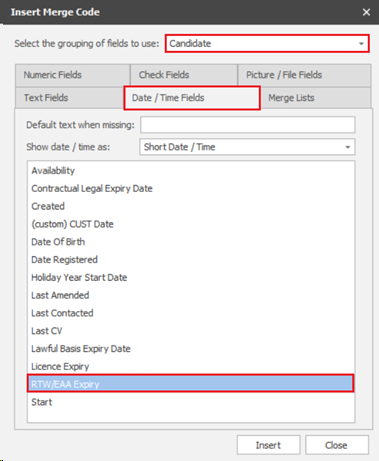
The candidate RTW/EAA Expiry Date field is available to merge in your candidate related Comm Centre templates
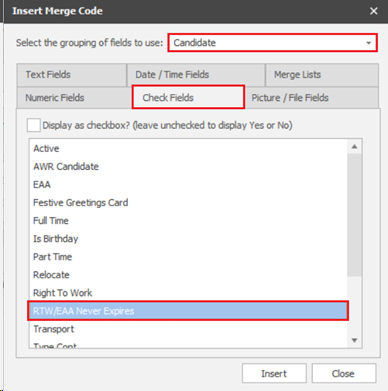
The candidate RTW/EAA Never Expires? field is available to merge in your candidate related Comm Centre templates
RTW/EAA expiry information on the Candidate SARS report
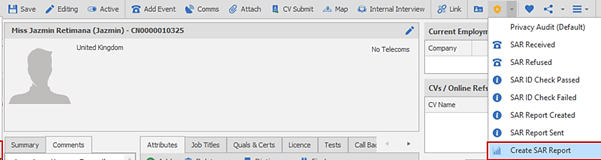
The candidate RTW/EAA Expiry Date and RTW/EAA Never Expires? field have been added to the Candidate SAR Excel report
Contact Details
If you require further assistance please contact Ikiru People using the details published on www.ikirupeople.com
Visit our Customer Portal at https://portal.ikirupeople.com/ for future events and clinics.
FeedbackIf you would like to make suggestions or have found any errors with this Help section please contact our Support team.
Copyright © 2026 Voyager by Ikiru People Ltd. All rights reservedVersion 4.87
Voyager Software is a brand of Ikiru People Ltd, a subsidiary of Dillistone Group Plc. The group is a leading global provider of software and services that enable recruitment agencies and in-house recruiters to better manage their selection process and address the training needs of individuals. Across its brands – which include Voyager Software (recruitment software UK & Australia), Dillistone FileFinder executive search software, GatedTalent, the global database of the world’s leading executives, Talentis.Global – the next generation of recruitment software and also ISV.Online, provider of online pre-employment skills testing and training tools. Dillistone Group serves thousands of clients worldwide. Ikiru People Ltd: Registration Number 02043300. Registered in England & Wales.
 |  |  |  |