Suitable Jobs (Perm, Contract, Fixed Term)
Note:- Suitable Jobs feature available for Temps
Video Overview
General
A right-hand side tab called ‘Suitable Jobs - Perm/Contract/Fixed Term’’ is available to run quick searches of appropriate jobs
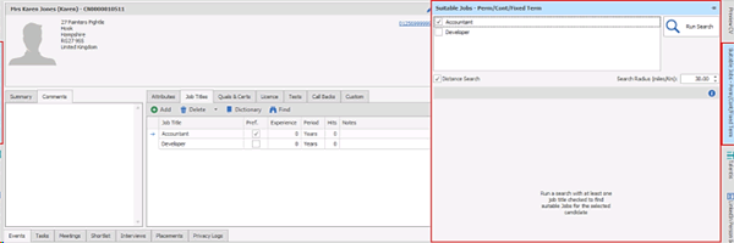
This display a panel that allows the user to search and return perm/contract/fixed term jobs the candidate is suitable for and add them to the shortlist
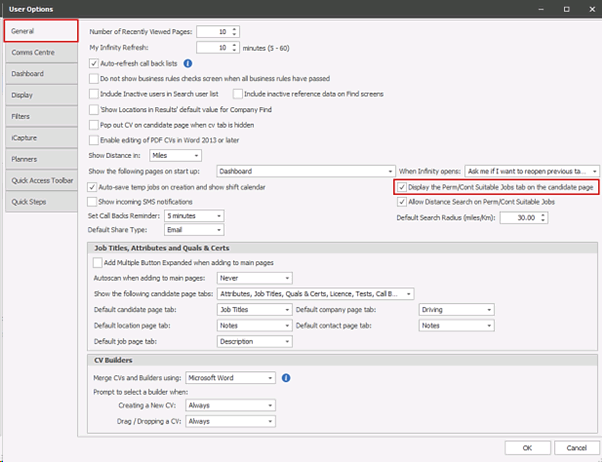
The tab is displayed as default and there is a setting in User Options / General tab to switch the tab on/off
The panel can be resized, docked/auto-hidden and last position is remembered as per standard behaviour
Searching
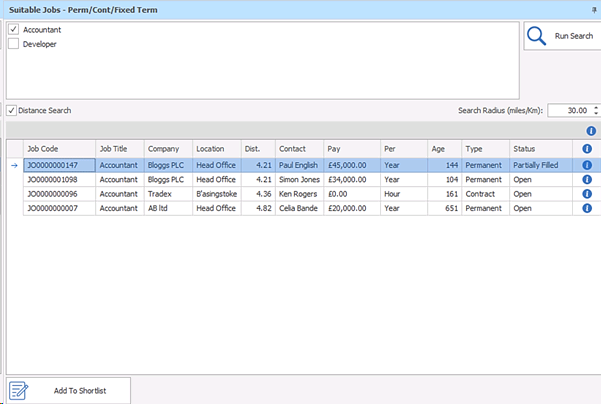
At the top of the panel the user can select which of the candidate’s job titles to search on

- Candidate’s preferred job title is ticked as default
- Multiple job titles can be selected
- If any changes are made to candidate page job titles and the page saved, the job title list is refreshed and search results cleared
- The panel shows when in candidate review mode, if the user moves to a different candidate the panel refreshes with the default preferred job title ticked and results cleared, run search needs to be done again
The user needs to click the ‘Run Search’ button and at least one Job Title must be ticked.
- This searches for open perm, contract or fixed term jobs with a job title that matches ANY of the job titles ticked in the panel. The job’s primary job title and any entries listed within the “Job Titles” tab on the job are searched for
- Excludes Closed, Spec and deleted jobs
- Excludes jobs the candidate is already shortlisted against
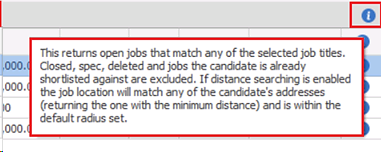
The ‘info’ button on the toolbar gives details of the search criteria
Job grid
Search returns job results in a grid, ordered by job code (newest at the top) with sort/filter/ column chooser/save layout being available
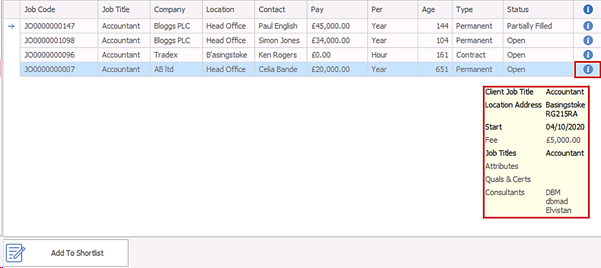
The following fields are shown as default
- Job Code
- Job title
- Company
- Location
- Contact
- Pay - Min Salary/Rate e.g. £20000 or £20
- Per -Min Salary/Rate per e.g. Year or Hour
- Age
- Type
- Status
There is an ‘Info’ column that displays further job details when clicked
- Client Job Title
- Job Location Address
- Start / End dates
- Charge / Fee
- Job Titles/Attributes/Quals & Certs
- Owning Consultants
User can double click on a job row to open the job page
Shortlisting
The candidate can be shortlisted on selected job(s) by clicking the ‘Add to Shortlist’ button
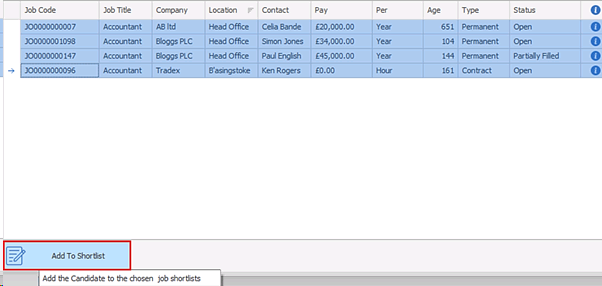
The user can continue the process from the job page shortlist tab once the candidate has been added to the shortlist
Distance Searching

If the user has a postcode distance searching licence, distance searching is enabled in the panel and can be switched off/on per search and the radius set as required
The default can be set in User Options / General tab
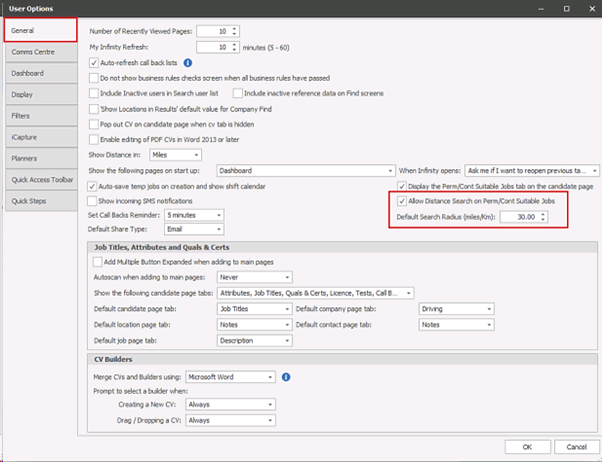
As default, distance searching is ticked and a radius of 30 (miles/Km) set, regardless of licence or not
When a distance search is run, jobs are returned within the set radius and the distance column shows in the job results grid

- Distance value is shown in miles/kilometres as per the user option
- Distance is calculated, from closest candidate address postcode to job location address postcode
- Requires candidate and jobs to have a postcode to return results
- Order is by distance, closest at the top
 Contact Details
If you require further assistance please contact Ikiru People using the details published on www.ikirupeople.com
Visit our Customer Portal at https://portal.ikirupeople.com/ for future events and clinics.
FeedbackIf you would like to make suggestions or have found any errors with this Help section please contact our Support team.
Copyright © 2026 Voyager by Ikiru People Ltd. All rights reservedVersion 4.87
Voyager Software is a brand of Ikiru People Ltd, a subsidiary of Dillistone Group Plc. The group is a leading global provider of software and services that enable recruitment agencies and in-house recruiters to better manage their selection process and address the training needs of individuals. Across its brands – which include Voyager Software (recruitment software UK & Australia), Dillistone FileFinder executive search software, GatedTalent, the global database of the world’s leading executives, Talentis.Global – the next generation of recruitment software and also ISV.Online, provider of online pre-employment skills testing and training tools. Dillistone Group serves thousands of clients worldwide. Ikiru People Ltd: Registration Number 02043300. Registered in England & Wales.
 |  |  |  |