RingCentral integration
General
RingCentral integration utilises their API to integrate with Infinity, please note currently the API does not work with the RingCentral app.
See RingCentral setup section to setup the integration, including Windows notifications
 Make Calls
More Information
The following instructions are detailed using the RingCentral Phone application but will also apply to the hard phones system where appropriate
The user must be logged into the RingCentral Phone application on their desktop and be at an online status
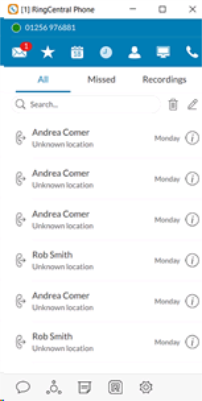
An outgoing phone call is launched from Infinity by left clicking on a telephone hyperlink or right clicking and choosing the ‘Autodial Phone Software’ menu option. This is available in Basic Details on candidate, company, location and contact pages

The user can also left click on a telephone hyperlink in the ‘Phone Number(s)’ column inside phone event loggers e.g. placement, call backs etc...
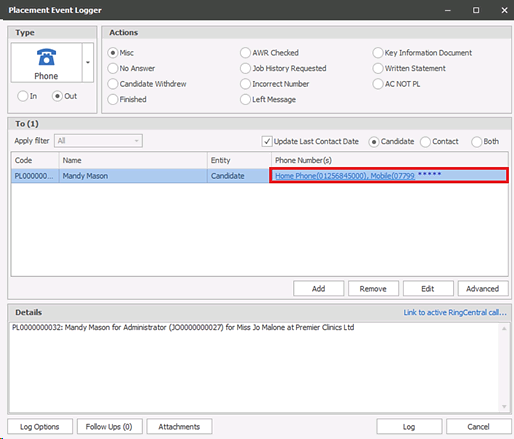
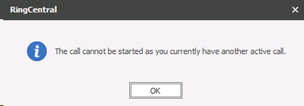
When clicked, Infinity will pass the call details to RingCentral. If a call is already in progress a message is returned and the call cannot be started
If a call is not already in progress, the RingCentral Phone application will pop up allowing the user to ‘ignore’ or ‘answer’ the first leg of the call. If the number called exists as an entry in the user’s contact list (in RingCentral Phone) the name will also be displayed in the window
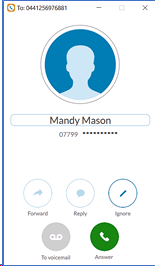
Ignoring the call will close the RingCentral Phone pop up screen. Answering the call will ring the recipient
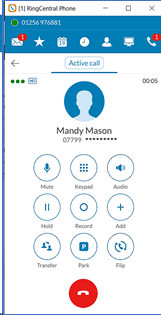
The outgoing phone call is managed from RingCentral only and no further interaction with Infinity will occur
The Infinity phone event logger that is loaded displays a ‘Log Active Call’ button whether the call is ignored or answered
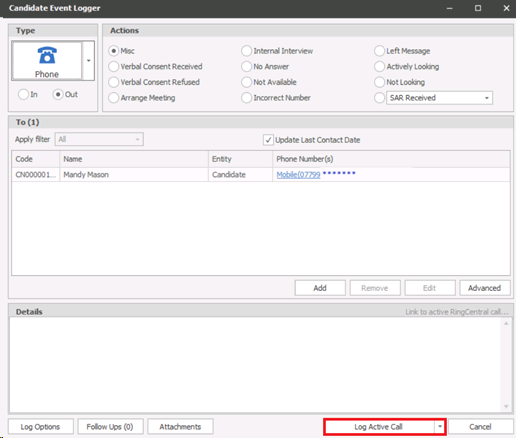
When ready the user can manually log the event
When the active call is logged, the RingCentral call information is stored with the Infinity event. This is for future functionality/reporting
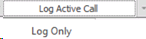
If users do not want to log the RingCentral call information with the event, the ‘Log only’ menu option is available from the drop-down list
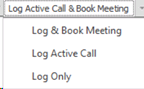
When ‘meeting’ event actions are selected in the event loggers e.g. ‘Arrange Meeting’ or ‘Internal Interview’ the log button and drop-down list covers the different scenarios available
Receive Calls
More Information
In addition to the RingCentral incoming call pop ups / notifications that may be configured, the user is notified if an incoming call matches a record or records on the Infinity database
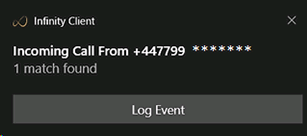
NB:- Windows notifications will need to be enabled
This is a Windows notification and is controlled by Window’s notification settings. The notification will remain until cleared manually by the user. Windows notifications can be managed from the taskbar if no longer visible

If the calling number exists as an entry in the user’s contact list (in RingCentral Phone), the name will also be displayed in the window
If a single match is found the user has a button to ‘Log Event’. This will work regardless of the user picking up the RingCentral call and will take the user to the appropriate Infinity page, with the incoming phone event logger loaded and ‘Log Active Call’ button available
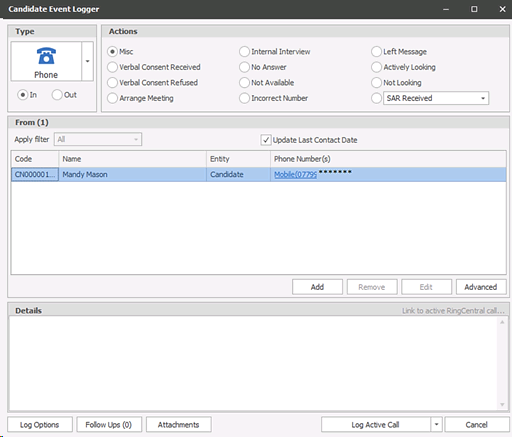
The incoming phone call is managed from RingCentral only and no further interaction with Infinity will occur. When ready the user can manually log the event in Infinity
If multiple matches are found then the user cannot log the event. Instead, the matching phone number can be copied and pasted into the Infinity find window to manually locate the correct matching record (see below)
Checking for matches on Infinity for incoming phone calls works as follows:
Checks for different variants of the same number. Takes the number and lays it out in 4 different formats, and then tries to find that number in Infinity:
- Number without any international dialling codes e.g. 077866...
- Number with international dialling code e.g. 4477866...
- Number with international dialling code and outgoing dialing code e.g. 004477866...
- Number with international dialling code and a plus e.g. +4477866...
Multiple Matching Numbers and Manually logging Active Call
When receiving calls you will receive a Windows notification * if the number is recognised (matched) to more than 1 record then it will display the number of matching records it has matched to. The notification will display "copy number" to enable you to look up the number within Infinity:
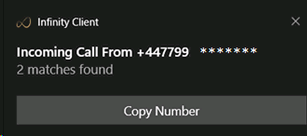
NB:- *Windows notifications will need to be enabled
you can then access which of the records you wish the event to be logged against, you can then Link the active call within the event logger.
When multiple matches are found within the same company the following happens:
- If a phone number is matched against a single company and also found against its locations or contacts – ‘company page’ is matched and log event is available
- If a telecom is matched against a single location and also found against contacts at any location – ‘location page’ is matched and log event is available
- If multiple contacts only are found and they are all at the same location – ‘location page’ is matched and log event is available
- If multiple locations only are found and they are all the same company - ‘company page’ is matched and log event is available
Link the currently active call to an Infinity event
If an incoming / outgoing RingCentral call is in progress and not currently linked to the Infinity event, there is an option in the phone event loggers to ‘Link to active RingCentral call’
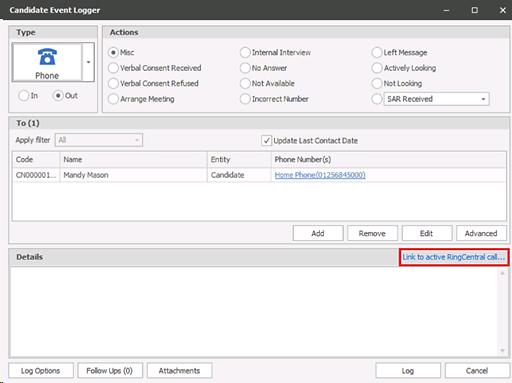
When selected if there is no active call found a message is returned and the call cannot be linked to the Infinity event
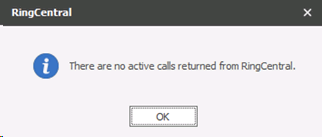
If an active call is found the option greys out and the log button changes to ‘Log Active Call’ as per standard functionality. Once done, the call cannot be un-linked. If the user wishes to un-link the call then they need to cancel out of the event logger and log the event again
Contact Details
If you require further assistance please contact Ikiru People using the details published on www.ikirupeople.com
Visit our Customer Portal at https://portal.ikirupeople.com/ for future events and clinics.
FeedbackIf you would like to make suggestions or have found any errors with this Help section please contact our Support team.
Copyright © 2026 Voyager by Ikiru People Ltd. All rights reservedVersion 4.87
Voyager Software is a brand of Ikiru People Ltd, a subsidiary of Dillistone Group Plc. The group is a leading global provider of software and services that enable recruitment agencies and in-house recruiters to better manage their selection process and address the training needs of individuals. Across its brands – which include Voyager Software (recruitment software UK & Australia), Dillistone FileFinder executive search software, GatedTalent, the global database of the world’s leading executives, Talentis.Global – the next generation of recruitment software and also ISV.Online, provider of online pre-employment skills testing and training tools. Dillistone Group serves thousands of clients worldwide. Ikiru People Ltd: Registration Number 02043300. Registered in England & Wales.
 |  |  |  |