Results (Ad Hoc)
 General
Results are from the criteria will display all candidates appropriate to the criteria used. When results are displayed; the system will load the first 50 records automatically, as you scroll down the results the system will load the next 50 and so on.
The criteria will allow you to review results and then build lists (or shortlists if searching in jobs).
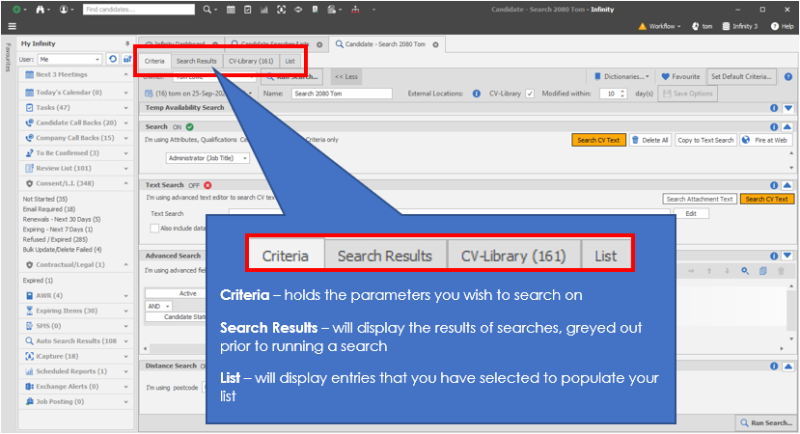
CV Library - (candidate searches only) if implemented by your system administrator, see CV Library section for more details
Results is designed for Large mailshots where you don’t want a list to be stored, or sending out a large mailshot to candidates about a job, the event is logged against the candidate record but will not be stored within the search results grid
List is designed for smaller mailshots where you have qualified each individual candidate / contact first (The shortlist stores details of the Comms sent, so you can return to the list / shortlist when you receive responses
- The search will be given a name as default, which you can over-type via the More button in the Criteria tab, the search Name Format will default as follows:
- For standard page searching it will be [search[n]] [initials] search E.g. (Search001CR)
- For candidate re: job it will be [client job title] for [main contact at company]. E.g. (JO00000012 for Paul Bearman)
Toolbar - Review Results
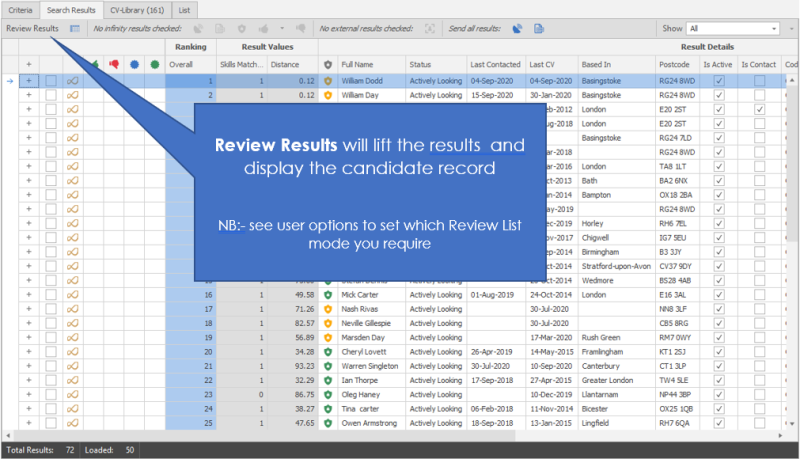
You are able to have the view of your review results in two differing ways:
- Read Only - gives you a basic view of the candidate record along with the candidate CV, this is optimised for quickly running through the candidates
- Full Edit Screens - allows you to review the full candidate records as you go through the results, this will take longer but allow you to edit the records as you go
To set up which you wish to setting you desire please see the user options section for more details
Read Only Review View
 This view is good for flicking through the candidates records to view their details.
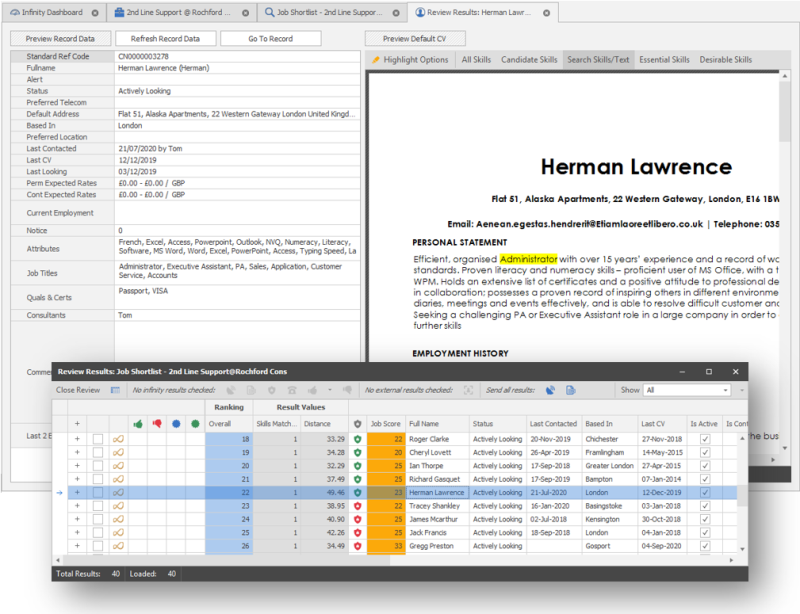
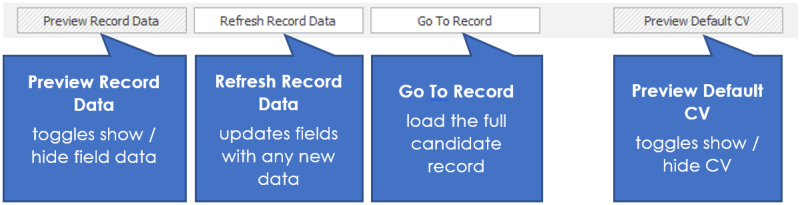
When reviewing results you will get the read only view of the candidate record, on the left hand panel and the candidate CV on the right.
Full Edit Review Screen view
Click the Review results (the button will turn orange when it is switched on) option on the tool bar to view the results in a shortlist that you can move around.
When you click a name on the list it will change the record behind the record to show you the detail of that candidate. If you have the space on your monitor (or even two monitors) you can move this aside and see it separately).
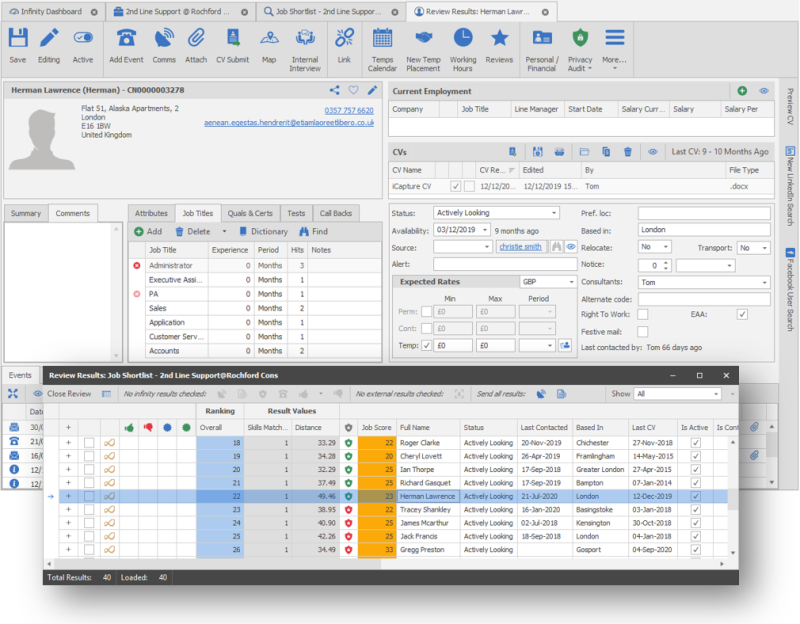
Preview CV or Candidate Options on candidate review lists is setup in your user options
Toolbar – Ranking
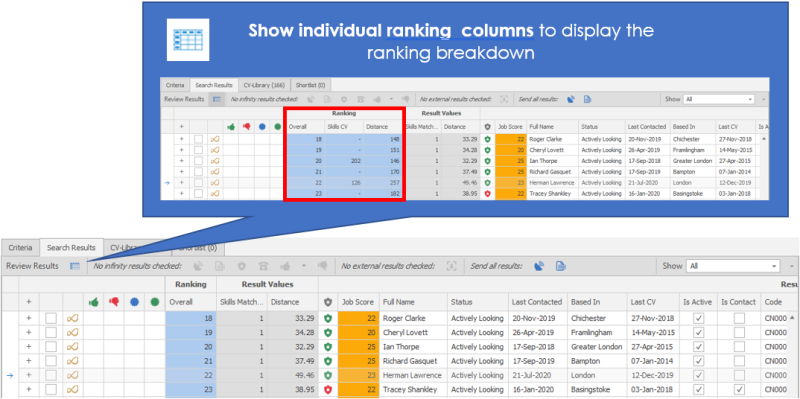
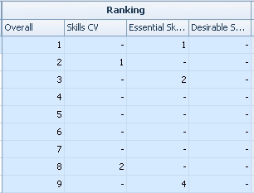 You are able to see the breakdown of the rankings that have collectively awarded the overall ranking, the image on the left shows the candidates rank in regard to CV text searching for skills that’s have been entered, skills that are essential and ones that are desirable.
Please note that the results rankings are only available to view if you have selected the job essential or desirable skills as part of your search criteria.
Below the image shows extra columns if you search other data pools, such as iCapture or the CV pool

The rankings awarded are regarding the whole database, Text ‘hits’ are no longer available, but are displayed as part of Ranking. The Ranking is influenced by the frequency of the skills in a CV, how close together the skills are and how high up the CV they are. This is a more sophisticated way of producing a rank. This ensures each searching section is treated independently and then the combination of these ranks will award their overall rank.
Blank ranking ‘-‘ means they don’t have a result for that column (e.g. search on cv text and skills, and the search term is in the database but not on the CV, therefore the ‘skills CV’ column displays ‘-‘)
If you don’t search on certain sections e.g. distance, the columns are automatically not listed
Toolbar Actions
Comms Centre
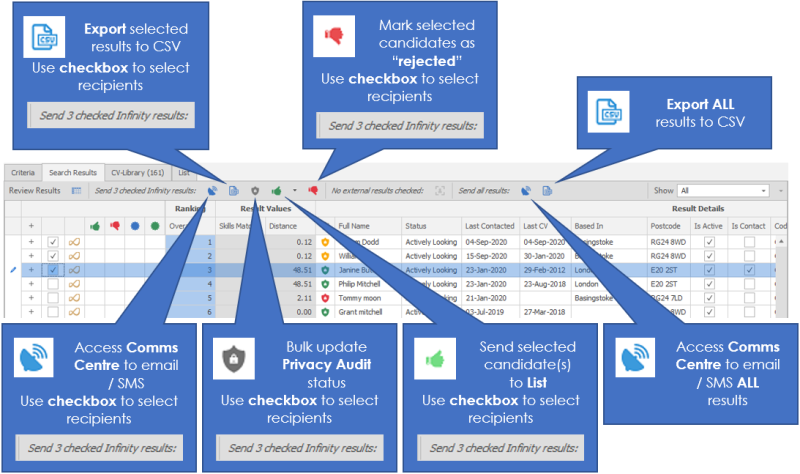
You are able to access the Candidate Comm's Centre from your results, once you have checked the appropriate candidates you can then selectively send an email or SMS to those you have checked,if you would like to send to all results then use alternate Comms Centre button further to the right. See the Comm's Centre section for more details on sending emails
Export to CSV
You are able to export selected records into a CSV file, primarily for the purpose of using mailshot facilities such as MailChimp this will only export those checked  candidates who's default email address is marked OK to Mailshot, when clicking on the export button you will receive a confirmation message:
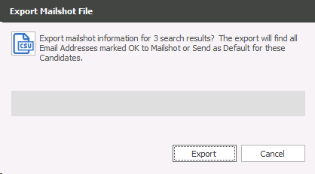
You will then need to then save the file to your desired location and adjust name if necessary (default filename CandidateExport.csv), once saved you will receive a confirmation message which will also show the path of the location it has been saved into:
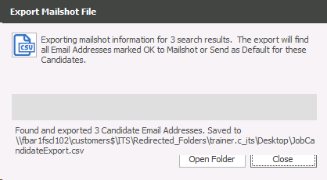
You will have the option to Open Folder if you wish to access the csv file immediately:

Reports
The candidate and contact search results/list’ reports are available from candidate / contact search ‘Results’.

The toolbar has two report buttons, and the user can send ‘checked’ results, or send ‘all’ results to the report. Send ‘all’ results sends the ‘total results’ as shown on the status bar at the bottom of the grid.
When sending the results, the 'Candidate Search Reports’ or ' Contact Search Reports' area is opened showing folders and reports within (if the user has permission to the report folder).
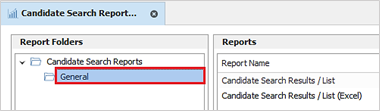
Note: Permissions to the ‘General’ report folder are off by default for all users except database managers. Permission can be assigned to users / security roles in Administration / Reports / Reports tab.
When run, the selected search results are outputted in the report .

The header on the report will say whether it is a ‘Search Results’ or ‘Search List’ report.
Toolbar - To List or Reject
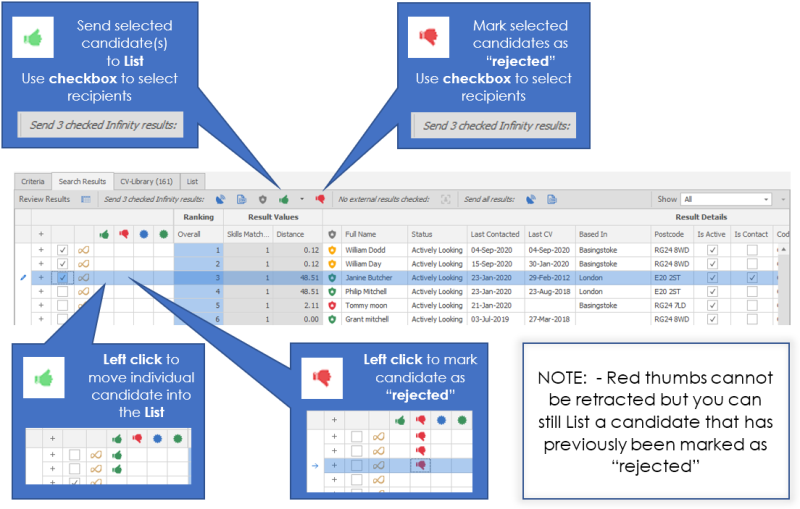
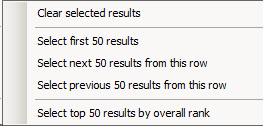
In addition you can right click on the select box which offers you the quick selection facility:
Toolbar - To iCapture
This will only be available if you have set data pool searching within your Text Search section
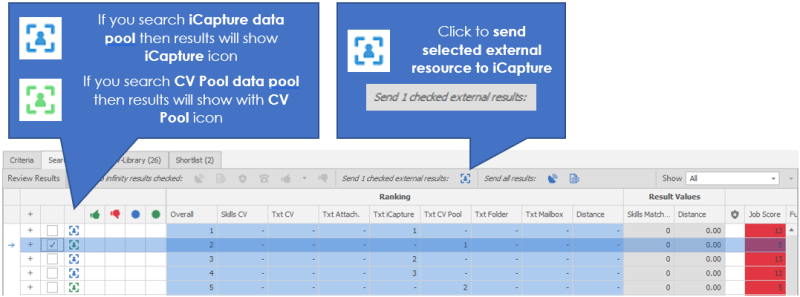
If you have found candidates stored in the CV Pool, you are able to send the CV to iCapture to then process to create a record within the database, check the entry(s) that is in the results list and then select the iCapture button
Toolbar - MailChimp
Please see the MailChimp section for more details
Bulk Updater
Only displayed if you have BulkUpdateGeneral permission
Please see the Bulk Updater facility for more details
Toolbar - Show & Filtering
You can utilise Show and Hide options to refine your results:

Show Options:

Hide Options:

General
- Default sorting is on Overall Ranking
- Can’t sort on greater than 5000 results
- If greater than 2000 & less than 5000, warning as this may take some time
- Less than 2000 sorts straight away
- Once sorting by column has been completed all results will load up due to the function of sorting.
Apply Filters
Apply Filters button saves changes to ‘Show’, ‘Hide’ and ‘Advanced Filters sections

Toolbar - Advanced Filters
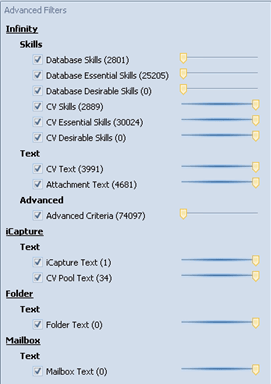 Number is the rank of that candidate against all of the candidates in the database
How the ANDs and ORs work
• ‘Infinity OR iCapture OR Folder OR Mailbox’
• Within Infinity: Skills AND Text AND Advanced
• Within Skills (Within Infinity): Database Skills OR Database Essential Skills OR Database Desirable Skills OR CV Skills OR CV Essential Skills OR CV Desirable Skills
The ticks can be removed from the advanced filter if you wish to analyse or remove a search criteria that has been used. If you then click ‘Apply Filters’ the results are updated.
The sliders can be used to adjust priority/weighting on certain areas for the ranking. (some of the sliders may be greyed out which means they aren’t used for ranking)
Apply Filters button saves changes to ‘Show’, ‘Hide’ and ‘Advanced Filters sections

Results Grid
Single-click anywhere in a row selects the row
Double-click anywhere in a row, opens the related page
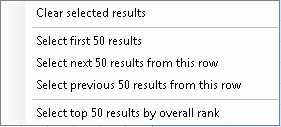
Right click in the checkbox area – allows you to complete some quick selection choices
Options Band
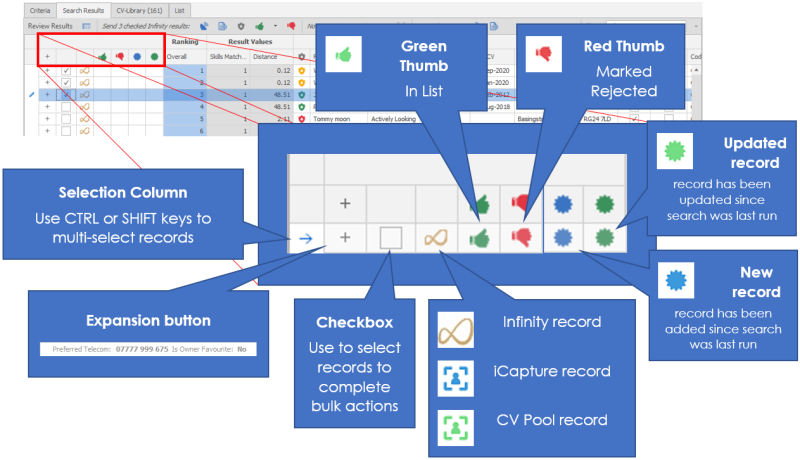
To select single or multiple candidates you can left click and tick in the selection column . In addition you can right click on the select box which offers you the quick selection facility:
Contact Details
If you require further assistance please contact Ikiru People using the details published on www.ikirupeople.com
Visit our Customer Portal at https://portal.ikirupeople.com/ for future events and clinics.
FeedbackIf you would like to make suggestions or have found any errors with this Help section please contact our Support team.
Copyright © 2026 Voyager by Ikiru People Ltd. All rights reservedVersion 4.87
Voyager Software is a brand of Ikiru People Ltd, a subsidiary of Dillistone Group Plc. The group is a leading global provider of software and services that enable recruitment agencies and in-house recruiters to better manage their selection process and address the training needs of individuals. Across its brands – which include Voyager Software (recruitment software UK & Australia), Dillistone FileFinder executive search software, GatedTalent, the global database of the world’s leading executives, Talentis.Global – the next generation of recruitment software and also ISV.Online, provider of online pre-employment skills testing and training tools. Dillistone Group serves thousands of clients worldwide. Ikiru People Ltd: Registration Number 02043300. Registered in England & Wales.
 |  |  |  |