Temp Planner

The Temp Planner is designed to allow you to search for Temp candidates and view / edit their availability and assigned shifts for the next 90 days or previous 14 days. Minimal setup is required within the Global Temp Defaults and also each user can set label options within the User Options
 Quick Search Criteria
|
Search System Defaults - Temp candidates, NOT Placed by Us, NOT Working for Us and are Active | |||||
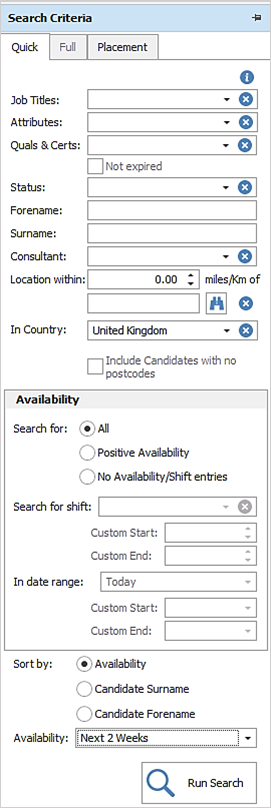
| Job Title - Multi-select Job Title(s) that is recorded on candidate records | ||||||
| Attributes - Multi-select the attribute(s) that is recorded on candidate records | ||||||
|
Quals & Certs - Multi-select the Qual & Cert(s) that is recorded on the candidate record. When values are selected and searched, candidates are returned that have all of the Quals & Certs There is an additional option to search 'Not expired' Quals & Certs. When this is ticked and searched, candidates are returned that have all of the selected Quals & Certs and they haven't expired; these are Quals & Certs with an expiry date and not those with a blank expiry date. |
||||||
| Status - Multi-select candidate status(s) you wish to search on | ||||||
| Forename - Enter a forename you wish to search on | ||||||
| Surname - Enter a surname you wish to search on | ||||||
| Consultant - Multi-select the consultant(s) | ||||||
|
Location* - utilise radius searching
NB: - if using International Post Code licence you are required to set the "In Country" before entering the Post Code |
||||||
| Include candidates with no postcodes - enables you to include candidates that have not had their Post Code added | ||||||
| Availability | ||||||
|
Search for:
|
||||||
| NB: - The setting will default to 'All' with last searched settings remembered | ||||||
|
When the ‘Positive Availability’ option is selected, the ‘Search for shift’ field is enabled and the user can choose from the drop down list of shift names (default temp settings) or set to custom and input start and end times, using the In date range to stipulate the day(s) you wish to review. |
||||||
| When the ‘No Availability / Shift entries’ option is selected, the ‘In date range’ field is enabled and the user can choose from the drop down list of available date periods or set to custom to manually input the start date and end date you wish to review candidates that have no shift entries. | ||||||
|
Sort by Availability - select Next 2 weeks, or a specific day within the next 2 weeks you wish to sort by via the availability dropdown. Sort by Candidate Surname - will order the results alphabetically by surname. Sort by Candidate Forename - will order the results in the grid by forename and then surname alphabetically a-z. |
||||||
|
*Distance Search licence required |
 Binoculars - find a company and select a location to autofill their Post Code
 Delete - remove Post Code
Quick Search Results
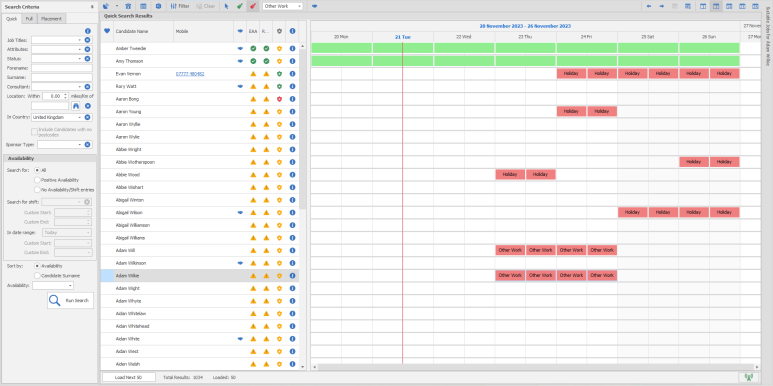
Results are displayed in order as defined via the criteria setting - if Availability is used then the ranking used will ensure candidates that are marked as available, in the near future, are ordered highest. Candidates that already have shifts or marked as unavailable will be further down, depending on how far in the future (with the 2 week range) this applies to
Double click on candidate name to open the candidate record
Columns available (default columns *, other columns added via column chooser, see grid views section on how to customise your grid/
| * |

|
displays if the candidate is one of your favourites | ||||||||||
| * | Candidate Name | displays the candidates fullname | ||||||||||
| * | Mobile | displays the candidates Mobile Number(s) | ||||||||||
| * |

|
displays if the candidate has historical or current temp placements | ||||||||||
| * | EAA |
checks if the candidate is ticked for EAA
|
||||||||||
| * | RTW |
check if the candidate is ticked for RTW (Right to Work)
|
||||||||||
| * |
Privacy Audit Status
|
displays whether the candidate is:
** If restriction is switched on, see Privacy Audit setup section for more details |
||||||||||
| Alert | displays candidate alert message as defined within their record | |||||||||||
| Based In | displays candidate based in text as defined within their record | |||||||||||
| Candidate Id | displays the candidate Infinity Ref Code | |||||||||||
| Postcode | displays the candidates Postcode (Send by default if multiple addresses are recorded) | |||||||||||
| Preferred Job Title | displays the preferred Job Title as defined within the candidates job title grid | |||||||||||
| Preferred Location | displays the Preferred location text as defined within the candidate record | |||||||||||
| Worker Type | displays the candidate worker type as defined within the candidates financial details |
 Prevented from placing candidate due to not having EAA ticked within their candidate record
 Passed EAA is ticked within the candidate record
 Warning from placing candidate due to not having EAA ticked within their candidate record


|
|
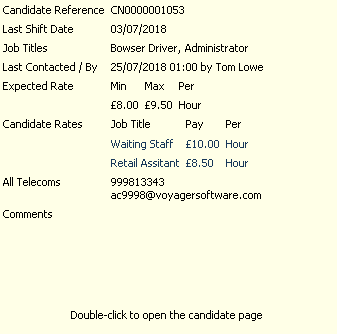
Candidate Reference - displays the candidates code Last Shift Date - will display the last shift date worked Job Titles - displays all job titles recorded on the candidate record Last Contacted By - displays the consultant that last logged an event against the candidate record Expected Rate - display the candidates expected Temp rates Candidates Rates - displays any defined candidate rates All Telecoms - displays all telecoms recorded against records Comments - will display comments recorded on records |
Toolbar Options


|
Access the Comms Centre to send emails or SMS messages, use the dropdown if you wish to send a bulk email to all search results
|

|
Access the Event Logger to log communications with the selected record(s) |

|
Access the candidates Temp calendar |

|
Export current Temp Planner to Excel (permission required). There is a user option to only show 'Times' columns on the report. |
|
|
Display filter row, will activate the filter row above the grid and enable you to input text or select icon to filter the results by |

|
Clear and remove filter row, will remove filter content |

|
Allows you to paint availability on the calendar |

|
Allows you to paint unavailability on the calendar |

|
Allows you to define the unavailability reason |
|
|
Allows you to Directly Place the candidate - use dropdown to define as Confirmed or Awaiting Confirmation for shifts, see Direct Placements for more information |
Planner View Options

|
Cycle back the current view |

|
Cycle forward the current view |

|
Go to today |

|
Go to a date, dialogue box will open for you to select a specific date |

|
Display shift planner in a 1 day view |

|
Display shift planner in a 7 day view |

|
Display shift planner in a 14 day view |

|
Display shift planner in a 21 day view |

|
Display shift planner in a 28 day view |
Calendar
The Temp calendar is displayed as a gantt chart which allows you to scroll left or right through the calendar view showing each candidate in the search results and their Temp calendars.
Key statuses - you can set shifts straight to confirmed but below shows the default core shift statuses in order

NB: - Colours can be customised via Global Temp Settings
All statuses - in order
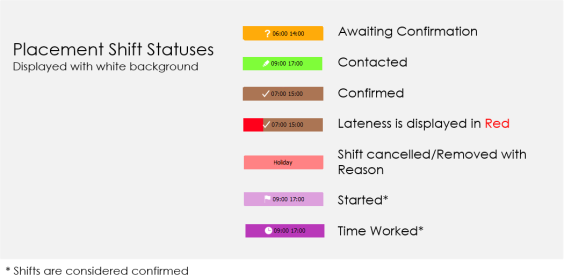
NB: - Colours can be customised via Global Temp Settings
Hover over content within the calendars, double click on a Placement block to open the Placement record:
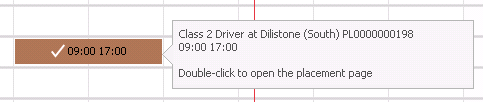
NB:- The content within the brown block can be adjusted via user options
Next 14 Days
You can access the Next 14 days via the arrow button top right, you can cycle through to up to 90 days into the future.

Previous 14 Days
You can access previous 14 days via the arrow button top right, to review candidates recent availability:
This will not rerun the search or reorder your results.
Managing Shifts
Right clicking on shift entries will allow you to access different tools and records:
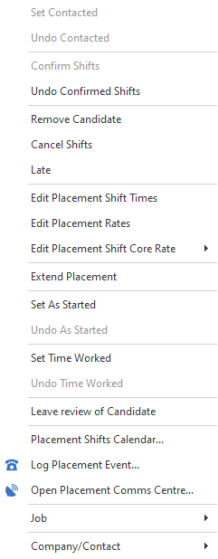 |
Set Contacted | Can set 'awaiting confirmed' shift to 'Contacted' status | ||||||||
| Undo Contacted | Undo 'Contacted' shift status back to 'awaiting confirmed' | |||||||||
| Confirm Shifts | (Awaiting Confirmation shifts - YELLOW) click to "confirm" shifts and activate confirmation email(s)(see Global Temp Settings) | |||||||||
| ------------------------------------------------------------------------ | ||||||||||
|
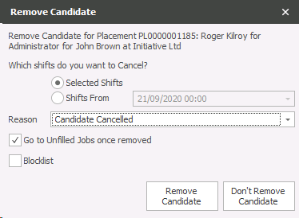
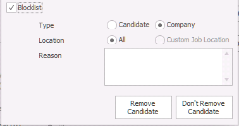
Remove Candidate |
Removes the candidate from the shift (the shift will remain against the job and will display as unfilled
|
|||||||||
| ------------------------------------------------------------------------ | ||||||||||
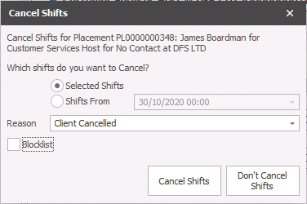
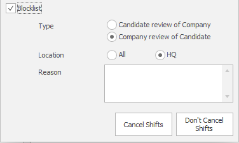
| Cancel Shifts |
|
|||||||||
| ------------------------------------------------------------------------ | ||||||||||
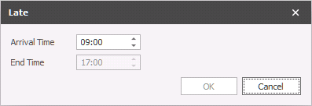
| Late |
|
|||||||||
| ------------------------------------------------------------------------ | ||||||||||
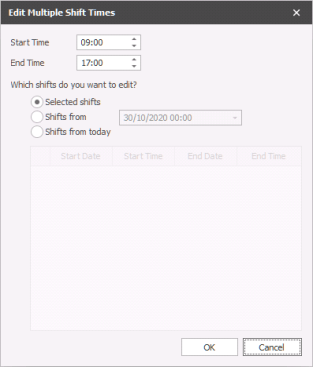
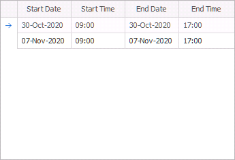
| Edit Placement Shift Times |
|
|||||||||
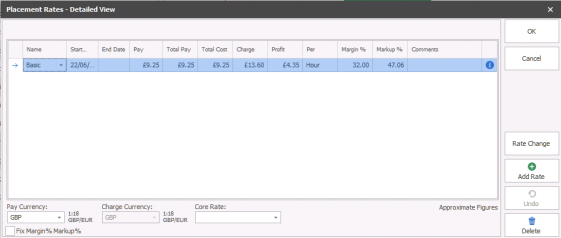
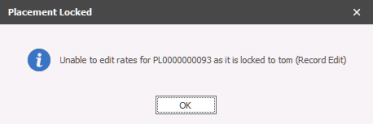
| Edit Placement Rates |
|
|||||||||
| Edit Placement Shift Core Rate | Enables you to set which rate should be applied to the selected shift(s) | |||||||||
| ------------------------------------------------------------------------ | ||||||||||
| Extend Placement | Accesses the Extension Wizard to add shifts to the placement calendar, see extension wizard section below | |||||||||
| ------------------------------------------------------------------------ | ||||||||||
| Set As Started / Undo As Started | Mark the selected shift(s) as "started", this will also be considered confirmed and is included within Temp reports | |||||||||
| Set Timed Worked / Undo Time Worked | Marked the shift as "Timed Worked", this will also be considered confirmed and is included within the Temp reports | |||||||||
| ------------------------------------------------------------------------ | ||||||||||
| Leave review of candidate | Allows you to quickly add a review "score" of candidate based on feedback, see Reviews section for more candidates | |||||||||
| ------------------------------------------------------------------------ | ||||||||||
| Placement Shifts Calendar | Launches the Placement Shift calendar for the selected job | |||||||||
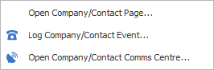
| Log placement Event | Access the placement Event Logger to record events against the candidate / contact or both | |||||||||
| Open Placement Comms Centre | Access the placement Comms Centre to send email / SMS / Online Signature documents to the candidate or contact | |||||||||
| ------------------------------------------------------------------------ | ||||||||||
| Job |
|
|||||||||
| ------------------------------------------------------------------------ | ||||||||||
| Company / Contact |
|
|||||||||
| ------------------------------------------------------------------------ | ||||||||||

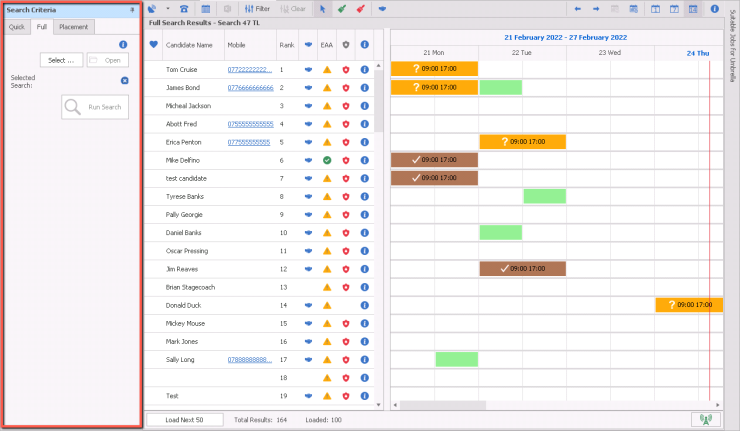
Full Search
Full search enables you to utilise the full search builder meaning you can further filter results using criteria not available within the quick search tab. It also enables you to switch off the default Temp search restrictions (Temp marker, searching on multiple job titles, attributes, Q&C's, any other data recorded within candidate records).
You must enable temp availability candidate searching to be able to access "Full" tab within the Temp Planner user options
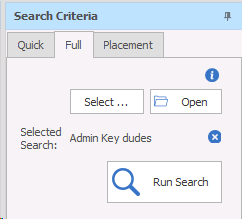
Select ... - Allows you to access your ad hoc searches, using this as your desired criteria
Open - Allows you to access the search criteria for the ad hoc search you have selected to make adjustments to the criteria, see ad hoc searching for more details
Selected Search - Will display the name of the ad hoc search you have selected
Run Search - Will run the search criteria and display the candidate results within the Temp Planner
Placement Search
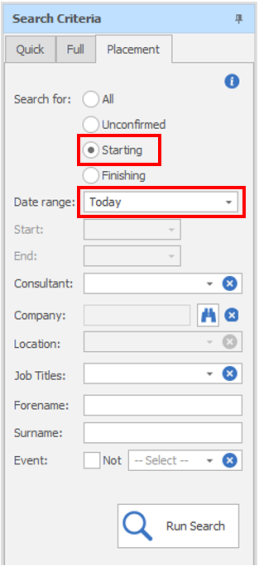
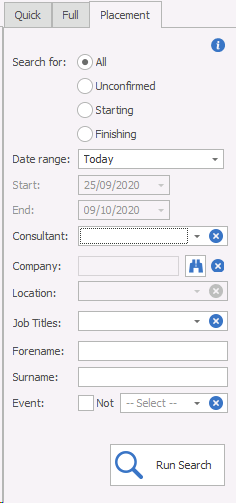
You are able to complete searches of candidates with temp placement(s) who are due to start, finish, have unconfirmed shifts within pre-set date range sets or custom date range. You can also utilise other criteria including Consultant(s), Company, Location, Forename, Surname and whether a candidate has had a particular event or NOT.
Examples of Placement Searches
Temp Starters today
All Temps due to start their first shift today
Finishers This Week
All Temp candidates due to finish their last shift this week
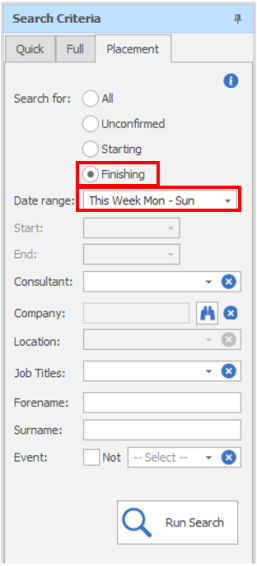
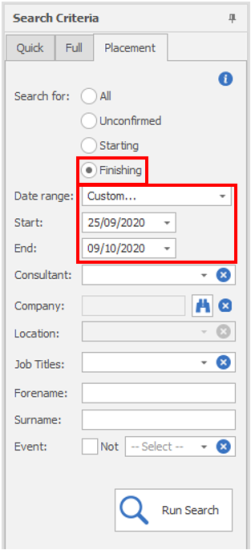
Finishers Next 14 Days
All Temp candidates due to finish their last shift in the next 14 days
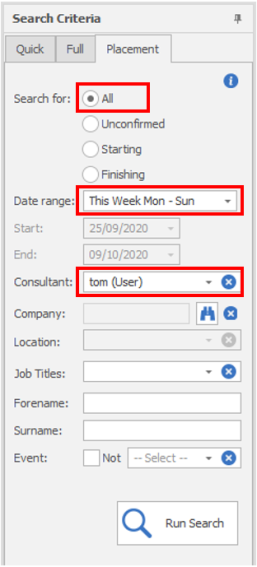
My Temps This Week
All candidates that I "own" that have at least 1 shift this week
Suitable Jobs
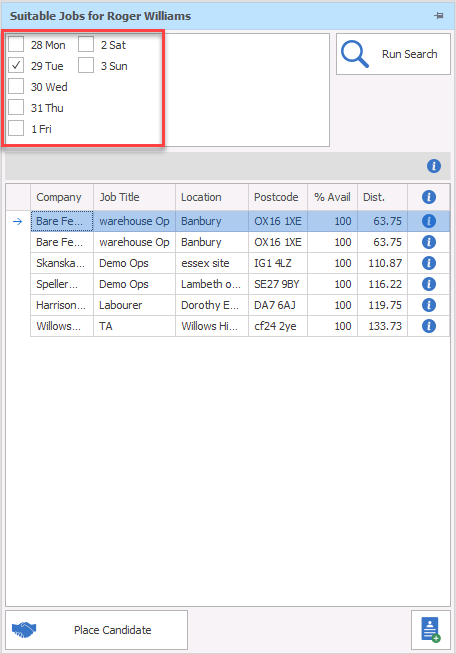
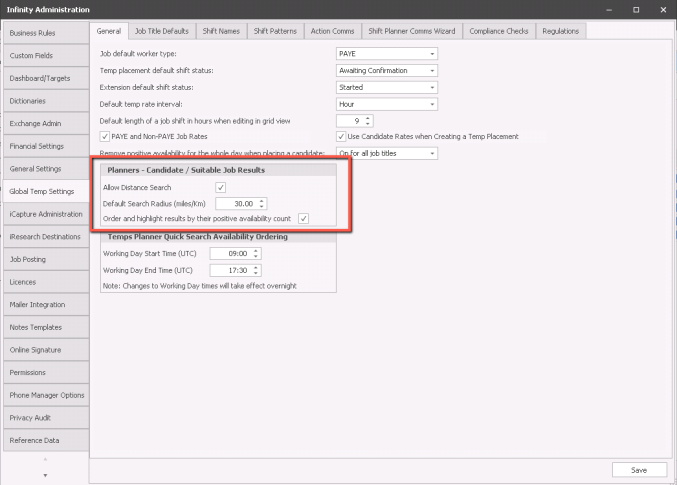
The Suitable Jobs panel enables you to review matching jobs with the selected candidate, this utilises the job title(s) within the candidate record and job records with matching job titles, in addition it will also use the distance* of the candidate from the job location, restricting the results to the limit set within the Global Temp Settings.
*Distance Search is a licensable feature, if you do not have this feature it will not restrict your results by distance
Suitable Jobs Criteria
The dates you can complete a search on are limited to the view setting in your Temp Planner, 1 day, 7 days or 14 days. When selecting the days it will look for matching jobs that have shift(s) for the selected date, these are treated as AND's. If you tick all dates then the jobs that are returned would require a shift in all selected dates.
 CV Submit - This allows you to select and submit multiple Candidate CVs to the Job. See CV Submit for more details
The system will return jobs that match to the job title(s) within the candidate record, if you have distance search feature it will also limit the results to jobs within your Global Temp Settings:
Place Candidate
You can directly place the selected candidate into a suitable job if they are 100% available for the selected dates. It will also highlight the selected dates within the job calendar and you can also select further shifts as required. Once complete it will run the compliance checker before completing the placement.
Need more information, click below:
Placement Search
Search for:
| All | Will return all Temp placements (Awaiting Confirmation and Confirmed) |
| Unconfirmed | Will return Temp placements with unconfirmed shifts (Awaiting Confirmation status) |
| Starting | Will return Temp placements which are starting the first shift |
| Finishing | Will return Temp placements which are finishing the last shift |
Date Range
| Yesterday | |
| Last Week Mon - Fri | |
| Last Week Mon - Sun | |
| Last 7 days inc. today | |
| Last 7 days from yesterday | |
| Last 14 days inc. today | |
| Last 14 days from yesterday | |
| Today | |
| Tomorrow | |
| This Week Mon - Fri | |
| This Week Mon - Sun | |
| Next 7 days inc. today | |
| Next 7 days from tomorrow | |
| Next Week Mon - Fri | |
| Next Week Mon - Sun | |
| Custom... | Will enable the Start and End date fields, to allow you to set date range |
| Start | Custom needs to be selected, will accept today's date or any future date |
| End | Custom needs to be selected, will accept today's date or any future date |
Consultant(s)
Select a consultant or multi-select consultants, defined by the placement split field
Company
Review Temp placements against a particular Company, utilise the find button to look up a company
Location
Enabled by selecting a Company, to then be able to review Temp placements by individual site within a company
Forename
Review Temp placements for a particular candidate
Surname
Review Temp placements for a particular candidate
Event
Review Temp placements where a candidate has had a particular event logged or NOT logged against them (all events are accessible)
Contact Details
If you require further assistance please contact Ikiru People using the details published on www.ikirupeople.com
Visit our Customer Portal at https://portal.ikirupeople.com/ for future events and clinics.
FeedbackIf you would like to make suggestions or have found any errors with this Help section please contact our Support team.
Copyright © 2026 Voyager by Ikiru People Ltd. All rights reservedVersion 4.87
Voyager Software is a brand of Ikiru People Ltd, a subsidiary of Dillistone Group Plc. The group is a leading global provider of software and services that enable recruitment agencies and in-house recruiters to better manage their selection process and address the training needs of individuals. Across its brands – which include Voyager Software (recruitment software UK & Australia), Dillistone FileFinder executive search software, GatedTalent, the global database of the world’s leading executives, Talentis.Global – the next generation of recruitment software and also ISV.Online, provider of online pre-employment skills testing and training tools. Dillistone Group serves thousands of clients worldwide. Ikiru People Ltd: Registration Number 02043300. Registered in England & Wales.
 |  |  |  |