Email Signatures
When setting up Comms Centre templates the first process is to add your email signature into the Master so any future new templates created will have your signature ready for you to add content to the template you require but existing templates will not be affected.
There are different options for adding your signature to outgoing emails:
- Email Signatures per user - upload signatures for each user with user administration
- Manual Signatures - Manually setting up the signature within Infinity *
- Exchange Signature’s - Utilising organisational Exchange server signatures
- Office 365 Exchange Signature’s - Utilising organisational Exchange server Signatures **
- Exchange Signature's (3rd party) - Utilising third party software to add signatures to outgoing emails
- Outlook Web Signature's - Creating Outlook Web client to create user signatures
*We would recommend setting email signatures per user if using numerous images / logo's within signature
**Office 365 signatures have a number of known issues and is likely to be deprecated in the future
 Email Signatures per user
In light of recent breaking changes to Microsoft Office 365’s email signature functionality on certain accounts, we have enhanced Infinity to store email signatures in the database per user and append them to the end of emails sent from the Infinity Comms Centre
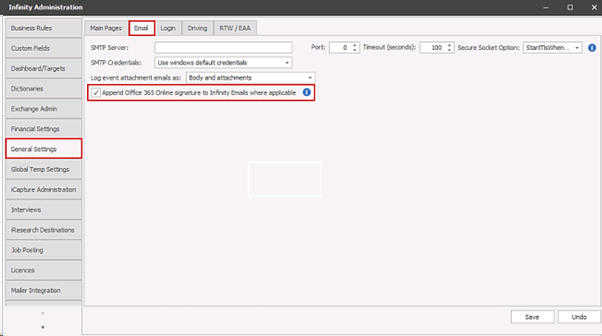
Ensure you untick Append Office 365 Online Signature to Infinity Emails where Applicable
Setup – Edit User
A single email signature file can be added to each user in Administration / User Administration / Edit User / Email Signature tab
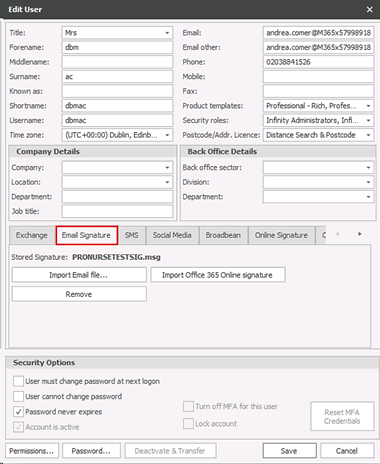
Note: When adding email signature files, it’s important to use the ‘Save’ button to store permanently, changes will be lost when the screen is closed by the ‘X (cross)’ alone
Import Email file
The ‘Import Email file’ button allows an email signature file to be imported from a Windows folder location. .MSG and .EML formats are supported
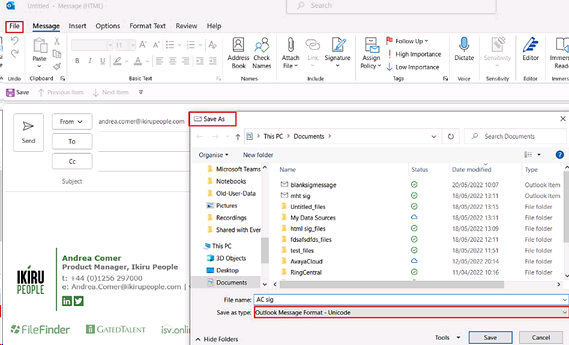
To produce a suitable email signature file, each user can create a new blank message in Outlook that contains their signature and nothing else. This message should be saved to a folder location via Outlook’s File/Save As function, saving the whole message in .MSG or .EML format. The chosen folder will need to be accessible by the Infinity administrator to then import into Infinity, so a folder on a central network drive is recommended.
It is suggested that the default Unicode option is used as below where possible
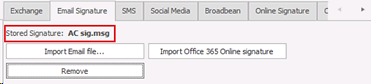
When imported, the email signature file name will be shown in the ‘Stored Signature’ field. Please note that the name cannot be modified:
Importing Office 365 online signature
The ‘Import Office 365 Online signature’ button allows the email signature file to be imported from the user’s Office 365 online account. The account must be successfully authorised with an email signature file available otherwise the import will fail and the administrator informed
When imported successfully, the ‘Office 365 Online signature’ will be shown in the ‘Stored Signature’ field. Please note that the name cannot be modified:
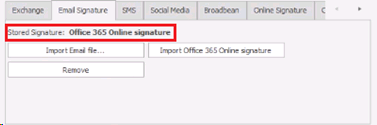
Replace/Remove
• If an email signature file is imported when one already exists, the old one will be replaced
• An email signature file can be removed using the ‘Remove’ button
Note: If changes are made to the source email signature in Outlook or Office 365 online, the email signature file will need to be re-imported into Infinity by repeating the above process
User Administration
Administration / User Administration / Users tab has a new column called ‘Signature’ that shows whether the user has an email signature file stored against them in the database
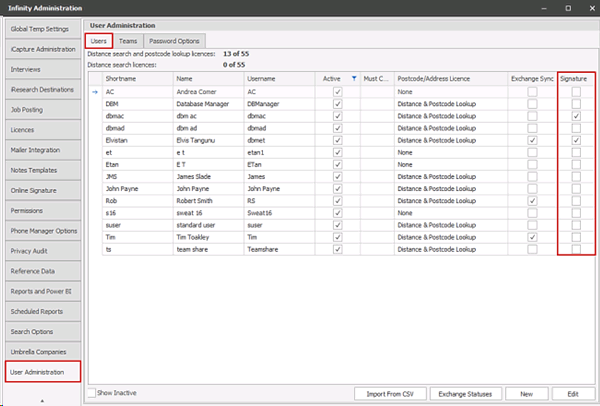
A mouse hover over a tick in the signature column will display the name of the email signature file
Comms Centre
When the user with an email signature file sends an email from the Infinity Comms Centre, it is appended to the end of the email. When setting up user email signatures it is recommended a test email is sent from the Infinity Comms Center by each user to verify before using live
If Office 365 signature functionality is enabled on the database in Administration / General settings and the user has an email signature file stored in Infinity, this is used instead and it no longer retrieves the live Office 365 online signature at the time of sending
Users without an imported signature continue to work as they do now
Manual Signatures
You can create your signature within Infinity and using merge codes will ensure users specific details will be pulled through to the template when using them. However, if you require to change the signature structure you will then need to update every email Comms Centre template with the new structure which can be hugely time consuming.
Pro's
user will be able to view the full email as is via preview button
Con's
any signature change will likely require all existing email templates to be updated
only Word templates, no access to quick HTML templates (HTML signatures can be added but some knowledge of HTML is required)
See templates section for more details on creating signature within Infinity
Exchange Signature's
Email signatures can be added to all email messages from your exchange server this will ensure consistency and reduce the burden if you wish to change signatures for your organisation.
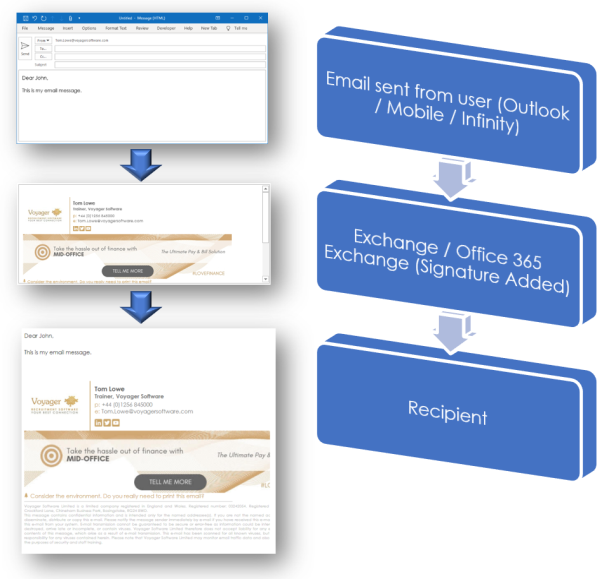
This is particularly important as Infinity synchronises with Exchange and therefore removes the need to adjust every email template when you need to make changes to your signature.
You can add exchange signatures to your Exchange Server, please contact your IT company for further information and assistance.
Limitations of native Exchange signatures (software available to reduce limitiations, see 3rd Party section)
1. No HTML editor. Although for HTML and CSS masters this is not a barrier, not everyone can unleash full HTML potential by simply typing in code. Pre-made templates can be found in the Internet and modified to fit your needs, yet it does not help much with creating genuine one-of-a-kind projects.
2. No automatic users’ photos in email signatures. Those who deal with branding in their work know that including photos in email signatures is a very good practice. Not only does it look professional, but also gives recipients better, more personal experience. People remember faces well and tend to bond with people whose face they know. Unfortunately, Office 365 does not offer a way to include those photos automatically in email signatures.
3. Delegation of signature management impossible. Administrators have to be versatile; however, designing graphically appealing signatures with high promotional value is more of a marketing department’s job. Unfortunately, there is no way to delegate only signature management to them – they would have to obtain access to mail flow rules, which generates unnecessary risks.
4. Signatures cannot be placed directly under replies / forwards. Office 365 administrative tools enable you to send signatures; however, it treats every message in the same manner, sticking the same or another signature under or above the whole message. Effect? Either only one signature at the very bottom of conversations, or signatures multiplied with each message, all stacked in the same place.
5. No way to prevent images from being blocked.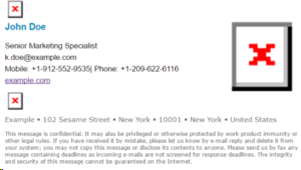
Because Office 365 email signatures base on HTML code in disclaimers, having images in signatures is possible. There is a slight problem, though. Those images are blocked automatically by most email clients. Instead of lovely logo and graphics, the first thing a recipient sees is red crosses. This, understandably, discourages some people from even viewing the content.
6. Cannot append side banners to messages. Office 365 has made it possible to add signatures as headers, which enables to create lovely whole messages with banners. Just one step further – giving the option to add side banners – would give designers full control over emails.
7. Signatures are not visible in Sent Items. There is no way to ensure that sent emails contain the signature you wanted and the disclaimer each message needs. If there is a mistake in mail flow rule, or something else goes wrong, you probably will not even know it. Unless, of course, you send e-mails to your clients asking: “Excuse me, could you tell me if the disclaimer and the signature looked fine in my last mail?”
8. No way to remove signalling phrases next to empty Active Directory fields.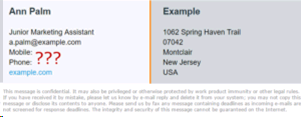
Managing the whole organization is a bit complicated. Some users have mobile phones, others are only reachable by mail. It is a shame, but there is no way for Exchange Online to check if an AD field is empty or not. So you have to decide whether to have unprofessionally looking signatures with blank fields or to limit users’ data to minimum, ensuring there will not be any black holes. Or you could design a separate template for each user, which kind of argues with the idea of central management or making things easier.
9. No Active Directory attribute picker. All AD variables have to be inserted manually, with the chosen field’s name enclosed within “%%” symbols, like that: %%FirstName%%. Therefore, it is necessary to know AD variables’ names and insert them correctly. While it is not that much of a deal, it is yet another place where something can go wrong.
10. Forcing email format is not available. It is not possible to force emails to the format of your choosing. What does it mean in English? Many mobile devices send emails in Plain text format, making it incompatible with a signature designed in HTML format. It is a shame with accessing mail accounts mobile devices being so popular.
11. No multi-tenancy support. In case of a company existing on two or more different tenants, every rule must be replicated manually. It is yet another way to make things more time-consuming and complicated, even if it does not concern each and every administrator.
12. Character limit. The disclaimer you set up through a mail flow rule has a 5120 characters limit. While it may seem like more than enough for any email signature or disclaimer, it might not be the case. Fancy HTML email signatures require additional styling, especially when they are to be displayed correctly in Outlook. Add the limitation for only online images and long direct links to banners and it might turn out that you are unable to add well-formatted email signatures for your company.
Office 365 Exchange Signature's
Office 365 Admin can setup automated signatures to all outgoing email messages, we would recommend that you consult with your IT company for assistance. There are a number of known issues and is likely to be deprecated in the future.
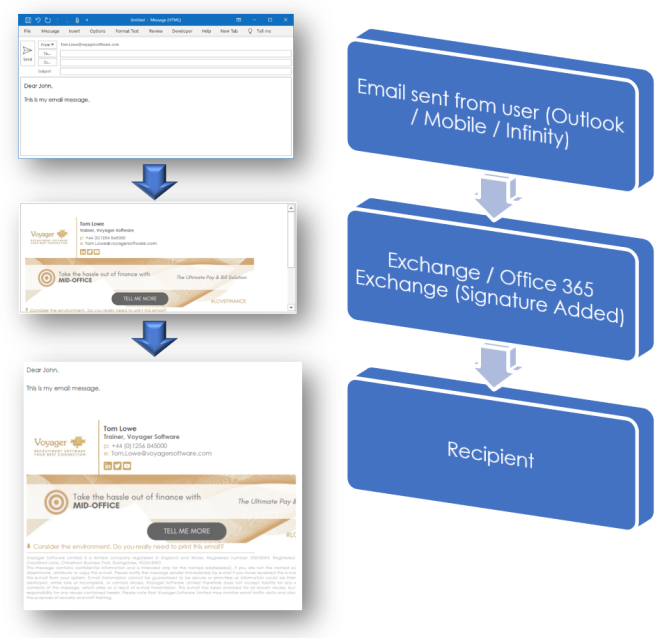
Office 365 signatures will need to be setup by a user that is a “Global Administrator” to be able to access the necessary areas for setting up the signature and also ensure user details are completed so that these can also be included within the signature as variables (content that will differ from user to user like name and job titles), in particular the contact information for each user, depending on what you desire to be outputted into the signature.
You can access help on the creation of your signature via https://docs.microsoft.com/en-gb/office365/admin/setup/create-signatures-and-disclaimers?view=o365-worldwide
Available variables: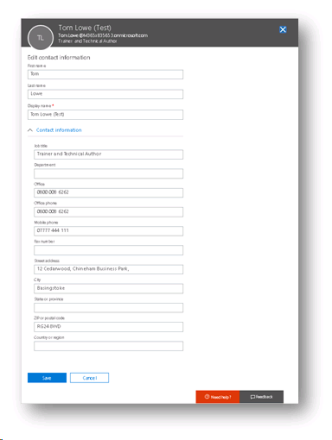
• DisplayName
• FirstName
• Initials
• LastName
• Office
• PhoneNumber
• OtherPhoneNumber
• Street
• POBox
• City
• State
• ZipCode
• Country
• UserLogonName
• HomePhoneNumber
• OtherHomePhoneNumber
• PagerNumber
• MobileNumber
• FaxNumber
• OtherFaxNumber
• Notes
• Title
• Department
• Company
• Manager
A variable can be inserted into the signature by adding %% to the start and end of the variable, so if I wish to include the DisplayName then I would insert %%DisplayName%%
Signatures which require images and more enhanced content will require some HTML knowledge.
Limitations of native Office 365 email signatures
1. No HTML editor. Although for HTML and CSS masters this is not a barrier, not everyone can unleash full HTML potential by simply typing in code. Pre-made templates can be found in the Internet and modified to fit your needs, yet it does not help much with creating genuine one-of-a-kind projects.
2. No automatic users’ photos in email signatures. Those who deal with branding in their work know that including photos in email signatures is a very good practice. Not only does it look professional, but also gives recipients better, more personal experience. People remember faces well and tend to bond with people whose face they know. Unfortunately, Office 365 does not offer a way to include those photos automatically in email signatures.
3. Signatures cannot be placed directly under replies / forwards. Office 365 administrative tools enable you to send signatures; however, it treats every message in the same manner, sticking the same or another signature under or above the whole message. Effect? Either only one signature at the very bottom of conversations, or signatures multiplied with each message, all stacked in the same place.
4. No way to prevent images from being blocked.
Because Office 365 email signatures base on HTML code in disclaimers, having images in signatures is possible. There is a slight problem, though. Those images are blocked automatically by most email clients. Instead of lovely logo and graphics, the first thing a recipient sees is red crosses. This, understandably, discourages some people from even viewing the content.
5. Cannot append side banners to messages. Office 365 has made it possible to add signatures as headers, which enables to create lovely whole messages with banners. Just one step further – giving the option to add side banners – would give designers full control over emails.
6. Signatures are not visible in Sent Items. There is no way to ensure that sent emails contain the signature you wanted and the disclaimer each message needs. If there is a mistake in mail flow rule, or something else goes wrong, you probably will not even know it. Unless, of course, you send e-mails to your clients asking: “Excuse me, could you tell me if the disclaimer and the signature looked fine in my last mail?”
7. No way to remove signalling phrases next to empty Active Directory fields.
Managing the whole organization is a bit complicated. Some users have mobile phones, others are only reachable by mail. It is a shame, but there is no way for Exchange Online to check if an AD field is empty or not. So you have to decide whether to have unprofessionally looking signatures with blank fields or to limit users’ data to minimum, ensuring there will not be any black holes. Or you could design a separate template for each user, which kind of argues with the idea of central management or making things easier.
8. No Active Directory attribute picker. All AD variables have to be inserted manually, with the chosen field’s name enclosed within “%%” symbols, like that: %%FirstName%%. Therefore, it is necessary to know AD variables’ names and insert them correctly. While it is not that much of a deal, it is yet another place where something can go wrong.
9. Forcing email format is not available. It is not possible to force emails to the format of your choosing. What does it mean in English? Many mobile devices send emails in Plain text format, making it incompatible with a signature designed in HTML format. It is a shame with accessing mail accounts mobile devices being so popular.
Office 365 Outlook Web Signature's (RECOMMENDED)
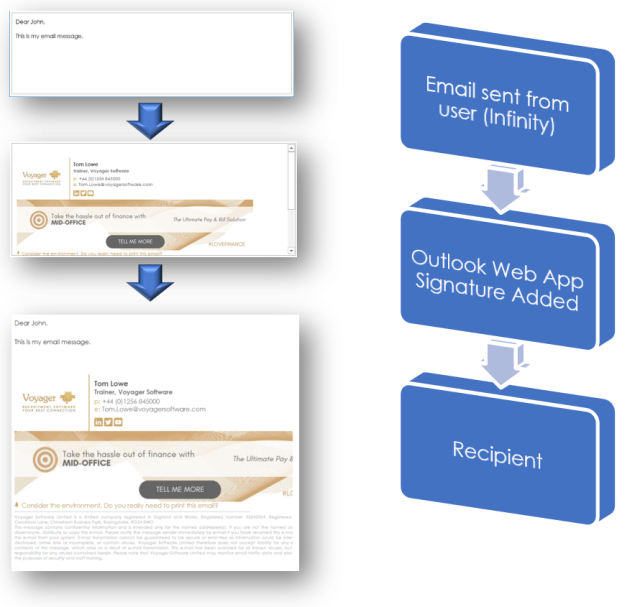
Infinity is able to pick up each user's signature from their Outlook Web account, this allows different users to include differing content within their signature and ensure all outgoing emails have the appropriate signature included. You can find details on setting up Outlook Web App signatures https://support.office.com/en-gb/article/create-and-add-an-email-signature-in-outlook-web-app-0f230564-11b9-4239-83de-f10cbe4dfdfc
Pro's
unique signature by user
Con's
limited ability to setup complex signatures
Within Infinity you can set "Append Office 365 Online Signature to Infinity Emails where applicable" within the General Settings section:
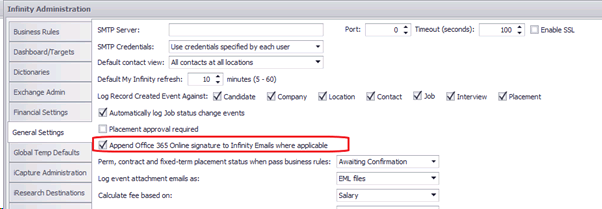
Once switched on emails sent from Infinity will pick up users Outlook Web signatures:
Exchange Signature's (3rd Party)
There are a number of third-party email signature solutions that can reduce the technicalities of setting up exchange signatures and also reduce or remove the limitations of Office 365 signatures, these will also offer signature builders and HTML editors.
https://www.mail-signatures.com/
These will ensure that replies have a signature below the reply, rather then duplicating signatures to the bottom of the email, embedding of images rather than the recipient having to download images as well as several other limitations of Office 365 signatures. Pricing can be found on these sites and generally in and around $1 per user per month.
Images
When adding images to signatures you generally have two ways to insert them into your signature, either inline (embedded) or hosted images.
Inline (if available) will allow you to insert an image and hyperlink (you will be required to use HTML code) and will display like signature images in Outlook. The image will need to be sized appropriately before inserting. Unfortunately inline is not available in all above signature solutions.
hosted images will require the image to hosted online, generally on your website and allow hyperlinking but is likely not to be embedded and therefore be added as an attachment and / or require downloading by the recipient to view it. It also will require the image to be sized correctly for emails.
Contact Details
If you require further assistance please contact Ikiru People using the details published on www.ikirupeople.com
Visit our Customer Portal at https://portal.ikirupeople.com/ for future events and clinics.
FeedbackIf you would like to make suggestions or have found any errors with this Help section please contact our Support team.
Copyright © 2026 Voyager by Ikiru People Ltd. All rights reservedVersion 4.87
Voyager Software is a brand of Ikiru People Ltd, a subsidiary of Dillistone Group Plc. The group is a leading global provider of software and services that enable recruitment agencies and in-house recruiters to better manage their selection process and address the training needs of individuals. Across its brands – which include Voyager Software (recruitment software UK & Australia), Dillistone FileFinder executive search software, GatedTalent, the global database of the world’s leading executives, Talentis.Global – the next generation of recruitment software and also ISV.Online, provider of online pre-employment skills testing and training tools. Dillistone Group serves thousands of clients worldwide. Ikiru People Ltd: Registration Number 02043300. Registered in England & Wales.
 |  |  |  |