References

 General
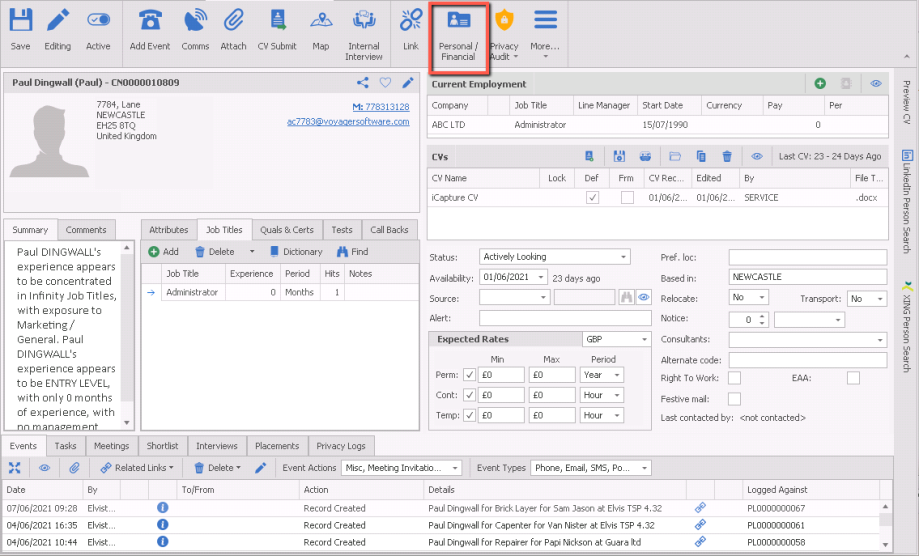
You can record Referee and In Case of Emergency (ICE) contact details within candidate records via the Personal / Financial button
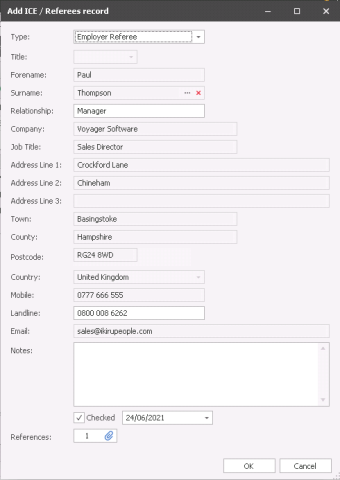
Within the ICE / Referees tab you can review and add details of Referees and ICE contacts:
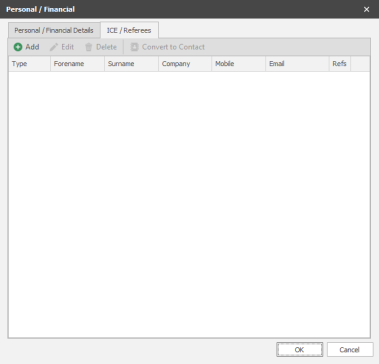
Click add  :
:
|
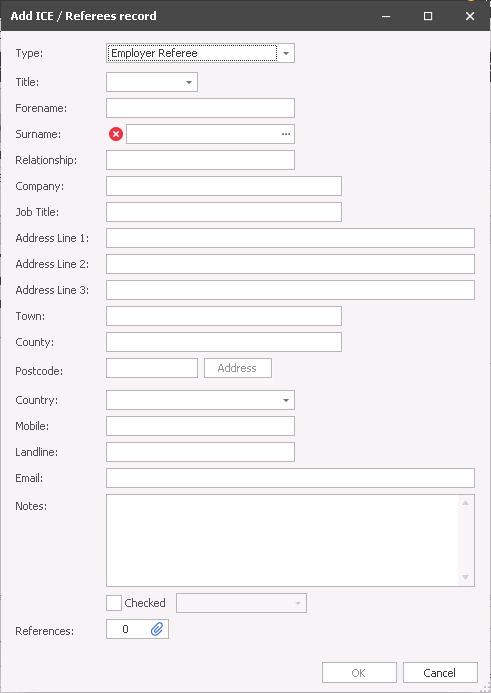
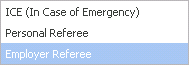
Type will offer a dropdown for recording the type of contact you are recording
|
|
Title* - offer a dropdown of Title(s) to select |
|
| Forename - text field | |
| Surname - text field / optional facility to lookup a contact to record and link the referee to. You can also create a contact from the details, see Convert to Contact | |
| Relationship - text field | |
| Company - text field | |
| Job Title - text field | |
| Address Line 1 - text / number field | |
| Address Line 2 - text / number field | |
| Address Line 3 - text / number field | |
| Town - text field | |
| County - text field | |
| Postcode - text / number field, Address button available with Address Lookup licence, this will autofill Address fields above | |
| Country* - select from the dropdown list | |
| Mobile - text / number field | |
| Landline - text / number field | |
| Email - text / number field | |
| Notes - text / number field | |
| Checked - tick box and date (default to today), this can be used in conjunction with business rules (Perm / Contract / Fixed Term) | |
| References - count of number of references that are attached, use paperclip to attach reference documents or fulfil the attachment process | |
| *See Reference Data fields to customise / manage dropdown lists | |
Grid View
You can customise the referees grid, see grid view for more details
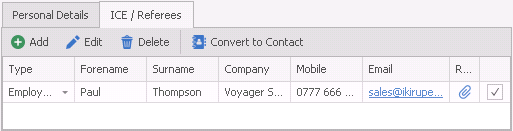
Convert to Contact
On completion of adding employer referee you can also use the Convert to Contact button 
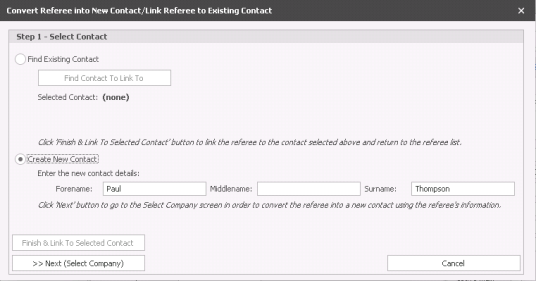
Step 1 - Select Contact
Use the radio button to either find and look for the contact already present within the system (you will be able to Finish & Link to Contact as all other details will autopopulate) or Create New Contact:
NB:- it is recommended that you use the find to check if the contact is already present
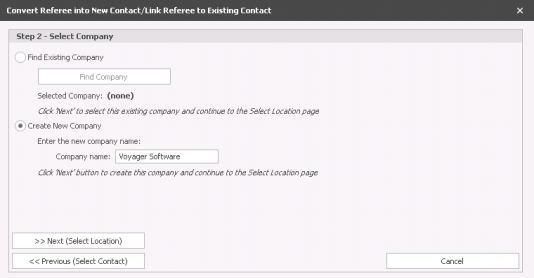
Step 2 - Select Company
Use the radio button to either find and look for the Company already present within the system or Create New Company:
NB:- it is recommended that you use the find to check if the company is already present
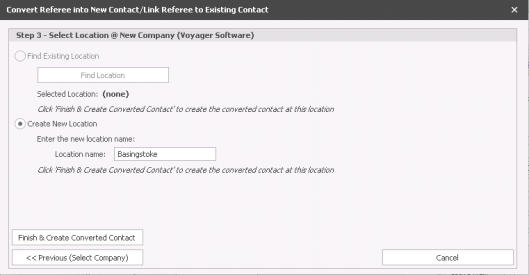
Step 3 - Select Location
Use radio button to either find and look for the location already recorded within an existing Company record or Create New Location:
NB:- it is recommended that you use the find to check if the location is already present
Linked contacts will have restricted editing, these fields will need to be edited from the contact record, except for the relationship, landline and notes field, along with the Reference Checked and attachment area:
Sending Reference Requests
You can click on the email address hyperlink which will automatically open a Outlook email with auto-populated To email address and subject line (with system generated RF code):
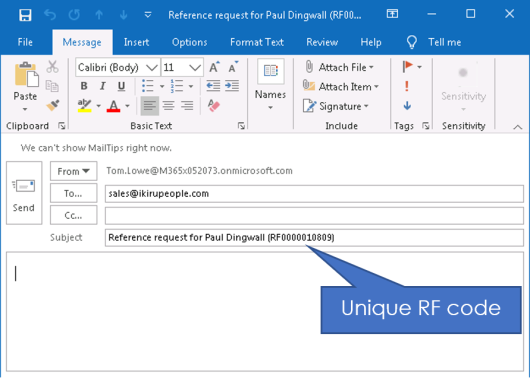
Complete the email message and send. Ensure you keep the RF code intact, when the recipient responds to the reference request and assuming the RF code is left in place, the system will log and record against the candidate record.
Assigning the Reference
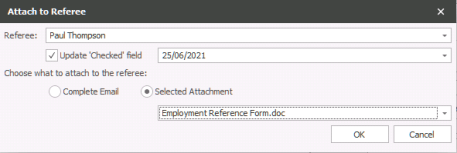
When receiving the reference you can access the event and define if the email or the attachment is the reference.
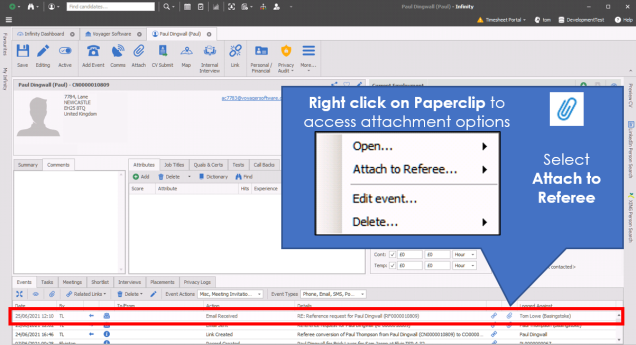
|
Select the Referee from the dropdown |
| Update "Checked" field - tick and record the date | |
| Use radio button to define the email or attachment as the reference document | |
| If selecting attachment, you will be able to define which document |
This will complete the process and ensure the reference is then recorded within the reference area.
Contact Details
If you require further assistance please contact Ikiru People using the details published on www.ikirupeople.com
Visit our Customer Portal at https://portal.ikirupeople.com/ for future events and clinics.
FeedbackIf you would like to make suggestions or have found any errors with this Help section please contact our Support team.
Copyright © 2026 Voyager by Ikiru People Ltd. All rights reservedVersion 4.87
Voyager Software is a brand of Ikiru People Ltd, a subsidiary of Dillistone Group Plc. The group is a leading global provider of software and services that enable recruitment agencies and in-house recruiters to better manage their selection process and address the training needs of individuals. Across its brands – which include Voyager Software (recruitment software UK & Australia), Dillistone FileFinder executive search software, GatedTalent, the global database of the world’s leading executives, Talentis.Global – the next generation of recruitment software and also ISV.Online, provider of online pre-employment skills testing and training tools. Dillistone Group serves thousands of clients worldwide. Ikiru People Ltd: Registration Number 02043300. Registered in England & Wales.
 |  |  |  |