Search Criteria (Re Job)
 Walkthrough available click here
See Infinity Copilot section for details for using AI to build your search
 General
See the section on Temp Searching if using the Run Search facility within a Temp job
The search screen is the same in basic terms whether you are searching any particular type of record or against a job. The options available to you may be different, but the fundamental screens are the same. Job searching includes the facility to set it to Auto Search, see Auto Search section for more details.
The criteria will allow you to review results and then build shortlists
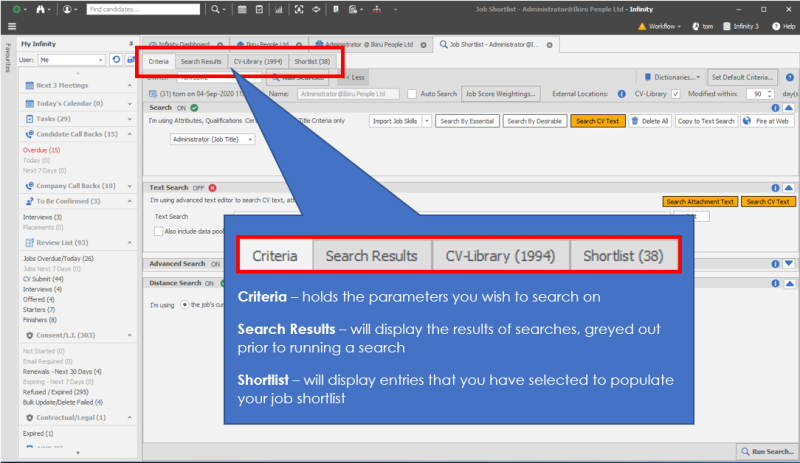
CV Library - (candidate searches only) if implemented by your system administrator, see CV Library section for more details
Changing the size of the sections
Use the double headed arrow to drag the section to the size that they need to be. Use the default button if you would like Infinity to remember these sizes and to automatically create them the size that you have specified.
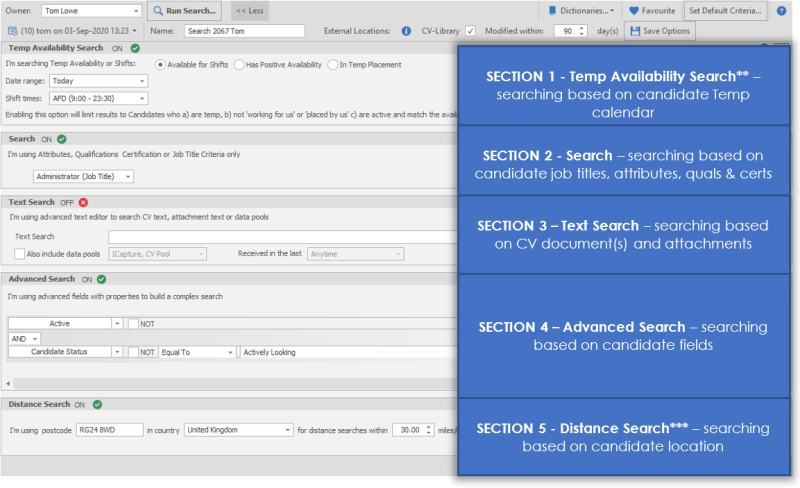
The above screen shows that the search is split into 5 sections:
- Temp Availability Search**
- Search
- Text Search
- Advanced Search
- Distance Search (please note distance search will not be available if you do not hold a Distance Search licence)
**Availability Search section for Temp Jobs only, see Temp Searching section for more details
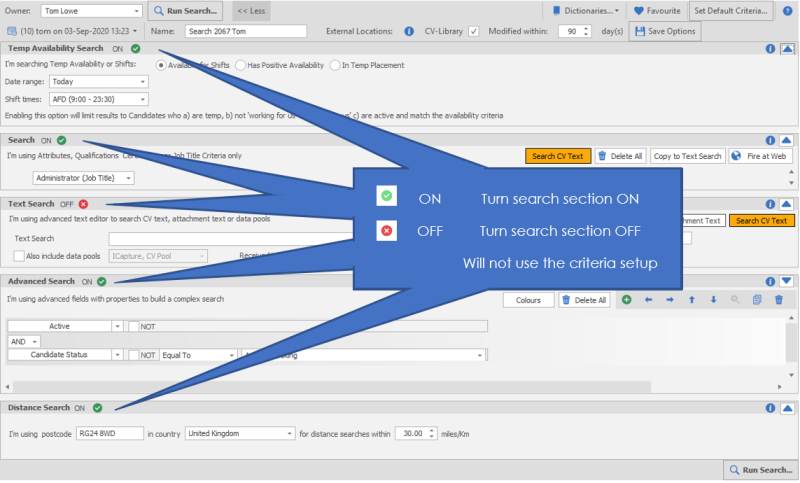
Search Sections ON or OFF
Each of the sections can be switched on and off as necessary.
Criteria Toolbar
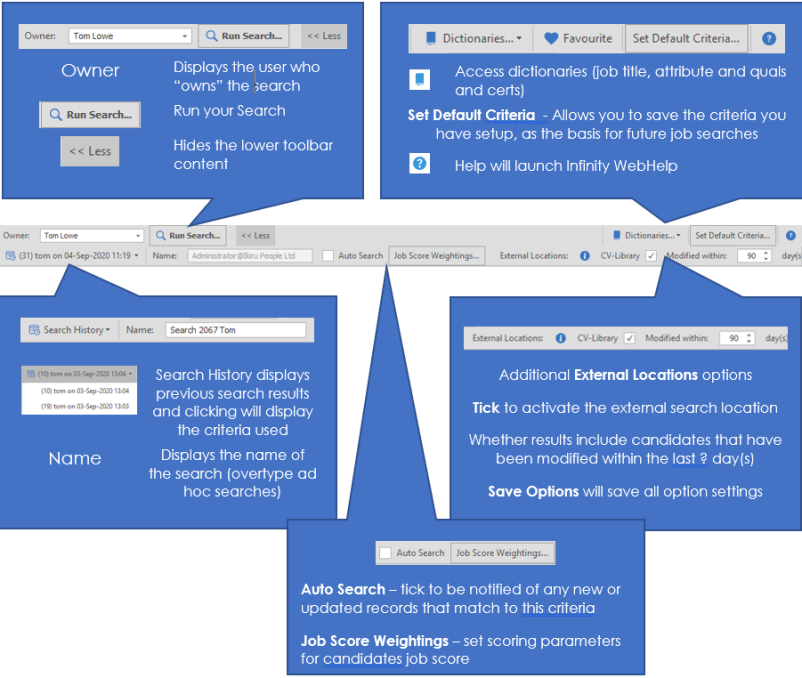
See external locations - CV Library section for more details
Autosearch
(Perm / Contract / Fixed Term jobs only) The autosearch switch is defaulted to OFF but can be ticked by users as desired.
This facility, allows users to ensure new candidates processed through iCapture are checked against any job that has the autosearch ON and to flag this in the users My Infinity (see below)
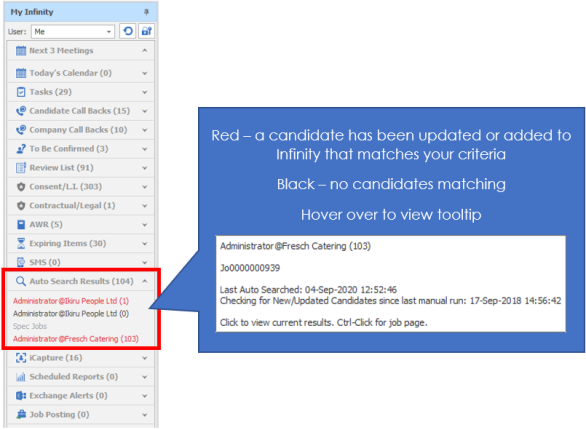
The system utilises the date and time recorded when a search is run, this is why it prompts users to run the search when ticking the autosearch, once run this date and time is used to refer to any candidates then added / updated into the system. These are checked against the criteria and then flagged when matching the criteria, this avoids having to store the results list itself helping improve the speed of this function.
Once the autosearch has found candidates you will be able to click on the job in the My Infinity panel and go to the results to review and add (thumbs up) or reject (thumbs down) for the shortlist.
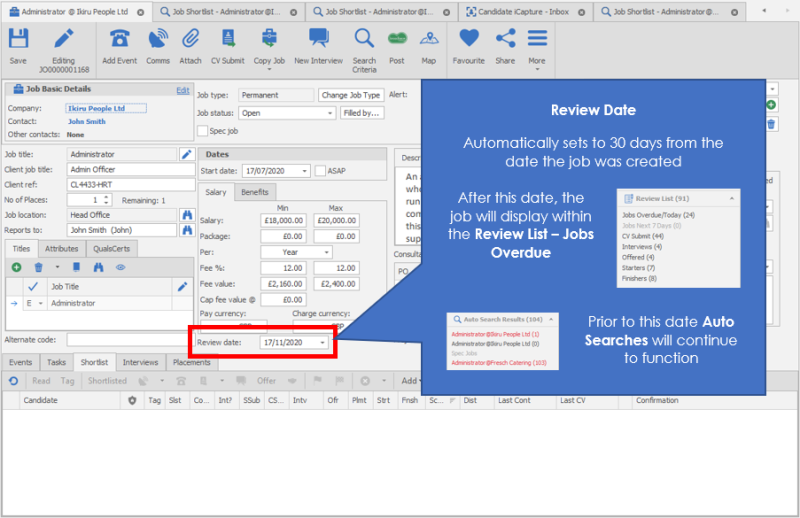
The flags / results will remain within the My Infinity panel until you complete the accept or reject action or run the search from the criteria or a candidate accepts the offer within the placement record. Alternatively you can switch off the autosearch facility from the criteria tab, you will be prompted to run you search again for this action to be completed. Autosearch will be automatically switched off when the job review date passes:
Job Score Weightings
users can adjust the impact of certain criteria used by adjusting the scoring for each area
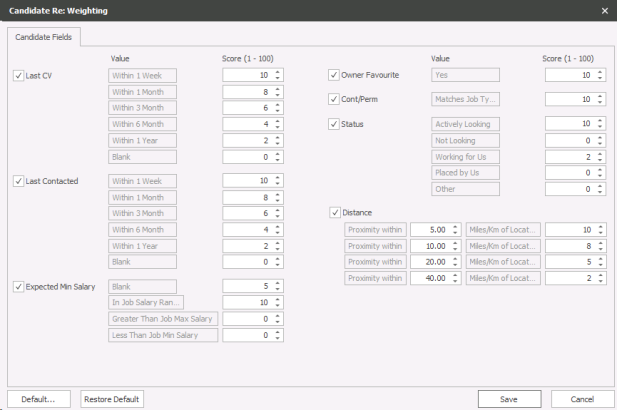
Adjusting the weightings can then be saved for future searches by clicking on Default
You can restore original Defaults by clicking on Restore Default
Temp Availability Search
Temp Availability Search is activated within your User Options, searching candidates Temp calendar, this includes any Temp placements and any unavailability entries
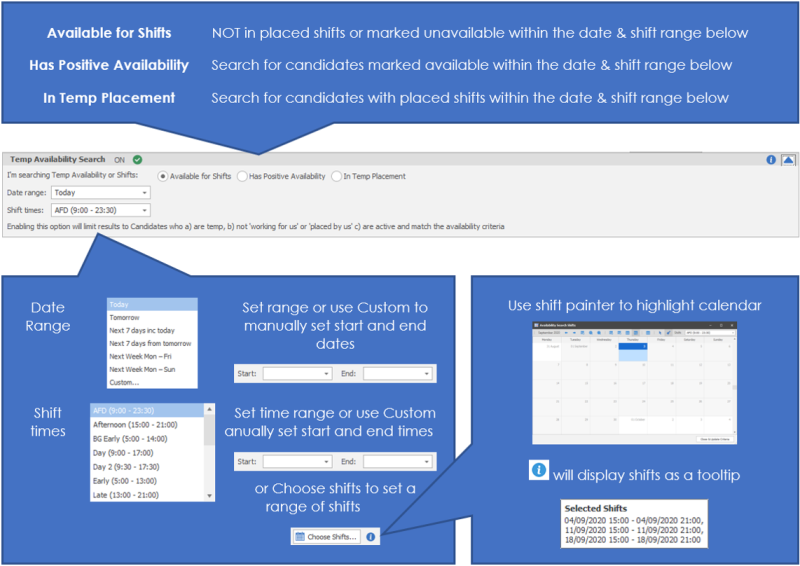
See the Temp Search Results section for details of the results list
Search Section
The import Job skills allow you to quickly take skills you have put against the job record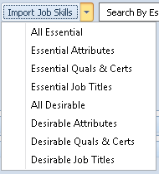
Search By Essential – means that if there are essential skills these will be searched on, these are switches and no longer need to import them into search grid
Search By Desirable – means that if there are desirable skills these will be searched on, these are switches and no longer need to import them into search grid
NB:- these are treated as OR’s when search on
Search CV Text This is a toggle button. Click once to switch it on and again to switch it off. In the image above it shows the search CV Text is highlighted. This means that the search will search all CV documents as well as the candidates’ assigned attributes, job title and qualifications and certificates.
Note:- We would generally encourage switching OFF searching CV text so that relevant candidate's are returned
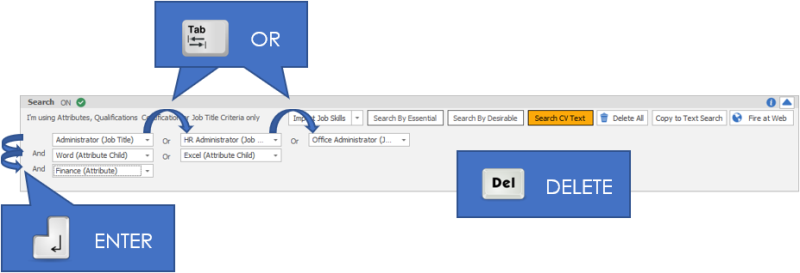
To add in additional criteria use your Return / Enter key for AND criteria and Tab key to add in OR criteria.
- If you have used your default button, this may look different when you first open this screen.
- If you want this section to run in the search, make sure that the section is switched on
- This section is specifically designed for you to do quick searching. Use this section if you want to search for records that have attributes, job title and / or qualification and certificates only.
- The search will produce results that match an attribute including their synonyms and child attribute records
- OR's go across the screen and AND's go down the screen. The image below shows some criteria included in the screen.
Delete all
Click this button to remove all the criteria within this section
Copy to text search
Click this button for Infinity to transfer the details of the search to the Text search area in section 2. This is created in a Boolean format. You can make changes to the text that is created in this area.
 NOTE - This does not include the synonyms and child records.
Fire at Web
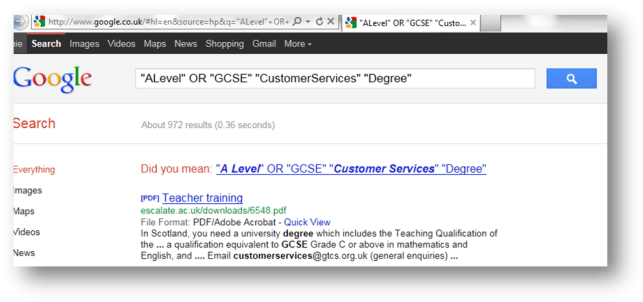
Click this button to send the same search criteria at the Internet. This will automatically open a Google search and populate the search bar. The image below shows the screen that Infinity will create in Google.

Navigation
To navigate around this section you must use your key board.
|
Ctrl + Tab key |
Inserts a new OR field at current location
|
|
Tab key (at end of row) |
Inserts a new field at the end of the row
|
|
Tab Key |
Moves within the created fields
|
|
Enter key |
Inserts a new AND field
|
|
Delete key |
Deletes a single field
|
|
Ctrl + Delete key |
Deletes entire row
|
You can enter criteria by typing directly into the fields, or by clicking on the drop down list and choosing the correct option from here.
Text search Section
- The above screen shot show the basic search screen as you will see when you first install Infinity. If you have used your default button, this may look different when you first open this screen.
- If you want this section to run in the search, make sure that the section is switched on
- This is a text search area only and will not take into account the attributes that you may have allocated to a record
Search CV text
This is a toggle button. If the button is yellow, the option is switched on, if it is the (usual, for your chosen skin) back ground colour, the option is switched off.
The image below shows the Search CV Text is yellow. This means that the search will search all CV documents.
NOTE – This is all the candidates CV’s (whether they are marked as active or not)
Search attachment text
This is toggle button. If the button is orange, the option is switched on, if it is the (usual, for your chosen skin) back ground colour, the option is switched off.
In the image below the Search Attachment Text is orange. This means that the text search will look also in the records attachments as well as CV documents. When switched on the search will apply to both CV’s and all candidate attachments in the candidate records.
Text search
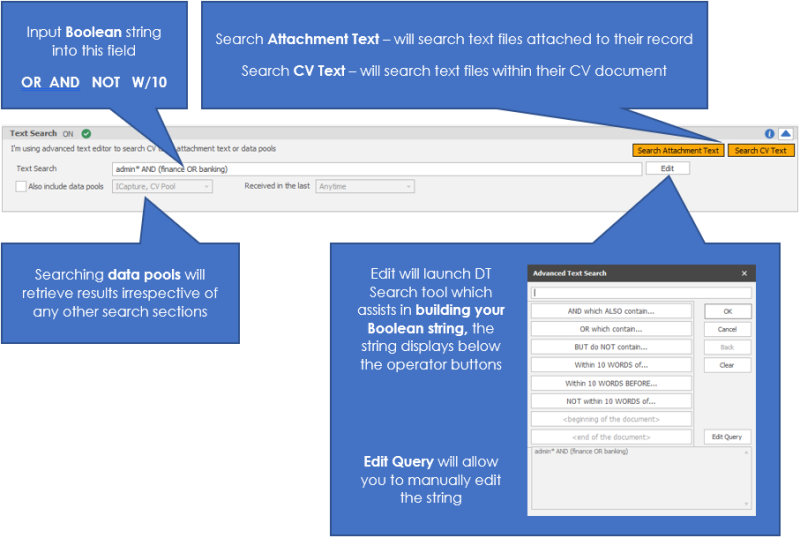
This is the area that you can enter the text that you would like to search on. There are several options on how to populate this area.
- Click the Copy to Text Search button in section 1, this will copy the text over into this box.
- You can also Manually type in the Text search field
- Alternatively you can use the Edit button to open the DTSearch screen.
Advanced Search (Section 3)
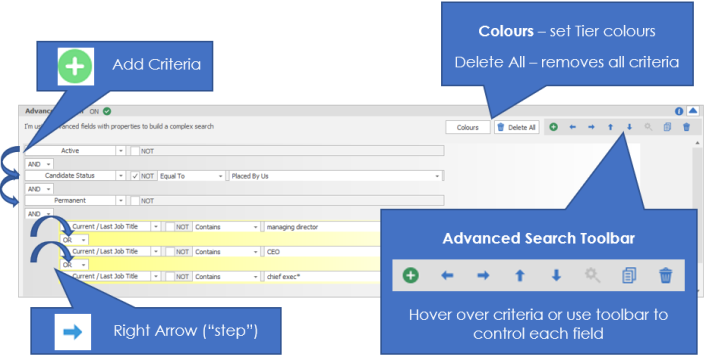
Important in this section
- The screen shot above shows the basic search screen as you will see when you first install Infinity. If you have used your default button, this may look different when you first open this screen.
- If you want this section to run in the search, make sure that the section is switched on
- This area is for the more complicated searching you may want to do regarding the records fields within Infinity. You are able to include the same criteria that you have included in the first section if you wish, but you have more flexibility in the type of searching.
- It is here that you can include ‘not’ criteria. I.e. remove records that match criteria, rather than include them.
- You can use Core Text (via the Other category), saving you having to input each criteria individually, this will search the core fields on a candidate record these include:
- CV Name
- Attachment Name
- Summary
- Comment
- Preferred Location
- Town (From Travel location)
- Company Name (from work history)
- Job Title (from work history)
Using Groupings (OR's)
Groupings can be used to define whether you want a combination of search criteria to be considered as a group (i.e. bracketed together) or separately.
If you want to add additional detail to this search you can create an another level so that the criteria is considered to be separate
Step by Step Guide using OR's
Step 1 - adjusting criteria
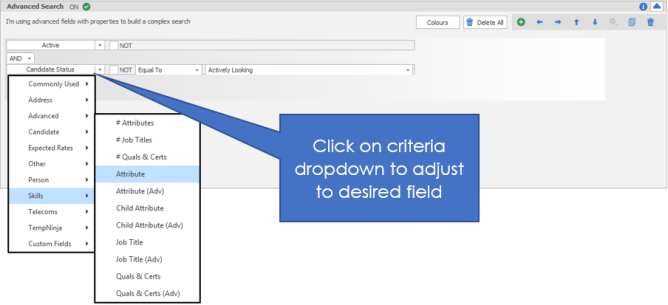
Step 2 - Adding a field
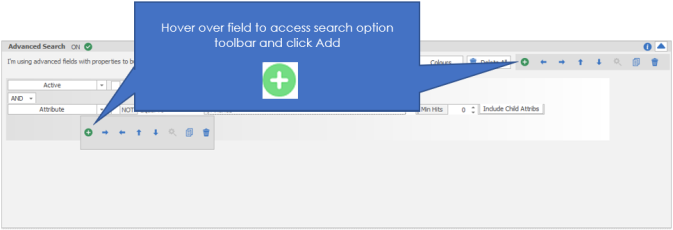
Step 3 - Stepping criteria
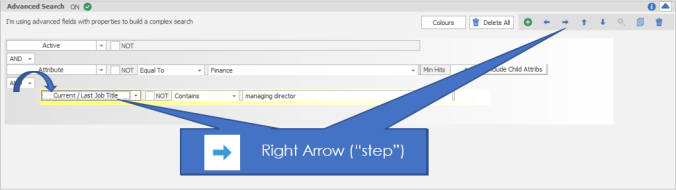
Step 4 - Adding to OR group
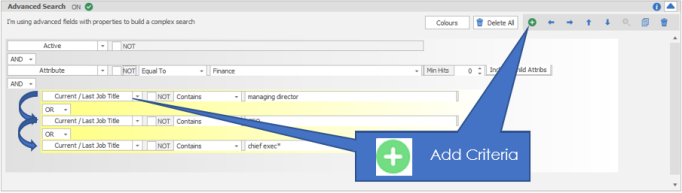
Finished
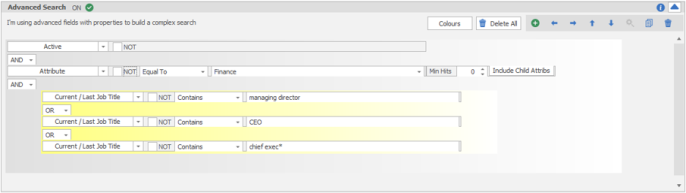
It will give me a result of anyone who has Finance attribute combined with a job title of either Managing Director or CEO or Chief Exec*
Please note the ‘AND’ / ‘OR’ option should never appear at the same level.
Toolbar
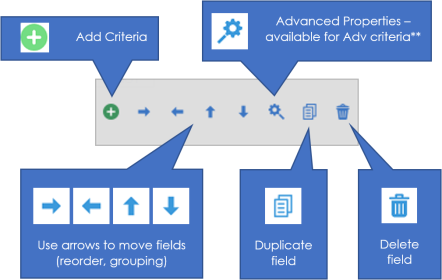
Colours
You are able to change the colours of the groups, so that you can easily see which criteria go together in the search screen. When you first use this part of the section the colours will be set to be transparent. Therefore you’ll see no colours, until you make changes.
- To change the colours that you see on the screen, click the Colours button

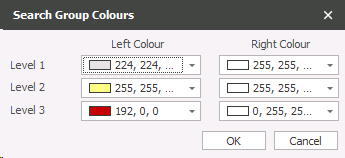
- You can change the colours for 3 levels of search. This means that you are able to see easily how the criteria are grouped.
Using Wildcards in field search
You can use wildcards within your criteria by using %, in most circumstances you can use parameters like 'contains', 'begins with' but there can be specific reasons why you may wish to use wildcards or substitute characters to search for records.
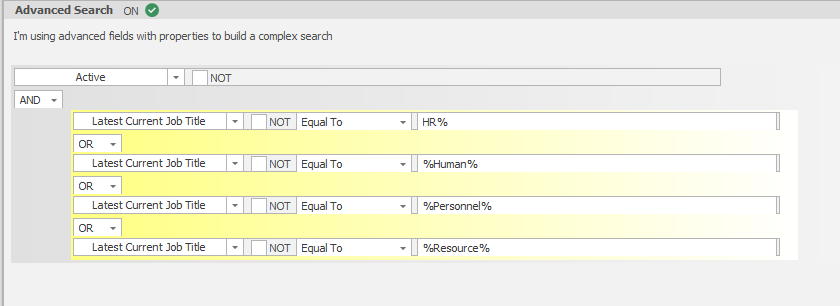
Example below shows using wildcards before and after text for some criteria. HR% will return anyone with the job title that starts with HR, %Human% will return anyone with the job title that has Human anywhere within their job title field.
Alternatively you can use _ to substitute a single character
Example of using substituted characters, where I am trying to search for specific post code
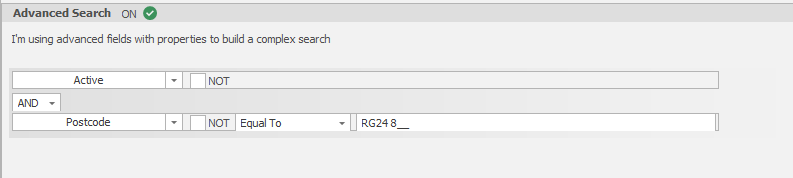
Detailed Post Code Search Criteria
Within the advanced search area you are able to use formula where appropriate, for examples:
Search for companies with a post code of RG21 to RG24 only, input

If you wish to not bring up candidates that have a particular post code you can use code as below, this will bring up all candidates with RG20 and onward but not RG21, RG22, RG23 or RG24 as we have used the ^ to tell the system to not include 1 to 4 following the RG2.

Distance search
If you have the Distance Search licence you are able to do a distance search in this part of the screen. If you do not have the distance search option and would like to add it to your account, please contact customer services who will be happy to discuss costs with you
Job Location

Manual Location by Post Code)

Manual Location by name)
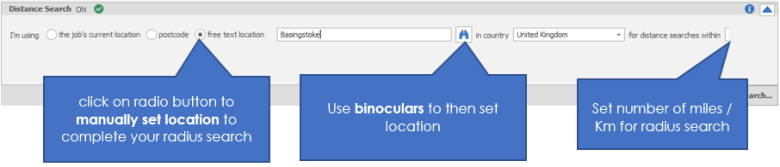
- The distance search is based on a radius search. The search will look in an invisible circle around a postcode that you enter. The search is as the crow flies, and not based on any road systems. For example you may wish to see all the candidates that live within a 10 mile radius of RG24 8WD.
- Access to the Distance searching is managed by your System Administrator. Please contact your System Administrator for access rights.
- If you want to search on distances, make sure that you have the section switched ON
- To include the distance search in the search screen, enter the first part of the postcode in the I’m using postcode fields and then enter the number of miles that you would like to include in the search.
- International Distance Search users will be required to input the country and then the full post code.

Auto Search
This facility enables you to be alerted to any
Contact Details
If you require further assistance please contact Ikiru People using the details published on www.ikirupeople.com
Visit our Customer Portal at https://portal.ikirupeople.com/ for future events and clinics.
FeedbackIf you would like to make suggestions or have found any errors with this Help section please contact our Support team.
Copyright © 2026 Voyager by Ikiru People Ltd. All rights reservedVersion 4.87
Voyager Software is a brand of Ikiru People Ltd, a subsidiary of Dillistone Group Plc. The group is a leading global provider of software and services that enable recruitment agencies and in-house recruiters to better manage their selection process and address the training needs of individuals. Across its brands – which include Voyager Software (recruitment software UK & Australia), Dillistone FileFinder executive search software, GatedTalent, the global database of the world’s leading executives, Talentis.Global – the next generation of recruitment software and also ISV.Online, provider of online pre-employment skills testing and training tools. Dillistone Group serves thousands of clients worldwide. Ikiru People Ltd: Registration Number 02043300. Registered in England & Wales.
 |  |  |  |