Managing Call Backs
 Walkthrough
The below instructions are based on managing call backs, there are other options but the process below highlights the advantage of using your call back lists and the additional functionality of reassigning the call back. This will ensure key candidates or contacts are never left without a call back.
Step 1 - Accessing the Call Back List
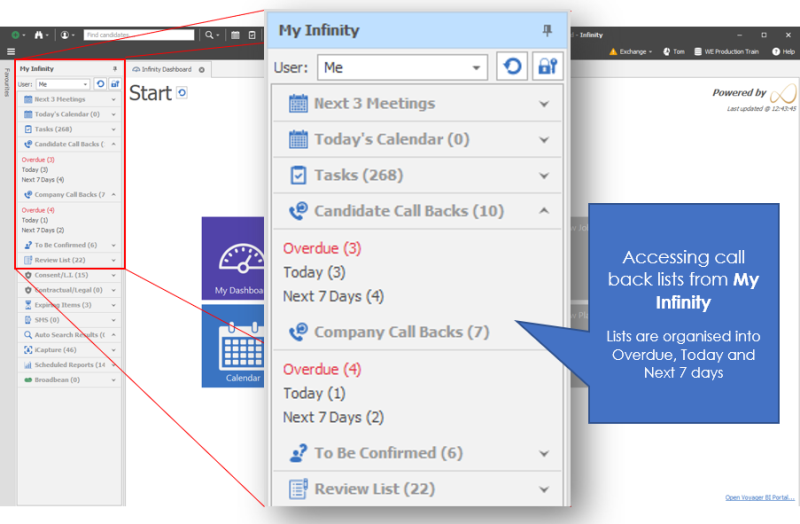
NB:- Windows notifications can also be enabled see call back notifications section for more details
Step 2 - Reviewing the Call Backs
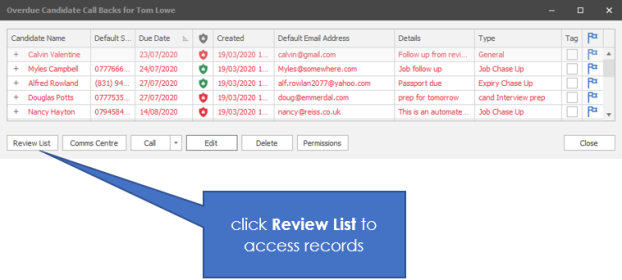
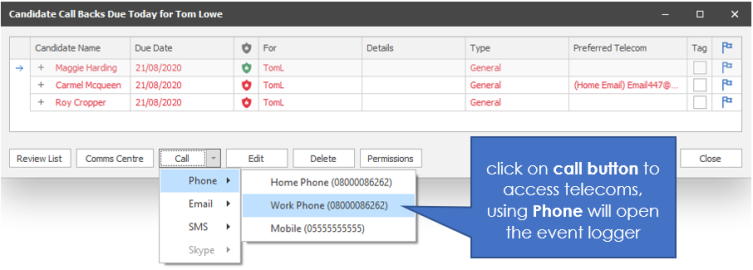
Step 3 - Opening the Event Logger
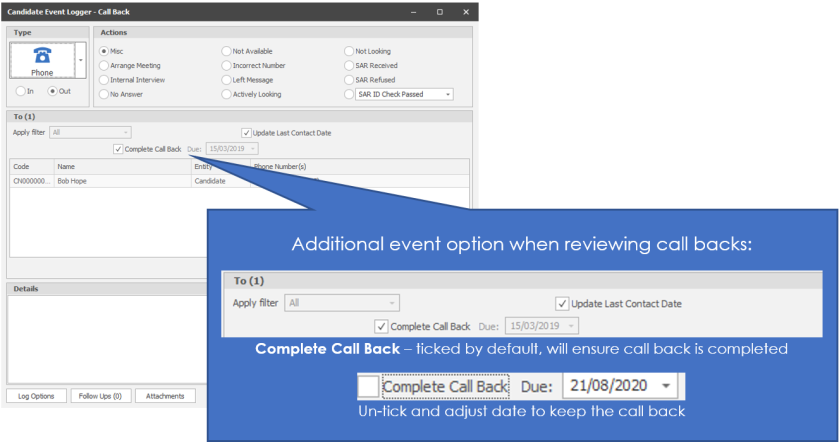
Step 4 - Logging the Call
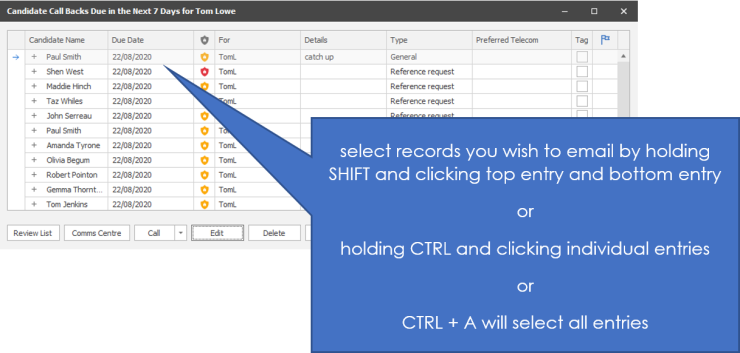
Step 5 - Selecting Contacts to Bulk Email
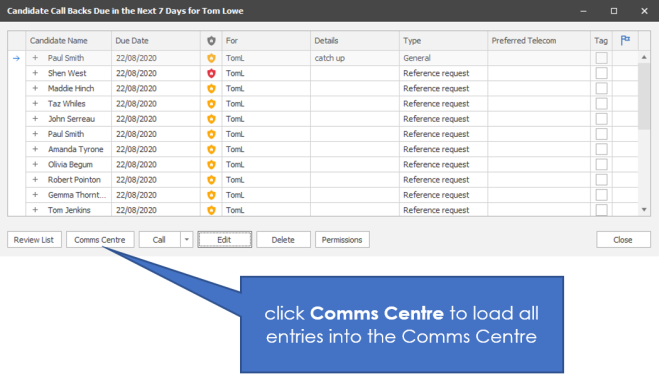
Step 6 - Bulk Emailing Contacts


Need more information, click below:
General
You are able to setup call backs for candidates, contacts, companies or company locations. These will then populate the users My Infinity panel for Next 7 Days, Today or Overdue. When accessing the lists within the My Infinity panel you will open a list of the candidates or contacts (Company or Location).
Call Backs
Please see the Call Backs section for more details
Comms Centre
Please see the Comms Centre section for more details
Event Logs
Please see the Add Events section for more details
 Contact Details
If you require further assistance please contact Ikiru People using the details published on www.ikirupeople.com
Visit our Customer Portal at https://portal.ikirupeople.com/ for future events and clinics.
FeedbackIf you would like to make suggestions or have found any errors with this Help section please contact our Support team.
Copyright © 2026 Voyager by Ikiru People Ltd. All rights reservedVersion 4.87
Voyager Software is a brand of Ikiru People Ltd, a subsidiary of Dillistone Group Plc. The group is a leading global provider of software and services that enable recruitment agencies and in-house recruiters to better manage their selection process and address the training needs of individuals. Across its brands – which include Voyager Software (recruitment software UK & Australia), Dillistone FileFinder executive search software, GatedTalent, the global database of the world’s leading executives, Talentis.Global – the next generation of recruitment software and also ISV.Online, provider of online pre-employment skills testing and training tools. Dillistone Group serves thousands of clients worldwide. Ikiru People Ltd: Registration Number 02043300. Registered in England & Wales.
 |  |  |  |