iCapture Administration
General
iCapture is Infinity’s CV import module that will extract data from CV's to auto populate fields within a candidate record.
iCapture Administration has 7 tabbed screens allowing you to adjust how iCapture should process CV’s. The overview of iCapture is found in Appendix F - iCapture Flow Chart. Additional defaults for candidates can be found within the General Settings area.
 iCapture Settings
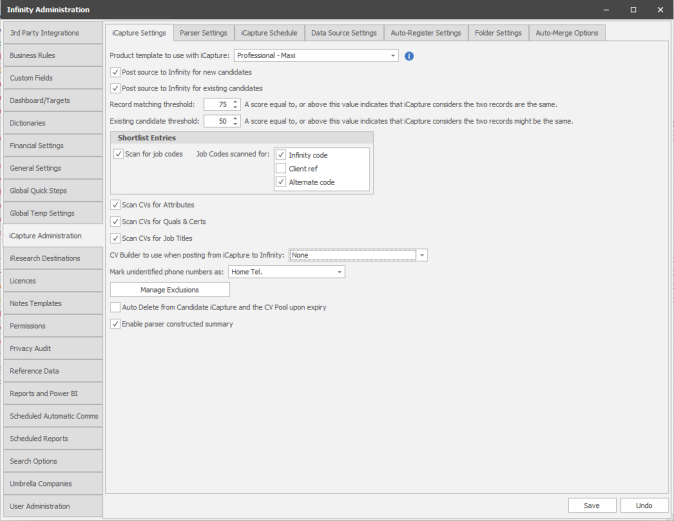
The table explains iCapture Settings:
|
Product Template to use with iCapture
|
Select which Product Template to use with iCapture. Select from the drop down selection:
|
|
Post source to Infinity for new Candidates
|
Tick the check box for iCapture to post the source to Infinity for new Candidates, if the source is recognised via the identifier from the reference data setting for sources |
|
Post source to Infinity for existing Candidates
|
Tick the check box for iCapture to post the source to Infinity for existing Candidates, if the source is recognised via the identifier from the reference data setting for sources |
|
Record matching threshold – new Candidates
Existing Candidate threshold
|
Set a value to indicate to iCapture the level of record matching. For example set a high threshold score value to increase the likelihood of two records being the same.
This is the aggregate score required for iCapture to make a definite match between an incoming CV with an existing candidate in the main Infinity database. If posting existing candidates direct to Infinity, the matched candidate will be updated, based on the settings of the ‘Auto-Merge Settings tab. If the score is under the threshold, the incoming candidate will either be posted into Infinity as a new record or added to Candidate iCapture. |
|
Shortlist Entries: Scan for Job Codes Job Codes scanned for
|
Tick here to have iCapture scan for Job Codes in CV’s and emails Identify which job codes you would like iCapture to scan for. Choose from
|
|
Scan CVs for Attributes |
Tick this check box to switch on “autoskill” which will pick up Attribute dictionary terms in CV’s posted into iCapture. Un-ticked will mean iCapture will NOT pick up Attribute skills automatically |
| Scan CVs for Quals & Certs | Tick this check box to switch on “autoskill” which will pick up Quals & Certs dictionary terms in CV’s posted into iCapture. Un-ticked will mean iCapture will NOT pick up Quals & Certs skills automatically |
| Scan CVs for Job Titles | Tick this check box to switch on “autoskill” which will pick up Job Ttle dictionary terms in CV’s posted into iCapture. Un-ticked will mean iCapture will NOT pick up Job Title skills automatically |
| CV Builder to use when posting from iCapture to Infinity | Select a CV Builder you wish to apply to CV's posted to Infinity |
|
Mark unidentified phone numbers as
|
If the CV has a phone number which is not clearly marked, as Home, Work etc., you can set to mark the phone number as one of the following:
|
| Manage Exclusions |
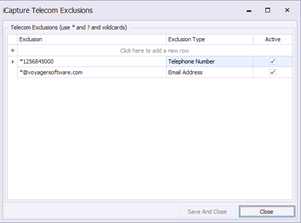
Add telephone numbers, social media URL's, website URL's and email addresses that you do not wish to be parsed by iCapture, this is particularly important for job board telecoms, as these can be picked up in error when parsing CV's . Use wildcard's (*) to ensure anything from a specific domain or telephone is not parsed:
|
| Auto Delete from iCapture upon expiry |
Tick to enable the deletion of expired CV's held within iCapture inbox, ensuring GDPR compliance, see GDPR section for more details |
| Enable parser constructed summary | Tick to enable iCapture to create a summary utilising Sovereign's AI |


Parser settings
This will be set to Sovren and cannot be changed
iCapture schedule
NB: - This is setup automatically when your system is installed
iCapture is designed to regularly poll for incoming sources. Use the iCapture Scheduler to configure the polling window. In the example we can see that iCapture is set to poll every minute between 7:00 and 21:00.
 IMPORTANT – Please note for SaaS systems you cannot edit the iCapture Schedule
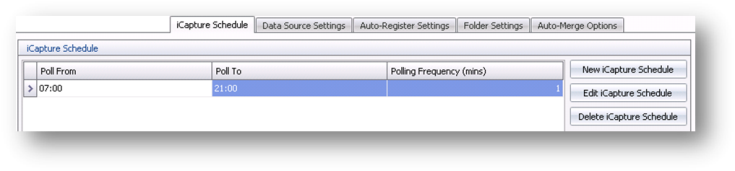
Add a new iCapture schedule
-
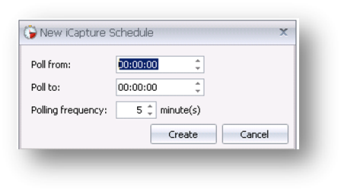
- Click New iCapture Schedule
- Enter the start and end time for the polling window. If you would like it to be running for 24 hours a day, leave the start and end times as above.
- Set the polling frequency, the minimum is 1.
- Click
 and the iCapture Schedule will be complete.
Edit an iCapture schedule
- Select the iCapture Schedule and click
 .
. - Make any changes as necessary and click
 to save any changes.
Delete an iCapture schedule
- Select the iCapture Schedule and click

- The schedule will be deleted
Data source settings
Set up the locations of sources which are fed into iCapture. The example shows a typical setup of a variety of sources.
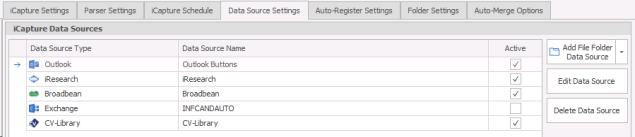
Outlook (system default) - This ensure users can send CV's to iCapture from their Outlook (using the Infinity Connector)
iResearch (system default) - This ensures users can send CV's or profile files to iCapture from iResearch (generally LinkedIn profiles)
Broadbean (system default OFF) - you can quickly tick to activate Broadbean to iCapture integration (you will require an account with app tracking)
LogicMelon (system default OFF) - you can quickly tick to activate LogicMelon to iCapture integration (not in screenshot but would be in place of Broadbean entry)
Exchange (example) - use Exchange data sources to point directly at an Inbox or a folder within an exchange account (for example, to import all emails sent to cvs@voyagersoftware.com with attachments)
CV-Library (system default) - see Search Options to enable the candidate search facility, along with this enabled will enable you to send unlocked CV's to iCapture from the CV-Library search results
Add Data Source options
|
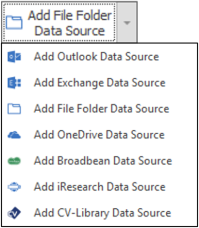
The Add Data Source button is divided into two; you can either click ‘Add File Folder Data Source’ if you want to create a file folder data source or click on the right of the ‘Add File Folder Data Source’ button or choose from one of the source types. |
|
|---|
 IMPORTANT – File Folder not available for SaaS users please use theOneDrive data source
Add an Outlook Data Source
NB: - This is setup automatically when Infinity is installed
- Create a new Outlook Data Source. Select Outlook Data Source
- Complete the selections as appropriate and click
 .
.
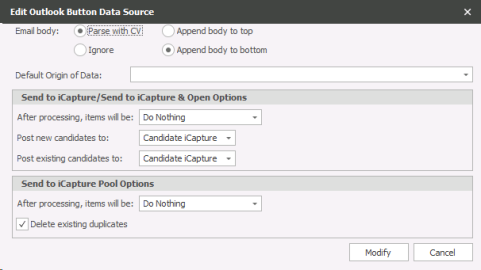
The table explains the Outlook Data Source options:
|
Email Body: Parse with CV Ignore |
Select either Parse with CV or ignore. It is recommended to select Parse with CV. |
|
After processing, items will be: |
Select whether items should be deleted or not after processing |
|
Post new Candidates to: |
Select whether items should be sent to Infinity database (without a human check) or Candidate iCapture after processing (enabling a human check). |
|
Post Existing Candidates to: |
Select whether items should be sent to Infinity database or Candidate iCapture after processing |
|
After processing items will be: |
Select whether items should be sent to Infinity database (without a human check) or Candidate iCapture after processing (enabling a human check). |
|
Delete existing duplicates |
Tick the check box if you wish duplicates to be deleted. This is a recommended option. |
If any Data Source is set to Post to Infinity Database (send CV's / profiles directly into Infinity without any user reviewing the data) then you will receive a warning:

WARNING
Regulation (EU) 2016/679 or the General Data Protection Regulation (the GDPR), has provisions around the prohibition of automated decision making regarding personal data as defined by the regulation. By utilising the function, it could be perceived that the process of parsing a record and directly applying that to your database without the results being checked by human intervention (via iCapture) may fall under Automated processing. Until further clarification from competent Supervisory Authorities, the Article 29 working party, or case law, the use of this function, (the direct sending of parsed data into the core database rather than being verified and cross checked via iCapture) , is recommended only where you have the data subjects explicit consent. You should also follow all requirements under the regulation (especially Article 22, 13(2)f & 14(2)g).
We recommend that any database with the ‘Post existing candidates to’ set to ‘Infinity Database’, include details of Automated Processing in their Privacy Notice.
Add an Exchange Data source
This allows you to add an exchange account as a source of your CV’s and can pick up CV’s (with or without the email message) that are sent into the inbox or a particular folder within the exchange account.
IMPORTANT - if your exchange passwords are regularly changed you must ensure you update the password for your exchange data source or it may cause locking of exchange accounts
- Click on the small arrow to the right of Add File Folder Data Source and select Add Exchange Data Source
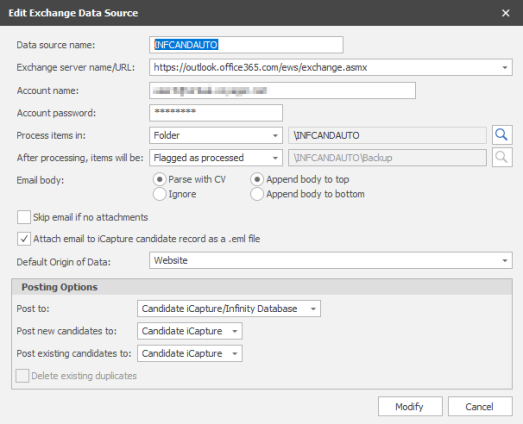
- Data Source Name – is a reference name and will show in iCapture

- Exchange server name/URL –Select from the dropdown menu
- Account name – account user name
- Account password – account user password
- Process items in – By default Inbox is selected, all emails will be processed to iCapture (or just those with attachments, see below tick box for Skip email of no attachment). Select Folder from the dropdown menu if you prefer to only send emails within a particular folder, then use the search button to view folders setup within the exchange account and select the appropriate folder
- After processing, items will be – Select your preferred choice
- Email body:
- Either parse with the CV (it will keep the email with the CV when parsing)
- Ignore (it will just put the attached CV into iCapture) the system can ignore any emails that do not have attachments.
- Skip email if no attachment - avoid emails without any attachment being sent to iCapture
- Attach email to iCapture candidate record as a .eml file - ensures the full email is attached to the candidate record once processed
- Default Origin of Data - choose one of your Origin of Data options or leave blank to not default, see GDPR section for more details or Reference Data section
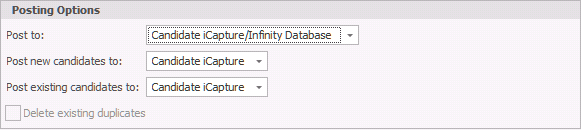
You will initially need to set the destination for your CV's or candidate data to go:
| Post to: |
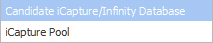
|
Candidate iCapture / Infinity Database - send CV / candidate data to iCapture to be posted manually or automatically |
| iCapture Pool - send CV / candidate data to the Pool |
NB:- The Pool is a "folder" stored on the server and is not managed data, there is no facility to send communications or complete any Privacy Audit process and fulfil the requirements of GDPR.
iCapture / Infinity Database
Post New Candidates
iCapture will calculate whether the candidate is already held on Infinity, if there not adequate matching data it will assume the candidate is "new", you can set how this new data is then processed:
| Post new candidates to: |
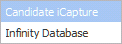
|
Candidate iCapture - send CV / candidate data to iCapture to be posted manually |
| Infinity Database - send CV / candidate data into Infinity |
If any Data Source is set to Post to Infinity Database (send CV's / profiles directly into Infinity without any user reviewing the data) then you will receive a warning:
WARNING
Regulation (EU) 2016/679 or the General Data Protection Regulation (the GDPR), has provisions around the prohibition of automated decision making regarding personal data as defined by the regulation. By utilising the function, it could be perceived that the process of parsing a record and directly applying that to your database without the results being checked by human intervention (via iCapture) may fall under Automated processing. Until further clarification from competent Supervisory Authorities, the Article 29 working party, or case law, the use of this function, (the direct sending of parsed data into the core database rather than being verified and cross checked via iCapture) , is recommended only where you have the data subjects explicit consent. You should also follow all requirements under the regulation (especially Article 22, 13(2)f & 14(2)g).
We recommend that any database with the ‘Post existing candidates to’ set to ‘Infinity Database’, include details of Automated Processing in their Privacy Notice.
Post Existing Candidates
iCapture will calculate whether the candidate is already held on Infinity, if there is adequate matching data it will use the Auto Merge Options to define how this new data updates the existing candidate record:
| Post existing candidates to: |
|
Candidate iCapture - send CV / candidate data to iCapture to be posted manually |
| Infinity Database - send CV / candidate data into Infinity |
If any Data Source is set to Post to Infinity Database (send CV's / profiles directly into Infinity without any user reviewing the data) then you will receive a warning:
WARNING
Regulation (EU) 2016/679 or the General Data Protection Regulation (the GDPR), has provisions around the prohibition of automated decision making regarding personal data as defined by the regulation. By utilising the function, it could be perceived that the process of parsing a record and directly applying that to your database without the results being checked by human intervention (via iCapture) may fall under Automated processing. Until further clarification from competent Supervisory Authorities, the Article 29 working party, or case law, the use of this function, (the direct sending of parsed data into the core database rather than being verified and cross checked via iCapture) , is recommended only where you have the data subjects explicit consent. You should also follow all requirements under the regulation (especially Article 22, 13(2)f & 14(2)g).
We recommend that any database with the ‘Post existing candidates to’ set to ‘Infinity Database’, include details of Automated Processing in their Privacy Notice.
- Post new candidates to:
- Candidate iCapture (recommended), this will send the CV (with or without email) into iCapture to be processed
- infinity Database will parse the CV with or without the email through iCapture and automatically create a candidate record
If any Data Source is set to Post to Infinity Database (send CV's / profiles directly into Infinity without any user reviewing the data) then you will receive a warning:
WARNING
Regulation (EU) 2016/679 or the General Data Protection Regulation (the GDPR), has provisions around the prohibition of automated decision making regarding personal data as defined by the regulation. By utilising the function, it could be perceived that the process of parsing a record and directly applying that to your database without the results being checked by human intervention (via iCapture) may fall under Automated processing. Until further clarification from competent Supervisory Authorities, the Article 29 working party, or case law, the use of this function, (the direct sending of parsed data into the core database rather than being verified and cross checked via iCapture) , is recommended only where you have the data subjects explicit consent. You should also follow all requirements under the regulation (especially Article 22, 13(2)f & 14(2)g).
We recommend that any database with the ‘Post existing candidates to’ set to ‘Infinity Database’, include details of Automated Processing in their Privacy Notice.
Example is set to send all exchange emails within the INFCANDAUTO folder into Icapture, all candidates marked as Website as Data of Origin
Add a File Folder Data Source
This type of Data Source is a folder(s) on your network, that is visible to users and the server environment, so you can use this folder with iCapture. Not for SaaS systems (due to cloud storage there is no facility to share local folder access) see OneDrive Data Source section which will offer similar facilities.
- Click on the arrow Add File Folder Data Source and select File Folder from the list:
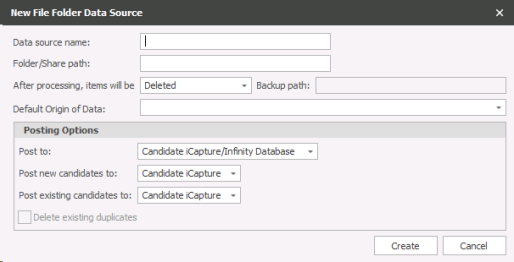
- Give the Data Source a name – this is what will show in iCapture
- Set the path for the folder itself – example T:\Training\CV’s (the folder will need to be on a shared drive for users and the Server to be able to access it)
NB:- you may require to use the full UNC path depending on how the network has been setup, this is for the Server to access the folder
- After Processing, items will be:
- Hidden – Hide the CV in the folder once it has been posted into iCapture
- Deleted – Delete the CV once it has been posted into iCapture
- Moved to backup folder - will autofill with Backup and will automatically create a folder within the location called “Backup” where CV’s will be copied into once it has been posted into iCapture (RECOMMENDED)
Default Origin of Data - set your default Origin of Data here, see GDPR section for more details or Reference Data section
You will initially need to set the destination for your CV's or candidate data to go:
| Post to: |
|
Candidate iCapture / Infinity Database - send CV / candidate data to iCapture to be posted manually or automatically |
| iCapture Pool - send CV / candidate data to the Pool |
NB:- The Pool is a "folder" stored on the server and is not managed data, there is no facility to send communications or complete any Privacy Audit process and fulfil the requirements of GDPR.
iCapture / Infinity Database
Post New Candidates
iCapture will calculate whether the candidate is already held on Infinity, if there not adequate matching data it will assume the candidate is "new", you can set how this new data is then processed:
| Post new candidates to: |
|
Candidate iCapture - send CV / candidate data to iCapture to be posted manually |
| Infinity Database - send CV / candidate data into Infinity |
If any Data Source is set to Post to Infinity Database (send CV's / profiles directly into Infinity without any user reviewing the data) then you will receive a warning:
WARNING
Regulation (EU) 2016/679 or the General Data Protection Regulation (the GDPR), has provisions around the prohibition of automated decision making regarding personal data as defined by the regulation. By utilising the function, it could be perceived that the process of parsing a record and directly applying that to your database without the results being checked by human intervention (via iCapture) may fall under Automated processing. Until further clarification from competent Supervisory Authorities, the Article 29 working party, or case law, the use of this function, (the direct sending of parsed data into the core database rather than being verified and cross checked via iCapture) , is recommended only where you have the data subjects explicit consent. You should also follow all requirements under the regulation (especially Article 22, 13(2)f & 14(2)g).
We recommend that any database with the ‘Post existing candidates to’ set to ‘Infinity Database’, include details of Automated Processing in their Privacy Notice.
Post Existing Candidates
iCapture will calculate whether the candidate is already held on Infinity, if there is adequate matching data it will use the Auto Merge Options to define how this new data updates the existing candidate record:
| Post existing candidates to: |
|
Candidate iCapture - send CV / candidate data to iCapture to be posted manually |
| Infinity Database - send CV / candidate data into Infinity |
If any Data Source is set to Post to Infinity Database (send CV's / profiles directly into Infinity without any user reviewing the data) then you will receive a warning:
WARNING
Regulation (EU) 2016/679 or the General Data Protection Regulation (the GDPR), has provisions around the prohibition of automated decision making regarding personal data as defined by the regulation. By utilising the function, it could be perceived that the process of parsing a record and directly applying that to your database without the results being checked by human intervention (via iCapture) may fall under Automated processing. Until further clarification from competent Supervisory Authorities, the Article 29 working party, or case law, the use of this function, (the direct sending of parsed data into the core database rather than being verified and cross checked via iCapture) , is recommended only where you have the data subjects explicit consent. You should also follow all requirements under the regulation (especially Article 22, 13(2)f & 14(2)g).
We recommend that any database with the ‘Post existing candidates to’ set to ‘Infinity Database’, include details of Automated Processing in their Privacy Notice.
Click Create , you should see that a backup folder will have been created within the folder, this is where a backup copy of the CV will go once it has been picked up by iCapture.
NB: - If CV’s do not start posting after 10 minutes or so then the iCapture service may require restarting to enable these changes.
Add a Broadbean Data Source
Use this type of Data Source to view incoming applications for jobs posted to Broadbean.
- Create a new Broadbean Data Source.
- Complete the sections as required and click .
 You must create a Broadbean Data source to view incoming Broadbean applications
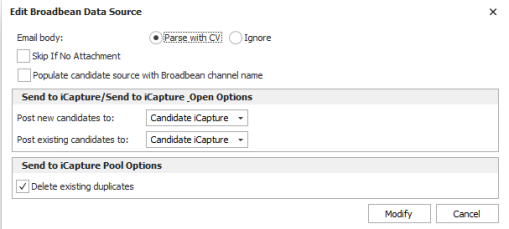
Email Body:
- Parse with CV – allows you to include the email body with the CV
- Ignore – If you wish to not include the email
Skip if No Attachment - skip applications that do not have a CV attachment
Populate candidate source with Broadbean channel name - iCapture sets the candidate ‘Source’ field to the Broadbean/Logic Melon channel name which will be the same value as the candidate ‘Origin of Data’ field
You will initially need to set the destination for your CV's or candidate data to go:
| Post to: |
|
Candidate iCapture / Infinity Database - send CV / candidate data to iCapture to be posted manually or automatically |
| iCapture Pool - send CV / candidate data to the Pool |
NB:- The Pool is a "folder" stored on the server and is not managed data, there is no facility to send communications or complete any Privacy Audit process and fulfil the requirements of GDPR.
iCapture / Infinity Database
Post New Candidates
iCapture will calculate whether the candidate is already held on Infinity, if there not adequate matching data it will assume the candidate is "new", you can set how this new data is then processed:
| Post new candidates to: |
|
Candidate iCapture - send CV / candidate data to iCapture to be posted manually |
| Infinity Database - send CV / candidate data into Infinity |
If any Data Source is set to Post to Infinity Database (send CV's / profiles directly into Infinity without any user reviewing the data) then you will receive a warning:
WARNING
Regulation (EU) 2016/679 or the General Data Protection Regulation (the GDPR), has provisions around the prohibition of automated decision making regarding personal data as defined by the regulation. By utilising the function, it could be perceived that the process of parsing a record and directly applying that to your database without the results being checked by human intervention (via iCapture) may fall under Automated processing. Until further clarification from competent Supervisory Authorities, the Article 29 working party, or case law, the use of this function, (the direct sending of parsed data into the core database rather than being verified and cross checked via iCapture) , is recommended only where you have the data subjects explicit consent. You should also follow all requirements under the regulation (especially Article 22, 13(2)f & 14(2)g).
We recommend that any database with the ‘Post existing candidates to’ set to ‘Infinity Database’, include details of Automated Processing in their Privacy Notice.
Post Existing Candidates
iCapture will calculate whether the candidate is already held on Infinity, if there is adequate matching data it will use the Auto Merge Options to define how this new data updates the existing candidate record:
| Post existing candidates to: |
|
Candidate iCapture - send CV / candidate data to iCapture to be posted manually |
| Infinity Database - send CV / candidate data into Infinity |
If any Data Source is set to Post to Infinity Database (send CV's / profiles directly into Infinity without any user reviewing the data) then you will receive a warning:
WARNING
Regulation (EU) 2016/679 or the General Data Protection Regulation (the GDPR), has provisions around the prohibition of automated decision making regarding personal data as defined by the regulation. By utilising the function, it could be perceived that the process of parsing a record and directly applying that to your database without the results being checked by human intervention (via iCapture) may fall under Automated processing. Until further clarification from competent Supervisory Authorities, the Article 29 working party, or case law, the use of this function, (the direct sending of parsed data into the core database rather than being verified and cross checked via iCapture) , is recommended only where you have the data subjects explicit consent. You should also follow all requirements under the regulation (especially Article 22, 13(2)f & 14(2)g).
We recommend that any database with the ‘Post existing candidates to’ set to ‘Infinity Database’, include details of Automated Processing in their Privacy Notice.
Add a iResearch Data Source
NB:- This is setup automatically when Infinity is installed
Use this type of Data Source to pull data from iResearch.
- Create a new iResearch Data Source
- Complete the sections as required and click .
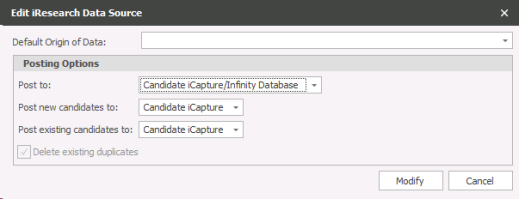
Default Origin of Data - set the appropriate default Origin of Data, see GDPR section for more details or Reference Data section
You will initially need to set the destination for your CV's or candidate data to go:
| Post to: |
|
Candidate iCapture / Infinity Database - send CV / candidate data to iCapture to be posted manually or automatically |
| iCapture Pool - send CV / candidate data to the Pool |
NB:- The Pool is a "folder" stored on the server and is not managed data, there is no facility to send communications or complete any Privacy Audit process and fulfil the requirements of GDPR.
iCapture / Infinity Database
Post New Candidates
iCapture will calculate whether the candidate is already held on Infinity, if there not adequate matching data it will assume the candidate is "new", you can set how this new data is then processed:
| Post new candidates to: |
|
Candidate iCapture - send CV / candidate data to iCapture to be posted manually |
| Infinity Database - send CV / candidate data into Infinity |
If any Data Source is set to Post to Infinity Database (send CV's / profiles directly into Infinity without any user reviewing the data) then you will receive a warning:
WARNING
Regulation (EU) 2016/679 or the General Data Protection Regulation (the GDPR), has provisions around the prohibition of automated decision making regarding personal data as defined by the regulation. By utilising the function, it could be perceived that the process of parsing a record and directly applying that to your database without the results being checked by human intervention (via iCapture) may fall under Automated processing. Until further clarification from competent Supervisory Authorities, the Article 29 working party, or case law, the use of this function, (the direct sending of parsed data into the core database rather than being verified and cross checked via iCapture) , is recommended only where you have the data subjects explicit consent. You should also follow all requirements under the regulation (especially Article 22, 13(2)f & 14(2)g).
We recommend that any database with the ‘Post existing candidates to’ set to ‘Infinity Database’, include details of Automated Processing in their Privacy Notice.
Post Existing Candidates
iCapture will calculate whether the candidate is already held on Infinity, if there is adequate matching data it will use the Auto Merge Options to define how this new data updates the existing candidate record:
| Post existing candidates to: |
|
Candidate iCapture - send CV / candidate data to iCapture to be posted manually |
| Infinity Database - send CV / candidate data into Infinity |
If any Data Source is set to Post to Infinity Database (send CV's / profiles directly into Infinity without any user reviewing the data) then you will receive a warning:
WARNING
Regulation (EU) 2016/679 or the General Data Protection Regulation (the GDPR), has provisions around the prohibition of automated decision making regarding personal data as defined by the regulation. By utilising the function, it could be perceived that the process of parsing a record and directly applying that to your database without the results being checked by human intervention (via iCapture) may fall under Automated processing. Until further clarification from competent Supervisory Authorities, the Article 29 working party, or case law, the use of this function, (the direct sending of parsed data into the core database rather than being verified and cross checked via iCapture) , is recommended only where you have the data subjects explicit consent. You should also follow all requirements under the regulation (especially Article 22, 13(2)f & 14(2)g).
We recommend that any database with the ‘Post existing candidates to’ set to ‘Infinity Database’, include details of Automated Processing in their Privacy Notice.
Add Talentis Data Source
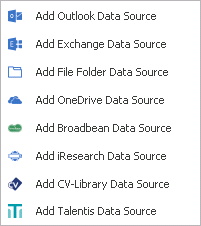
NOTE:- Talentis data source should already be present in your list, it is recommended to only have one active Talentis data source in each system.
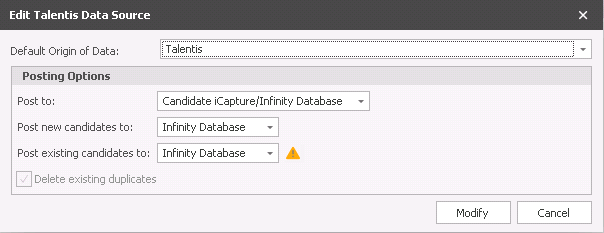
Default Origin of Data - set the appropriate default Origin of Data, see GDPR section for more details or Reference Data section
You will initially need to set the destination for your CV's or candidate data to go:
| Post to: |
|
Candidate iCapture / Infinity Database - send CV / candidate data to iCapture to be posted manually or automatically |
| iCapture Pool - send CV / candidate data to the Pool |
NB:- The Pool is a "folder" stored on the server and is not managed data, there is no facility to send communications or complete any Privacy Audit process and fulfil the requirements of GDPR.
iCapture / Infinity Database
Post New Candidates
iCapture will calculate whether the candidate is already held on Infinity, if there not adequate matching data it will assume the candidate is "new", you can set how this new data is then processed:
| Post new candidates to: |
|
Candidate iCapture - send CV / candidate data to iCapture to be posted manually |
| Infinity Database - send CV / candidate data into Infinity |
If any Data Source is set to Post to Infinity Database (send CV's / profiles directly into Infinity without any user reviewing the data) then you will receive a warning:
WARNING
Regulation (EU) 2016/679 or the General Data Protection Regulation (the GDPR), has provisions around the prohibition of automated decision making regarding personal data as defined by the regulation. By utilising the function, it could be perceived that the process of parsing a record and directly applying that to your database without the results being checked by human intervention (via iCapture) may fall under Automated processing. Until further clarification from competent Supervisory Authorities, the Article 29 working party, or case law, the use of this function, (the direct sending of parsed data into the core database rather than being verified and cross checked via iCapture) , is recommended only where you have the data subjects explicit consent. You should also follow all requirements under the regulation (especially Article 22, 13(2)f & 14(2)g).
We recommend that any database with the ‘Post existing candidates to’ set to ‘Infinity Database’, include details of Automated Processing in their Privacy Notice.
Post Existing Candidates
iCapture will calculate whether the candidate is already held on Infinity, if there is adequate matching data it will use the Auto Merge Options to define how this new data updates the existing candidate record:
| Post existing candidates to: |
|
Candidate iCapture - send CV / candidate data to iCapture to be posted manually |
| Infinity Database - send CV / candidate data into Infinity |
If any Data Source is set to Post to Infinity Database (send CV's / profiles directly into Infinity without any user reviewing the data) then you will receive a warning:
WARNING
Regulation (EU) 2016/679 or the General Data Protection Regulation (the GDPR), has provisions around the prohibition of automated decision making regarding personal data as defined by the regulation. By utilising the function, it could be perceived that the process of parsing a record and directly applying that to your database without the results being checked by human intervention (via iCapture) may fall under Automated processing. Until further clarification from competent Supervisory Authorities, the Article 29 working party, or case law, the use of this function, (the direct sending of parsed data into the core database rather than being verified and cross checked via iCapture) , is recommended only where you have the data subjects explicit consent. You should also follow all requirements under the regulation (especially Article 22, 13(2)f & 14(2)g).
We recommend that any database with the ‘Post existing candidates to’ set to ‘Infinity Database’, include details of Automated Processing in their Privacy Notice.
Add a OneDrive Data Source

NB:- If you make any changes to the OneDrive data source settings, you must Authorise OneDrive again for the changes to save
This type of data source allows you to have CV’s uploaded to iCapture or the database from your OneDrive account. For more information on OneDrive click here to view the website
Once you have created your OneDrive account you can add it as a data source:
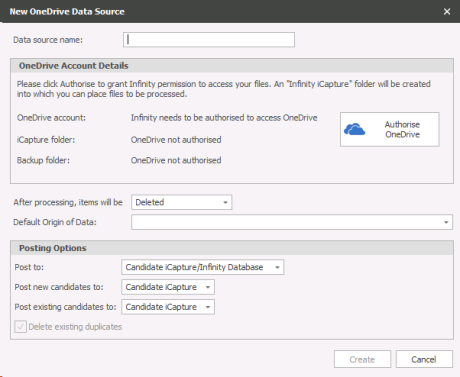
- Data Source Name – this will show in iCapture to allow users to know where the CV has come from
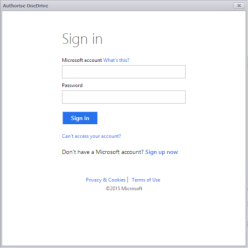
- Click on Authorise OneDrive which will then open the Microsoft login screen, enter your username and password for your OneDrive account:
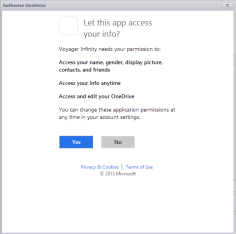
- You will need to authorise Voyager Infinity to access to certain areas of your OneDrive account, click Yes
- Within the Data Source you will see that the OneDrive account is now showing the name of the account
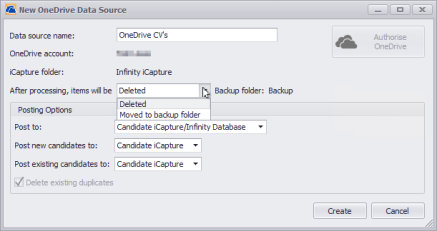
Within your OneDrive account you will now have a folder called Voyager Infinity, this is the location where you should upload your CV’s to be posted into iCapture or Infinity Database (depending on the options below)
After processing, items will be:
- Deleted – will delete the CV from the OneDrive account once it has been processed into iCapture
- Moved to backup folder (RECOMMENDED) – will put a copy of the CV into a backup folder within the OneDrive account Voyager Infinity folder
Default Origin of Data - set the appropriate default Origin of Data, see GDPR section for more details or Reference Data section
You will initially need to set the destination for your CV's or candidate data to go:
| Post to: |
|
Candidate iCapture / Infinity Database - send CV / candidate data to iCapture to be posted manually or automatically |
| iCapture Pool - send CV / candidate data to the Pool |
NB:- The Pool is a "folder" stored on the server and is not managed data, there is no facility to send communications or complete any Privacy Audit process and fulfil the requirements of GDPR.
iCapture / Infinity Database
Post New Candidates
iCapture will calculate whether the candidate is already held on Infinity, if there not adequate matching data it will assume the candidate is "new", you can set how this new data is then processed:
| Post new candidates to: |
|
Candidate iCapture - send CV / candidate data to iCapture to be posted manually |
| Infinity Database - send CV / candidate data into Infinity |
If any Data Source is set to Post to Infinity Database (send CV's / profiles directly into Infinity without any user reviewing the data) then you will receive a warning:
WARNING
Regulation (EU) 2016/679 or the General Data Protection Regulation (the GDPR), has provisions around the prohibition of automated decision making regarding personal data as defined by the regulation. By utilising the function, it could be perceived that the process of parsing a record and directly applying that to your database without the results being checked by human intervention (via iCapture) may fall under Automated processing. Until further clarification from competent Supervisory Authorities, the Article 29 working party, or case law, the use of this function, (the direct sending of parsed data into the core database rather than being verified and cross checked via iCapture) , is recommended only where you have the data subjects explicit consent. You should also follow all requirements under the regulation (especially Article 22, 13(2)f & 14(2)g).
We recommend that any database with the ‘Post existing candidates to’ set to ‘Infinity Database’, include details of Automated Processing in their Privacy Notice.
Post Existing Candidates
iCapture will calculate whether the candidate is already held on Infinity, if there is adequate matching data it will use the Auto Merge Options to define how this new data updates the existing candidate record:
| Post existing candidates to: |
|
Candidate iCapture - send CV / candidate data to iCapture to be posted manually |
| Infinity Database - send CV / candidate data into Infinity |
If any Data Source is set to Post to Infinity Database (send CV's / profiles directly into Infinity without any user reviewing the data) then you will receive a warning:
WARNING
Regulation (EU) 2016/679 or the General Data Protection Regulation (the GDPR), has provisions around the prohibition of automated decision making regarding personal data as defined by the regulation. By utilising the function, it could be perceived that the process of parsing a record and directly applying that to your database without the results being checked by human intervention (via iCapture) may fall under Automated processing. Until further clarification from competent Supervisory Authorities, the Article 29 working party, or case law, the use of this function, (the direct sending of parsed data into the core database rather than being verified and cross checked via iCapture) , is recommended only where you have the data subjects explicit consent. You should also follow all requirements under the regulation (especially Article 22, 13(2)f & 14(2)g).
We recommend that any database with the ‘Post existing candidates to’ set to ‘Infinity Database’, include details of Automated Processing in their Privacy Notice.
NB:- Any changes made to the OneDrive data source will require you to re-authorise OneDrive for it to save
Add a OneDrive for Business Data Source
The ‘OneDrive’ data source in Administration/ iCapture / Data Source Settings tab supports Business OneDrive accounts in addition to Personal OneDrive. Select OneDrive Data Source
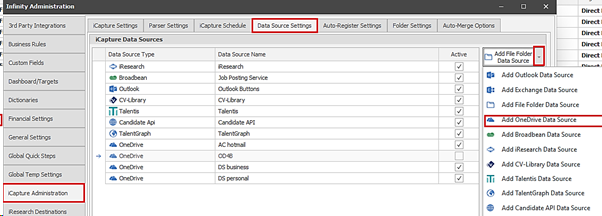
There is a ‘OneDrive Client Type’ field that defaults to ‘Personal’. When ‘OneDrive for Business’ is selected the user must enter the OneDrive application ID before authorising, Information on how to retrieve the OneDrive application ID is shown in the ‘Info’ button.
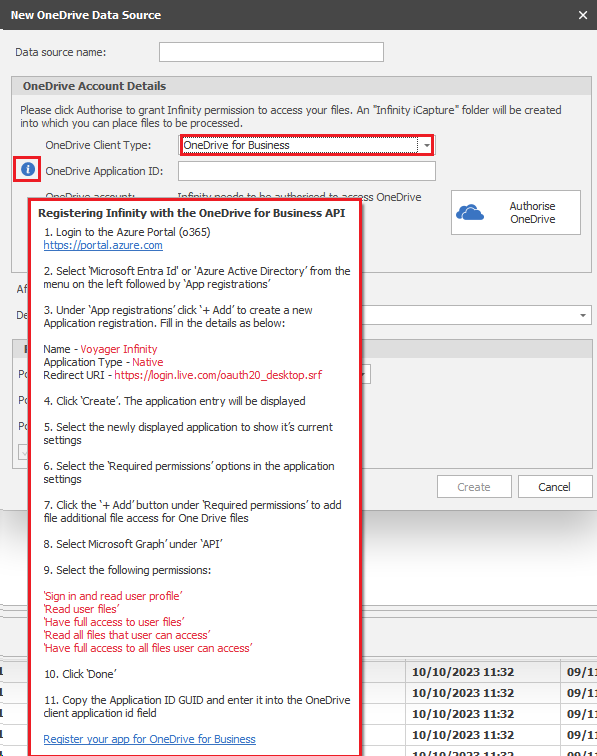
Once authorised the data source can be configured as per existing functionality and documents processed into iCapture from the OneDrive for Business account.
Within your OneDrive account you will now have a folder called Voyager Infinity, this is the location where you should upload your CV’s to be posted into iCapture or Infinity Database (depending on the options below)
After processing, items will be:
- Deleted – will delete the CV from the OneDrive account once it has been processed into iCapture
- Moved to backup folder (RECOMMENDED) – will put a copy of the CV into a backup folder within the OneDrive account Voyager Infinity folder
Default Origin of Data - set the appropriate default Origin of Data, see GDPR section for more details or Reference Data section
You will initially need to set the destination for your CV's or candidate data to go:
| Post to: |
|
Candidate iCapture / Infinity Database - send CV / candidate data to iCapture to be posted manually or automatically |
| iCapture Pool - send CV / candidate data to the Pool |
NB:- The Pool is a "folder" stored on the server and is not managed data, there is no facility to send communications or complete any Privacy Audit process and fulfil the requirements of GDPR.
iCapture / Infinity Database
Post New Candidates
iCapture will calculate whether the candidate is already held on Infinity, if there not adequate matching data it will assume the candidate is "new", you can set how this new data is then processed:
| Post new candidates to: |
|
Candidate iCapture - send CV / candidate data to iCapture to be posted manually |
| Infinity Database - send CV / candidate data into Infinity |
If any Data Source is set to Post to Infinity Database (send CV's / profiles directly into Infinity without any user reviewing the data) then you will receive a warning:
WARNING
Regulation (EU) 2016/679 or the General Data Protection Regulation (the GDPR), has provisions around the prohibition of automated decision making regarding personal data as defined by the regulation. By utilising the function, it could be perceived that the process of parsing a record and directly applying that to your database without the results being checked by human intervention (via iCapture) may fall under Automated processing. Until further clarification from competent Supervisory Authorities, the Article 29 working party, or case law, the use of this function, (the direct sending of parsed data into the core database rather than being verified and cross checked via iCapture) , is recommended only where you have the data subjects explicit consent. You should also follow all requirements under the regulation (especially Article 22, 13(2)f & 14(2)g).
We recommend that any database with the ‘Post existing candidates to’ set to ‘Infinity Database’, include details of Automated Processing in their Privacy Notice.
Post Existing Candidates
iCapture will calculate whether the candidate is already held on Infinity, if there is adequate matching data it will use the Auto Merge Options to define how this new data updates the existing candidate record:
| Post existing candidates to: |
|
Candidate iCapture - send CV / candidate data to iCapture to be posted manually |
| Infinity Database - send CV / candidate data into Infinity |
If any Data Source is set to Post to Infinity Database (send CV's / profiles directly into Infinity without any user reviewing the data) then you will receive a warning:
WARNING
Regulation (EU) 2016/679 or the General Data Protection Regulation (the GDPR), has provisions around the prohibition of automated decision making regarding personal data as defined by the regulation. By utilising the function, it could be perceived that the process of parsing a record and directly applying that to your database without the results being checked by human intervention (via iCapture) may fall under Automated processing. Until further clarification from competent Supervisory Authorities, the Article 29 working party, or case law, the use of this function, (the direct sending of parsed data into the core database rather than being verified and cross checked via iCapture) , is recommended only where you have the data subjects explicit consent. You should also follow all requirements under the regulation (especially Article 22, 13(2)f & 14(2)g).
We recommend that any database with the ‘Post existing candidates to’ set to ‘Infinity Database’, include details of Automated Processing in their Privacy Notice.
NB:- Any changes made to the OneDrive data source will require you to re-authorise OneDrive for it to save
Auto-register settings
NB:- we recommend utilising the Infinity API for posting candidates into Infinity, it allows uploading CV and other documents along with their data, as well as utilising more modern integration in terms of speed and security.
Infinity allows you to load candidate details directly into iCapture from a website registration form. The candidate would complete a form (with or without an uploaded CV), this would formulate an email with the CV attached (if present). This process would need to be completed by your website provider.
The email would be auto forwarded to an exchange email account and this account setup as an exchange data source within the Data Sources settings as previously details.
NB:- We would recommend sending registrations to iCapture so that users can check through prior to creating a record within the database
In general terms this is where you can match the fields within the form from the website with the fields that are in Infinity. This will assist iCapture in populating the appropriate fields within the database.
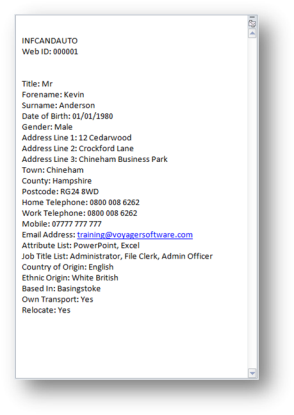
Use the Web ID as a field for the candidate (registration code), this can then be utilised for searching later.
Web ID is located with Basic Details section on a candidate but should be generated by the registration process.
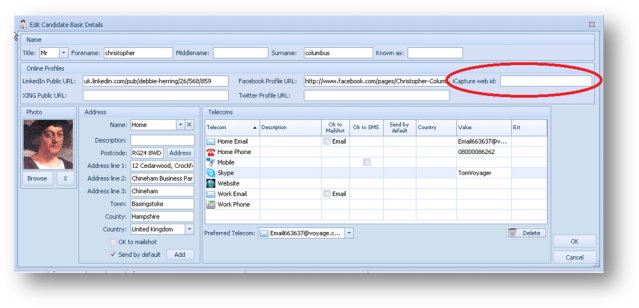
- User parser in addition to auto-register field mapping: Yes or No
Recommend “No” as the parser may pickup conflicting details within the CV
- Data Priority – Auto-Register or Parser
Recommend Auto-Register to ensure these will be processed ahead of general CV uploads
- Add Auto-Register Template
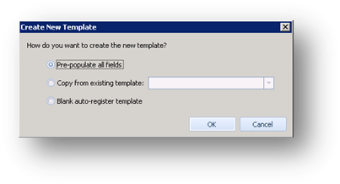
- Create New Template box will appear
Recommend – Pre-populate all fields – to allow you to see all available options
-
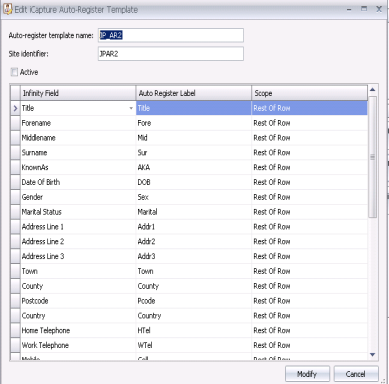
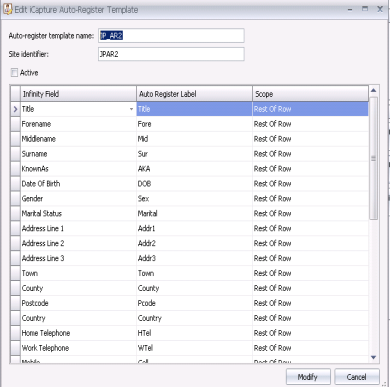
- Input a name of the template
- Site Identifier – This will be the name / title of the registration form that Infinity will then read and know this is an Registration from the website
- Infinity fields are listed, you should then enter the Auto-Register Label you have within the registration form to enable iCapture to match appropriate details
- Scope – How the Registration form is structured within the form, where the detail is found
- Click on Create
Highly recommended that you utilise the Web ID, so that you can later use this within your search criteria to identify candidates who are registrations rather than candidates created by consultants or via their CV.
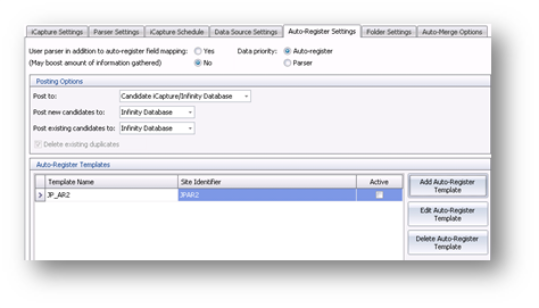
Site Identifier will be found within the body of the email, it will not pick up from the subject of the email
Example Registration form:
Add new Auto-Register Template
- Create a new Auto-Register Template. Select
|
Select one of the Template options: Pre-populate all fields Copy from existing template Blank auto-register template Click |
|
|---|


- Pre-populate all fields – adds all candidate fields to the template
- Copy from existing template – creates the template based on an existing one
- Blank auto-register template – no fields are added to the template
Edit an Auto-Register Template
|
Select the Template you wish to edit and select Make any changes as necessary and click
Delete an Auto-Register TemplateSelect the Template you wish to edit and select The template will be deleted
|
|
|---|

Folder Settings
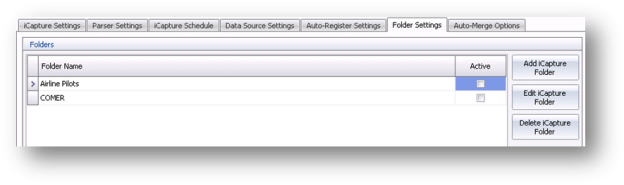
You are able to add folders within iCapture, in addition to the Inbox, this allows different departments/industry CV’s post into iCapture and for the folder settings to organize the CV’s into appropriate folders.
The folders can then have differing permission settings for managing CV’s for each user within each of the folders.
Add an iCapture folder
- Select

|
|
|---|
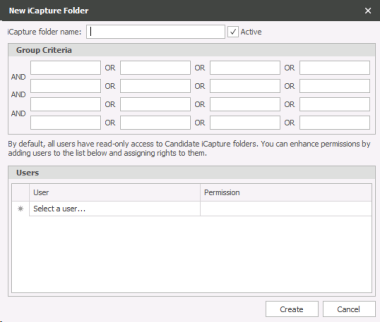 Edit an iCapture folder
- Select the iCapture Folder and select

- Make the changes as necessary.
- Click to save any changes.
Delete an iCapture folder
- Select the iCapture Folder that you wish to Delete and select
 .
. - The folder will be deleted.
Manage Inbox permissions
By default, all users have full access to the Inbox iCapture folder.
This is the main default mailbox that CV’s are sent to if they don’t match the criteria to be routed to another iCapture folder.
- Launch Inbox Permissions by selecting
 .
. - The Modify Inbox Folder Permissions list will be displayed.
- Select the first blank row in the grid and select the user name.
- Select the permission type. Select from; Read: Read only, Edit: Edit and Read, Add/Move: Add, Move, Edit and Read or Delete: Delete, Add, Move, Edit and Read
- Click to save any changes.
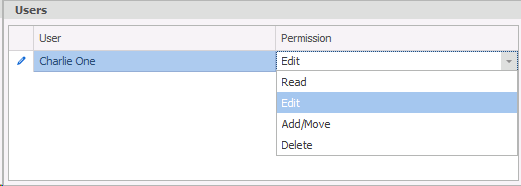
Auto-merge options

iCapture’s Auto-Merge options control how data is merged into Infinity when an updated CV is received into iCapture.
Each piece of information sent through to iCapture can be configured individually with its own merge or duplication setting.
The table explains the Auto-Merge field options:
|
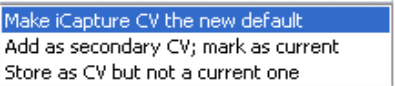
CV Documents
Make iCapture CV the new defaultwill put the new CV into the candidate record and mark it as the default and current, the previous default CV will no longer be default but will still be listed as current.
Add as secondary CV will mark the new CV as current but leave the original stored CV as the default.
Store as CV but not as currentwill add then new CV to the candidate but will not initially show on the record, users will need to go and view all CV’s and edit the save options if they wish to be able to view it in the list
|
Select from:
|
|
Addresses
Append/Replace will check the address in the new CV and replace it in Infinity if it differs, if the type of address matches to the address type held on record. If the type of address differs to that on the record then it will add an additional address to that candidate record
Ignorewill ignore any new address details, keeping the existing address as is
|
Select from:
|
|
Set added address as default
|
Enter a tick here to add the new address as the default – Recommended that this is ticked |
|
Telecoms
Append will adjust any existing numbers, email addresses with the new details within the updated CV.
Dedupe and appendwill look up existing types and avoid duplicating a telecom type, adjusting any new details. NB:- this will overwrite existing telecom types that are found within the new CV, so if the existing record has an email address and the new CV includes a different email address, it will remove the old address and replace it with the new CV address
Replace existing (same type)will replace any existing types with new details
|
Select from:
|
|
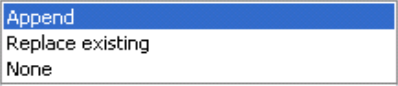
Attributes
Appendwill add any new attributes it has found thatwere not already in the list and leave the attributes held within the record as is
Replace existingwill replace all attributes with new attributes found in new CV
None will leave the candidates existing attributes as is and ignore new attributes found from new CV
|
Select from:
|
|
Job Titles
Appendwill add any new job titles it has found that were not already in the list
Replace existingwill replace all attributes with new job titles
|
Select from:
|
|
Quals & Certs
Appendwill add any new quals & certs it has found that were not already in the list
None
|
Select from:
|
|
Employment History
Update and append will add new employment entries and update details as appropriate.
Replace Existing will overwrite oldwork history with new details.
None will leave old work history and no update will occur
|
Select from:
|
|
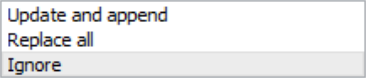
Sources
Dedupe and appendwill add a new source to the list of sources if not already present.
Replace all will overwrite existing source with the new source.
Ignore will keep old data and no update will occur
|
Select from:
|
|
Expected Rates
Update and append will ensure new rate data is updated but existing rate content that is not updated is kept Replace allwill overwrite old data with new information.
Ignore will keep old data and no update will occur.
|
Select from:
|
|
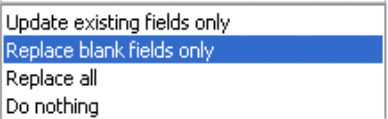
General Fields
Update existing fields onlywill update fields that have information inserted in the new CV, this will overwrite the previous information held within the candidate record
Replace blank fields onlywill update only blank fields that are held within the existing candidate record, ensuring no existing data is overwritten
Replace allwill overwrite all fields with new data, this will overwrite even if the new information is blank
|
Select from:
|





Contact Details
If you require further assistance please contact Ikiru People using the details published on www.ikirupeople.com
Visit our Customer Portal at https://portal.ikirupeople.com/ for future events and clinics.
FeedbackIf you would like to make suggestions or have found any errors with this Help section please contact our Support team.
Copyright © 2026 Voyager by Ikiru People Ltd. All rights reservedVersion 4.87
Voyager Software is a brand of Ikiru People Ltd, a subsidiary of Dillistone Group Plc. The group is a leading global provider of software and services that enable recruitment agencies and in-house recruiters to better manage their selection process and address the training needs of individuals. Across its brands – which include Voyager Software (recruitment software UK & Australia), Dillistone FileFinder executive search software, GatedTalent, the global database of the world’s leading executives, Talentis.Global – the next generation of recruitment software and also ISV.Online, provider of online pre-employment skills testing and training tools. Dillistone Group serves thousands of clients worldwide. Ikiru People Ltd: Registration Number 02043300. Registered in England & Wales.
 |  |  |  |