Job posting
Broadbean
 General
If you have a relationship with Broadbean and have a user name and password entered into the system you will be able to see the Broadbean icons on the Job record.
 NOTE - If you have log in details, but cannot see the options, contact your system administrator.
To post to Broadbean
On the Job page ensure you have completed the required fields (highlighted in yellow below)
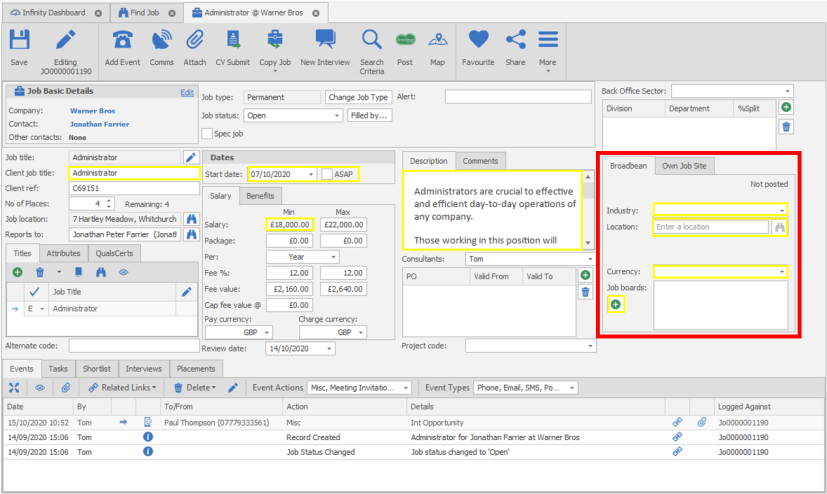
NB:- Contract job would require Pay Rate and End Date fields completing
NOTE - If you cannot see anything on the Job page that refers to Broadbean, please contact your system administrator
- Click the Post button

- This brings the following page
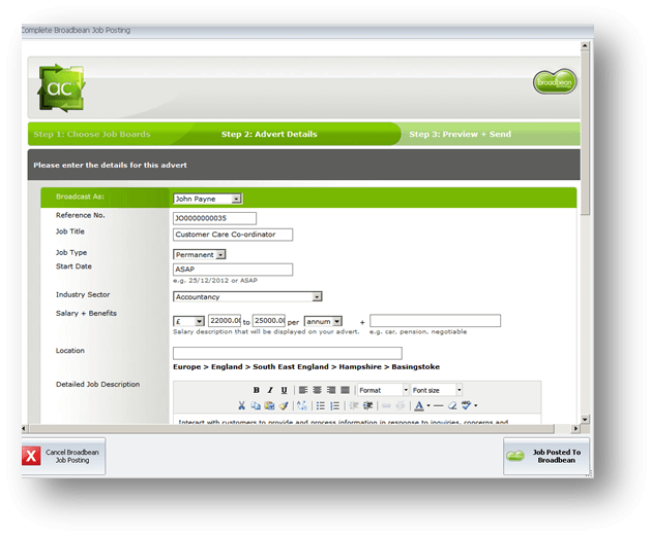
- Check the information that has been populated to make sure that you are happy with the advert and scroll down
- Click Continue on the Broadbean screen
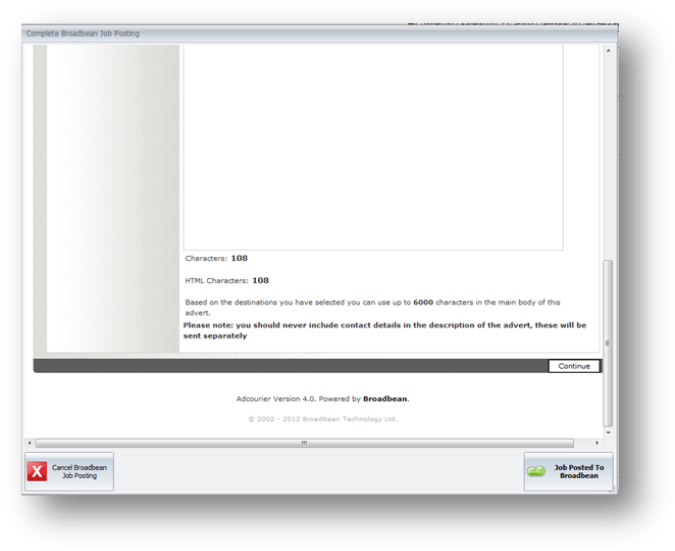
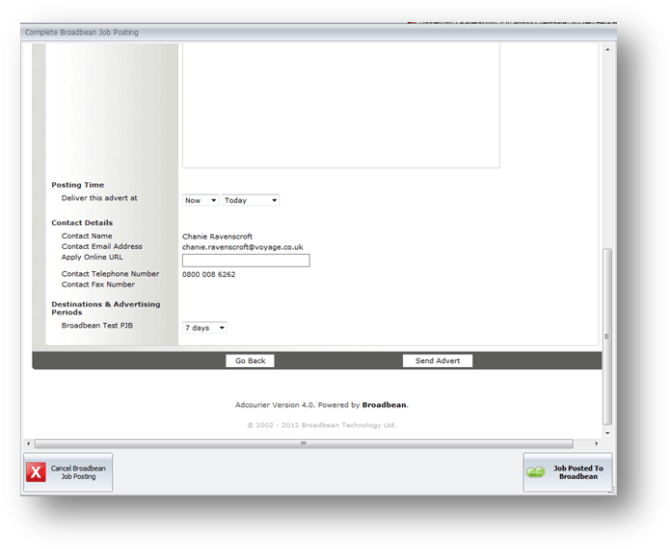
- Check the advert, scroll down and click Send Advert
NOTE – You will need to scroll down the page to find this option
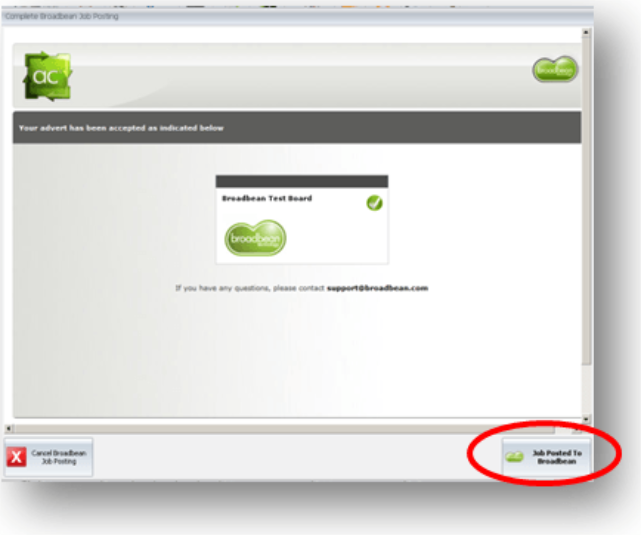
You will get this message.
You should now click Job posted to Broadbean
To view Broadbean applications
| Review Applications in Broadbean | Review Applications within Infinity | |
If the job has been posted to Broadbean, you will know in 2 ways.
- The results button will show on the job page.
- The job page will show the date that the job was last posted
To view the results, use you My infinity Broadbean results or via the Broadbean Results button within the job record:

In this example, we have clicked the Results button on the main job page.
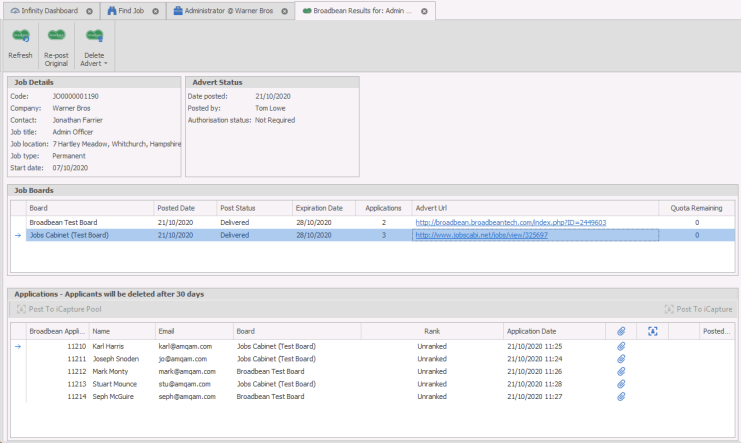
From here you can:
|
|
Refresh - allows you to refresh the Broadbean service, this will check any additional applications and update Infinity |

|
Allows you to re-post the job advert, this will create a new job into Broadbean and therefore could incur a credit and ensure previous post has been deleted/removed to avoid duplication |

|
Delete the advert. If you click on the arrow beneath the delete advert icon, you can specify which sites you would like to delete the advert from. |

The bottom half of the screen show the candidates that have applied for the role through Broadbean.
- To view their CV and/or covering letter, right hand mouse click on the paperclip and choose which document you would like to view
- To post to Infinity, highlight the candidate that you’re interested in and click post to iCapture. This CV will be available in iCapture for you to process. See How to add a CV to iCaptureHow to add a CV to iCapture for more details on how to do this.
LogicMelon
General
If you have a relationship with LogicMelon and have a user name and password entered into the system you will be able to see the LogicMelon icons on the Job record.
NOTE - If you have log in details, but cannot see the options, contact your system administrator.
To post to LogicMelon
On the Job page
- Make sure that you have completed the LogicMelon fields in the Job page.
NOTE - If you cannot see anything on the Job page that refers to LogicMelon, please contact your system administrator
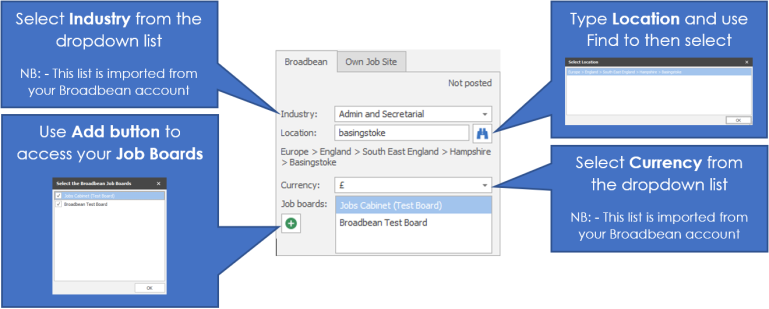
The LogicMelon part of the screen looks like this, these details are imported from your LogicMelon account:
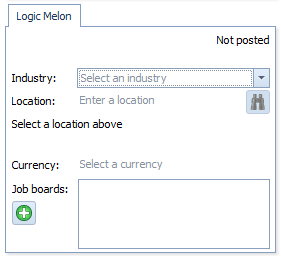
Select Industry from the dropdown list
Input the location of the job, using the Find to set the location
Select the currency from the dropdown list
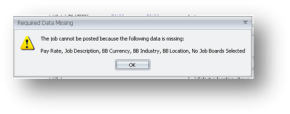
If you have neglected to enter these details you will receive this message
- Click the Post
- The LogicMelon dialogue box will open where you can review the job boards and the user you are posting the job as:
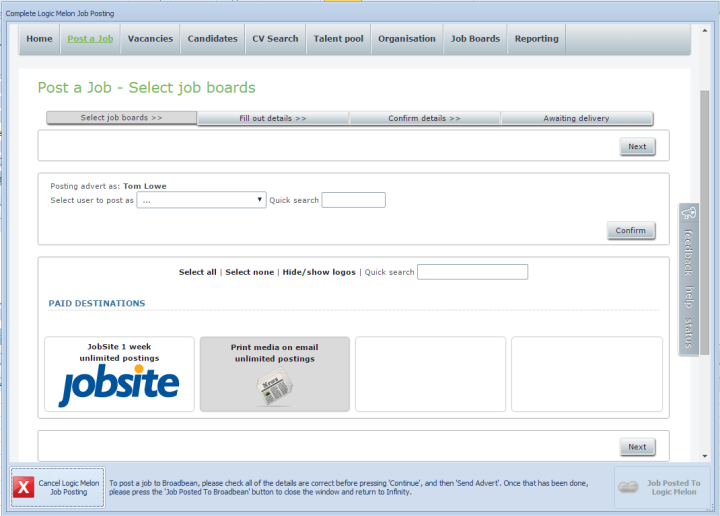
- Click Next
- You will then be offered the opportunity to edit / add details being posted
- Check the information that has been populated to make sure that you are happy with the advert and scroll down
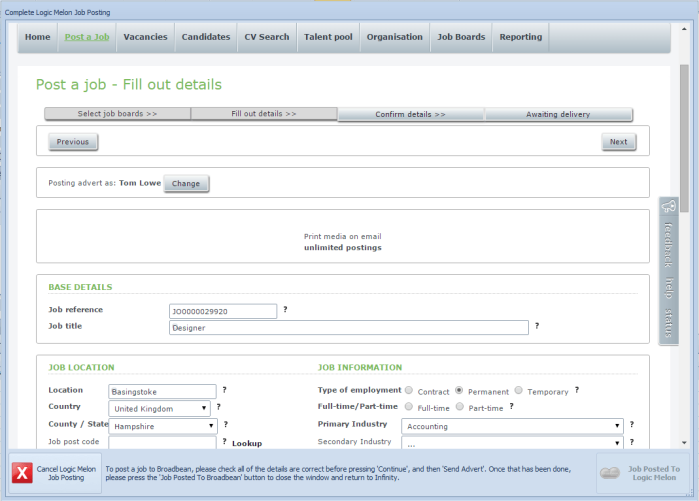
- Click Next
- Finally you are required to confirm, click Finish:
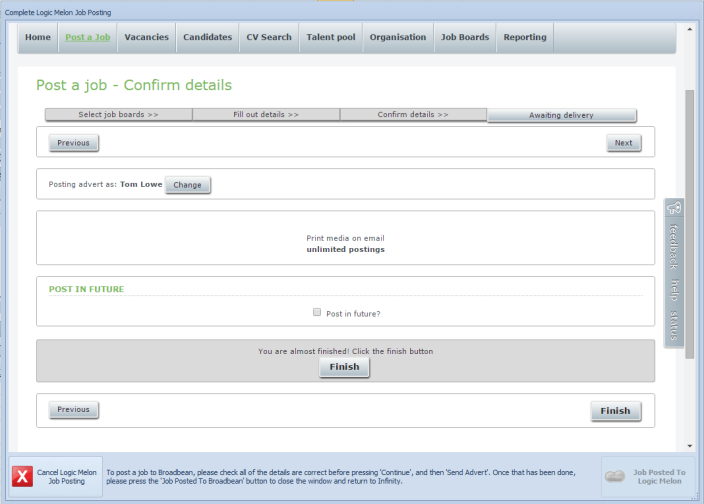
Click on Job Posted to LogicMelon, this will log the event of posting into the job record.
To view LogicMelon applications
 If the job has been posted to LogicMelon, you will know in 2 ways.
- The results button will show on the job page
- The job page will show the date that the job was last posted
To view the results, use you My infinity LogicMelon results.
In this example, we have clicked the Results button on the main job page.
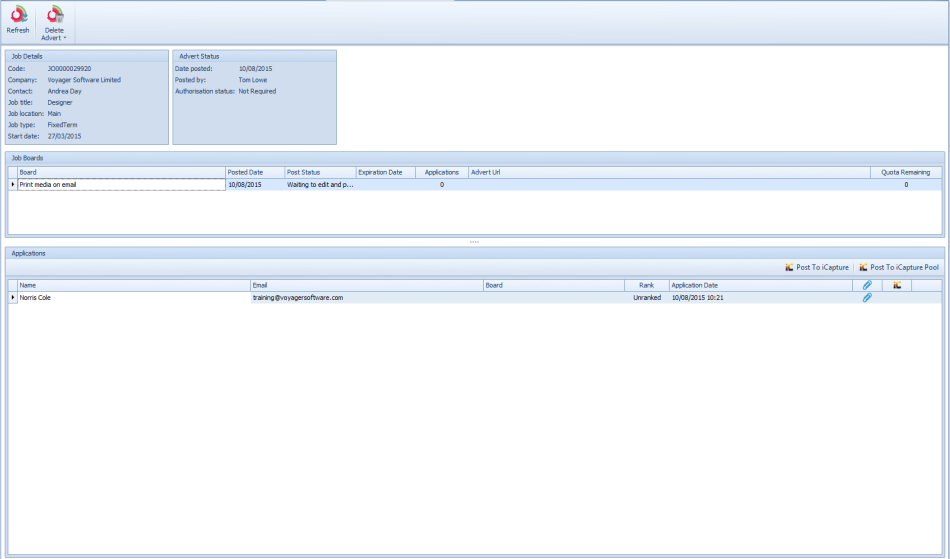
From here you can:
|
|
Refresh - allows you to refresh the Broadbean service, this will check any additional applications and update Infinity |

|
Delete the advert. If you click on the arrow beneath the delete advert icon, you can specify which sites you would like to delete the advert from. |

The bottom half of the screen show the candidates that have applied for the role through LogicMelon.
- To view their CV and/or covering letter, right hand mouse click on the paperclip and choose which document you would like to view
- To post to Infinity, highlight the candidate that you’re interested in and click post to iCapture. This CV will be available in iCapture for you to process. See How to add a CV to iCaptureHow to add a CV to iCapture for more details on how to do this.
NB: - if you need to repost the job advert you will need to do this via LogicMelon
Own Job Site 
Posting to your own job site
From within a job record you can post to your Own Job Site (setup by your system administrator)
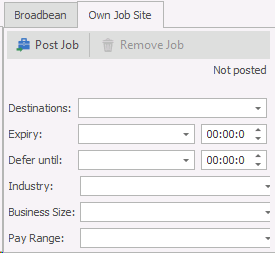
- Select the Destination of your Job Posting, this will have been setup by the system administrator.
- Expiry – what date and time you wish the posting to expire
- Defer until – what time and date you wish the post to be posted
- Custom field 1, 2 and 3 – will have been setup by the system administrator and will have a dropdown list of choices, speak to your system administrator for more detail.
- Once completed, click on Post Job.

Depending on how the Job Posting is setup, it will record the posting in the event logs, if you change the details on the record it could also change the post or you may be required to re-post the job.
Contact Details
If you require further assistance please contact Ikiru People using the details published on www.ikirupeople.com
Visit our Customer Portal at https://portal.ikirupeople.com/ for future events and clinics.
FeedbackIf you would like to make suggestions or have found any errors with this Help section please contact our Support team.
Copyright © 2026 Voyager by Ikiru People Ltd. All rights reservedVersion 4.87
Voyager Software is a brand of Ikiru People Ltd, a subsidiary of Dillistone Group Plc. The group is a leading global provider of software and services that enable recruitment agencies and in-house recruiters to better manage their selection process and address the training needs of individuals. Across its brands – which include Voyager Software (recruitment software UK & Australia), Dillistone FileFinder executive search software, GatedTalent, the global database of the world’s leading executives, Talentis.Global – the next generation of recruitment software and also ISV.Online, provider of online pre-employment skills testing and training tools. Dillistone Group serves thousands of clients worldwide. Ikiru People Ltd: Registration Number 02043300. Registered in England & Wales.
 |  |  |  |