Ad Hoc Search Setup Options

 General
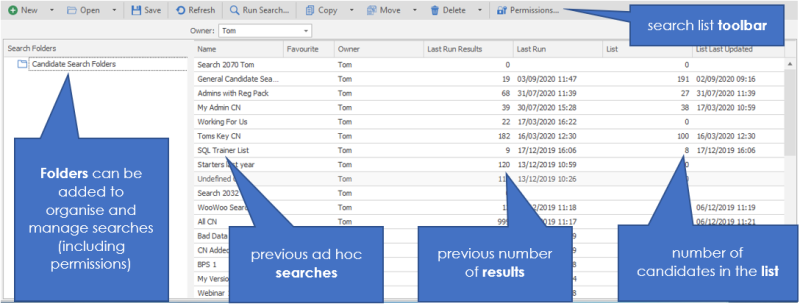
The search folders and lists are accessed from the search drop down in the quick access toolbar, selecting Candidate / Company / Location / Contact / Job / Placement. You will see and overview of the folders available and your previous searches with key details.

Managing search folders
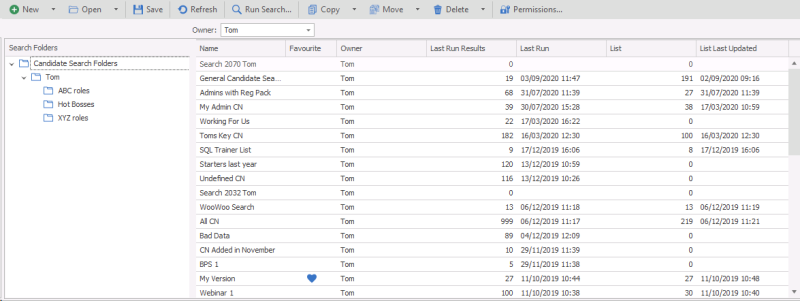
Whenever you open a search screen you will be shown the searches that have been previously saved and run in this part of the database. They are arranged into folders.
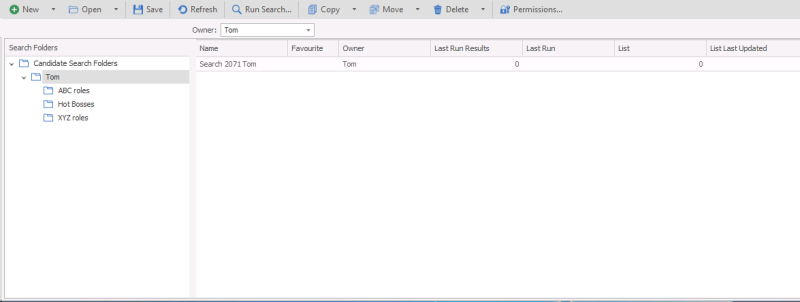
Click on the – or + icon on the left of the folder name to minimize and maximize the folder contents. The image above shows the candidate search folder expanded to show the mailshots subfolder within.
All users have access to the top level Search Folder. Any searches created in here can be seen by all users and this cannot be changed:
When a new folder is created within the top level folder:
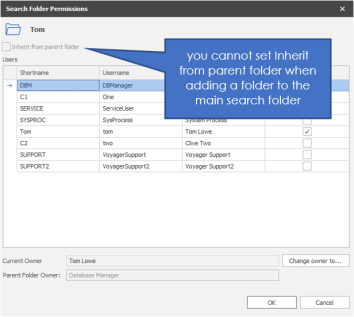
- You cannot inherit permissions from above as they do not exist and so the option is greyed out
- The required users must be assigned permissions by the search owner by clicking on the Folder Permission button on the Toolbar.
When a new sub folder is created
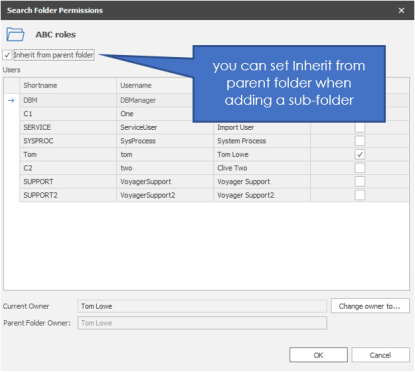
- You can set the sub-folder to inherit from parent folder
- As default permission are inherited from the Parent Folder but this can be un-ticked and individual users selected
Search Owner
- The owner will default to the creator
- The owner of the folder is the only user that can change permissions, delete it and assign a new owner to the folder
Add a new search folder
To add a new search folder, choose where you would like the folder to be created and click the new icon.
This will give you the option of a new search or a new folder, choose new folder.
Overtype the new folder text with a name for the folder. Alternatively, choose the folder that you would like to look within and choose the relevant search that has been created previously.
Delete a search folder
Select the appropriate folder and then click on the drop down Delete and select folder. This will then confirm the you are sure. If the folder has any searches within it will not allow you to Delete until these are deleted first.
Move a search folder
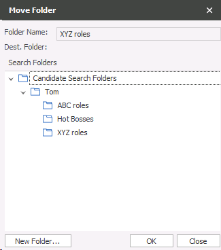
Click here to move and select the folder you wish to move it to:
Change permissions of a search folder
All users have access to the top level Search Folder. Any searches created in here can be seen by all users and this cannot be changed.
When a new folder is created within the main search folder:
- You cannot inherit permissions from above as they do not exist in the main search folder and so the option is greyed out
- The required users must be assigned permissions by the search owner by clicking on the Folder Permission button on the Toolbar
When a sub folder is created
- A folder has a parent folder(s) between itself and the main search folder you can inherit from the Parent Folder but this can be un-ticked and individual users selected if you wish to specify
Search Owner
- The owner will default to the creator
- The owner of the folder is the only user that can change permissions, delete it and assign a new owner to the folder
Managing your searches
You can create searches within folders. The searches will show the right hand side of the screen when you click on the folder on the left
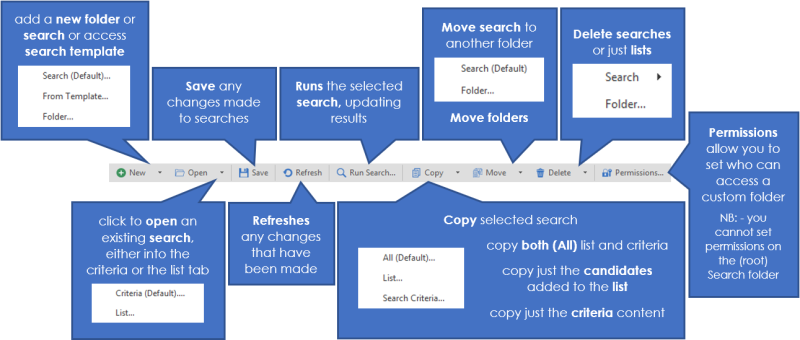
To view the detail of the search, click on the search name to highlight it. Use the toolbar at the top of the screen to manage your searches
Delete a search
Select the search you wish to delete and click on delete.
Copy a search
You are able to copy a previous search or list or criteria. Select the appropriate search click on drop down copy and select All / List / Search Criteria as appropriate. it will create a new search named copy of ....
Move a search
Select the search you need to move and click move, allowing you to move a search into alternative folder
Contact Details
If you require further assistance please contact Ikiru People using the details published on www.ikirupeople.com
Visit our Customer Portal at https://portal.ikirupeople.com/ for future events and clinics.
FeedbackIf you would like to make suggestions or have found any errors with this Help section please contact our Support team.
Copyright © 2026 Voyager by Ikiru People Ltd. All rights reservedVersion 4.87
Voyager Software is a brand of Ikiru People Ltd, a subsidiary of Dillistone Group Plc. The group is a leading global provider of software and services that enable recruitment agencies and in-house recruiters to better manage their selection process and address the training needs of individuals. Across its brands – which include Voyager Software (recruitment software UK & Australia), Dillistone FileFinder executive search software, GatedTalent, the global database of the world’s leading executives, Talentis.Global – the next generation of recruitment software and also ISV.Online, provider of online pre-employment skills testing and training tools. Dillistone Group serves thousands of clients worldwide. Ikiru People Ltd: Registration Number 02043300. Registered in England & Wales.
 |  |  |  |