Interview Record
 Walkthrough
The step by step instructions below are just as guidance and does not go through all options, see more information at the bottom of this topic for more in depth details
Creating an Interview
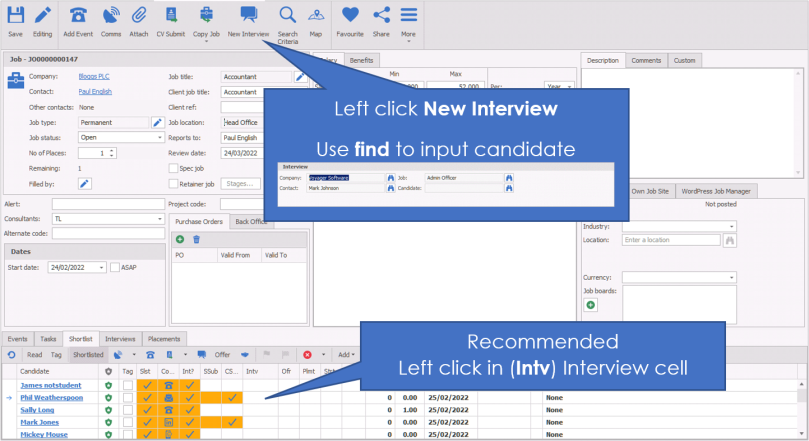
NB: - you can also use the event logger to log "interview requested"
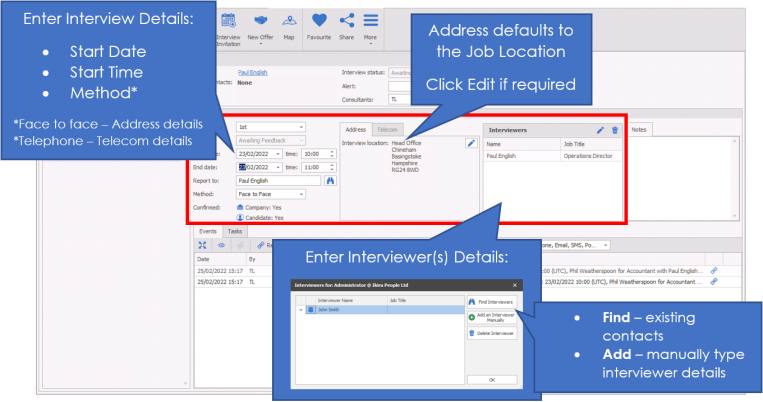
Interview Basic Details
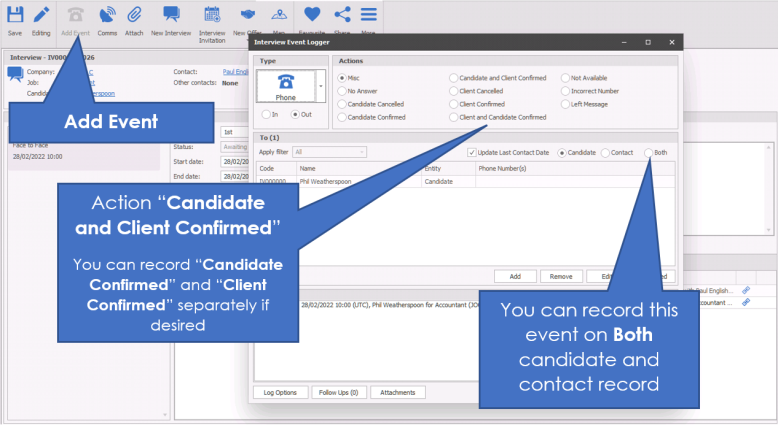
Confirming the Interview
General Setting available to skip this step, speak to your system administrator for more information
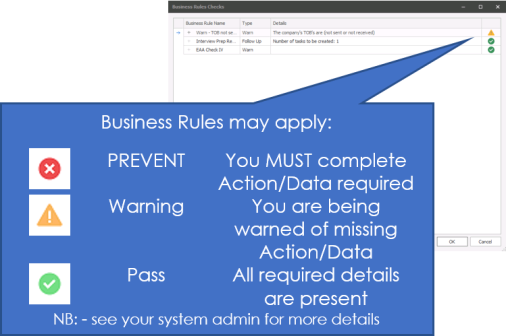
Confirming Interview via Comms Centre
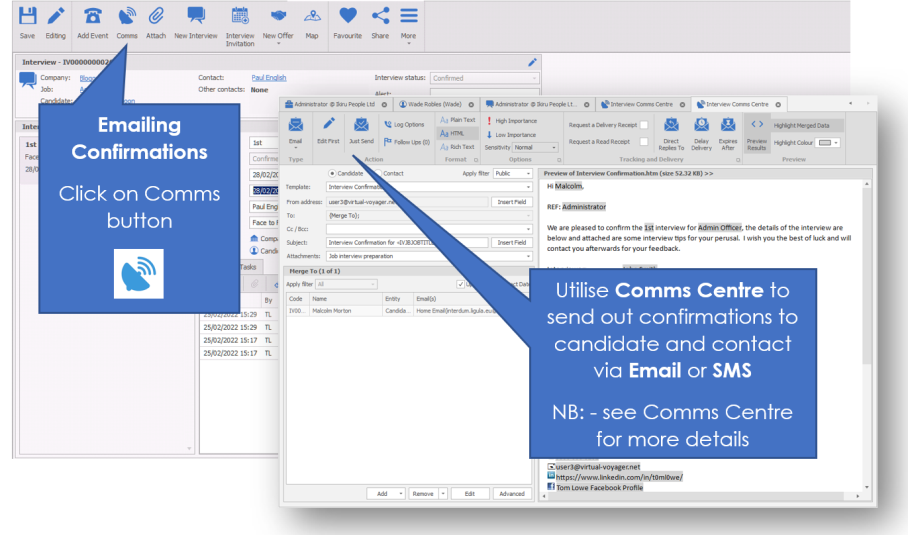
tilise the Comms Centre to send out email confirmations to candidate and / or contact
Interview Result (Feedback)
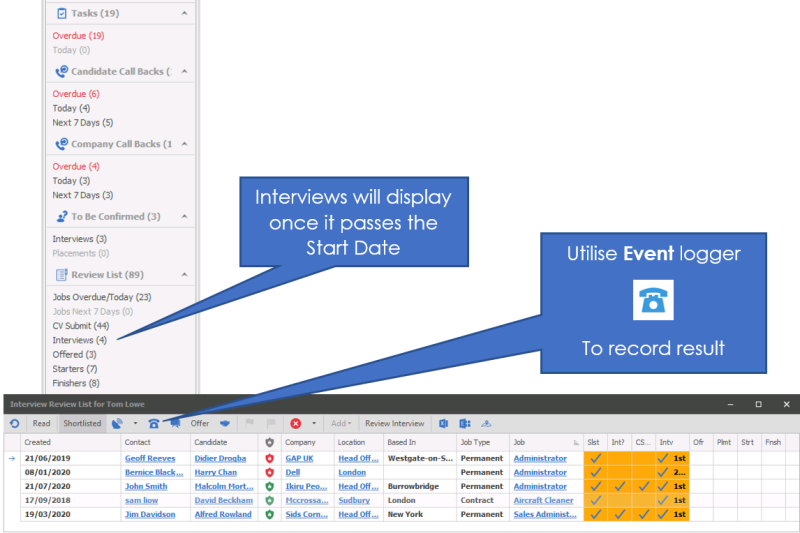
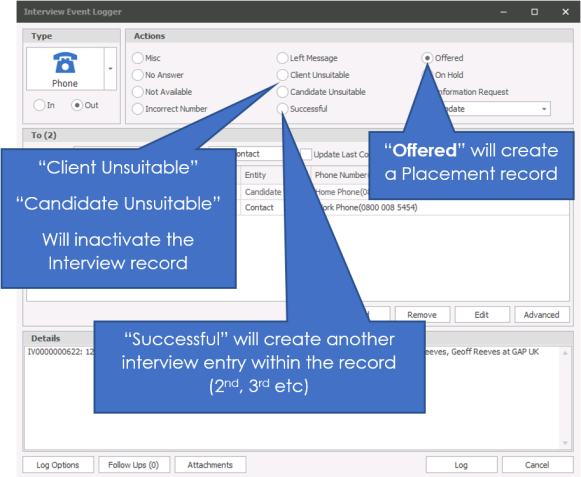


Need more information, click below:
 General
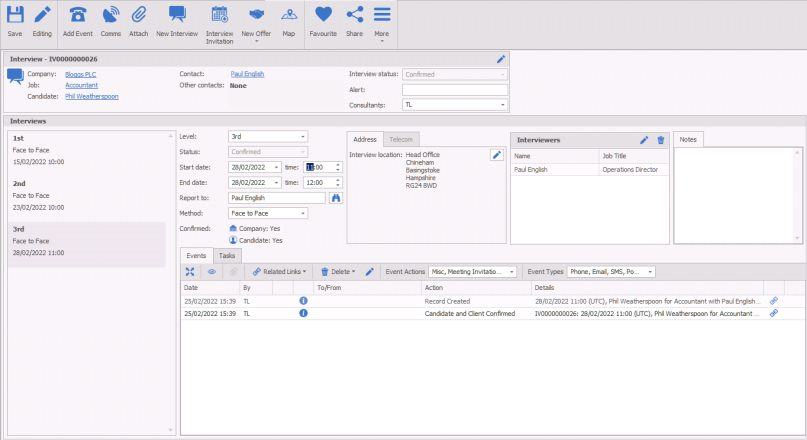
The Interview record is created when the first interview is added against a job for a candidate. All subsequent interviews will be against this same record. You therefore will keep revisiting the interview record for all levels of interview for this candidate against this job, logging "SUCCESSFUL" to instigate an additional interview.
Interviews can be created
- From the quick access toolbar
- The application menu
- The shortlist (any)(suggested)
- The Job
As you create subsequent interviews they will go on the same interview record. The image below shows a second interview on the same record.
Interview Basic Details
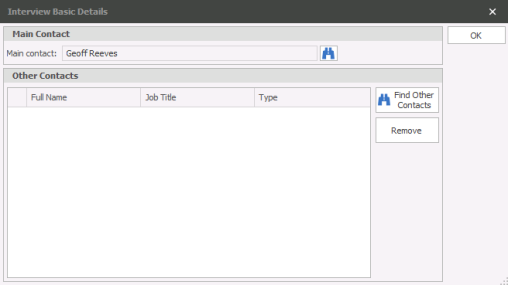
The basic information area identifies the information relating to the job. The underlined options are links to those records in the database.

You are able to change the contact information if necessary with the edit option:
Interview Fields
Interview status
This is the current status of the interview. These will be system generated depending in what actions have been completed.
Alert
Type anything that you’d like to make other aware of here. This is a free format text area.
Consultant
This is the owning consultant of the interview. You can choose multiple by ticking several people from the drop down box. This will ensure the appropriate consultant(s) are reminded via My Infinity's Review List and To Be Confirmed sections.
Interview levels
Creating more Interview levels
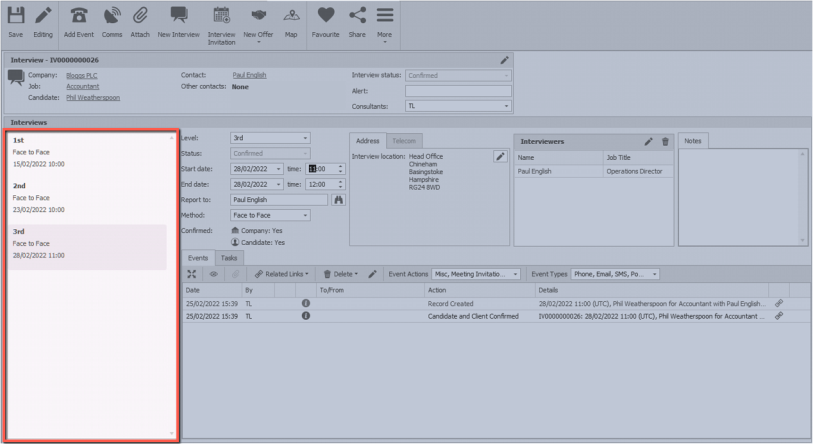
The area highlighted in orange shows that there 2 interviews on this record.
To create a subsequent interview level, click the Create new Interview icon on the tool bar of the Interview screen. This will create a new interview that you are able to complete in the same way as the original interview. This means you will see the below screen. (Please note you will be unable to create the next interview until you have completed the details of the previous one.)
The interview that is highlighted is showing more information at the bottom of the screen. You cannot directly type into the grid area (highlighted orange). To make the changes you must make the changes in the bottom part of the screen
Interview Details
Level
This is the level of the interview and is a mandatory field. This is a drop down list which you must choose from. The list is controlled by your System Administrator
Method
This is how the interview will happen and is a mandatory field. This is a drop down list you much choose from. This list is controlled by your System Administrator
Report to
This is the name of the person that you candidate should ask for on arrival. You can type directly into here, or chose from the binoculars
Interviewers
If there are multiple interviewers click on the plus to add the list of names. These will be pulled through to a comms centre template for confirmation to the candidate and contact
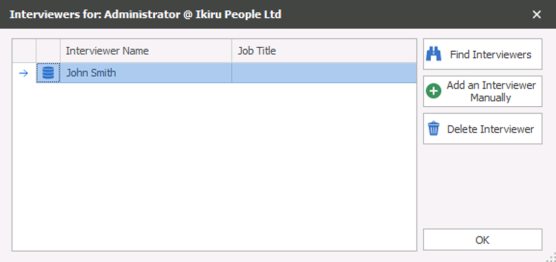
Click the Find interviews to choose a name from Infinity
Click Add an interviewer manually to type a name in.
 NOTE – The symbol by Tracey’s name indicated that she has been chosen from the database. The others have been manually added.
Status
This is a system generated status depending on the status of the interview.
Start & end
Enter the start and end date and time for the interview.
Notes
Enter any notes in here for this interview.
As a text box you are able to double click within the box and launch the Infinity editor, please see the Infinity Text Editor section for more details.
Confirmed
This will update automatically if you confirm with the candidate and contact through the mail centre.
Address / Telecom
This area if for you to confirm where an interview is taking place, or which communication method should be used if it is not a face to face interview. E.g. which telephone number, Skype address etc.

Interview Events
The events log at the bottom of the screen shows all the communication against the interview.

 Expand the event grid to view more notes |
|

|
Show All events, opens a separate dialogue box |

|
Access relevant attachments for the highlighted event |

|
Access relevant records relating to the highlighted event |

|
Delete the highlighted event* *permissions required |

|
Edit the highlighted event* *permissions required |

|
Filter the events by Action, multi-selection available to filter the grid to desired content |

|
Filter the Event Types , multi-selection available to filter the grid to desired content |

Automatically Creating Spec Jobs from Interviews
- You can also automatically create Jobs via the “New Interview” and “New Placement” screen
- Create a new interview or placement without selecting a Job [as shown in the example below] and a new job will automatically be created as long as it complies with the Mandatory Fields checks. If the Mandatory Field checks are not met then the user will be informed.
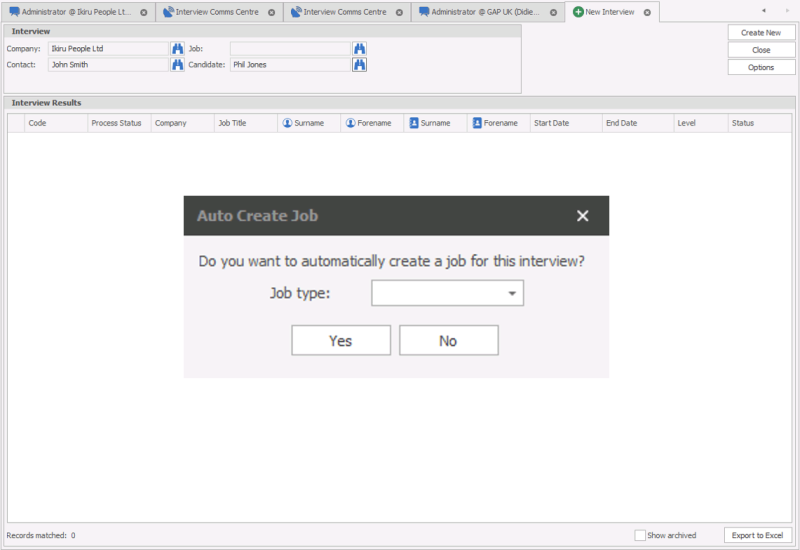
- Select the type of job from the Job Type drop down
- Click “Yes” and the job is automatically created.
- You’ll be taken to the newly created Interview page. Note that the Job field says “Spec”
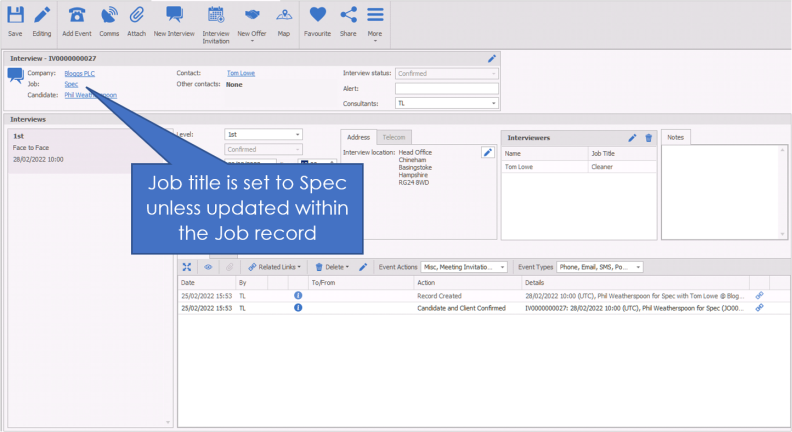
- The Job page now displays
 and all automatically created Jobs will have this ticked on creation.
- The Client Job Title field is automatically populated with “Spec” and the Job Title drop down field is empty.
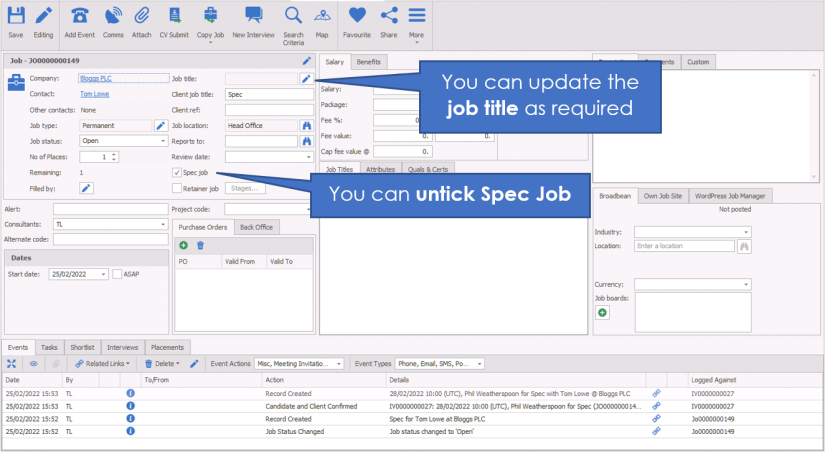
- To convert an automatically created job to a normal job, remove the tick from the check box.
Odro Video Interviews
Infinity integrates with the Odro platform, this enables you to invite candidates to complete solo interviews, see Odro integration section for more details
Contact Details
If you require further assistance please contact Ikiru People using the details published on www.ikirupeople.com
Visit our Customer Portal at https://portal.ikirupeople.com/ for future events and clinics.
FeedbackIf you would like to make suggestions or have found any errors with this Help section please contact our Support team.
Copyright © 2026 Voyager by Ikiru People Ltd. All rights reservedVersion 4.87
Voyager Software is a brand of Ikiru People Ltd, a subsidiary of Dillistone Group Plc. The group is a leading global provider of software and services that enable recruitment agencies and in-house recruiters to better manage their selection process and address the training needs of individuals. Across its brands – which include Voyager Software (recruitment software UK & Australia), Dillistone FileFinder executive search software, GatedTalent, the global database of the world’s leading executives, Talentis.Global – the next generation of recruitment software and also ISV.Online, provider of online pre-employment skills testing and training tools. Dillistone Group serves thousands of clients worldwide. Ikiru People Ltd: Registration Number 02043300. Registered in England & Wales.
 |  |  |  |