Reports Overview

Reports
Below are screenshots of the standard set of reports within Infinity these are held within appropriate folders although these may have been moved or access restricted by your system administrator. You may also observe additional reports that are described as "custom" and have been built to a clients specifications but made available to all our users. If you would like to have a custom report created speak to your customer relations manager .
In addition to the reports, review the dashboard built within Infinity and Voyager Business Intelligence (SaaS)
If you are not a SaaS client you can also have Power BI integration implemented, speak to your Customer Success Manager to discuss further
 Running Reports for SaaS users
Due to the nature of the SaaS service you are unable to run a report instantly and will need to set it up as a schedule (see below) so it can run when the next report service runs, if multiple users run reports at the same time it may take several minutes for the report to be available.

Clicking on the reports button (on the Quick Access Toolbar) will load up the Infinity Reports.
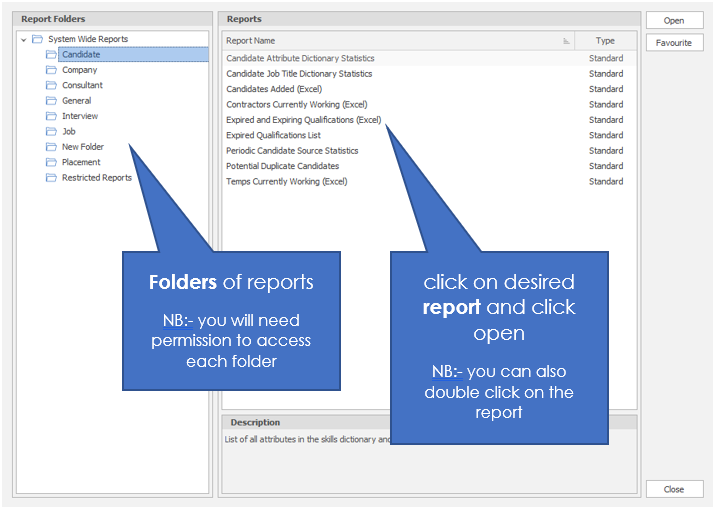
The New Scheduled Report dialogue box in which you will be given the appropriate parameters for the report you selected.
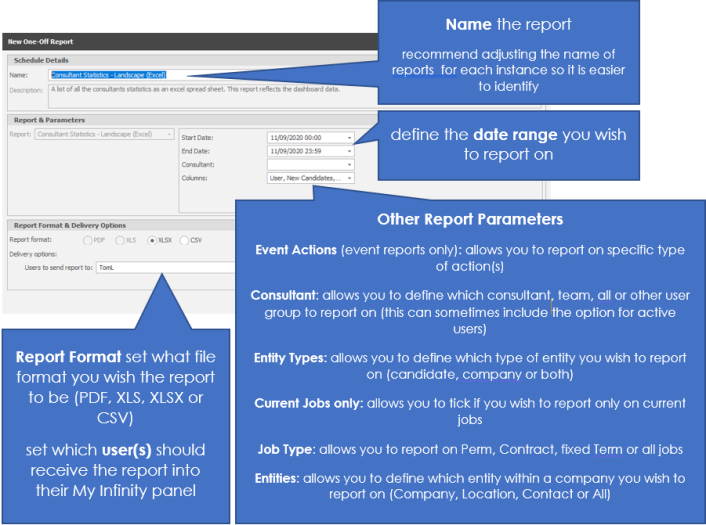
On completion of the parameter's click on create and a confirmation message will appear:
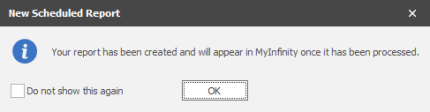
NB:- Tick Do not show this again if you no longer require this message to appear in future
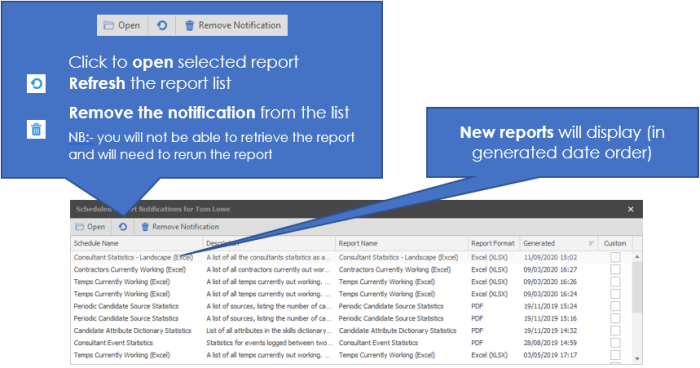
Within your My Infinity panel the report will appear as an entry:
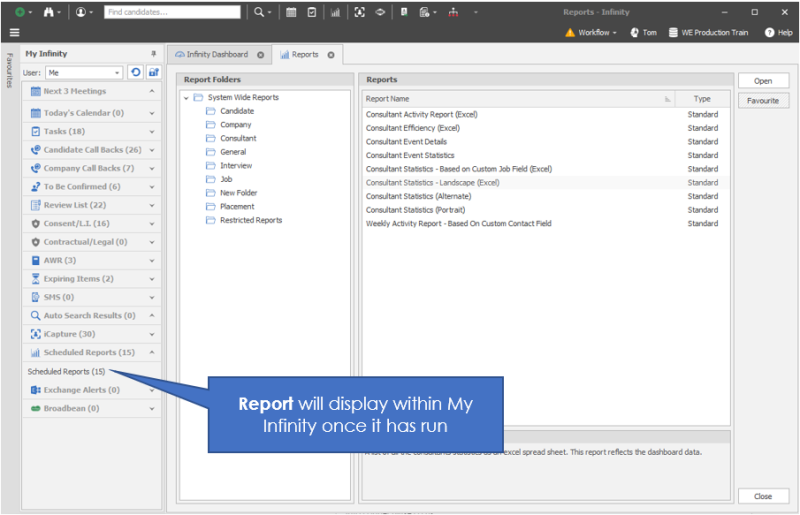
Clicking on this will open a dialogue box with the report details:
Running Reports for On-Premise users
General
Infinity allows you to run reports within Infinity that can output data and statistics into different formats (XLS, PDF, CSV). Please also review Voyager Business Intelligence for interactive reports and dashboards, you can even create your own reports using our Voyager Business Intelligence portal.
Clicking on the reports button (on the Quick Access Toolbar) will load up the Infinity Reports.
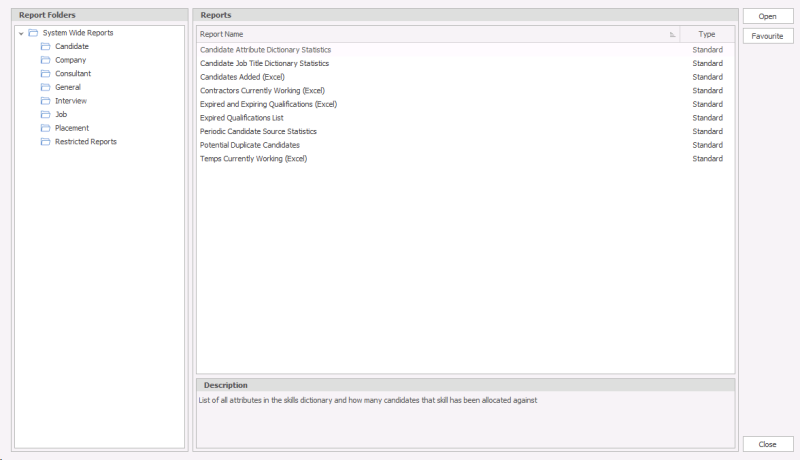
The left hand Panel shows the Report Folders available to you, reports have different access rights dependent on how the system administrator has set them up.
You have the ability to make a report a favourite by clicking on the favourite button

You have two types of report, Excel and standard. Excel reports are specifically designed to output straight to Excel, Standard reports will output into Voyager, these can be printed or exported to a variety of file types (this does include Excel's XLS).
Standard Reports
Any report that doesn't have (Excel) in brackets is a standard report type. Select the appropriate report and click on Open or double click on it.

Once you open the report the Infinity Report window will open
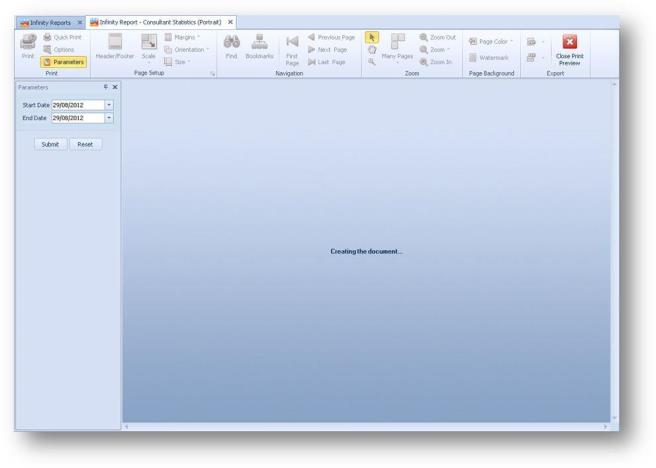
You will see the Parameters panel on the left hand side, where you will be given parameters you can set, some reports will require start and end dates, consultant name / ALL / Team name and any other specific parameter required appropriate for the report you are creating. Enter the parameters and then click on Submit

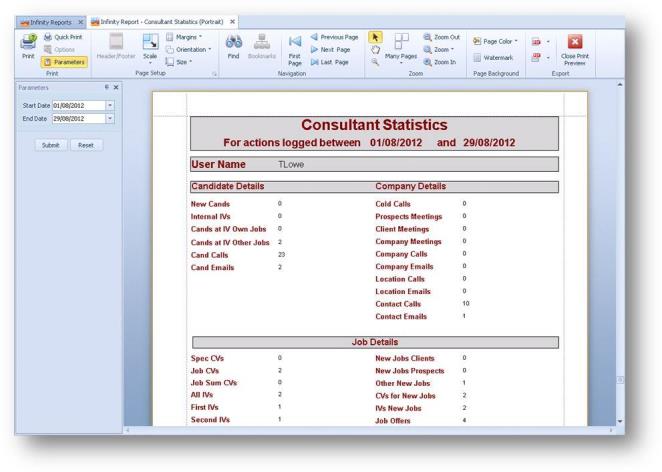
The report will then be produced and previewed in the main panel. The options in the ribbon bar are now available.
|
|
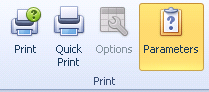
Quick Print – Will complete a printout using your default settings Parameters – Enables you to hide/unhide the Parameters panel |
|
|
Page SetupEnables you to set the printing scale, margins, orientation and size of paper you are printing NB:- You also have the |
|
|
NavigationFind binoculars allow you to search for a key word in the report You also have the navigation arrows so you can go through page by page |
|
|
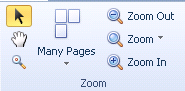
ZoomCursor tools allow you to have the pointer (default), manually scroll through pages or zoom in and out Setup the number of pages in preview and general zooming of the preview page |
|
|
Page BackgroundPage Colour and watermark settings allow you to set the colour and watermark in the background of the report |
|
|
ExportThe top option allows you to export the report into different file types The bottom option allows you to email the report in different file types PDF, HTML, MHT, RTF, XLS, XLSX, CSV, TXT or as an image |
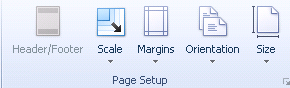
 which will give you access to the page setup screen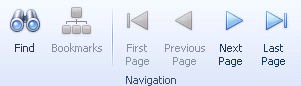

Excel Reports
Any report that has (Excel) are defined as Excel reports and these have been specifically designed for Excel, it will depend on your permissions whether you are able to run this type of report, see your system administrator for more details.
Select the appropriate report and click on Open or double click on it.
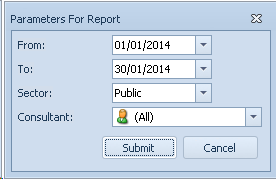
A dialogue box will appear with the parameter options available for the report, enter the requirements and click submit, this will open Excel and the report.


























|
Candidate Attributes Stats |
1 | Candidate Job Title Stats | 2 | Candidates Added | 3 |
| Contractors Currently Working | 4 | Expired and Expiring Quals | 5 | Expired Quals | 6 |
| Candidate Source Stats | 7 | Potential Duplicate Candidates | 8 | Temps Currently Working | 9 |
| Companies Added | 10 | Event Details | 11 | Event Stats | 12 |
| Consultant Stats Landscape | 13 | Consultant Stats Portrait | 14 | Call Backs | 15 |
| Communications | 16 | CV Submitted | 17 | Database Stats | 18 |
| User Defined Events | 19 | Interview Occurring | 20 | Closed Jobs | 21 |
| Closed Jobs by Client | 22 | Job Details | 23 | Job Stats | 24 |
| Jobs Added | 25 | Job Retainers | 26 | Unfilled Temp Job Shifts | 27 |
| Contract Finishers | 28 | Placements Added | 29 | Contract and Perm Starters | 30 |
| Temp Starters | 31 | Cancelled, Removed Candidates & Late | 32 | Temp Payroll | 33 |
More Information
Candidate Reports
Candidate Attribute Dictionary Statistics
Gives you your attribute dictionary in order of prevalence
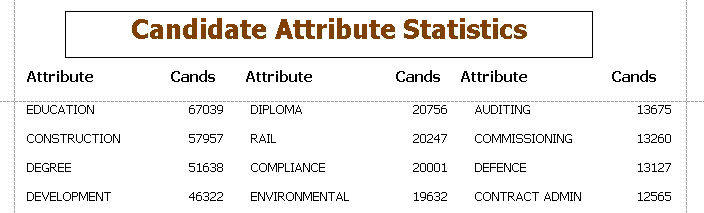
This report can be created as PDF, XLS, XLSX, CSV formats
Candidate Job Title Dictionary Statistics
Gives you your job titles dictionary in order of prevalence
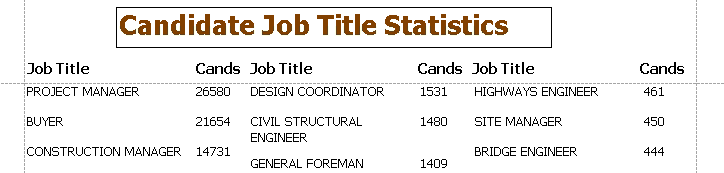
This report can be created as PDF, XLS, XLSX, CSV formats
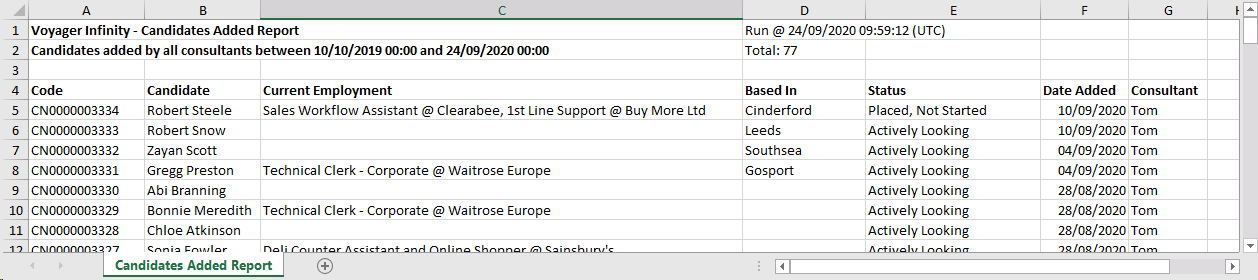
Candidates Added (Excel)
Parameters available - From and To dates, Consultant (All / individual)
Column Options include:
| Code | Candidate ID |
| Candidate | Candidate name (forename and surname (known as name if defined) |
| Current Employment | Will list all work history entries that are marked as current |
| Based In | Based in from record |
| Status | Candidate status in record |
| Date Added | Will display the date the record was added |
| Consultant | Will display the consultant (shortname)who added the candidate |
| Candidate Custom Fields | Will include a column for each custom field within the record |
Gives you a list of candidates that have been added to Infinity between dates:
This report can be created as XLSX, CSV formats
Contractors Currently Working
Parameters available - From and To dates, Consultant (All / Individual)
Column Options include:
| Placement Code | Placement ID |
| Placement Alternate Code | Placement Alternate code from record |
| Job Code | Job ID |
| Placement Job Title | Job Title displayed within placement record (sourced from job record) |
| Client Ref | Client Ref field from placement record |
| Placement Notes | text content from the notes field within placement record |
| Placement Status | Status fielkd from placement record (updated according to activity recorded |
| Candidate | Candidate name (forename and surname) |
| Candidate Telephone | Candidate Phone number (will display the first entered phone number) |
| Candidate Mobile | Candidate mobile number (will display the first entered mobile number) |
| Candidate Email | Candidate email address (will display the first entered email address) |
| Company | Company name (sourced from the job record) |
| Main Contact | Main contact in placement record (can be edited within placement record) |
| Placement Location | Location name from placement record (sourced from job record) |
| Reports To | The reports to contact recorded within the placement record |
| Contact Telephone | Main contacts telephone number (first created |
| Contact Mobile | Main contacts mobile number |
| Contact Email | Main contacts email address |
| Start Date | Start date of placement as recorded within placement record |
| End Date | End Date of placement as recorded within placement record |
| Pay Currency | Pay currency as recorded within the placement rate grid |
| Charge Currency | Charge Currency as recorded within the placement record (sourced from the job record) |
| Consultant | Will display the consultants included within the splits grid and include the split %, if more than 1 will display additional columns for additional consultant(s) |
| Job IR35 Status | IR35 status recorded within the job record |
| Job IR35 Verified | IR35 verified from job record (ticked will display YES, unticked will display NO) |
| Placement Worker Type | Worker type recorded within the placement record |
| Placement IR35 Status | IR35 status as displayed within the placement record |
| Rate Type | Will display the rate types included within the rates grid and include the rate name if more than 1 will display additional columns for additional rate(s) |
| Is Core Rate | If set as a core rate will display YES |
| Pay Rate | amount recorded within rate grid |
| Base Pay rate | base pay rate recorded within the rate grid |
| Holiday Pay | holiday pay displayed within rate info within rate grid (calculated from financial settings) |
| Total Pay | Total pay displayed within rate grid |
| National Insurance |
National insurance displayed within rate info within rate grid (calculated from financial settings) |
| Total Cost | Total cost display within rate grid |
| Charge Rate | Charge rate displayed within rate grid |
| Base Charge Rate | Base Charge rate as displayed within the rate grid |
| Profit | Profit as displayed within rate grid |
| Frequency | Frequency / interval of rate displayed within rate grid |
| Margin | Margin as displayed within the rate grid |
| Markup | Markup as displayed within the rate grid |
| Rate Start | Rate start date as displayed within the rate grid |
| Rate End | Rate end date as displayed within the rate grid |
| Project Code | Project code displayed in placement record |
| Placement Custom Fields | Will include a column for each custom field within the placements record |
| Job Custom Fields | Will include a column for each custom field within the job record |
Allows you to report on candidates who are currently “Working for us”



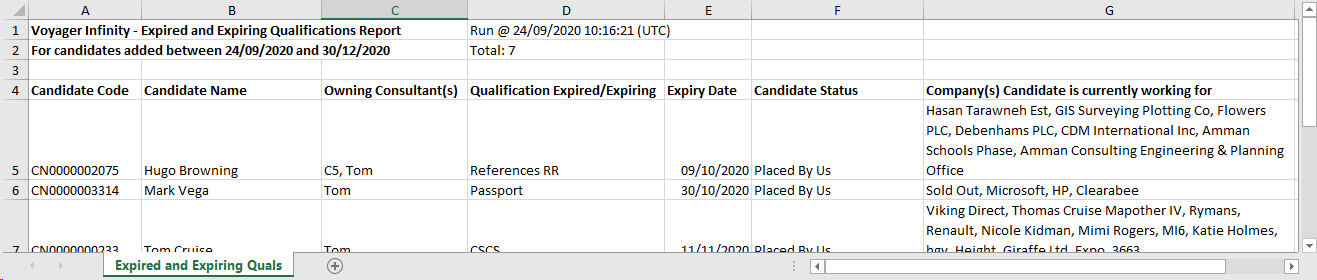
Expired and Expiring Qualification (Excel)
Parameters available - Expires From and To dates, Inc. blank expiry dates tick box:
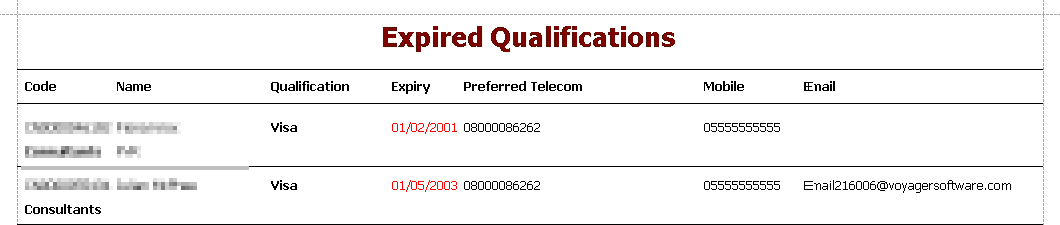
Expired Qualifications List
Parameters available (Sector Id (Public only) and Show Working For Us tick box
Allows you to report on candidates with expired qualifications
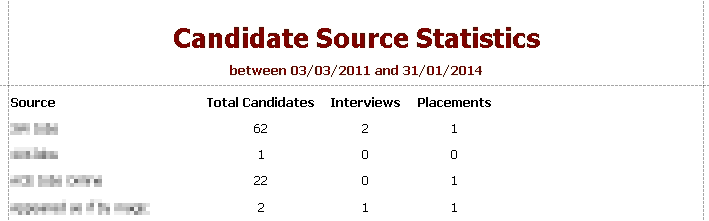
Periodic Candidate Source Statistics
Parameters available - From and To dates
Allows you to report on the sources of your candidates
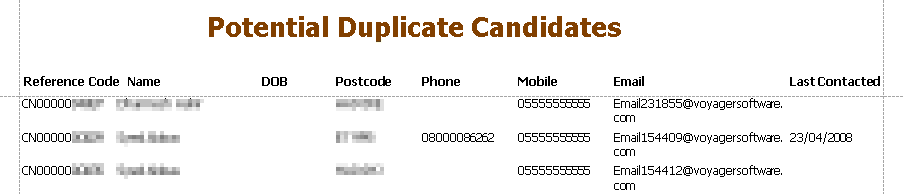
Potential Duplicate Candidates
Reports on all candidates who are potential duplicates
Temps Currently Working (Excel)
Parameters available - From and To dates, Consultant (All / Individual)
Column options include:
| Placement Code | Placement ID |
| Placement Alternate Code | Placement Alternate code from record |
| Job Code | Job ID |
| Placement Title | Job Title displayed within placement record (sourced from job record) |
| Client Ref | Client Ref field from placement record |
| Alert | Alert content displayed within placement record |
| Placement Notes | Text content displayed within the placement notes field |
| Candidate's First Temp Shift | Displays the first shift date for the placement (irrespective of date range of report) |
| Breaks | Displays how the placement's shift breaks should be paid/charged |
| Candidate Code | Candidate ID |
| Candidate Alternate Code | Candidate alternate code |
| Candidate | Candidate name (forename and surname) |
| Candidate Telephone | Candidate Phone number (will display the first entered phone number) |
| Candidate Mobile | Candidate mobile number (will display the first entered mobile number) |
| Candidate Email | Candidate email address (will display the first entered email address) |
| Candidate Worker Type | Worker Type as recorded within the candidate financials at the time of placement (this can be updated retrospectively) |
| Company | Company name (sourced from the job record) |
| Main Contact | Main contact in placement record (can be edited within placement record) |
| Placement Location | Location name from placement record (sourced from job record) |
| Reports To | The reports to contact recorded within the placement record |
| Contact Telephone | Main contacts telephone number (first created |
| Contact Mobile | Main contacts mobile number |
| Contact Email | Main contacts email address |
| First Shift | First shift date of placement as recorded within placement shift calendar |
| Last Shift | Last shift date of placement as recorded within placement shift calendar |
| Shift Days - Shift Times | Will display shift times of the shift (09:00 - 17:00) with a column for each day (max 30 days outputted in report) |
| Shift Days - Shift Hours | Will display shift hours (8.5) with a column for each day (max of 30 days outputted in report) |
| Shift Days - Shift Days | Will display a 1 where a shift is present for each day (max of 30 days outputted in report) |
| Shift Days - Shift Breaks | Will display the break length assigned to the shift |
| Shift Days - Core Rate | Display the core rate recorded against that shift (access placement calendar to review rate types against shifts) |
| Shift Days - Shift Status | Displays the shift status set against the shift (as displayed within shift planner, awaiting confirmation or confirmed, time worked, started) |
| Total Hours | Calculates total hours for all shifts |
| Total Shifts | Calculates total number of shifts |
| Total Days | Calculates total number of days |
| Total Pay | Calculates total pay for all shifts |
| Total Charge | Calculates total charge for all shifts |
| Total Profit | Calculates total profit for all shifts |
| Pay Currency | Pay currency as recorded within the placement rate grid |
| Charge Currency | Charge Currency as recorded within the placement record (sourced from the job record) |
| Consultant | Will display the consultants included within the splits grid and include the split %, if more than 1 will display additional columns for additional consultant(s) |
| Placement IR35 Status | IR35 status as displayed within the placement record |
| Back Office Sector Name | Back Office Sector for the placement - this is defaulted by Company and / or user |
| Division Department Splits - Division | Back Office Division for the placement - this is defaulted by Company and / or user |
| Division Department Splits - Department | Back Office Department for the placement - this is defaulted by Company and / or user |
| Division Department Splits - Split | Back Office Splits for the placement - this is defaulted by Company and / or user |
| Rates - Rate Type | Will display the rate types included within the rates grid and include the rate name if more than 1 will display additional columns for additional rate(s) |
| Rates - Is Core Rate | If set as a core rate will display YES |
| Rates - Pay Rate | amount recorded within rate grid |
| Rates - Base Pay rate | base pay rate recorded within the rate grid |
| Rates - Holiday Pay | holiday pay displayed within rate info within rate grid (calculated from financial settings) |
| Rates - Total Pay | Total pay displayed within rate grid |
| Rates - National Insurance |
National insurance displayed within rate info within rate grid (calculated from financial settings) |
| Rates - Total Cost | Total cost display within rate grid |
| Rates - Charge Rate | Charge rate displayed within rate grid |
| Rates - Base Charge Rate | Base Charge rate as displayed within the rate grid |
| Rates - Profit | Profit as displayed within rate grid |
| Rates - Frequency | Frequency / interval of rate displayed within rate grid |
| Rates - Margin | Margin as displayed within the rate grid |
| Rates - Markup | Markup as displayed within the rate grid |
| Rates - Rate Start | Rate start date as displayed within the rate grid |
| Rates - Rate End | Rate end date as displayed within the rate grid |
| Placement Custom Fields | Will include a column for each custom field within the placements record |
| Job Custom Fields |
Will include a column for each custom field within the job record |
Sorting options:
| Placement Code | Outputs the report ordering by oldest placement code (lowest) |
| Company, Location, Job Title | Outputs the report ordering by Company name, then by location, then by job title |
Column Ordering options:
| Placement, Candidate, Company, other | will display the chosen column groups in this order (left to right) |
| Company, Candidate, Placement, other | will display the chosen column groups in this order (left to right) |
Candidates with First Temp Shift Only - tick to only include candidates that are starting their first shift within the date range set
Placements with First Temp Shift Only - tick to only include placements where their first shift is in the date range.
Both options are off as default and only one option can be ticked at a time.
Allows you to report on candidates who are currently “Temping for us”



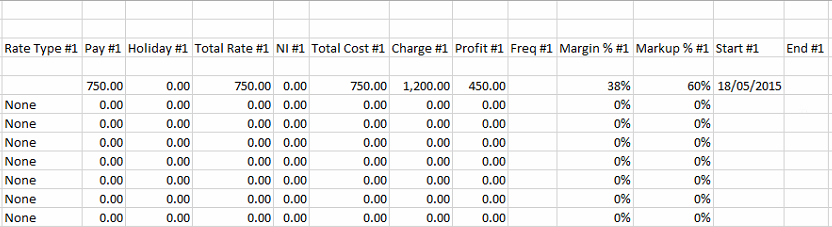
Unpaid and Uncharged’ breaks output calculation changes
When a placement is set to ‘Unpaid and Uncharged’ Breaks, the break length is deducted from the shift hours in the following areas of the reports.
The shift ‘Hours’ column

As per the example highlighted in red above:
- The shift 09:00 – 17:00 is 8.00 hours
- Minus the shift break of 50 minutes (50/60 = 0.83 decimal)
- This leaves the ‘Hours’ as 7.17 (decimal)
The ‘Total’ columns

- Total Hours – shows the total hours for all hours (shifts hours - break) in the row.
- Total Pay – if hourly rates, is calculated by multiplying the number of hours in the shift (shift - break), by the pay rate for the relevant rate.
- Total Charge – if hourly rates, is calculated by multiplying the number of hours in the shift (shift - break), by the charge rate for the relevant rate.
- Total Profit – if hourly rates, is calculated by multiplying the number of hours in the shift (shift - break), by the profit for the relevant rate.
Note: The ‘Shift Days’ and ‘Total Days’ columns work as per existing functionality and break lengths are not first deducted from the shift hours when converting to half or full days.
Company Reports
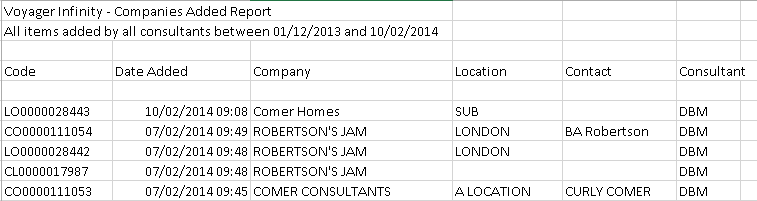
Companies Added (Excel)
Parameters available - From and To dates, Consultant (All / Team / Individual), Entities (All / Companies / Locations / Contacts)
Column options include:
| Code | Infinity record code |
| Date Added | Date the entity was added |
| Company | name of company |
| Location | name of location |
| Contact | name of contact |
| Consultant | name of consultant who added record |
| Company Custom Fields | custom fields held within the company entity (if applicable) |
| Location Custom Fields | custom fields held within the location entity (if applicable) |
| Contact Custom Fields | custom fields held within the contact entity (if applicable) |
Allows you to review the Companies / Locations / Contacts that have been added to the database
Consultant Reports
Consultant Statistics - Landscape (Excel)
Parameters available - Start and End dates, Consultant (All / Team / Individual)
Column chooser:
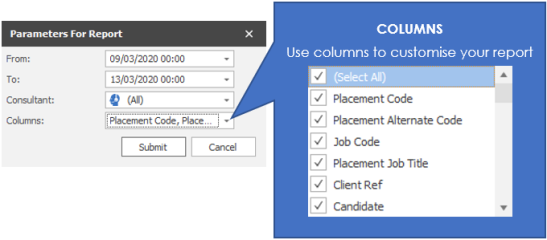
Allows you to review an array of statistics and ratio’s for all consultants
Columns selected are grouped together into types:
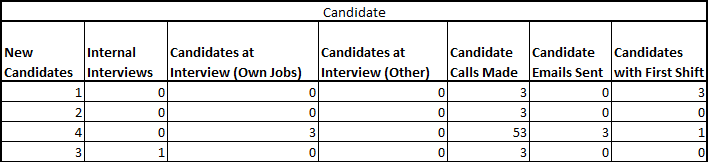
- Candidate
- Perm / Cont / Fixed Term Jobs

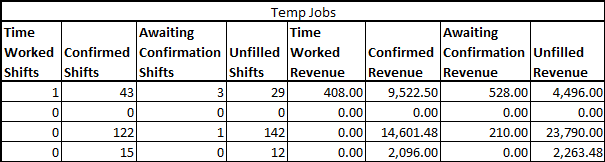
- Temp Jobs
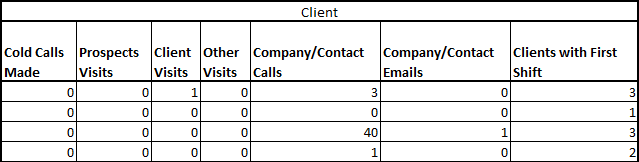
- Client
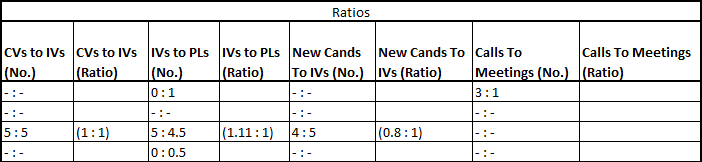
- Ratio's
More Information
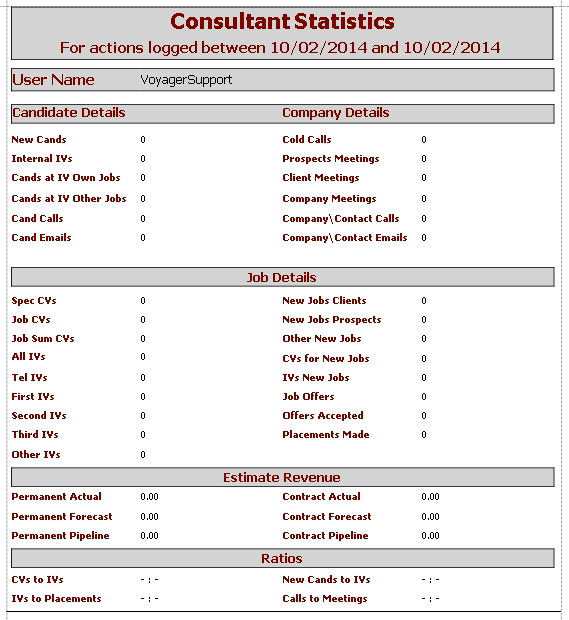
The report includes:
User Name – Consultants name
New Cands - Number of candidates added through iCapture and manually created to the system between the date range
Internal IVs - Number of internal interviews logged between the date range with any method
Cands at IV Own Job - Number of candidates at interview logged by the consultant for that particular consultant’s jobs between the date range
Cands at IV Other Jobs - Number of candidates at interview logged by the consultant for any other consultants jobs between the date range
Cand Calls - Number of candidate calls logged on the system between the date range
Cand emails - Number of emails sent from Infinity and Outlook to candidates between the date range. Outlook emails will collate numbers of emails sent to candidates that have sync'd to Infinity.
Cold Calls - Total number of Company / Location / Contact calls made with the event of Cold Call between the date range
Prospect Meetings - Number of meetings arranged with Company / Location / Contact in a Company with the type “Prospects”
Client Meetings - Number of meetings arranged with Company / Location / Contact in a Company with the type “Client”
Company Meetings - Number of meetings arranged with Company / Location / Contact in a Company with any other type, not Client or Prospect.
Company \ Contact Calls - Total number of calls logged to Company / Location / Contacts between the date range
Company \ Contact Emails - Total number of emails sent from Infinity and Outlook between the date range. Outlook emails will collate numbers of emails sent to contacts or Companies that have sync'd to Infinity.
Spec CVs - Number of speculative CV’s submitted by the consultant between the date range
Job CVs - Number of CV’s submitted within a Job by the consultant between the date range
Job Sum CVs - Number of Candidate summaries submitted within a Job by the consultant between the date range
All IVs - Number of total external (not internal) interviews logged between the date range
Tel IVs -All interviews that are logged, with the method of “Telephone”, between the date range
First IVs - All 1st Interviews (Face to Face only) logged between the date range
Second IVs – All 2nd Interviews (Face to Face only) logged between the date range
Third IVs – All 3rd Interviews (Face to Face only) logged between the date range
Other IVs - All other interviews logged between the date range
New Jobs Clients - New Jobs added by the consultant with the client type of “Client” between the date range
New Jobs Prospects - New Jobs added by the consultant with the client type of “Prospect” between the date range
Other New Jobs - New Jobs added by the consultant with any other client type (not “Client” or “Prospect”) between the date range
CVs for New Jobs – Total number of CV’s submitted for Jobs between the date range
IVs New Jobs - Total number of interviews arranged for new jobs added between the date range
Job Offers – Total number of offers made to candidates between the date range
Offers Accepted – Total number of offers accepted between the date range
Placements Made - Placed – Total number of candidates placed between the date range
Permanent Actual – A placement has been made and the candidate has been started.
Permanent Forecast – A placement has been made, offer accepted and Confirmed.
Permanent Pipeline – The total of all vacancies currently on the database without any confirmed offers (excluding any ticked as spec job)
Contract Actual – An estimate of the total value of a started contractor (based on placement input i.e. pay & charge, hours and end date).
Contract Forecast - A placement has been made, offer accepted and Confirmed but the contractor has not yet started.
Contract Pipeline – The total of all contract vacancies currently on the database without any confirmed offers (excluding any ticked as spec job)
CVs to IVs % - Percentage of CV’s submitted to Interviews logged
IVs to PL % - Percentage of Interviews logged to Placements made
New Cands to IV % - Percentage of New Candidates added to Interviews logged
Calls to Meets – Percentage of calls made to contacts to meeting arrange
Consultant Statistics - Portrait
Parameters available - Start and End dates, Consultant (All / Team / Individual)
Allows you to review key statistics and ratio’s (one page per consultant)
General Reports
Call Backs
Parameters available - Consultant (All / Team / Individual), Types (Candidate / Company / Both)
Allows you review the call backs that are set in the system

Communications (Excel)
Parameters available - From and To dates, Sector (Public only), Logged by (All / Team / Individual)
Allows you to review events logged

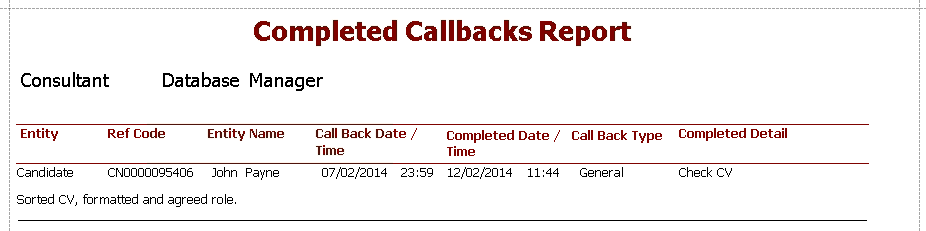
Completed Call Backs
Parameters available - From and To dates, Consultant (All / Team / Individual)
Allows you to review the call backs that have been completed
CV's Submitted (Excel)
Parameters available - From and To dates, Consultant (All / Team / Individual), Submit Type (All / Spec CVs / Spec Summaries / Job CVs / Job Summaries)
Allows you to review the submission activity carried out

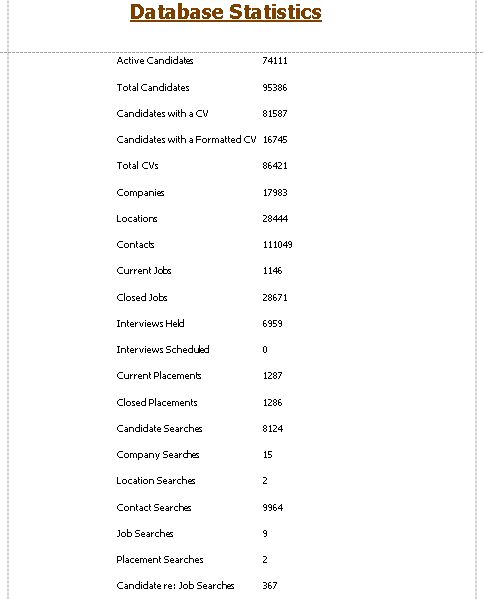
Database Statistics
Allows you to review the overall statistics of the database
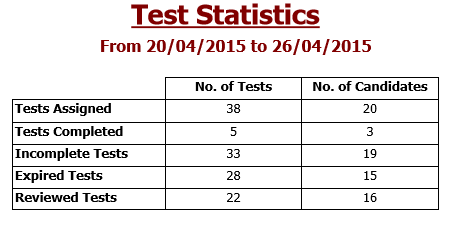
Test Statistics
Test statistics within a date range
Tests Assigned (Excel)
List all tests added to candidates within the date range

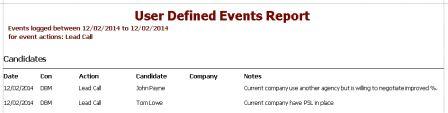
User Defined Events
Parameters available - From and To dates, Sector (Public only), Consultant (All / Team / Individual), Event Actions (multi-select), Types (Candidates / Contacts / Both)
Allows you to review a user defined event(s)
Interview Reports
Interviews Occurring (Excel)
Parameters available - From and To dates, Sector (Public only), Consultant (All / Team / Individual)
Allows you to review the interviews that are due to occur


Job Reports
Closed Job Reports (Excel)
Parameters available - Start and end dates, Consultant (All / Team / Individual)
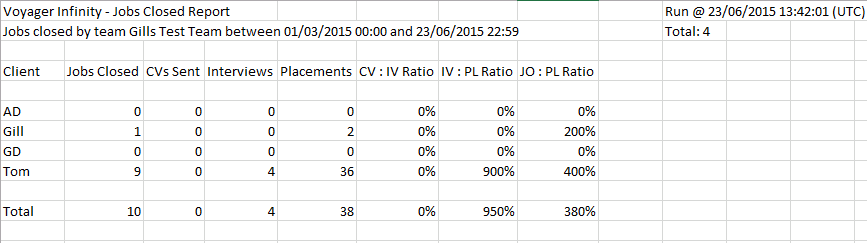
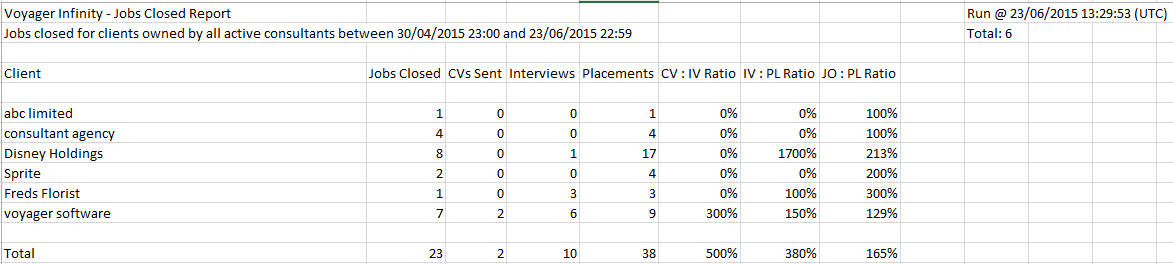
Jobs that are closed within the date range and includes statistics on CVs, interviews and placements (which are not filtered by the date range). The Excel file will open with two tabs one for jobs closed by consultant and one by companies closed jobs (collated statistics)
Jobs Closed by Consultant tab
Jobs Closed by Client tab
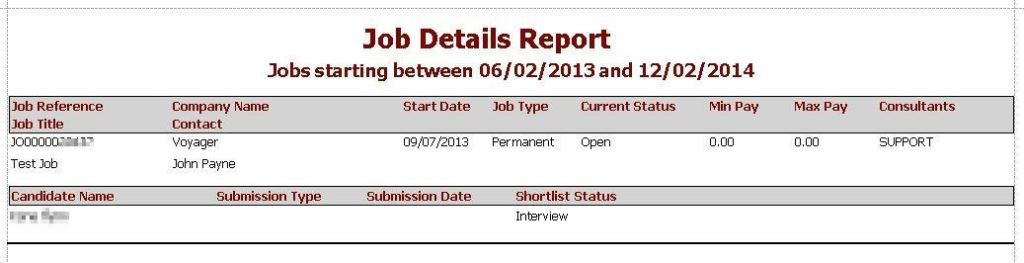
Job Details
Parameters available – Start on or after and Start on or before, Job status (All, Current, Closed) Consultant (All / Team / Individual)
Allows you to see the jobs due to start with details of CV’s submitted, interviews and placements
Job Export
Parameters available – From and To dates
Allows you to review jobs that you have posted to your own website
NB:- we would recommend that you export this to Excel

Job Statistics
Parameters available - From and To dates, Consultant (All / Team / Individual), Current jobs only tick box and Job Type (All, Perm, Contract, Fixed Term)
Allows you to review key statistics for each job, including CV’s sent, Interviews (by level) and placement(s). It also includes totals

Jobs Added (Excel)
Parameters available – From and To dates, Consultant (All / Individual), Status (Closed / Current / All)
Allows you to review the jobs that have been added to the system


Job Retainers (Excel)
Parameters available - Start and End dates (jobs created date), Consultant (All / Team / individual) and includes a column chooser
Allows you to review job retainer payments


Placement Reports
Contract Finishers (Excel)
(includes Contract and FIxed Term placements) Parameters available – From and To dates, Exclude Perm tick box
Allows you to see the current status of candidates who are at interview stage onwards


Placements Added (Excel)
Parameters available – From and To dates, Sector (Public only), Consultant (All, Team, individuals)
Allows you to review the placements that have been logged, irrespective of start date


Contract and Perm Starters
Parameters available – From and To dates, Sector (Public only)
Allows you to review candidates that have start dates within the date range


Temp Starters
Parameters available - From and To dates, Consultant (All, Team, individuals)
Allows you to review all Temp starters, first shift of a placement, due within the date range


Temp Cancelled Shifts, Removed Candidates and Lateness
Parameters available - From and To dates
Allows you to review any cancelled shifts, including removed candidates and late logs within a date range

Temp Payroll Export
Parameters available - From and To dates, Consultant (All, Team, individuals)
Columns: choose which columns you require in the report
The below displays all columns (except CIS details)




Contact Details
If you require further assistance please contact Ikiru People using the details published on www.ikirupeople.com
Visit our Customer Portal at https://portal.ikirupeople.com/ for future events and clinics.
FeedbackIf you would like to make suggestions or have found any errors with this Help section please contact our Support team.
Copyright © 2026 Voyager by Ikiru People Ltd. All rights reservedVersion 4.87
Voyager Software is a brand of Ikiru People Ltd, a subsidiary of Dillistone Group Plc. The group is a leading global provider of software and services that enable recruitment agencies and in-house recruiters to better manage their selection process and address the training needs of individuals. Across its brands – which include Voyager Software (recruitment software UK & Australia), Dillistone FileFinder executive search software, GatedTalent, the global database of the world’s leading executives, Talentis.Global – the next generation of recruitment software and also ISV.Online, provider of online pre-employment skills testing and training tools. Dillistone Group serves thousands of clients worldwide. Ikiru People Ltd: Registration Number 02043300. Registered in England & Wales.
 |  |  |  |