Dashboard / Targets Administration
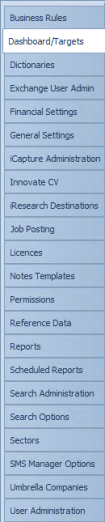
General
What are Dashboard Targets?
The Infinity Dashboard collects and collates information about your business. Dashboard targets provide the key performance indicators [KPI’s] which are passed through to the gauges and charts in each dashboard, displaying consultants key activities in an easy to read format.
Dashboard Targets are divided into three sections; User, Team, Company and this enables the Administrator to configure precise and relevant targets.
 Understanding Dashboard Targets
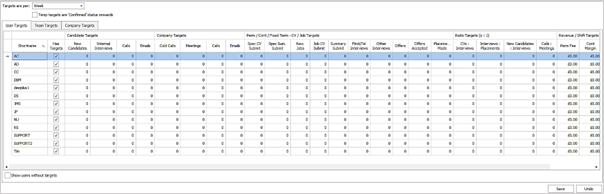
Let’s begin by exploring the Dashboard Targets screen.
Tab Headings
There are three tab headings:

User Targets – listing of all the Infinity users. The users are added automatically to this list via User Administration which will be covered later.


Team Targets – listing of Infinity teams, the users are assigned to Teams via User Administration.


Company Targets – Target types that relate to the company overall.

Within each tab; User, Team, Company, there are Target types. Each Target type relates to Candidate, Company, Perm/Cont/Fixed Termm CV/Job, Ratio or Revenue / Shifts Targets.
Each Target type section displays a number of target settings columns, each column can be configured with a numeric target for the target setting.
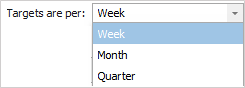
Each Target Setting is based on either per Quarter, Month or per Week. The option can be changed using the “Targets are per” drop down option. It is important that once you start setting targets that you leave this interval setting the same for all targets.
For temp targets, there is a setting to only apply the targets for placement shifts at a status of 'confirmed' onwards. Hence those at 'awaiting confirmation' or 'contacted' are not included.

The table below explains the details for each target setting:
|
Target Name / Target Setting
|
Description
|
|
|
Candidate Targets |
New Candidates |
Newly created candidate |
|
|
Internal Interviews |
Internal interviews arranged for candidates |
|
|
Calls |
Calls made and logged via Event Logger |
|
|
Emails |
Emails sent and logged via Event Logger |
|
Company Targets |
Cold Calls |
Calls made and logged via Event Logger – Action Type “Cold Call” |
|
|
Meeting |
Meetings booked via Contact Meetings |
|
|
Calls |
Calls made and logged via the Contact Event Logger |
|
|
Emails |
Emails sent and logged via Contact Event Logger |
|
Perm / cont/ fixed Term CV/Job Targets |
Spec CV Submit |
CV Submittals made on spec basis |
|
|
Spec Sum. Submit |
Summary Submittals made on spec basis |
|
|
New Jobs |
Newly created Jobs |
|
|
Job CV Submit |
CV Submittals made to a Job |
|
|
Summary Submit |
Summary Submittals made to a Job |
|
|
First/Tel Interviews |
Newly created First or Telephone Interviews |
|
|
Other Interviews |
Newly created Interviews of any other Interview level |
|
|
Offers |
Newly created Offers |
|
|
Offers Accepted |
Offers Accepted |
|
|
Placements Made |
Newly created Placements |
|
Ratio Targets (X:1) |
CVs : Interviews |
Ratio of number of CV Submittals to each Interview arranged |
|
|
Interviews : Placements |
Ratio of number of Interviews to each Placement made |
|
|
New Candidates : Interviews |
Ratio of new Candidates to each Interview arranged |
|
|
Calls : Meetings |
Ratio of Calls made to each Meeting arranged |
|
Revenue / Shifts targets |
Perm Revenue |
Value of Permanent placement revenue |
|
|
Cont Margin |
Value of Contract placement margin |
| Temp Revenue | Value of temp placement revenue. Uses the temp target status setting | |
| Temp No of Shifts | Number of temp placement shifts. Uses the temp target status setting | |
Start creating Dashboard Targets
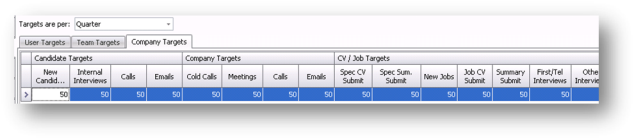
- Begin by selecting a Target Tab, for example let’s set up the Company Targets, and remember that the Company Targets will be reflected in the Company Dashboard.
- Select if you’d like the targets to be set per Quarter, per Month or per Week (important to note that once you begin setting targets you set all required targets by the same interval).
- Enter in the numeric value in each Target Setting column.
- When you have entered all the Target Settings click

- Here’s an example of how your Company Targets may look.
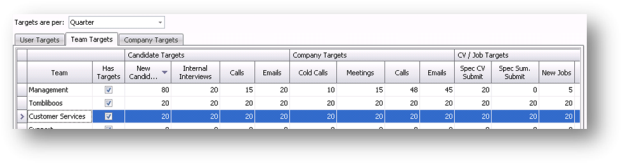
Next, set up the Team Targets, again these targets will be reflected in the Team Dashboard.
- The list of Teams is automatically populated from User Admin Teams Administration. To create a new Team use User Administration.
- Select a Team from the list and enter the numerical value in each Target Setting column as required.
- When you have entered all the Target Settings click
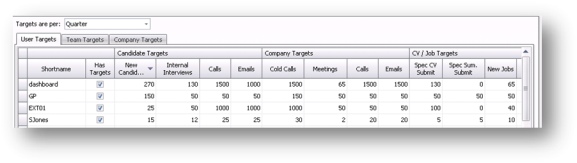
Finally, set up the individual User Targets for each of your user’s Dashboards.
- The list of Users is automatically populated from User Admin User Administration. To create a new user launch User Administration and add a new User.
- Select a User from the list and enter the numerical value in each Target Setting column as required.
- When you have entered all the Target Settings click

Contact Details
If you require further assistance please contact Ikiru People using the details published on www.ikirupeople.com
Visit our Customer Portal at https://portal.ikirupeople.com/ for future events and clinics.
FeedbackIf you would like to make suggestions or have found any errors with this Help section please contact our Support team.
Copyright © 2026 Voyager by Ikiru People Ltd. All rights reservedVersion 4.87
Voyager Software is a brand of Ikiru People Ltd, a subsidiary of Dillistone Group Plc. The group is a leading global provider of software and services that enable recruitment agencies and in-house recruiters to better manage their selection process and address the training needs of individuals. Across its brands – which include Voyager Software (recruitment software UK & Australia), Dillistone FileFinder executive search software, GatedTalent, the global database of the world’s leading executives, Talentis.Global – the next generation of recruitment software and also ISV.Online, provider of online pre-employment skills testing and training tools. Dillistone Group serves thousands of clients worldwide. Ikiru People Ltd: Registration Number 02043300. Registered in England & Wales.
 |  |  |  |