Job Posting Administration
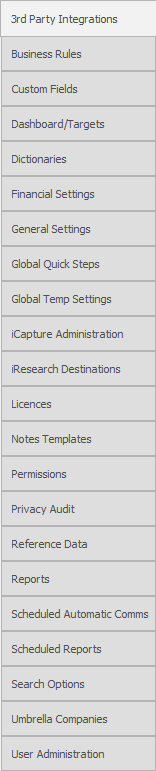
General
There are several options which allow Infinity Jobs to be posted to Job Boards and Services.
Firstly select which job posting services you wish to activate by selecting from:

Select Job Board Aggregator to access Broadbean or LogicMelon setup
NOTE:- Infinity SaaS also offers the Infinity API which can be used to post job data onto your website
 Broadbean Service Settings
 IMPORTANT - Please inform Broadbean Support if you are setting up your Broadbean account within Infinity, they will activate the API to enable the integration with Infinity
Select Broadbean from the Provider options:

The example shows a typical Broadbean Service Settings screen.
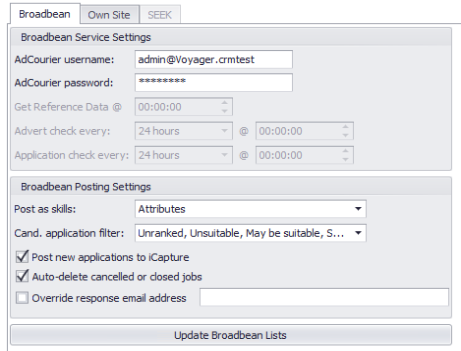
The table explains the Broadbean Services Settings options:
 IMPORTANT – Please note for SaaS systems you cannot edit the Get Reference Data, Advert Check Every and Application Check every options
|
AdCourier username
|
Enter you’re the username for your organisation’s AdCourier |
|
AdCourier password
|
Enter you’re the password for your organisation’s AdCourier |
|
Get Reference Data @
|
The time that you wish the service to get Reference Data |
|
Advert check every
|
Set up how often the advert posted to Broadbean should be checked |
|
Application check every
|
Set up how often the applications should be checked |
|
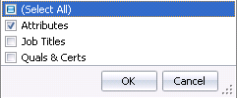
Post as skills |
Select which type of skills should be posted: Attributes, Job Titles, Quals & Certs
|
|
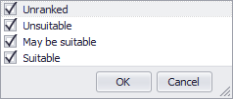
Cand application filter |
Select which filter to apply to Candidate applications via Broadbean.
NB: - If unranked is not ticked then you will need to rank the candidate within Broadbean before applications will show in Infinity |
|
Post New applications to iCapture |
Tick for any new application to automatically post to iCapture, these will still show as applications in My Infinity and within the Broadbean Results of the Job |
|
Auto-delete cancelled or closed jobs |
Tick the tick box to automatically delete cancelled or closed jobs. |
|
Override response email address |
Enter an email address if you wish to override the email address used for responses. |
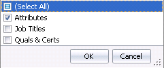

On completion of the settings you must Update Broadbean Lists

This will import the industry, location, currency and job boards lists associated with your account. Please see user administration to setup users Broadbean accounts to complete the integration.
LogicMelon Service Settings
 IMPORTANT - Please inform Voyager Support if you are setting up your LogicMelon account within Infinity, they will contact LogicMelon to activate the API to enable the integration with Infinity
Select LogicMelon from the Provider option:

The example shows a typical LogicMelon service settings
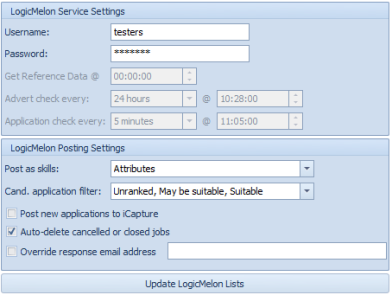
The table explains the LogicMelon Services Settings options:
IMPORTANT – Please note for SaaS systems you cannot edit the Get Reference Data, Advert Check Every and Application Check every options
|
AdCourier username
|
Enter you’re the username for your organisation’s AdCourier |
|
AdCourier password
|
Enter you’re the password for your organisation’s AdCourier |
|
Get Reference Data @
|
The time that you wish the service to get Reference Data |
|
Advert check every
|
Set up how often the advert posted to Broadbean should be checked |
|
Application check every
|
Set up how often the applications should be checked |
|
Post as skills |
Select which type of skills should be posted: Attributes, Job Titles, Quals & Certs
|
|
Cand application filter |
Select which filter to apply to Candidate applications via LogicMelon.
NB: - If unranked is not ticked then you will need to rank the candidate within LogicMelon before applications will show in Infinity |
|
Post New applications to iCapture |
Tick for any new application to automatically post to iCapture, these will still show as applications in My Infinity and within the LogicMelon Results of the Job |
|
Auto-delete cancelled or closed jobs |
Tick the tick box to automatically delete cancelled or closed jobs. |
|
Override response email address |
Enter an email address if you wish to override the email address used for responses. |
On completion of the settings you must Update LogicMelon Lists

This will import the industry, location, currency and job boards lists associated with your account. Please see user administration to setup users LogicMelon accounts to complete the integration.
Seek Service Settings
 Australian Version only
Own Site
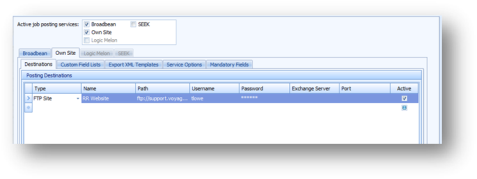
The example shows a typical Posting Destinations list.
Custom Field Lists
Custom Field Lists can be configured using 3 Custom Lists, that can then be part of the content of the job posting.
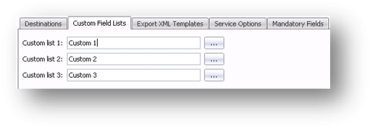
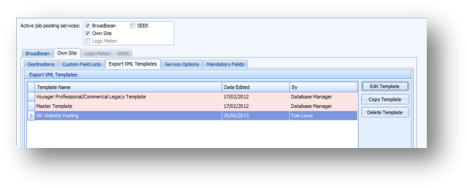
Enter custom list name and then use the ellipse button  to create the list entries
Export XML Templates
XML Templates can be created using Infinity database fields to export the data
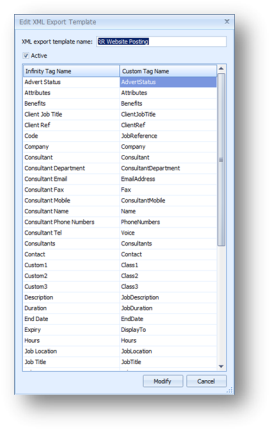
You can copy a current template and then edit to match up the Infinity tags with your website tags and ensure fields are correctly displayed on your website.
Services Options
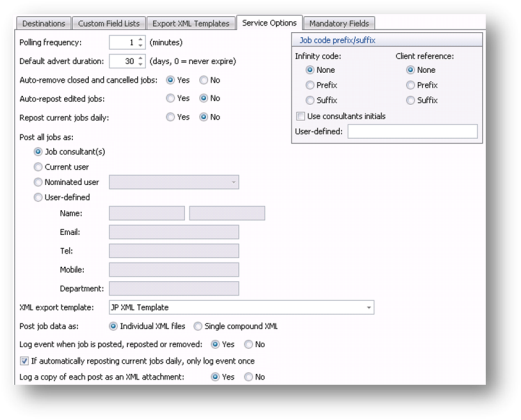
There are various Services Options when posting using Own Website.
IMPORTANT – Please note for SaaS systems you cannot edit the Polling Frequency
|
Polling Frequency
|
Set polling frequency – minimum of 1 second |
|
Default Advert Duration
|
Set the number of days that an advert is active |
|
Auto remove cancelled or closed jobs |
Automatically remove cancelled or closed job from Own Website adverts |
|
Auto repost edited jobs
|
If jobs are edited, automatically repost |
|
Repost current jobs daily
|
Repost current jobs each day |
|
Post all Jobs as |
Select the identity of the person posting the jobs. There are 4 standard options and 1 user defined. |
|
XML Export Template |
Select which XML export template should be used. |
|
Post job data as
|
Select from the two XML options |
|
Log event when job is posted, reposted or removed |
An event will be created on the Job Event tab when an advert is posted, reposted or removed. |
|
Log a copy as an XML attachment |
Automatically log an XML copy of the advert as a Job attachment. |
|
Job Code Prefix/ Client reference |
Select from the options how Adverts should use Job and client codes to identify each one. |
This is an example of a simple setup.
Mandatory Fields
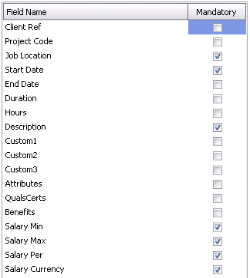
You can set mandatory fields to ensure users complete key details before being able to post the job.
|
Select from the Infinity database fields and Custom Fields Lists the fields that should be completed prior to posting. |
|
|---|

Contact Details
If you require further assistance please contact Ikiru People using the details published on www.ikirupeople.com
Visit our Customer Portal at https://portal.ikirupeople.com/ for future events and clinics.
FeedbackIf you would like to make suggestions or have found any errors with this Help section please contact our Support team.
Copyright © 2026 Voyager by Ikiru People Ltd. All rights reservedVersion 4.87
Voyager Software is a brand of Ikiru People Ltd, a subsidiary of Dillistone Group Plc. The group is a leading global provider of software and services that enable recruitment agencies and in-house recruiters to better manage their selection process and address the training needs of individuals. Across its brands – which include Voyager Software (recruitment software UK & Australia), Dillistone FileFinder executive search software, GatedTalent, the global database of the world’s leading executives, Talentis.Global – the next generation of recruitment software and also ISV.Online, provider of online pre-employment skills testing and training tools. Dillistone Group serves thousands of clients worldwide. Ikiru People Ltd: Registration Number 02043300. Registered in England & Wales.
 |  |  |  |