Data Management
To manage your databases within Infinity there are numerous tools to enable merging of records and bulk editing . If you wish to make bulk changes to records (ownership, skills, status) then please review the bulk updater section for more details.
Data Management includes tools to merge duplicate candidate records, merge duplicated company records and also merge duplicate company location records. You will need to have appropriate permissions to complete these processes, it is recommended that this work is completed by a DBManager, although there are Merge permissions if you do wish to give a user access.
|
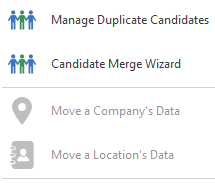
Review and merge a list of potentially duplicate records - Infinity will use data within records to identify high, medium and low matching records for you to review. |
| Manually merge candidate records - if you have duplicated and wish to immediately merge then you can use this tool. | |
|
Move a company's locations and jobs to another company - generally used to move duplicated company data or if a company has had a merger. Greyed out if you do not have appropriate permission or have integration with a payroll |
|
|
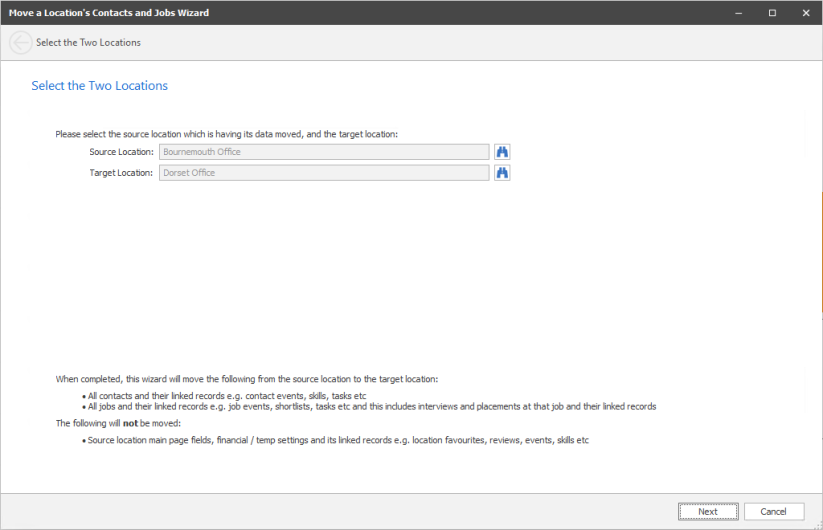
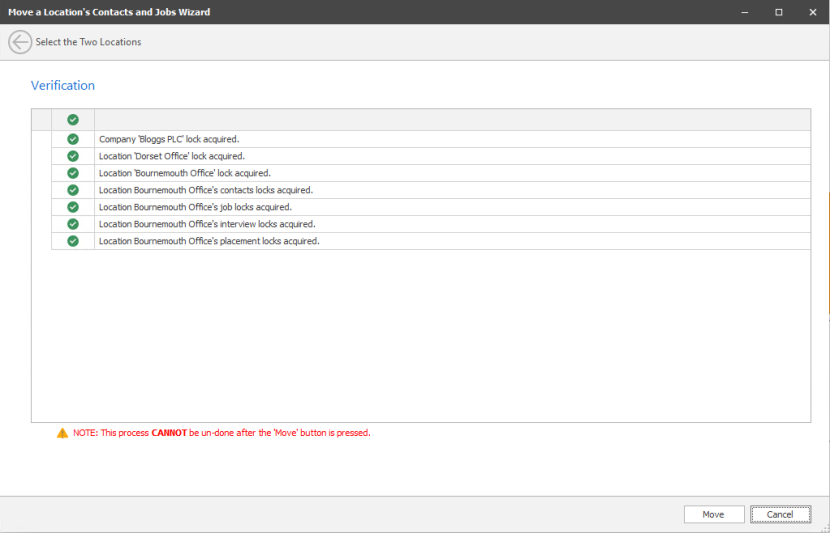
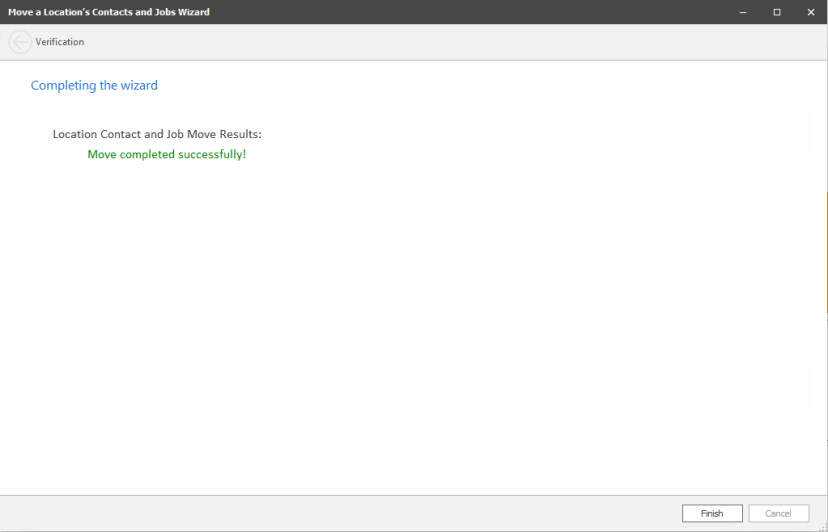
Move a location's contacts and jobs to another location within the same company - used where a location has been duplicated or has closed down a location. Greyed out if you do not have appropriate permission |
 Manage Duplicate Candidates
NB: - To use the merging tool you will need the appropriate permissions, DBManagers will automatically have these but you can add the permissions below to a user to enable merging:
Object Permission - Candidate - set to HARDDELETE
Specific Action Permision - MergeCandidate
The candidate merge facility is restricted via permissions, ensuring only specific users can access and complete the merging of candidate records. Although every effort should be made to avoid creating duplicate candidate records, it can be possible to create a duplicate version of the same candidate.
NB:- The duplicate facility is run once a day and therefore may not show until this service has run.
Merged fields are: Callbacks, attachments, meetings, shortlist entries, interviews and placements
Note: Custom fields are not merged by the candidate merge utility
Duplicate Warning within a Candidate Record
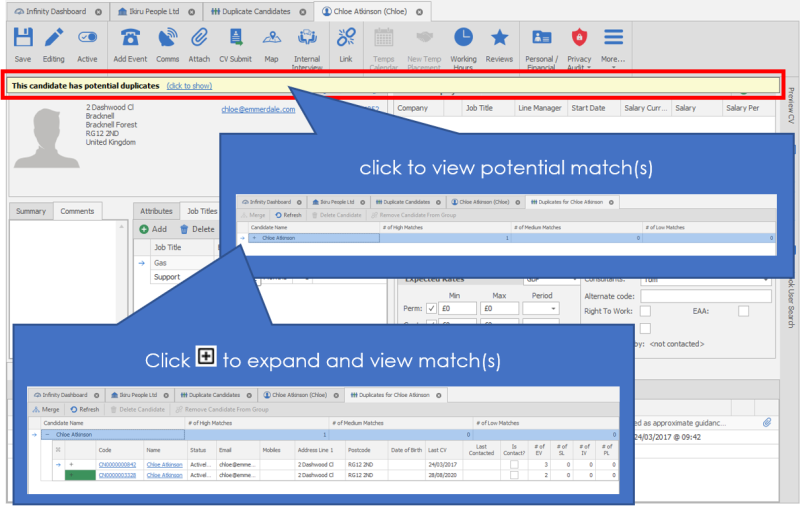
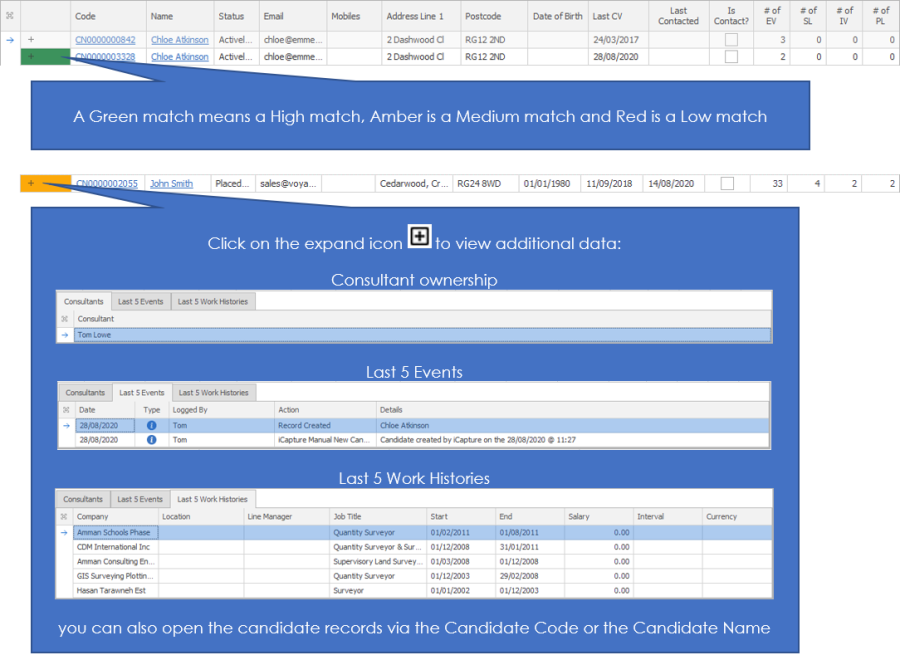
The warning message will appear when you first load the candidate record just below the ribbon bar and a "Has potential duplicates" warning will show next to the Candidate Basic Details:
Duplicate Warning within a Candidate Record
The warning message will appear when you first load the candidate record just below the ribbon bar and a "Has potential duplicates" warning will show next to the Candidate Basic Details:
Using the Duplicate Candidate List
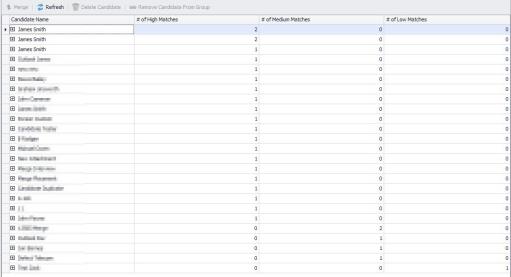
You are able to access a full list of potential duplicate candidates via the application menu. In here you will see each candidate record that has been identified that there may be a duplicate record on file.
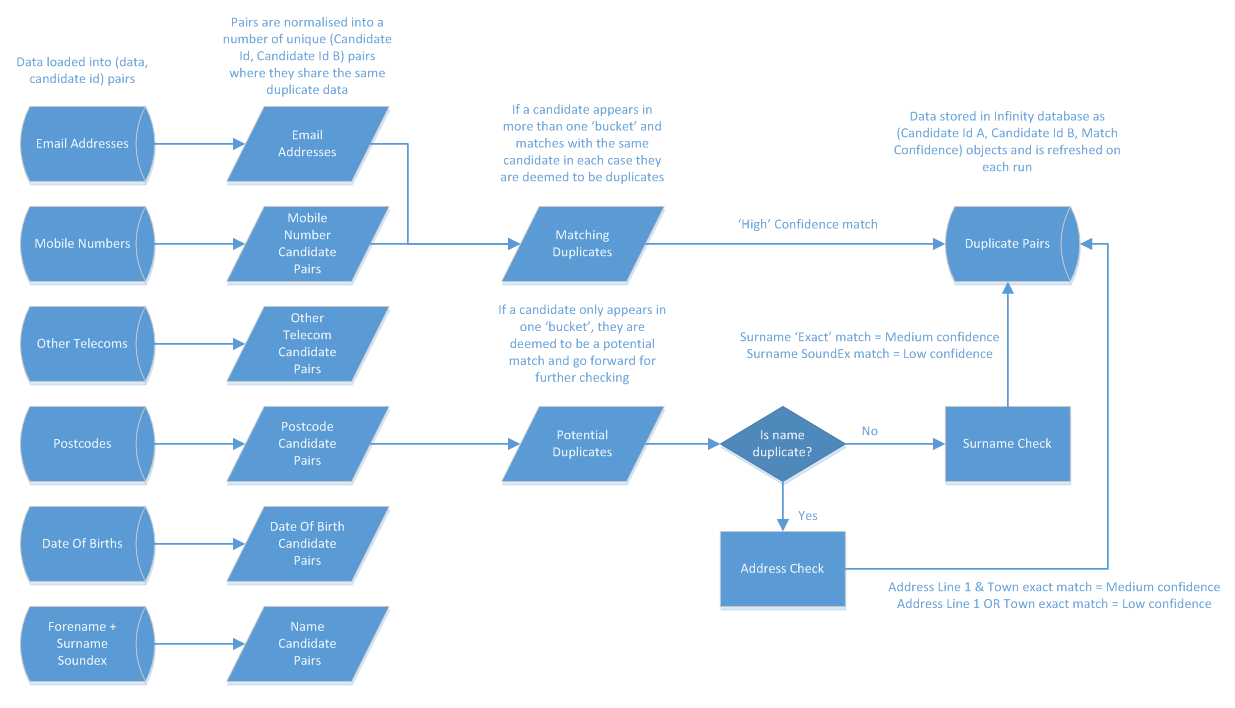
You will see 3 columns for High, Medium and Low matches, this relates to the probability of a match in the database. This works on probability of being a duplicate record and uses key details like mobile numbers, DOB, Post Code as well as name (although it doesn't have to match all names). This will assist in identifying obvious matches but also to investigate in more detail the Medium and Low matches.
Click on image below to view the matching process for "matching" or "potential" duplicates:
Remove Warning
If you have found that the candidate is not a duplicate record then you can Hold CTRL or SHIFT key to highlight the top entry along with the matching entry:

select the "Remove Candidate From Group":

this will ensure the two records will no longer show as duplicates, putting a line through the entry and on completion of the overnight services, will be removed from the duplicate candidate list:

NB:- This is not reversible and therefore the two records will not be available to merge in the future
Merging Records Wizard
NB:- You will be required to have the appropriate permission to have the ability to merge candidate records, please speak to your system administrator for more information
If you have confirmed the two records are a duplicate on the database then Hold CTRL or SHIFT key to highlight the top entry along with the matching entry:
select "merge" to begin the wizard:
This will launch the Candidate Merge Wizard, taking you through the steps of merging the records:
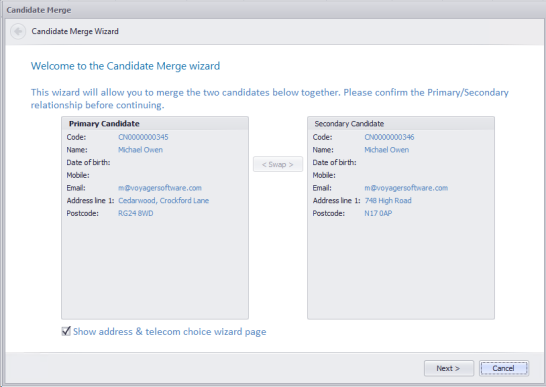
Step 1 – Selecting Primary Record
Identify which of the two records should be treated as the Primary and Secondary (this will control which of the records will keep the default CV and primary contact details, although if you Show address & telecom choice wizard page you can amend what telecoms will be treated as primary) use the Swap button between the two entries to change which to set as the Primary:
Step 2 – Verification
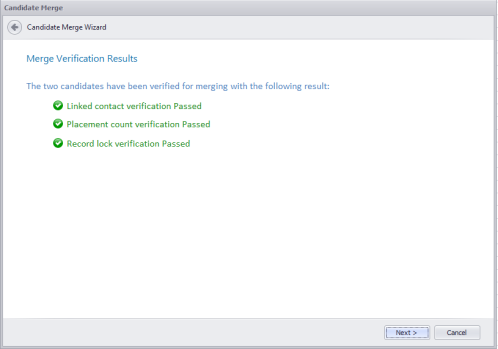
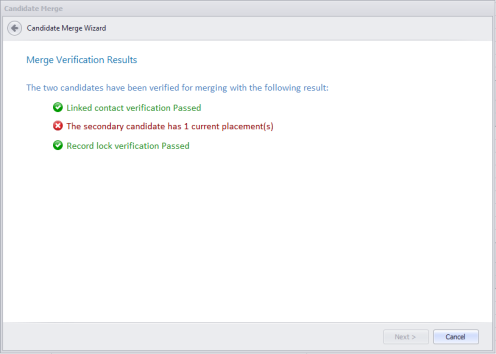
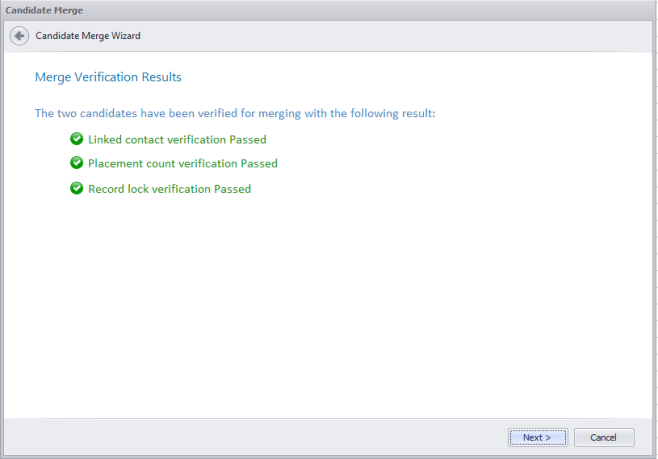
The secondary record cannot be linked as a contact, have any placements linked to it and must not be locked by any users. You will receive a verification message, checking these three rules:
An example of a failure:
Step 3 – (Optional) Telecoms & Addresses
Identifying telecoms and addresses to be set to default and preferred, tick as appropriate:

Step 4 – Confirmation
Ready to merge confirmation message. Click on Finish to complete the merge. There is also a facility to Delete all other matching candidates in the group although it should only be selected if you are sure you have checked all records and are happy that you will not lose any information from the other records.

Final Confirmation message
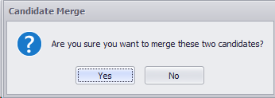
NB:- merging process can take a few minutes to complete depending on the amount of data on the records
Candidate Merge Wizard
NB: - To use the merging tool you will need the appropriate permissions, DBManagers will automatically have these but you can add the permissions below to a user to enable merging:
Object Permission - Candidate - set to HARDDELETE
Specific Action Permision - MergeCandidate
The first step is to click on Find buttons for the primary candidate (the record you wish to keep) and then Find the secondary record (the record you wish to copy details into the primary record and to then delete):
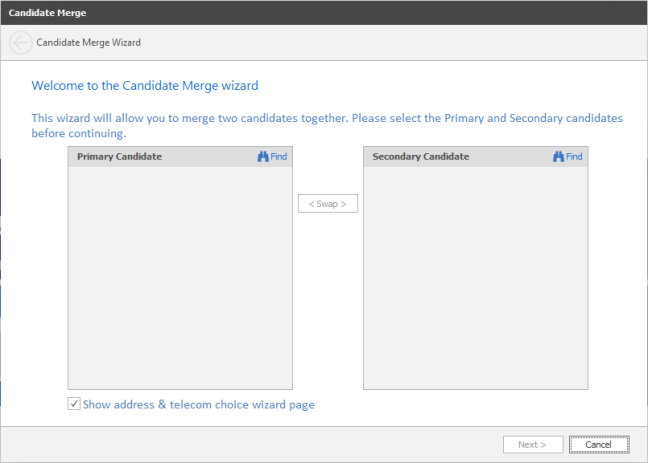
Once you have the primary and secondary selected then click next
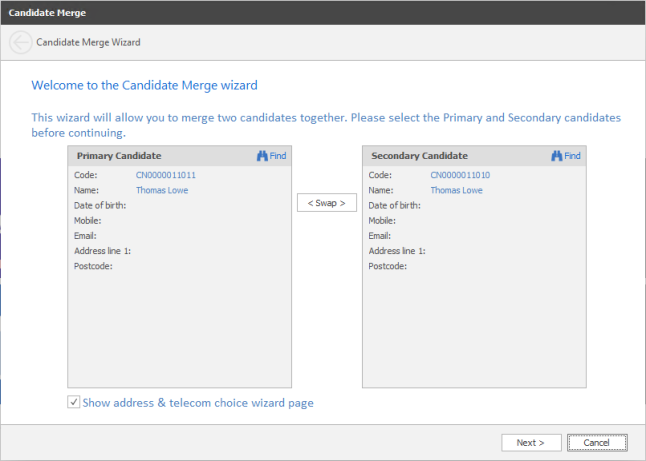
It will verify if the records can be merged, click next:
It will then display address and telecoms from both primary and secondary records, it will assume you wish to keep the primary details but you can tick and untick as appropriate. You can only have one type of address

You will then get a final review, click Finish:

Final confirmation, click Yes:
Move a Company's Data
Not available if you export to payroll system (Mid Office / Timesheet Portal)

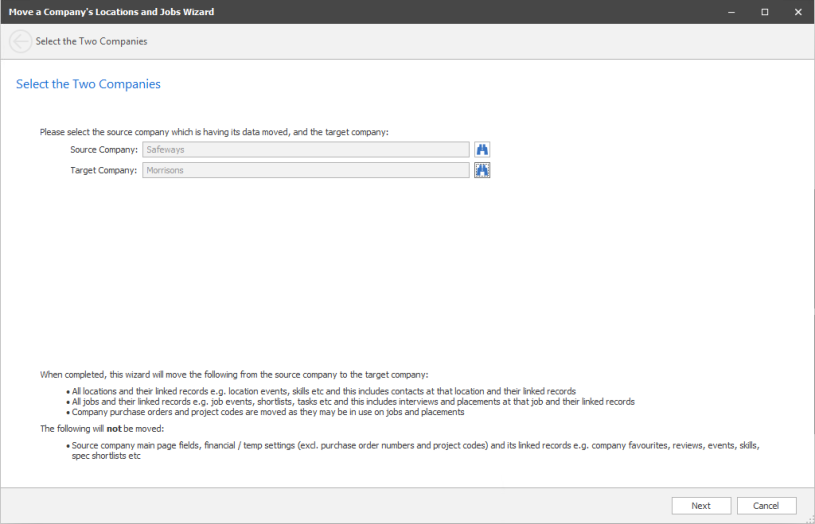
Use the find button to select the Source Company (secondary) and the Target Company (primary):
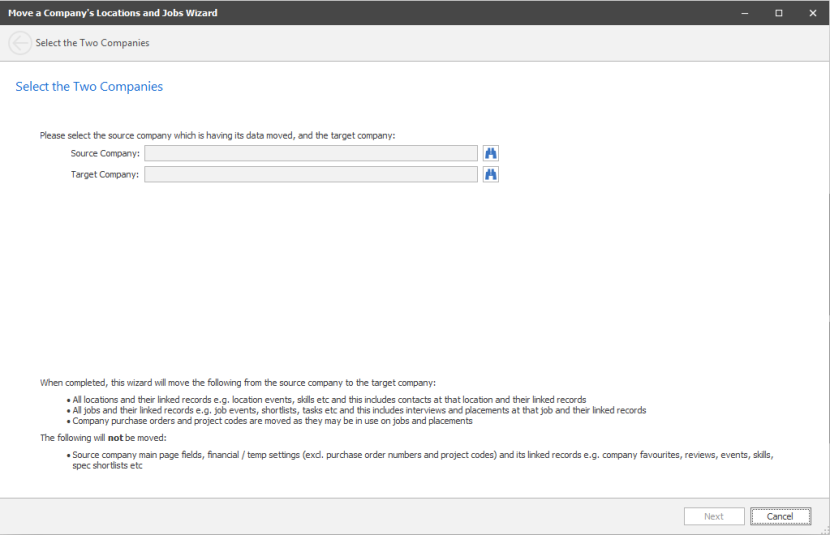
Click Next:
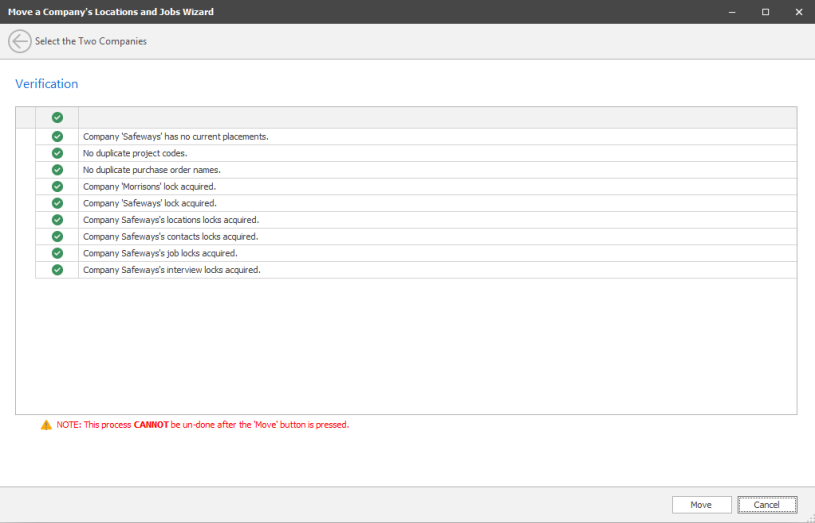
Verification process will check the Source (secondary) company record can be merged into the Target (primary) record:
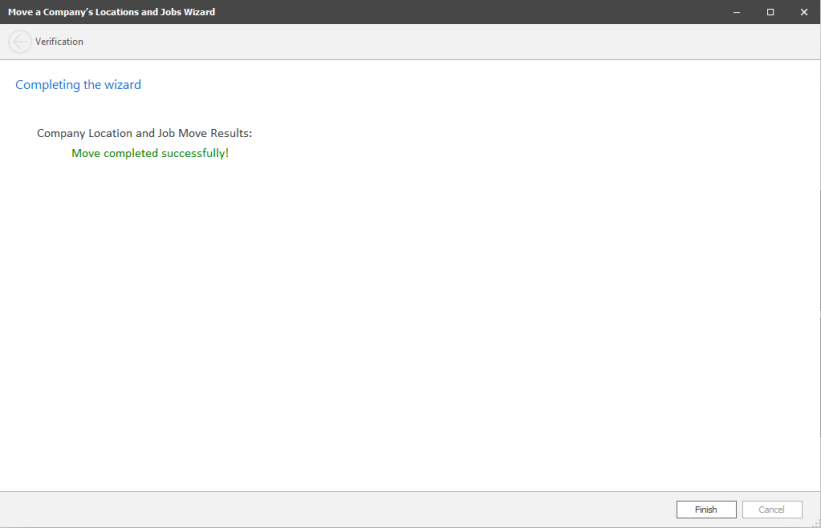
Confirmation that the process has been completed:
Move a Location's Data

Use the find button to select the Source Company location (secondary) and the Target location (primary):

Contact Details
If you require further assistance please contact Ikiru People using the details published on www.ikirupeople.com
Visit our Customer Portal at https://portal.ikirupeople.com/ for future events and clinics.
FeedbackIf you would like to make suggestions or have found any errors with this Help section please contact our Support team.
Copyright © 2026 Voyager by Ikiru People Ltd. All rights reservedVersion 4.87
Voyager Software is a brand of Ikiru People Ltd, a subsidiary of Dillistone Group Plc. The group is a leading global provider of software and services that enable recruitment agencies and in-house recruiters to better manage their selection process and address the training needs of individuals. Across its brands – which include Voyager Software (recruitment software UK & Australia), Dillistone FileFinder executive search software, GatedTalent, the global database of the world’s leading executives, Talentis.Global – the next generation of recruitment software and also ISV.Online, provider of online pre-employment skills testing and training tools. Dillistone Group serves thousands of clients worldwide. Ikiru People Ltd: Registration Number 02043300. Registered in England & Wales.
 |  |  |  |