GDPR (Privacy Audit Setup)

The General Data Protection Regulation requires businesses to closely manage personal data and we have added a Privacy Audit facility to Infinity to assist in the management of this. Below are the details of setting up the Privacy Audit content, then the user(s) can fulfil the Privacy Audit processes which are detailed within the Privacy Audit section of Help.
You can access the GDPR Process which contains all setup requirements
Administration
There are numerous areas that refer to Privacy Audit within the Administration area:
 Reference Data
Setup Lawful Basis Reasons within the reference data to allow recording of Reason for Lawful Basis within candidate records, see reference data section for more details
Setup Origin of Data options to enable the recording of Origins of the candidates information, see reference data section for more details
iCapture Administration
Set iCapture to Auto Delete upon Expiry, this will take account of the Privacy Audit setting for Expiry, see Privacy Audit section for more details
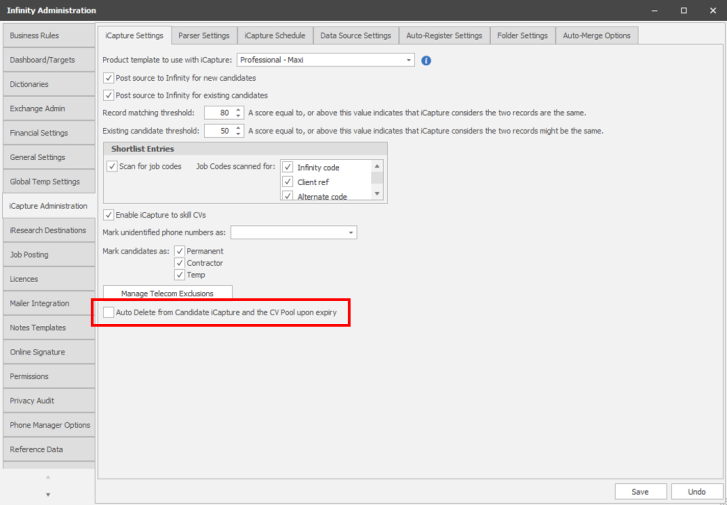
iCapture will automatically delete CV's held within iCapture in accordance to the Auto Delete setting, by default set to 30 days. A basic log is made and can be accessed within the iCapture inbox, see iCapture section for more details
iCapture Data Sources
If any Data Source is set to Post to Infinity Database (send CV's / profiles directly into Infinity without any user reviewing the data) then you will receive a warning:

WARNING
Regulation (EU) 2016/679 or the General Data Protection Regulation (the GDPR), has provisions around the prohibition of automated decision making regarding personal data as defined by the regulation. By utilising the function, it could be perceived that the process of parsing a record and directly applying that to your database without the results being checked by human intervention (via iCapture) may fall under Automated processing. Until further clarification from competent Supervisory Authorities, the Article 29 working party, or case law, the use of this function, (the direct sending of parsed data into the core database rather than being verified and cross checked via iCapture) , is recommended only where you have the data subjects explicit consent. You should also follow all requirements under the regulation (especially Article 22, 13(2)f & 14(2)g).
We recommend that any database with the ‘Post existing candidates to’ set to ‘Infinity Database’, include details of Automated Processing in their Privacy Notice.
Seek legal advice if you wish to pursue the direct posting of candidates into Infinity.
Origin of Data
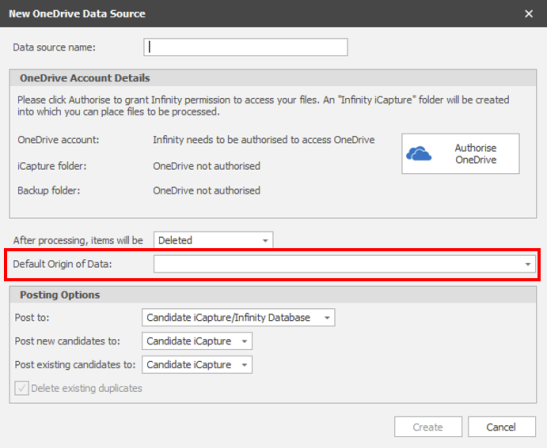
Within each Data Source you can stipulate the default Origin of Data, see iCapture section for more details
NB:- any changes to the OneDrive data source will require you to re-authorise OneDrive
Permission
There are a couple of permission settings which are specific to Privacy Audit, these are:
Allows you to restrict the ability to change lawful basis within candidate records
NB:- All users will be defaulted to on

Allows you to give access to bulk update Privacy Audit within candidates
NB:- DBManagers will be defaulted to on

Allows you to restrict the ability to manually set Contractual / Legal Lawful Basis

In most scenarios we do not recommend that users are given this permission
Only Database Managers have this permission by default
Privacy Audit
Within the administration area you can access the main settings for Privacy Audit:
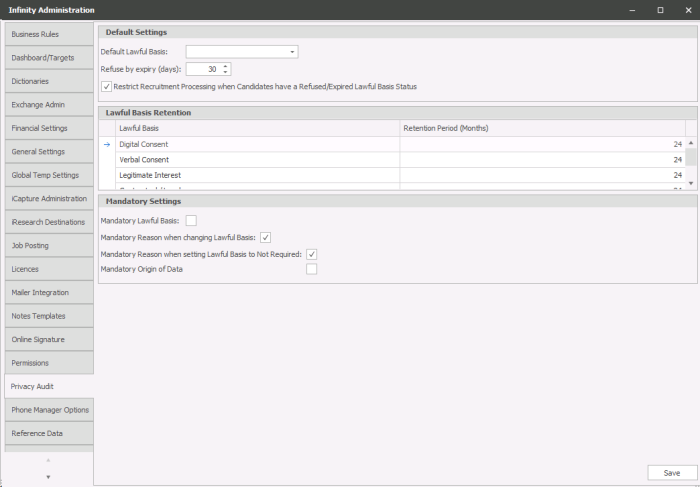
- The default lawful basis for recruitment processing can be set here. If this is set when a new record is created it will kick off the appropriate workflow logic for the chosen basis.
- Refuse expiry. This value determines two processes. The first is how long after you have sent a consent request to a candidate and you have not had positive response the record be moved into the refuse/expired process section. The second is how long information can be stored in iCapture before they are permanently deleted if they do not have a valid lawful basis status.
- Tick to switch on Restriction, this will ensure ALL candidates that have expired or refused consent are no longer accessible by users (DBManagers will still be able to access the candidate record)
- Retention. You can set your retention periods here against each currently available lawful basis as per your retention policy.
- Mandatory settings will force users to define:
a. lawful basis before being able to save the candidate record
b. select reason for changing lawful basis if user changes from one lawful basis to another before being able to save the candidate record
c. select a reason why lawful basis is not required before being able to save the candidate record
d. select an origin of data before being able to save the candidate record
Privacy Audit Status

|
Lawful Basis Process completed |

|
Lawful Basis Process Refuse / Expired |

|
Lawful Basis Process Ongoing |

|
Lawful Basis set to "Not Required" |

|
Candidate Restricted** |
** If restriction is switched on, see Privacy Audit setup section for more details
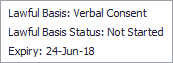
The icon has a tool-tip listing Basic Lawful Basis information for the candidate
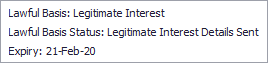
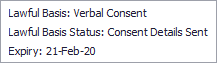
| Lawful Basis | Lawful Basis Status | Icon Colour |
|---|---|---|
| Digital Consent | Not Started |

|
| Digital Consent | Consent Details Sent |
|
| Digital Consent | 1st Consent Reminder Sent |
|
| Digital Consent | 2nd Consent Reminder Sent |
|
| Digital Consent | Accepted |

|
| Digital Consent | Refused |

|
| Digital Consent | Expired |
|
| Verbal Consent | Not Started |
|
| Verbal Consent | Verbal Consent Received |
|
| Verbal Consent | Consent Details Sent |
|
| Verbal Consent | Refused |
|
| Verbal Consent | Expired |
|
| Legitimate Interest | Not Started |
|
| Legitimate Interest | Legitimate Interest Details Sent |
|
| Legitimate Interest | Refused |
|
| Legitimate Interest | Expired |
|
| Not Required | N/A |

|
| <Blank> | Expired |
|
| <Blank> | ,Blank> |
|
Bulk Update
DBManager’s will be given access to the bulk update facility within the Not Started, Email Required, Renewals, Expiring lists and search results. Careful consideration should be made whether you have all the required audit trail to complete a bulk update of Privacy Audit status. This facility is for agencies that have already begun the process of getting consent, you can run a search for those with consent (general agencies have been using an attribute or similar to record consent). From the results you can then click on the Privacy Audit button and complete the bulk update.
Bulk Update Process (Privacy Audit lists)
Careful consideration should be made whether you have all the required audit trail to complete a bulk update of Privacy Audit status.
Using Shift or Control keys to multi- select candidates within my “Not Started” privacy audit list to highlight the candidate I wish to bulk update, you can also access the Bulk Update button within the Email Required, Renewals and Expiring lists:
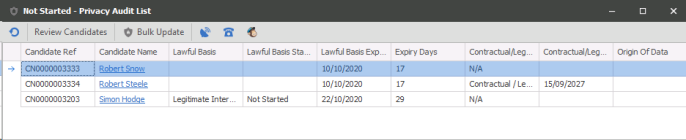
Click on Bulk Update button and then complete the Lawful Basis and Status:
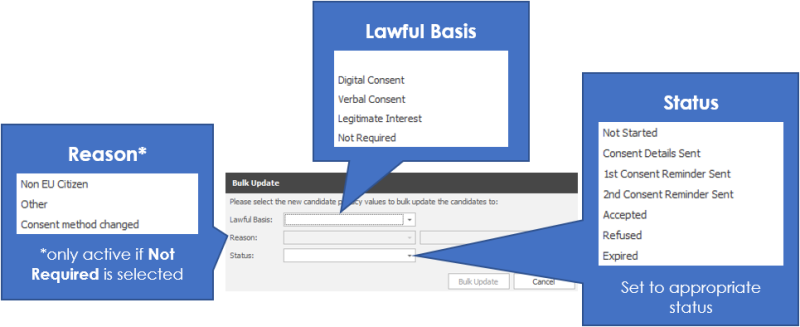
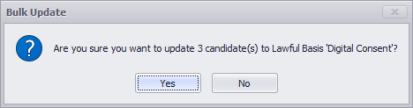
You will receive a confirmation of the number of records that are going to be updated:
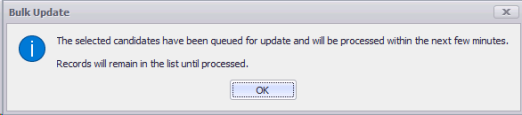
You will receive a final message:
Bulk Update Process (Search Results)
Careful consideration should be made whether you have all the required audit trail to complete a bulk update of Privacy Audit status
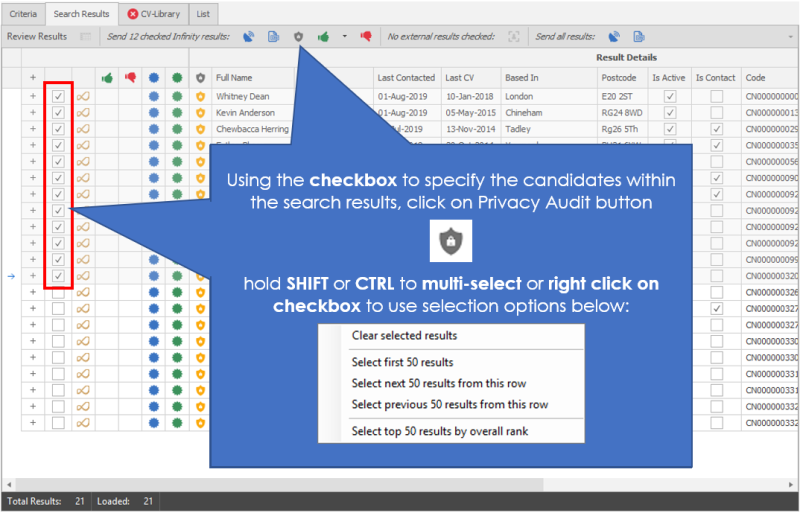
Within the Search Results we have added the Privacy Audit button so you can either use the checkbox to specify the candidate(s) you wish to update or you can use the all results area to update all the results:
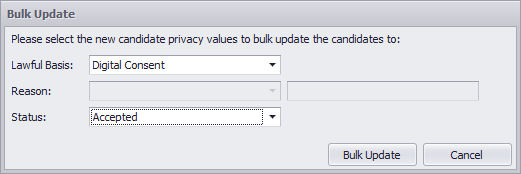
Click on the Bulk Update button and it will open the Privacy Audit dialogue box:
You will receive a confirmation of the number of records that are going to be updated:
You will receive a final message:
The Bulk update is run on a service and may take a few minutes to actually complete the deletion.
Bulk Delete
A DBManager can complete a Bulk Delete of candidates that have Expired or Refused Consent, when completing a deletion the candidate record is anonymised to ensure reports and historical activity is kept within Infinity. The candidate name will be "Deleted Deleted" and telecoms removed.
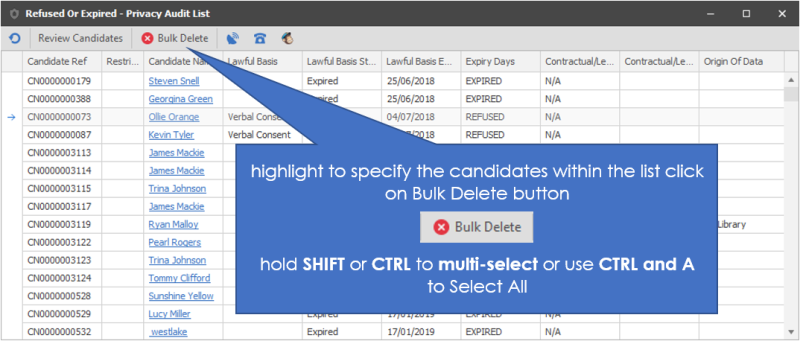
You can highlight the candidate(s) you wish to delete, to multi-select use the Shift or Control key to specify which candidate(s) you wish to delete and then click on the Bulk Delete button, if the button is greyed out then you do not have permission. If a candidate has current placements, current interviews or future meetings you are not allowed to delete them (you must deal with the placement, interview, meetings and try again) and will not display within the Expired lists.
It is recommended that you order the list by Status "Refused" or "Expired" and delete by these status types, as you may wish to add "Refused" candidates to the Suppression List to avoid them being added to Infinity in the future.
When clicking on Bulk Delete you will be asked to input your Infinity password:
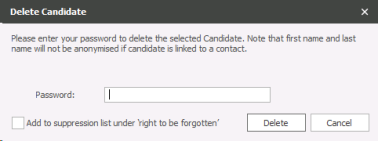
add to Suppression List under 'right to be forgotten' - allows you to send all candidates being deleted to the suppression list to avoid ever being added back to Infinity in the future, generally used for "Refused" candidates
You will receive a final message:
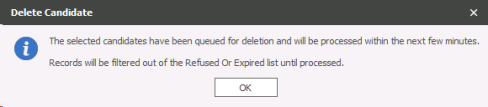
The Bulk deletion is run on a service and may take a few minutes to actually complete the deletion.
Bulk Update / Delete Failed
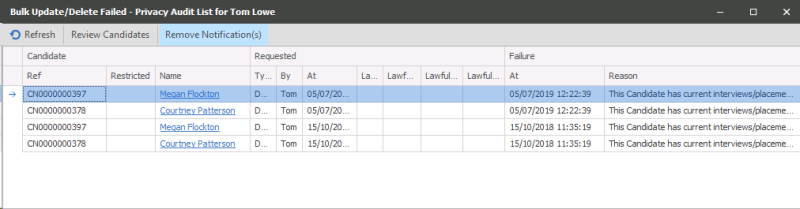
Will list any candidate(s) that has either failed to update or failed to delete. A failure can occur if a candidate record is being edited whilst the Data Controller has instigated the Bulk Update or Bulk Deletion process. Manage this process via the Application Menu (all candidates) and via My Infinity (user candidates)
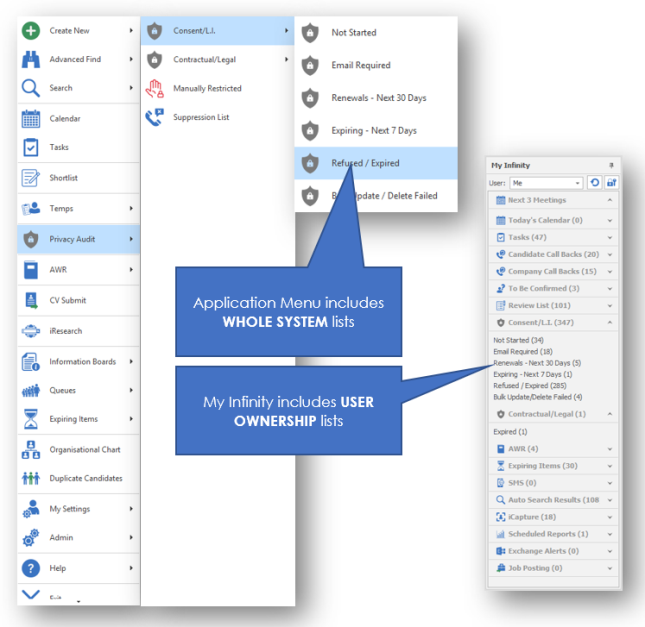
Bulk Update / Delete Failed List
Will display the candidate and details of the failure, failures are generally caused by other users accessing a candidate record that is being updated or has active interviews or placements etc... The reason will display error message (for example,"This Candidate has it's privacy record locked by "USER" or Application: Infinity Frame.", "This Candidate has current interviews / placements and cannot be deleted / made inactive")
Contact Details
If you require further assistance please contact Ikiru People using the details published on www.ikirupeople.com
Visit our Customer Portal at https://portal.ikirupeople.com/ for future events and clinics.
FeedbackIf you would like to make suggestions or have found any errors with this Help section please contact our Support team.
Copyright © 2026 Voyager by Ikiru People Ltd. All rights reservedVersion 4.87
Voyager Software is a brand of Ikiru People Ltd, a subsidiary of Dillistone Group Plc. The group is a leading global provider of software and services that enable recruitment agencies and in-house recruiters to better manage their selection process and address the training needs of individuals. Across its brands – which include Voyager Software (recruitment software UK & Australia), Dillistone FileFinder executive search software, GatedTalent, the global database of the world’s leading executives, Talentis.Global – the next generation of recruitment software and also ISV.Online, provider of online pre-employment skills testing and training tools. Dillistone Group serves thousands of clients worldwide. Ikiru People Ltd: Registration Number 02043300. Registered in England & Wales.
 |  |  |  |