Shift Planner 
General
The Shift Planner is designed to be your central area for managing your Temps, including both filling shifts and managing Temp workers. It is controlled by the Search Criteria tab, default is to display filled and unfilled shifts, but can include cancelled / removed shifts. It defaults to display shifts within the next 14 days, this can be adjusted to 1, 7, 21 or 28 day views. Use the left or right arrow to scroll through this date range.
 Shift Colours
|
Job Shifts Displayed with grey background |
displays number of places, along with number of places filled (includes confirmed and awaiting confirmed shifts) | |
|
Placement Shifts Displayed with white background |
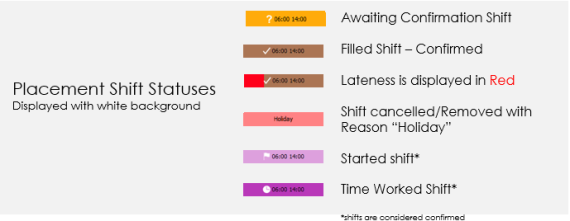
Unconfirmed Shift - candidates placed into shifts using "Awaiting Confirmation" status |

|
| Contacted shift - Awaiting Confirmed shift that has been marked as contacted to indicate communication has been made but still awaiting confirmation |

|
|
| Confirmed Shift - candidates placed into shifts using "Confirmed" status |

|
|
| Time Worked - Unconfirmed and confirmed shifts can be set to "Time Worked" status* |

|
|
| Started Shifts - unconfirmed and confirmed shifts can be set to "Started" status* |

|
|
| Lateness - when recording "Late" it is displayed in "Red" |

|
|
| Holiday - displayed when removing or cancelling shifts with Reason set to "Holiday" |

|
|
| Illness - displayed when removing or cancelling shifts with Reason set to "Illness" |

|
|
| No Show - displayed when removing or cancelling shifts with Reason set to "No Show" |

|
|
| Grey coloured shifts prefixed with 'X' means the shift was cancelled for a reason other than 'Holiday / Illness / No Show'. The reason is shown as the text label |

|
|
| Grey coloured shifts prefixed with '-' means the candidate was removed from the shift for a reason other than 'Holiday / Illness / No Show'. The reason is shown as the text label |

|
*Time Worked and Started Shifts will automatically be set to confirmed when setting these statuses to awaiting confirmed shifts
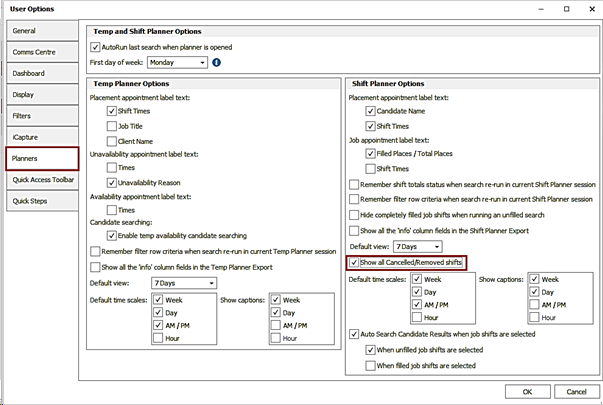
NB: - some colours can be customised via Global Temp Settings. Grey coloured cancelled / removed shifts are shown only if 'Show cancelled / removed shifts setting is enabled in User Options / Planners tab - User Options
Customise Columns
You can adjust the columns in view:
Once you finish your adjustments, ensure you right click and Save Layout
Filled Shifts (Placement shifts)
General
This Shift Planner (formerly known as Filled Jobs Planner) is designed to offer a combination of the Filled Jobs board and the Unfilled Jobs board with Temp Planner functionality, grouping Temp placement shifts by job and company along with the unfilled jobs. In addition, it offers bulk Placement Comms Centre access, bulk placement extensions and review unfilled shifts all in one place. As we continue to develop this Planner please use the "Give Feedback" to suggest changes you may feel benefit the Planner.
The board itself uses a technology called "SignalR"a real-time application that will always keep the board "live", so changes to shifts by other users will display immediately if they are displayed in your Planner (Jobs displayed will not change unless you rerun the search criteria, only the shifts within will be "live"). If changes have been made you will receive a notification at the bottom of the screen, click to re-run the search and update to include any changes that have been made.

Overview
Set the Search Criteria to display either unfilled and / or filled shifts, you also have the option to filter jobs (job ownership) results by consultant or team:
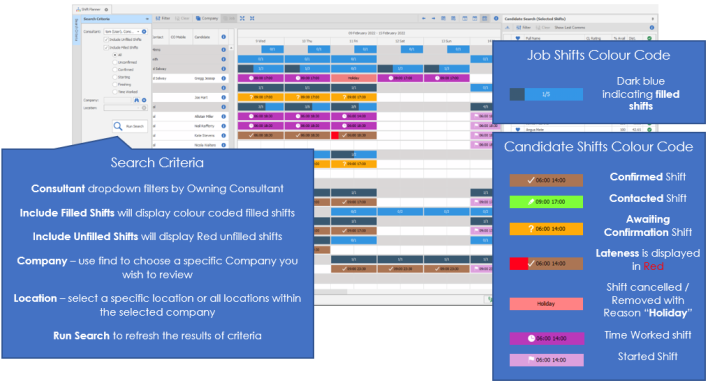
Note: Time Worked and Started shifts are considered Confirmed
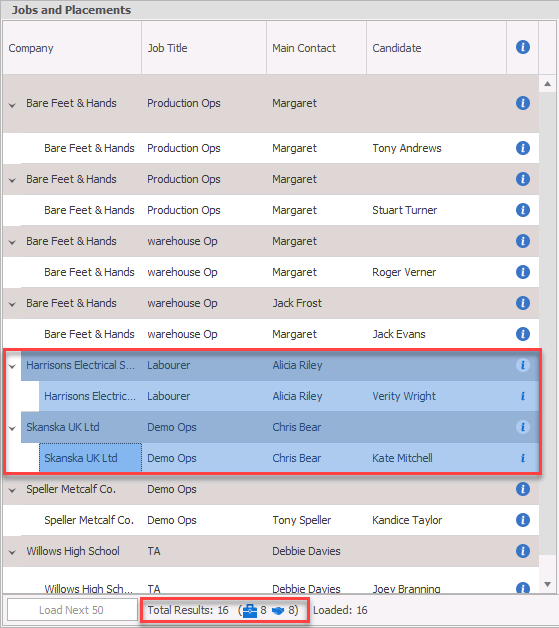
The ‘total results’ figure on the status bar of ‘filled and unfilled shifts’ view, is broken down by job and placement results

Also consider adjusting the shift planner view to Snap to Grid
Toolbar

|
Button |
Description | Entity |

|
Utilise the Comms Wizard to send email / SMS messages to candidates or contacts, using the current shift planner view | Placement and Jobs |

|
Access the Comms Centre to email / SMS to those jobs / placements currently selected | Placement and Jobs |

|
Access the event logger to record communication with the selected candidate / contact | Placement and Jobs |

|
Access the selected candidates calendar | Placement |

|
Export the current Shift Planner view to Excel (permission required), see user options to include all info details in the output and whether to only show the 'Times' columns. | N/A |

|
Directly place a candidate into the selected unfilled shift(s) | Placement and Jobs |
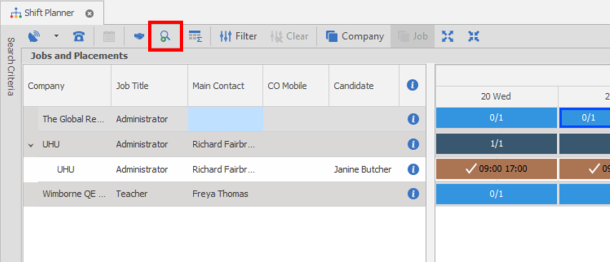
 Search for Candidates Search for Candidates |
Press to run a quick Candidate search , results are displayed within the right panel, see user options to set this run automatically | Job (Shift) |
 Search Future Shifts Search Future Shifts |
Press to select all shifts today and in the future for the currently selected shift / job | Job (Shift) |

|
Click to display shift counts into the calendar (20 / 100) - (filled shifts / total shifts) | N/A |

|
Enable filter row, will display a top row to enable you to type text top filter by column content | N/A |

|
Clear all filters (activates if filters are present) | N/A |
 Company Company |
Enables grouping all jobs by Company, will display jobs below each company alphabetically | N/A |
|
Job |
Enables grouping placements by Job, displaying jobs alphabetically - only available when viewing filled shifts only | N/A |

|
Expands to display all placements within jobs - works only when filled shifts are displayed | N/A |

|
Collapses to display jobs only - works only when filled shifts are displayed | N/A |

|
Cycle back the current view | N/A |

|
Cycle forward the current view | N/A |

|
Go to today | N/A |

|
Go to a date, dialogue box will open for you to select a specific date | N/A |

|
Display shift planner in a 1 day view | N/A |

|
Display shift planner in a 7 day view | N/A |

|
Display shift planner in a 14 day view | N/A |

|
Display shift planner in a 21 day view | N/A |

|
Display shift planner in a 28 day view | N/A |
Navigation
See below shift options, can also be used to access Job and Company records
Shift Options
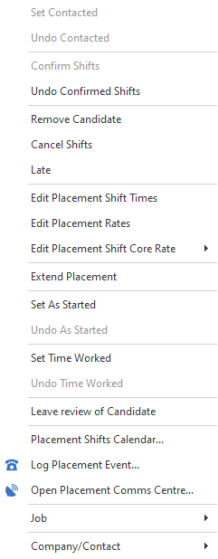 |
Set Contacted | Can set 'awaiting confirmed' shift to 'Contacted' status | ||||||||
| Undo Contacted | Undo 'Contacted' shift status back to 'awaiting confirmed' | |||||||||
| Confirm Shifts | (Awaiting Confirmation shifts - YELLOW) click to "confirm" shifts and activate confirmation email(s)(see Global Temp Settings) | |||||||||
| ------------------------------------------------------------------------ | ||||||||||
|
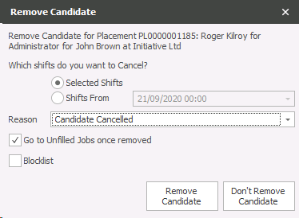
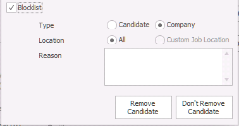
Remove Candidate |
Removes the candidate from the shift (the shift will remain against the job and will display as unfilled
|
|||||||||
| ------------------------------------------------------------------------ | ||||||||||
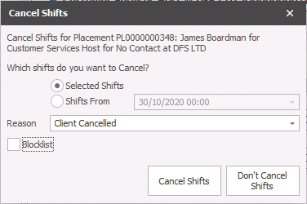
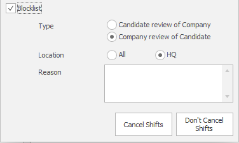
| Cancel Shifts |
|
|||||||||
| ------------------------------------------------------------------------ | ||||||||||
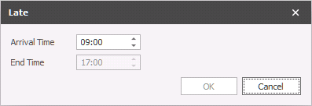
| Late |
|
|||||||||
| ------------------------------------------------------------------------ | ||||||||||
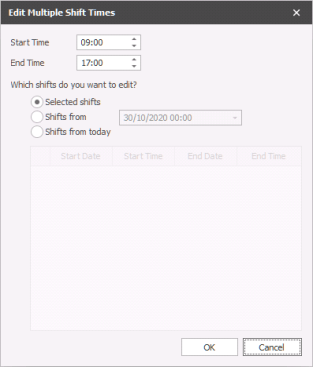
| Edit Placement Shift Times |
|
|||||||||
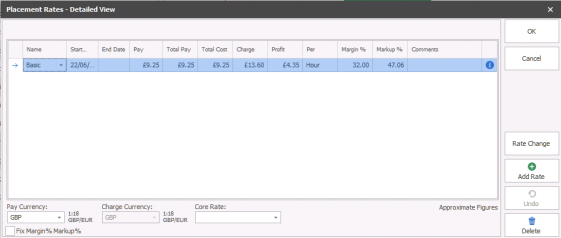
| Edit Placement Rates |
|
|||||||||
| Edit Placement Shift Core Rate | Enables you to set which rate should be applied to the selected shift(s) | |||||||||
| ------------------------------------------------------------------------ | ||||||||||
| Extend Placement | Accesses the Extension Wizard to add shifts to the placement calendar, see extension wizard section below | |||||||||
| ------------------------------------------------------------------------ | ||||||||||
| Set As Started / Undo As Started | Mark the selected shift(s) as "started", this will also be considered confirmed and is included within Temp reports | |||||||||
| Set Timed Worked / Undo Time Worked | Marked the shift as "Timed Worked", this will also be considered confirmed and is included within the Temp reports | |||||||||
| ------------------------------------------------------------------------ | ||||||||||
| Leave review of candidate | Allows you to quickly add a review "score" of candidate based on feedback, see Reviews section for more candidates | |||||||||
| ------------------------------------------------------------------------ | ||||||||||
| Placement Shifts Calendar | Launches the Placement Shift calendar for the selected job | |||||||||
| Log placement Event | Access the placement Event Logger to record events against the candidate / contact or both | |||||||||
| Open Placement Comms Centre | Access the placement Comms Centre to send email / SMS / Online Signature documents to the candidate or contact | |||||||||
| ------------------------------------------------------------------------ | ||||||||||
| Job |
|
|||||||||
| ------------------------------------------------------------------------ | ||||||||||
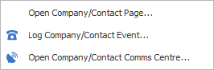
| Company / Contact |
|
|||||||||
| ------------------------------------------------------------------------ | ||||||||||
Unfilled Shifts
General
When Viewing unfilled shifts in the shift planner, selecting shifts in the job header row will search and return available candidates in the search result panel, this panel can be set to automatically open or only when clicking on search for candidates (see user options for more detail)
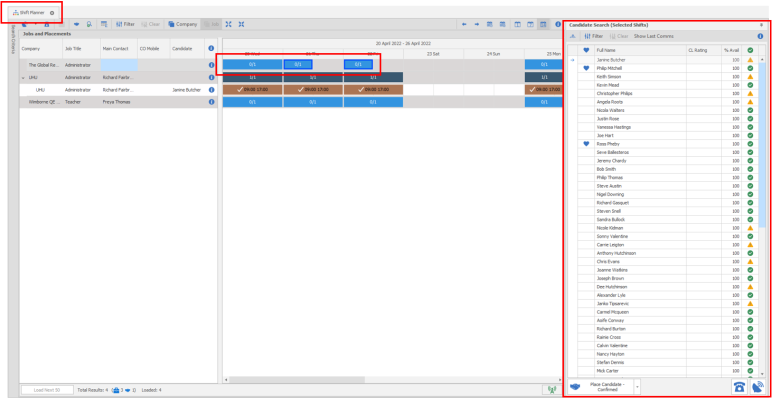
The ‘total results’ figure on the status bar of ‘filled and unfilled shifts’ view, is broken down by job and placement results
The unfilled candidate search panel can be docked or autohidden and has the same functionality as the existing unfilled jobs candidate search results panel - columns can be customised / filtered, business rule checks are run and available candidates can be placed / bulk placed on the selected shifts etc
If new placements are created when placing candidates, you will be notified along the status bar that your results need to be updated. The new placements will not be displayed until this is actioned
If placements already exist for the candidate in the results, and you are therefore adding extra shifts when placing, the new placed shifts will be shown immediately in the current 14 day calendar view
Shift Planner
General
Open the shift planner for the appropriate Temp job via the expand button 
Clicking on a shift will automatically activate the system to find appropriate candidates, these will be displayed within the Candidates panel on the right
NB: - candidates will need to have the job title and be marked as a temp
You are able to multi-select shifts via Shift or Control buttons to ascertain if candidate’s ability to fulfil more shifts, you are also able to select within the planner and drag to highlight multiple shifts (click on the planner not the shift itself). To select all future shifts you can also click on the select all future shifts button in the toolbar
Editing Shifts
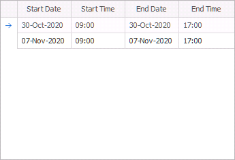
You are able to adjust shift(s) times by right clicking on a shift(s). Multi-selecting shifts and right clicking to access the Edit Job Shift Times:
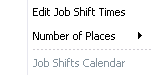
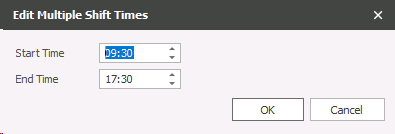
Edit Job Shift Times
You can then enter the correct shift start and / or end times
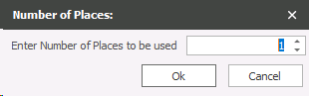
Number of Places
select the new number of places, it will allow you to decrease or increase the number of unfilled shifts. If you have filled shifts then it cannot be reduced below this.
Use Other to manually input the number:
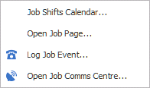
Job Shifts Calendar
You can access the job calendar and remove any unfilled shift(s), add shifts etc...
Adding Shifts
Note: - You can apply a shift pattern to enable quick calendar entries, see shift patterns section for more details
Right click on a single shift to access the Job Shifts Calendar option:
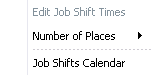
You can then add (using the painter) and remove shifts as required, right click on shifts make specific adjustments etc.
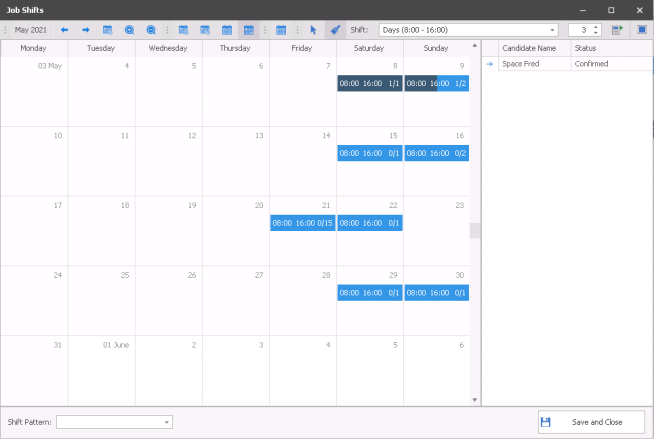
Calendar Toolbar

| Back |

|
Go backward to view previous |
| Forward |

|
Go forward to view next |
| Goto Today |
|
Return to today’s date |
| Zoom In |

|
Allows you to zoom into the calendar NB:- you can also use SHIFT and MOUSE WHEEL UP |
| Zoom Out |

|
Allows you to zoom out of the calendar |
| Day View |

|
Allows you to view the calendar as a single day view, showing hour by hour (zoom in or out for more detailed view) |
| Work Week |

|
View Allows you to view the calendar as a detailed working days in a week, showing hour by hour (zoom in or out for more detailed view) |
| Week View |
|
Allows you to view the calendar by week in a compact view (no zoom function) |
| Month View |

|
Allows you to view the calendar in a month view, showing start and end times of appointments (zoom in or out for more detailed view) |
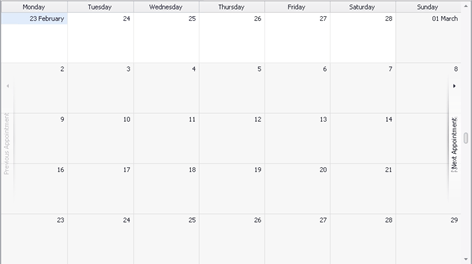
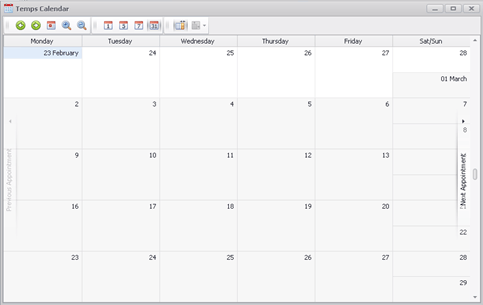
| Compress Weekend |

|
(only available in month view) – Allows you to compress Saturday and Sunday together for more compact view of the monthly calendar uncompressed:
Compressed:
|
|
Select |

|
Allows you to highlight days / hours within the calendar to add work pattern manually |
| Painter |

|
Allows you to paint days / hours into the calendar, highlight the days / hours required for that job. When highlighting a day (month view mode)once added to the calendar this can then be dragged to adjusted in day / week view or double clicked to then manually adjust date and times Used in conjunction with the shift and places fields to make it quick to setup the requirements for that job |
|
Shift - Select the appropriate shift type from the dropdown list, this will allow you to "paint" the shifts into the appropriate days Number of Places - use Number of Places to the appropriate numbers of places for the shift you are about to paint Select all unfilled shifts today or in the future - once clicked will select the appropriate shifts so you can make adjustments as required |
||

Candidates Panel
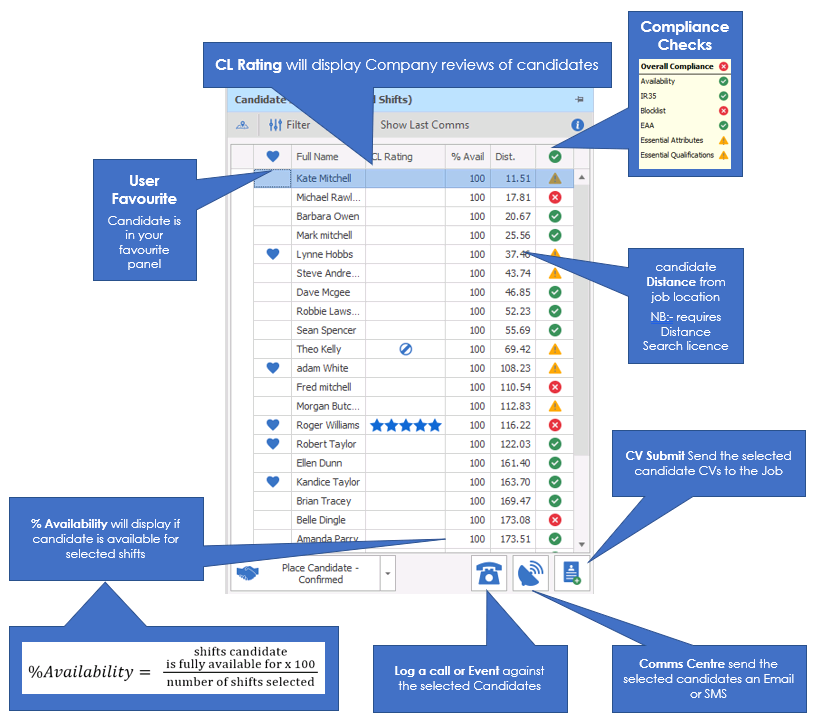
Displays all candidates that have the job title and are marked as Temp, results are sorted by % Availability and then by Distance (Distance Search licences required)
 favourite column - will display the icon if the candidate is the users favourite
CL Rating - client rating, will display Company Review entries, you can record feedback for workers within the candidate or company record (only Company (Client) scores will display), a 1 star will display a block icon, this can be set to prevent placement
% Available – will display if the candidate is available for that shift, if you have multi-selected shifts then it will calculate based on all shifts selected (for example, I highlight 3 shifts and the candidate is marked as unavailable for one they will be 66% Available)
+Avail* - you can add this column to the grid (see grid views section) which will display number of shifts the candidate has been marked as (positively) available via the green painter, it will then display the number of shifts selected (for example 2 / 3 would indicate the candidate is positively available for 2 out of the 3 shifts selected)
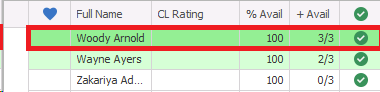
Dist. - Distance (if applicable, see Temp Defaults for more information) will display how far from the job location is the candidate is based, this column may require some grid layout changes
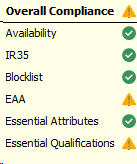
Compliance Checks - All candidates placed into temp shifts will be checked for compliance, within the unfilled jobs board it has already checked compliance and is displayed with an overall compliance icon:
Other columns can be added via column chooser (see grid views for more details)
Other Columns available

|
Will display if the candidate has been placed at the company previously |
|
Mobile |
Displays the candidates mobile number |
| Avg Rating | Displays the Average candidate review score across all Temp placements |
| CN Rating | Displays candidate review scores for the candidate at the Company |
| IR35 | Displays the IR35 status |
| Q&C | Displays whether the candidate has the required Q&C's as recorded within the job |
| Attr. | Displays whether the candidate has the required Attributes as recorded within the job |
| BL | Displays whether the candidate is blocklisted against the Company |
| DRB | Displays whether the candidate will contravene WTD Daily Rest Break |
| MWH | Displays whether the candidate will contravene WTD Maximum Working Hours |
| WRB | Displays whether the candidate will contravene WTD Weekly Rest Break |
Compliance Wizard
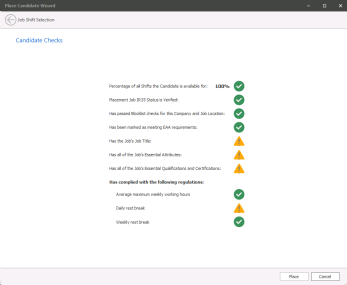 Percentage of all Shifts that the Candidate is available for:
calculates the availability of the candidate against each shift you have confirmed them into. So if you have put them into 4 shifts and only available for 3 it would display 75% availability.
Has passed Blocklist checks for this Company and Job location, the Temp settings will effect if :

|
PREVENT |
Displayed if candidate is Blocklisted from the Company you are attempting to place at and will not be allowed to be placed |

|
WARN |
Displayed if candidate is Blocklisted from the Company you are placing at, serving as a warning but will allow you to Place candidate |

|
PASS |
Displays if candidate is NOT Blocklisted from the Company you are placing at |
Has been marked as meeting EAA requirements (this can be deactivated via Global Temp Settings):
|
|
PREVENT |
Displayed if candidate EAA is not ticked in their record and will not be allowed to be placed |
|
|
WARN |
Displayed if candidate EAA isnot ticked in their record, serving as a warning but will allow you to Place candidate |
|
|
PASS |
Displays if candidate EAA is ticked in their record |
Has the Job's Job Title:
|
|
PREVENT |
Displayed if candidate does not have the Job Title (in the Job record) within their candidate record and will not be allowed to be placed |
|
|
WARN |
Displayed if candidate does not have the Job Title (in the Job record)within their candidate record, serving as a warning but will allow you to Place candidate |
|
|
PASS |
Displays if candidate has the required Job Title in their record |
Has the Job's Essential Attributes:
|
|
PREVENT |
Displayed if candidate does not have the Attributes you have required attributes (in the Job record) within their candidate record and will not be allowed to be placed |
|
|
WARN |
Displayed if candidate does not have the Attributes you have required attributes (in the Job record) within their candidate record, serving as a warning but will allow you to Place candidate |
|
|
PASS |
Displays if candidate has the required attributes in their record that are listed in the Job record |
Has all of the Job's Essential Qualifications and Certifications:
|
|
PREVENT |
Displayed if candidate does not have the Quals & Certs you have recorded (in the Job record) within their candidate record and will not be allowed to be placed |
|
|
WARN |
Displayed if candidate does not have the Quals & Certs you have recorded (in the Job record) within their candidate record, serving as a warning but will allow you to Place candidate |
|
|
PASS |
Displays if candidate has the required Quals & Certs in their record that are listed in the Job record |
Note:- Q&C check will depend on admin General settings
Has Complied with the following regulations:
Working Time Directive regulations can be enabled to check if shifts being confirmed will comply with each element of the Working Time Directive, settings can be found within the Global Temp Settings admin area
| Average maximum weekly working hours - will check if the candidates hours will exceed the maximum set within the Regulations settings |
| Daily rest breaks - will check if the candidates break between shifts is sufficient in accordance with your Daily Rest Break settings |
| Weekly rest breaks - will check if the candidates Weekly Rest break is sufficient in accordance to your Weekly Rest Break settings |
Phone – will allow you to log calls to the candidate(s) as desired, hold CONTROL to multi-select entries within the candidates panel
Comms Centre – allows you to access the job shortlist Comms Centre, to email job details to the candidate(s) as desired
 CV Submit - This allows you to select and submit multiple Candidate CVs to the Job. See CV Submit for more details
 Mapping Candidates to the Temp Job
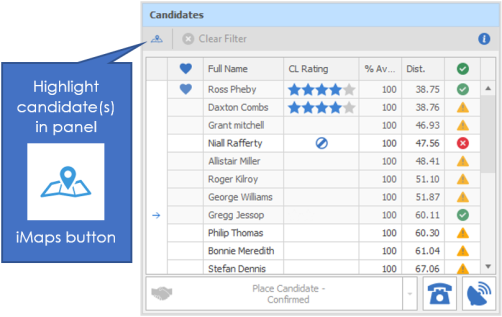
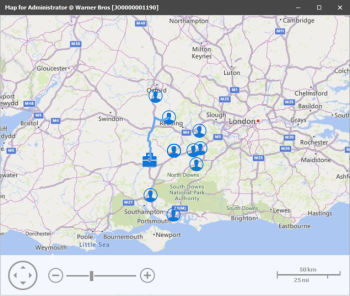
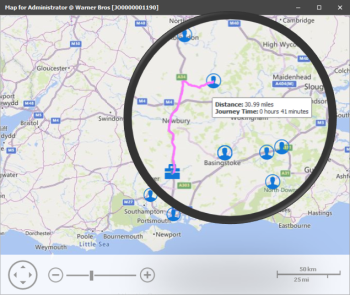
If you have Distance Search licence you are able to access Bing Maps and display location of both the candidate and job, journey time and display the route. In addition you are able to highlight other candidates and show their location, journey time and route.
Cancelled / Removed shifts
There is a tick box on Shift Planner search panel to ‘Include Cancelled/Removed Shifts’ when searching.
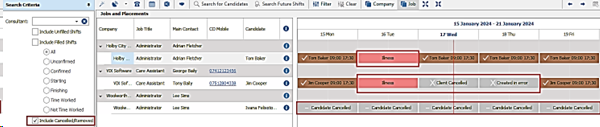
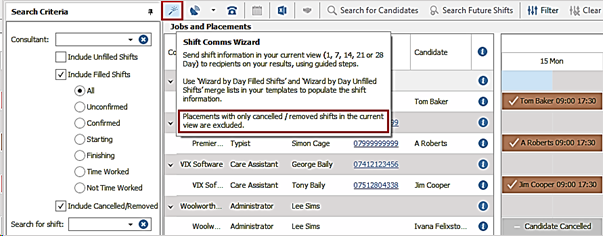
When ticked, placements are returned that have cancelled/removed shifts in the current view (1,7,14,21,28 days). This enables placements where shifts have been cancelled for the whole date period to be returned.
This can be ticked on its own or combined with the existing ‘Include Unfilled Shifts’ and ‘Filled Shifts’ tick boxes.
Cancelled / removed shifts logged as ‘No show / Holiday / Illness’ are always shown in the Shift Planner calendar, but all other cancelled / removed shifts are shown only if the settings to show them is ticked in User Option / Planners tab.
The Shift Planner Comms Wizard excludes placements with only cancelled/removed shifts in the current view because its primary function is to send details on filled placement shifts and/or unfilled jobs shifts only.
Placing Candidates
Place Candidate – Confirmed – will fill the shift you have selected with the candidate you have selected, you can select Awaiting Confirmation if required (this can be set to default to confirmed or awaiting confirmation via general settings) see the unconfirmed placements board if using the Awaiting Confirmation status. If you are using Confirmed then the shifts will be confirmed and then use the Shift Planner or Temp Planner to manage the candidate, including editing assigned shifts etc...

Shift Confirmations
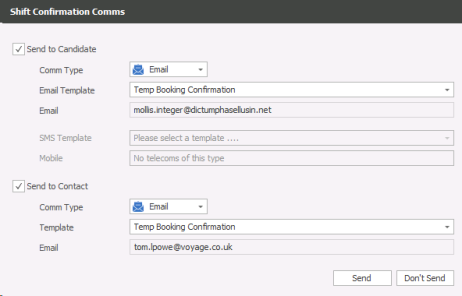
NB:- When placing candidates into confirmed shifts you may have a system prompt to send out confirmation email / SMS to candidate and contact, see the Global Temp Defaults General settings. This may also be sent automatically to candidate and / or contact.
Bulk Placing Candidate
You can select up to 20 candidates within the candidate panel, holding CTRL or SHIFT will allow you to multi-select, and then clicking on Placement button will activate the Bulk Placement Wizard:
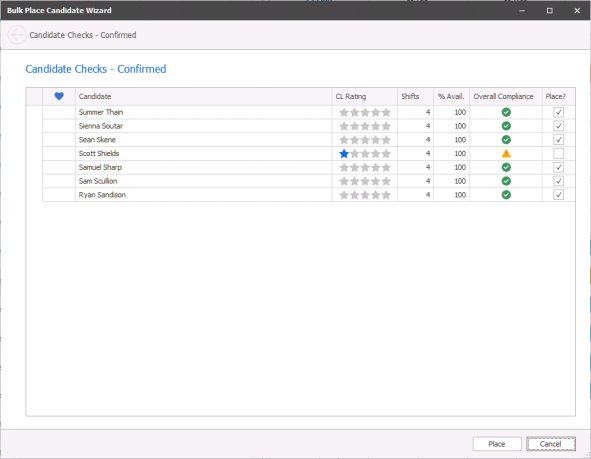
Candidates that have passed all checks will be ticked, candidates with warnings will require a user to confirm (tick the Place checkbox) and if there is any preventions then you will not be able to tick
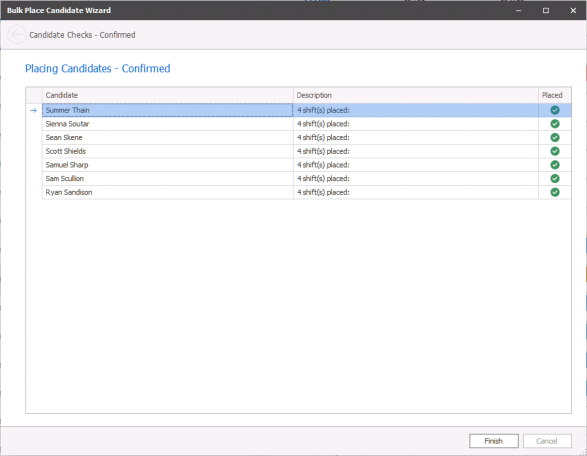
It will then confirm that the shifts have been assigned to the candidate:
Confirmation Options
You can set how you wish the system to send confirmation emails and or SMS messages when confirming placements:
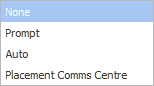
None - will do nothing when confirming assigned shifts
Prompt - will offer a dialogue box to send email or SMS to the candidate and / or contact (NOTE: - there is no preview of the email or SMS
Auto - will automatically send confirmation to the candidate and / or contact
Placement Comms Centre - will launch the Comms Centre when confirming placements
Shift Planner Comms Wizard
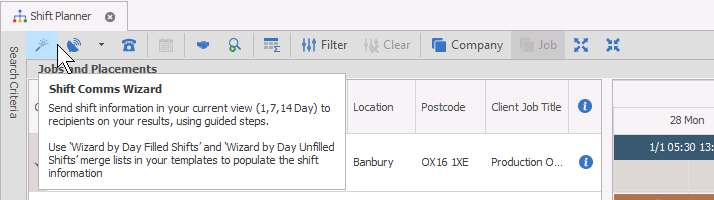
The Shift Planner Comms Wizard allows you to send Emails or SMS messages to Candidates & Contacts without leaving the Shift Planner. For example -
- Send All Candidates their shift details for the upcoming 7 days
- Send a Contact a list of all the Candidates due on site in the next 7 days, complete with their shift times
- Send a list of unfilled shifts for the next 14 days to the Contact to discuss in your next call
The Shift Planner Comms Wizard can send Emails or SMS messages in bulk to Candidates or Contacts and is based upon the current view within the Shift Planner e.g. 1, 7 or 14 days view.
* When using the Comms Wizard tool you must use the Wizard merge codes within the templates.
Results can be selected beforehand to target specific recipients, or you can go into the comms wizard and select the total search results (as per the total numbers at the bottom of the grid)
When the comms wizard is loaded, the window title bar displays the date range from your Shift Planner current view
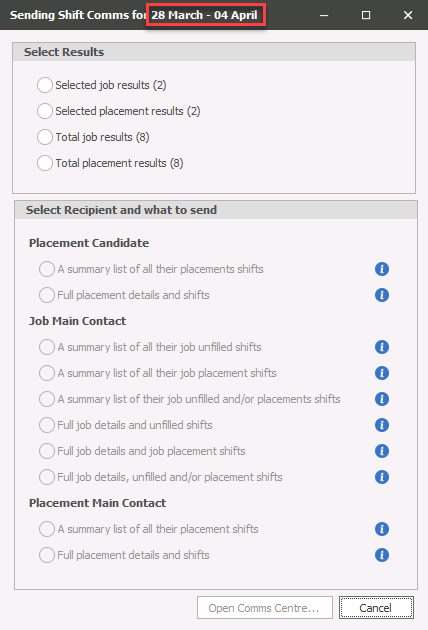
The first section is Step 1 – Select Results
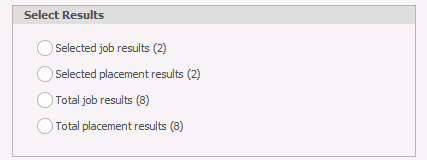
Requires you to choose the results to use from the Shift Planner
The options available are dependent on the type of results (job / placement) and whether results were selected prior to entering the comms wizard
Please note, when searching filled shifts only, placement results are returned and total job results are not available. However, job rows can be selected manually in this view and will be available in the ‘Selected job results’ option
The second section is Step 2 – Select Recipients and what to send
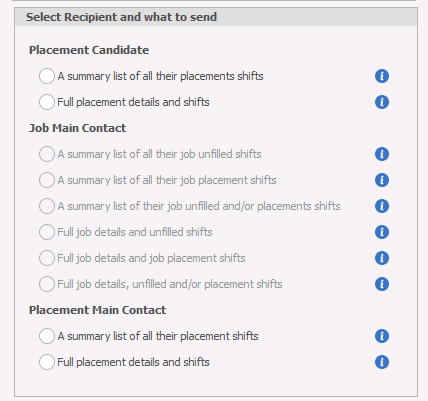
Requires the user to choose the recipients of those results selected in Step 1, and what to send them. There is an info button against each option that shows which comms centre will be used to send the communication
The options available are dependent on the type of results selected i.e. job/placement in Step 1 and for the Job Main Contact section whether unfilled/filled shifts were searched in the Shift Planner search criteria panel:
Placement Candidate - available if placement results are selected
- A summary list of all their placements shifts
One email per candidate sent from the Candidate Comms Centre
- Full placement details and shifts
One email per placement sent from the Placement Comms Centre
Job Main Contact - available if job results are selected
- A summary list of all their job unfilled shifts - available if only unfilled shifts is searched
One email per contact sent from Contact Comms Centre
- A summary list of all their job placement shifts - available if only filled shifts is searched
One email per contact sent from Contact Comms Centre
- A summary list of their job unfilled and/or placements shifts - available if both unfilled and filled shifts are searched
One email per contact sent from Contact Comms Centre
- Full job details and unfilled shifts - available if only unfilled shifts is searched
One email per job sent from Job comms centre
- Full job details and job placement shifts - available if only filled shifts is searched
One email per job sent from Jobs Comms Centre
- Full job details, unfilled and placement shifts - available if both unfilled and filled shifts are searched
One email per job sent from Jobs Comms Centre
Placement Main Contact -available if placement results are selected
- A summary list of all their placement shifts
One email per contact sent from Contact comms centre
- Full placement details and shifts
One email per placement sent from placement comms centre
Open Comms Centre

The button is enabled when the recipients and what to send have both been selected in Step 2
When pressed, the comms wizard steps window is closed and cannot be returned to. The applicable email Comms Centre is loaded along with the recipients in the ‘Merge To’ section. The default templates can be pre-set via the Global Temp Settings under Administration.
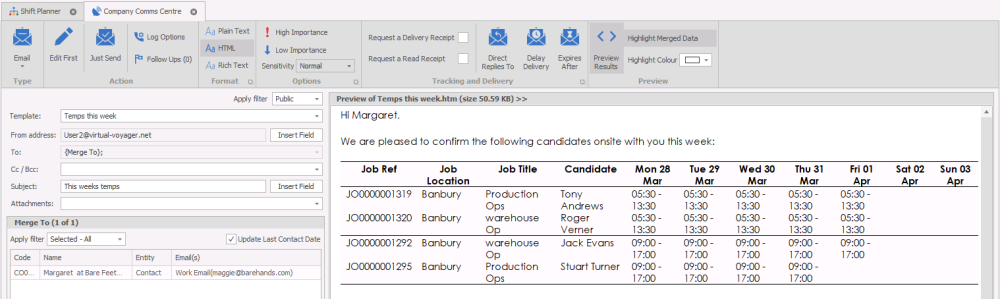
The comms centre behaves as per standard rules. If required, for example, the user can switch to SMS and send the recipients a SMS message.
Snap to Grid View
Snap to Grid OFF
Job and placement shifts are plotted in the calendar relative to their shift start and end times
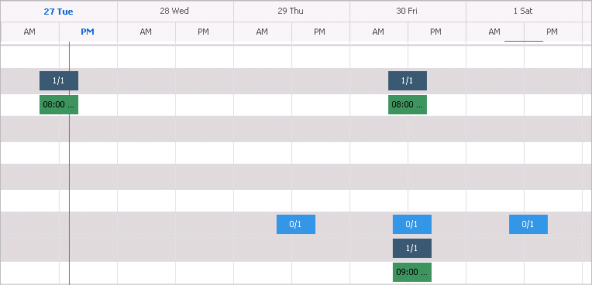
Snap to Grid ON
Shifts can optionally be plotted using the column width, allowing more label text to be displayed
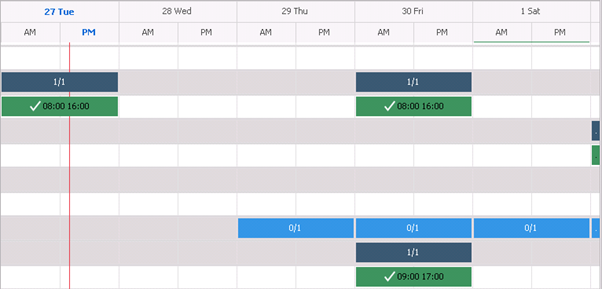
‘Snap to grid’ is switched on via the right click calendar menu and last setting is remembered
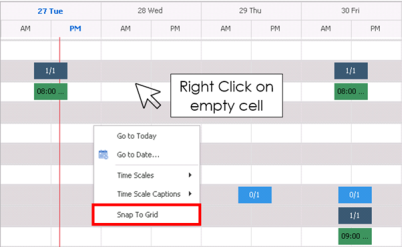
Columns displayed in the calendar are set using the ‘Time Scales’ option in the right click menu. This currently defaults to show days as two columns AM/PM. Shifts with start and end times that fall within an AM or PM column plot to that width rather than a full day.
Other Temp content:

|
Temp Candidate - marking candidates as Temp and assigning Job Titles |

|
Temp Job - creating Temp Job and setting up shifts |

|
Temp Planner - Review of Temp candidates availability, directly place and manage shifts |

|
Shift Planner - All-in-one Planner, review unfilled, filled and cancelled / removed shifts, all shift functions available |

|
Shift Patterns - Quickly add long term shifts and / or a frequent rotation of shifts to a Temp calendar |

|
Temp Placement - Access Temp placement records to make specific adjustments |
|
|
Direct Placing - Placing candidates directly into Temp jobs |
Contact Details
If you require further assistance please contact Ikiru People using the details published on www.ikirupeople.com
Visit our Customer Portal at https://portal.ikirupeople.com/ for future events and clinics.
FeedbackIf you would like to make suggestions or have found any errors with this Help section please contact our Support team.
Copyright © 2026 Voyager by Ikiru People Ltd. All rights reservedVersion 4.87
Voyager Software is a brand of Ikiru People Ltd, a subsidiary of Dillistone Group Plc. The group is a leading global provider of software and services that enable recruitment agencies and in-house recruiters to better manage their selection process and address the training needs of individuals. Across its brands – which include Voyager Software (recruitment software UK & Australia), Dillistone FileFinder executive search software, GatedTalent, the global database of the world’s leading executives, Talentis.Global – the next generation of recruitment software and also ISV.Online, provider of online pre-employment skills testing and training tools. Dillistone Group serves thousands of clients worldwide. Ikiru People Ltd: Registration Number 02043300. Registered in England & Wales.
 |  |  |  |