Add Events
 Walkthrough
The step by step instructions below are just as guidance and does not go through all options, see more information at the bottom of this topic for more in depth details, logging interactions is fundamental to building an accurate history to your records and can ensure efficient business processes are followed. Events can be set to update last contacted or not, the last contacted date can then be a reliable time stamp for managing your data.
Step 1
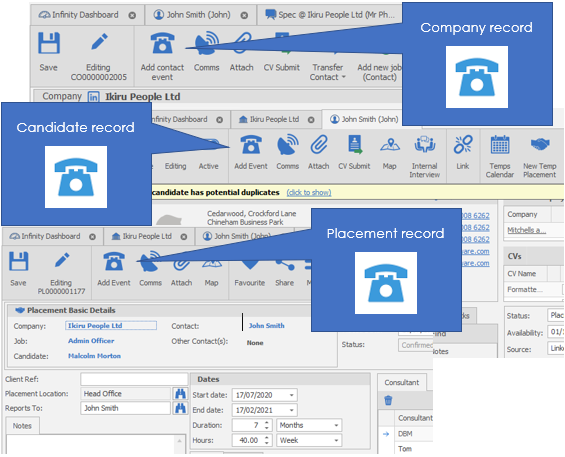
Step 2
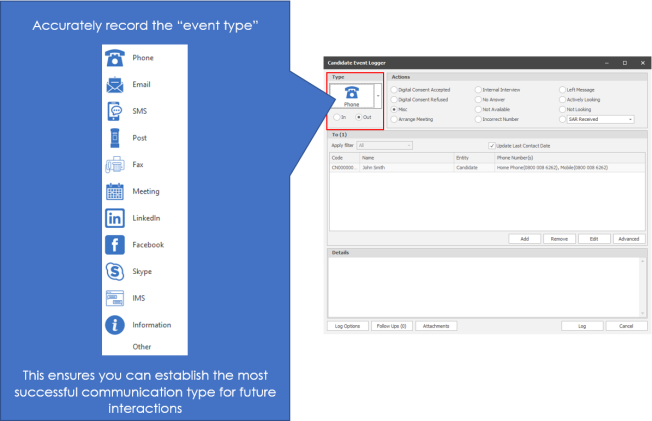
Step 3
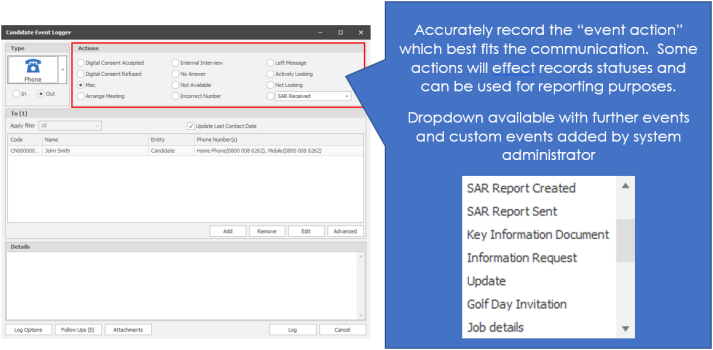
Step 4
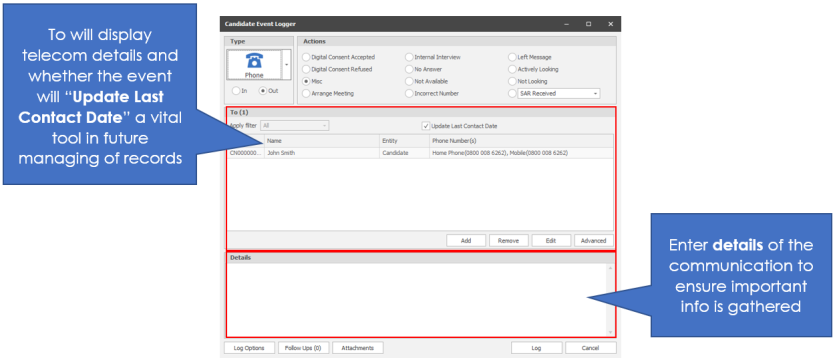
Step 5
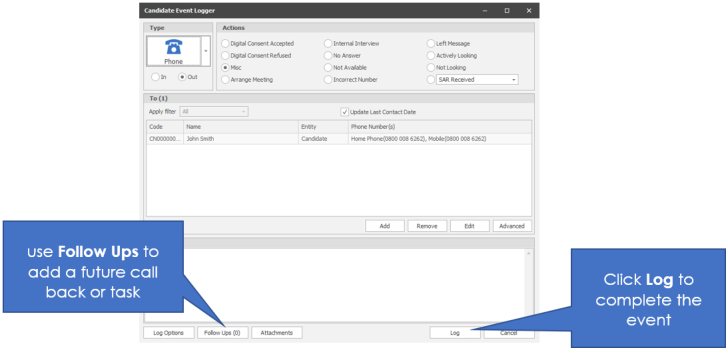
The event will then be added to the events on the record appropriate
NB:- you may need to save the record for the event to display within Event tab


Need more information, click below:
 General
 Most pages will allow you to add an event to the record.
Adding an event means that there has probably been some sort of communication with, or about the record that you are in. You are able to right click on the telephone number within the To: section to utilise the Autodial function, see the Tapi Phone section for more details
Alternatively we also have integration with Synety phone software, see Synety section for more details
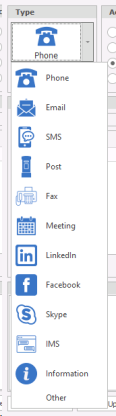
To log an event, click the red telephone button and choose the type of communication that you’ve had and the action
You are able to add the note to others at the same time, click on the Add button to include another record to add the note to using the find options as described in the find section.
Remove and edit in the same way.
Follow Ups
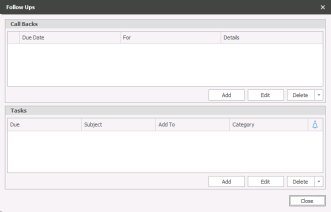 In the details area you are able to add follow ups. Click on the Follow ups button and add call backs or tasks from here.
Click the Add button under the section in relation to the type of follow up that you would like to create and enter the relevant information.
You will see these follow ups in your call back lists and tasks.
Click Close when you’re finished.
Add any necessary attachments to the event using the attachments button and click on Log on the main event logger screen to finish the process.
Log Options
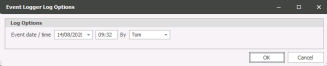 You are able to set the date, time and user of the event you are logging, allowing you to ensure it is correctly recorded into the event grid, even if you are unable to record at the time of the communication
Synety Integration
Synety phone software allows users to automatically make phone calls from within Infinity.
Click on a phone number in a record:
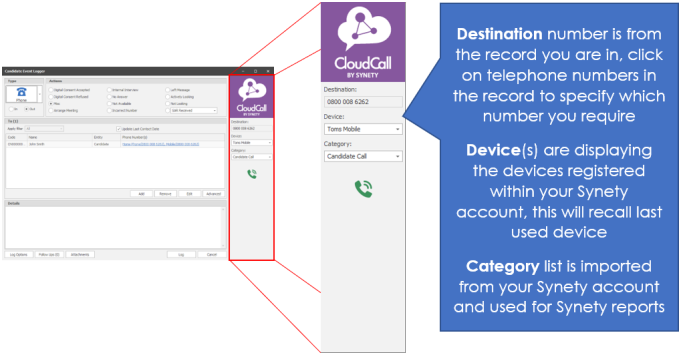
Within the Synety Dialler panel you will be able to view the Device dropdown list which will include all telephone number listed within your Synety account. Select your allocated device.
NB:- This will be remembered by the system and therefore will not need to keep setting for each call
You are also able to set the Category for the call, categories are setup within the Synety account and enables you to report on categories from within Synety, this will be remembered from your last Synety call.
Click Call button 
Synety will phone you, and then phone the candidate / contact to allow you to talk to them
• Once you have picked up the call, the candidate / contact receives a phone call (The consultant hears the ringing tone until the candidate / contact picks up the call)
• Click ‘Log’ to log the event (It is not possible to cancel once a call has started)
• The event log has a link to Synety from which you call see the call times and download the audio file (Call recordings are not kept forever, 3 Months, 12 Months or specially agreed 7 years. If the recording is no longer stored, the button to download the recording will no longer be available)

Clicking on this will open a dialogue box where you can click on the download icon and access the Synety account to download the recording:

NB:- some older versions of Internet Explorer will not allow downloading of recordings
See Phone Manager settings for more details on implementing CLoudCall
Contact Details
If you require further assistance please contact Ikiru People using the details published on www.ikirupeople.com
Visit our Customer Portal at https://portal.ikirupeople.com/ for future events and clinics.
FeedbackIf you would like to make suggestions or have found any errors with this Help section please contact our Support team.
Copyright © 2026 Voyager by Ikiru People Ltd. All rights reservedVersion 4.87
Voyager Software is a brand of Ikiru People Ltd, a subsidiary of Dillistone Group Plc. The group is a leading global provider of software and services that enable recruitment agencies and in-house recruiters to better manage their selection process and address the training needs of individuals. Across its brands – which include Voyager Software (recruitment software UK & Australia), Dillistone FileFinder executive search software, GatedTalent, the global database of the world’s leading executives, Talentis.Global – the next generation of recruitment software and also ISV.Online, provider of online pre-employment skills testing and training tools. Dillistone Group serves thousands of clients worldwide. Ikiru People Ltd: Registration Number 02043300. Registered in England & Wales.
 |  |  |  |