Phone Manager Options
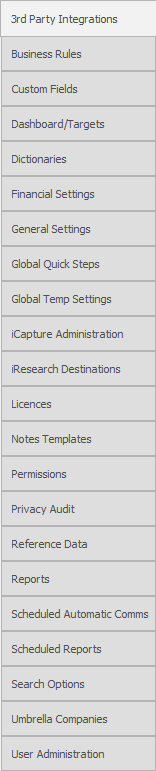 Access phone manager options within 3rd Party integrations within admin area.
Setup phone integration and SMS settings. Infinity offers a variety of ways to integrate with your telephony system:
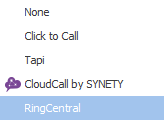
 Phone Setup
You are able to select Phone Provider option via the dropdown list

Click To Call
NOTE: - This will over-ride quick SMS settings within all users user option, users can still access SMS messaging via Comms Centre

Utilising more modern telephony systems, once user(s) set TEL protcol to your desired telephony software it will pass numbers to your softphone whilst also activating an event logger dialogue box


Setting TEL protocol as default
The Windows’ default is set in Control Panel / Default Programs using the option to ‘Choose default applications by protocol’
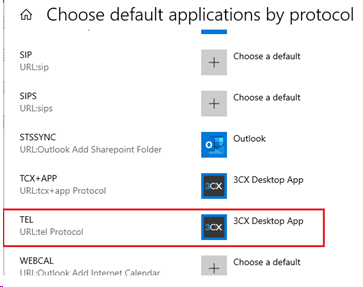
When configured, the user can left- or right-click on phone telecom hyperlinks in Infinity and the number will be passed to the ‘Click to Call’ phone software
NOTE:- each user should set their default application for the TEL protocol
Tapi

Enables Tapi phone integration and you can then input the Dial Prefix. Please contact Voyager Support to ensure compliant Tapi system.
CloudCall by Synety

Utilising Synety’s CloudCall services you can make calls from within Infinity, via the event logger. Once selected you should complete each users Synety account details within the user administration section.
Each user will be added to Synety with their telephone number, this will enable calls being made to call the user and then the candidate / contact / company selected.
RingCental
See RinCentral setup section for more information on configuring RingCentral integration or RingCentral section on how to use the integration
SMS Manager Options
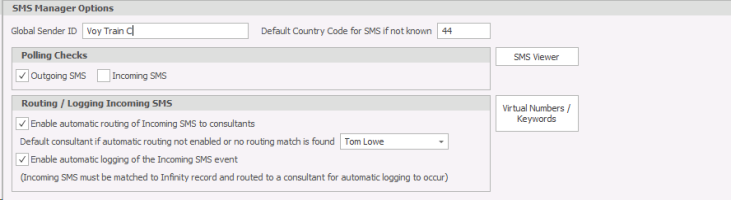
Infinity provides the facility to send and receive information via SMS contact Customer Services for current pricing. The SMS Manager controls the SMS configuration within your organisation.
During the installation of Infinity we will assist with setting up the SMS Manager Options. After installation you may need to change information such as Virtual Numbers or check your SMS balance.
 IMPORTANT – Please note for SaaS systems you cannot edit the ‘Polling Checks’ options
|
API Key and Account Number |
Provided by Voyager at installation |
|
Global Sender ID |
Set as desired (for incoming SMS this will need to be the Long Number you have been assigned) |
|
Polling Checks |
Select from?
|
|
Routing / Logging Incoming SMS
|
If you have incoming SMS messages and choose to not tick this box, ALL incoming SMS will come into a central queue that can be monitored and assigned manually. |
|
Enable automatic routing of Incoming SMS to consultants |
Tick to have incoming SMS messages routing to the correct consultant. If infinity cannot match to a Consultant, you should choose the default consultant that will be alerted to the SMS. |
|
Enable automatic logging of the incoming SMS event |
Tick to log the SMS against the correct Infinity record (assuming that Infinity can match).
|
NB: When sending SMS text messages, be aware that if the message exceeds the 160 characters then you will be charged for two messages.
SMS Viewer
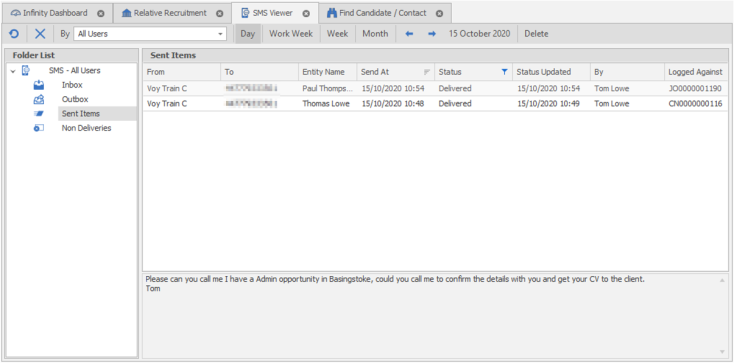
All SMS activity throughout Infinity can be viewed via the SMS Viewer. Each Consultant can access their SMS Viewer via My Infinity.
Virtual Numbers / Keywords for Accounts
Incoming SMS messages will be routed to the user who sends an SMS, however, if other users are also utilise SMS messaging it can effect routing. Using Virtual Numbers or Keywords it can help to route incoming SMS to the correct user. When recipients reply including the Virtual Number or Keyword it will send it to the assigned users My Infinity SMS section.
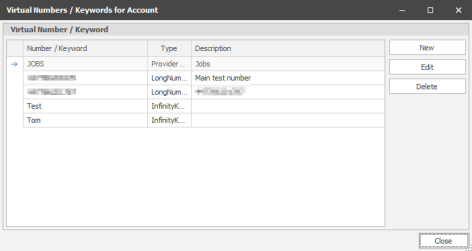
Virtual Numbers allow you to add number or keyword that you can then assign to a user, this will ensure routing of incoming SMS messages:
Definitions
Keywords – You can create a keyword e.g. ‘Jobs’ that you may want candidates to text for more information.
Shortcodes – For example 88882. These are more expensive, but easier to remember, perfect for marketing campaigns.
Long numbers – Traditional mobile number length
To manage Virtual number or Keywords
- Click
 and any existing Virtual Numbers / keywords will be displayed.
Create a new Number / Keyword
- Select

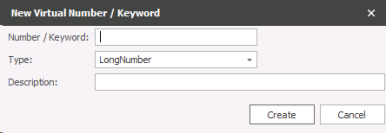
- Enter a number or Keyword.
- This can be a long number, short number or Keyword. If you enter a number, this must have already been assigned to you
- Choose the Type that matches the number or keyword above
- LongNumber – Already provided by Voyager / SMS provider
- ShortNumber – Already provided by Voyager / SMS provider
- ProviderKeyword – Keyword entered already in Provider website. There are extra features available with this option, but there is a cost.
- InfinityKeyword – Keyword entered above. This is a free option. Enter the new keyword in the fields above.
- Enter a description.
- Select
 to save the new entry.
 If you need the Virtual Number or Keyword to be routed to a Consultant, please configure this in user administration.
Edit a Number / Keyword
- Select the Number or Keyword you wish to edit.
- Select
 and edit the information as required.
 - Select
 to save the changes.
Delete a Number / Keyword
- Select the Number or Keyword you wish to delete.
- Select
 and the entry will be deleted.
Check Balance
To view your SMS balance, select .
.
Your current balance will be displayed.
Out Going SMS
Sending ID’s
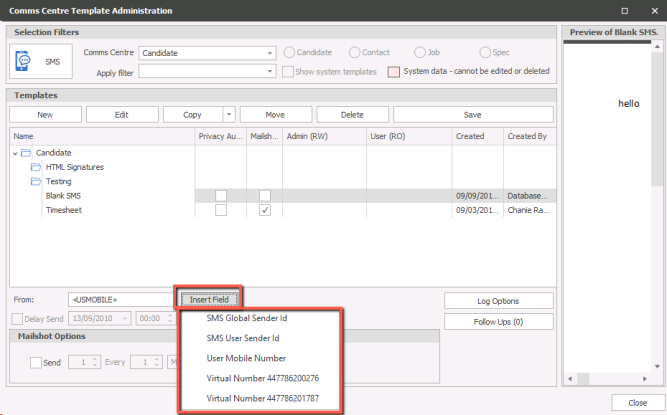
These will be the mobile telephone number or text that the SMS message is sent from when the recipient receives the message. Within the SMS templates you can set what ID it is sent out with:
- Global Sender ID – SMS Manager Options
- SMS User Sender – User Administration
- User Mobile Number – User Administration
- Virtual Number – is the number you have been assigned
NB: - Users can override the template setting and set the send ID to any of the desired ID’s
Templates
SMS templates will need to be created in all Comm’s Centre’s users will use to text message from, even if it just blank templates, without any templates you are unable to send out SMS messages. Generally Comm’s Centre’s used are Candidate, Job Shortlist, Interview and Placement although you may wish to add to other centres as desired
Each Template can be setup with a default From (Global for incoming SMS):
NB: - Users can override the template setting and set the send ID to any of the desired ID’s
Permissions
As default the Infinity User group will not allow to send SMS, you can either set each individual permission or set the user group to allow to SendSMS:

Incoming SMS Setup
In addition to Sending out SMS Messages, you can have incoming SMS messages enter Infinity. Contact Customer Services for current pricing. For incoming messages to be routes to the appropriate user you can setup keywords, which the sender should input into the message to ensure it goes to the correct user.
Tick the Incoming SMS with the SMS Manager Options:
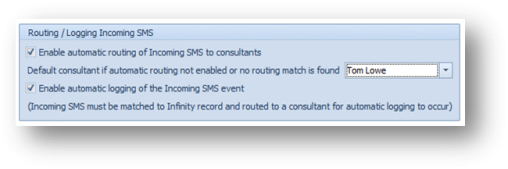
Tick to enable the system to route incoming SMS messages to the consultant SMS viewer and users My Infinity panel
Default consultant if automatic routing not enabled or no routing match is found – If left on None then it will route to all users
Tick to enable the automatic logging of Incoming SMS’s
Ensure your designated Long Number is entered in the Global Sender ID if you wish to send all SMS messages from this number and enable all SMS messages to be responded to. Alternatively you can just enter the designated SMS number within the user administration area SMS ID for those who you require to have incoming SMS, YOU MUST ASSIGN THE DESIGNATED SMS NUMBER TO USERS FOR INCOMING MESSAGES TO WORK:
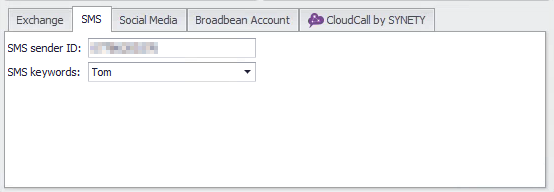
Once added you can set SMS templates to send from users User SMS ID, so you can enter Company Name or another number for users that you do not wish to have incoming SMS messages:
Virtual Numbers / Keywords
To ensure that the correct user receives the incoming message then there is a keyword facility, assuming the reply to the SMS includes the keyword or number within then Infinity will route it to the user that has been assigned that keyword or number
Click on 
Enter desired Keyword, ensure this is unique, select InfinityKeyword as Type, enter description as desired and finally Create.
Assigning Number / Keyword to a user
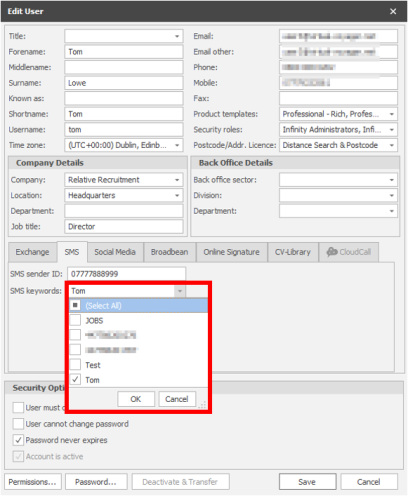
User Administration and edit user, assign the SMS keyword as appropriate:
SMS Viewer
To access all SMS Messages go to the Queues within the Application Menu and SMS, opens the SMS Viewer:
- You can access each users SMS Inbox, Outbox, Sent Items and Non-Deliveries
- You can view Day, Work Week, Week or Month
- Select a message and content is displayed within the lower panel
NB: you can utilise column chooser to insert or remove desired columns
- You can mark messages as Read (you can also multi-select as required)
- You can “Assign To”, to send the SMS to an alternative user
- “Log Event” allows you to manually log the message against a record
My Infinity
In addition to SMS each user is able to Review incoming SMS messages assuming routing has been successful.
Routing of Incoming SMS Messages
When SMS messages are sent to your designated Long Number it will process to users My Infinity according to the hierarchy below:
-
The to field contains a virtual number that is assigned to a single consultant
-
Virtual number assigned to multiple consultants and keyword assigned to one consultant
-
Virtual number assigned to multiple consultants and keyword assigned to multiple consultants and infinity keyword assigned to one consultant
-
Virtual number assigned to multiple consultants and no keyword and infinity keyword assigned to one consultant
-
If virtual number has multiple users but (no keyword found or no keyword assigned or keyword assigned to multiple consultants)
-
a. from field matches the to of an outgoing sms
-
b. from field matches telecom and owner is a single match found
-
c. from field matches telecom and owner has multiple matches found then use top
-
-
Use the global default option if set
-
Set to all users

Contact Details
If you require further assistance please contact Ikiru People using the details published on www.ikirupeople.com
Visit our Customer Portal at https://portal.ikirupeople.com/ for future events and clinics.
FeedbackIf you would like to make suggestions or have found any errors with this Help section please contact our Support team.
Copyright © 2026 Voyager by Ikiru People Ltd. All rights reservedVersion 4.87
Voyager Software is a brand of Ikiru People Ltd, a subsidiary of Dillistone Group Plc. The group is a leading global provider of software and services that enable recruitment agencies and in-house recruiters to better manage their selection process and address the training needs of individuals. Across its brands – which include Voyager Software (recruitment software UK & Australia), Dillistone FileFinder executive search software, GatedTalent, the global database of the world’s leading executives, Talentis.Global – the next generation of recruitment software and also ISV.Online, provider of online pre-employment skills testing and training tools. Dillistone Group serves thousands of clients worldwide. Ikiru People Ltd: Registration Number 02043300. Registered in England & Wales.
 |  |  |  |