Finding Records
 General
The find facility is available via the binoculars or via the find field within the quick access toolbar. These can be accessed via the quick access toolbar or within the application menu, When utilising the find it will look for active records only, if you wish to look for closed or inactive records you will find a tick box at the bottom of the results tables.
Advanced Find
The results will be in a list. If you would like to group by a type of record, drag the column header of the column that you’d like to group by into the grey area.

Alternatively use the binoculars icon on the quick access toolbar or the application menu and choose which type of record that you’d like to look for.
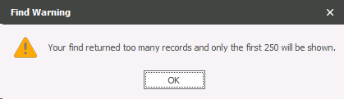
Enter the information that you have into the relevant box and click Find. The database will show you results for the type of record that you have specified. If you look for a candidate or a contact, Infinity will look to see if that person is also another type of record on the database and show you in the same screen. If the system finds more than 250 entries then you will receive a warning message:
You may find that Infinity tries to find results before you click Find. This is because of the autorun options that are specified within the find Options (see below).
Quick Find
Quick find defaults to finding candidates. This can be changed via the ‘Quick Find Type’ drop-down
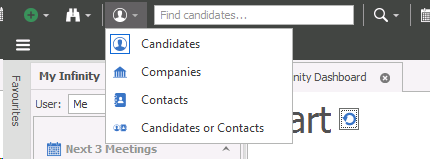
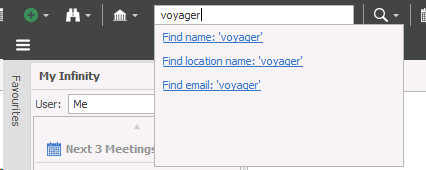
When you type into the ‘Quick Find Value’ field, you can click to find based on name, location name (only for companies) or email. Entering return on the keyboard will find on name only.
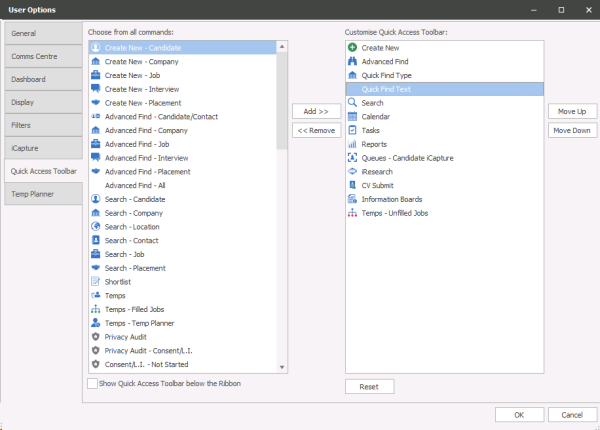
You can customise the quick find via user options and add ‘Quick Find Type’ and ‘Quick Find Text’ to the ‘Customised Quick Access Toolbar’ list.
Find options
The find options enable you to choose how the find screen behaves. Click the options button on the find screen for the following option screen.
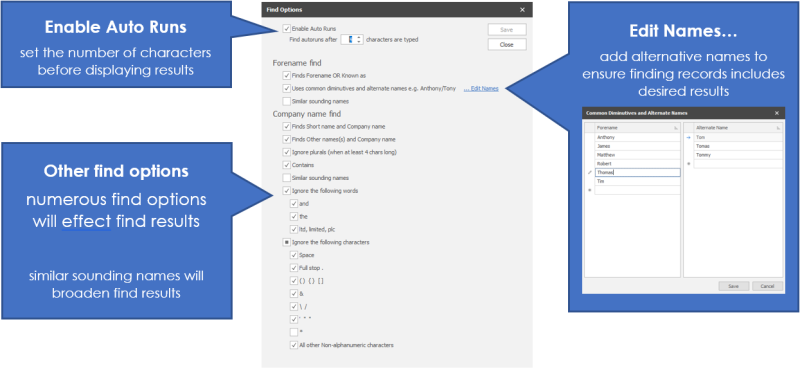
 Suggestion: On a larger database keep the number of autorun characters above ‘5’ characters. This number affects the number of characters that you type before Infinity starts listing applicable records and therefore can result in slow speeds if it has numerous records to pull up.
Choose your options and click Save
Contact Details
If you require further assistance please contact Ikiru People using the details published on www.ikirupeople.com
Visit our Customer Portal at https://portal.ikirupeople.com/ for future events and clinics.
FeedbackIf you would like to make suggestions or have found any errors with this Help section please contact our Support team.
Copyright © 2026 Voyager by Ikiru People Ltd. All rights reservedVersion 4.87
Voyager Software is a brand of Ikiru People Ltd, a subsidiary of Dillistone Group Plc. The group is a leading global provider of software and services that enable recruitment agencies and in-house recruiters to better manage their selection process and address the training needs of individuals. Across its brands – which include Voyager Software (recruitment software UK & Australia), Dillistone FileFinder executive search software, GatedTalent, the global database of the world’s leading executives, Talentis.Global – the next generation of recruitment software and also ISV.Online, provider of online pre-employment skills testing and training tools. Dillistone Group serves thousands of clients worldwide. Ikiru People Ltd: Registration Number 02043300. Registered in England & Wales.
 |  |  |  |