Global Temp Settings

There are eight tabs within the Global Temp Settings section:
- General
- Job Title Defaults
- Shift Names
- Shift Breaks
- Shift Patterns
- Action Comms
- Shift Planner Comms Wizard
- Compliance Checks
- Regulations
 General
Includes system wide Temp settings

| Job default worker type |
Allows you to set the default worker type for new jobs (this will affect revenue calculations for Temp jobs, used in Voyager Business Intelligence
|
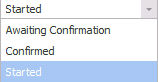
| Temp Placement Default Shift Status |
Allows you to set if you wish the default staus when placing a candidate into a shift |
| Extension Default Shift Status |
Set the default status for extended shifts
|
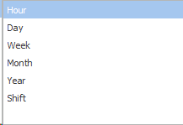
| Default Temp Rate Interval |
Set default for pay intervals in Temp jobs
|
| Default length of a job shift in hours when editing in grid view | Set the default length of a job shift by using the up and down arrows. This is for when you are using the Grid view to quickly enter multiple job shifts with different start times. |
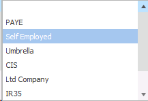
| PAYE and Non-PAYE Job Rates |
If a job needs to display both PAYE and Non-PAYE rates
|
| Use candidate rates when Creating a Temp Placement | Tick to ensure that when placing a candidate that their required rates are used, this will override Company or Global defaults |
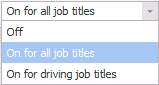
| Remove Positive availability for the whole day when placing a candidate |
When switched on this setting will remove all positive availability for the day of a candidates placement. E.g. where a driver as reached their allotted driving hours and cannot be placed again on the same day.
|
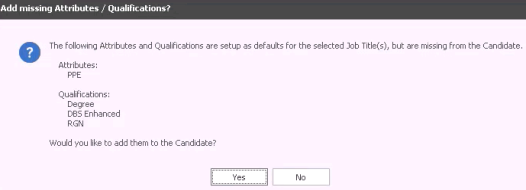
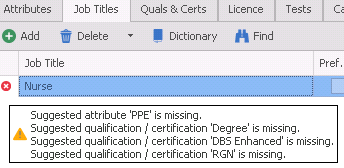
| Prompt Users to add missing attributes / qualifications when adding job titles to temp candidates |
When this option is selected and a temp Job Title that has attributes and/or Qualifications assigned to it and is then added to a temp candidate then you will be prompted to add them automatically to the candidate
If this option is disabled then the Job Title can be added to the candidate but there will be no prompt to automatically add the missing Qualifications.
|
| Automatically Log a placement event on shift changes of |
The user can choose which shift changes should automatically log as an ‘Info’ event on the placement page. These events are viewable on the placement’s candidate and contact / loc / company page also.
Note - There is a warning on this setting as it could create many events on the temp placement record that will also show on the related candidate and company, particularly if changes to shifts are done on an individual shift basis rather than in bulk. When enabled, and shift(s) status is changed by a user to one of the selected options, a single info event is logged on the placement page with a list of all the shift(s) that were changed. |
| Allow job and placement shifts up to 48 hours |
When the setting is enabled, there is a tick box against all job and placement shifts when single selecting to add + 24 hours.
This is unticked as default and the field behaviour is a follows:
If a shift is ticked in job and candidate placed on that shift it will be defaulted as ticked in the placement shift also that is created. It can be ticked independently from each other in the linked job and placement shifts but existing shift times overlap rules may kick in, and will need to be dealt with by the user. |
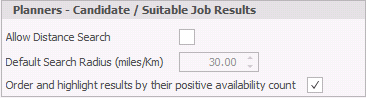
| Planners - Candidate / Suitable Job Results |
Settings regarding the Search results in both the Shift Planner and Temp Planner.
Note in order to use the distance search the user must have a distance search licence. |
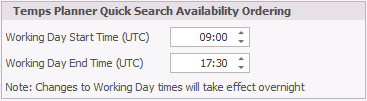
| Temp Planner Quick Search Availability Ordering |
Set the most commonly used shift time to help when searching via the Temps Planner
|
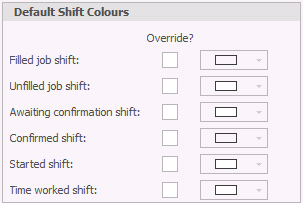
| Default Shift Colours |
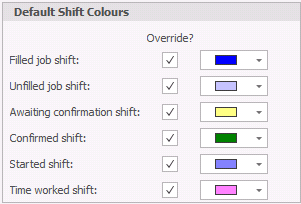
The colours for the Shift Planner can be changed by clicking onto the Override tick box and then selecting the required colour for each status.
Example below -
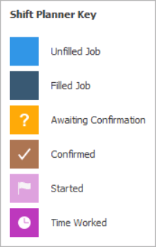
These are the default colours -
|



Unfilled Jobs Defaults
Enable Distance Searching and Radius limits for candidates within the Unfilled Jobs board. You will require Distance Search licences
Temps Planner Quick Search Availability Ordering
Set general work day hours to ensure availability ordering in Temps Planner is more relevant for key working hours
Job Title Defaults
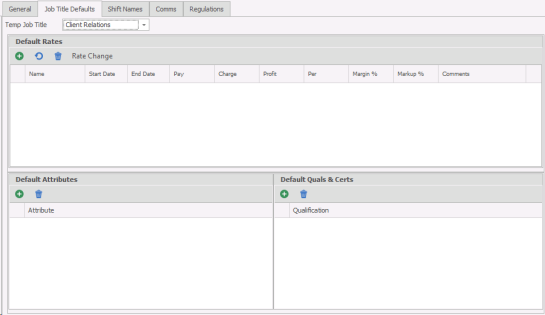
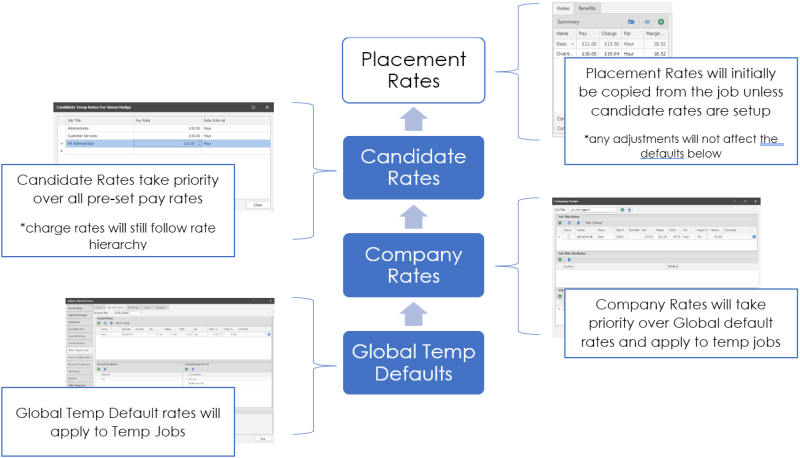
Global Temp Defaults allows you to set global rates for Temp Jobs, this allows very fast job creation and avoids data entry errors. Each Job Title can be assigned multiple rate types with the pay and charge rate details for each. If applicable you can also set specific Attributes and Quals & Certs against each Job Title. This will ensure the appropriate attributes, qualification or certification is recorded against the job and, when using the temp search feature, will ensure only candidates with the appropriate attributes, qualification or certification will be found.
Pre-requisites for setting Global Temp Defaults are:
- Have the Job Title within the Job Title dictionary and marked as Temps
- Have the Attribute within the Attribute dictionary
- Have the Qual & Cert within the Qual & Cert dictionary
Add a Rate
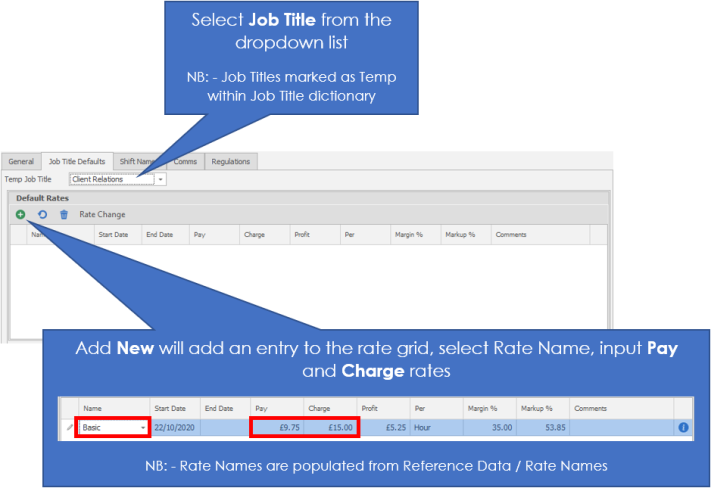
To set a rate select the appropriate job title from the Temp Job Title dropdown list, this will only include Job Titles that have been marked as Temp within the Job Titles dictionary.
|
Name |
Adjust the Rate Name from the dropdown as appropriate, the rate names are created via the reference data Rate Types |
|
Start Date |
Allows you to set the date when this rate should be applied, used in conjunction |
|
End Date |
Allows you to set the date when this rate should expire |
|
Pay |
Enter the Pay Rate |
|
Charge |
Enter the Charge Rate |
|
Profit |
This will automatically calculate from the pay and charge rates (Charge rate – Pay rate) |
|
Per |
This will default to Hour but can be edited to set up day / weekly / monthly rates |
|
Margin % |
Calculates the margin as a percentage (Profit ÷ Charge %) |
|
Markup % |
Calculates the markup as a percentage (Profit ÷ Pay %) |
|
Comments |
Add any additional comments / notes for this rate entry |
|
|
Not Applicable |

Rate Change
The Rate Change button allows you setup a rate change for the future, select the appropriate rate that will be changing within the rate grid and then click on Rate Change button.
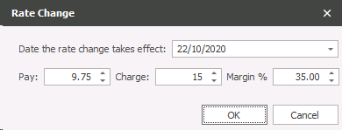
Select the date when the rate should take effect, adjust the pay / charge / margin%
Click OK

A new entry will be added to the grid with the start date entered, you will also see the original entry will now have an end date for the day before the new rate is applied
Default Attributes
Setting up default Attributes for Temp Jobs to ensure additional requirements are added to job records, if a Company has specific requirements these can be setup in the Company Temps area
NB: - you can setup required Attributes without setting rates
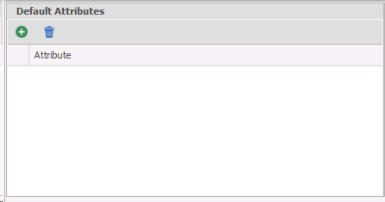
Clicking on the Add button  will then allow you to add an Attribute, you can find Attributes by typing directly into the field:

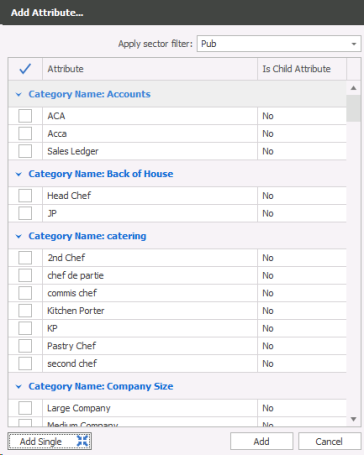
Alternatively you can click on the Add Multiple button and tick relevant Attributes within the list.
Default Quals & Certs
Setting up default Q&C's for Temp Jobs to ensure compliance requirements are added to job records, if a Company has specific compliance requirements these can be setup in the Company Temps area
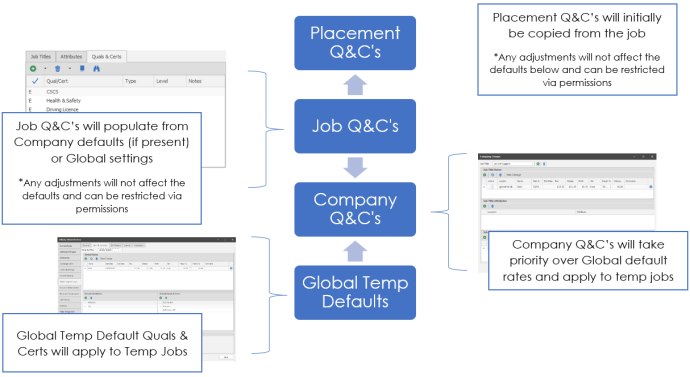
Quals & Certs Hierarchy
NB: - you can setup required Quals & Certs without setting rates
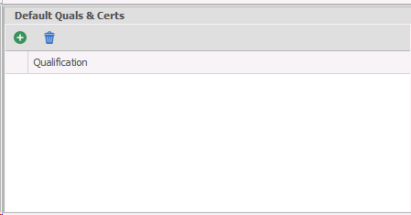
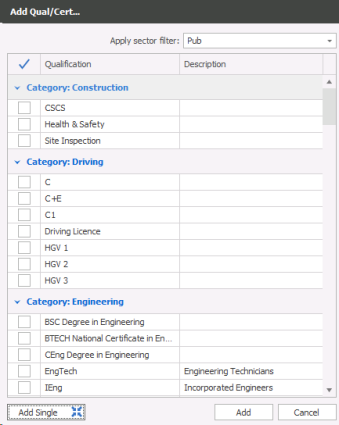
Clicking on the Add button will then allow you to add a Qual / Cert, you can find Quals & Certs by typing directly into the field:
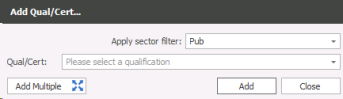
Alternatively you can click on the Add Multiple button and tick relevant Quals & Certs within the list.
Regulations
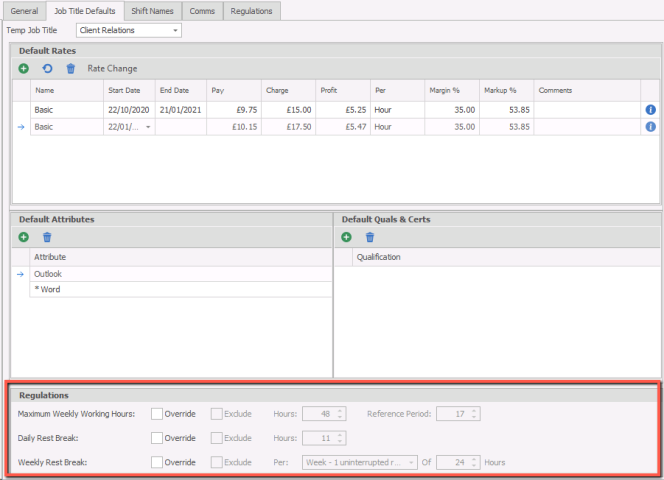
See Regulations settings area to enable Working Time Directive regulations.
You can override Max Working Week Hours, Daily Rest Break, Weekly Rest Break settings if the selected job title is outside the Working Time Directive regulations
Shift Names
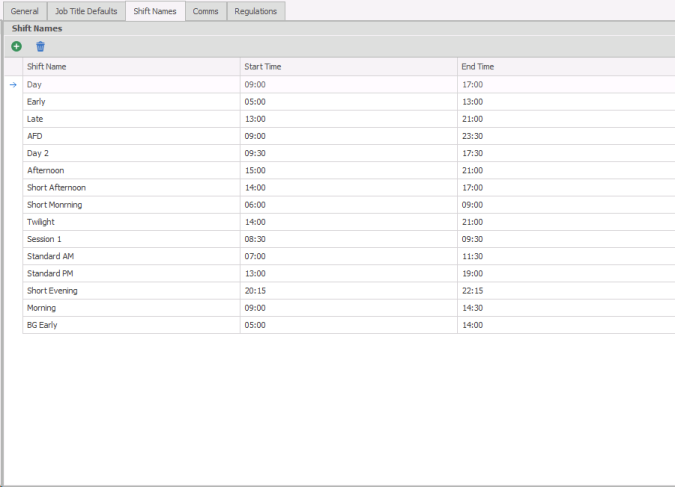
Setup shift patterns you require for Temp jobs to enable quick job calendar entries. The example below shows Early, Late and Day shifts:
Adding Shift Name
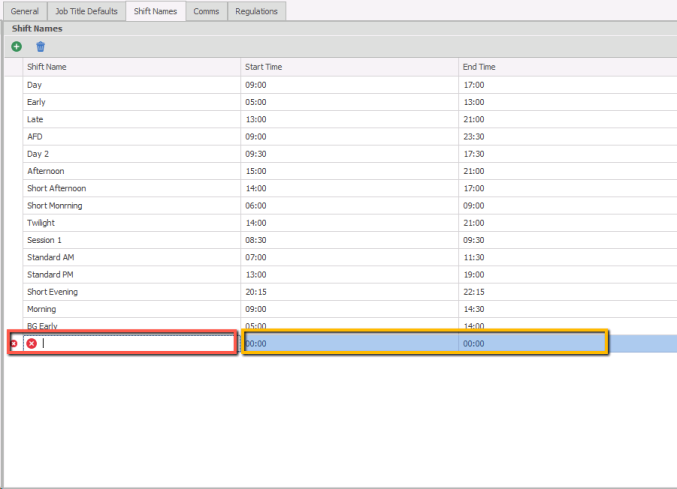
Click on the Add button 
This will add a line to the grid, enter the name required and adjust the Start and End times as required
Shift Breaks
In Administration / Global Temp Settings tab there is a tab called ‘Shift Breaks’, where default placement / shift break settings can be configured to apply to all companies. The defaults can be overridden per company / location.
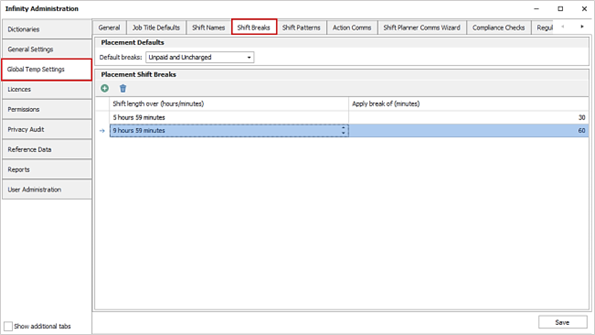
Placement page ‘Breaks’ field

A default can be set for the temp placement page ‘Breaks’ field.
- Values available are blank (unset), ‘Paid and Charged’ and ‘Unpaid and Uncharged’
- This is set to blank as default
The default is automatically applied when new temp placements are created.
Placement shift ‘Breaks
There is a grid with toolbar to manage the default shift breaks to apply when shifts go over a certain amount time.
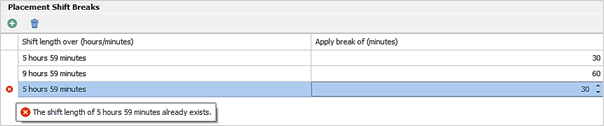
Note: if the ‘Shift length over’ field is set to 5 hours 59 minutes, the shift hours must be 6 hours or over for the break to apply.
- Entries are added by the green ‘plus’ icon.
- The ‘Shift length over’ can be between 1- 47 hours.
- Format allows hours and minutes.
- default is 5 hours 59 minutes.
- The user can enter the length of the shift break to automatically apply in minutes
- values entered can be between 1 to 300 in whole numbers.
- default is 30 minutes.
- The user is prevented and warned on the grid from entering duplicate ‘Shift length is over’ entries, e.g. they can’t have two entries for ‘5 hours 59 minutes’.
- If the user tries to save with duplicate entries a warning window is displayed and the changes cannot be saved. The duplicate entry must be removed before saving.
- The user can delete entries by the blue ‘bin’ icon.
The defaults are automatically applied when a new placement shift is created (this includes when extending shifts) as follows:
- If there are no global default shift breaks, the shift break field is blank.
- If there are global default shift breaks, the number of shift hours are calculated from shift start and end times.
- The shift hours are matched to the ‘Shift length is over’ values, starting with highest number of hours to the lowest.
- The first match found is used to apply the default shift break length, e.g. if shift is 10 hours this matches to ‘Shift length is over 9 hours 59 minutes’ entry and a shift break of 60 minutes is applied.
- If no match is found, the placement shift break field is set 0, e.g. if shift is 5 hours the shift break of 0 minutes is applied.
Shift Patterns
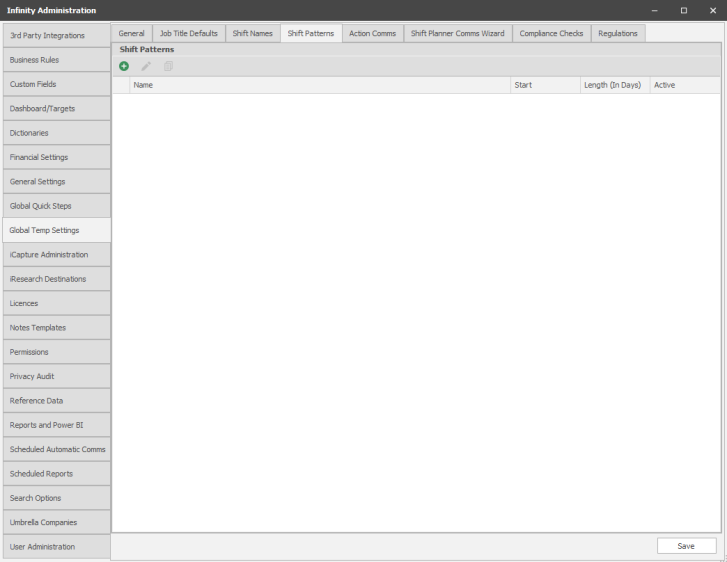
Like other defaults you can setup system wide shift patterns here that will then be available when creating Temp Jobs and enable you to apply a repeatable pattern of shifts into a calendar. You can setup shift patterns by client which will over-ride these system wide shift patterns.
Adding a shift pattern
Click on new
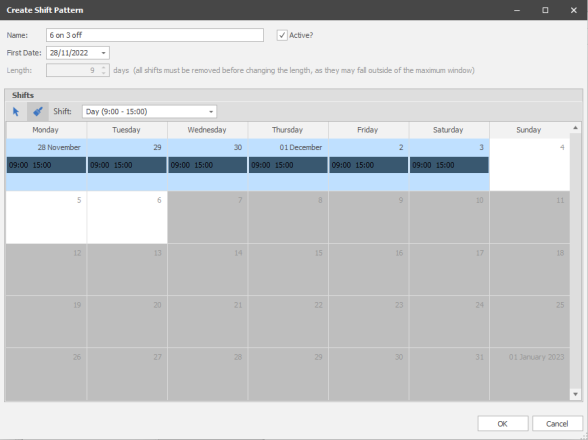
You can then name your pattern, set a start date, this is just to setup the pattern and does not restrict using this pattern to this date and finally set the length, this is the pattern length so include days off, the example below shows that I can have a 9 day pattern, 6 days working and 3 off, this is a 9 day pattern:
Action Comms
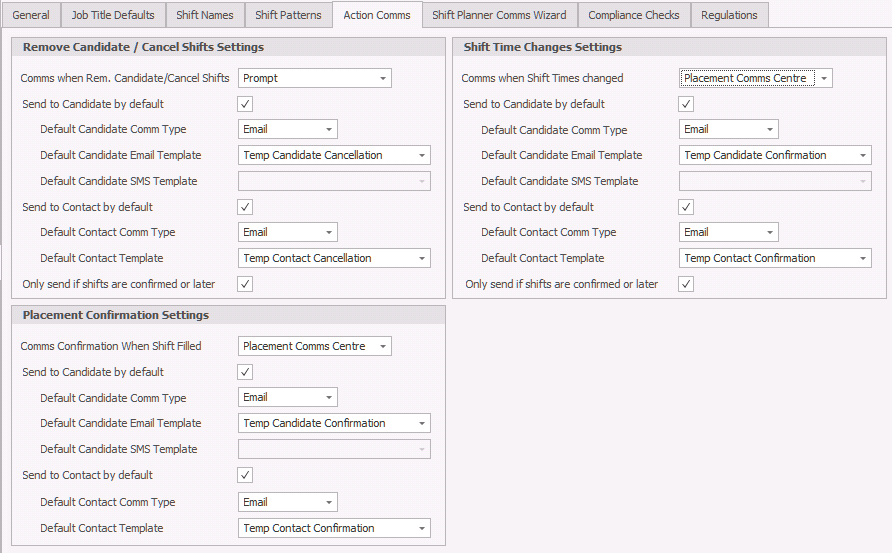
Confirmation Options
You can set how you wish the system to send confirmation emails and or SMS messages when confirming placements:
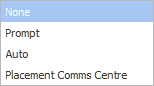
None - will do nothing when confirming assigned shifts
Prompt - will offer a dialogue box to send email or SMS to the candidate and / or contact (NOTE: - there is no preview of the email or SMS
Auto - will automatically send confirmation to the candidate and / or contact
Placement Comms Centre - will launch the Comms Centre when confirming placements
Placement Confirmation Settings
Set Candidate and Contact Confirmation message settings, either email or SMS or Both and select Temp confirmation message template. These can be set to None, Prompt or Auto to send both or either candidate and contact confirmation messages in one. Prompt will allow the user to choose sending the confirmation messages, Auto will automatically send out confirmation messages when placing a Temp into a Confirmed shift.
The templates available are from the Placement Comms Centre, these should be setup with the appropriate merge codes, in particular Temp specific merge codes.
Remove Candidate / Cancel Shifts Settings
Set Candidate and Contact cancellation settings, either email or SMS or Both and select Temp cancellation template. These can be set to None, Prompt or Auto to send both or either candidate and contact cancellation message in one. Prompt will allow the user to choose sending the cancellation messages, Auto will automatically send out cancellation messages when removing or cancelling a Temp from a shift.
The templates available are from the Placement Comms Centre, these should be setup with the appropriate merge codes, in particular Temp specific merge codes.
Shift Time Change Settings
Set Candidate and Contact shift time change settings, either email or SMS or Both and select Temp shift time changes template. These can be set to None, Prompt or Auto to send both or either candidate and contact shift time change message in one. Prompt will allow the user to choose sending the shift time change messages, Auto will automatically send out shift time change messages when changing shift times in the Temp shift calendar.
The templates available are from the Placement Comms Centre, these should be setup with the appropriate merge codes, in particular Temp specific merge codes.
Shift Planner Comms Wizard
A default email Comms Centre template can be set globally for each option of the comms wizard. This is done by selecting a template per area via the drop-down menus against each section.
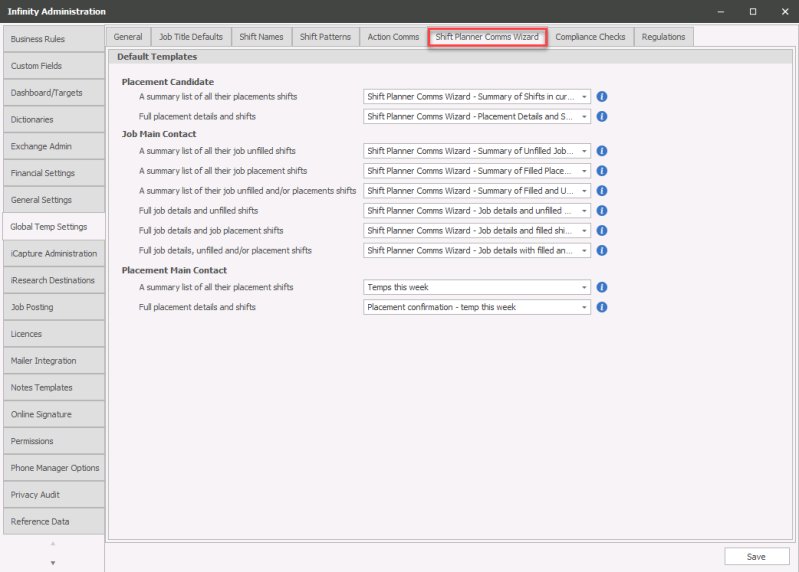
For help with the Wizard merge codes click here for more info.
See the Shift Planner help for more information about using the Comms Wizard.
Compliance
| Job default worker type |
Allows you to set the default worker type for new jobs (this will affect revenue calculations for Temp jobs, used in Voyager Business Intelligence
|
| Temp candidate non-EAA behaviour |
Allows you to set if you wish to switch off EAA check or set EAA as mandatory to make Temp placements, see Temp Setup section for more details
|
| Temp candidate without job title behaviour |
Allows you set if you wish to set job title as mandatory to make Temp placements, see Temp Setup section for more details
|
| Temp candidate without essential attributes behaviour |
Allows you to set if you wish to set EAA as mandatory to make Temp placements, see Temp Setup section for more details
|
| Temp candidate without essential Q&C behaviour |
Allows you to set if you wish to set EAA as mandatory to make Temp placements, see Temp Setup section for more details
for:
Allows you to set whether the checks for in date Q&C's for shifts assigned for just the first week, first 2 weeks, first 3 weeks, first 4 weeks or all shifts assigned |
| Temp candidate blocklist behaviour |
Allows you to set if the candidate is blocklisted then they are prevented from being placed in future Temp roles or a Warning is displayed but placements can still occur
|
| Temp Candidate Regulations behaviour |
Allows you to set whether you wish to set a warning or prevent users from putting candidates into placements when the hours contravene the Working Time Directive limits set within the Regulations tab
|
| Temp Candidate behaviour of not 100% available |
Allows you to set whether to warn or block users from double booking a candidate (candidate's that are not 100% available)
|
| Candidate behaviour if Placement Job IR35 Status is Not Verified |
Allows you to set whether to warn or block users from placing candidates if the job has not been marked as Verified (users with permission to verify)
|
| PO Missing and required by company |
Allows you to set whether to warn or block users from placing candidates if the PO Number is missing on the placement and 'PO Required' is ticked in the company financial screen.
|
| Temp placement default shift status |
Allows you to set the default for Placed Candidates within the unfilled jobs board
|
| Default temp rate interval |
Set default for pay intervals in Temp jobs
|
| Use candidate rates when Creating a Temp Placement | Tick to ensure that when placing a candidate that their required rates are used, this will override Company or Global defaults |
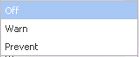


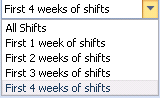
(This is the Drop-down text)
Regulations
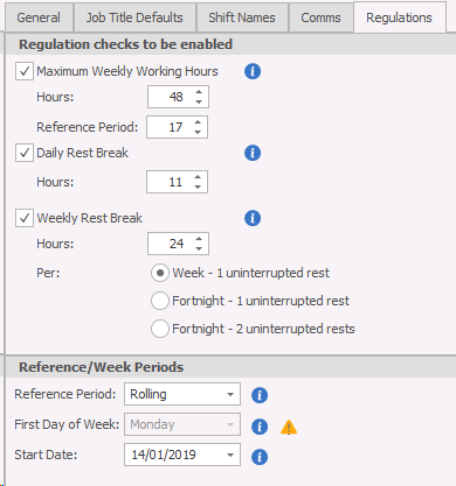
Enable the different components of Working Time Directive (WTD) will ensure Temp candidates are Working Time Directive compliant:
Outline of WTD Regulations
MWH - Average maximum weekly working hours

WRB - Weekly Rest Break

DRB - Daily Rest Break

|
|
|
|
Maximum Weekly Working Hours: Set Hours Set Reference Period
|
|
|
Daily Rest Break: Set Hours
|
|
|
Weekly Rest Break: Set Hours Per |
|
|
Reference / Week Periods Reference Period: Set to Fixed or Rolling First Day of Week: Set the first day of the week Start Date:
|
Once saved the regulations will be calculated against all current Temp candidates, this may take some time to complete. Once complete you can set the regulations against each job title within the Job Title Defaults

Contact Details
If you require further assistance please contact Ikiru People using the details published on www.ikirupeople.com
Visit our Customer Portal at https://portal.ikirupeople.com/ for future events and clinics.
FeedbackIf you would like to make suggestions or have found any errors with this Help section please contact our Support team.
Copyright © 2026 Voyager by Ikiru People Ltd. All rights reservedVersion 4.87
Voyager Software is a brand of Ikiru People Ltd, a subsidiary of Dillistone Group Plc. The group is a leading global provider of software and services that enable recruitment agencies and in-house recruiters to better manage their selection process and address the training needs of individuals. Across its brands – which include Voyager Software (recruitment software UK & Australia), Dillistone FileFinder executive search software, GatedTalent, the global database of the world’s leading executives, Talentis.Global – the next generation of recruitment software and also ISV.Online, provider of online pre-employment skills testing and training tools. Dillistone Group serves thousands of clients worldwide. Ikiru People Ltd: Registration Number 02043300. Registered in England & Wales.
 |  |  |  |