Quick Steps 
 General
Quick Steps feature allows you to automate processes within Infinity, using an action that you complete as a "trigger" to then complete an automated action. For example, you log a specific type of call in a candidate record, like left message, this is the trigger, and it can then send out an email automatically saying sorry I missed you.
Quick Steps can be setup globally across the system via Global Quick Steps or can be setup within My Settings for individual users. In some systems they would want to only have certain quick steps for certain users, for example a Temp user may not desire automated emails as described above but could have it setup within My Settings to send out an SMS rather than email.
Note:- fully automated emails and SMS messaging can be setup via Scheduled Automated Comms
Global Quick Step
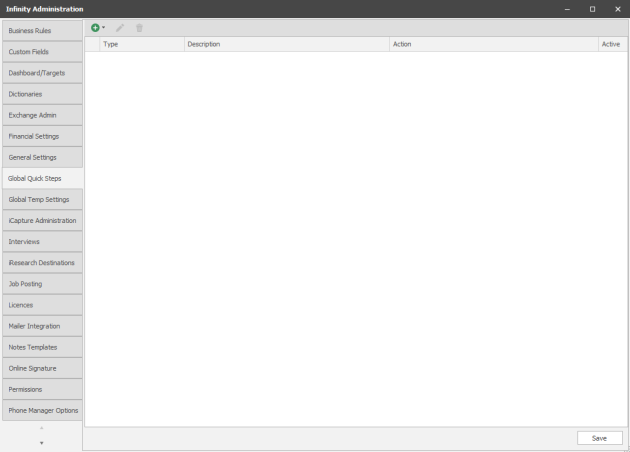
To setup a system-wide quick step you can access "Global Quick Steps" from the Administration area:
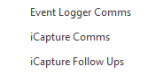
via the Add button you can select your trigger and action type (Comms or Follow Up):
|
Event action type will be the trigger - the action will be Email and / or SMS |

|
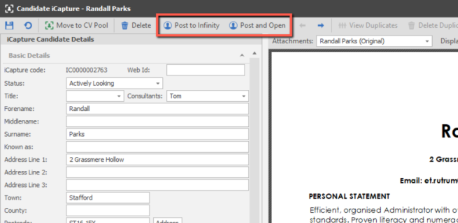
| Posting new or updating candidates into Infinity will be the trigger - the action will be Email and / or SMS |
|
|
| Posting new or updating candidates into Infinity will be the trigger - the action will be a Call Back and / or Task |
|
Quick Step - Event Logger Comms
|
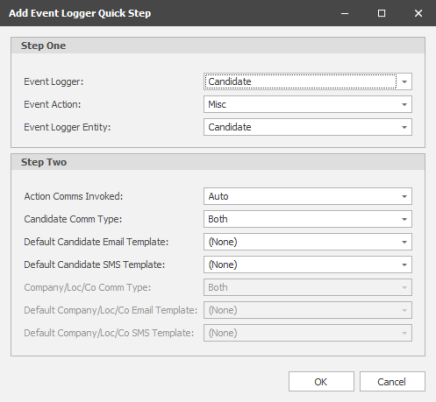
Step One (Setup your Trigger) | ||
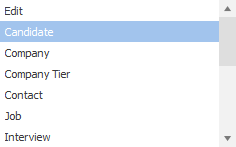
| Event Logger |
|
Select the record type you require the automation to occur in | |
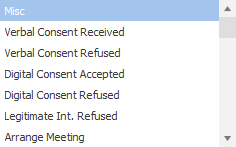
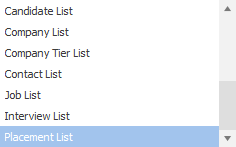
| Event Action |
|
Select the Event Action you require to be used as the trigger | |
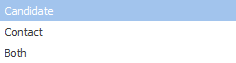
| Event Logger Entity - controlled by selected Event Logger |
|
Select the entity you require to be sent the email and / or SMS | |
| Step Two (Setup your Action) | |||
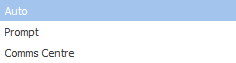
| Action Comms Invoked |
|
Auto - will send Email and / or SMS automatically Prompt - will prompt you to Send Email and / or SMS, includes the ability to change template and also to Not Send Comms Centre - will launch the Comms Centre allowing you to preview, change templates and also to Not Send (via Close) the Email and / or SMS |
|
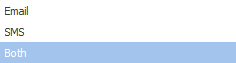
| Candidate Comms Type |
|
Select if you wish to send out an email and / or SMS | |
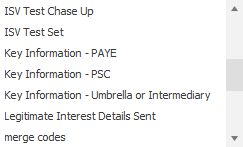
| Default Candidate Email Template - controlled by selected Entity Type |
|
Select the Email Template you wish to send out | |
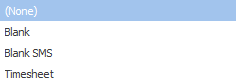
| Default Candidate SMS Template - controlled by selected Entity Type |
|
Select the SMS Template you wish to send out | |
| Company / Loc / Co Type - controlled by selected Entity Type |
|
Select if you wish to send out an email and / or SMS | |
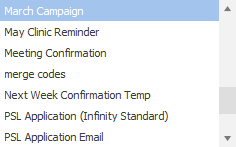
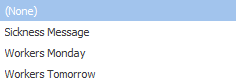
| Default Company / Loc / Co Email Template - controlled by selected Entity Type |
|
Select the Email Template you wish to send out | |
| Default Company / Loc / Co SMS Template - controlled by selected Entity Type |
|
Select the SMS Template you wish to send out | |
Quick Step - iCapture Comms
|
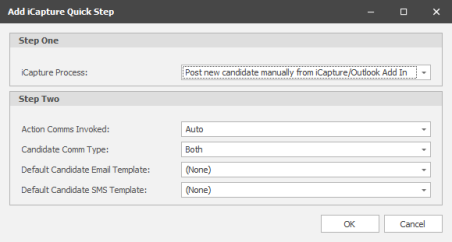
Step One (Setup your Trigger) | ||
| iCapture Process |
|
Select whether the automation should occur when sending new candidates or updating an existing candidate | |
| Step Two (Setup your Action) | |||
| Action Comms Invoked |
|
Auto - will send Email and / or SMS automatically Prompt - will prompt you to Send Email and / or SMS, includes the ability to change template and also to Not Send Comms Centre - will launch the Comms Centre allowing you to preview, change templates and also to Not Send (via Close) the Email and / or SMS |
|
| Candidate Comms Type |
|
Select if you wish to send out an email and / or SMS | |
| Default Candidate Email Template |
|
Select the Email Template you wish to send out | |
| Default Candidate SMS Template |
|
Select the SMS Template you wish to send out | |

Quick Step - iCapture Follow Ups
|
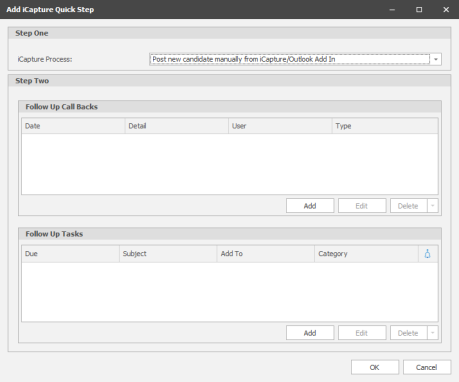
Step One (Setup your Trigger) | ||
| iCapture Process |
|
Select whether the automation should occur when sending new candidates or updating an existing candidate | |
| Step Two (Setup your Action) | |||
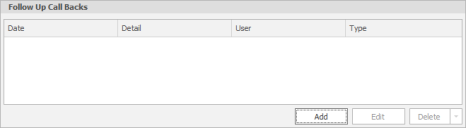
| Follow Up Call Backs |
|
||
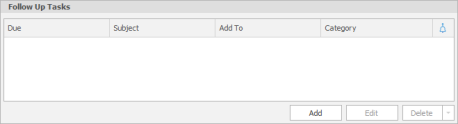
| Follow Up Tasks |
|
||
User Quick Step
To setup user quick step you can access "My Settings" and select User Options:
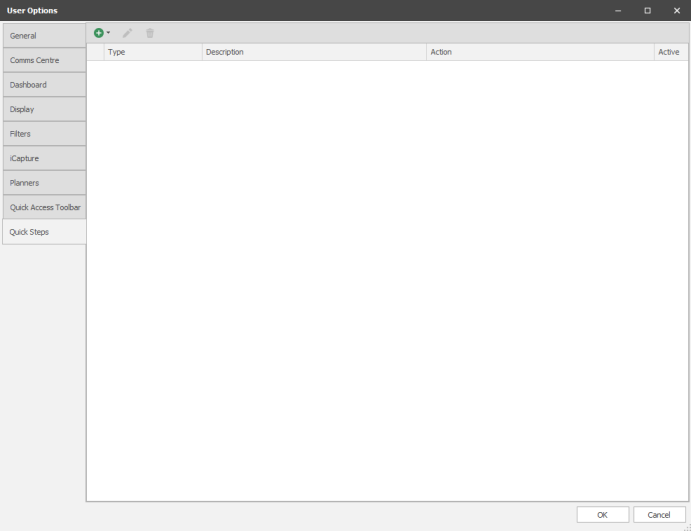
via the Add button you can select your trigger and action type (Comms or Follow Up):
|
|
Event action type will be the trigger - the action will be Email and / or SMS |
|
| Posting new or updating candidates into Infinity will be the trigger - the action will be Email and / or SMS |
|
|
| Posting new or updating candidates into Infinity will be the trigger - the action will be a Call Back and / or Task |
|
Quick Step - Event Logger Comms
|
|
Step One (Setup your Trigger) | ||
| Event Logger |
|
Select the record type you require the automation to occur in | |
| Event Action |
|
Select the Event Action you require to be used as the trigger | |
| Event Logger Entity - controlled by selected Event Logger |
|
Select the entity you require to be sent the email and / or SMS | |
| Step Two (Setup your Action) | |||
| Action Comms Invoked |
|
Auto - will send Email and / or SMS automatically Prompt - will prompt you to Send Email and / or SMS, includes the ability to change template and also to Not Send Comms Centre - will launch the Comms Centre allowing you to preview, change templates and also to Not Send (via Close) the Email and / or SMS |
|
| Candidate Comms Type |
|
Select if you wish to send out an email and / or SMS | |
| Default Candidate Email Template - controlled by selected Entity Type |
|
Select the Email Template you wish to send out | |
| Default Candidate SMS Template - controlled by selected Entity Type |
|
Select the SMS Template you wish to send out | |
| Company / Loc / Co Type - controlled by selected Entity Type |
|
Select if you wish to send out an email and / or SMS | |
| Default Company / Loc / Co Email Template - controlled by selected Entity Type |
|
Select the Email Template you wish to send out | |
| Default Company / Loc / Co SMS Template - controlled by selected Entity Type |
|
Select the SMS Template you wish to send out | |
Quick Step - iCapture Comms
|
|
Step One (Setup your Trigger) | ||
| iCapture Process |
|
Select whether the automation should occur when sending new candidates or updating an existing candidate | |
| Step Two (Setup your Action) | |||
| Action Comms Invoked |
|
Auto - will send Email and / or SMS automatically Prompt - will prompt you to Send Email and / or SMS, includes the ability to change template and also to Not Send Comms Centre - will launch the Comms Centre allowing you to preview, change templates and also to Not Send (via Close) the Email and / or SMS |
|
| Candidate Comms Type |
|
Select if you wish to send out an email and / or SMS | |
| Default Candidate Email Template |
|
Select the Email Template you wish to send out | |
| Default Candidate SMS Template |
|
Select the SMS Template you wish to send out | |
Quick Step - iCapture Follow Ups
|
|
Step One (Setup your Trigger) | ||
| iCapture Process |
|
Select whether the automation should occur when sending new candidates or updating an existing candidate | |
| Step Two (Setup your Action) | |||
| Follow Up Call Backs |
|
||
| Follow Up Tasks |
|
||
More Information
Quick Steps allow you to automate common, repetitive or related tasks so they are not forgotten and to help save time.
For example when you do Step 1 then do Step 2 -
- When you log a "No Answer" call in the Candidate Event Logger, automatically send a "Sorry I missed you" Email to the Candidate.
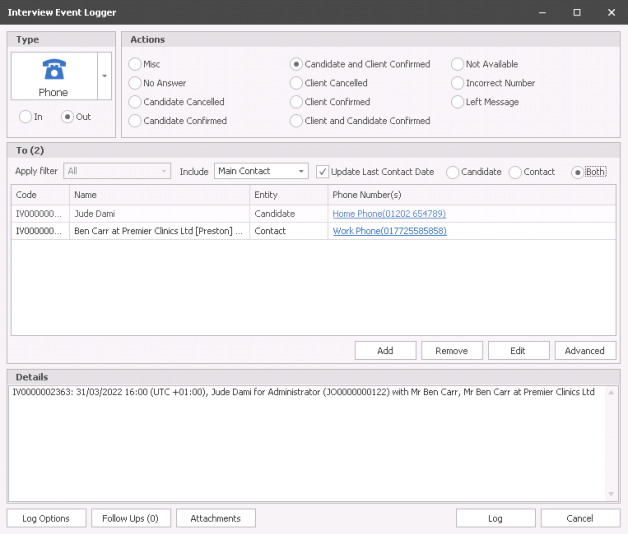
- When logging a "Confirmed with Candidate & Client" Event in an Interview record, automatically prompt to send the Interview Confirmation Emails.
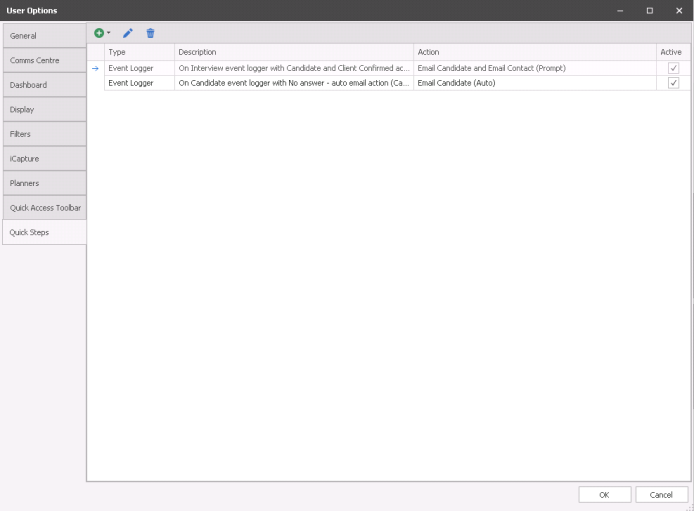
The grid shows the list of Quick Steps that have been set up with a Type, Description (Step1) and Action (Step 2) columns
Quick Steps are available for type ‘Event Logger’ (Step 1) actions in this version, with plans to add more scenarios in future builds
There is a toolbar to manage Quick Steps

- can be added
- can be edited
- can be removed
Quick Steps can be made inactive by ticking the Active column (as default they will be active)
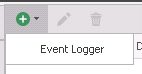
Quick Steps can be added by clicking the ‘green plus’ button drop down menu and selecting ‘Event Logger’
The Add Event Logger Quick Step screen is loaded, allowing the user to specify the Step 1 and Step 2 requirements
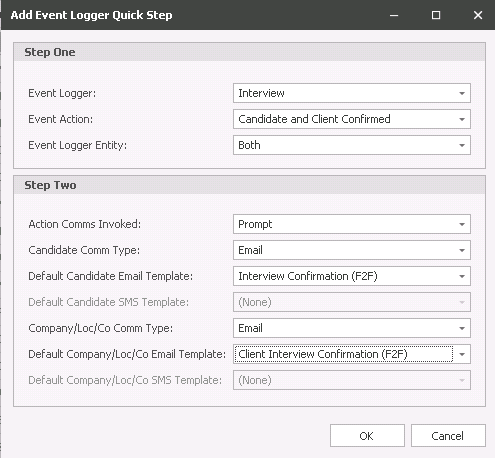
Step 1
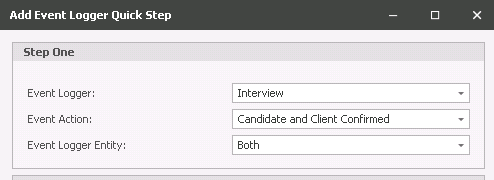
The following fields are available:
- Event Logger – a drop down field listing all the event loggers available in Infinity
- Event Action - when an event logger is selected all event actions are listed for that event logger (as per Administration / Reference Data / Event Actions tab – Event Loggers Visible On column)
- Event Logger Entity - when an event logger action is selected the entity type can be selected. This corresponds to the radio button that is used in the Event Logger screen - candidate / contact / both
Step 2
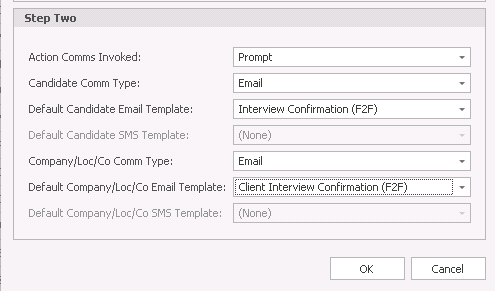
The fields available are as follows:
Action Comms Invoked – Set the action comms to invoke when the user manually logs an event that matches Step 1. The following options are available:
Comms Centre -
- Loads the standard Comms Centre screen for the Event Logger and Entity specified in Step 1.
- The user can make full changes as per standard functionality and send when ready
- Is not available when ‘Both’ is selected in Event Logger Entity field in Step 1.
Prompt
- Loads the Quick Step Comms window for the Event Logger and Entity specified in Step 1.
- This is a cut down version of the standard Comms Centre with limited functionality
- User manually sends the communication(s) when ready
- Can be sent to both a candidate and contact at the same time
Auto
- Automatically sends the communication(s) for the Event Logger and Entity specified in Step 1 without user intervention
- The Quick Step Comms window is displayed if invalid email addresses / mobile numbers are encountered
- This is a cut down version of the standard Comms Centre with limited functionality
- Can be sent to both a candidate and contact at the same time
Candidate Comms Type
- Set what type of communication (Email/SMS/Both) you want to send to the candidate
- If the Event Logger Entity in Step 1 is candidate or both this is enabled
- SMS is available if enabled on the database
- Default Candidate Email Template
- List of templates available in the email comms centre for candidates
- If candidate comm type ‘email’ or ‘both’ this will enable
Default Candidate SMS Template
- List of templates available in the SMS comms centre for candidates
- If candidate comm type ‘email’ or ‘both’ this will enable
Company/Loc/Co Comms Type
- Set what type of communication (Email/SMS/Both) you want to send to the contact
- If the Event Logger Entity in Step 1 is contact or both this is enabled
- SMS is available if enabled on the database
Default Company/Loc/Co Email Template
- List of templates available in the email comms centre for contacts
- If contact comm type ‘email’ or ‘both’ this will enable
Default Company/Loc/Co SMS Template
- List of templates available in the SMS comms centre for contacts
- If contact comm type ‘email’ or ‘both’ this will enable
The system will allow duplicate Quick Steps (Step 1) to be created with different or the same Step 2 scenarios. This is not recommended as it would mean multiple comms are invoked when the user logs a matching Step 1 event
Quick Steps in action
When the user logs an event that matches one of their active Quick Steps, the entities shown in the ‘To’ section of the event logger are loaded into the invoked action comms
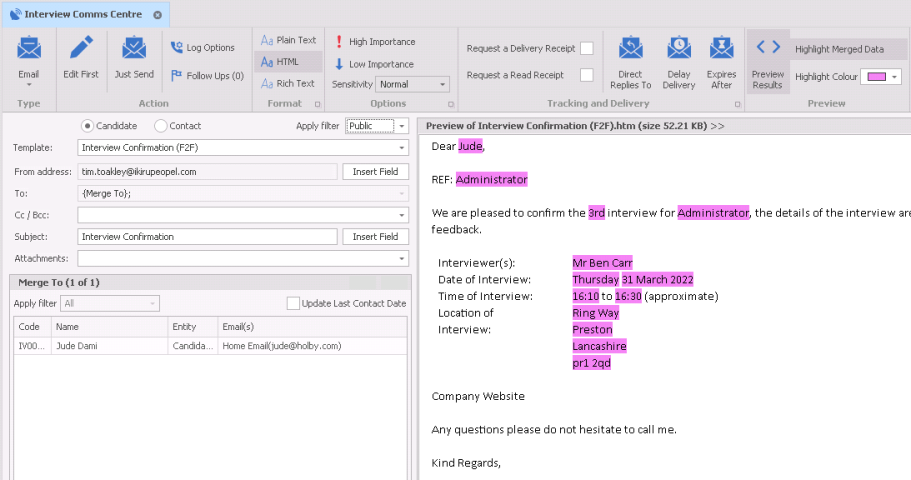
Comms Centre
When ‘Action Comms’ are set to ‘Comms Centre’ the standard Comms Centre screen is displayed with the set default template and entity, ready for the user to edit / send (cannot be used when sending to both candidate and contact at the same time)
Prompt
When ‘Action Comms’ are set to ‘Prompt’ the Quick Comms screen is displayed with the set default template(s) and entity(s), ready for the for the user to send
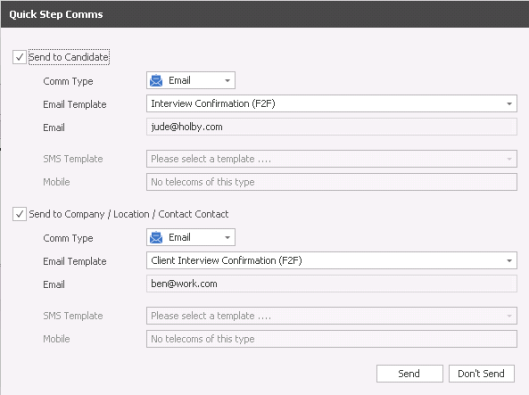
This is a cut down version of the Comms Centre that allows both a candidate and contact, SMS and Email to be sent at the same time. Only the comm type and template can be changed by the user
The email address and/or mobile numbers are taken from the candidate / contact record respectively as follows:
- Email addresses set as ‘Send as Default’
- Mobile numbers ticked as ‘OK to SMS’
- If the Comms Centre templates being sent are set as ‘Mailshot’, the email address / mobile number must also be ticked as ‘OK to Mailshot’ to appear
If the email address / mobile number is not present the user will see a validation warning and will need to untick the ‘Send to Candidate / Contact’ field accordingly to enable the ‘Send’ button to continue. The email address / mobile number cannot be corrected in this screen
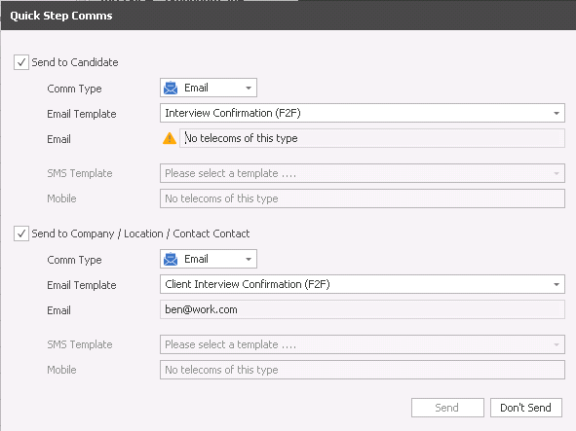
Auto
When ‘Action Comms’ are set to ‘Auto’ the set default template(s) and entity(s) are automatically sent and no user interaction is required. If a validation warning is encountered the Quick Step Comms screen is displayed as per ‘Prompt’ for the user to take the required action
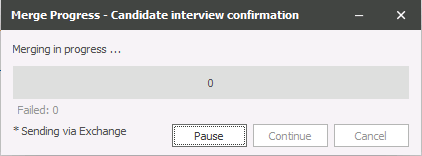
Note: When the invoked comms is sent, the user will be presented with the ‘Merge Progress’ window as per standard merging functionality. If multiple comms is sent (e.g. to candidate and contact or SMS and email) the window will present for each one

Contact Details
If you require further assistance please contact Ikiru People using the details published on www.ikirupeople.com
Visit our Customer Portal at https://portal.ikirupeople.com/ for future events and clinics.
FeedbackIf you would like to make suggestions or have found any errors with this Help section please contact our Support team.
Copyright © 2026 Voyager by Ikiru People Ltd. All rights reservedVersion 4.87
Voyager Software is a brand of Ikiru People Ltd, a subsidiary of Dillistone Group Plc. The group is a leading global provider of software and services that enable recruitment agencies and in-house recruiters to better manage their selection process and address the training needs of individuals. Across its brands – which include Voyager Software (recruitment software UK & Australia), Dillistone FileFinder executive search software, GatedTalent, the global database of the world’s leading executives, Talentis.Global – the next generation of recruitment software and also ISV.Online, provider of online pre-employment skills testing and training tools. Dillistone Group serves thousands of clients worldwide. Ikiru People Ltd: Registration Number 02043300. Registered in England & Wales.
 |  |  |  |