Call backs
 Walkthrough
The step by step instructions below are just as guidance and does not go through all options, see more information at the bottom of this topic for more in depth details, in particular the facility to have Windows notifications to alert you to a call back due.
Please see the Managing Call Backs Walkthrough for the process of managing your Call Backs
Step 1
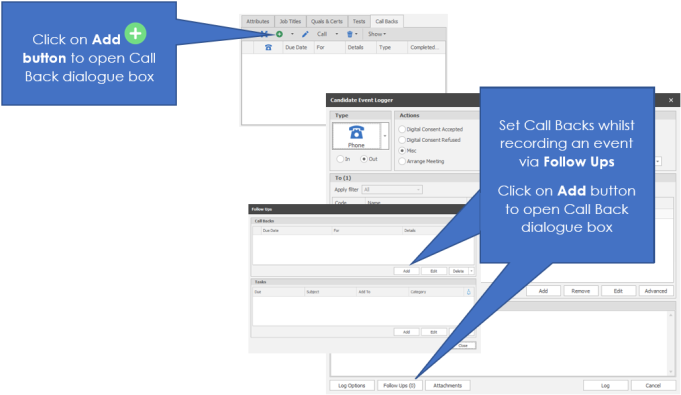
Step 2
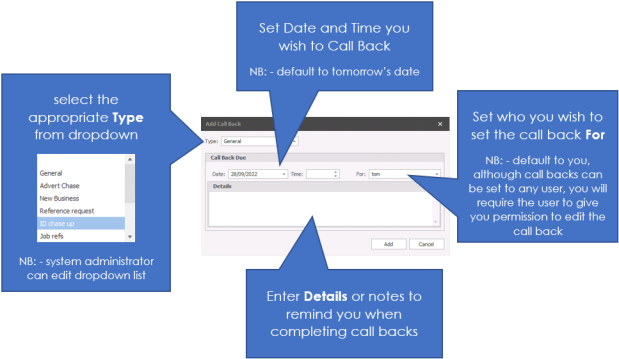
Step 3
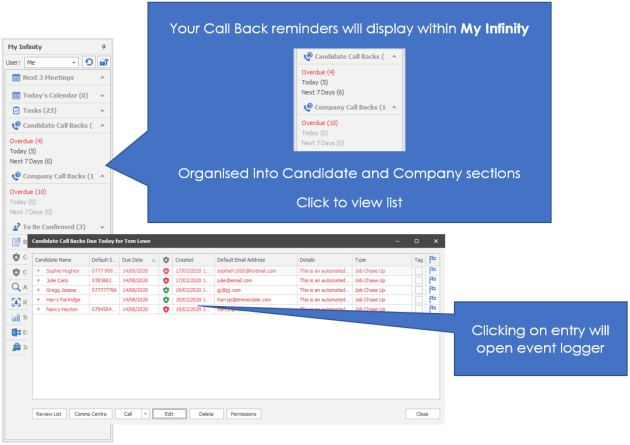
NB:- Windows notifications can also be enabled see call back notifications section for more details
Step 4
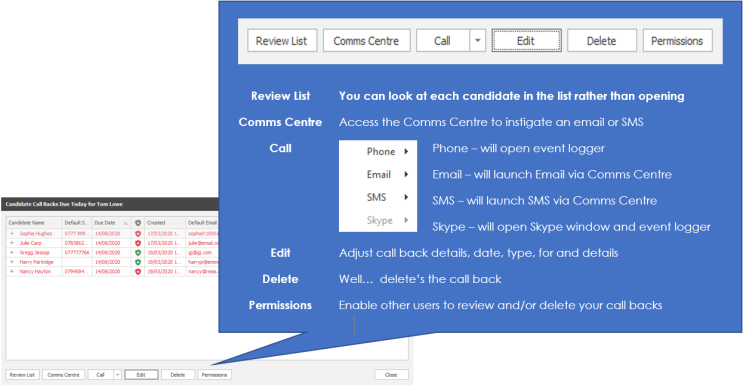
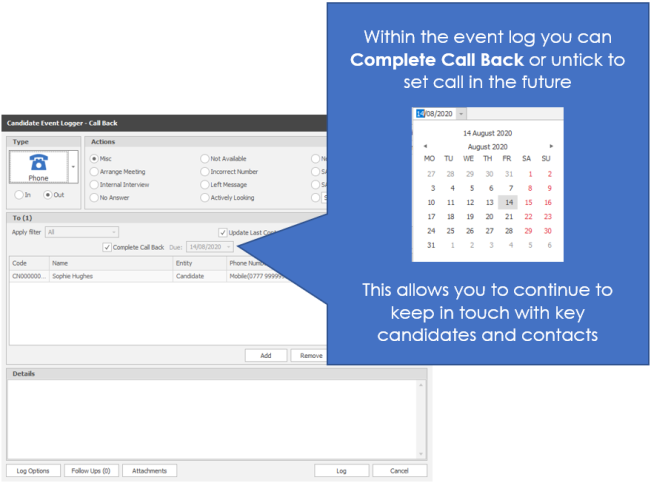


Need more information, click below:
 General
You are able to setup call backs for candidates, contacts, companies or company locations. These will then populate the users My Infinity panel for Next 7 Days, Today or Overdue. When accessing the lists within the My Infinity panel you will open a list of the candidates or contacts (Company or Location).
Call Backs box (candidate record)
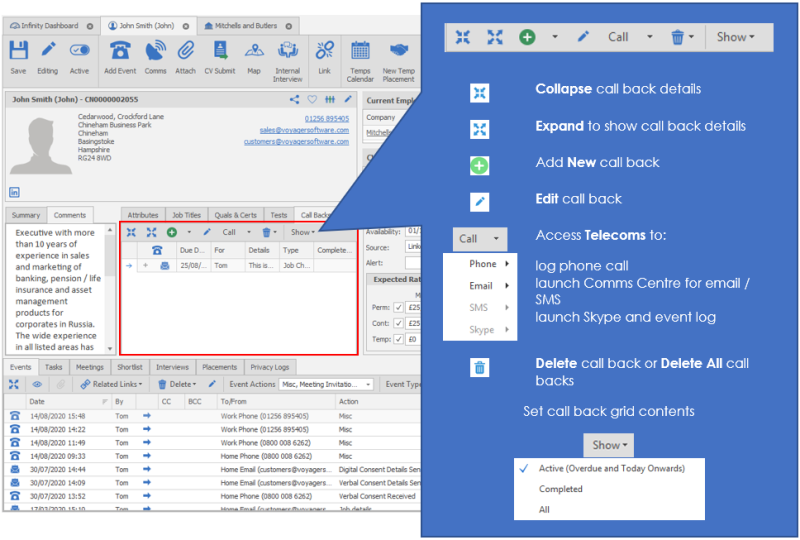
Call Backs tab (Company record)
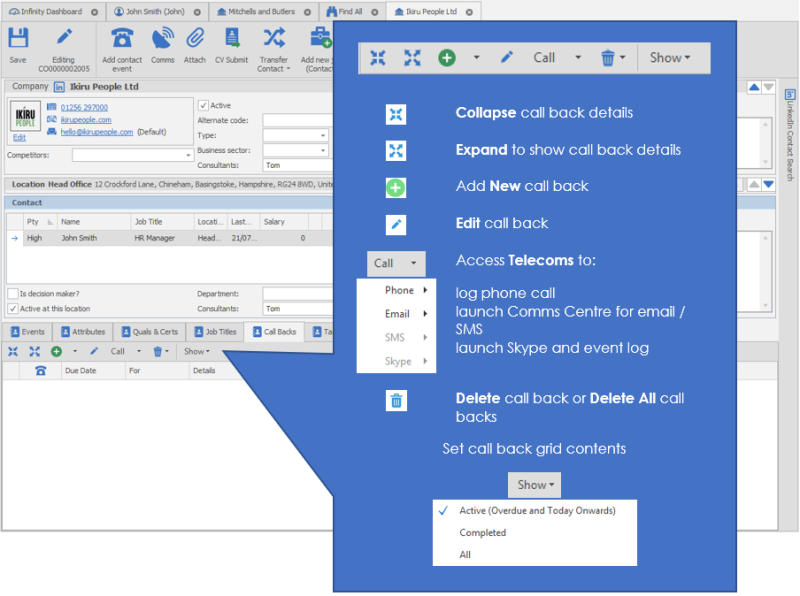
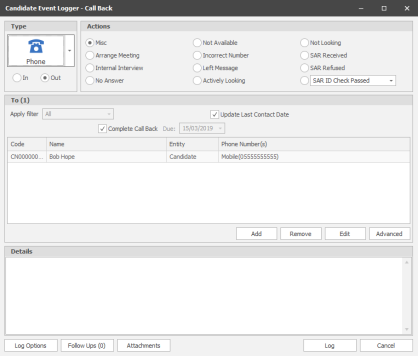
Call Backs in an event log
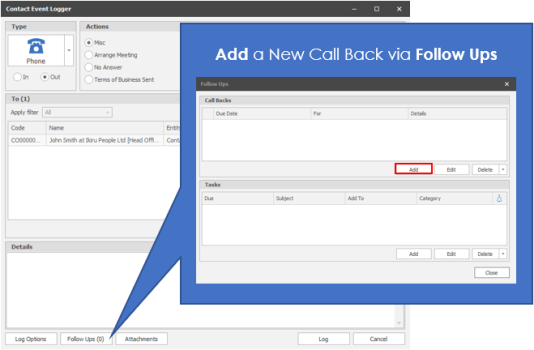
Call Backs from the Comms Centre
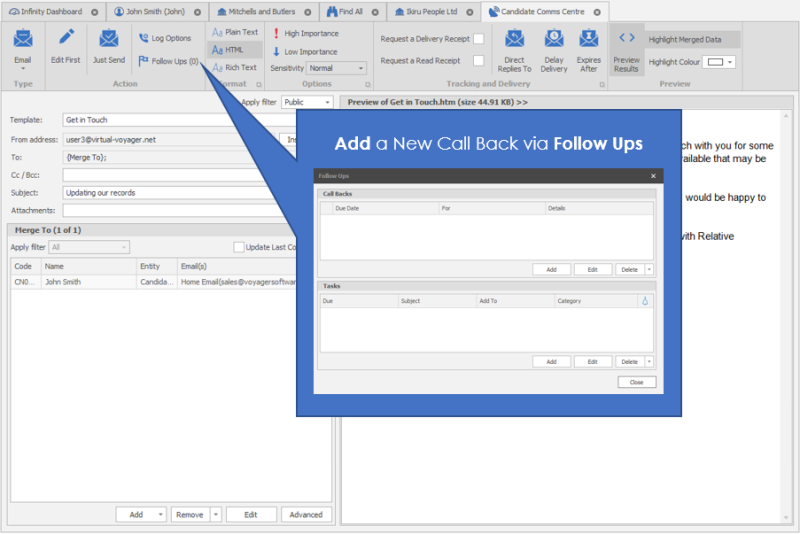
Call Back Lists
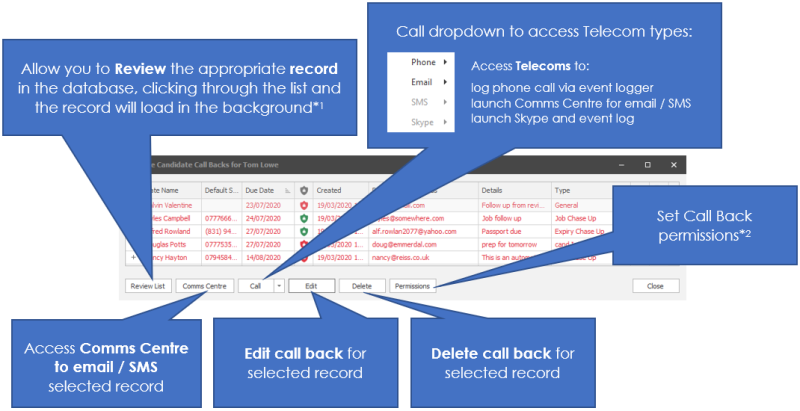
*1 - Set User Options for Review List Mode
*2 - See Call Back Permission
Call backs cannot be set for a particular time, if you require to have a reminder then utilise tasks, which can have a reminder set to it which will pop up with Outlook
Call Back Information
Candidate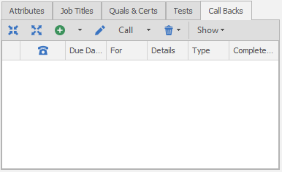
You will find the call backs area in the candidate record tabs this area will show the call backs that are set for this candidate.
Overdue call backs will be highlighted in red.
Contact / Company / Location
You will find the Call Backs tab at the bottom of the Company record, if you wish to look at call back area for a location or contact you must select the location or contact prior to clicking on the call back tab.
Adding a call back
To add a new call back to a record. Click the Add New button 
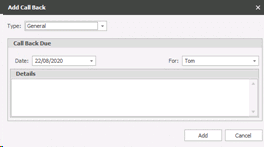 Choose the Type of the Call Back
The Call Back will now show on the Call back list in the candidate screen and in your My Infinity panel
Mark a call back as completed
- Click the Call button on the call Back grid columns. By clicking on the Call button directly, Infinity assumes that you will be making a phone call to the candidate. If you are emailing the candidate to catch up, then click on the arrow to the right of the call button and choose your method of communication. If you choose email, Infinity will give you a choice of the email addresses that the candidate has to email. When you choose an email address, Infinity will open the comms centre. Once you have logged your call against the candidate (please see Add events for more details) put a tick in the completed box and the Call back will be marked as completed.
Deleting a Call Back
If you need to remove a Call Back that doesn’t need to be completed or you have completed directly on the Add Events button then you can delete the call back record.
- Highlight the Call Back or use shift or control to multi-select call back entries that you need to remove and click in the delete button on the Call Back grid. If you click the main button Infinity will delete the single call back that is highlighted, if you click the arrow to the right of the rubbish bin icon you will be able to delete all call Backs in bulk.
Viewing completed and outstanding Call Backs

To view the Call Backs that have been completed, click on the icon that looks like an eye. This is the show all option. You can also utilise the Call Backs Report or Completed call backs report to review them.
Show all the Call Backs allows you to filter which Call Backs you view. Use the radio buttons to choose which Call Backs you want to see.
Active (Overdue & Today Onwards) will show the Call Backs that are still outstanding
Completed will show the call Backs that have already been marked as being completed.
You can also Add, Edit, Call and Delete your Call Backs from here.
Call Back Notifications
Video Overview
Contact Details
If you require further assistance please contact Ikiru People using the details published on www.ikirupeople.com
Visit our Customer Portal at https://portal.ikirupeople.com/ for future events and clinics.
FeedbackIf you would like to make suggestions or have found any errors with this Help section please contact our Support team.
Copyright © 2026 Voyager by Ikiru People Ltd. All rights reservedVersion 4.87
Voyager Software is a brand of Ikiru People Ltd, a subsidiary of Dillistone Group Plc. The group is a leading global provider of software and services that enable recruitment agencies and in-house recruiters to better manage their selection process and address the training needs of individuals. Across its brands – which include Voyager Software (recruitment software UK & Australia), Dillistone FileFinder executive search software, GatedTalent, the global database of the world’s leading executives, Talentis.Global – the next generation of recruitment software and also ISV.Online, provider of online pre-employment skills testing and training tools. Dillistone Group serves thousands of clients worldwide. Ikiru People Ltd: Registration Number 02043300. Registered in England & Wales.
 |  |  |  |