Screen Layout
How Infinity displays will be effected by several Windows desktop settings, we support monitors or laptop screens that are between 1440 x 900 up to 1920 x 1080, in particular smaller resolutions will not be supported and will compromise your experience. If you have a laptop screen that is below this resolution you can usually plug in an additional monitor via HDMI or VGA, Infinity can be moved from one screen to another, like most software applications. You may also find it helpful to set your monitor as the main screen.
Resolution of the screen
Minimum supported 1440 x 900 - recommended 1920 x 1080 (HD), 4K and UHD is not supported but generally will work
1920 x 1080 (100% magnification)
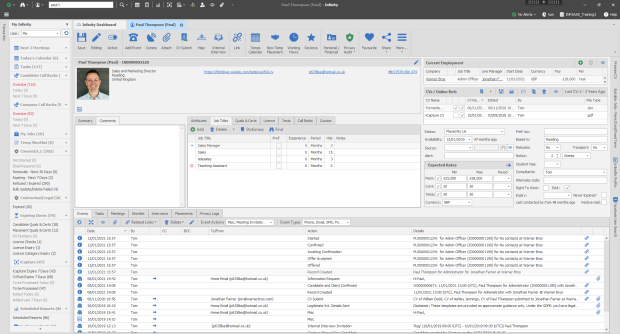
1440 x 900 (100% magnification)
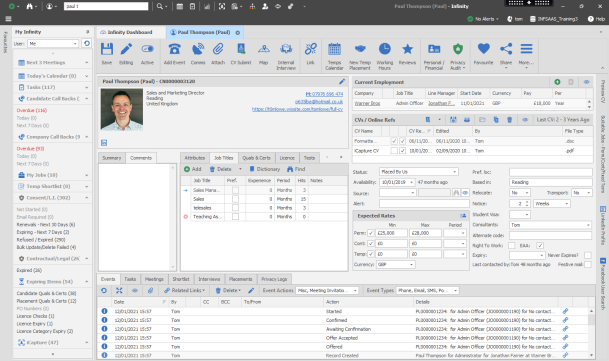
NOTE:- larger resolutions are not supported
Magnification setting
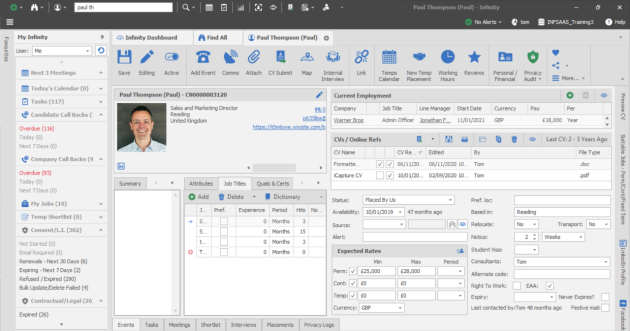
Usually set to 100 to 150 % depending on your actual screen size, laptops up to 14 inch can often be set to 150% which makes desktop icons larger and applications display larger but can also mean that it is too large to display all the content within a record.
100% Magnification (1920 x 1080)
125% Magnification (1920 x 1080)
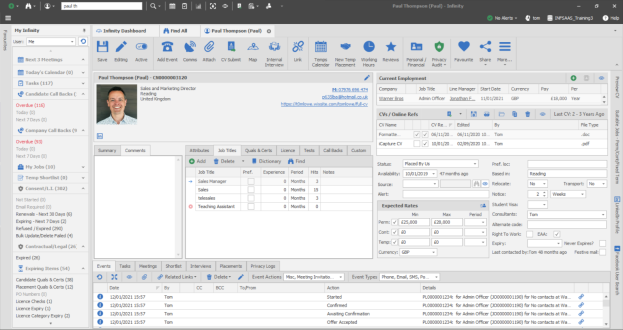
150% Magnification (1920 x 1080)
Changing Resolution and Magnification Settings
To adjust your resolution you will need to access your display settings within Windows, you can access display settings by right clicking on desktop, via control panel or via search.
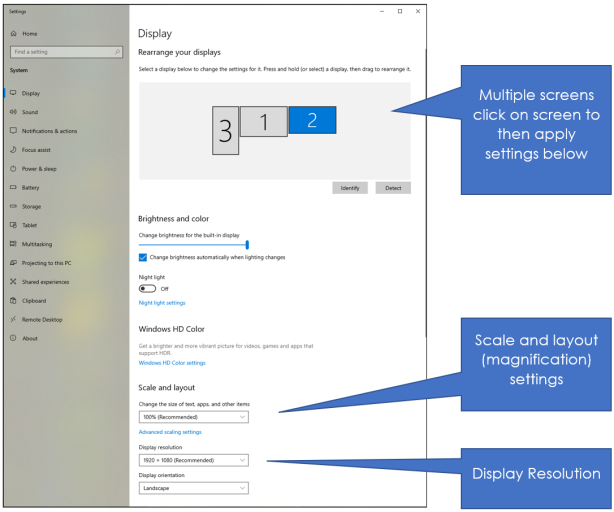
When making changes Windows will require confirming of changes made and a 15 seconds countdown, if not confirmed (keep changes) it will revert back to previous settings.
 Contact Details
If you require further assistance please contact Ikiru People using the details published on www.ikirupeople.com
Visit our Customer Portal at https://portal.ikirupeople.com/ for future events and clinics.
FeedbackIf you would like to make suggestions or have found any errors with this Help section please contact our Support team.
Copyright © 2026 Voyager by Ikiru People Ltd. All rights reservedVersion 4.87
Voyager Software is a brand of Ikiru People Ltd, a subsidiary of Dillistone Group Plc. The group is a leading global provider of software and services that enable recruitment agencies and in-house recruiters to better manage their selection process and address the training needs of individuals. Across its brands – which include Voyager Software (recruitment software UK & Australia), Dillistone FileFinder executive search software, GatedTalent, the global database of the world’s leading executives, Talentis.Global – the next generation of recruitment software and also ISV.Online, provider of online pre-employment skills testing and training tools. Dillistone Group serves thousands of clients worldwide. Ikiru People Ltd: Registration Number 02043300. Registered in England & Wales.
 |  |  |  |