iResearch 
iResearch enables users to research information on social media sites relating to records, please click here to see the iResearch section relating to company's
See ChatGPT section for details for using AI to build your search
 General
iResearch is a facility that allows you to access social media profiles and extract this information to a candidate record. In particular, using LinkedIn to export a profile and add this to an existing candidate record or even create one. It can be used to research an existing candidate or to complete a search of social sites or other sites external to Infinity**.
**site to site experience may vary depending on the structure of each site, speak to your system administrator for more details
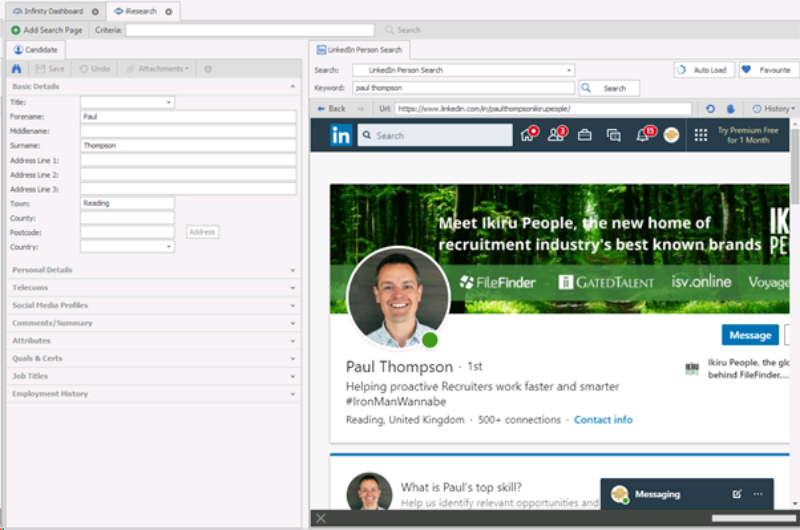
 You will find the iResearch icon available in appropriate toolbars and within the Application menu. If used within a candidate record it will take the appropriate information and fill out the details section on the left hand side or you are able to use the Find / New Candidate to find an existing candidate or add a new candidate to the system.
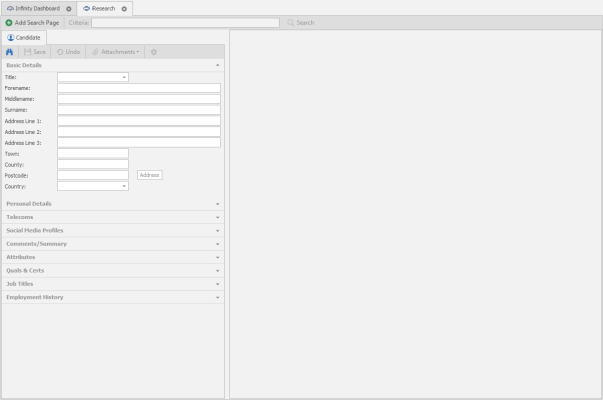

 If you wish to begin a search click on Add Search Page which will populate the right hand side. Once you have selected your search location click Autoload to keep this option available in the future. You can then select the search type (e.g. facebook, LinkedIn etc…). Enter key words (i.e the name of the candidate)and click on search.
LinkedIn


Infinity allows you to log into your LinkedIn account directly. It enables you to view updates, connections and who you are following. It allows you to update LinkedIn with status updates directly and search for people.
When you first log into Infinity you will not have given access to My LinkedIn. You will not be able to search or use any of the features until you have granted access by logging in. Existing LinkedIn users can log in via the top right "Sign in" link.
My Profile – Within LinkedIn
Click on My Profile to show the details that are held within LinkedIn for your account
Click any of the fields to view and make changes to your LinkedIn profile.
Connections
Click this to view a list of your connections in LinkedIn.
My Network Updates
Click here to view those connections that have updates on their accounts
Following
This is list of the companies that you are following.
Searching within LinkedIn
You have the option to search for people or look up an existing candidate on your database.
Searching for candidates
Open iResearch via the Quick Access Toolbar or from within the Application Menu:
Choose from the drop down options LinkedIn Person Search and type in the keyword box what you would like to search on and click search.
NB:- once you have opened the LinkedIn window you can utilise all the advanced searching facilities that LinkedIn offers
The results will be shown on the right of the screen:
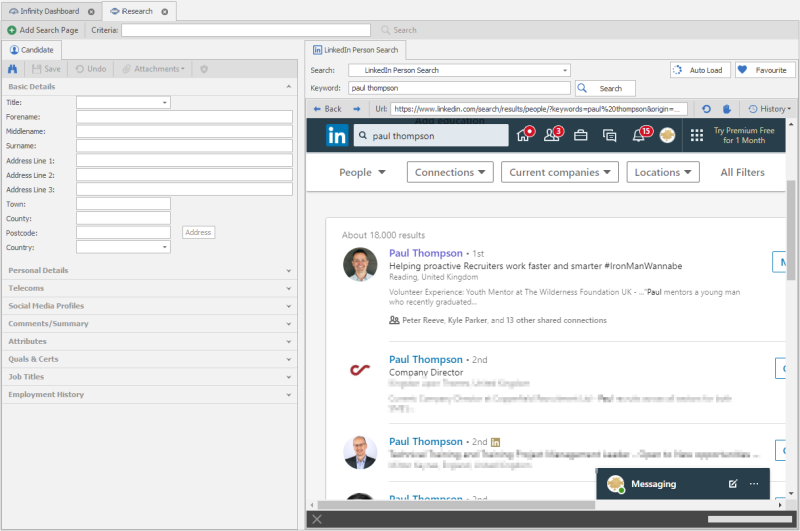
Clicking on a result to view full LinkedIn profile:
Exporting LinkedIn Profiles to iCapture
If you wish to export the LinkedIn profile into iCapture then hover your mouse over the dropdown arrow (right of Send InMail option) and select Export to PDF:
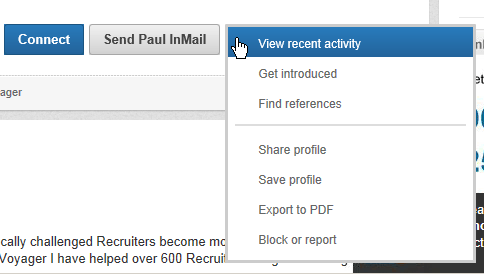
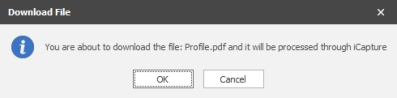
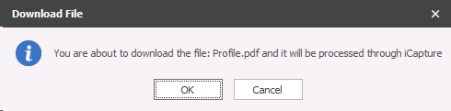
Select OK to process through iCapture
Looking Up Existing Candidates in LinkedIn
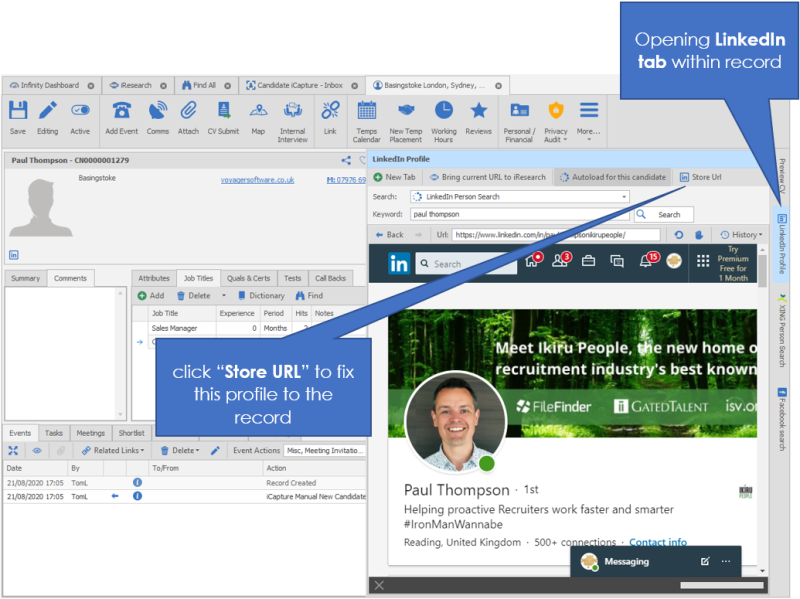
You can quickly link the candidate record to their LinkedIn profile within their record. If the candidate had included their LinkedIn URL within their CV or created via iResearch it may already taken the LinkedIn URL into the candidate record.
Select the iResearch button in the candidate record, select LinkedIn Person Search from the Search dropdown list and click on Search (if LinkedIn is set to Auto Load then the search will have already occurred).
Once you have found the correct record:
click on the URL below the candidates profile picture
Once you have found the correct record: and then copy the url and drag or paste it into their Social Media profile section on the left, this will set the candidates LinkedIn profile to their profile within Infinity.
You are also able to copy any other content into the appropriate fields as desired.
Click on Save to keep changes made.
Searching Within Facebook / Twitter
Infinity allows you to log into your accounts directly. It enables you to view updates, connections and who you are following. It allows you to update your profile with status updates directly and search for people.
When you first log into Infinity you will not have given access to the your profile. You will not be able to search or use any of the features until you have granted access by logging into your account.
Looking Up Existing Candidates
Select the iResearch button in the candidate record, select Facebook User / Twitter User Search from the Search dropdown list and click on Search (if Facebook is set to Auto Load then the search will have already occurred).
Once you have found the correct profile, highlight their url and drag it into their Social Media profile section on the left, this will set the candidates profile to their profile within Infinity.
You are also able to copy any other content into the appropriate fields as desired.
Click on Save to keep changes made.
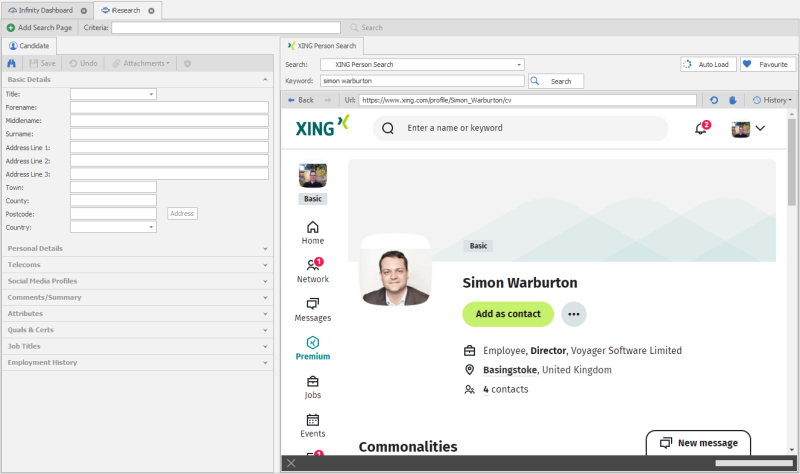
Searching Within XING
Allows you to search XING for a candidate. The same method of taking information from the LinkedIn profile applies to XING
Candidate Profile
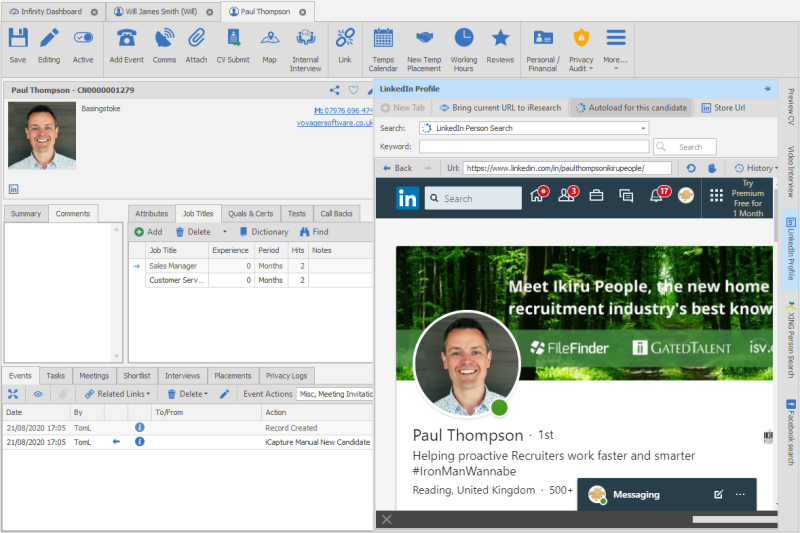
The candidate will now have the iResearch icon against their record and when you click on the LinkedIn / Xing / Twitter tab the candidate’s LinkedIn / Xing / Twitter profile will pop out. Depending on which option you have selected to search against. The number of iResearch tabs that are displayed within the candidate record is via the iResearch administration area although it can be manually adjusted via the Autoload button within the iResearch tab.
Other iResearch Destinations
iResearch can be used like an internet browser and therefore access other searchable resources, these can also be setup more formally by the system administrator. If the online resource includes a download option then you will be given the option to send to iCapture
Contact Details
If you require further assistance please contact Ikiru People using the details published on www.ikirupeople.com
Visit our Customer Portal at https://portal.ikirupeople.com/ for future events and clinics.
FeedbackIf you would like to make suggestions or have found any errors with this Help section please contact our Support team.
Copyright © 2026 Voyager by Ikiru People Ltd. All rights reservedVersion 4.87
Voyager Software is a brand of Ikiru People Ltd, a subsidiary of Dillistone Group Plc. The group is a leading global provider of software and services that enable recruitment agencies and in-house recruiters to better manage their selection process and address the training needs of individuals. Across its brands – which include Voyager Software (recruitment software UK & Australia), Dillistone FileFinder executive search software, GatedTalent, the global database of the world’s leading executives, Talentis.Global – the next generation of recruitment software and also ISV.Online, provider of online pre-employment skills testing and training tools. Dillistone Group serves thousands of clients worldwide. Ikiru People Ltd: Registration Number 02043300. Registered in England & Wales.
 |  |  |  |