Candidate Financials
NB:- See References section for more details on ICE / References area
 General

To add financial information click on the Personal / Financial information button 
Enter the personal details (if necessary)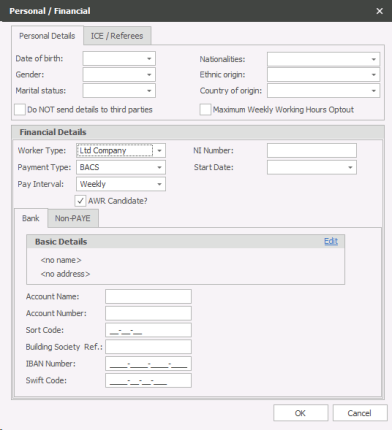
- Date of Birth
- Gender
- Marital Status
- Nationalities
- Ethnic origin
- Country of origin
Tick boxes for:
| Do NOT send details to third party | This is for Timesheet Portal integration |
| Meximum Weekly Working Hours Optout | Record if a Temp / Contractor has opted out |
Enter the Financial details
- Choose the worker type from the drop down list (these can also dictate whether the candidate is considered inside IR35 or outside IR35)
- Default Worker Type is Self Employed
 NOTE - Worker Types can belong to differing territories (UK or AUS) and will effect the fields available, please contact your system administrator for more information
- Choose the Payment type from the drop down list
- Choose the Pay interval Type from the drop down list
- Enter the candidates National Insurance number
- The start date is the start date of the first placement the candidate is placed on. It is the date that the candidate starts working for your agency
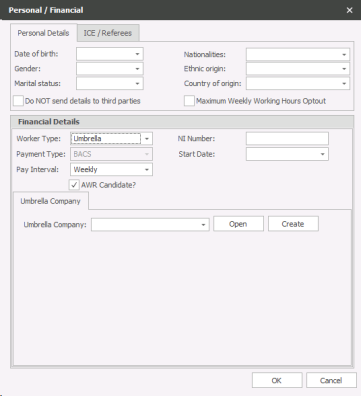
Umbrella Candidate
-

- Choose the Umbrella Company that the candidate works through. If the Company is not available from the drop down list, either ask your System Administrator to add the Umbrella Company, or if you have the access rights you are able to add it here via Create button. Please see the System admin manual for more details on adding Umbrella companies.
PAYE Candidates
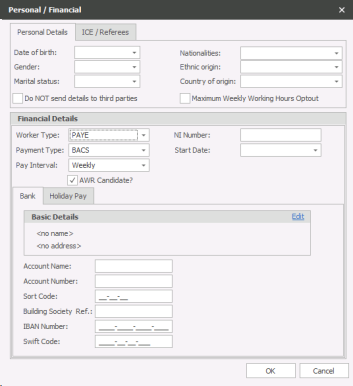
The worker type for PAYE expects you to fill in the following information for their Bank address and their holiday pay
- Click Edit to the right of the Basic bank details to enter the Bank name and address
- Type the name of the Bank
- Type the Postcode of the Bank (Click the Address button to auto populate the address if you have Address Lookup licence)
- Type the Address
- Click OK when you have finished to save the information
On the Bank tab enter the following information
- Complete the account name
- Account number
- Sorting code
- Building Society Ref (if necessary)
- IBAN Number (If necessary)
- Swift Code (If necessary)
On the Holiday Pay tab
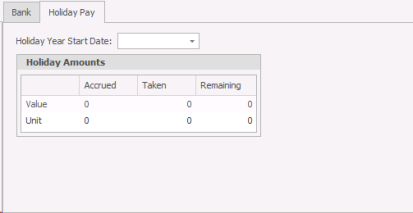
The information shown on this screen will be pulled from Mid-Office, see Mid Office section for more details. If you do not have Mid-Office the fields will be empty
Self Employed Candidate
The worker type for Self-employed expects you to fill in the following information for their Bank address and their holiday pay. This is for a candidate that is self-employed, but you will be paying them into their bank account rather than them invoicing you.
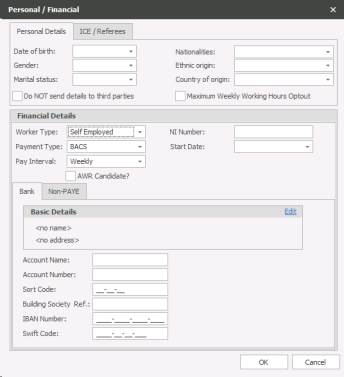
- Click Edit to the right of the Basic bank details to enter the Bank name and address
- Type the name of the Bank
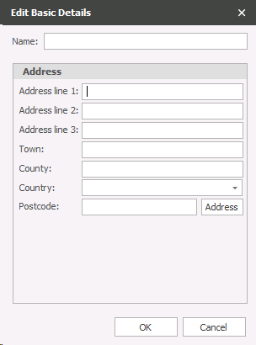
- Type the Postcode of the Bank(Click the Address button to auto populate the address if you have Address Lookup licence)
- Type the Address
- Click OK when you have finished to save the information
On the Bank tab enter the following information
- Complete the account name
- Account number
- Sorting code
- Building Society Ref (if necessary)
- IBAN Number (If necessary)
- Swift Code (If necessary)
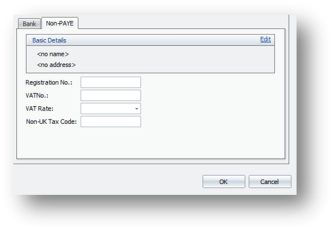
Complete the information on the Non – PAYE tab if the candidate is a true limited company contractor.
- Click Edit to the right of the Basic bank details to enter the Bank name and address
- Type the name of the Bank
- Type the Postcode of the Bank (Click the Address button to auto populate the address if you have the Royal Mail Postcode database installed)
- Type the Address
- Click OK when you have finished to save the information
In the main screen, enter:
- The company registration number
- VAT number
- VAT rate (from the drop down list)
- Any non-UK Tax code.
- Click OK when you are finished.
CIS Candidate
The CIS candidate works in the same way as a Self-Employed candidate except that there is an extra CIS tab.
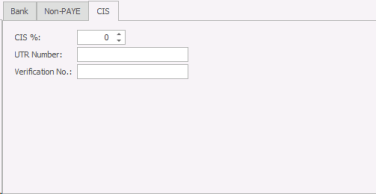
- CIS percentage
- UTR (Unique Tax Reference number)
- Verification number
- Click OK when you have entered the information
Click Save on the main candidate record to save your changes.
Timesheet Portal
Ensure candidate is unticked Do NOT send details to third parties, to allow this candidates information to be sent over to Timesheet Portal:

See Financial Settings for more information on setting up Timesheet Portal integration
Contact Details
If you require further assistance please contact Ikiru People using the details published on www.ikirupeople.com
Visit our Customer Portal at https://portal.ikirupeople.com/ for future events and clinics.
FeedbackIf you would like to make suggestions or have found any errors with this Help section please contact our Support team.
Copyright © 2026 Voyager by Ikiru People Ltd. All rights reservedVersion 4.87
Voyager Software is a brand of Ikiru People Ltd, a subsidiary of Dillistone Group Plc. The group is a leading global provider of software and services that enable recruitment agencies and in-house recruiters to better manage their selection process and address the training needs of individuals. Across its brands – which include Voyager Software (recruitment software UK & Australia), Dillistone FileFinder executive search software, GatedTalent, the global database of the world’s leading executives, Talentis.Global – the next generation of recruitment software and also ISV.Online, provider of online pre-employment skills testing and training tools. Dillistone Group serves thousands of clients worldwide. Ikiru People Ltd: Registration Number 02043300. Registered in England & Wales.
 |  |  |  |