Financial Settings
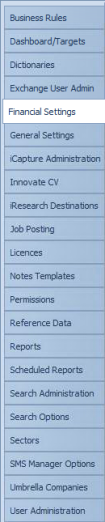
The Financial Settings screen enables you to setup Default Rate Costs which can be used in the Placements. The Rate Costs are based upon Pay and Worker Types.
Default Rate Cost(s)
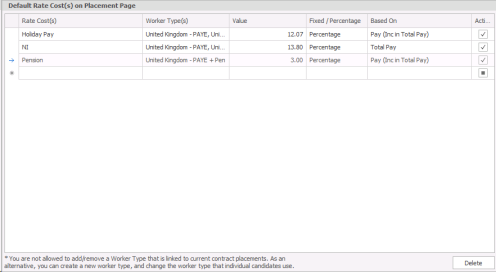
The table explains the options available in the Default Rate Cost grid:
|
Rate Cost(s) |
Enter a name for the Rate Cost |
|
Worker Types |
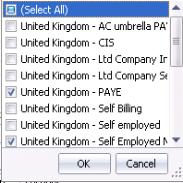
Select one or multiple Worker Types to apply to the Rate Cost.
|
|
Value |
Enter the Rate Cost value. |
|
Fixed/Percentage |
The Rate Cost can be either Fixed or a Percentage. Select the appropriate option from the drop down selection. |
|
Based on |
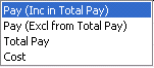
There are 4 options to base the Rate Cost on. Select the appropriate option from the drop down selection.
|
|
Active |
Use the Active check box to make the Rate Cost available in the Placement Rates grid. Remove the tick in the Active check box to make the Rate Cost inactive and unavailable. |
Setting up Export Options
There are 3 export options, either Off, Mid-Office, Tempaid or Astute.
Use the Export To: selection to choose the appropriate option for your installation. 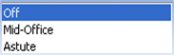
Export to Mid Office
See Mid Office section for more details
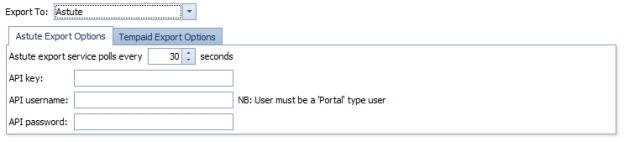
Export to Astute
 IMPORTANT – Please note for SaaS systems you cannot edit the Astute export service polling frequency
Set up the Astute export options with the API key, API user name and API password provided to your organisation. Set the number of seconds that the export service should be polled.
 Find out more about Astute here.
Export to Tempaid
IMPORTANT – Please note for SaaS systems you cannot edit the Export file path
Set up the Tempaid export with the Company ID and then browse for the file path required to Tempaid to pick up the placement file, as instructed by Tempaid;

Export to Timesheet Portal

Timesheet Portal integration enables the sending of candidate and company details to Timesheet Portal which can then be utilised by candidates and contacts to submit and confirm time sheets. Please contact customer relations for more details.
Set the polling frequency, enter your Account Name, Email Address and Password (login credentials for your Timesheet Portal Account)

See Candidate Financials section for details on ensuring candidate details can be sent to Timesheet Portal
See Company Financials section for details on ensuring Company placements are sent to Timesheet Portal
 Infinity to TSP Field Mapping
Client (Placement's associated Company)
| TSP Field | Infinity Field | Notes |
| ClientCode | CompanyId | |
| ClientName | CompanyName | |
| TaxNumber | VATNumber | |
| TaxRateCode | VATCODE | |
| UseEuroReverseCharge | Always false | |
| Address | If placement has a main contact, the AddressLine1, AddressLine2, AddressLine3 and PostCode of that contact’s company tier |
Contractor (Placement’s associated Candidate)
| TSP Field | Infinity Field | Notes |
| First email address which is SendByDefault | ||
| UserCode | “INFCN” + CandidateId | |
| FirstName | Forename | |
| LastName | Surname | |
| Mobile | Mobile | First mobile number which is send by default |
| SendNewAccountEmails | Always true | |
| DateOfBirth | DOB | |
| Address | If candidate has a SendByDefault address, the AddressLine1, AddressLine2, AddressLine3 and PostCode | |
| EmploymentType | WorkerType | WorkerType = null -> Unknown WorkerType.Umbrella -> UmbrellaCompany WorkerType.PAYE -> Temporary Else LimitedCompany |
| Gender | Gender | Male / Female / Unspecified |
| CompanyName | If candidate has umbrella company -> UmbrellaCompanyName, else TradingName | |
| CompanyReg | If candidate has umbrella company -> RegistrationNumber, else TradingVATNumber | |
| CompanyAddress | If candidate has umbrella company, the umbrella address, else the trading address | |
| VatNumber | Umbrella VATNumber or TradingVATNumber | |
| TaxRateCode | Umbrella VATCode or TradingVATCode | |
| NationalInsuranceNumber | NINumber | |
| TaxNumber | Umbrella UTRNumber or trading UTRNumber | |
| BankName | BankName | |
| BankAccountName | BankAccountName | |
| BranchCode | BankSortCode | |
| BankAccountNo | BankAccountNumber | |
| InternationalBankAccount | Candidate has IBANNumber | |
| IBAN | IBANNumber | |
| SwiftCode | SwiftCode | |
| JoinDate | Candidate Start or Inserted (if start is null) |
Approver (Placement’s main contact)
| TSP Field | Infinity Field | Notes |
| First email address which is SendByDefault | ||
| UserCode | “INFCO”+ContactId | |
| FirstName | Forename | |
| LastName | Surname | |
| Mobile | Mobile | First mobile number which is send by default |
| SendNewAccountEmails | Always true | |
| JobTitle | JobTitle | |
| ClientCode | Placement CompanyId | |
| SilentProfile | Always false |
RateModel (Temp and Contract Placement Rate Types)
| TSP Field | Infinity Field | Notes |
| RateCode | RateTypeId_TspRateName | TspRateName = “_Daily” or “_Hourly” |
| RateName | RateTypeId - TspRateName | TspRateName = “_Daily” or “_Hourly” |
| TimesheetName | RateTypeName | |
| TimeEntryMode | If rate is daily, DaysByWhole else HoursAndMinutes | |
| UnitName | If rate is daily, Days, else Hours |
Job (Placement)
| TSP Field | Infinity Field | Notes |
| JobCode | PlacementId | |
| ClientCode | CompanyId | |
| Description | JobTitle or ClientJobTitle | |
| StartDate | If temp, earliest shift start, else StartDate | |
| EndDate | If temp, latest shift end, else EndDate | |
| PurchaseOrder | PurchaseOrderNumberName | |
| TimesheetFrequency | TimesheetIntervalId | |
| ApproveTimesheetsByEmail | Always false | |
| AllowTimesheetAttachment | Always false | |
| InvoicingFrequency | Always Weekly | |
| CostCentreCode | ProjectCodeName | |
| AssignedContractorCodes | “INFCN”+CandidateId | |
| AssignedApproverCodes | “INFCON”+MainContactId | |
| PayCurrencyCode | PayCurrencyId | ISO Symbol |
| ChargeCurrencyCode | ChargeCurrencyId | ISO Symbol |
| AssignRates | Placement rates converted to RateMappingModel items |
RateMappingModel (Placement rates)
| TSP Field | Infinity Field | Notes |
| RateCode | RateTypeId_TspRateName | TspRateName = “_Daily” or “_Hourly” |
| RateMappingCode | EntityRateId | |
| ChargeRate | NativeChargeRate | |
| PayRate | NativePayRate | |
| StartDate | Rate.StartDate | |
| EndDate | Rate.EndDate | |
| PayCurrencyCode | Placement pay currency ISO Symbol | |
| ChargeCurrencyCode | Placement charge currency ISO Symbol |
If export invoice locations/contacts for charge code groups enabled (Placement)
| TSP Field | Infinity Field | Notes |
| ChargeCodeGroupCode | Invoice location Company Tier Id | |
| ChargeCodeGroupName (Site / Location) | Invoice location name | |
| Job endpoint BillingContactName | Invoice contact forename and surname | |
| Job endpoint BillingContactEmail | Invoice contact first email address which is SendByDefault | |
| ChargeCodeGroupBillingAddress (address of site) | Invoice Location Address |

Contact Details
If you require further assistance please contact Ikiru People using the details published on www.ikirupeople.com
Visit our Customer Portal at https://portal.ikirupeople.com/ for future events and clinics.
FeedbackIf you would like to make suggestions or have found any errors with this Help section please contact our Support team.
Copyright © 2026 Voyager by Ikiru People Ltd. All rights reservedVersion 4.87
Voyager Software is a brand of Ikiru People Ltd, a subsidiary of Dillistone Group Plc. The group is a leading global provider of software and services that enable recruitment agencies and in-house recruiters to better manage their selection process and address the training needs of individuals. Across its brands – which include Voyager Software (recruitment software UK & Australia), Dillistone FileFinder executive search software, GatedTalent, the global database of the world’s leading executives, Talentis.Global – the next generation of recruitment software and also ISV.Online, provider of online pre-employment skills testing and training tools. Dillistone Group serves thousands of clients worldwide. Ikiru People Ltd: Registration Number 02043300. Registered in England & Wales.
 |  |  |  |