General Settings

The Infinity General Settings includes 5 tabs
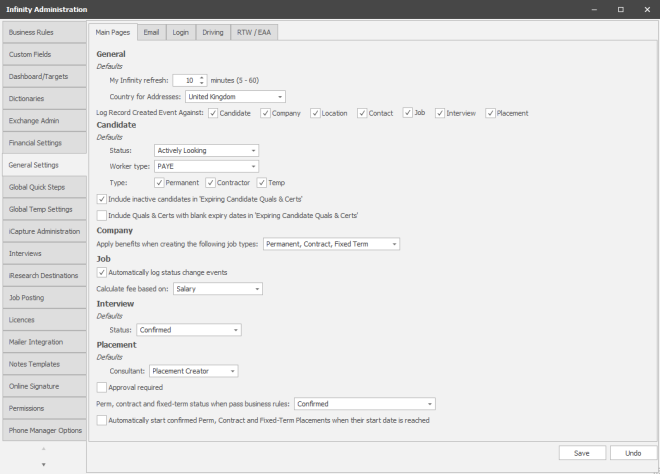
Main Pages
General
Defaults
|
Default My Infinity Refresh |
Set the frequency of the refreshing of data in My Infinity; choose between 1 and 60 minutes |
| Country for Addresses | Set the default country for countries for new records |
| Log Record Created Event Against |
Set whether the system should log "Record Created" when created NB:- for reporting and searching it is recommended that you tick all |
Candidate
Defaults
|
Status |
Set default for newly created candidate records |
|
Candidate default worker type |
The dropdown list will refer to the Worker Types set on your system, see reference data section and apply to new candidates
|
| Type |
Set default for Candidate Type: Perm, Contract and / or Temp |
| Include inactive candidates in 'Expiring Candidate Quals & Certs' | Tick to set whether inactive candidate records with expiring Q&C's |
| Include Quals & Certs with blank expiry dates in 'Expiring Candidate Quals & Certs' | Tick to set whether expirable Q&C's with no date set should show in expiring items lists |
| Show Alert as pop up when page opens | When enabled and the user opens the page that has the ‘Alert’ field populated, a window is displayed with the details. The user must click OK to close the window and load the page. |
Company
| Apply benefits when creating the following job types |
Set which type(s) of jobs you require Company default benefits to apply to: 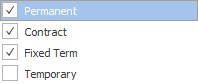
|
| Show Alert as pop up when page opens |
When enabled and the user opens the page that has the ‘Alert’ field populated, a window is displayed with the details. The user must click OK to close the window and load the page. For companies, the ‘Alert’ window displays once for the first entity opened for that company. This could be a contact page, a location page or the company page itself. If the user navigates to a different entity on the same company, the window does not pop up again. |
Job
|
Automatically log Job Status changes Event |
Create an event when the Job Status changes. |
| Calculate fee based on |
You can set Infinity to calculate fee against either the Salary or Package, depending on your Terms of Business: 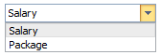
|
| Show Alert as pop up when page opens | When enabled and the user opens the page that has the ‘Alert’ field populated, a window is displayed with the details. The user must click OK to close the window and load the page. |
Interview
Defaults
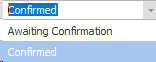
Placement
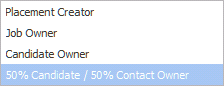
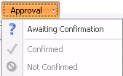
Defaults
 Email
Email
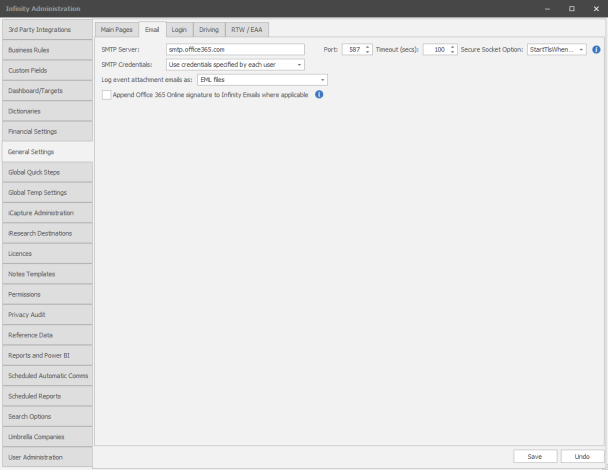
The table explains each option:
|
Enter the name of your organisation’s SMTP server; this should be populated during installation. |
|
|
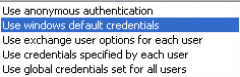
Select the appropriate SMTP Credentials option from the drop down selection.
|
|
|
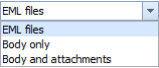
Log event attachment emails as |
Allows you to set what is attached to the database when emails are logged:
|
| Append Office 365 signature to Infinity Emails | If you have Office 365 signatures setup you can tick this and emails sent out of Comms Centre will add the signature |
Login
| Enable Multi-Factor Authentication for all users | Enables Two Factor Authentication system-wide, you can disable for individual users if required, see user admin for more information |
Driving
| Enable driving licence functionality | This will activate the driving licence feature, see driving licence section for more details |
RTW / EAA
Video Overview
Right To Work / Employment Agency Act settings
|
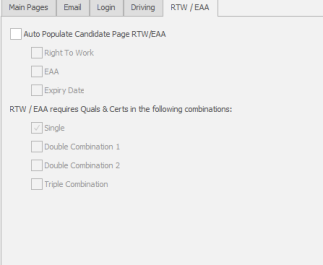
Auto Populate Candidate Page RTW/EAA |
Tick to activate the control of RTW and EAA tick boxes in candidate records NB:- unticked will leave RTW and EAA fields as manual tick boxes in records |
| Right To Work | Set whether you want RTW field to tick when combination below are met | |
| EAA | Set whether you want EAA field to tick when combination below are met | |
| Expiry Date | Set whether you want RTW/EAA to be affected by expiry date for Q&C's | |
| COMBINATIONS | ||
| Single | Set which of your Q&C's you wish to autopopulate RTW and / or EAA | |
| Double Combination 1 | Set a combination of 2 Q&C's which of your Q&C's you wish to autopopulate RTW and / or EAA | |
| Double Combination 2 | Set a combination of 2 Q&C's which of your Q&C's you wish to autopopulate RTW and / or EAA | |
| Triple Combination | Set a combination of 3 Q&C's which of your Q&C's you wish to autopopulate RTW and / or EAA | |

Contact Details
If you require further assistance please contact Ikiru People using the details published on www.ikirupeople.com
Visit our Customer Portal at https://portal.ikirupeople.com/ for future events and clinics.
FeedbackIf you would like to make suggestions or have found any errors with this Help section please contact our Support team.
Copyright © 2026 Voyager by Ikiru People Ltd. All rights reservedVersion 4.87
Voyager Software is a brand of Ikiru People Ltd, a subsidiary of Dillistone Group Plc. The group is a leading global provider of software and services that enable recruitment agencies and in-house recruiters to better manage their selection process and address the training needs of individuals. Across its brands – which include Voyager Software (recruitment software UK & Australia), Dillistone FileFinder executive search software, GatedTalent, the global database of the world’s leading executives, Talentis.Global – the next generation of recruitment software and also ISV.Online, provider of online pre-employment skills testing and training tools. Dillistone Group serves thousands of clients worldwide. Ikiru People Ltd: Registration Number 02043300. Registered in England & Wales.
 |  |  |  |