CV Builders Administration

General
CV builders are the way that you are able to create a CV template. It is here that you will decide what your template looks like and how it behaves. The CV Builder can be applied manually within records or to all records that are created via iCapture.
 Getting Started
Before you start to create a builder you must first decide how you’d like the builder to behave and when you would like to use this builder.
They fall into three main categories
|
|
Build a CV – When there is no CV for the candidate (1-3) |
|---|---|
|
|
Coversheet – When you are applying a coversheet to a CV when you submit it (4 – 7) |
|
|
Format a CV –Make a CV received from a candidate look different. (8 - 9) |
There are several options different options on how to achieve the desired result; these include keeping the format of the CV or replacing with a different font and size etc.
Make your choice here; remember, you can have several of these options in Infinity at a time, and you could use more than one builder at a time
E.g. a formatted CV could have a coversheet attached when you submit it to a client. This means that a CV would have a builder applied when the CV is received, and another added when it’s submitted.
|
|
Options |
When used? |
Description |
Things to note |
Useful for |
|
1 -a |
Build & Save |
Whenever you need it. |
Create the CV from the candidate record & save. |
This creates the CV which becomes static. You can submit this CV as a normal CV |
Candidates that don’t have CV’s. Their skills and work history don’t change. E.g. Industrial candidates |
|
2 -a |
Build & Send (Job) |
On Job Submission |
Create the CV from the candidate record & send to a job |
This doesn’t save the CV you’ve created. You’ll need to create it each time you send this candidate out for a role. |
Candidates who don’t need to submit a CV and things change a lot. E.g. Locum doctors |
|
3 - a |
Build & Send (Spec) |
On Spec Submission |
Create the CV from the candidate record & send speculatively |
This doesn’t save the CV you’ve created. You’ll need to create it each time to spec this CV out |
Candidates who don’t need to submit a CV and things change a lot. E.g. Locum doctors |
|
|
Options |
When used? |
Description |
Things to note |
Useful for |
|
4 - B |
Job – Format & Send (Using the builder format) |
On submission to job |
Formats the already saved CV (could be unformatted or created from a Format & save option). |
This document will change each time it is used and keeps the format of the builder. Looks as though you have created this document. |
Adding different brands to CV’s on the fly, or adding a coversheet to a CV on a job submission. There could be several of these to choose from your different clients if necessary. This will be the most common option of the ‘sends’ |
|
5 - b |
Job – Format & Send (Keeping the CV Format) |
On submission to a job |
Formats the already saved CV (could be unformatted or created from a Format & save option). |
This document will change each time it is used and keeps the format of the CV. Looks as though you have ‘topped and tailed’ this document. |
Adding different brands to CV’s on the fly, or adding a coversheet to a CV on a job submission. There could be several of these to choose from your different clients if necessary |
|
6 - b |
Spec – Format & Send (Using the builder format |
On a spec submission |
Formats the already saved CV (could be unformatted or created from a Format & save option). |
This document will change each time it is used and keeps the format of the builder. Looks as though you have created this document. |
Adding different brands to CV’s on the fly, or adding a coversheet to a CV on a spec submission. There could be several of these to choose from your different clients if necessary |
|
7 - b |
Spec – Format & Send (Keeping the CV format |
On a spec submission |
Formats the already saved CV (could be unformatted or created from a Format & save option). |
This document will change each time it is used and keeps the format of the builder. Looks as though you have created this document. |
Adding different brands to CV’s on the fly, or adding a coversheet to a CV on a spec submission. There could be several of these to choose from your different clients if necessary |
|
|
Options |
When used? |
Description |
Things to note |
Useful for |
|
8 - c |
Format & Save (Using the Builder format) |
When saving CV |
Formats the CV from the candidate’s CV document and saves it. |
This document becomes static. It inherits the format of the Builder i.e. your header & footer and looks as though you have created it.(Could be used in conjunction with a format & send builder) |
CV’s that you would like to brand into your format. This will be the most common option of the ‘saves’ |
|
9 - c |
Format & Save (Keeping the CV format) |
When saving CV |
Formats the CV from the candidate’s CV document and saves it. |
This document becomes static. It keeps the format of the Builder i.e. the candidate’s header and footers. It look as though you have ‘topped and tailed’ a complete document. (Could be used in conjunction with a format & send builder) |
CV’s that you would like to add your branding to, but still keeping the candidates formatting. Great if the CV is part of the candidate’s application. E.g. Marketing candidates. |
 IMPORTANT – You may want to have a couple of the options above. E.g. A format and save to save the CV into the correct branding / format and then a format and send to apply the correct coversheet. – Remember to tell your users how you have set this up and their new process.
Adding a new builder
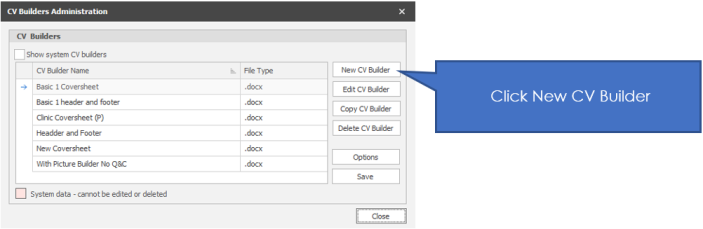
- Word will open
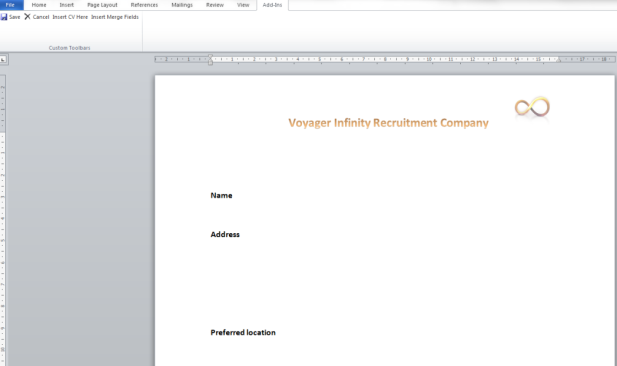
- Create your CV document in the Word document that has been opened.
- Click the Voyager Infinity tab at the top of the word document.
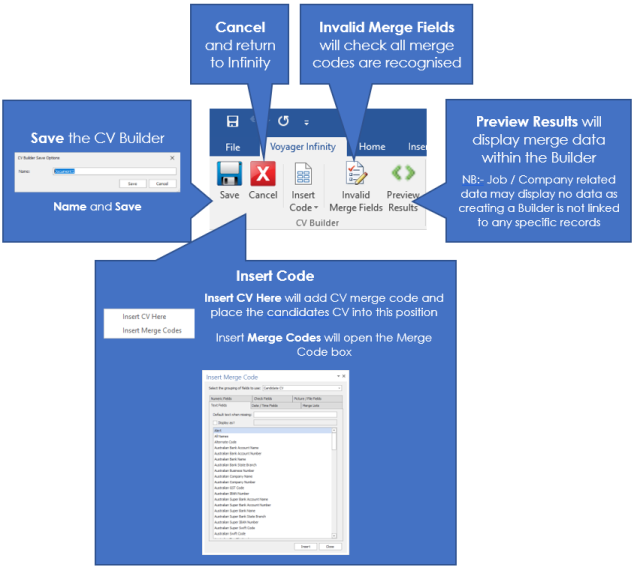
- Enter the merge code you need to create your CV. To do this click the Insert Merge Fields option on the Voyager Infinity tab
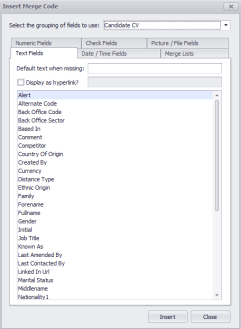
- The Insert Merge Code box becomes available and remains open until you close it.
- Make sure that you have your cursor in the right place in the document and then choose the merge codes that you would like to include from here.
Build (create a new) a CV
This creates a CV from the candidate record and saves the CV
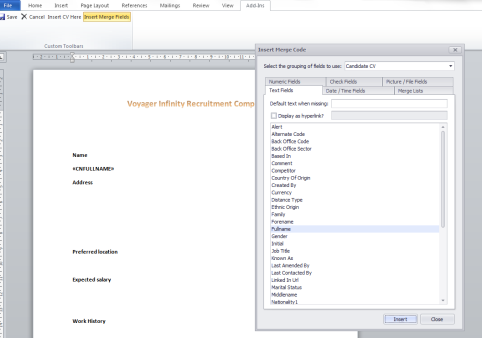
This is a document that would be created from a candidate’s record. The document is designed to look like a CV, but without the CV document that a candidate would give you as a starting point.
In general terms the document can look however you’d like it to look, but the option above gives an example.
To include the merge field for the name, address, use the Voyager Infinity tab, Insert merge code (as shown as above).
IMPORTANT – Make sure that your cursor is in the correct place in the document before you start choosing your merge code.
The image above shows after the insert button has been clicked.
Continue to choose the correct merge code until you have a document that is built to pull all the relevant information through.
Suggestion – Make sure that you use merge codes that will be filled in as a matter of course otherwise your CV documents will have gaps.
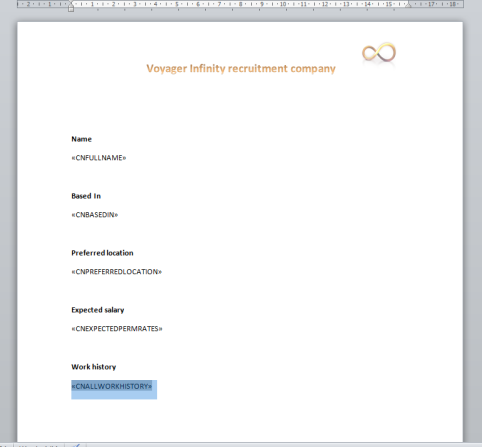
Once you have completed the document click save in the Voyager Infinity Tab
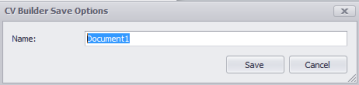
Name the document and click Save
Build a CV - job submission
This creates the CV from the candidate record so that you can send it to a specific job
NOTE - This option would normally have merge codes relating to jobs contained within it.
Follow steps in
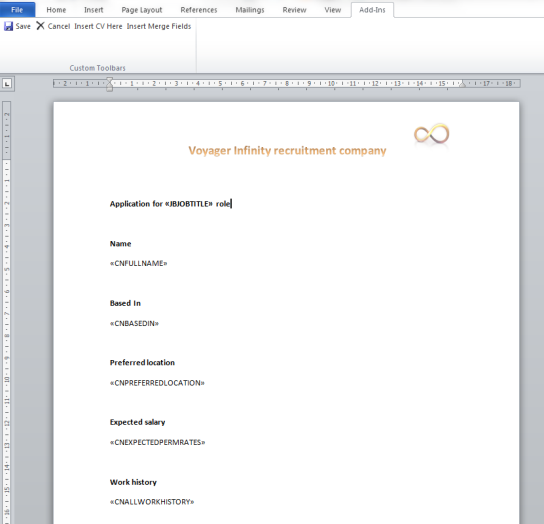
We have used the same example here as the first option, with the added example of the merge code for a job.
Enter the merge codes in the same way as explained in step 9-11
Once you have completed the document click save in the Voyager Infinity Tab
Name the document and click Save
Build a CV – Speculative submission
This creates the CV from the candidate record so that you can send a CV speculatively
NOTE - This option would normally have merge codes that are more generic. It may include a summary and qualification details. This would be more of a summary, a teaser for you to show the client the type of candidate that you have.
Follow steps in
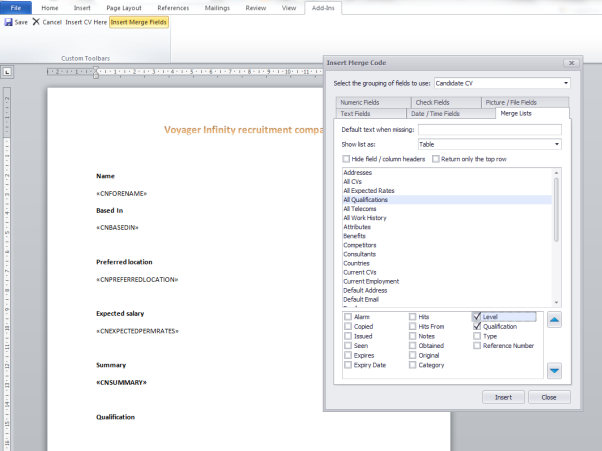
In this example we have replaced the full name with the forename only, included the summary field and the qualifications.
The Insert Merge code box shows that you are able to choose different information on the qualification that you would like to show. In this case we have chosen to only show the qualification and level. You could show expiry dates and whether the qualification original has been seen.
Once you have completed the document click save in the Voyager Infinity Tab
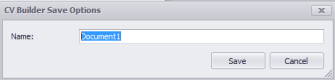
Name the document and click Save
Format (Edit an existing) CV
Format a CV changing the format of the CV
This formats the CV received by the candidate by changing the font, size and headers and footers.
Note - This option would not have any information relating to a job on it. This option is good for branding CV’s to keep for quick submission in the future.
It will keep the format of the builder. This is the best option for a CV that reliably looks good and is always available
Follow steps in
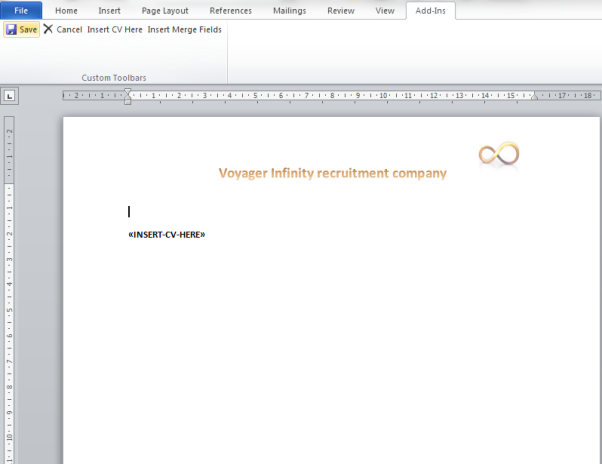
This is a basic format. This is simply a header and footer with the candidates original CV included in the body of the builder. To include the insert CV here merge field click the filed on the Voyager Infinity tab toolbar.
Once you have completed the document click save in the Voyager Infinity Tab
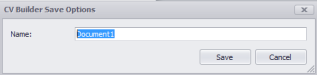
Name the document and click Save
Because of the formatting issues that can arise as a result of merging two word documents together, we need to make sure that we have told the document how to behave in certain circumstances.
To do this click the Options button from the CV Builders administration screen
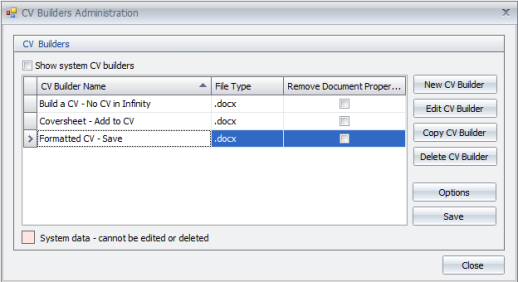
Make sure that you have the correct builder highlighted and click on the options button.
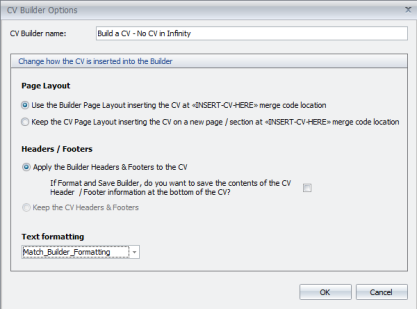
Make you choices here. See the table below for suggestions on the different options and the outcome you can expect from choosing each option.
The options highlighted in the table are those that are suggested for this type of builder
|
Option |
Outcome |
|
|
Page layout |
||
|
Use the Builder Page Layout inserting the CV at <<INSERT-CV-HERE>> merge code location |
This enters the CV at the point that the merge code has been entered. This is ideal for a simple ‘top and tail’ builder where you want to add a header and footer and change the font. This is the most likely option for this kind of builder |
|
|
Keep the CV page Layout inserting the CV on a new page / section at <<INSERT-CV-HERE>> merge code location |
This enters the CV onto another page, or after a section break. This is more likely to be used for a coversheet style of builder |
|
|
Headers / Footers |
||
|
Apply the Builder Headers & Footers to the CV |
This adds the builder’s headers and footers onto the CV. This will replace the headers and footers that may already be in the CV |
|
|
If Format and Save, do you want to save the contents of the CV Header/Footer information at the bottom of the CV? |
(Connected with the above option). IF you have decided to add the builder’s headers and footers on the CV, do you want to add the CV’s original headers and footers to the bottom of the CV? If so, enter a tick in the box. |
|
|
Keep the CV headers & Footers |
If you don’t want to apply a builder’s header and footers, choose this option and this will keep the original headers and footers in place. |
|
|
Text Formatting |
||
|
Keep CV Formatting |
This keeps the formatting of the CV. It ignores any font changes or styles that the builder may have |
|
|
Match Builder formatting |
This changes the CV to match the font sizes, styles etc. that the builder has. You will lose the original formatting of the CV |
|
|
Keep Text only |
This strips any formatting from the CV and keeps the text only. This is useful if you have problems with compatibility. |
|
Click OK to save.
Format a CV keeping the CV’s format
Formats the CV from the candidate’s CV document and saves it, keeping the original details of the CV
Note - This option would not have any information relating to a job on it. This option is good for branding CV’s, whilst still keeping the individuality of the candidates CV. It will keep the important information of the CV.
Follow steps in
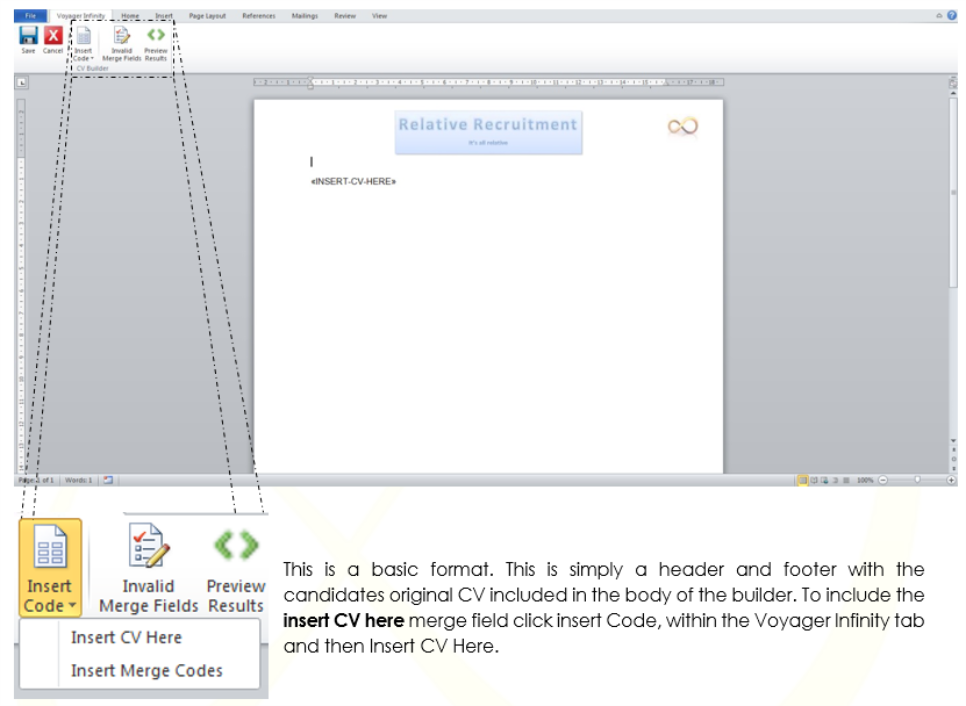
Once you have completed the document click save in the Voyager Infinity Tab
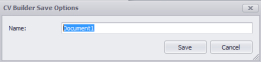
Name the document and click Save
Because of the formatting issues that can arise as a result of merging two word documents together, we need to make sure that we have told the document how to behave in certain circumstances.
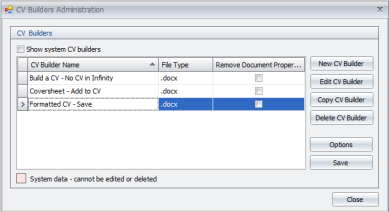
To do this click theOptions button from the CV Builders administration screen
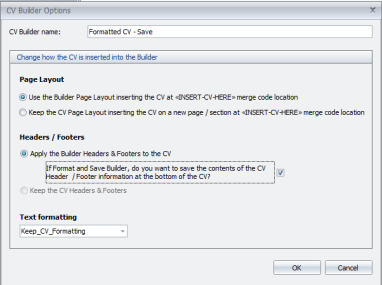
Make sure that you have the correct builder highlighted and click on the options button.
The options in the image above are those that are suggested if you are formatting and saving a CV that the candidate has sent you, while trying to keep their formatting and adding your own.
The options highlighted in the table are those that are suggested for this type of builder
|
Option |
Outcome |
|
|
Page layout |
||
|
Use the Builder Page Layout inserting the CV at <<INSERT-CV-HERE>> merge code location |
This enters the CV at the point that the merge code has been entered. This is ideal for a simple ‘top and tail’ builder where you want to add a header and footer and change the font. This is the most likely option for this kind of builder |
|
|
Keep the CV page Layout inserting the CV on a new page / section at <<INSERT-CV-HERE>> merge code location |
This enters the CV onto another page, or after a section break. This is more likely to be used for a coversheet style of builder |
|
|
Headers / Footers |
||
|
Apply the Builder Headers & Footers to the CV |
This adds the builder’s headers and footers onto the CV. This will replace the headers and footers that may already be in the CV |
|
|
If Format and Save, do you want to save the contents of the CV Header / Footer information at the bottom of the CV? |
(Connected with the above option). IF you have decided to add the builder’s headers and footers on the CV, do you want to add the CV’s original headers and footers to the bottom of the CV? If so, enter a tick in the box. |
|
|
Keep the CV headers & Footers |
If you don’t want to apply a builder’s header and footers, choose this option and this will keep the original headers and footers in place. |
|
|
Text Formatting |
||
|
Keep CV Formatting |
This keeps the formatting of the CV. It ignores any font changes or styles that the builder may have
|
|
|
Match Builder formatting |
This changes the CV to match the font sizes, styles etc. that the builder has. You will lose the original formatting of the CV |
|
|
Keep Text only |
This strips any formatting from the CV and keeps the text only. This is useful if you have problems with compatibility. |
|
Coversheet builders
These builders are those that are traditionally attached to a CV when they are submitted. They can be specific to a client or a generic coversheet that you may want to attach.
Create a coversheet builder for speculative submission
Keeping the Candidates format
Creates a coversheet that is suitable for attaching to CV’s for speculative submission
Note - This option would not have any information relating to a job on it. It is likely to be a quick overview of the candidate to try to create interest in the rest of the CV. It will be a generic document specific to your business, not the client
Follow steps in
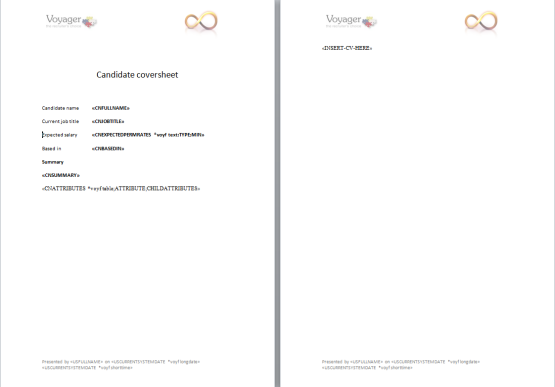
Note – In this case the CV needs to be on a second page so that the document doesn’t run together.
Use the <<INSERT-CV-HERE>> merge to make sure that the CV is pulled through to the correct place.
Once you have completed the document click save in the Voyager Infinity Tab
Name the document and click Save
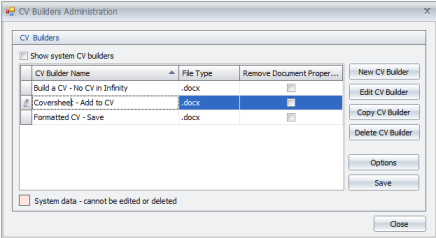
Because of the formatting issues that can arise as a result of merging two word documents together, we need to make sure that we have told the document how to behave in certain circumstances.
To do this click theOptions button from the CV Builders administration screen
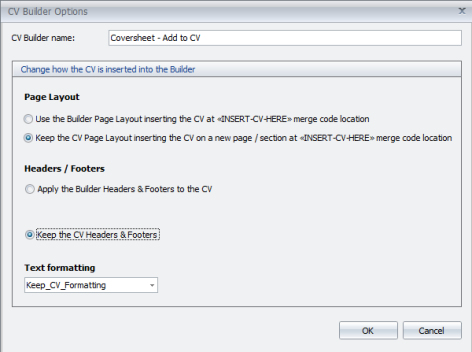
Make sure that you have the correct builder highlighted and click on the options button.
The options in the image above are those that are suggested if you are creating a coversheet that will be applied to a CV that you are happy with the format of.
The options highlighted in the table are those that are suggested for this type of builder
|
Option |
Outcome |
|
|
Page layout |
||
|
Use the Builder Page Layout inserting the CV at <<INSERT-CV-HERE>> merge code location |
This enters the CV at the point that the merge code has been entered. This is ideal for a simple ‘top and tail’ builder where you want to add a header and footer and change the font. This is the most likely option for this kind of builder |
|
|
Keep the CV page Layout inserting the CV on a new page / section at <<INSERT-CV-HERE>> merge code location |
This enters the CV onto another page, or after a section break. This is more likely to be used for a coversheet style of builder |
|
|
Headers / Footers |
||
|
Apply the Builder Headers & Footers to the CV |
This adds the builder’s headers and footers onto the CV. This will replace the headers and footers that may already be in the CV |
|
|
If Format and Save, do you want to save the contents of the CV Header / Footer information at the bottom of the CV? |
(Connected with the above option). IF you have decided to add the builder’s headers and footers on the CV, do you want to add the CV’s original headers and footers to the bottom of the CV? If so, enter a tick in the box. |
|
|
Keep the CV headers & Footers |
If you don’t want to apply a builder’s header and footers, choose this option and this will keep the original headers and footers in place. |
|
|
Text Formatting |
||
|
Keep CV Formatting |
This keeps the formatting of the CV. It ignores any font changes or styles that the builder may have
|
|
|
Match Builder formatting |
This changes the CV to match the font sizes, styles etc. that the builder has. You will lose the original formatting of the CV |
|
|
Keep Text only |
This strips any formatting from the CV and keeps the text only. This is useful if you have problems with compatibility. |
|
Using your own format
Creates a coversheet that is suitable for attaching to CV’s for speculative submission
Note - This option would not have any information relating to a job on it. It is likely to be a quick overview of the candidate to try to create interest in the rest of the CV. It will be a generic document specific to your business, not the client
Follow steps in Adding a New Builder
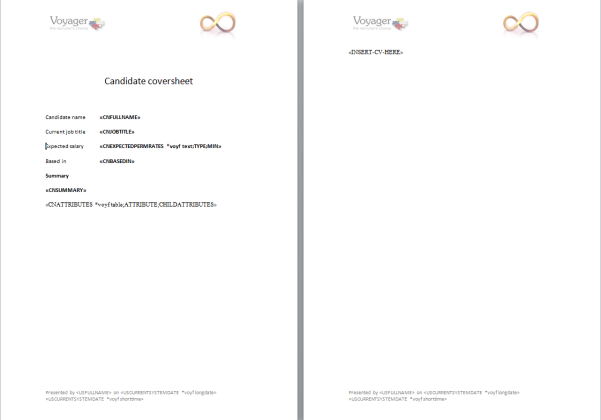
Note – In this case the CV needs to be on a second page so that the document doesn’t run together.
Use the <<INSERT-CV-HERE>> merge to make sure that the CV is pulled through to the correct place.
Once you have completed the document click save in the Voyager Infinity Tab
Name the document and click Save
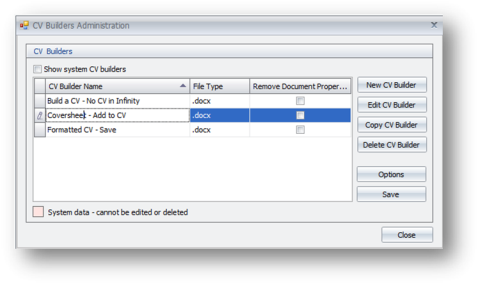
Because of the formatting issues that can arise as a result of merging two word documents together, we need to make sure that we have told the document how to behave in certain circumstances.
To do this click theOptions button from the CV Builders administration screen
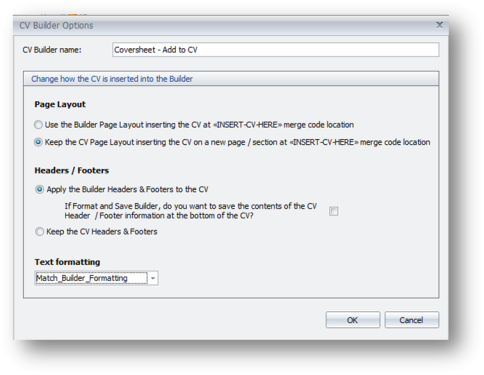
Make sure that you have the correct builder highlighted and click on the options button.
The options in the image above are those that are suggested if you creating a coversheet that will be applied to an unformatted CV
The options highlighted in the table are those that are suggested for this type of builder
|
Option |
Outcome |
|
|
Page layout |
||
|
Use the Builder Page Layout inserting the CV at <<INSERT-CV-HERE>> merge code location |
This enters the CV at the point that the merge code has been entered. This is ideal for a simple ‘top and tail’ builder where you want to add a header and footer and change the font. This is the most likely option for this kind of builder |
|
|
Keep the CV page Layout inserting the CV on a new page / section at <<INSERT-CV-HERE>> merge code location |
This enters the CV onto another page, or after a section break. This is more likely to be used for a coversheet style of builder |
|
|
Headers / Footers |
||
|
Apply the Builder Headers & Footers to the CV |
This adds the builder’s headers and footers onto the CV. This will replace the headers and footers that may already be in the CV |
|
|
If Format and Save, do you want to save the contents of the CV Header / Footer information at the bottom of the CV? |
(Connected with the above option). IF you have decided to add the builder’s headers and footers on the CV, do you want to add the CV’s original headers and footers to the bottom of the CV? If so, enter a tick in the box. |
|
|
Keep the CV headers & Footers |
If you don’t want to apply a builder’s header and footers, choose this option and this will keep the original headers and footers in place. |
|
|
Text Formatting |
||
|
Keep CV Formatting |
This keeps the formatting of the CV. It ignores any font changes or styles that the builder may have
|
|
|
Match Builder formatting |
This changes the CV to match the font sizes, styles etc. that the builder has. You will lose the original formatting of the CV |
|
|
Keep Text only |
This strips any formatting from the CV and keeps the text only. This is useful if you have problems with compatibility. |
|
Create a coversheet for a job submission
Using the candidate format
Creates a coversheet that is suitable for attaching to CV’s for speculative submission
Note - This option would have any information relating to a job on it. It could be a generic coversheet, or one specific to a client
Follow steps in Adding a New Builder
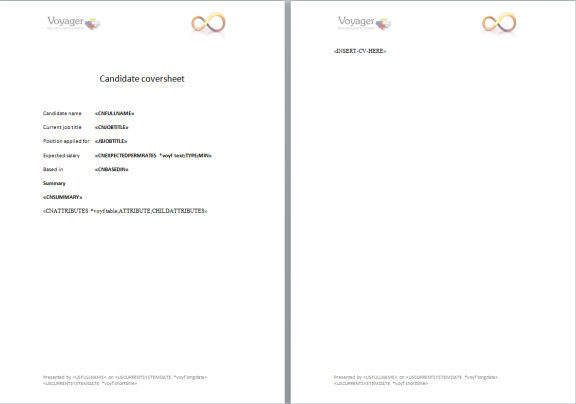
Note – In this case the CV needs to be on a second page so that the document doesn’t run together.
Use the <<INSERT-CV-HERE>> merge to make sure that the CV is pulled through to the correct place.
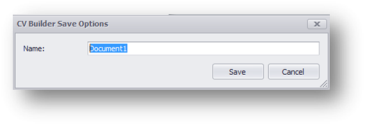
Once you have completed the document click save in the Voyager Infinity Tab
Name the document and click Save
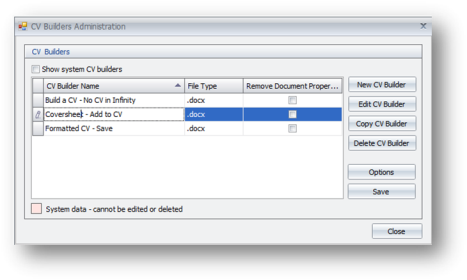
Because of the formatting issues that can arise as a result of merging two word documents together, we need to make sure that we have told the document how to behave in certain circumstances.
To do this click theOptions button from the CV Builders administration screen
Make sure that you have the correct builder highlighted and click on the options button.
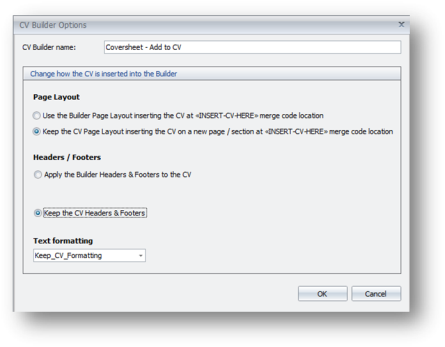
The options in the image above are those that are suggested if you are creating a coversheet that will be applied to a CV that you happy with the format of.
The options highlighted in the table are those that are suggested for this type of builder
|
Option |
Outcome |
|
|
Page layout |
||
|
Use the Builder Page Layout inserting the CV at <<INSERT-CV-HERE>> merge code location |
This enters the CV at the point that the merge code has been entered. This is ideal for a simple ‘top and tail’ builder where you want to add a header and footer and change the font. This is the most likely option for this kind of builder |
|
|
Keep the CV page Layout inserting the CV on a new page / section at <<INSERT-CV-HERE>> merge code location |
This enters the CV onto another page, or after a section break. This is more likely to be used for a coversheet style of builder |
|
|
Headers / Footers |
||
|
Apply the Builder Headers & Footers to the CV |
This adds the builder’s headers and footers onto the CV. This will replace the headers and footers that may already be in the CV |
|
|
If Format and Save, do you want to save the contents of the CV Header / Footer information at the bottom of the CV? |
(Connected with the above option). IF you have decided to add the builder’s headers and footers on the CV, do you want to add the CV’s original headers and footers to the bottom of the CV? If so, enter a tick in the box. |
|
|
Keep the CV headers & Footers |
If you don’t want to apply a builder’s header and footers, choose this option and this will keep the original headers and footers in place. |
|
|
Text Formatting |
||
|
Keep CV Formatting |
This keeps the formatting of the CV. It ignores any font changes or styles that the builder may have
|
|
|
Match Builder formatting |
This changes the CV to match the font sizes, styles etc. that the builder has. You will lose the original formatting of the CV |
|
|
Keep Text only |
This strips any formatting from the CV and keeps the text only. This is useful if you have problems with compatibility. |
|
Using your own format
This creates a coversheet that is suitable for attaching to CV’s for speculative submission
Note - This option would have any information relating to a job on it. It could be a generic coversheet or specific to a client.
Follow steps in Adding a new builder
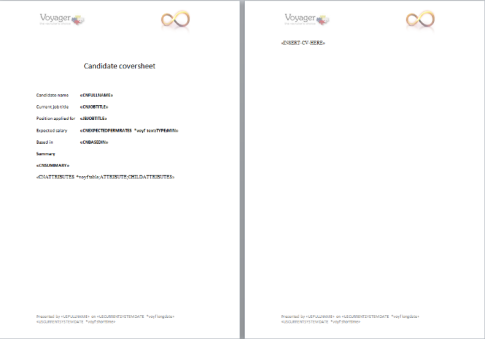
Note – In this case the CV needs to be on a second page so that the document doesn’t run together.
Use the <<INSERT-CV-HERE>> merge to make sure that the CV is pulled through to the correct place.
Once you have completed the document click save in the Voyager Infinity Tab
Name the document and click Save
Because of the formatting issues that can arise as a result of merging two word documents together, we need to make sure that we have told the document how to behave in certain circumstances.
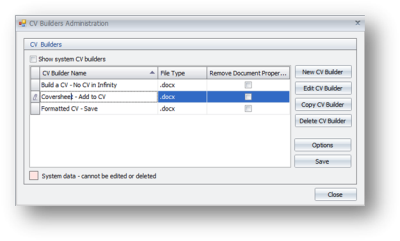
To do this click theOptions button from the CV Builders administration screen
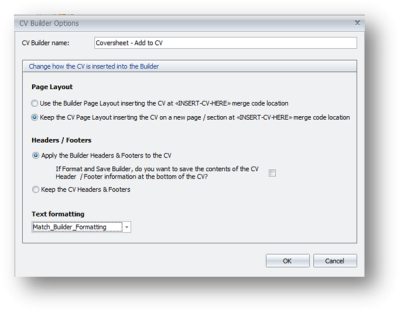
Make sure that you have the correct builder highlighted and click on the options button.
The options in the image above are those that are suggested if you creating a coversheet that will be applied to a CV has not been formatted.
The options highlighted in the table are those that are suggested for this type of builder
|
Option |
Outcome |
|
|
Page layout |
||
|
Use the Builder Page Layout inserting the CV at <<INSERT-CV-HERE>> merge code location |
This enters the CV at the point that the merge code has been entered. This is ideal for a simple ‘top and tail’ builder where you want to add a header and footer and change the font. This is the most likely option for this kind of builder |
|
|
Keep the CV page Layout inserting the CV on a new page / section at <<INSERT-CV-HERE>> merge code location |
This enters the CV onto another page, or after a section break. This is more likely to be used for a coversheet style of builder |
|
|
Headers / Footers |
||
|
Apply the Builder Headers & Footers to the CV |
This adds the builder’s headers and footers onto the CV. This will replace the headers and footers that may already be in the CV |
|
|
If Format and Save, do you want to save the contents of the CV Header / Footer information at the bottom of the CV? |
(Connected with the above option). IF you have decided to add the builder’s headers and footers on the CV, do you want to add the CV’s original headers and footers to the bottom of the CV? If so, enter a tick in the box. |
|
|
Keep the CV headers & Footers |
If you don’t want to apply a builder’s header and footers, choose this option and this will keep the original headers and footers in place. |
|
|
Text Formatting |
||
|
Keep CV Formatting |
This keeps the formatting of the CV. It ignores any font changes or styles that the builder may have
|
|
|
Match Builder formatting |
This changes the CV to match the font sizes, styles etc. that the builder has. You will lose the original formatting of the CV |
|
|
Keep Text only |
This strips any formatting from the CV and keeps the text only. This is useful if you have problems with compatibility. |
|
Using Merge codes in CV Builder
The merge codes facility works in the same way as templates, allowing users to add in content from the candidate record without manual input. See the Merge Codes section of Templates for more information or see CV Builder section of Merge Codes Examples

Contact Details
If you require further assistance please contact Ikiru People using the details published on www.ikirupeople.com
Visit our Customer Portal at https://portal.ikirupeople.com/ for future events and clinics.
FeedbackIf you would like to make suggestions or have found any errors with this Help section please contact our Support team.
Copyright © 2026 Voyager by Ikiru People Ltd. All rights reservedVersion 4.87
Voyager Software is a brand of Ikiru People Ltd, a subsidiary of Dillistone Group Plc. The group is a leading global provider of software and services that enable recruitment agencies and in-house recruiters to better manage their selection process and address the training needs of individuals. Across its brands – which include Voyager Software (recruitment software UK & Australia), Dillistone FileFinder executive search software, GatedTalent, the global database of the world’s leading executives, Talentis.Global – the next generation of recruitment software and also ISV.Online, provider of online pre-employment skills testing and training tools. Dillistone Group serves thousands of clients worldwide. Ikiru People Ltd: Registration Number 02043300. Registered in England & Wales.
 |  |  |  |