Reports Administration

 Walkthrough available, click here
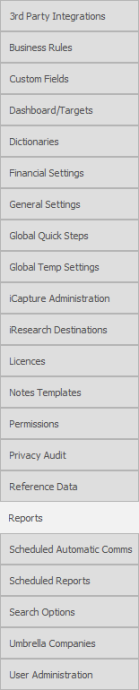
 General
Reports
The Report tab accesses the report permissions, select from the dropdown which Report Area you wish to manage, additional folders can be added and permissions set to these.
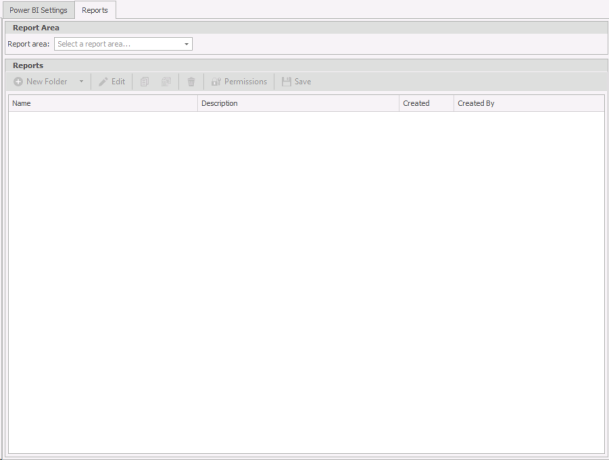
Report Folders
If you are concerned about users having access to reports, you may wish to restrict which report folder(s) they can access and if you really wish to customise the structure you can add your own folders, move reports around and set permissions. If you wish to automatically run reports See the scheduled reports section for more details
 IMPORTANT – SaaS systems will utilise scheduled reports to run reports, see running reports in the SaaS section
When you first access the Reports section you will need to use the dropdown to select the area of Infinity that you wish to edit (key report area is "SYSTEM-WIDE"):
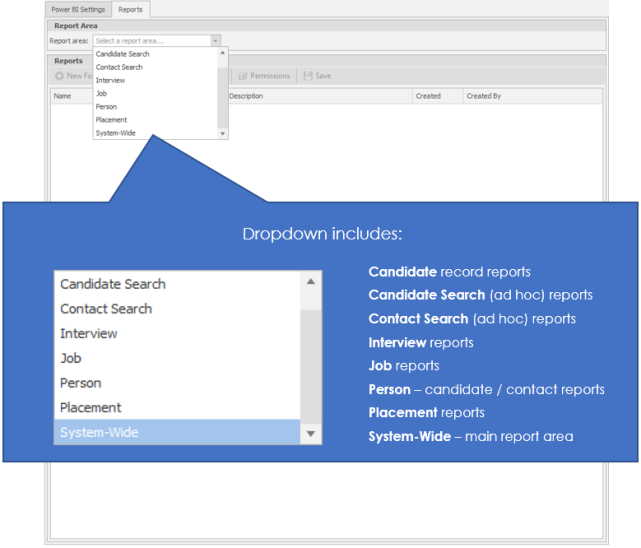
Report Permissions
Each report area will have a Root folder (1st level folder), you are able to insert folders within the root folders and move individual reports into any desired folder but you can only set permissions to none-root folder (2nd level).
The main report area is the System- Wide area where the main system reports are held, by default you will have 7 folders (Candidate, Company, Consultant, General, Interview, Job and Placement). These folders are none-root (2nd level) folders and therefore you can immediately select the folder and click on the button:
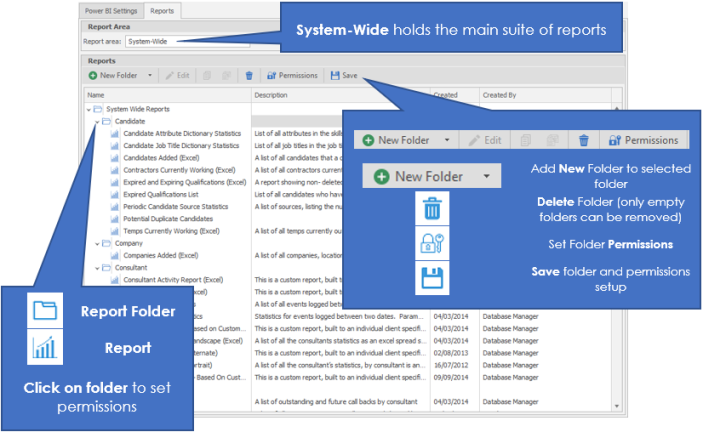
Ticking users in the list will ensure they can see the folder within the report area and access any report within the folder. Report permissions are available for security roles.
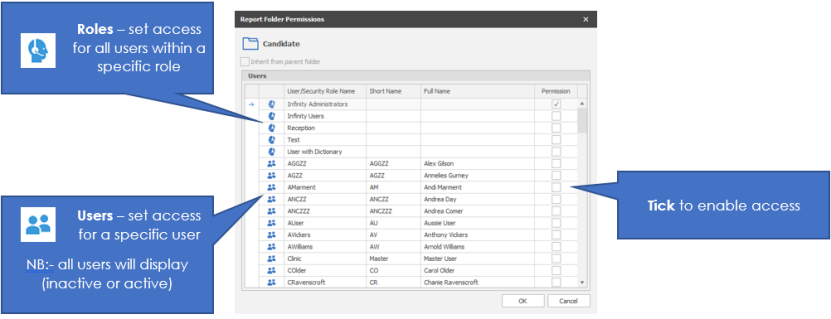
If permissions are given to the ‘Infinity Users’ security role, this would typically give access to all users.
The ‘Infinity Administrators’ security roles can be used if appropriate, or new security roles can be created to control access to reports
If you would prefer you can create your own folders and move reports into these folders as desired, see below instructions on adding folder and moving reports into these folder.
 IMPORTANT – Ensure you set desired permissions to the Candidate Search and Contact Search areas, allowing users access to these will mean they will be able to print out or depending on ReportExport permission will enable them to export a candidate list or contact list out of the database
IMPORTANT - When you make any changes to the report permissions, the user will need a log out of Infinity, and back in again to make the changes active
Add a new Report Folder
- Select the folder you wish to add a sub-folder to
- Click on
 and a new folder will be added to the tree (named "New Folder")
- Name the folder
- Move report(s) into the folder, click on report and select the Move button

- Set permissions to the Report Folder using
 . Select the user[s] who you wish to grant permission to from the Report Folder Permissions List
 - Click

Move Reports
You are able to move reports into other folders via the button, this allows you to rearrange the reports into folders with differing permissions, as desired.
You will see a list of folders available, using the expand / collapse arrow to view sub-folders, select the folder you wish to put the report into and click OK

Contact Details
If you require further assistance please contact Ikiru People using the details published on www.ikirupeople.com
Visit our Customer Portal at https://portal.ikirupeople.com/ for future events and clinics.
FeedbackIf you would like to make suggestions or have found any errors with this Help section please contact our Support team.
Copyright © 2026 Voyager by Ikiru People Ltd. All rights reservedVersion 4.87
Voyager Software is a brand of Ikiru People Ltd, a subsidiary of Dillistone Group Plc. The group is a leading global provider of software and services that enable recruitment agencies and in-house recruiters to better manage their selection process and address the training needs of individuals. Across its brands – which include Voyager Software (recruitment software UK & Australia), Dillistone FileFinder executive search software, GatedTalent, the global database of the world’s leading executives, Talentis.Global – the next generation of recruitment software and also ISV.Online, provider of online pre-employment skills testing and training tools. Dillistone Group serves thousands of clients worldwide. Ikiru People Ltd: Registration Number 02043300. Registered in England & Wales.
 |  |  |  |