iResearch Destinations Administration
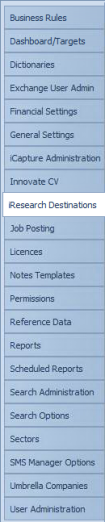
iResearch is a powerful research tool built into Infinity. It allows you to research via social media and search engines and pull valuable research data into Infinity.
iResearch uses various research destinations, also known as search engines, search string or social media websites to provide the research data. A dedicated destination must be created before you can begin to research and pull information into Infinity.
 Setting up Destinations
Here is an example of a typical iResearch destination list. It contains well known social media sites, such as LinkedIn, Facebook etc. as well as standard search engines.
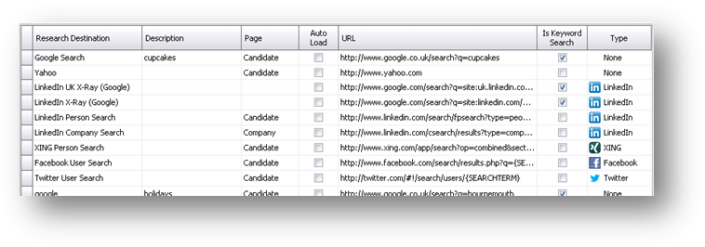
The following iResearch Destinations will be set up during installation:
|
|
LinkedIn – Person, X-ray, UK X-ray
|
|
|
|
|
|
|
|
|
|


- Select the first blank row in the grid and enter the name of the new iResearch Destination.
- Enter the description.
- Select the page that the destination is related to: at the moment only the Candidate page is integrated with iResearch. Future versions of Infinity will integrate at the Company, Location, Contact and Job levels and should display the iResearch logo in the basic details similar to the integration on the Candidate page with the right click on the icon and the auto loading Tabs.
- If you want the iResearch destination to auto load when the user loads the relevant page then tick the auto load tick box.
- If LinkedIn is ticked you will see a LinkedIn tab which will auto load the candidate’s profile [if the URL has been entered into the candidate’s basic details]. If the candidate does not have a LinkedIn profile added to their details then it will do a search in LinkedIn on their name automatically.
- Enter the destination URL such as http://yahoo.com.
Auto Load Options
The Auto Load tick boxes enable you to set which tabs should display within Candidate, Company and Contact records. You can set up to 2 tabs to Auto Load for each of these records (up to 4 tabs for SaaS clients), by defaults are set to:
Candidate - LinkedIn and Xing
Company - LinkedIn and Website
Contact - LinkedIn and Xing
NB:- ensure you un-tick those you do not require

Building your own Keyword iResearch Destination
If there is a particular keyword search you regularly run on a particular search engine such as Google etc. you can set up your own custom key word search.
- You would enter into the URL field your specific keywords – for example you need to research “electrical+engineering” – your search string would look like: http://www.google.co.uk/search?q=electrical+engineering
- Also tick the “is keyword search” tick box to mark this iResearch Destination as a search.
Adding Broadbean as an iResearch Destination
Within the iResearch Destinations section of Administration add Broadbean and the URL:
http://www.adcourier.com/cvsearch/
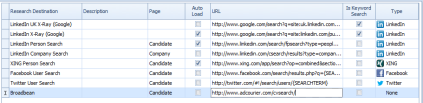
Click Save
Unfortunately the Keyword field in iResearch will not function due to the structure of the searching within Broadbean, however enter any term you wish, this will open the new search area of Broadbean. Enter your criteria and search.
Using Broadbean in iResearch
Once you have selected Broadbean, enter any word into the Keyword field, this will open Broadbean’s Search. Enter criteria as desired.
Once you have identified a candidate, click on download:
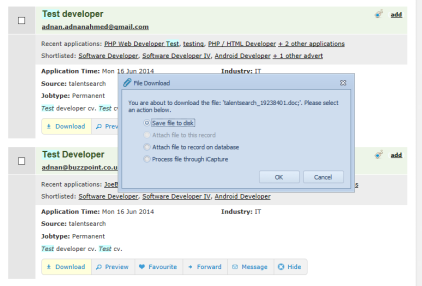
The File Download dialogue box will open and select Process file through iCapture
Once the CV is loaded into iCapture you can process in the same way as any other CV.
Adding Indeed as an iResearch Destination
Within the iResearch Destinations section of Administration add Broadbean and the URL:
http://www.indeed.com/resumes/{SEARCHTERM}

Click Save
Using Indeed in iResearch
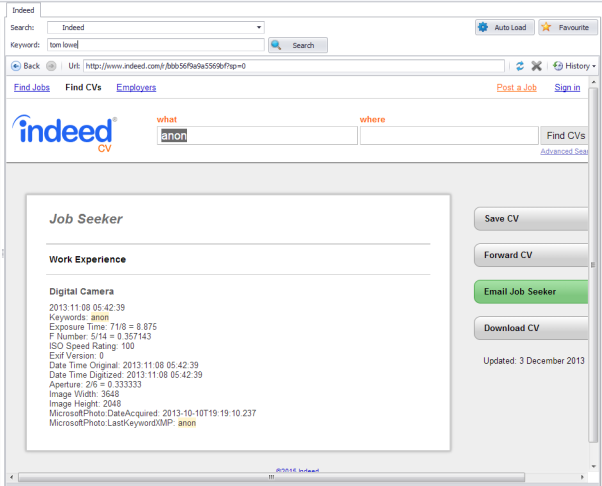
Once you have selected Indeed, enter search words into the Keyword field, this will open Indeed’s Search. Enter criteria as desired.
Once you have identified a candidate, click on download:
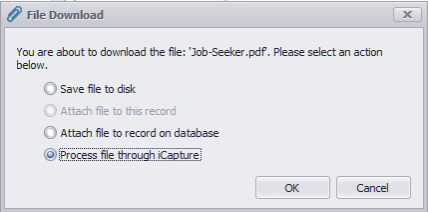
The File Download dialogue box will open and select Process file through iCapture
Once the CV is loaded into iCapture you can process in the same way as any other CV.
Adding other destinations into iResearch
Unfortunately we have been unable to test functionality of other job boards, searching works but the function of download is currently untested. Below are a couple of alternative sites that you are able to complete research of your candidates and job boards that you may wish to add to your destinations:
Google+ -
https://plus.google.com/?wwc=1#s/{SEARCHTERM}/people
YouTube -
http://www.youtube.com/results?search_query={SEARCHTERM}&sm=3
Monster -
http://hiring.monster.co.uk/jcm/resumesearch/enhancedsearchresults.aspx?seng=trovix&co=UK&jt={SEARCHTERM}%2520{SEARCHTERM}&mdatemaxage=1576800&rb=1&grid=undefined
CV Library -
http://www.cv-library.co.uk/cgi-bin/quicksearch.cgi?default_distance=10&basic=&keywords={SEARCHTERM}

Contact Details
If you require further assistance please contact Ikiru People using the details published on www.ikirupeople.com
Visit our Customer Portal at https://portal.ikirupeople.com/ for future events and clinics.
FeedbackIf you would like to make suggestions or have found any errors with this Help section please contact our Support team.
Copyright © 2026 Voyager by Ikiru People Ltd. All rights reservedVersion 4.87
Voyager Software is a brand of Ikiru People Ltd, a subsidiary of Dillistone Group Plc. The group is a leading global provider of software and services that enable recruitment agencies and in-house recruiters to better manage their selection process and address the training needs of individuals. Across its brands – which include Voyager Software (recruitment software UK & Australia), Dillistone FileFinder executive search software, GatedTalent, the global database of the world’s leading executives, Talentis.Global – the next generation of recruitment software and also ISV.Online, provider of online pre-employment skills testing and training tools. Dillistone Group serves thousands of clients worldwide. Ikiru People Ltd: Registration Number 02043300. Registered in England & Wales.
 |  |  |  |