Privacy Audit

 General
For information on setting up Privacy Audit content please see GDPR (Privacy Audit setup) section for more details or access the GDPR overview section
You can access the GDPR Process PDF guide which contains all setup requirements
 For a UK customers upgraded before 25th May 2018, the following is set on existing candidates
- All existing candidates will have an expiry date of 24th June 2018 (25th May 2018 + 30 Days)
- All existing candidates will not have their Lawful Basis filled i.e. they will be blank
For a UK customers upgraded on / after 25th May 2018, the following is set on existing candidates
- All existing candidates will have an expiry date 30 Days after the upgrade is run
- All existing candidates will not have their Lawful Basis filled i.e. they will be blank
Not Started
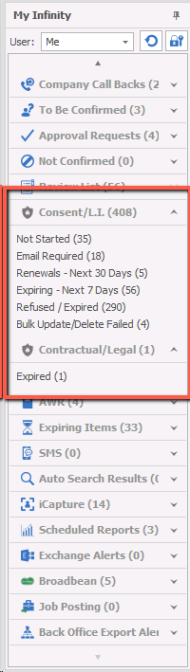
Accessing the Not Started list from My Infinity to display just your candidates (owning consultant) or via the Application Menu to display every candidate that have not had any Privacy Audit actions completed.
My Infinity
Each user can access the candidates they are the Owning Consultant for and manage Not Started
Application Menu
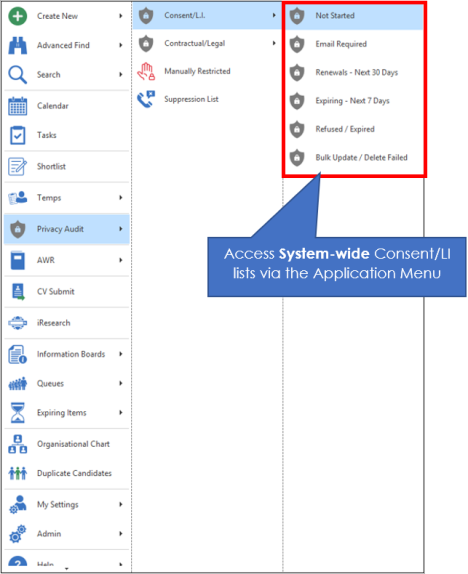
You can access system-wide Privacy Audit lists and complete Consent / LI processes
Not Started List
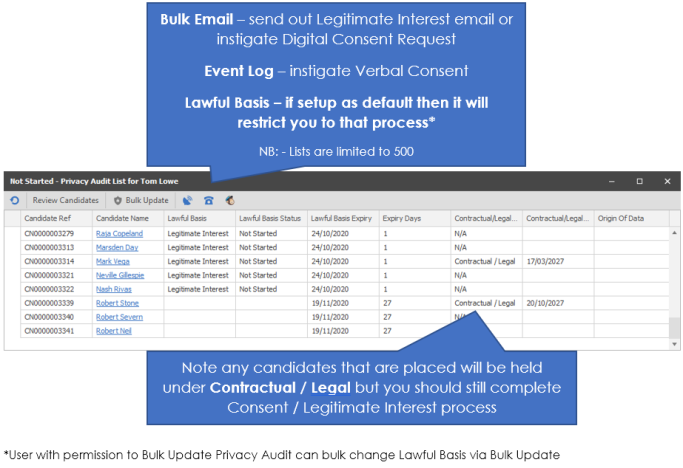
See Verbal Consent Process or Digital Consent Process or Legitimate Interest Process or Suppression List
Email Required
Accessing the Emailed Required list from My Infinity to display just your candidates (owning consultant) or via the Application Menu to display every candidate that have given "Verbal Consent" via the event log "Verbal Consent Received" or manually change the Privacy Audit status within the candidate record*
*user will require permission to manually change privacy status
My Infinity
Each user can access the candidates they are the Owning Consultant for and manage those candidates still requiring an email to confirm and complete the Legitimate Interest process
Application Menu
You can access system-wide Email Required lists and complete the Legitimate Interest process via the Application Menu
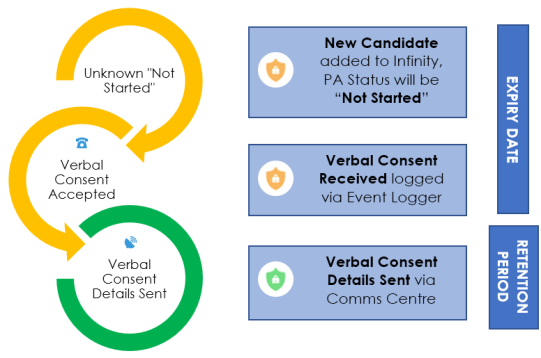
To complete the Verbal consent process you must send an email which is set to log Verbal Consent Details Sent which will at as confirmation of the verbal agreement and also detail the candidates rights in regard to GDPR. See Verbal Consent Process for more details
Renewals - Next 30 Days
Accessing the Renewals list from My Infinity to display just your candidates (owning consultant) or via the Application Menu to display every candidate that have given consent previously but is coming up to the end of that consent's retention period, each type of consent has a set Retention Period (for example 24 months) and therefore consent will need to be renewed, see GDPR section for more details on Retention Periods
My Infinity
Each user can access the candidates they are the Owning Consultant for and manage those candidates requiring Renewal of Consent / LI process again
Application Menu
You can access system-wide Renewals and complete Consent / LI process again
See Verbal Consent Process or Digital Consent Process or Legitimate Interest Process
Expiring - Next 7 Days
Accessing the Expiring list from My Infinity to display just your candidates (owning consultant) or via the Application Menu to display every candidate that are due to Expire in the next 7 days, this will include both candidates that require consent and also those that require consent renewal.
My Infinity
Each user can access the candidates they are the Owning Consultant for and manage those candidates due to expire in the next 7 days
Application Menu
You can access system-wide candidates due to expire in the next 7 days and complete Consent / LI process
See Verbal Consent Process or Digital Consent Process or Legitimate Interest Process
Refused / Expired
Accessing the Refused / Expired list from My Infinity to display just your candidates (owning consultant) or via the Application Menu to display every candidate that have Expired or Refused Consent. In a future release these candidates will automatically be hidden from being accessed by users and only Data Controllers (DBManager's by default) will be able to actually view the records, ensuring all candidates have fulfilled the Consent process and therefore GDPR is adhered to. From this list the Data Controller can complete Bulk Deletions, choose whether to add to Suppression Lists.
My Infinity
Each user can access the candidates they are the Owning Consultant for and manage those candidates who have expired or refused
NB: - permission required to access these candidates, as this facility is designed to stop users from accessing candidates that are no longer legally held
Application Menu
You can access system-wide candidates whose Consent / LI date has passed and therefore expired along with any candidates that have refused
NB: - permission required to access these candidates, as this facility is designed to stop users from accessing candidates that are no longer legally held
Bulk Delete
A Data Controller (DBManager) can complete a Bulk Delete of candidates that have Expired or Refused Consent. You can highlight the candidate(s) you wish to delete, to multi-select use the Shift or Control key to specify which candidate(s) you wish to delete and then click on the Bulk Delete button, if the button is greyed out then you do not have permission. If a candidate has current placements, current interviews or future meetings you are not allowed to delete them (you must deal with the placement, interview, meetings and try again) and will not display within the Expired lists. See the GDPR section for more details.
Bulk Update / Delete Failed
Will list any candidate(s) that has either failed to update or failed to delete. A failure can occur if a candidate record is being edited whilst the Data Controller has instigated the Bulk Update or Bulk Deletion process. See GDPR section for more details.
Privacy Audit Statuses

|
Lawful Basis Process completed |

|
Lawful Basis Process Refuse / Expired |

|
Lawful Basis Process Ongoing |

|
Lawful Basis set to "Not Required" |

|
Candidate Restricted** |
** If restriction is switched on, see Privacy Audit setup section for more details
Verbal Consent Process

More Information
Verbal Consent – Received
This event logger option is available for candidates with the following Lawful Basis / Lawful Basis Status
- Verbal Consent – Not Started
- Verbal Consent – Consent Details Sent
- Digital Consent – Not Started
- Digital Consent – Accepted
- <blank> lawful basis - <blank> lawful basis status
Verbal Consent – Refused
This event logger option is available for candidates with the following Lawful Basis / Lawful Basis Status
- Verbal Consent – Not Started
- Verbal Consent – Verbal Consent Received
- Verbal consent – Details Sent
- <blank> lawful basis - <blank> lawful basis status
This is available from the Candidate and Candidate Call Back event loggers
Note: This is only available if you select one candidate at a time
See Refused / Expired Consent section for more details
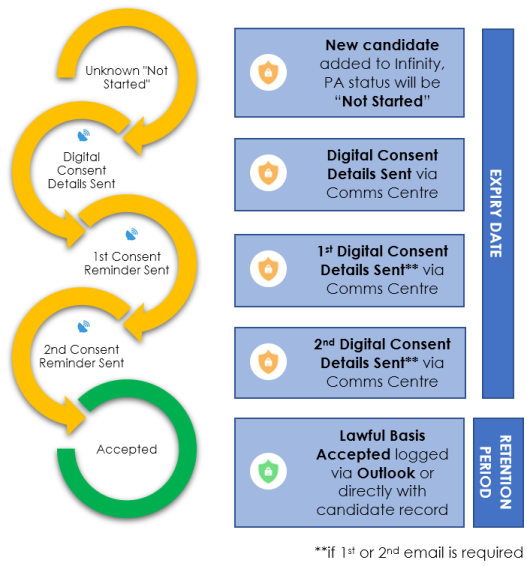
Digital Consent Process
More Information
Digital Consent – Refused
This event logger option is available for candidates with the following Lawful Basis / Lawful Basis Status
- Digital Consent – Not Started
- Digital Consent – Consent Details Sent
- Digital Consent – 1st Consent Reminder Sent
- Digital Consent – 2nd Consent Reminder Sent
- Digital Consent - Accepted
Digital Consent – Accepted
This event logger option is available for candidates with the following Lawful Basis / Lawful Basis Status
- Digital Consent – Consent Details Sent
- Digital Consent – 1st Consent Reminder Sent
- Digital Consent – 2nd Consent Reminder Sent
This is available from the Candidate and Candidate Call Back event loggers
Note: This is only available if you select one candidate at a time
See Refused / Expired Consent section for more details
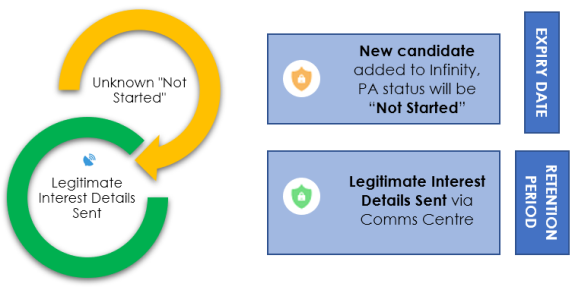
Legitimate Interest Process
More Information
Legitimate Interest - Refused
This event logger option is available for candidates with the following Lawful Basis / Lawful Basis Status
- Legitimate Interest – Not Started
- Legitimate Interest – Consent Details Sent
This is available from the Candidate and Candidate Call Back event loggers
Note: This is only available if you select one candidate at a time
See Refused / Expired Consent section for more details
Refused / Expired
More Information
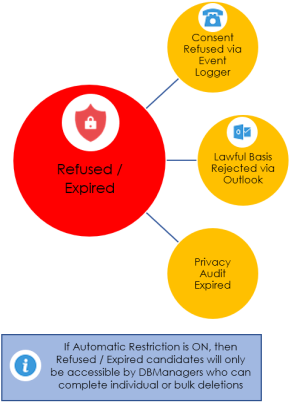
All candidates that have either refused consent or legitimate interest or have expired can be found within My Infinity Consent/L.I. Refused/Expired list and within the Application Menu Consent/L.I. Expired Refused section for reference and includes the facility to Bulk Delete (permission required). If restriction is on then the candidate record will not be accessible to users or show up in searches.
Consent Event Log
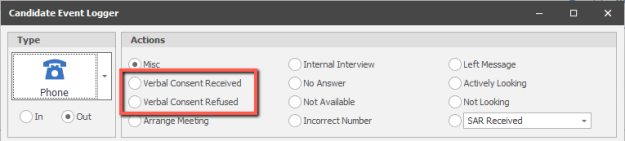
The event logger, logs an event and sets the Lawful Basis / Lawful Basis Status on the candidate page
Event Logger Actions
This is available from the Candidate and Candidate Call Back event loggers
Verbal Consent – Received
This event logger option is available for candidates with the following Lawful Basis / Lawful Basis Status
- Verbal Consent – Not Started
- Verbal Consent – Consent Details Sent
- Digital Consent – Not Started
- Digital Consent – Accepted
- <blank> lawful basis - <blank> lawful basis status
Verbal Consent – Refused
This event logger option is available for candidates with the following Lawful Basis / Lawful Basis Status
- Verbal Consent – Not Started
- Verbal Consent – Verbal Consent Received
- Verbal consent – Details Sent
- <blank> lawful basis - <blank> lawful basis status
Digital Consent – Refused
This event logger option is available for candidates with the following Lawful Basis / Lawful Basis Status
- Digital Consent – Not Started
- Digital Consent – Consent Details Sent
- Digital Consent – 1st Consent Reminder Sent
- Digital Consent – 2nd Consent Reminder Sent
- Digital Consent - Accepted
Digital Consent – Accepted
This event logger option is available for candidates with the following Lawful Basis / Lawful Basis Status
- Digital Consent – Consent Details Sent
- Digital Consent – 1st Consent Reminder Sent
- Digital Consent – 2nd Consent Reminder Sent
Legitimate Interest - Refused
This event logger option is available for candidates with the following Lawful Basis / Lawful Basis Status
- Legitimate Interest – Not Started
- Legitimate Interest – Consent Details Sent
This is available from the Candidate and Candidate Call Back event loggers
Note: This is only available if you select one candidate at a time
Consent Comms Centre
Comms Centre Actions are as follows:
Verbal Consent – Details Sent
This Comms Centre option is available for candidates with the following Lawful Basis / Lawful Basis Status
- Verbal Consent – Verbal Consent Received
Digital Consent – Details Sent
This Comms Centre option is available for candidates with the following Lawful Basis / Lawful Basis Status
- Verbal Consent – Not Started
- Digital Consent – Not Started
- Digital Consent – Accepted
- <blank> lawful basis - <blank> lawful basis status
Digital Consent – 1st Reminder
This Comms Centre option is available for candidates with the following Lawful Basis / Lawful Basis Status
- Digital Consent –Consent Details Sent
Digital Consent – 2nd Reminder
This Comms Centre option is available for candidates with the following Lawful Basis / Lawful Basis Status
- Digital consent – 1st Consent Reminder Sent
Legitimate Interest – Details Sent
This Comms Centre option is available for candidates with the following Lawful Basis / Lawful Basis Status
- Legitimate Interest – Not Started
- Legitimate Interest – Legitimate Interest Details Sent
- <blank> lawful basis - <blank> lawful basis status
Note: This is available if you select one or multiple candidates at a time
Consent Outlook
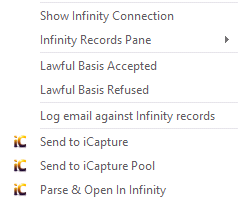
Within the right click options within Outlook you can record the acceptance or rejection of consent, this will update the candidate record.
Lawful Basis Accepted - will record the date and user along with the Digital Consent
Lawful Basis Rejected - will record the date and user along with the Rejection of Consent
Privacy Logs
All candidates include a Privacy Logs tab within their action / information tabs which detail any event or action that relates to the consent processes that have been carried out for that candidate:

linked events will open event log with details

Contact Details
If you require further assistance please contact Ikiru People using the details published on www.ikirupeople.com
Visit our Customer Portal at https://portal.ikirupeople.com/ for future events and clinics.
FeedbackIf you would like to make suggestions or have found any errors with this Help section please contact our Support team.
Copyright © 2026 Voyager by Ikiru People Ltd. All rights reservedVersion 4.87
Voyager Software is a brand of Ikiru People Ltd, a subsidiary of Dillistone Group Plc. The group is a leading global provider of software and services that enable recruitment agencies and in-house recruiters to better manage their selection process and address the training needs of individuals. Across its brands – which include Voyager Software (recruitment software UK & Australia), Dillistone FileFinder executive search software, GatedTalent, the global database of the world’s leading executives, Talentis.Global – the next generation of recruitment software and also ISV.Online, provider of online pre-employment skills testing and training tools. Dillistone Group serves thousands of clients worldwide. Ikiru People Ltd: Registration Number 02043300. Registered in England & Wales.
 |  |  |  |