Temp Process

General
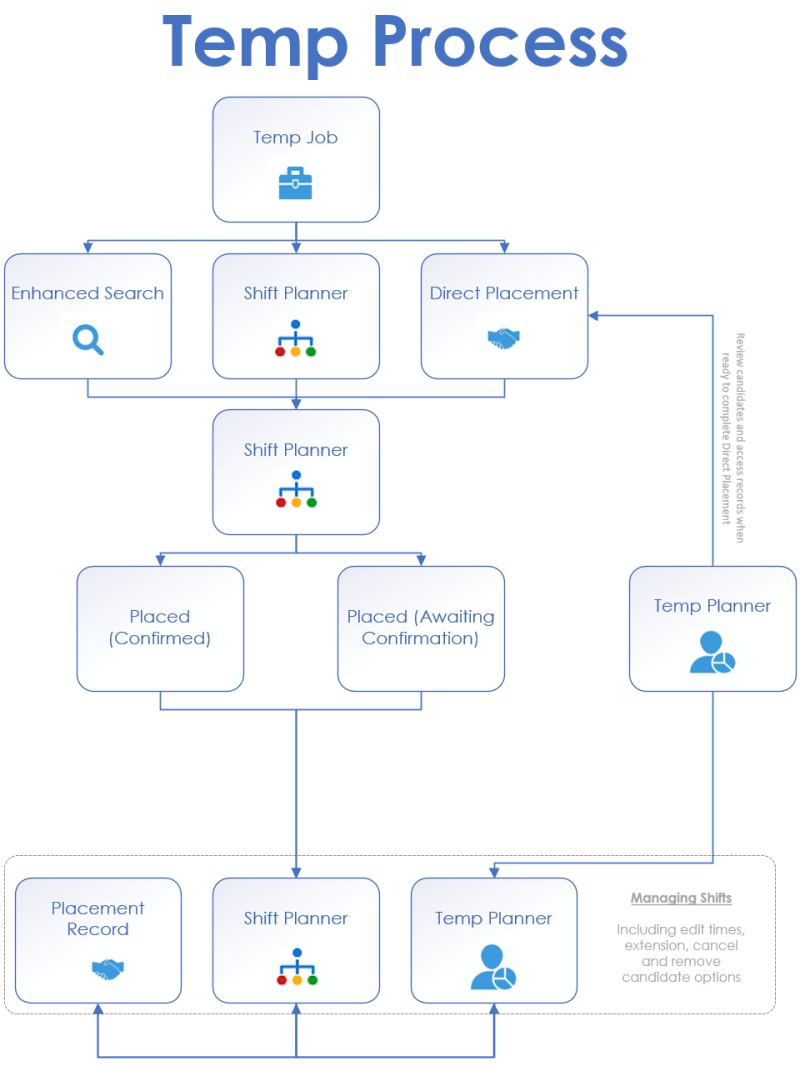
The chart below indicates the process of the Temp Job through to Temp Placement, click on the appropriate sections to access content
 Not sure what Type of Job you need to create? click here
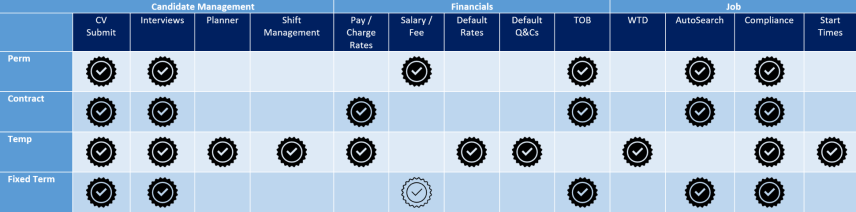
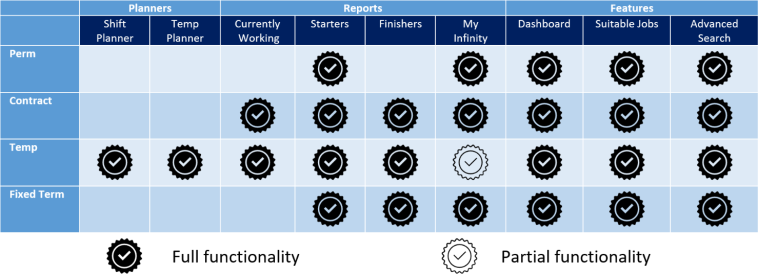
Contract
- Has a Start Date & End Date
- Contracts are typically longer term than Temp jobs
- The Shortlist process is used to manage recruitment
- You can search for candidates based on ‘Availability Date’
- The candidate is paid the ‘pay rate’ and the Client is charged the ‘charge rate’.
- Candidates can be any worker type e.g. Ltd Company, PAYE
Temp
- Each Temp job consists of one or more shifts
- Temps are typically shorter term than contract jobs, or jobs that are rolling week to week
- The ‘Shift Planner’ and ‘Temp Planner’ screens are used to manage recruitment
- The Shortlist process is used to manage recruitment (Temp jobs can be marked as a shortlist job)
- Each candidate has a calendar, and you can search candidates who are available for specific shift(s), based on the availability in their calendar
- The candidate is paid the ‘pay rate’ and the Client is charged the ‘charge rate’
- Candidates can be any worker type e.g. Ltd Company, PAYE
Perm
- Has a Start Date only
- The Shortlist process is used to manage recruitment
- A one off Fee is charged, and the Candidate is paid by the Client
Fixed Term
- Has a Start Date & End Date
- The Shortlist process is used to manage recruitment
- A one off Fee is charged, and the Candidate is paid by the Client
Temp Panels
Infinity includes 2 main planners for managing Temp Jobs / candidates / Placements:

An overview of all shifts within a 2 week period (can view the shift planner in 29,21, 14, 7 or day views), these include job shifts and placement shifts, although you can focus on either it offer the full view of your Temp requirements. The job shifts will only populate if you add jobs and their specific requirements but will offer a clearer picture of where you should focus your energy.

A quick search feature to bring up all key temp candidates, using job title, attributes, post code and availability sorting, ensuring a fast track way to get candidates into placements, review a collection of temps and their calendars in 28, 21, 14, 7 or day views. As you can place candidate directly, individually or in bulk, it can be a very quick way to record Temps in shifts.
Also utilise the Temp Planner to review starters, finishers and unconfirmed shifts within Temp placements.
Note:- Temp jobs can be managed via the shortlist tab if activated, in a similar way as Perm and Contract, allowing you to have access to shortlist steps like CV Submit and Interview but to then manage the candidate within the Shift or Temp Planners.
Temp Candidate
Candidate Availability Calendar
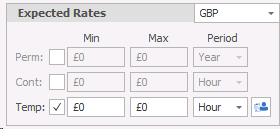
To activate the Temps availability calendar you must tick the candidate as Temp within the expected rates grid (saving will confirm the change).

|
Temp Calendar (inactive) – greyed out |

|
|
Temp Calendar (active) - colour |

|
The calendar will display any temp jobs the candidate is placed at, the calendar will show the candidate as Unavailable and if you wish to access further information you are able to double click on the appointment to open the appropriate placement record (see left) or use the Placement Info panel to view basic details:
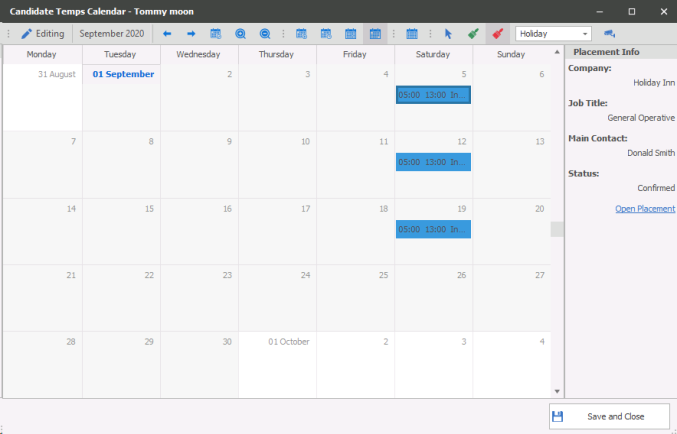
To add entries quickly to a candidate’s Temps Calendar, marking them as unavailable or available for a period of time you can use the unavailability or availability painter cursor. Once selected the mouse cursor will change and when highlighting days / hours within the calendar it will immediately add the entry to calendar. You can make adjustments to any entries within the calendar by dragging entries, if you need to make multiple adjustments you can hold the control key to select multiple entries and then drag which will adjust all entries selected.
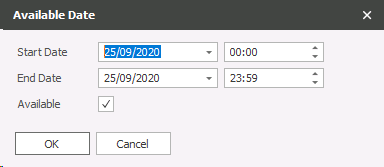
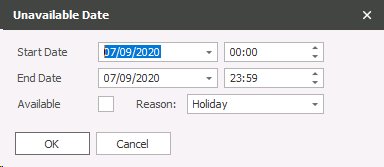
You are able to double click on existing entries to access the date and time dialogue box and edit as required:
Available Date entry
Unavailability Date entry
You can also right click on an entry to Open or Delete the entry:

By default the unavailability painter is selected making it quick and easy to mark candidate’s unavailability
Please see the candidate section for more details
Temp Rates
You can setup required rates for Temp candidates, which will then apply to Temp placements and override any Global or Company defined Temp rates.
Click on the  to add candidate Temp rates
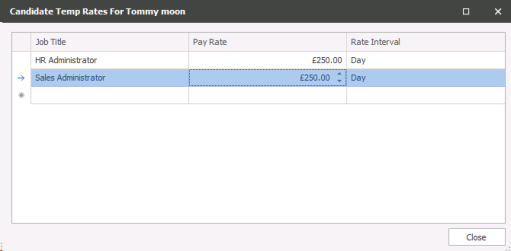
Select the Temp job title and then define Pay Rate and Rate interval
Create Temp Placement

Clicking within the candidate record will then begin the process of adding a Temp job to a Company, adding shifts
Step 1 - Finding the Company, Contact and Location of the Temp job:
Using find to enter details, note you can double click on the contact, this will auto fill Company and Location fields:
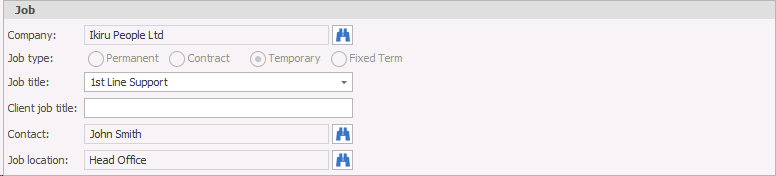
Create New, adjust job details as required and Save the record
Step 2 - Adding required shifts to the Job Shift Calendar
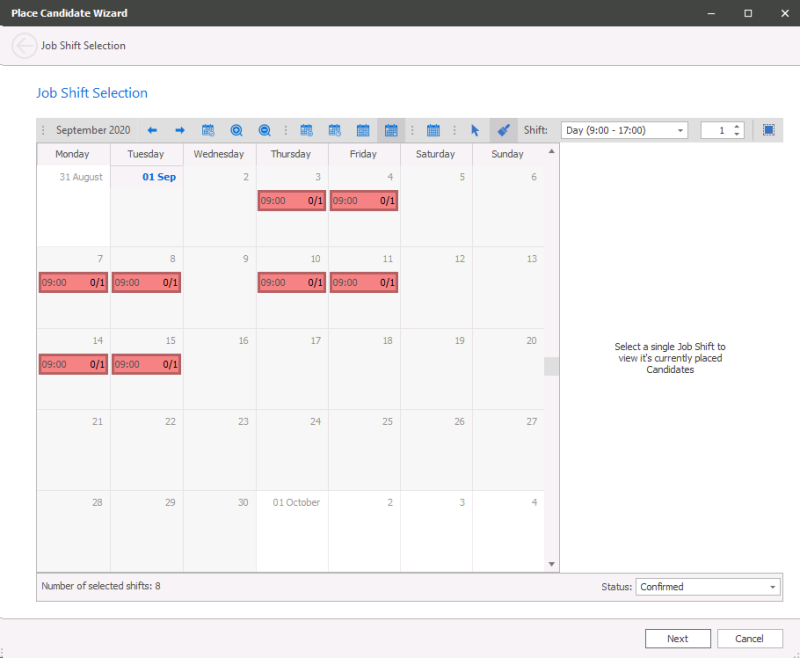
Save and Close
Step 3 - Candidate Checks
NB:- it will depend on General Settings whether this will be a warning or a prevention for each of these checks, see General Settings section for more details
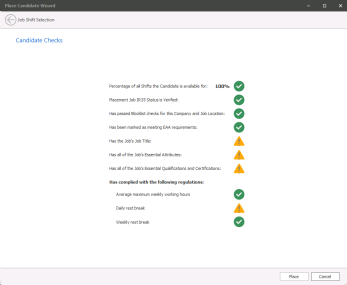 Percentage of all Shifts that the Candidate is available for:
calculates the availability of the candidate against each shift you have confirmed them into. So if you have put them into 4 shifts and only available for 3 it would display 75% availability.
Has passed Blocklist checks for this Company and Job location, the Temp settings will effect if :

|
PREVENT |
Displayed if candidate is Blocklisted from the Company you are attempting to place at and will not be allowed to be placed |

|
WARN |
Displayed if candidate is Blocklisted from the Company you are placing at, serving as a warning but will allow you to Place candidate |

|
PASS |
Displays if candidate is NOT Blocklisted from the Company you are placing at |
Has been marked as meeting EAA requirements (this can be deactivated via Global Temp Settings):
|
|
PREVENT |
Displayed if candidate EAA is not ticked in their record and will not be allowed to be placed |
|
|
WARN |
Displayed if candidate EAA isnot ticked in their record, serving as a warning but will allow you to Place candidate |
|
|
PASS |
Displays if candidate EAA is ticked in their record |
Has the Job's Job Title:
|
|
PREVENT |
Displayed if candidate does not have the Job Title (in the Job record) within their candidate record and will not be allowed to be placed |
|
|
WARN |
Displayed if candidate does not have the Job Title (in the Job record)within their candidate record, serving as a warning but will allow you to Place candidate |
|
|
PASS |
Displays if candidate has the required Job Title in their record |
Has the Job's Essential Attributes:
|
|
PREVENT |
Displayed if candidate does not have the Attributes you have required attributes (in the Job record) within their candidate record and will not be allowed to be placed |
|
|
WARN |
Displayed if candidate does not have the Attributes you have required attributes (in the Job record) within their candidate record, serving as a warning but will allow you to Place candidate |
|
|
PASS |
Displays if candidate has the required attributes in their record that are listed in the Job record |
Has all of the Job's Essential Qualifications and Certifications:
|
|
PREVENT |
Displayed if candidate does not have the Quals & Certs you have recorded (in the Job record) within their candidate record and will not be allowed to be placed |
|
|
WARN |
Displayed if candidate does not have the Quals & Certs you have recorded (in the Job record) within their candidate record, serving as a warning but will allow you to Place candidate |
|
|
PASS |
Displays if candidate has the required Quals & Certs in their record that are listed in the Job record |
Note:- Q&C check will depend on admin General settings
Has Complied with the following regulations:
Working Time Directive regulations can be enabled to check if shifts being confirmed will comply with each element of the Working Time Directive, settings can be found within the Global Temp Settings admin area
| Average maximum weekly working hours - will check if the candidates hours will exceed the maximum set within the Regulations settings |
| Daily rest breaks - will check if the candidates break between shifts is sufficient in accordance with your Daily Rest Break settings |
| Weekly rest breaks - will check if the candidates Weekly Rest break is sufficient in accordance to your Weekly Rest Break settings |
Temp Job
Temp Calendar
The job calendar is used to ensure it is quick and easy to identify candidates that are available to fulfil the required hours you require, when completing the search the system will use the candidates availability calendar to compare with the job calendar.
 Clicking on the calendar button will open the job calendar:
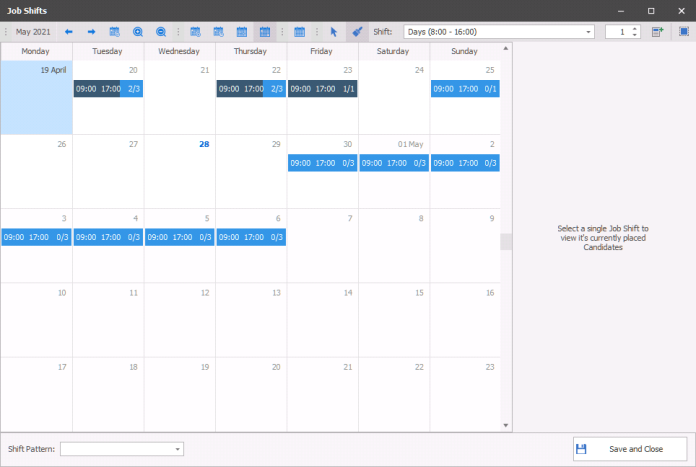
To add entries to the job Calendar you can highlight directly into the calendar the work pattern required, if in month view it will default to 09:00 to 17:00, when in day or week view you can highlight the hours required for the job. You can make adjustments to any entries within the calendar by dragging entries, if you need to make multiple adjustments you can hold the control key to select multiple entries and then drag which will adjust all entries selected.
You can double click on existing entries to access that specific Required Date and make amendments as required:
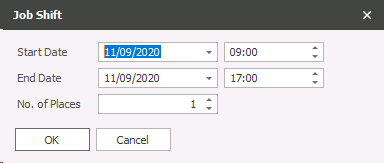
You can also right click on an entry to Open or Delete the entry:
Shift Patterns
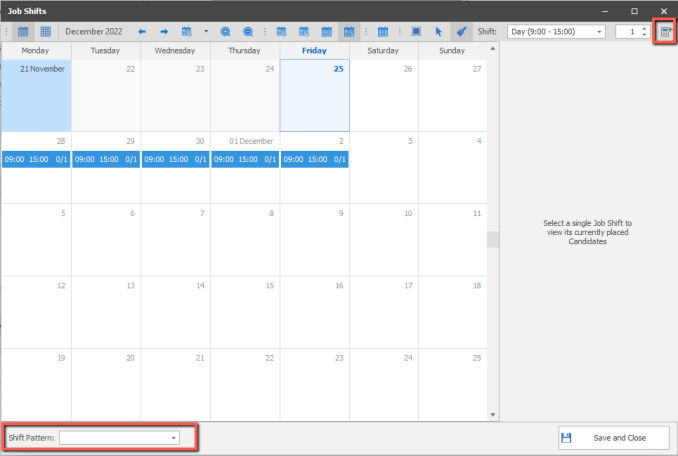
Shift Patterns can be used to quickly fill your Temp jobs or when directly placing a candidate. Within a Temp Job calendar you can review the shift pattern label used via the dropdown at the bottom of the calendar dialogue box. The button in the top right is where you can apply a shift pattern to the calendar:
In the dialogue box you can select the appropriate shift pattern and set the start date and end date:
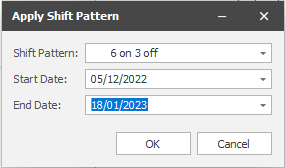
The shift pattern will be applied to the date range, repeating the pattern across the whole range selected.
Adding Places to Shifts
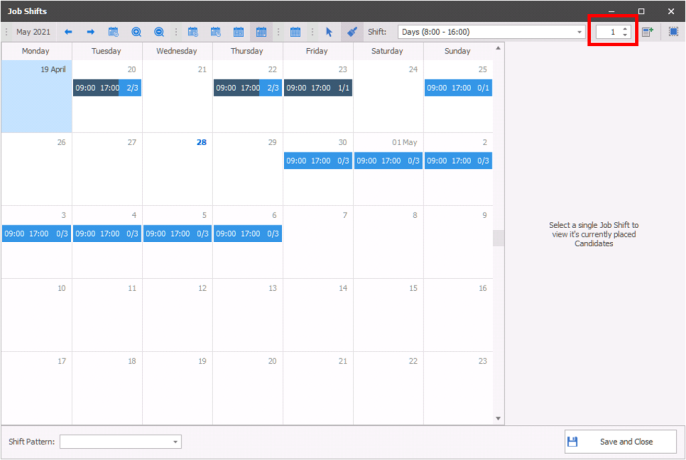
Each shift entered can be set up with multiple places, to edit a shift you have added right click on the entry and select Number of Places and adjust appropriately:
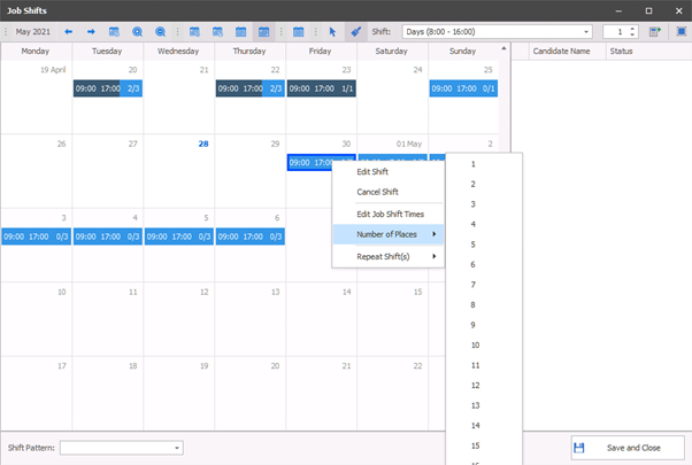
You are also able to set the places prior to painting the shifts into the Temp Calendar via the Places number:
Temp Rates
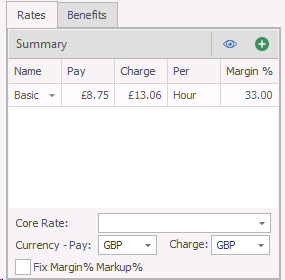
When adding a Temp job the rates will automatically complete with your agreed temp rates with the Company, if these are not setup then it will default to the Global rates, if these are not setup then you are able to enter multiple rate information using the Rates grid.
Core Rate:- allows you to set which rate should be used for reports, dashboards etc... It will default to the top rate
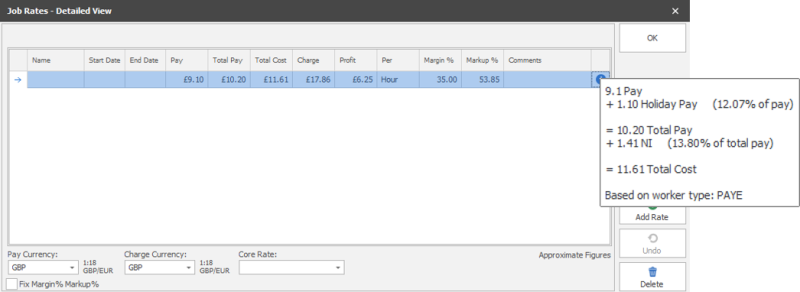
Using the Add button  will open the Job Rates – Detailed View and will have added an entry to be completed. Alternatively you can use the Show All button
  to open and view the rates without adding an entry.
Please see the job section for more details
Temp Search
Shift Planner
You can view any Temp jobs in the Shifts Planner, from the panel you can run quick search, send emails, log calls and place candidates, see the Shift Planner for more details
Searching Candidates Available
Utilise the advanced search builder (similar to perm / contract / fixed term job searching):
 Temp Search
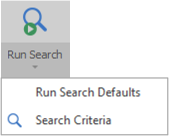
The ‘Run Search’ button automatically runs the temp search and takes you to the search results, without showing the search criteria screen. This search uses the ‘Temps default search criteria. You are able to define the default criteria by using the 'Search Criteria' option opens the search builder where you can setup your desired default criteria and then using the Set Default Criteria button:
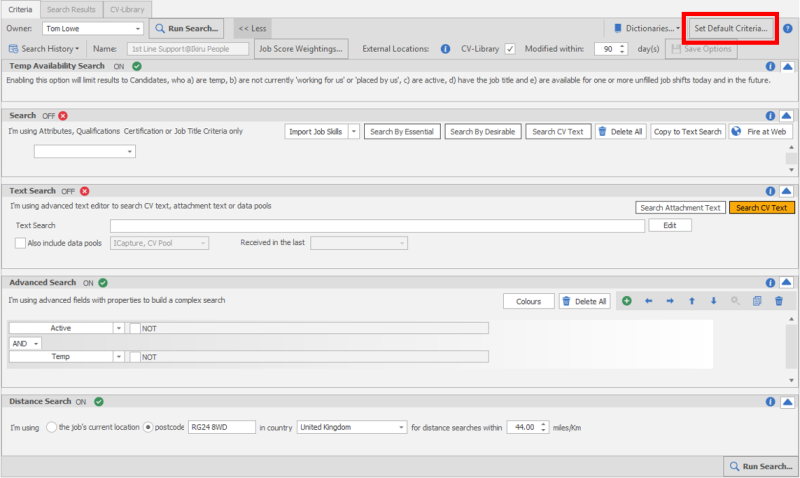
NB:- The Default Criteria for Temp searching is a separate default settings to the other job search criteria (Perm / Contract / Fixed Term)
Please see the Search section for more details
Temp Placement
Temp Calendar
Within the Placement record you are able to add shifts via the Placement Calendar button  . When opening the calendar it will go to the end date by default.
Placement shift ‘Break’ field
There is a field on placement shifts called ‘Break (mins)’ to record the number of minutes for the break(s) on that shift.
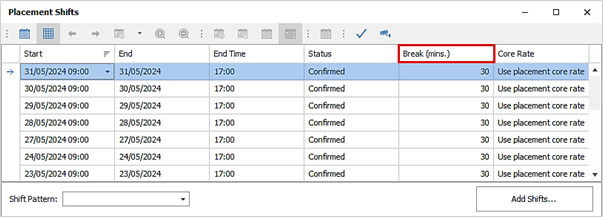
- The default is blank when placement shift is created unless a default is set globally or per company
- The break field can be blank (unset), or 0 to 300 minutes.
In placement calendar grid view, the break field is before the shift core rate column and is editable in the grid. Multiple Shift(s) can be selected, and break value changed via right click ‘Edit Break menu.
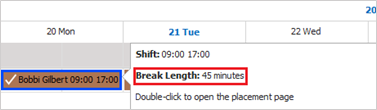
In Shift and Temp Planner, the user can hover over a shift to display the break length.
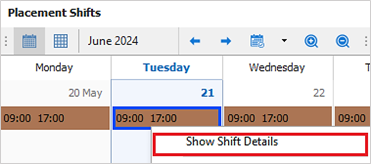
In placement calendar, the user can right-click on a single shift and select 'Show Shift details’ the shift break field is read only.
In Shift and Temp planners and placement calendar, the user can right click on selected shift(s) within a single placement, then use the ‘Edit Break’ menu option to edit the shift break field.
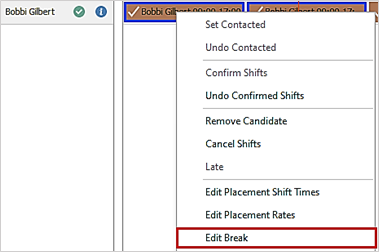
Note: If the shifts selected have different break lengths, the field will show as blank. When a value is entered it will update all shifts.
Changes to the shift break field are audited in the placement calendar / Shift Audit. Upon upgrade, all existing placement shifts will display the ‘Break’ field and the value will be set to blank.
The placement shift ‘Break’ field is exported to Mid-Office but is not currently used. Mid-Office Version 13 will be required to utilise this information. Please refer to the Mid-Office version 13 release notes when it is on general release.
Placement page ‘Breaks’ field
There is a field on the temp placement page called ‘Breaks’ to record how breaks are paid and charged.
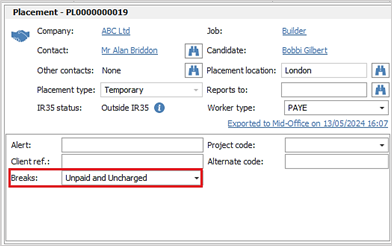
The values available in the drop-down are as follows:
- Blank
- Paid and Charged
- Unpaid and Uncharged
When a placement is created, it will default to blank.
Note: Setting the value to ‘Unpaid and Uncharged’ will deduct the break length from the shift hours in Temps reports, Consultant Stats reports, Dashboard and Comms Centre shift mergelists.
A value of Blank or ‘Paid and Charged’ will not deduct the break length and will work as per previous versions.
Changing the ‘Breaks’ value will log an info event on the placement page for that user. The event ‘Action’ field is ‘Breaks changed’ and the event ‘Details’ field records what the value was changed from and to.
Upon upgrade, existing temp placements will have the ‘Breaks’ field and the value will be set to blank.
The placement page ‘Breaks’ field is exported to Mid-Office but is not currently used. Mid-Office Version 13 will be required to utilise this information. Please refer to the Mid-Office version 13 release notes when it is available on general release.
Temp Rates
The rates on the Temp Placement page, default to those entered into the Rate grid on the Temp Job page, these are either populated manually or via Global Temp Defaults, Company Rates or Candidate Rates
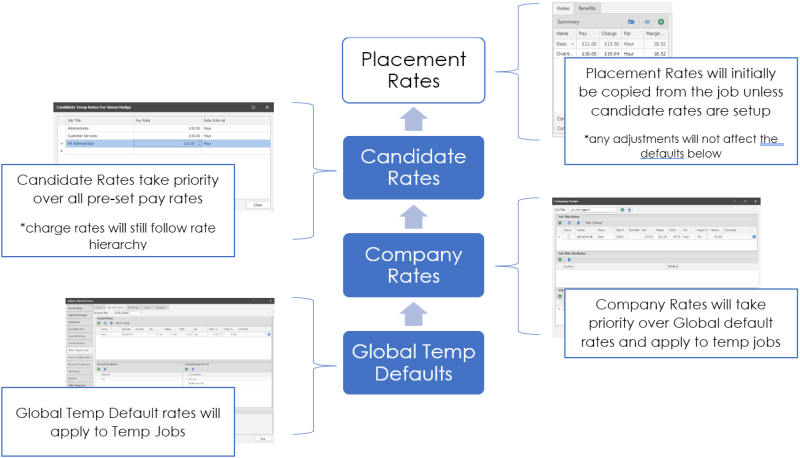
Edit the rates via the Show All button
Please see the Placement section for more details
Contact Details
If you require further assistance please contact Ikiru People using the details published on www.ikirupeople.com
Visit our Customer Portal at https://portal.ikirupeople.com/ for future events and clinics.
FeedbackIf you would like to make suggestions or have found any errors with this Help section please contact our Support team.
Copyright © 2026 Voyager by Ikiru People Ltd. All rights reservedVersion 4.87
Voyager Software is a brand of Ikiru People Ltd, a subsidiary of Dillistone Group Plc. The group is a leading global provider of software and services that enable recruitment agencies and in-house recruiters to better manage their selection process and address the training needs of individuals. Across its brands – which include Voyager Software (recruitment software UK & Australia), Dillistone FileFinder executive search software, GatedTalent, the global database of the world’s leading executives, Talentis.Global – the next generation of recruitment software and also ISV.Online, provider of online pre-employment skills testing and training tools. Dillistone Group serves thousands of clients worldwide. Ikiru People Ltd: Registration Number 02043300. Registered in England & Wales.
 |  |  |  |