 Outlook integration
 Outlook Add –in
Infinity comes with a direct link into your Outlook.
If the Connector does not display see Enable Connector
When you first open Outlook after installation of Infinity you will be required to enter your username and password for Infinity and if you tick Remember Me? so that there is no need to re-enter these details
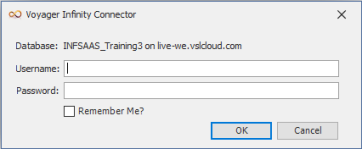
You are able to clear Outlook Credentials via the application menu at any point
Once the add-in is active it shows as a pane on the right of the screen whenever you are in an email from a candidate or contact that is on the database:
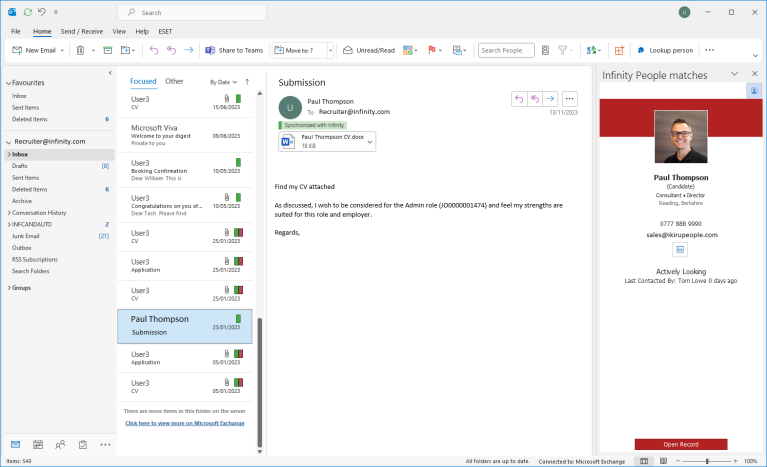
The image above shows that an email has been received from Paul Thompson.
The email is highlighted on the left of the screen, the email is in the centre and the Infinity panel is on the right.
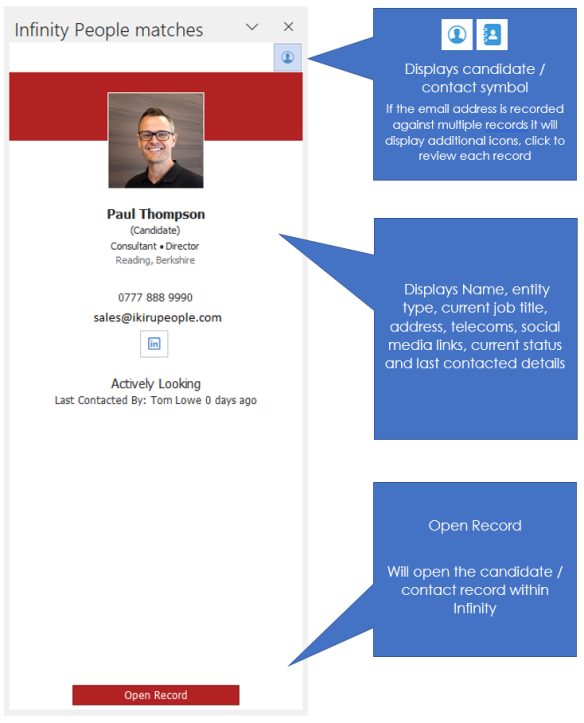
The image below shows the panel in more detail.
Attaching Compliance Files into Records
Setting up for Quick drag and drop of Q&C files
To setup quick dropping of Q&C compliance files you will need to setup the Q&C in your dictionary:
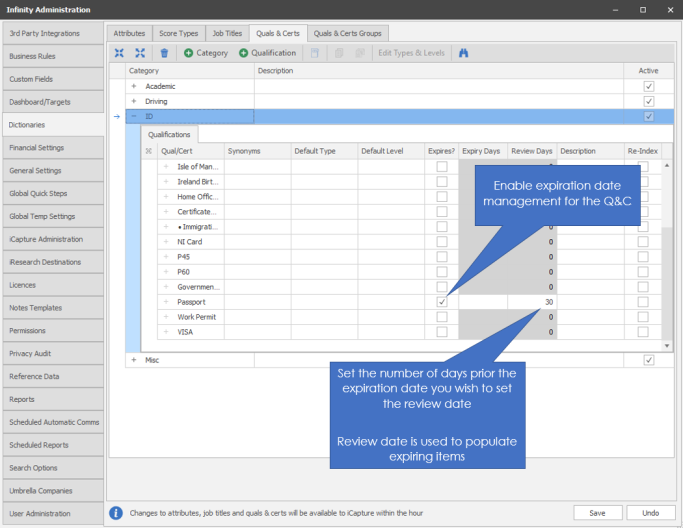
Then you should setup the attachment type and set which Q&C this should relate to:
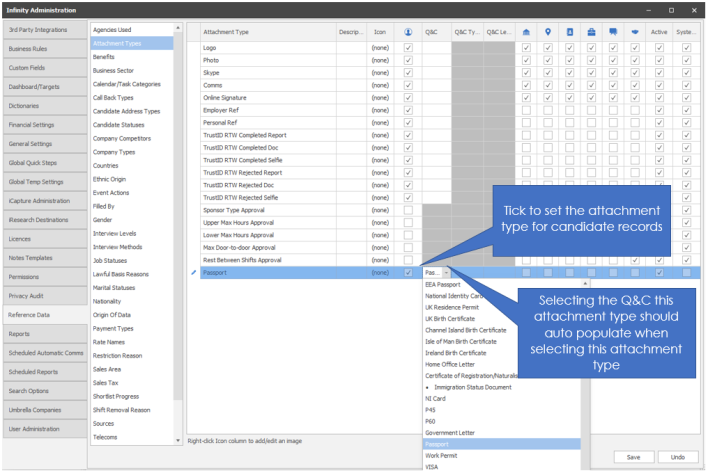
NOTE: - you may need to restart Outlook for the new attachment type to be available in Outlook
The panel can now be used to drop attachments in a record, it will then prompt you to select the attachment type:
Switch Panel On and Off
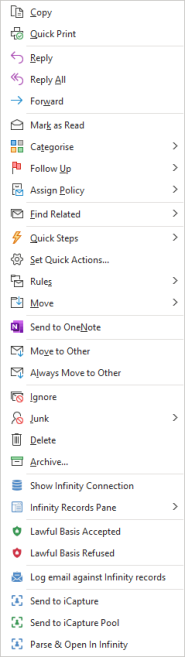 You are able to toggle the panel on and off by right clicking on an email and selecting Infinity Records Pane, you can switch On or Off as desired.
As an Outlook Add-in it can also be disabled via the Outlook options, please speak to your system administrator for further information.
Lawful Basis
Lawful Basis Accepted - right click on the email will offer the option to record that message as consent
Lawful Basis Rejected - right click on the email will offer the option to record that message as rejection for consent
Exchange synchronisation
You can have your Infinity system connected with Outlook. This will be set up by your system administrator.
If you have Infinity and Outlook connected together you are able to use the full options within Infinity,
 NOTE – Connecting Outlook and Infinity is a choice, you do not have to have exchange to email from Infinity
The following are the list of items that will NOT work if you do not have your Infinity and Outlook connected.
- Meeting / interview requests from Infinity
- Updating of Outlook calendars / tasks and handheld devices (incoming and outgoing)
- Send emails (from Infinity) saved in Outlook Sent Items
- Incoming emails automatically attaching to the correct record within Infinity

An Email flag in outlook indicates if the email has been synchronised with Infinity
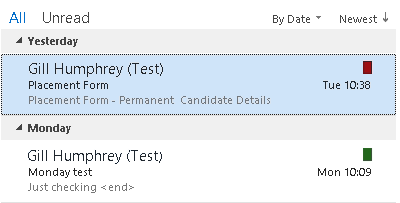
Green = the email has been processed and synchronised with Infinity because the email address has been found on an Infinity record
Red = the email has been processed and not synchronised with Infinity because the email address has not been found on an Infinity record
NOTE:- If you are reviewing your sent items, you will find emails sent from Infinity will also be Red, as these are not synchronised as they are not duplicated and will log according to the log options set within the Comms Centre
Manual Logging of Emails
If you have email sync off or have received an email prior to a record being put onto the database, you are able to get this email logged into a record by right clicking on the email message and selecting Log email against Infinity records, this will then log this email against the appropriate contact or candidate record.
More Information
Enable Infinity Connector Add-in
The Connector is installed into your Outlook application as an Add-in, these allow third party software to integrate with Outlook. In some cases Outlook may disable the Connector and below are the steps to enable the add-in
Once enabled the Add-in will either prompt you to log in to Infinity or automatically (if you have previously entered your credentials)
If you have attempted to enable the Add-in but fails to populate your active Add-in list then restart Outlook. If the problem persists then please contact Voyager support.
Contact Details
If you require further assistance please contact Ikiru People using the details published on www.ikirupeople.com
Visit our Customer Portal at https://portal.ikirupeople.com/ for future events and clinics.
FeedbackIf you would like to make suggestions or have found any errors with this Help section please contact our Support team.
Copyright © 2026 Voyager by Ikiru People Ltd. All rights reservedVersion 4.87
Voyager Software is a brand of Ikiru People Ltd, a subsidiary of Dillistone Group Plc. The group is a leading global provider of software and services that enable recruitment agencies and in-house recruiters to better manage their selection process and address the training needs of individuals. Across its brands – which include Voyager Software (recruitment software UK & Australia), Dillistone FileFinder executive search software, GatedTalent, the global database of the world’s leading executives, Talentis.Global – the next generation of recruitment software and also ISV.Online, provider of online pre-employment skills testing and training tools. Dillistone Group serves thousands of clients worldwide. Ikiru People Ltd: Registration Number 02043300. Registered in England & Wales.
 |  |  |  |