Tasks
Walkthrough
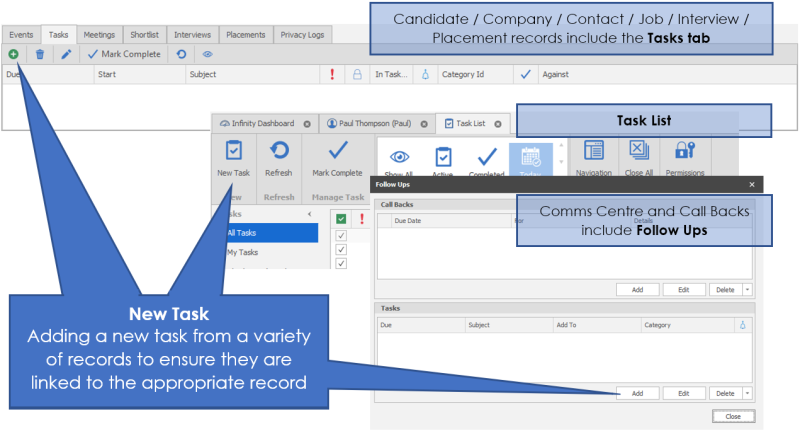
Step 1 - Adding Task to Records
Step 2 - New Tasks
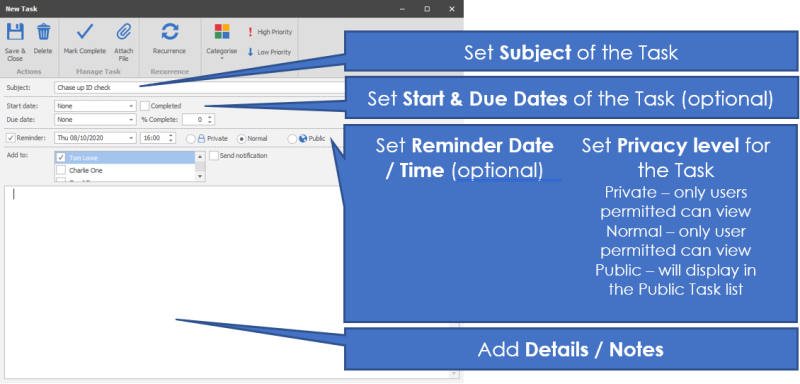
NB: - Reminders will pop up within Outlook if exchange sync is on
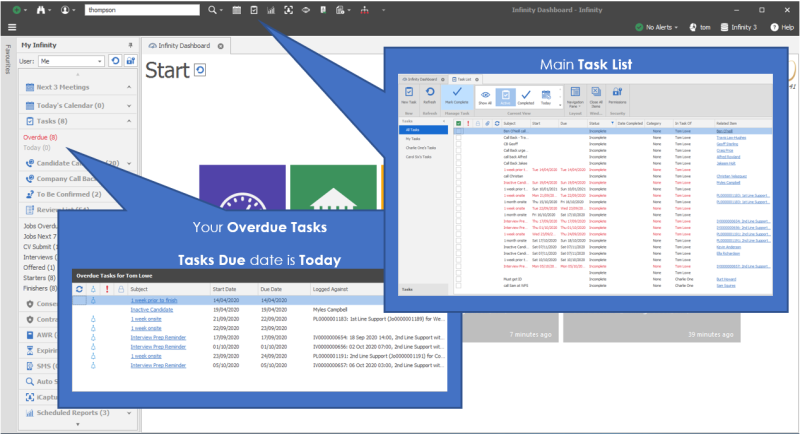
Step 3 - Accessing Tasks
Step 4 - Managing Tasks
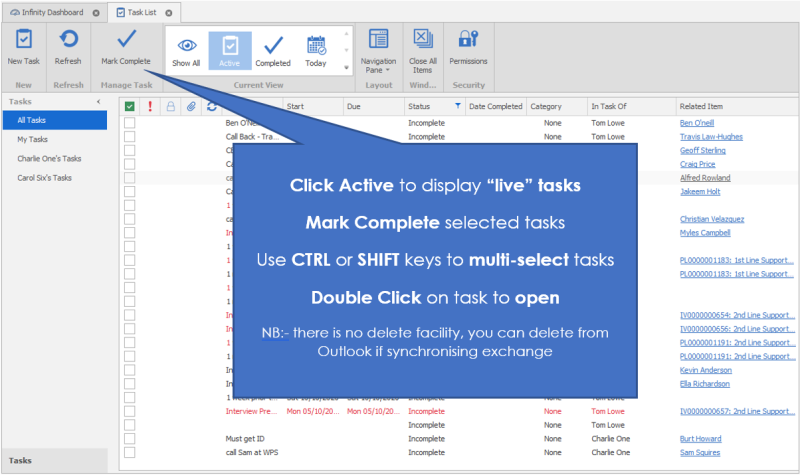
Step 4 - Shared Task Lists


Need more information, click below:
 General
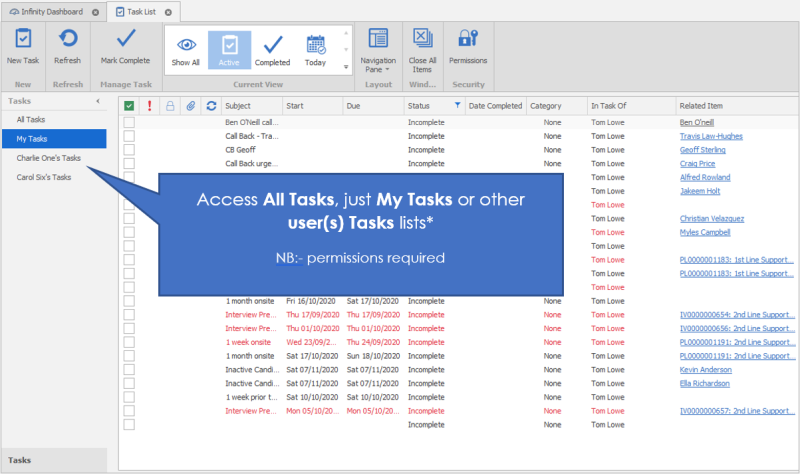
Your tasks can be accessed via the dashboard, quick access toolbar or application menu.

|
|

Tasks will synchronise with Outlook and can be set with date and time targets and also include a reminder. The reminder will pop up on screen via Outlook (requires users to have Outlook running).
Task List
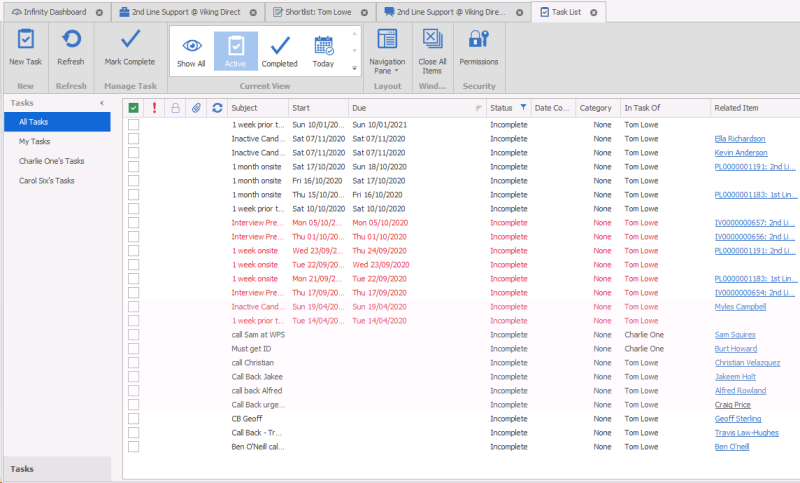
Will show you all of the tasks and management options. When you first open the task list you will see All Tasks, if you prefer to look at just your tasks you can select My Tasks from the left hand panel. When you first go into tasks it will show you a consolidated view of everyone’s tasks however your own task list and other user task lists are available in the left hand panel when they have given you the appropriate permission.
Adding a Task
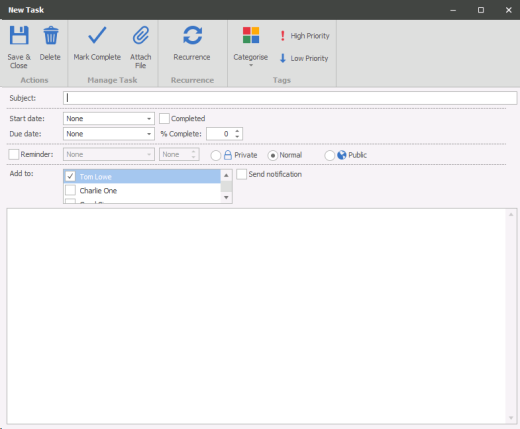
Tasks can be created within the task list area, within records or as a event log follow up. Click on New Tasks or Add button in the appropriate area:
Enter in the Subject, start date, due date, reminder details and any comments or notes applicable to this task.
Ensure that you use the save and close to keep any changes made.
Automated Tasks
Tasks can be generated by a business rule or template follow up. These will have been created by the system administrator to ensure key actions are completed by users. For example, to have a task created to follow up after a week of a candidate starting a placement.
Business Rule Task
An automated task generated by a business rule can be generated at interview confirmation or placement confirmation stages. The task set will have been created by your system administrator to ensure a particular process is followed or serve as a reminder.
Template Follow Up

An automated task generated by using a template follow up can be generated when sending out from the Comms Centre. These have been setup by the system administrator to ensure a particular process is followed after sending out a template. You also have the option to manually add a follow up when using a template via the Follow Up button, see Comms Centre for more details
In the details area you are able to add follow ups. Click on the Follow ups button and add tasks from here.
Click the Add button and enter the relevant information.
You will see these follow ups in your tasks list and in My Infinity.
Click Close when you’re finished
Task Toolbar

New Task
You can create tasks via the New Task icon or bring up details of a current task by double clicking on the task.
Enter in the Subject, start date, due date, reminder details and any comments or notes applicable to this task.
Ensure that you use the save and close to keep any changes made.

|
Deleting a task will delete it. |

|
Mark as complete will keep a record of the task but show up in the list as completed (grey with a line through and appear as 100% complete) You can also make them 50% or 25% complete if you have only done part of an activity. |

|
You can choose a sensitivity level for your task |

|
Private – For your eyes only Normal – Appears in your diary but can be viewed by others Public – Appears in everyone’s Tasks |

|
Attach file enables you to add, view rename copy, replace or delete attachments held against the task. If a task has an attachment it will have a blue pin showing in the task list. To open the attachment double click on the task and then click on the add attachment button. |
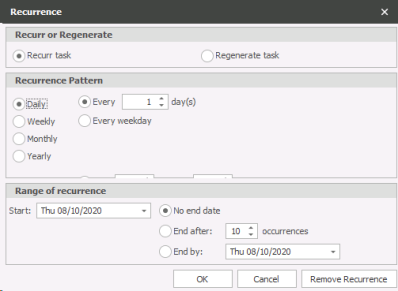
Recurrence enables you to recur or regenerate a task.
Recur task enables you to set the intervals for the recurrences and the range of the recurrences (when to finish the recurrences). Regenerate a task allows you to set the frequency of the regenerated task and the range of the regeneration (when to stop regenerating).
Categorise allows you to set a category to the task:

|
High Priority – will mark the task as high priority |

|
Low Priority – will mark the task as low priority |
Mark Complete
You can complete a task by selecting the task and then clicking on this icon or ticking the tick box in the first column.
Show All
 Enables you to view all tasks, whether completed or active / incomplete
Active
 Will put just active / incomplete tasks on view
Completed
Will put just completed tasks on view
Today
 Will show just today’s tasks on view
Navigation Pane

Allows you to set the navigation pane to:
- Normal – list of task lists available for you to view
- Minimised – will hide the lists but allow you to access via a quick access arrow
- Off – will hide the panel entirely, allowing you to see more details in view
Close All Items
 This will close down any task windows that you have open

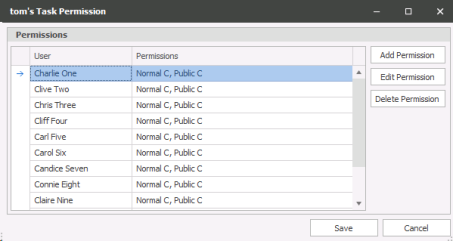
Permissions
 You can allow other users access rights to your tasks and task list. To add a user click on Add Permission,
Click on the dropdown arrow to bring up the list of other users and select the appropriate user
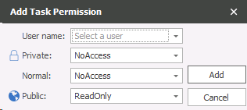
You are able to set access rights for Private, Normal and Public events. The choice of settings are:
| NoAccess | Will not allow viewing of these types of calendar entries |
| ReadOnly | View calendar only |
| ReadWrite | View and edit existing calendar entries |
| Create | Create calendar entries on your behalf as well as view and edit existing calendar entries |
Contact Details
If you require further assistance please contact Ikiru People using the details published on www.ikirupeople.com
Visit our Customer Portal at https://portal.ikirupeople.com/ for future events and clinics.
FeedbackIf you would like to make suggestions or have found any errors with this Help section please contact our Support team.
Copyright © 2026 Voyager by Ikiru People Ltd. All rights reservedVersion 4.87
Voyager Software is a brand of Ikiru People Ltd, a subsidiary of Dillistone Group Plc. The group is a leading global provider of software and services that enable recruitment agencies and in-house recruiters to better manage their selection process and address the training needs of individuals. Across its brands – which include Voyager Software (recruitment software UK & Australia), Dillistone FileFinder executive search software, GatedTalent, the global database of the world’s leading executives, Talentis.Global – the next generation of recruitment software and also ISV.Online, provider of online pre-employment skills testing and training tools. Dillistone Group serves thousands of clients worldwide. Ikiru People Ltd: Registration Number 02043300. Registered in England & Wales.
 |  |  |  |