SMS Messaging

 General
The facility to SMS message within Infinity is setup by Voyager, contact Customer Services for more details of costs and will require the system administrator to create SMS templates within the Comm's Centre's. You can also sign up for incoming SMS messaging which allows you to both send and receive SMS messages within Infinity. Received messages are recorded within the appropriate candidate or contact record and routed to the appropriate users My Infinity panel to notify them of a message. Please speak to your system administrator for more information.
Sending SMS text messages
*as soon as you go over 160 characters, it then sets the limit to 153 per segment
Emoji characters can be sent / received in Infinity but do not appear in the SMS comms event that may get logged on the candidate/ contact page. The emoji characters will appear as questions marks in the event details field.

From the Comms centre make sure that you have chosen SMS as the type of communication.
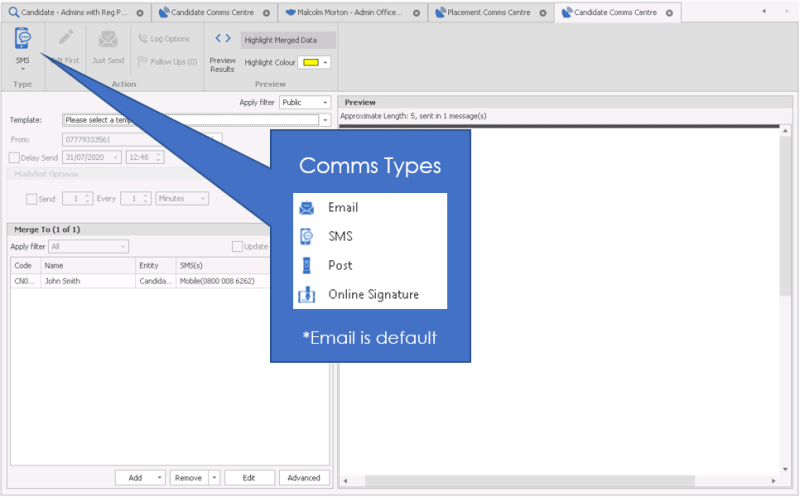
- Choose the correct template that you would like to send. Using the drop down next to Template:
When you choose the template the default text will show on the right hand side of the screen.
- If you are happy with the template, click Just Send
- You can make changes to the template, but first click Edit First
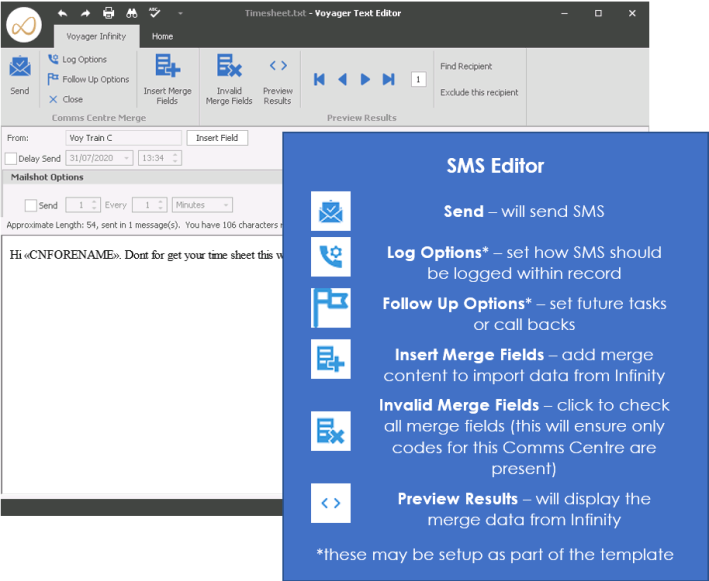
Editing the SMS will open the text in a text editor
- Use these arrows to move through a list of people that you are sending SMS messages to. Use this to check the results before sending. The number to the right of the arrows indicates the number in the list.
Find recipient – Find a name in the list. If you want to check that a name is in the list, use this option
Exclude this recipient – Use this option to remove the recipient that is showing on the screen.
From – This shows who the SMS will be send from. Click the insert field to amend this.
Insert field - Choose which number or ID you would like the SMS to come from
Delivery receipt – Enter a tick here if you would like a delivery receipt
Delay send – Specify when you’d like the SMS to be sent
Mailshot options – Enter the details here if you’d like to stagger the SMS sends so that they don’t all go at the same time.
Approximate Length - Will count the characters you have used and the number remaining, making you aware if the message will be sent in one message or in multiple. If you preview the message it will recalculate more accurately, when sending in bulk use the arrows to cycle through each recipient to check character limits
Incoming SMS
Video Overview
* Note - Incoming SMS are a costed feature. Please speak to Customer Services for more information.
Users can switch on Incoming SMS Notifications from their User Option menu.
This is a Windows notification and is controlled by Windows notification settings. The notification will remain until manually cleared by the user. Windows notifications can be managed from the Taskbar if no longer visible.
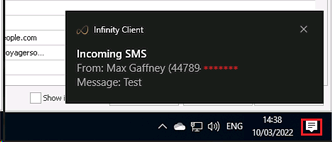
The user can go to the Incoming SMS Infinity section to take further action by clicking on the notification. This can also be accessed via My Infinity, please see below section.
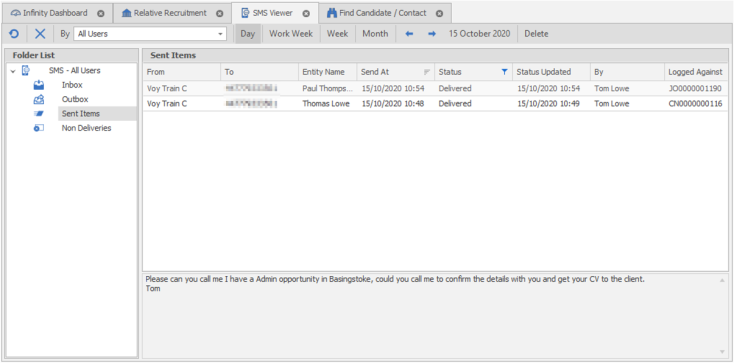
SMS Viewer (Reviewing SMS messages)
within the Queues area you can access the SMS viewer (you can also access the Inbox and Non Deliveries from the SMS section of My Infinity):
Messages are viewed in Work Week/ Week/ Month and you can cycle through via the left and right arrows. Numbers in brackets will indicate the number of messages that are unread within these sections.
Inbox (if applicable)
Will show you all SMS text messages sent to your Infinity number, it will detail the keyword used (if used) and the consultant that it has assigned it to. If this is blank then the system has not been able to assign the message and you are able to manually assign it via the Assign To button.
Outbox
Shows you SMS messages that are due to send, messages should not hold here for long unless you have chosen to use the schedule sending function. You are able to delete a scheduled message from here if necessary.
Sent Items
Allows you to review the sent SMS text messages sent from the system.
Non Deliveries
Allows you to review the SMS messages that have been unable to be delivered and therefore opportunity to remove/ edit the record to avoid continuing failures.
Invalid SMS messages
When you send an SMS and its waiting in the outbox, it’s not merged the record yet. It merges the data at point of sending.
In certain scenarios found at this point with the data then the SMS may not send, for example are they still ok to sms, ok to mailshot, mobile deleted, record inactive
A status of Invalid is shown and if you hover over it, it will tell you why

Contact Details
If you require further assistance please contact Ikiru People using the details published on www.ikirupeople.com
Visit our Customer Portal at https://portal.ikirupeople.com/ for future events and clinics.
FeedbackIf you would like to make suggestions or have found any errors with this Help section please contact our Support team.
Copyright © 2026 Voyager by Ikiru People Ltd. All rights reservedVersion 4.87
Voyager Software is a brand of Ikiru People Ltd, a subsidiary of Dillistone Group Plc. The group is a leading global provider of software and services that enable recruitment agencies and in-house recruiters to better manage their selection process and address the training needs of individuals. Across its brands – which include Voyager Software (recruitment software UK & Australia), Dillistone FileFinder executive search software, GatedTalent, the global database of the world’s leading executives, Talentis.Global – the next generation of recruitment software and also ISV.Online, provider of online pre-employment skills testing and training tools. Dillistone Group serves thousands of clients worldwide. Ikiru People Ltd: Registration Number 02043300. Registered in England & Wales.
 |  |  |  |