AWR
Administration / Setup
Infinity AWR compliance checking is optional and is configured in the Administration / General Settings / AWR tab.
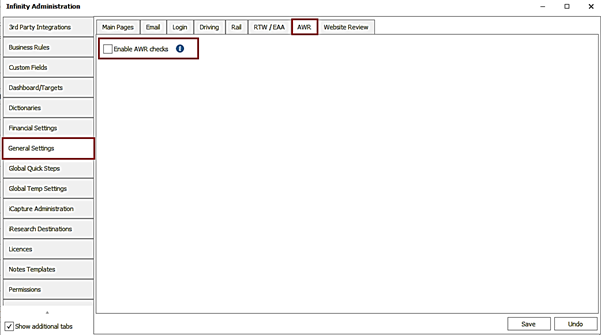
The setting is off as default.
If the setting is not enabled, AWR notifications do not show in My Infinity / Application menu and overnight AWR calculations are not run.
When enabled for the first time, overnight AWR calculations are run on all relevant placements on the database, with results available the next day and shown in My Infinity / Applications menu notifications, if applicable.
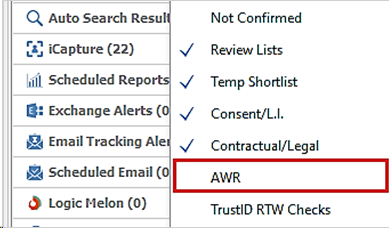
Users must add the AWR section to their My Infinity via the right click menu.
Once the full run has completed, only changes to placements and work history entries are queued to this overnight service each day.
There is also a setting to automatically tick 'AWR Checked?' on AWR clocks that are over 12 weeks. The setting is ticked as default. The agency should have dealt with AWR on these placements already, using their existing process. AWR Clocks that are over 12 weeks and ticked as ‘AWR Checked?’ do not appear in the My Infinity / Apps menu “Over 12 Weeks” notifications.
Date Criteria
- Infinity will go back Oct 2011 from today and include relevant placements or work history entry working weeks that fall inside that period
- Future placement / work history entry working weeks are not included
- If placement and work history entries have end dates in the future or are blank, today is assumed as the end date
Placement Criteria
Placements used in AWR calculations must match on the following criteria:
- Type Temp or Contract
- If ‘Contract’ status is Confirmed, Started or Finished
- If ‘Temp’ uses shifts of any status
- Placement Worker Type is ticked as Payroll or Umbrella in the Administration / General Settings / Reference Data / Worker Types tab
Work History Criteria
Work History entries used in AWR calculations must match on the following criteria:
- Is linked to a matching placement’s company, parent or subsidiary
- Is type Temp, Contract, Temp to perm, Contract to perm
My Infinity / Application Menu AWR Notifications
Notifications are displayed for each candidate AWR clock identified that is not ticked as 'AWR Checked'. A candidate’s AWR clock is defined as follows:
- Contains the placement(s) and work history entry(s) used to count the candidate’s working weeks ‘No of Weeks’
- must have at least one placement in the clock for it to appear
- A candidate can have multiple AWR clocks as they could:
- be in jobs for different companies at the same time
- have multiple AWR clocks running for the same placement(s)/work history entries
- If multiple placements / work history entries are found for the same company, parent or subsidiary regardless of location or job title they are added to the same candidate AWR group (clock)
Infinity notifies users if the AWR ‘No of Weeks’ count as of today is between 10-12 weeks or over 12 weeks. Users are notified in My Infinity if they own any of the placements. The Application menu shows all notifications.
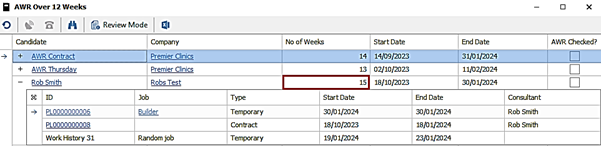
AWR notifications for 10 - 12 weeks do not show in My Infinity / Apps menu if the AWR clock has ended.
Note: AWR clocks end if there is a gap of 6 weeks.
The ‘No of Weeks’ field is a count of the working weeks from the AWR clock Start Date to AWR clock End Date
- The AWR clock Start Date is defined as follows:
- This is when the AWR clock starts
- It is the earliest start date / first shift across all placement / work history entries in the clock
- The working weeks are counted from that date, so if the start date is a Wednesday the AWR week count will run from Wednesday to Tuesday
- The AWR Clock End Date:
- This is when the AWR clock ends
- Is the last day of the AWR week period. So if the clock start date is a Wednesday the clock end date will always be a Tuesday
- This date will keep extending every week until it reaches a 6 week break, at which point it stops that clock
- The working weeks are counted to the clock End Date.
- In any given week if there is a contract or work history entry that starts in, ends in, or spans that week or a temp shift that is in it, it counts as 1 week
- If there is a 6 week gap between weeks, a new AWR clock count is created and the week count is reset back to 0
- If the 6 week gaps are within a single temp placement, the same placement can be linked to multiple candidate AWR clocks
To remove a notification the user must tick the AWR clock ‘AWR Checked?’ field.

The user is informed that the notification will be removed from the screen and an 'AWR Checked' info event is logged on all the placement pages in that clock.
The column values that are underlined are hyperlinks. This means you can quickly link to each of the records by clicking on them.
The toolbar on this screen enables you to:
- Refresh – Click here to update the list if something has changed.
- Use the placement comms centre to contact those of the list
- Use the placement log eventsto record telephone conversations etc.
- Use placement Find to find a particular record
- Use review mode Page view to change the view of the record
- Export – Allows you to export this list into an excel spread sheet
AWR tab on placement and candidate page
An AWR tab is on the placement page (contract and temp only) and candidate page, that shows all AWR clocks the placement/candidate is in, going back to Oct 2011. (Not just the ones shown in My Infinity / App menu notifications).

- Functionality / display of the AWR clock is the same as per My Infinity / App menu notifications
- The ‘No of weeks’ is the count as of today, regardless of whether it’s still running or not
- Order is latest AWR clock start date at the top
- The placement ID and candidate columns are not hyperlinks if the user is on that page
- The toolbar does not have the review mode button
- The user can tick / untick the ‘AWR checked’ column for the AWR clock
Note: If there is a temp placement and there is a 6 week gap between shifts, a new clock is created, and the placement will show as being in more than one AWR clock.
The candidate tab has a candidate week by week AWR report, there is a button on the toolbar called 'Create AWR report'.
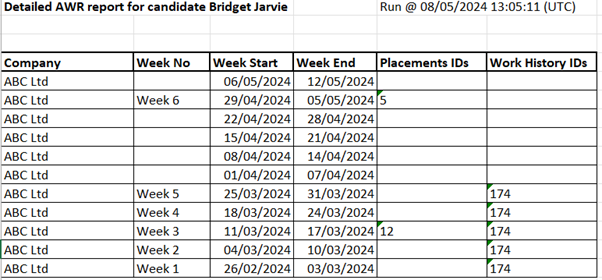
- This outputs a detailed report of the candidate’s AWR clocks in a week-by-week format to Excel.
- Shows all AWR Clocks a candidate is in as per the AWR Tab and details of each counted week in that clock, is shown on a row
- This includes weeks with no shifts/working dates but only shows blank weeks up to 6 weeks if clock ends.
- Is ordered by AWR clock using the week start date field with the latest at the top
- The columns shown are as below and headers are in bold
- Company - as per AWR group on candidate page
- Week No - the week in the AWR clock, e.g. 1
- Week Start - the start date of the week
- Week End - the end date of the week
- Placements IDs - Placements that have shifts or dates in that week and were used to count that week as a working week, shows ID comma separated
- Work History Entry IDs - work history entries that have dates in that week and were used to count that week as a working week, shows ID comma separated
The ‘Work History Id’ column has been added to the candidate work history grid, so the user is able to identify it, if required. It is available in the column chooser and can be added to the grid and layout saved. An ID is shown for manually entered / parsed work history entries only. Placement entries do not have an Id.
Event logging
When the AWR clock ‘AWR Checked?’ field is ticked / un-ticked,from the candidate or placement page or from My Infinity notifications, an info event is logged on all placement pages in that clock, for that user.

- Event action is ‘AWR Checked’ or ‘AWR Un-Checked’
- Event details show the AWR clock information: {start date}, {end date} {no of weeks}
- Events cannot be deleted
- Events can be seen on the related candidate, company and job pages
Search
AWR fields are available in placement search.

‘AWR Checked’
- Search returns placements that are in at least one AWR clock that is ticked as ‘AWR Checked’
- When the ‘Not’ operand is used, search returns placements that are in at least one AWR clock that is not ticked as AWR ‘Checked’
‘AWR Weeks’
- Search returns placements that are in at least one AWR clock that has the specified ‘No of Weeks’.
- When the ‘Not’ operand is used, search returns placements that are in at least one AWR clock that is not at the specified ‘No of Weeks’
Candidate SARs Report includes AWR Clocks
The Candidate SARS report has an AWR tab. This shows details as per the AWR tab on the candidate page (parent rows only).
AWR Rules
The Agency Worker Regulations information can be found here
 Contact Details
If you require further assistance please contact Ikiru People using the details published on www.ikirupeople.com
Visit our Customer Portal at https://portal.ikirupeople.com/ for future events and clinics.
FeedbackIf you would like to make suggestions or have found any errors with this Help section please contact our Support team.
Copyright © 2026 Voyager by Ikiru People Ltd. All rights reservedVersion 4.87
Voyager Software is a brand of Ikiru People Ltd, a subsidiary of Dillistone Group Plc. The group is a leading global provider of software and services that enable recruitment agencies and in-house recruiters to better manage their selection process and address the training needs of individuals. Across its brands – which include Voyager Software (recruitment software UK & Australia), Dillistone FileFinder executive search software, GatedTalent, the global database of the world’s leading executives, Talentis.Global – the next generation of recruitment software and also ISV.Online, provider of online pre-employment skills testing and training tools. Dillistone Group serves thousands of clients worldwide. Ikiru People Ltd: Registration Number 02043300. Registered in England & Wales.
 |  |  |  |