Calendar
 General
This will show you all of the appointments and meetings. When you first open the calendar you will see a consolidated view of all public appointments and meetings, if you prefer to look at just your appointments and meetings you can select Your diary by ticking you names from the left hand panel. You may also be able to look at colleagues calendars if you have the permissions to share their calendar.
New Appointment
This will create an appointment for any date range you select. You can either, click on the new appointment button and enter the date range information or you can double click on a date on the left hand side and then double click on a time to create an appointment. If you have permission to share colleagues diaries and can change the appointment to a meeting invitation by ticking others names in the add to section.
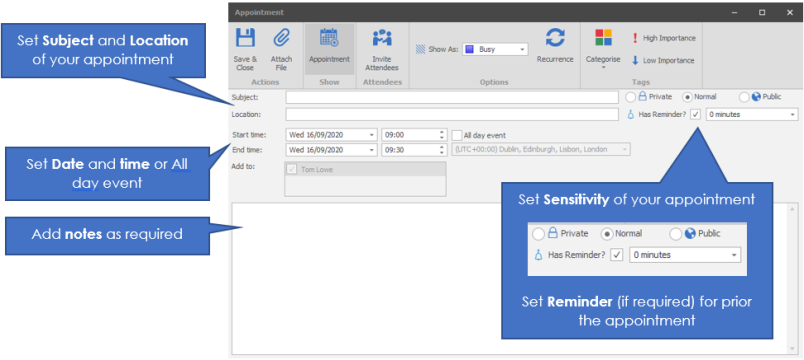
Once the window opens you will need to type in a subject and Location.
You can choose a sensitivity level for your Calendar event;
Private – For your eyes only
Normal – Appears in your diary but can be viewed by others
Public – Appears in everyone’s Calendar
Enter a start and end time and notes or additional information can be added in the lower part of the screen.
Calendar Toolbar

Refresh
Enables you to refresh the appointments that have been setup
Today
Gives you quick access to today’s date
Go To Date
Gives you quick access to a specific date of your choice.
Work Week
Displays the calendar with the 5 days of a traditional working week (Monday to Friday) setup in the user options
Week
Displays the calendar in a week format (Monday to Sunday)
Monthly
Displays the calendar for the whole month
Schedule
Displays your calendar in a timeline format, with appointment times displayed as clocks, the first clock showing the start time and the second showing the end time. These can also be colour coded (categorised) according to the type of appointment and can be coloured within the schedule by right clicking on the appointment and selecting Label As.
Time Scale
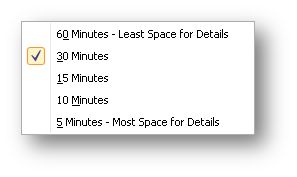
When viewing Day and Work Week you are able to set the timescales or intervals in view 5, 10, 15, 30 or 60 minutes.
Working Hours
This works with the schedule view of your calendar and enables you to only view working hours. (This will not be available in the first version of Infinity.)
Permissions
You are able to allow other users access to your calendar via the permissions icon.
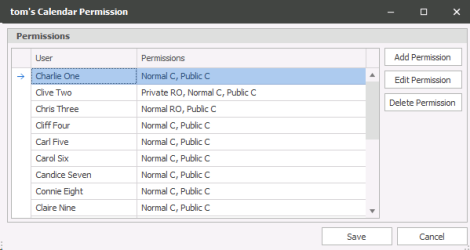
Click on the dropdown arrow to bring up the list of other users and select the appropriate user
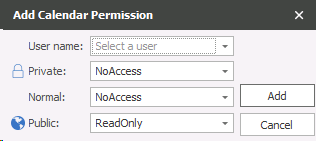
You are able to set access rights for Private, Normal and Public events. The choices of settings are:
| NoAccess | Will not allow viewing of these types of calendar entries |
| ReadOnly | View calendar only |
| ReadWrite | View and edit existing calendar entries |
| Create | Create calendar entries on your behalf as well as view and edit existing calendar entries |
All users have read only access to each other’s public sensitivity calendar entries as default.
User Options
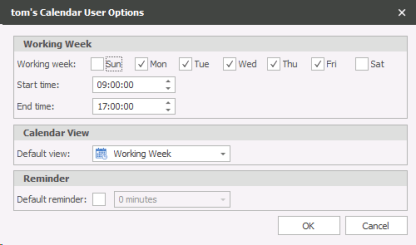
User options allows you to set up the Days and hours that you want to view your calendar. Tick the days of the week you would like to view i.e Mon – Fri and the hours of your working day if required. You can also set up your default view, i.e by day or by week etc.
Viewing other Calendars
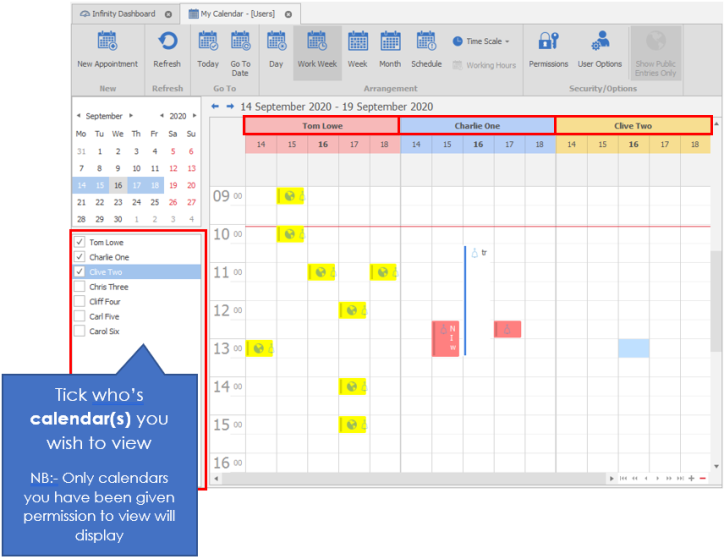
If other users have given you permission to Read or Create in their calendar you will see the users name in the left column, ticking the appropriate box will enable you to view their calendar. You are also able to view multiple calendars by ticking multiple users:
Contact Details
If you require further assistance please contact Ikiru People using the details published on www.ikirupeople.com
Visit our Customer Portal at https://portal.ikirupeople.com/ for future events and clinics.
FeedbackIf you would like to make suggestions or have found any errors with this Help section please contact our Support team.
Copyright © 2026 Voyager by Ikiru People Ltd. All rights reservedVersion 4.87
Voyager Software is a brand of Ikiru People Ltd, a subsidiary of Dillistone Group Plc. The group is a leading global provider of software and services that enable recruitment agencies and in-house recruiters to better manage their selection process and address the training needs of individuals. Across its brands – which include Voyager Software (recruitment software UK & Australia), Dillistone FileFinder executive search software, GatedTalent, the global database of the world’s leading executives, Talentis.Global – the next generation of recruitment software and also ISV.Online, provider of online pre-employment skills testing and training tools. Dillistone Group serves thousands of clients worldwide. Ikiru People Ltd: Registration Number 02043300. Registered in England & Wales.
 |  |  |  |