Whatsapp Calling
WhatsApp calling is available by right clicking on any mobile telephone numbers (telecoms with type Mobile). The first time you instigate your call, it will activate your default web browser with a security alert. If you set this to allow then it will ensure in future, calls are passed to the WhatsApp desktop application seamlessly.
*WhatsApp calling requires WhatsApp Windows desktop application
Need more information, click below:
 General
WhatsApp comes with a ‘Click to Chat’ feature that allows users to begin a chat with someone without having their phone number saved to their address book. Infinity users that have WhatsApp Web or Desktop installed, can initiate a single outgoing WhatsAPP ‘Click to Chat’ by right clicking on mobile number hyperlinks in Infinity.
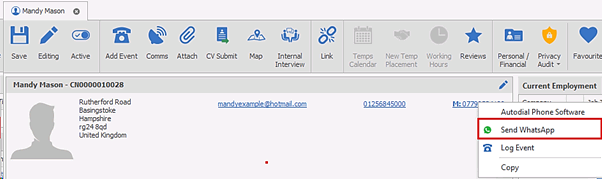
Mobile number hyperlinks are available in the following areas of Infinity:
- candidate and contact basic detail screen
- mobile columns in Temp Planner and Shift Planner
- mobile column in SMS Viewer inbox
OK to SMS
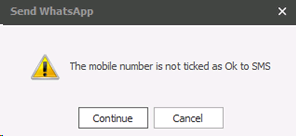
If the mobile number doesn’t have a country code, the setting in the field ‘SMS default country code if not known’ is used from the Administration / Phone Manager tab / SMS Manager Options section. When the mobile phone number hyperlink is clicked, a warning is given to the user if the mobile number is not ticked as OK to SMS
If the user continues, they are taken to Whatsapp.com to continue the chat via their Web or Desktop application (installing if necessary)
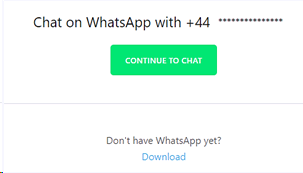
The chat can be completed as required in WhatsApp and no further connectivity with Infinity occurs

WhatsApp Event Log
When a WhatsApp ‘Click to Chat’ is initiated, the Infinity outgoing event logger is also loaded with a new comms type of ‘WhatsAPP’ and the appropriate defaults applied
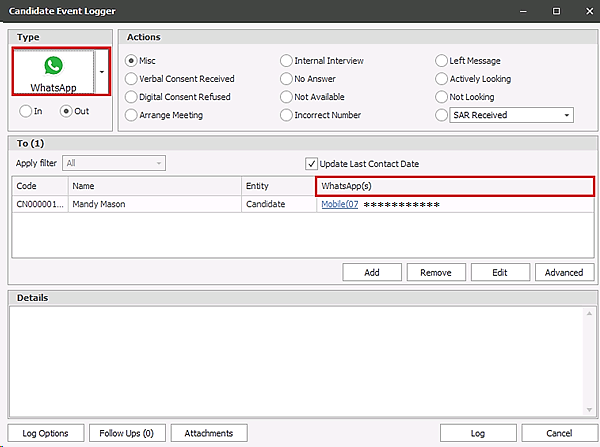
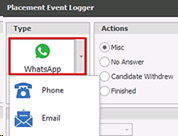
The user can manually log the event when ready. The event that is logged will show the WhatsApp logo in the event type column

The mobile number in the WhatApp(s) column in the event logger can also be clicked to launch a WhatsApp ‘Click to Chat’
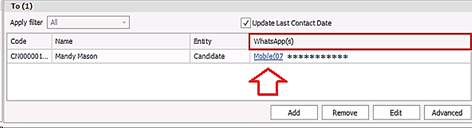
This is useful from pages that don’t show the candidate or contact mobile number hyperlinks such as placement, interview etc. The user must first manually change the comms type to ‘WhatsApp’ by clicking on adjacent down arrow
Contact Details
If you require further assistance please contact Ikiru People using the details published on www.ikirupeople.com
Visit our Customer Portal at https://portal.ikirupeople.com/ for future events and clinics.
FeedbackIf you would like to make suggestions or have found any errors with this Help section please contact our Support team.
Copyright © 2026 Voyager by Ikiru People Ltd. All rights reservedVersion 4.87
Voyager Software is a brand of Ikiru People Ltd, a subsidiary of Dillistone Group Plc. The group is a leading global provider of software and services that enable recruitment agencies and in-house recruiters to better manage their selection process and address the training needs of individuals. Across its brands – which include Voyager Software (recruitment software UK & Australia), Dillistone FileFinder executive search software, GatedTalent, the global database of the world’s leading executives, Talentis.Global – the next generation of recruitment software and also ISV.Online, provider of online pre-employment skills testing and training tools. Dillistone Group serves thousands of clients worldwide. Ikiru People Ltd: Registration Number 02043300. Registered in England & Wales.
 |  |  |  |