Release Notes Version 5.9
Release Date: 17th April 2025
What have we released?
• Infinity 5.9 has been released
Release overview
Here’s a snapshot of what we’ve delivered in this release:
• Colour change of entries on the Interview boards
• Distance search panels updated with geocoded address functionality
• Temps – minor enhancements including:
o ‘Charge’ rate available to merge in the Comms Wizard
o See all user favourites in the Planners
• Portal – lots of enhancements including:
o New ‘Quals & Certs’ document type
o 2 new reports - ‘Statistics’ and ‘Documents Added’
Infinity Release Notes Highlights Video - April 2025
Feedback please
We are continuously looking to improve Voyager Infinity and are keen to hear your thoughts. Please email suggestions@ikirupeople.com with any feedback on existing functionality or ideas for new functionality.
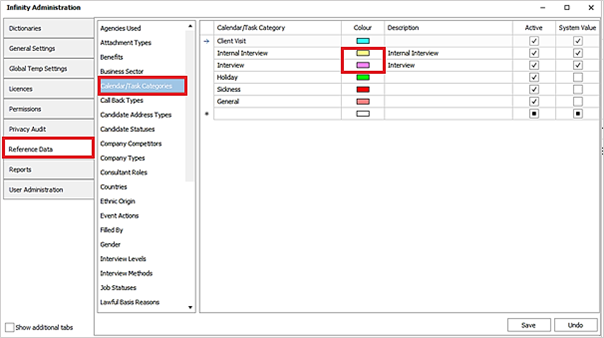
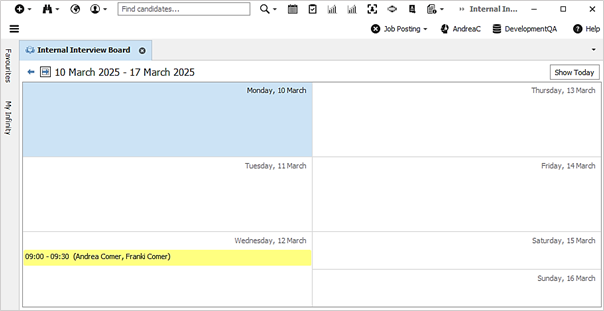
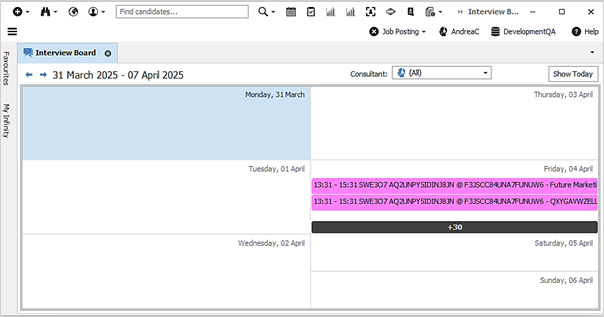
Enhancement 132699 Colour change on interview boards
The entries on the interview boards now take their colour from the setting in Administration / Reference Data / Calendar / Task categories tab.
The default is yellow for the Internal Interview board.
The default is pink for the Interview board.
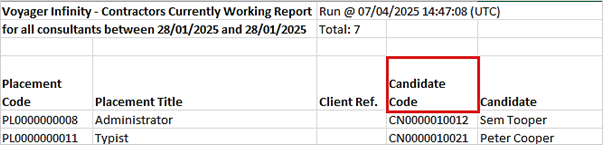
Enhancement 132558 Candidate Code field added to Contractors Currently Working report
The candidate code is available in the column chooser in Contractors Currently Working report.
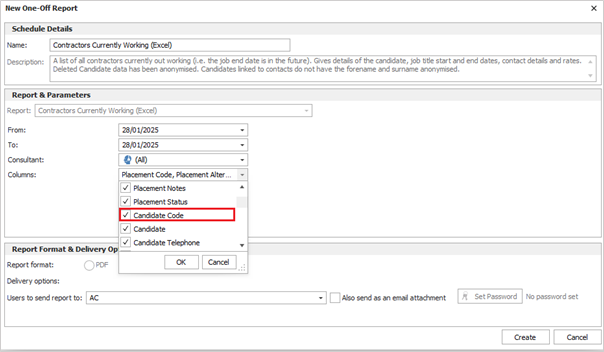
• This is above the candidate field
• This is off as default
When selected, the candidate code appears on the report in the same order as the column chooser.
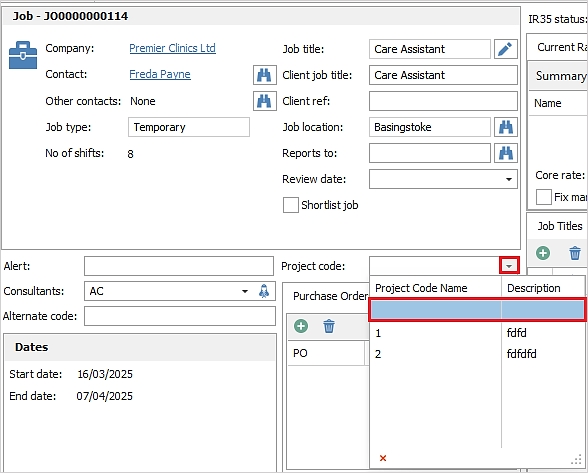
Enhancement 132555 Ability to remove Project Codes from job and placement
There is a blank value in the drop-down list to remove the project code on the job and placement page.
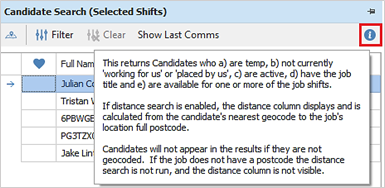
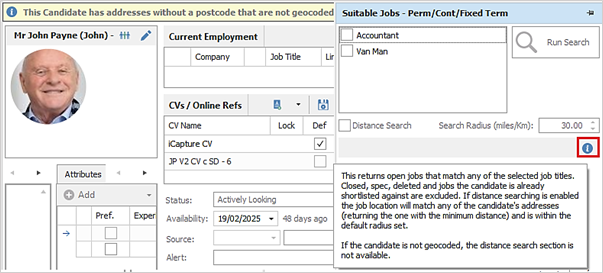
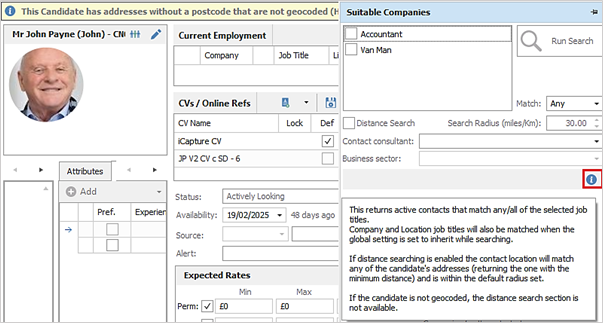
Enhancement 132286 Distance searching in panels updated to deal with geocoded addresses
The Shift Planner / Candidate Search panel ‘Info’ tip has been changed as follows:
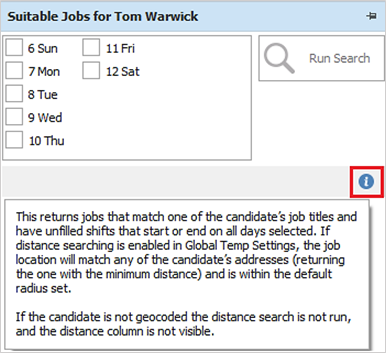
The Temp Planner / Suitable Jobs panel ‘Info’ tip has been changed as follows:
The Candidate page / Suitable Jobs panel has been changed so that the distance search section is not available if the candidate is not geocoded and the ‘Info’ tip updated as follows:
The Candidate page / Suitable Companies panel has been changed so that the distance search section is not available if the candidate is not geocoded, and the ‘Info’ tip updated as follows:
Enhancement 132383 Temps - default the shift name when adding shifts
In Administration / Global Temp Settings / Shift Names tab a default shift name can be set.
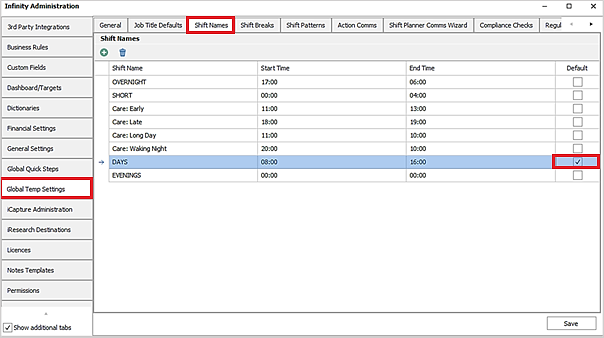
• This is blank as default
• If no default is set it works as per current functionality defaulting the first shift in alphabetic order
• If a shift name is selected that is assigned as the default and then deleted, the default is blanked
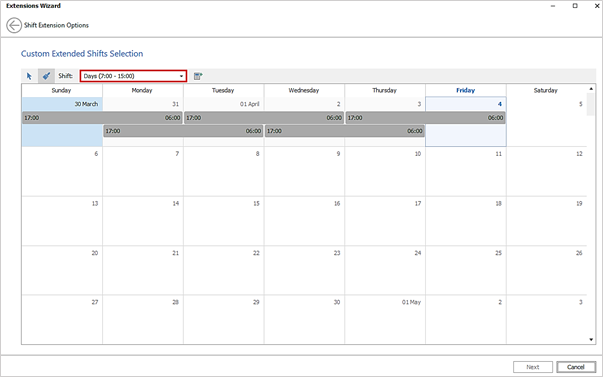
In temp job and placement (bulk and single) extension calendars, this is the shift name that is shown as default if global shift names are used and hence no shift names set at the company level.
In Company page / Temp Settings / Company Shift Names tab a default can be set.
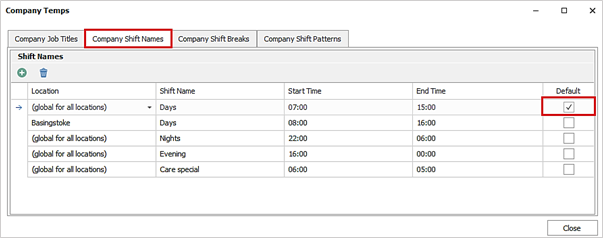
• This is blank as default
• The default can be set globally for all locations OR for a single location
• If no default set it works as per current functionality defaulting the first shift in alphabetic order
• If a shift name is selected that is assigned as the default and then deleted the default is blanked
• The company page must be saved for the default to be used
In temp job and single placement extension calendars this is the shift name that is shown as default if company shift names are used and the location matches.
Enhancement 132382 Temps - option to see all user favourites in the Planners
There is a new setting in Administration / Global Temp Settings / General tab to show all user's favourites or current user favourites in the candidate search results ‘Fav’ column in Temp and Shift Planner.
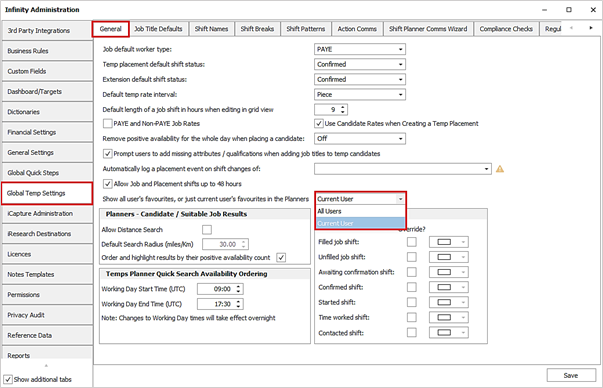
The default is ‘Current User’ and works as per existing functionality.
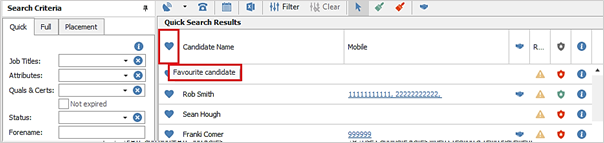
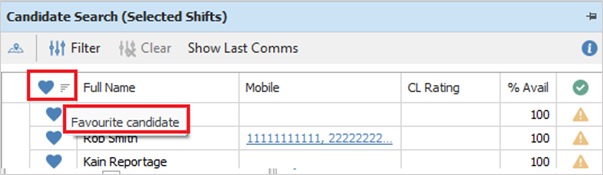
When ‘All Users’ is selected, the favourite column shows if the candidate is a favourite of any user and the tooltip changes to say, ‘Favourite candidate’. The Planners will need to be reopened to reflect any change.
This column is shown in Temp Planner / Candidate Search results.
This column is shown in Shift Planner / Candidate Search results panel
Enhancement 132721 Temps - candidate temp calendar views remembered
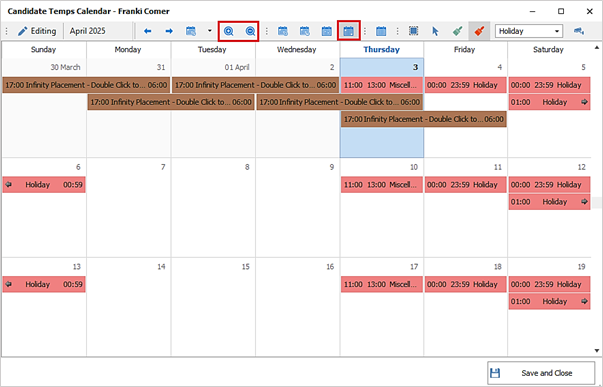
In the candidate Temp Calendar, Infinity remembers the following settings and they are applied the next time the user opens the screen:
• The selected calendar view (Day, Work Week, Full Week, Month)
• The ‘Month’ view zoom setting. When in ‘Month’ view and the user clicks on the magnifying (+ and -) buttons on the toolbar
Enhancement 132345 Temps - ‘Charge’ rate available to merge in the Comms Wizard
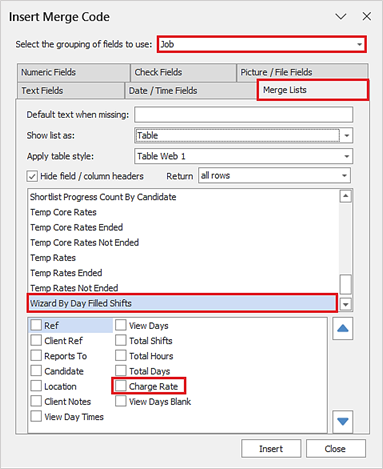
In the Shift Planner Comms Wizard, a new column has been added to merge the charge from the relevant placement shift core rate. This is available in the ‘Wizard by Day Filled Shifts’ merge lists in placement, job and contact groups.
This is the ‘Charge’ value for each of the shifts in the period and if all shifts use the same rate, only one listed.
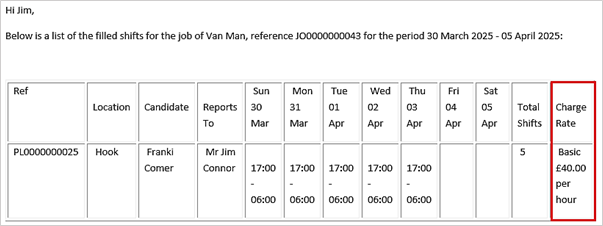
The rate ‘Name’ and ‘Per’ value are also displayed.
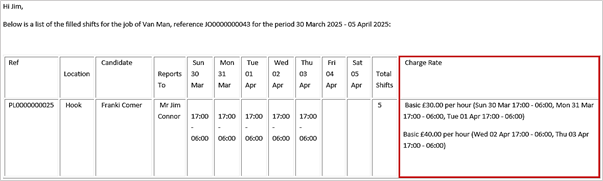
If the shifts use different rates, then these are listed in the field along with the shifts’ date / times they are applicable to.
Enhancement 132350 Temps - merge rates the candidate is being paid for only
All placement rates merge lists in the Placement Comms Centre, have a new filter option to only return rows where the rate 'total pay' field is not equal to 0 (hence total pay is not populated).
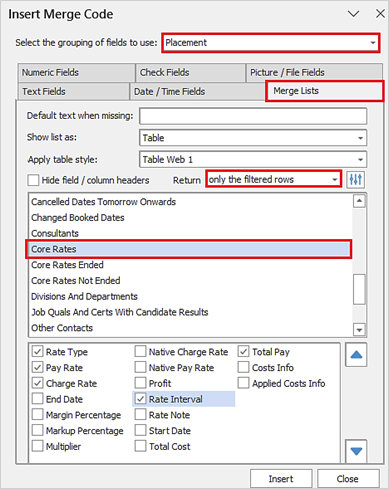
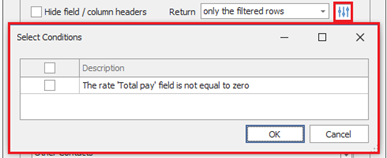
The user must click on the adjacent filter button and select the filter condition.
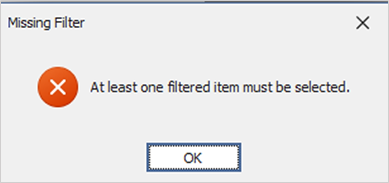
If this is not done the user will not be able to insert the merge list and is given a warning.
The placement rate merge lists available are as follows:
• Rates
• Rates not ended
• Rates ended
• Core rates
• Core rates not ended
• Core rates ended
When the filter is used, rates on the placement page that have a ‘Total Pay’ field equal to 0 are excluded from the merging.
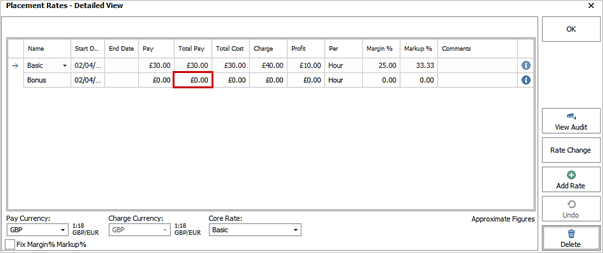
From the above example, only the ‘Basic’ rate is merged in the Comms Centre template.

Enhancement 132794 Portal – changes to how availability is entered by candidates
‘Unknown’ has been removed from the Portal availability screen.
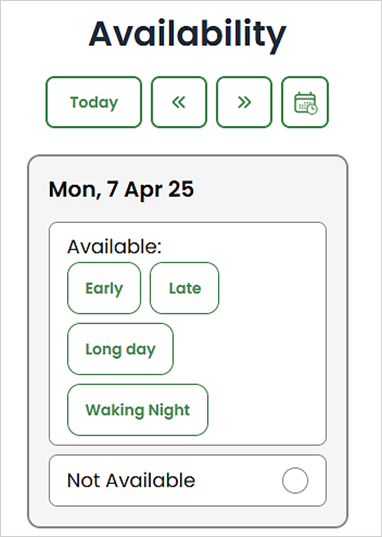
When availability is configured Per Shift:
• If 'not available' is already selected, selecting it again removes the 'not available' (and that matching not available entry in Infinity)
• Note - Per shift available can already be removed by selecting it again
When availability is configured Per Day:
• If 'not available' is already selected, selecting it again removes the 'not available' (and that matching not available entry in Infinity)
• If 'available' is already selected, selecting it again removes the 'available' (and that matching available entry in infinity)
If ‘Reasons’ are on, and 'Not available' is unselected and selected again, it doesn't remember its previous selection and works as it does if you were clicking it for the first time.
The Availability screen feed displays the 'removal' of the available & unavailable entries.
Enhancement 132713//132853/132854 Portal - new ‘Quals & Certs’ Document type
A new ‘Quals & Certs’ document has been created to eventually replace the old ‘Upload Quals & Certs’ document
Advantages of the new ‘Quals & Certs’ document
• Multiple Mandatory Quals & Certs in one document
• All individual Quals & Certs have all options
o Ref Number
o Expiry Date
o Front & Back
• Image is now optional, allowing a ‘Reference Number Only’ Quals & Certs
Advantages of old ‘Upload Quals & Certs’ document
• A or (B and C) functionality (typically used for Right to Work)
Administration
In Administration / General Settings / Candidate Portal tab there is new Document type called ‘Quals & Certs’ (without the word ‘upload’).
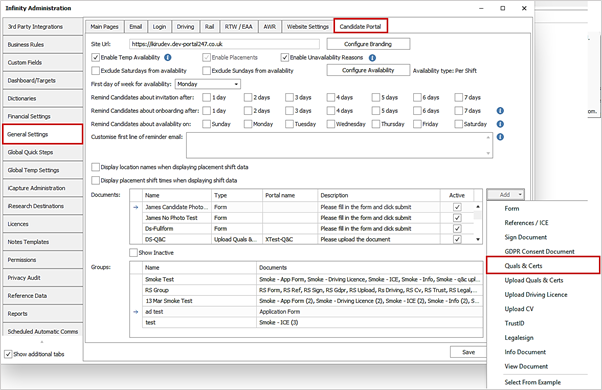
• Above 'Upload Quals & Certs' in the list of documents.
When selected the ‘Add Quals & Certs’ window is displayed.
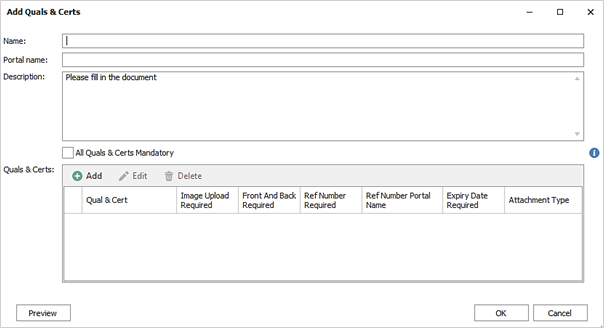
Document Level Properties
• Name
• Portal Name
• Description
o The default description is ‘Please fill in the document'
• Has ‘All Quals & Certs Mandatory' tick box
o If 'All Quals & Certs Mandatory' is ticked, the candidate must fill in all Quals & Certs before the document can be submitted.
o If 'All Quals & Certs Mandatory' is not ticked, the candidate can select which of the Quals & Certs in the list they wish to submit
o This information displays on the ‘Info’ button tooltip
Quals & Certs
At least one Qual & Cert must be added to save the Document and the same Qual & Cert cannot be added twice.
The Document contains a list of Quals & Certs which when added have 7 properties to set.
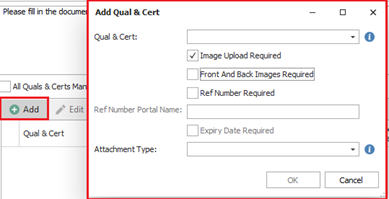
• Qual & Cert – is the name of Qual & Cert and must be populated
o Quals & Certs have a 'Portal Name' configured in Administration / Dictionaries / Quals & Certs tab that is sent to the Portal if populated
o Has an ‘Info’ button tooltip
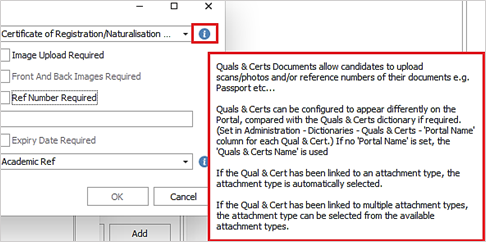
• Image Upload Required – this is on by default
• Front And Back Images Required - if 'Image Upload Required' is unselected, this is greyed out and off by default
• Ref Number Required – this is off by default
• Ref Number Portal Name - if 'Ref Number Required' is unselected, this is greyed out
• Expiry Date Required
o If the selected Qual & Cert doesn't have an expiry date, this is unticked and greyed out
o If the selected Qual & Cert does have an expiry date, this is ticked by default
o If the user swaps between a Qual & Cert with an expiry date, to one without, the 'Expiry Date Required' tick box is un-ticked and greyed out
o If the user swaps between a Qual & Cert without an expiry date, to one with, the tick box remains un-set
• Attachment type
o If the Qual & Cert has been linked to an attachment type, the attachment type is automatically selected
o If the Qual & Cert has been linked to multiple attachment types, the attachment type can be selected from the available attachment types.
o has an ‘Info’ button tooltip
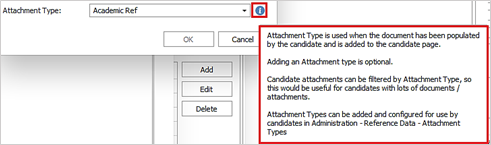
Each Qual & Cert must have at least one of 'Image Upload Required' or 'Ref Number Required' enabled.
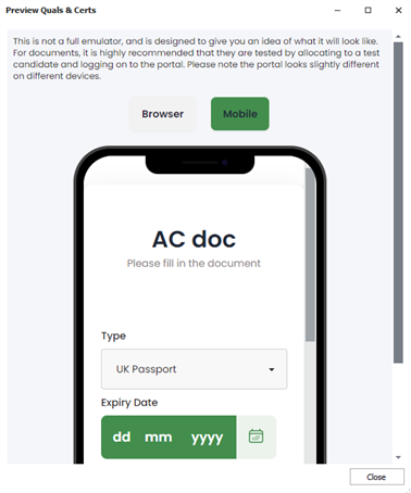
Preview
A Preview button is available that displays the Qual & Cert document as the candidate sees it on the Portal.
Document management
• The document cannot be deleted if it is allocated to a candidate and not verified
• The following fields cannot be edited if it is allocated to a candidate and not verified:
o 'Per Qual & Cert' fields: Names, Image Upload, Front/Back, Ref No (value and Portal Name), Expiry Date
o 'Per document field' All Quals & Certs Mandatory
• The following fields can be edited if it is allocated to a candidate and not verified
o 'Per Qual & Cert' field: Attachment Type
o 'Per document’ fields: Name, Portal Name, Description
Old 'Upload Quals & Certs' document
When creating or copying an 'Upload Quals & Certs' document, the user is told a new version of the document is available called 'Quals & Certs' and if using the 'Single' or 'Multiple' option, it is recommended to use it instead. If using the 'A or (B and C)’ option, then the advice is to continue with this document.
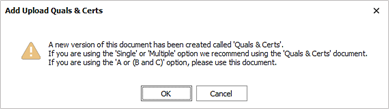
When editing an existing 'Upload Quals & Certs' document, the functionality continues as it did previously.
Portal
When the Document is added to a candidate, it is listed on their Onboarding screen and can be completed and submitted.
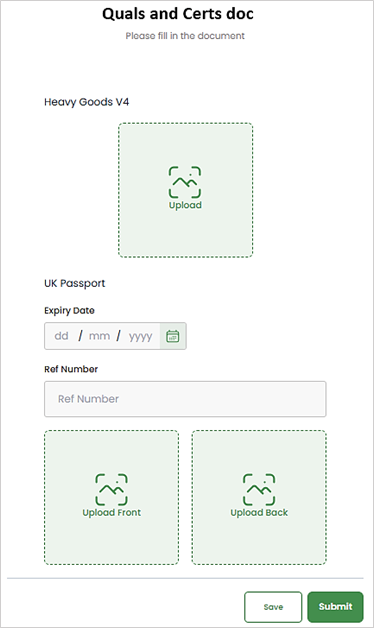
When opened it functions as follows:
• If a Portal name is configured, this is displayed as the Qual & Cert name instead
• If the 'Quals & Certs' document is configured as 'Mandatory’:
o Quals & Certs appear one after each other
o All Quals & Certs must be populated
• If the 'Quals & Certs' document is not configured as 'Mandatory':
o There is a drop-down list, where candidate can select a Quals & Certs
o Candidates can add as many as they like
o Only one of each Qual & Cert are allowed
Each Qual & Cert can have the following properties:
• Image Upload (if enabled)
o Accepted file formats: JPG, JPEG, GIF, PNG, DOC, DOCX, PDF
o JPG, JPEG, GIF PNG display a copy of the image
o DOC, DOCX, PDF display a 'file system' type picture
o You cannot upload a file bigger than the maximum file upload size set on the database
o The filename is sent to Infinity, so that it can be returned if rejected
o If enabled, it is mandatory
o When press 'next' any field that is mandatory and not completed is highlighted in red and displays a message next to the field explaining the issue
• Requires Front And Back Images (if enabled)
o Only relevant if 'Image Upload' is enabled.
o Front and back must be the same type
o If enabled, it is mandatory
o When pressing 'Next', any field that is mandatory and not completed is highlighted in red and displays a message next to the field explaining the issue
o Note: This is always fixed in the admin screen, and cannot be selected by the candidate
• Ref Number (if enabled)
o If a Portal name is configured, this is displayed as the name instead
o If enabled, it is mandatory
o When pressing 'Next', any field that is mandatory and not completed is highlighted in red and displays a message next to the field explaining the issue
o Max 20 characters
• Expiry date (if enabled)
o If enabled, it is mandatory
o When pressing 'Next', any field that is mandatory and not completed is highlighted in red and displays a message next to the field explaining the issue
o Min date = one year before today
o Max date = 50 years after today
Note: Quals & Certs must have at least one of 'Image upload required' or 'Ref number required' enabled.
Verify
A new verify screen has been created for Quals & Certs.
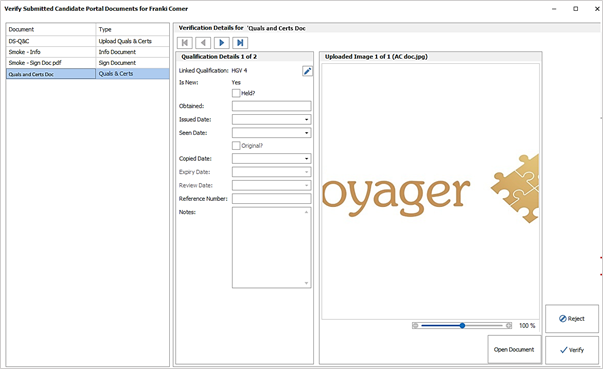
Functionality is the same as the old screen except for the following:
• Quals & Certs name
o These are always populated by default
o Cannot be blanked
• When the Quals & Certs attachment is added to the candidate page, the attachment name is the name of the Qual & Cert
• If the Quals & Certs name is edited in the verify screen, the attachment name is the new Quals & Certs name
• There is no 'not required' functionality
Reject
Functionality is the same as the old screen except for the following:
• When rejected, the document is returned to the candidate as it was populated using the original filename
Enhancement 132726 Portal - select from a list of Umbrella companies
This allows candidates to select an Umbrella Company from a pre-approved list.
Administration
In Administration / General / Candidate Portal tab, the user can add 'Umbrella Company' to a Form.
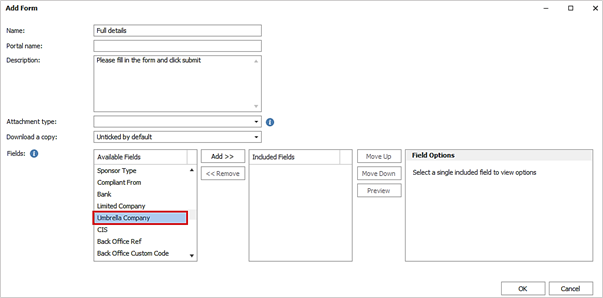
• This is underneath the Limited Company field
• There is an option for it to be set as mandatory
The user can configure which umbrella companies are available on the Portal in Administration / / Umbrella Companies tab.
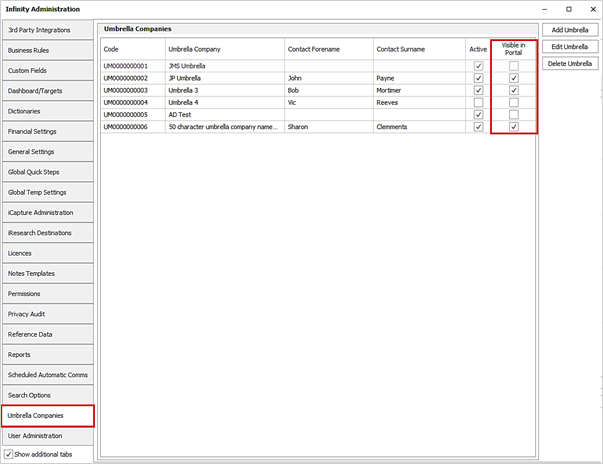
The field is available to set in the Add / Edit screen if the Umbrella Company is active.
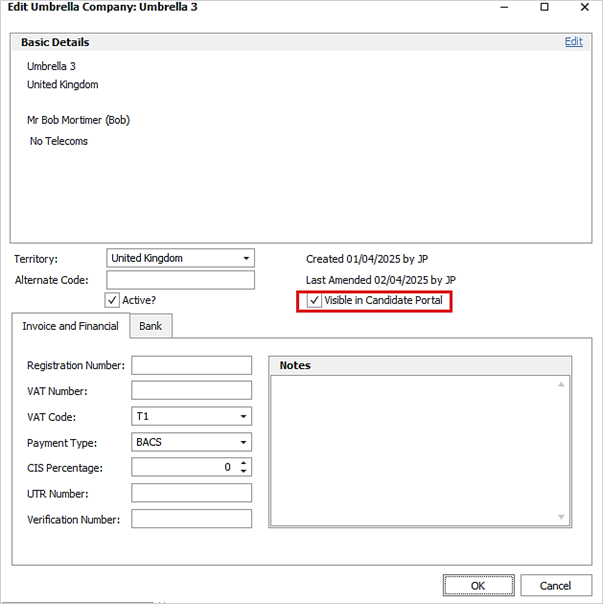
Portal
When configured, the Portal form displays the 'Umbrella Company' field.
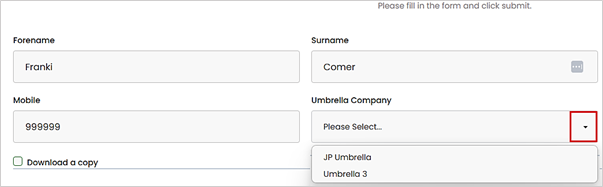
The drop-down list of Umbrella companies only displays those configured to be visible on the Portal and if it is mandatory, must be populated.
Verify
• When the form is verified, the Umbrella company is added to the candidate page
• If the Umbrella company is deleted between the form being created and the form being verified, the form will verify all other relevant fields, and not populate the umbrella company field
• If the Umbrella company is made inactive between the form being created, and the form being verified, the form will verify all relevant fields, including the Umbrella company
Reject
If the form is rejected, the Umbrella company is visible on the Form when viewed by the candidate.
Enhancement 132668 Portal - maximum working hours opt out field (e.g 48 Hour Opt-Out)
Administration
In Administration / General / Candidate Portal tab, the user can add the 'Maximum Weekly Working Hours Optout' field to a Form once.
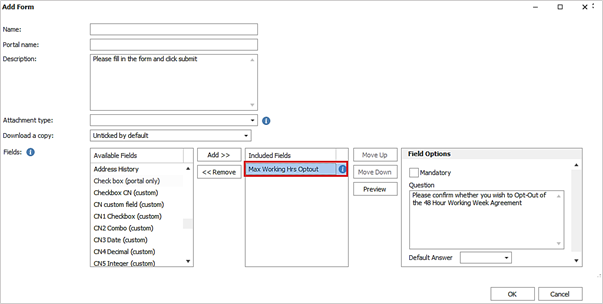
• It is in the list below Address History
• The candidate is asked if they wish to agree to the policy via a Question, which is customisable and has a question set as default
• The default answer can be set to Yes or No
• It can be configured as mandatory for the candidate to answer Yes/No
• An 'Info' button explains the candidate is asked a Yes/No question and if they answer 'Yes' they must provide a signature
Portal
If the candidate answers 'Yes', a 'Declaration Signature' appears.
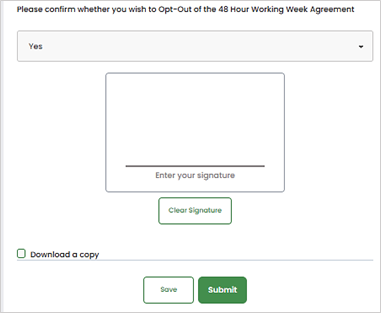
• The signature is mandatory
• The signature stores the same information on the PDF as it does elsewhere on the form (IP address and email address)
• Signatures are left aligned when in a Maximum Working Hours opt out question (when it is just a signature on a form, or a sign doc, then it is centred)
Verify
When verified, if the answer is Yes, the 'Maximum Weekly Working Hours Optout' is ticked on the candidate page and an event is logged (existing functionality when ticking the setting manually).
When verified, if the answer is No, the 'Maximum Weekly Working Hours Optout' is not ticked on the candidate page. If it was previously ticked, an event is logged to show that it was unticked (existing functionality when unticking the setting manually)
The Form can be rejected, and the setting is returned to the candidate, as it was populated before it was submitted.
The field appears on the PDF that is stored on the candidate page and can optionally be downloaded by the candidate.
Enhancement 132728 Portal - conditional questions have an optional signature
Administration
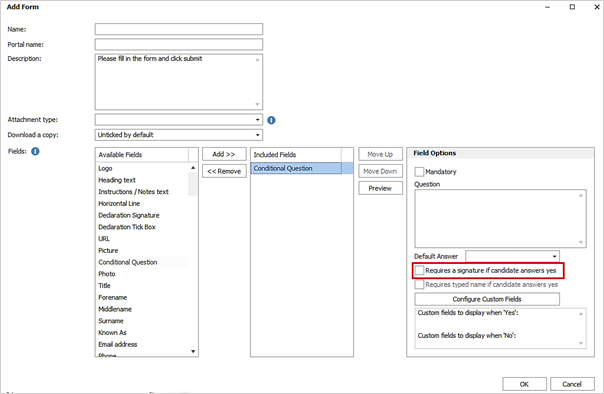
In Administration / General / Candidate Portal tab Form documents, an option has been added to the 'Conditional Question' field to require a signature.
Portal
If the candidate answers 'Yes', a 'Declaration Signature' appears.
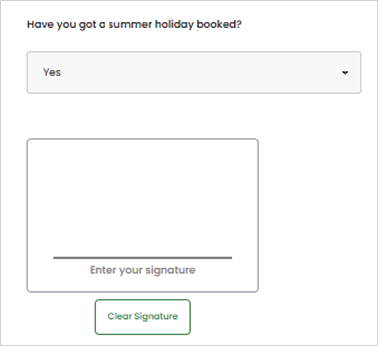
• The signature is mandatory
• The signature stores the same information on the PDF as it does elsewhere on the form (IP address and email address)
• Signatures are left aligned when in a conditional question (when it is just a signature on a form, or a sign doc, then iti s centred)
• The default answer can be set to Yes or No
• The signature appears underneath the custom fields linked to the 'Yes' answer.
Verify
The Form can be rejected, and the signature is returned to the candidate as it was populated before it was submitted.
The signature appears on the PDF that is stored on the candidate page and can optionally be downloaded by the candidate.
Enhancement 132791 Portal - signature option for the candidates to add their name
Administration
In Administration / General / Candidate Portal tab signature fields have an option for candidates to type their name in, when signing.
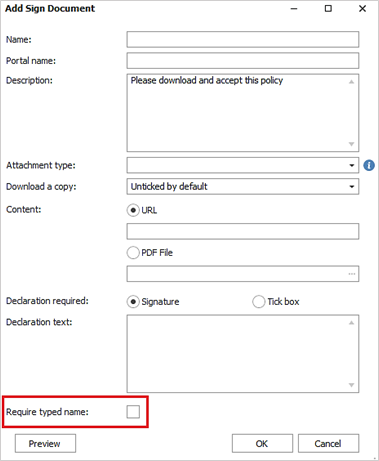
Signatures are available in the following:
• Sign documents
• GDPR documents
• Form documents - signatures
• Form documents - conditional question signatures
The option is off by default
Portal
If the name field is enabled, it must be populated.
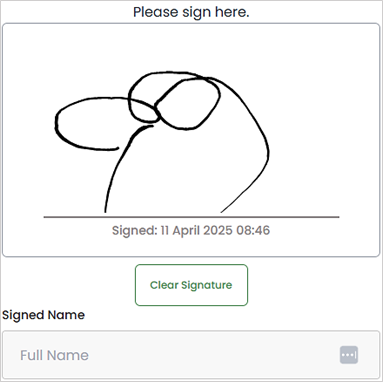
The name appears in the PDF.
Verify
No changes.
Documents created prior to the upgrade continue to work after the upgrade.
Enhancement 132724 Portal - mobile number added to employment history references
Administration
In Administration / General / Candidate Portal tab employment history no gap fields when references are included, will automatically include the mobile number. There is no configuration option for this, and the Infinity tooltip has been updated to explain that only one of mobile/email are mandatory.

Portal
The 'Employment History - No Gaps' field when references are included, displays the mobile field.
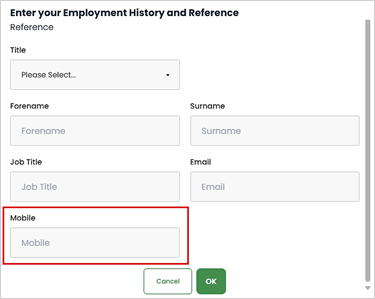
• At least one of the 'mobile' and/or 'email' fields must be populated
• The maximum length is 30
Documents created after and prior to this change, will have the mobile number appear on the Portal.
Documents created prior to this change, that are saved before the change, will not have the mobile number appear on the Portal.
The mobile field appears on the PDF document
Verify
When verified the mobile is added to the relevant referee on the candidate page.
Enhancement 132732 Portal - new Documents report
There is a new report in the General folder called ‘Candidate Portal Documents (Excel)’. The report lists all Portal documents added to candidates.
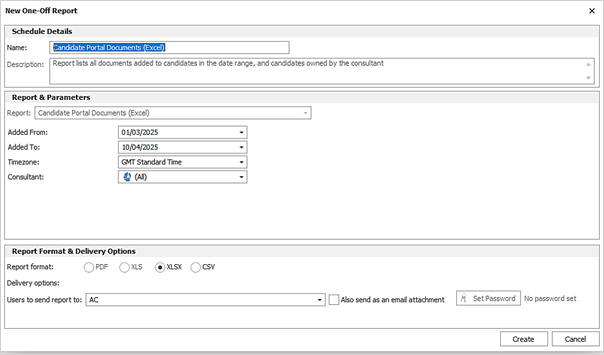
The report has the following parameters:
• Added From: - documents added to the candidate from this date
• Added To: - documents added to the candidate from this date
• Timezone: - data reflects the chosen time zone when running the report
• Consultant: - owning consultant of candidates with options of Teams / All / Individual Consultant
This is all documents added in the date range, time zone and candidates owned by the consultant.
The candidate columns output are:
• Candidate Name
• Job Titles (comma delimited)
• Last Used
• Last Contacted
• Last Availability Update
• Owning Consultants
The document columns output are:
• Document Name
• Portal Name
• Type (e.g. Form)
• Added
• Submitted
• Verified
• Verified By
• Rejected Date
• Rejected By
• Rejected Reason

The results are ordered by added date with newest at top.
Enhancement 132731 Portal - new Statistics report
There is a new report in the General folder called ‘Candidate Portal Statistics (Excel)’. The report lists Portal statistics.
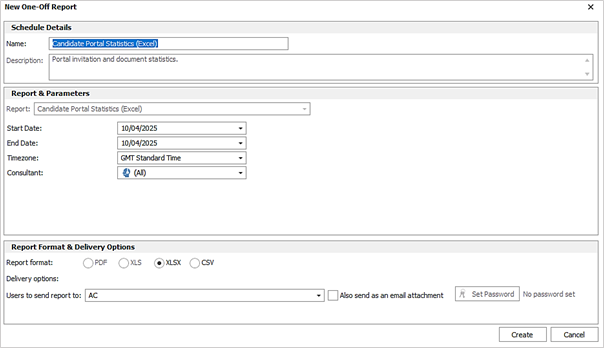
The report has the following parameters:
• Start Date: - statistics for candidates from this date
• End Date: - statistics for candidates from this date
• Timezone: - data reflects the chosen time zone when running the report
• Consultant: - owning consultant of candidates with options of Teams / All / Individual Consultant
The report lists the following in the date range, time zone and candidates owned by the consultant:
• Candidates Invited
• Documents Added - by anyone to candidates owned by the consultant
• Documents Submitted - by candidates owned by the consultant and includes submitted then verified
• Documents Verified - by anyone to candidates owned by the consultant
• Candidates Availability Updated
• Average time to submit Document, after added - time between the document being added to the candidate and it being submitted for the last time
o For all documents added and submitted in the date range, the average time is shown in days (Decimal, to one decimal place, e.g. 2.3 Days)
• Average time to verify document, after added - time between the document being added to the candidate and it being verified)
o For all documents submitted and verified in the date range, the average time is shown in days (Decimal, to one decimal place, e.g. 2.3 Days)

The results are ordered by consultant and output a row per consultant.
There is a 'totals' row, where all the statistics in the rows above are calculated.
• Columns 1-5 is a sum of the numbers in the rows
• Columns 6 & 7 calculates the average across all relevant documents and not an average of each of the consultants’ averages
 Contact Details
If you require further assistance please contact Ikiru People using the details published on www.ikirupeople.com
Visit our Customer Portal at https://portal.ikirupeople.com/ for future events and clinics.
FeedbackIf you would like to make suggestions or have found any errors with this Help section please contact our Support team.
Copyright © 2026 Voyager by Ikiru People Ltd. All rights reservedVersion 4.87
Voyager Software is a brand of Ikiru People Ltd, a subsidiary of Dillistone Group Plc. The group is a leading global provider of software and services that enable recruitment agencies and in-house recruiters to better manage their selection process and address the training needs of individuals. Across its brands – which include Voyager Software (recruitment software UK & Australia), Dillistone FileFinder executive search software, GatedTalent, the global database of the world’s leading executives, Talentis.Global – the next generation of recruitment software and also ISV.Online, provider of online pre-employment skills testing and training tools. Dillistone Group serves thousands of clients worldwide. Ikiru People Ltd: Registration Number 02043300. Registered in England & Wales.
 |  |  |  |