Release Notes Version: 5.8
Release Date: 31st March 2025
What have we released?
• Infinity 5.8 has been released
Release overview
Here’s a snapshot of what we’ve delivered in this release:
• Duplicate Lead Check
• Candidate Portal Availability Screen
• Candidate Portal Enhancements
• Misc Enhancements
Feedback please
We are continuously looking to improve Voyager Infinity and are keen to hear your thoughts. Please email suggestions@ikirupeople.com with any feedback on existing functionality or ideas for new functionality.
Enhancement 132002 Duplicate Lead check
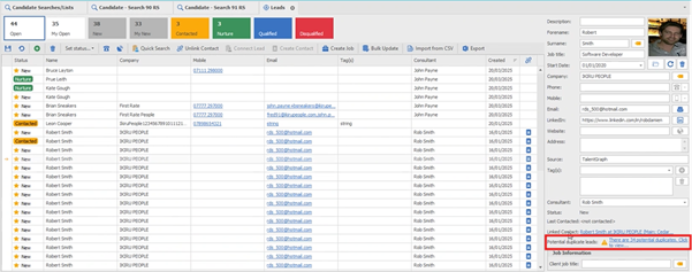
Checking for duplicate leads runs when the following happens:
• The lead page is displayed for a single selected record
• The user types in the following fields: note - this is the same as when it checks for contacts
o Forename
o Surname
o Company
o Linkedin
o Email
o Mobile
o Website
The current lead page is matched to other leads records on the following fields:
• Mobile
• Name and Phone
• Name and Company
• Name and Website
Matching is done as follows:
• LinkedIn is exact match
• Email is exact match
• Mobile is exact match
• Name is Forename and Surname exact match
• Company match using begins with (e.g. “Top Recruitment” and “Top Recruitment Limited”)
• Website is exact match
• If there are multiple email or phone numbers separated by the comma character within the field, all are checked and it’s a match if at least one of the values matches
If at least one of the criteria matches the other lead records are listed as potential duplicates
• This is a new field called Potential duplicate leads
• This displays if potential duplicate leads are found only
• It's displayed below the linked contact field
• It displays a warning triangle icon
• It’s a hyperlink that opens a new window titled Potential duplicate leads
• When clicked, displays a list of leads
with lead data columns as follows:
Name - lead forename and surname
Job Title
Company
Status
Last contacted date and by
o With matching columns as follows:
Mobile
Name and Phone
Name and Company
Name and Website
o Matching columns show a green tick in the row if that criteria matched the lead records together.
• There is a message on the screen to say user can click to go to the lead record and close the grid.
• There is a close button to return back to the leads grid
Enhancement 132508 Owning consultants added to search results
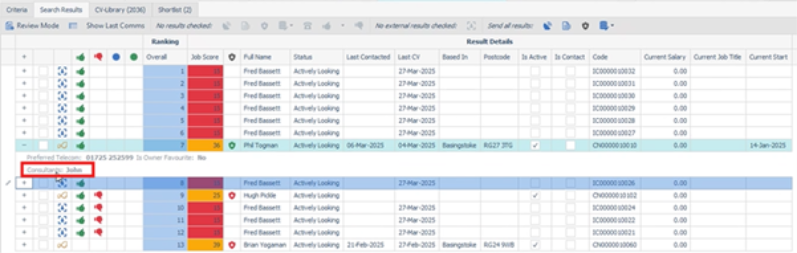
The owning consultants are displayed on search results when the + sign is clicked and further data shown for the result record
This includes their consultant role if set in brackets.
The owning consultant is shown on the following search results:
• candidate
• candidate re:job
• company
• contact
• job
• placement
Enhancement 132509 Mobile available from search results
• On candidate search results
• On candidate re:job search results
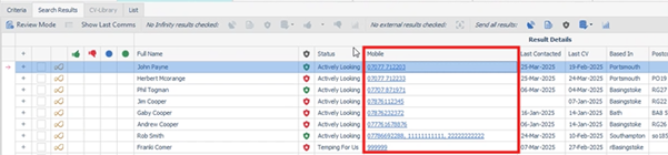
• There is a new column available called Mobile
• This is not shown as default and is available on the column chooser
• The column shows all mobile phone type telecoms against the candidate record separated by a comma
• The column is a hyperlink
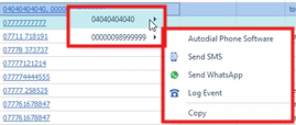
• A menu is available by right clicking on the mobile hyperlink
• The user has to select the mobile number to be communicated with
• This functionality is the same as when done from the candidate page itself
• The menu offers the following methods
o Autodial Phone
if database is configured
launches autodial software
launches candidate event logger
o Send SMS
if user is configured
launches SMS Comms Centre
o Send Whatsapp
if mobile ticked as OK to SMS
launches Whatsapp
launches candidate event logger
o Log Event
launches candidate event logger
o Copy
copies the number to clipboard
• User can left click to launch the hyperlink
• When clicked if only one mobile number and autodial is configured, the calling software is launched to that number and candidate event logger loaded; this is the same as if it was done from the candidate page
• If multiple mobile numbers exist, the user is taken to the drop down menu the same as when right clicking
• Events are logged on the candidate page as per existing event logger functionality.
Enhancement 132268 UI Improvements to indicate that iCapture candidates are linked/potentially linked to Infinity records
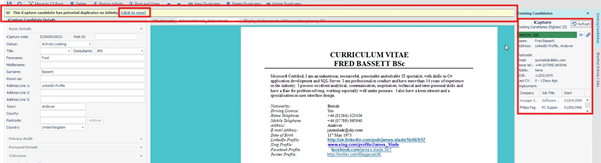
A banner is added to the top of the iCapture record if it has potential duplicates
‘Click to view’ opens the ‘Existing Candidates’ box on the right.
Enhancement 132370 Quickly add to iCapture via Drag and drop
• user can drag and drop document(s) from Windows File Explorer to the iCapture inbox grid
• can drag and drop email attachment(s) to iCapture inbox grid
• Any file types can be added but may not be processed by iCapture if they are not text documents, e.g. jpg images
• each file obeys the DB attachment size limit
• user is informed if attachment size is bigger than size limit and a CV file cannot be added
• user is informed when the documents have been added to the queue and that they will be processed by the iCapture service, and will appear soon
• a candidate is created for each file in the queue
• A new datasource is available called 'Drag & Drop / File Folder' that can be configured as per existing functionality:
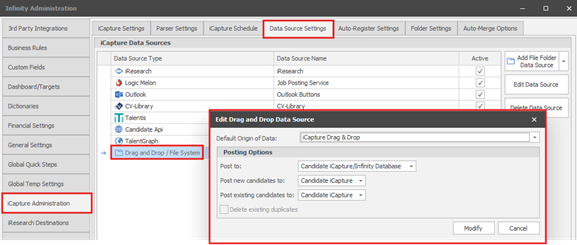
o to post new candidates to Infinity or iCapture
iCapture is the default
o to post existing candidates to Infinity or iCapture
iCapture is the default
o to set default Origin of Data
this is blank as default
• this datasource is active as default on upgraded and new databases
• the datasource is listed in the queues menu if active
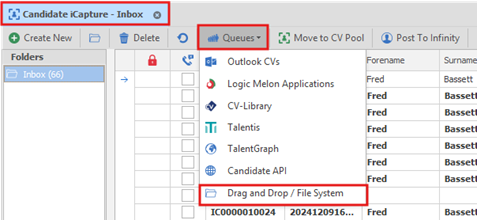
o When opened, the list of files waiting to be processed can be seen
o The list can be refreshed
o files can be deleted from the queue
• the iCapture candidates are sent to the destination as configured in the datasource, e.g. either Infinity or iCapture
• the user that adds the files is the 'sent by' consultant on the iCapture record created
• iCapture admin settings are adhered to as per existing functionality processing functionality
Enhancement 132276 iCapture search results can be ‘green thumbed’ to add them to the shortlist
On re:job searches iCapture results
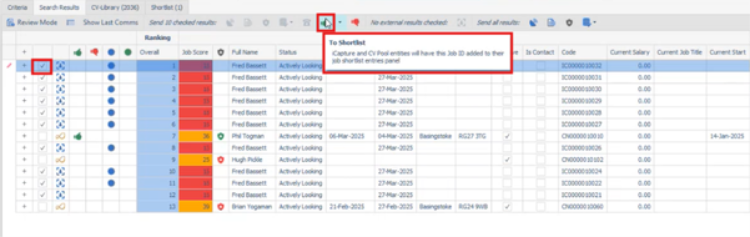
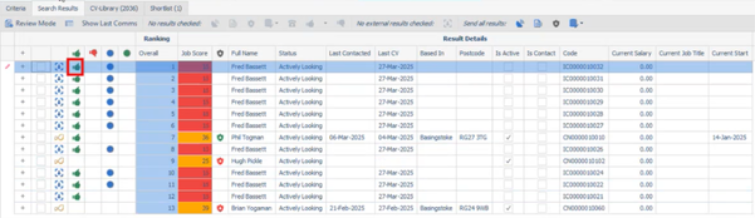
• the green thumb displays in the column if the iCapture record has that job id in its job shortlist entries panel
• the user can click on the green thumb in the column to remove the job id from the job shortlist entries panel
o User is prompted are you sure - Yes/No
If yes, the green thumb is removed and job id is removed from job shortlist entries panel
• the user can click in the green thumb column, if empty, to add the job id to the job shortlist entries panel
• If the user ticks iCapture results and presses the Green Thumb button on the toolbar, the job id is added if not already
• If the user ticks iCapture results and presses the Green Thumb add to other button on the toolbar, the job id of the other job selected is added if not already
• As per existing functionality iCapture candidates posted to Infinity are shortlisted against the job ids in their job shortlist entries panel
• For review and consistency purposes, the iCapture results can be red thumbed to reject
o by clicking in the column
o if ticked and red thumb clicked on toolbar button
• the user can click on the red thumb in the column to remove reject
• iCapture red thumbs are remembered when the re:job search results are closed.
On re:job searches CV Pool results
• the green thumb displays in the column if the CV Pool record has that job id in its job shortlist entries panel
• the user can click on the green thumb in the column to remove the job id from the job shortlist entries panel
o User is prompted are you sure - Yes/No
If yes, green thumb is removed and job id removed from job shortlist entries panel
• the user can click in the green thumb column, if empty, to add the job id to the job shortlist entries panel
• If the user ticks CV Pool results and presses the Green Thumb on the toolbar, the job id is added if not already
• If the user ticks iCapture results and presses the Green Thumb add to other button on the toolbar, the job id of the other job selected is added if not already
• As per existing functionality, iCapture candidates posted to Infinity are shortlist against the job ids in their job shortlist entries panel
• CV Pool results can be red thumbed to reject
o by clicking in the column
o if ticked and red thumb clicked on toolbar button
• the user can click on the red thumb in the column to remove reject
• CV Pool red thumbs are remembered when the re:job search results are closed.
Tooltips
• the tooltip on the green thumb column header is updated to say at the end 'If this an iCapture or CV Pool entity, whether this Job ID is in its job shortlist entries panel'
• the tooltip on the green thumb 'to shortlist' button on the toolbar is updated to say at the end 'iCapture and CV Pool entities will have this Job ID added to their job shortlist entries panel'
Enhancement 131834 Portal - New Candidate Portal Availability Screen
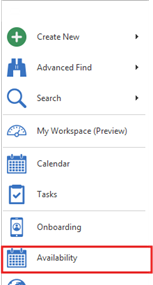
An 'Availability' Screen is available from the Application Menu, on databases with the Portal Availability module.
• All candidates who have updated their avail/unavail via the portal in the last 7 days are displayed
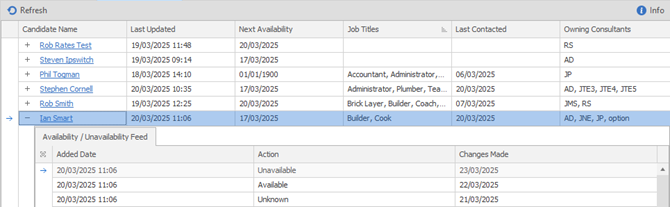
o The 7 day window displayed is from the current date/time, to the date/time 7 days ago. E.g. On a Wednesday lunchtime, it will show changes between now and Wednesday lunchtime last week.
o The ‘Last Updated' date/time, is when the candidate last updated their avail/unavail
o The ‘Next Availability’ date, is the earliest 'Available' date contained in the last 7 days changes
o They are ordered by 'last updated', with most recent at top
• Each candidate can be expanded to see the changes they have made
o They are ordered by most recent avail/unavail updates at top
• The Availability Screen tab heading indicates if there are changes since it was last viewed
o The number of changes is displayed, up to a maximum of 100

• If the 'Availability Screen' is being viewed, the user is aware that changes have been received by Infinity

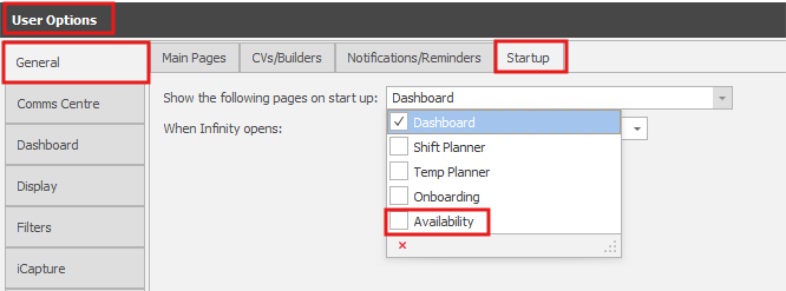
The 'Availability' Screen can be opened on Startup.
Enhancement 132627 Portal – Availability Calendar Shifts can optionally display location names
• Typically, in medical industries, the ‘Company Name’ is the name of the Trust, and the ‘Location Name’ is the name of the hospital.
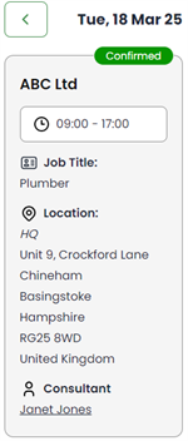
• Therefore, it’s important that the portal displays the ‘Location Name’ along with the address.
• By default, the ‘Location Name’ is not displayed.
• Similar functionality is required in other industries, e.g. teaching.
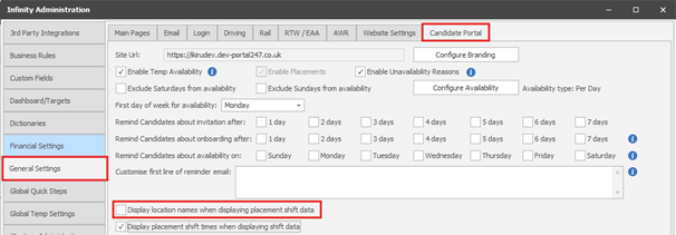
When enabled, the portal displays as follows:
Enhancement 132557 Portal – Availability Calendar Shifts can optionally have the shift times removed
• Typically, in driving recruitment start times are not confirmed until near the start of the shift, and end times are not fixed.
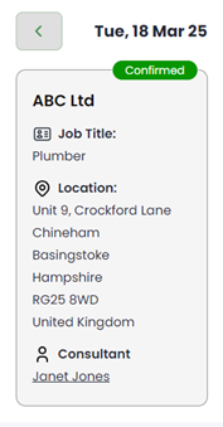
• Therefore, functionality has been added to remove the shift times if required.
• By default, shift times are displayed.
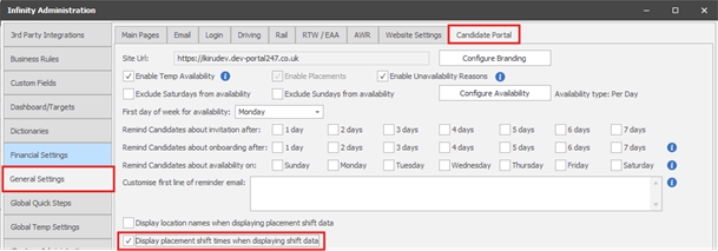
When disabled the portal displays as follows:
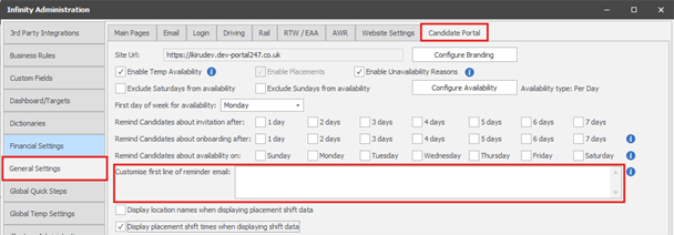
Enhancement 132495 Portal – Customisable paragraph in Availability Reminder Emails
The first line/paragraph of the ‘Availability Reminder’ email can be customized:
• Max 500 Characters
• Carriage returns are supported
• If a customised message is not populated, the original is used.
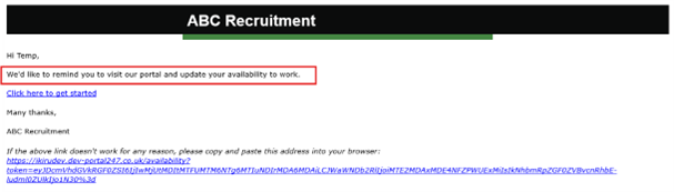
This the section of the email that can be customised:
Enhancement 132556 Portal – Bulk Add Documents to existing portal candidates
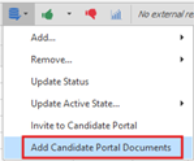
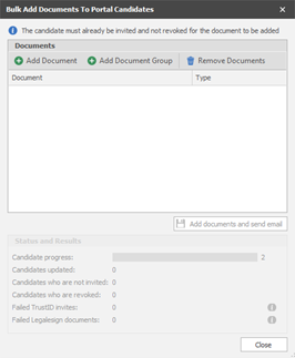
• Multiple candidates can have portal documents added to them at the same time from search results
• This is available from re: job and candidate search results.
• Only candidates who are currently invited to the portal and not revoked, can have documents added in bulk
• Bulk Add Documents will not check to see if the document has already been allocated to the candidate
• The user is told if they bulk add documents to candidates who are not currently invited.
• The user is told if they bulk add documents to candidates who are revoked
• Documents can be of any type
• Documents can be added either individually and/or via a document group
• Users require the following permissions:
o BulkUpdateGeneral
o PortalOnboardingDocumentAdd
Enhancement 132634 Portal – Bulk invite requires "PortalOnboardingDocumentAdd" permission
This is a minor amendment to the previously released ‘Bulk Invite’ functionality.
The user also requires the ‘PortalOnboardingDocumentAdd’ permission when adding documents at the same time as inviting.
If the user has "BulkUpdateGeneral" and "PortalInvite" permissions, they will be able to invite in bulk, but not add documents as shown in the screenshot below:
Enhancement 132252 / 132380 / 132378 Portal – Improved Mandatory field warnings on Q&C, Driving Licence and CV Docs upload
When clicking ‘Next’, all mandatory fields are checked. If a mandatory field is missing, you are taken to the field, it’s highlighted in red and told what the issue is.
Enhancement 132264 User can see which teams a user belongs to from their User Administration page
You used to be able to do this from teams admin
You can now do this from User Admin as well
• This field is read only on the User Profile form from the Application menu
Enhancement 131964 Scheduled Automatic Comms extended up to 30 days when sending an email to a candidate after the start date
• The Scheduled Automatic Comms placement conditions allow the comms to be sent up to 30 days (up from a previous maximum of 7 days)
Enhancement 132170 Comms Centre restrictions in line with Microsoft’s new external recipient restrictions for new O365 tenants from October 2025
• Comms Centres prevent sending emails to more than 2k records
• Comms Centres warn when sending emails to over 1k records
• This is only applicable for
o non-SMTP emails sent via Office 365
o SMTP emails sent via Office 365 only
Enhancement 132265 Security roles do not show inactive users by default
• In admin, permissions / security role screen there is a tick box to show inactive users
• this is off as default
• when off inactive users are not shown
• when ticked inactive users are shown as per current functionality
• a new column is added called Active
• This is shown as default before the Delete column
• shows whether the user is active or not
Enhancement 132341 UI Consistencies in DB Manager screen
• the delete column is removed from admin / permissions / database manager tab users section
• Instead there is a button to delete the selected users
• multiple users can be selected and deleted from the Database Manager permission
Enhancement 132336 UI Consistencies in Security Role user lists
• the delete column is removed from admin / user admin / security roles tab users section
• Instead there is a button to delete the selected users
• multiple users can be selected in a security role and deleted from that security role
• this is kept the same as the admin / permission / teams functionality
Enhancement 132266 Report permissions icon improvements
In admin / reports / folder permissions
the user icon is the user icon for listed users
the security role needs a new icon - Product TBC
Enhancement 132272 "Transfer User" drop-downs to be in forename surname order
The "Transfer User" screen's "Transfer To" drop-downs are in Forename + Surname order.
Enhancement 52440 Merge social media hyperlinks by showing the display text field as the clickable link so it looks nicer
• Users can opt to merge their social media URL fields by showing the display text field as the clickable link in the template
• This is available on the following user group merge fields when inserting into the Comms Centre template:
o Facebook URL
o LinkendIn URL
o Twitter URL
• When ticking the 'Display as hyperlink' merge field option, an additional tick box enables to use the user's social media display text field
• This is unticked as default
• When unticked it works as per existing functionality
• When ticked and the field is merged, the hyperlink is displayed using the user's social media display text field for the selected URL field.
• The recipient of the email can click on the hyperlink and open up the URL correctly.
Enhancement 132484 Minor UI Changes to Geocode functionality
New tooltip:
New window title:
 Contact Details
If you require further assistance please contact Ikiru People using the details published on www.ikirupeople.com
Visit our Customer Portal at https://portal.ikirupeople.com/ for future events and clinics.
FeedbackIf you would like to make suggestions or have found any errors with this Help section please contact our Support team.
Copyright © 2026 Voyager by Ikiru People Ltd. All rights reservedVersion 4.87
Voyager Software is a brand of Ikiru People Ltd, a subsidiary of Dillistone Group Plc. The group is a leading global provider of software and services that enable recruitment agencies and in-house recruiters to better manage their selection process and address the training needs of individuals. Across its brands – which include Voyager Software (recruitment software UK & Australia), Dillistone FileFinder executive search software, GatedTalent, the global database of the world’s leading executives, Talentis.Global – the next generation of recruitment software and also ISV.Online, provider of online pre-employment skills testing and training tools. Dillistone Group serves thousands of clients worldwide. Ikiru People Ltd: Registration Number 02043300. Registered in England & Wales.
 |  |  |  |