Voyager Infinity – Release Notes
Version: 5.7
Release Date: 17th March 2025
Sprint 2025.5 (5.7)
What have we released?
- Infinity 5.7 has been released
Release overview
Here’s a snapshot of what we’ve delivered in this release:
- Alert other users when logging events
- Referee Comms Centre
- Client installer option for current user or all users
- Quick way to add shifts for long term temp jobs
- Portal enhancements
Feedback please
We are continuously looking to improve Voyager Infinity and are keen to hear your thoughts. Please email suggestions@ikirupeople.com with any feedback on existing functionality or ideas for new functionality.
Enhancements
Enhancement 131896 Alert other users when logging an event
All event loggers except for Leads have a setting to notify other consultants about the event.
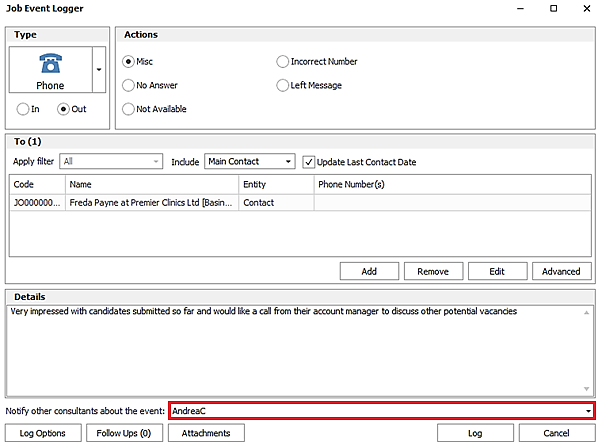
This is a multi-select drop down list of all active consultants and teams.
When selected and the event is logged, a ‘Shared event’ email is sent from the user to all the selected consultants.
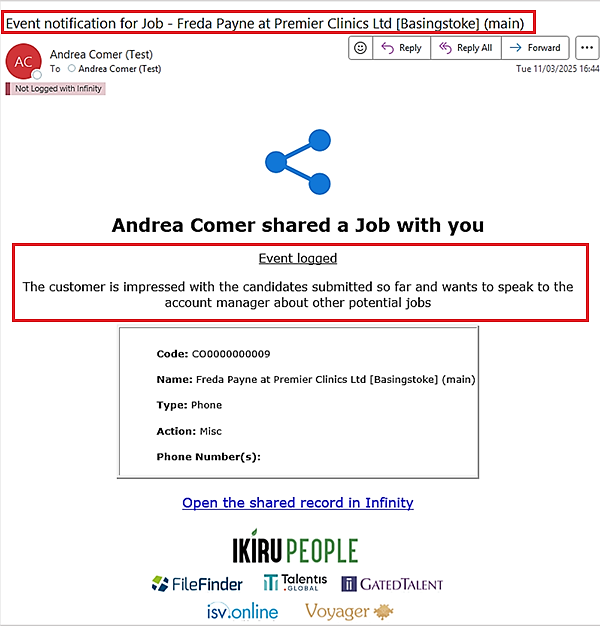
- If sending to multiple consultants, it’s one email and they all appear on the ‘To’ line
- If a team is selected, it's sent to all active consultants in that team
- The email subject is "Event notification for” then:
- <page type> - this is the main page the event was logged against
- <recipient name> - this is the name of the ‘To’ entity in the event logger
- The event details field appears in the body of the email under the heading ‘Event Logged’
- There are fields displayed for the ‘To’ entity from the event logger
- Code
- Name
- Event Type
- Event Action
- Event phone numbers
- There is a clickable hyperlink to open the main page the event is logged against in Infinity
- If the user is not configured to send emails it will fail and inform the user, but the event is still logged
- If there are multiple entities in the ‘To’ section of the event logger, an email is sent for each entity
Enhancement 131766 Referee Comms Centre
There is a new Referee Comms Centre available from the candidate page Personal / Financial / Referee tab grid.
Administration
Referee Comms Centre Templates are available to set up in template administration.
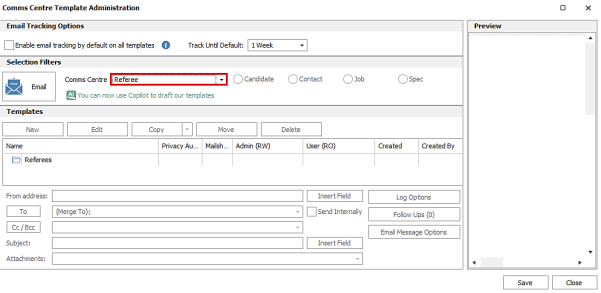
Email Comms Centre functionality is available as per standard except for the following:
- Update Last Contact date
- Follow ups
- Attach Default CV setting
- Privacy Audit
Tip - you can configure an event action of ‘Referee request’ in Administration / Reference Data / Event Actions tab and assign it to your template.
Post Comms Centre Templates are available as per standard except for the following:
- Update Last Contact date
- Follow ups
- Privacy Audit
Note: the ‘Ok to Mailshot’ flag on templates will be ignored as referee email addresses and post addresses do not have that field.
Referee merge fields are available to add to the templates as follows:
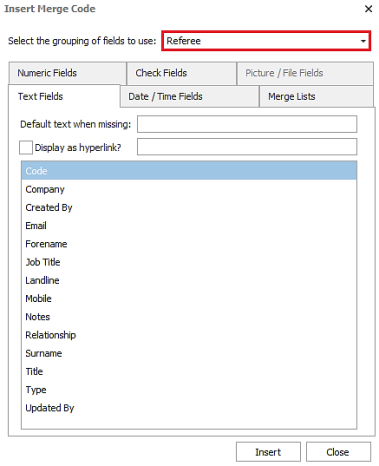
Candidate, user and telecom groups of merge fields are also available to add.
Candidate Page – Referee Comms Centre
The Referee Comms Centre is available on the candidate page referee grid in Personal / Financials window.
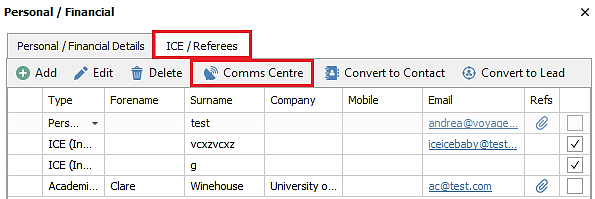
- Multiple referees can be selected
- User is prevented from sending Comms Centre comms to ICE records
Note: Please ensure any changes to referees are saved before going into the Comms Centre. This is achieved by clicking on the ‘Ok’ button at the bottom of the window and returning to the candidate page and saving.
When launched, the Referee Comms Centre defaults to Email comms type.
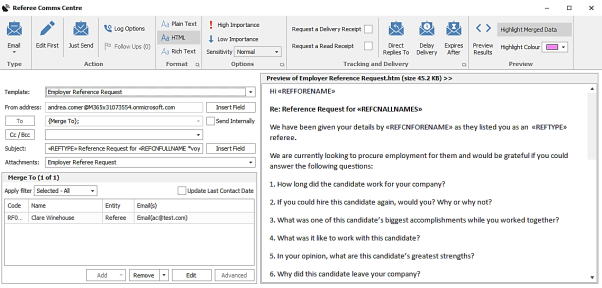
If sending Email correspondence, the referees appear in the ‘Merge To’ Section with their email address(s). The columns that show are:
- ID - referee ID
- Name - forename and surname
- Entity – ‘Referee’
- Email(s) - email addresses - Multiple email addresses are accepted if comma delimited, and this will send 1 email to the record but with all addresses in the To field
When sent, the fields are merged and the referee receives the email as per the template selected, and then the user is returned to the referee grid.
If sending Post correspondence, the referees appear in the ‘Merge To’ Section with their postal address. The columns that show are:
- ID - referee ID
- Name - forename and surname
- Entity – ‘Referee’
- Post(s) – address
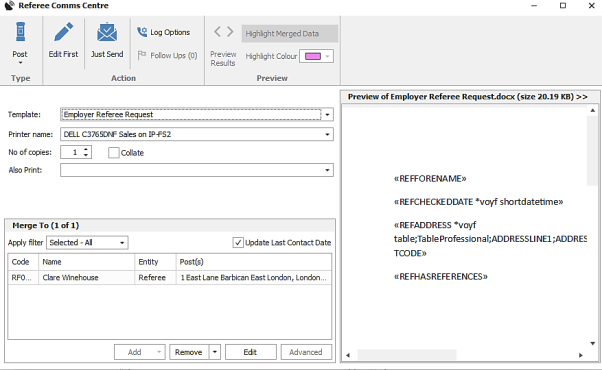
When sent, the fields are merged, and the referee letter is printed as per the template selected, and then the user is returned to the referee grid.
The ‘Merge To’ section buttons for both Email and Post function as follows:
- Remove - removes the selected referees
- Remove All - removes all the referees
- Edit - allows the referee’s email address or postal address to be edited on the fly; this is not stored against the referee record permanently if changed
- Add and Advanced are not available
The event is logged on the candidate page as per configured in the Comms Centre template settings.

Enhancement 131873 Replies to emails sent from Referee Comms Centre are synchronised
Replies to emails sent from the Referee Comms Centre are synchronised back to the candidate record, if the user is configured for Exchange Mailbox synchronisation.
The event is logged on the candidate page as per existing functionality, with a right-click option on the attachment icon, to add the email / attachment to a referee record.

Enhancement 131862 Set default Referee Comms Centre email template
There is a new setting in User Options / Comms Centre tab to configure the default Email Referee Comms Centre template.
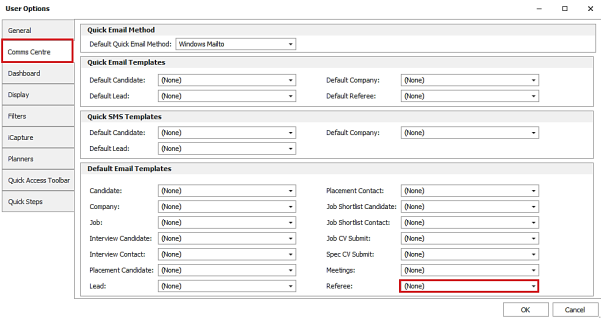
This is set to ‘None’ as default.
When the Referee Comms Centre is launched, the specified template is automatically selected. If no default template set, the user is taken to the Comms Centre with the top template selected if no folders are present.
Enhancement 131863 Email hyperlinks on referee records adhere to Quick Email settings
The ‘Quick Email’ hyperlink on the referee grid is now controlled by the existing 'Quick email method' user setting.
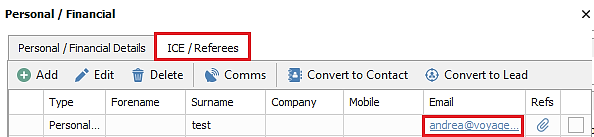
The setting is in User Options / Comms Centre tab.

- If not set, the user is prompted to choose a method when they click on a hyperlink for the first time, and this is stored in their User Options
- If set to ‘Comms Centre’ the Referee Comms Centre is loaded, and the default Referee template set in the ‘Quick Email Templates’ section is opened

If no default template set, the user is taken to the Comms Centre with the top template selected if no folders are present
- If set to ‘Windows Mail to’, it launches the users default mail client as per existing functionality
The Quick Email hyperlink on ICE records always launches the user’s default windows mail client as per existing functionality and does not adhere to this setting.
Enhancement 131856 Referee Online Signature Comms Centre
Online Signature functionality is available in the Referee Comms Centre if it’s configured on the database and for the user.
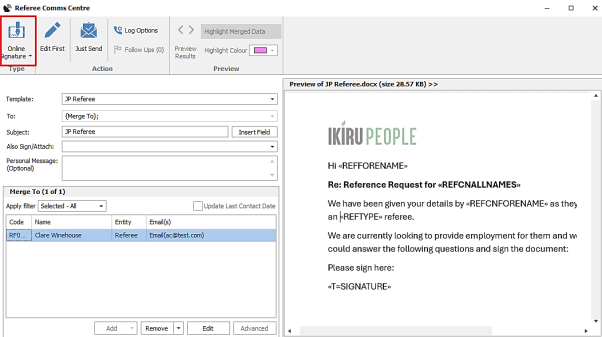
Online Signature Referee Comms Centre templates can be set up in Administration / Comms Centre / Template Administration and work as per existing functionality.
When an Online Signature template is sent to a referee:
- The event is logged on the candidate page as per configured in the template

- Status updates are logged as events on the candidate page

- Signed documents are downloaded and stored against the referee record it was sent to
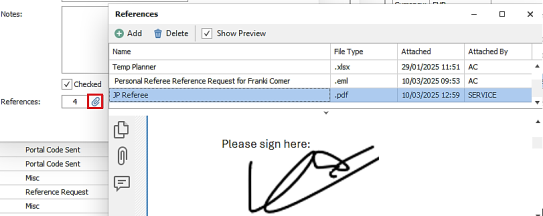
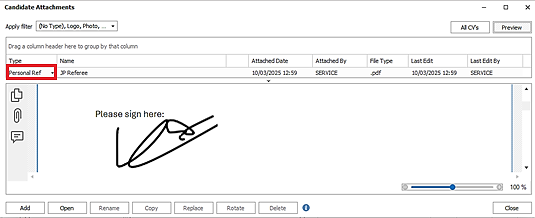
- As per existing functionality this is also visible in the candidate page attachments window. The attachment type is ‘{referee type} Ref’ and is attached by the ‘Service’ user.
Enhancement 132022 Leads – new user option to set the default tile
There is a new setting in User Options / General tab / Leads section to set the default tile that is shown when the Leads screen is opened.
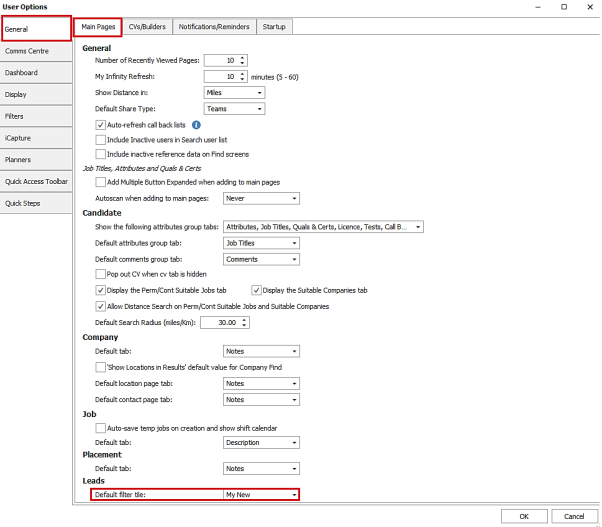
The tiles available to select are:
- Open
- My Open
- New
- My New
- Contacted
- Nurture
- Qualified
- Disqualified
The default is ‘Open’ for upgraded users and new users.
Enhancement 132342 ‘Address’ lookup button disabled if no postcode
For users with address lookup licence, the address button is disabled/greyed if there is no postcode entered.
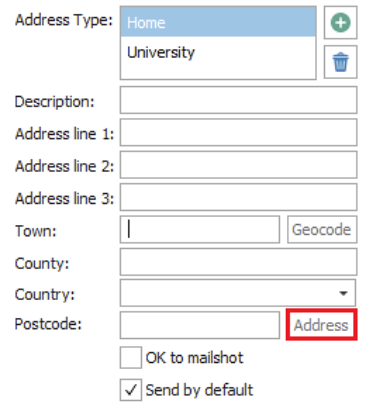
When the user types into the postcode field, the button enables.
This happens in the following Infinity screens:
- Candidate edit basic detail addresses
- Candidate bank address
- Candidate non-paye trading address
- Location edit basic details
- Administration / reference data / umbrella company address
- Administration / reference data / umbrella company bank address
- Job custom address
- Placement custom address
- Interview custom address
Enhancement 132467 Client installer option for current user or all users
The Infinity client installer has a new option to install for the current user only in addition to all users (the latter being existing functionality that requires local admin rights).
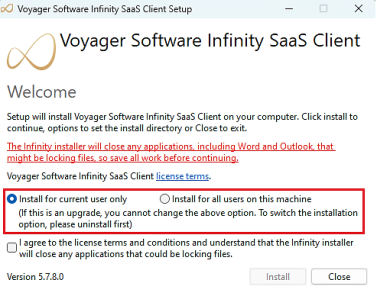
If Infinity has not already been installed, both the current user and all user options are available, with the default being current user.
Upgrades will continue to use the version previously installed on the machine and will lock down the option, so it cannot be changed by the user. To change the option, the Infinity client must be uninstalled and reinstalled.
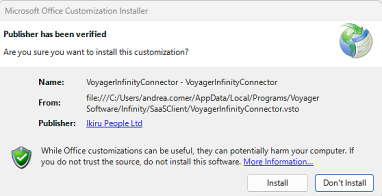
When the install is done for the first time, only to current user, the user must launch Word and Outlook to manually install the Infinity Add-ins. The user will receive a prompt to install as shown below, and if the user does not use the Outlook Addin, they can choose to not install. The Word Addin must be installed.
Enhancement 125930 3rd Party text search engine upgraded to the latest version
The 3rd party text search engine (dtSearch) has been upgraded to version 2024.02.
Enhancement 132145 Add temp shifts for long term jobs
In the temp job calendar, when right clicking on a single shift there is a new menu option called 'Repeat Weekly Shift(s)'.
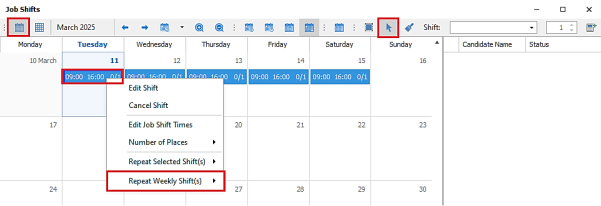
This is available when in ‘Calendar’ mode only when in the following views:
- Day
- Work Week
- Week
- Month
The existing menu option is renamed Repeat selected shift(s) and functions as per currently.
When 'Repeat weekly shifts' menu is selected the following sub menu options are available to select:
- the following week
- 2 weeks in the future
- 3 weeks in the future
- 4 weeks in the future
- 5 weeks in the future
- 6 weeks in the future
- 12 weeks in the future
- multiple weeks in the future
If multiple weeks in the future is selected, the user can enter the number of weeks in a window.
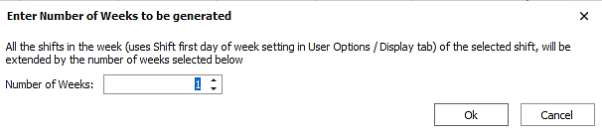 The default is 1 week.
When a menu option is selected, new shifts are created for the selected number of weeks, using all the shifts in the week of the selected shift. The week is determined by the existing ‘Shift first day of week’ setting in User Options / Display tab, e.g. Sunday to Saturday.
Enhancement 132373 Portal - ‘Other work’ unavailability is not available
When the Portal is configured for availability, with reasons enabled, 'other work' is not available in the list of reasons.
In Administration / Reference data / Unavailability Reason tab, 'Other Work' is not available to be ticked as 'Visible in Portal' and is greyed out along with the ‘Portal Name’ column.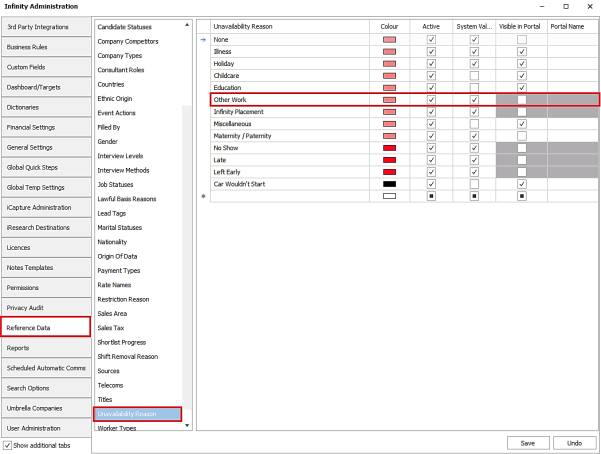
Upon upgrade, if 'other work’ has been marked as 'Visible on Portal' it is disabled.
Enhancement 132217 Portal - reminder emails are sent after 8am
Portal email reminders will start sending at 08:00 UTC. This will include the following:
- Login reminders
- Onboarding reminders
- Availability reminders
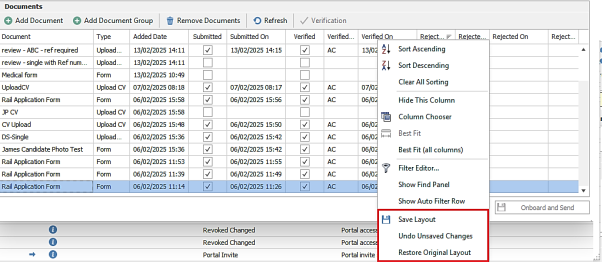
Enhancement 132237 Portal – candidate page ‘Document’ grid layout can be saved
Changes can be saved to the layout of the candidate page Portal ‘Documents’ grid. This is available via the right-click grid menu.
Enhancement 131961 Portal – file upload improvements
On the candidate Portal, the following file types are supported for Q&C document uploads only:
- Jpg
- Jpeg
- Png
- Gif
- Doc
- Docx
Single, Multiple and A or B and C type Q&C uploads have the new functionality.
The following file types are supported for Candidate Photo and Driving Licence document uploads only:
- Jpg
- Jpeg
- Png
- Gif
If non-supported file types are selected to be uploaded, the action is prevented and the user is given a notification.
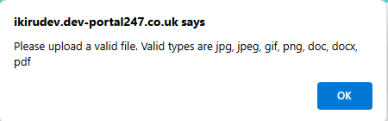
Enhancement 132239 Portal - warning on availability configuration changes in Admin
A warning message has been added to the General Settings / Candidate Portal Configure Availability window.
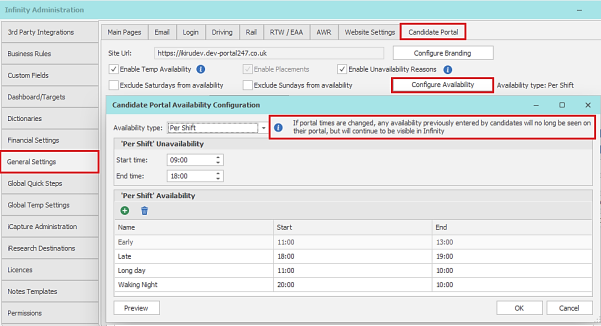
If Portal times are changed, any availability previously entered by candidates will no longer be seen on their Portal but will continue to be visible in Infinity.
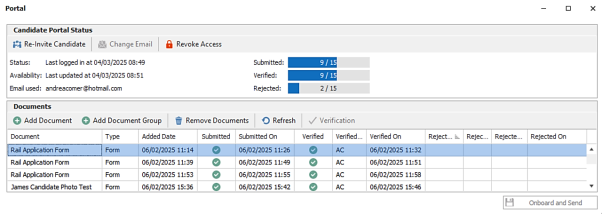
Enhancement 132234 Portal – candidate page Portal status window improvements
The candidate page Portal status window information has been re-arranged to improve readability.

'Email address used for invite' has also been renamed to 'Email used'.
Enhancement 132236 Portal – Infinity document grid has green ticks
The document grids on the candidate page Portal screen, My Infinity - Requires Verification screen and App menu / Onboarding shows the Submitted, Verified & Rejected columns with a green tick.
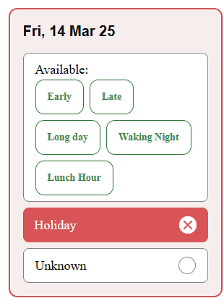
Enhancement 132144 Portal - per shift unavailability / availability change
When availability ‘Per Shift’ is configured and there is an availability and unavailability entry on the same day, the Portal will display the unavailability entry only.
E.g. If the Infinity Temp Calendar has entries as below:
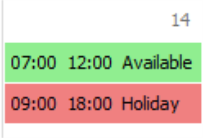
This will display on the Portal as below:
Enhancement 132259 Portal - candidate’s email address is stored when a PDF is signed
The candidate's email address is stored on the document when a PDF is signed.
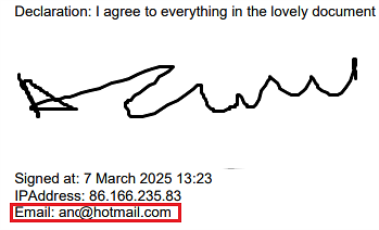
This is when signing via the following document types:
- App form
- Sign Document
- GDPR Document
It uses the email address that the candidate is logged in as. If the infinity candidate page is changed to a different email address, but the candidate has not logged in using the new email address, the old email address is logged (the one they logged in as).
The ‘Tick box’ declaration functionality does not store the email address.
Enhancement 132216 Portal - postcode input label improvement for the candidate
The word 'Your' has been removed from all postcode input labels on the Portal. The address fields affected are as follows:
- Candidate
- ICE / Referee
- Bank
- Limited Company
- Address History

 Contact Details
If you require further assistance please contact Ikiru People using the details published on www.ikirupeople.com
Visit our Customer Portal at https://portal.ikirupeople.com/ for future events and clinics.
FeedbackIf you would like to make suggestions or have found any errors with this Help section please contact our Support team.
Copyright © 2026 Voyager by Ikiru People Ltd. All rights reservedVersion 4.87
Voyager Software is a brand of Ikiru People Ltd, a subsidiary of Dillistone Group Plc. The group is a leading global provider of software and services that enable recruitment agencies and in-house recruiters to better manage their selection process and address the training needs of individuals. Across its brands – which include Voyager Software (recruitment software UK & Australia), Dillistone FileFinder executive search software, GatedTalent, the global database of the world’s leading executives, Talentis.Global – the next generation of recruitment software and also ISV.Online, provider of online pre-employment skills testing and training tools. Dillistone Group serves thousands of clients worldwide. Ikiru People Ltd: Registration Number 02043300. Registered in England & Wales.
 |  |  |  |