Voyager Infinity – Release Notes
Version: 5.6
Release Date: 6th March 2025
What have we released?
- Infinity 5.6 has been released
Release overview
Here’s a snapshot of what we’ve delivered in this release:
- Candidates can be geocoded without a postcode (requires Postcode licence)
- New referee types of ‘Academic’ and ‘Voluntary’
- New Temps compliance check for Company TOB sent
- Portal – lots of enhancements including searching for candidates with rejected documents
Feedback please
We are continuously looking to improve Voyager Infinity and are keen to hear your thoughts. Please email suggestions@ikirupeople.com with any feedback on existing functionality or ideas for new functionality.
Enhancements
Enhancement 131733 Geocode candidates without a postcode
On databases with a postcode licence, candidates without a postcode are not currently geocoded and hence are not returned on distance searches. In this version of Infinity, functionality has been added to geocode candidates based on their town.
The candidate edit basic details screen has a ‘Geocode’ button next to the town field.
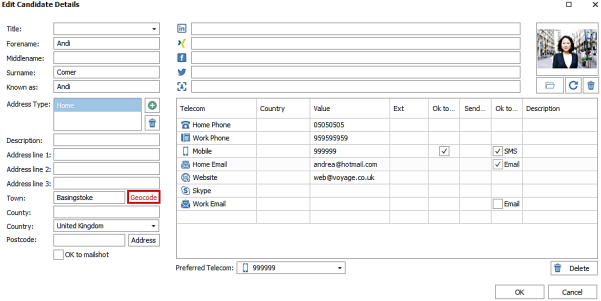
If the user does not have a distance search licence the button is shown but will never enable.
If the user has a distance search licence, and an address matches all of the following criteria, the button is enabled and will show with red text if the candidate is not currently geocoded:
- Has no postcode
- Has a town
- Has a country
When pressed, the address is looked up on Azure maps.
- If other address fields are populated these are also used e.g., Address line 1
- If a single result is returned the address is geocoded automatically to that location
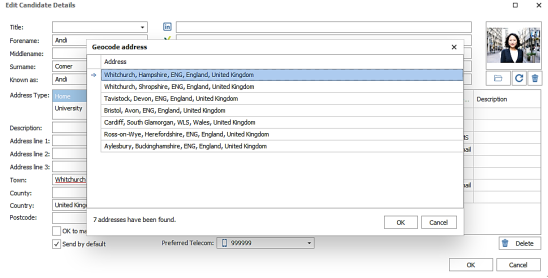
- If multiple results are returned the user is prompted to select a result and the address is geocoded to the chosen location
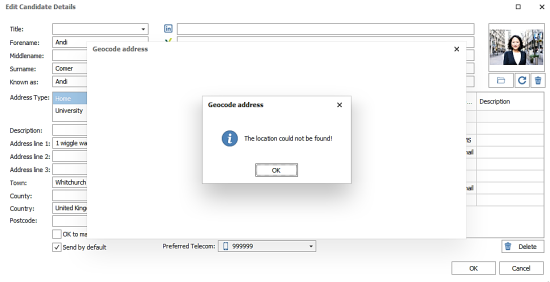
- If no results are returned the user is informed and it’s suggested that the address fields are verified by the user and retried
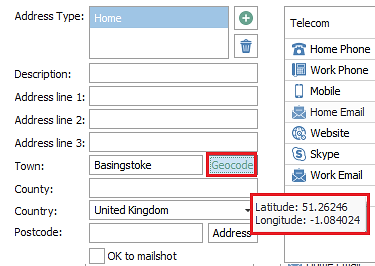
When the address is geocoded, the button shows with green text and the hover-over tooltip displays the latitude and longitude co-ordinates.
- If an address is geocoded without a postcode and a postcode is then entered, the geocode is removed, the button will disable, and the postcode is used instead as per existing functionality
- If an address is geocoded without a postcode and the town is edited, the geocode is removed and the button will display in red text
- If an address is geocoded without a postcode and the country is edited, the geocode is removed and the button will display in red text
Enhancement 131735 Candidates that are not geocoded are flagged on the page
On databases with a Postcode licence and the user has a distance search licence, the candidate page displays a yellow info bar at the top of the screen if there are addresses without a postcode that haven’t been geocoded.

The yellow bar informs the user which address(s) is not geocoded. The address ‘type’ e.g., home or university, is displayed at the end of the text.
Enhancement 131736 iCapture candidates manually posted without postcodes are geocoded
On databases with a Postcode licence, if the user has a distance search licence and posts an iCapture candidate to Infinity, from within the edit page, and the address matches all the following criteria, the address is geocoded:
- Has no postcode
- Has a town
- Has a country
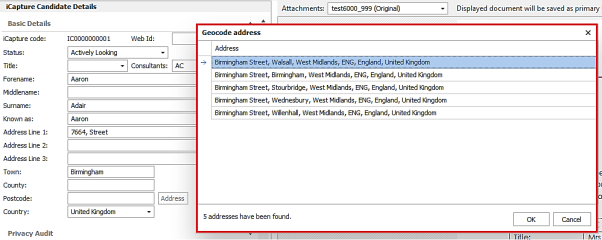
- The address is looked up on Azure maps
- If other address fields are populated these are also used e.g. Address line 1
- If a single result is returned the address is geocoded automatically to that location
- If multiple results are returned the user is prompted to select a result
- The address is geocoded to the chosen location if OK is pressed
- If the user presses Cancel the address is not geocoded
- If no results are returned the user is informed and the address is not geocoded
- The record is posted to Infinity as per existing functionality with the geocoded address if applicable
- If an existing candidate is being updated and the setting in Administration / iCapture Administration / Auto-Merge option tab is set to ‘Ignore’ the iCapture address, the geocoded address is not posted to Infinity
Enhancement 131762 Add a candidate CV from windows explorer
The candidate page CV / Show all grid has a new option to add a CV from windows explorer. This is called ‘New CV From File’ and is available from the ‘New CV’ button drop down menu.
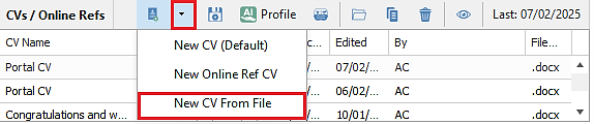
When selected, the user can browse their Windows Explorer folders and select a single file to add to the CV grid.
The functionality works the same as when dragging and dropping a CV. A CV builder prompt is launched as per the user's setting and if the file type allows. This is followed by the ‘CV edit save options’ window for the user to complete and save the CV to Infinity.
Enhancement 131857 New candidate referee types
In the candidate page referees window, two new referee types are available in the drop down for Academic and Voluntary.
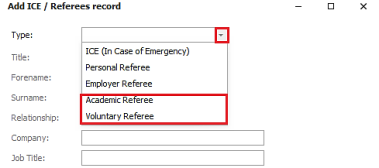
Referee types are ordered as follows: ICE, Personal, Employer, Academic, Voluntary.
Functionality works the same as per Employer and Personal.
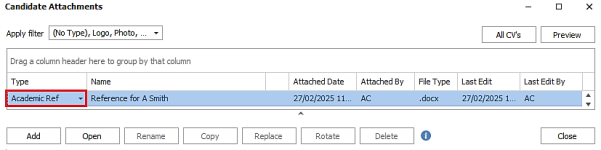
Attachments added to an Academic or Voluntary referee show in the candidate page attachment area as type 'Academic Ref' or ‘Voluntary Ref’ respectively.
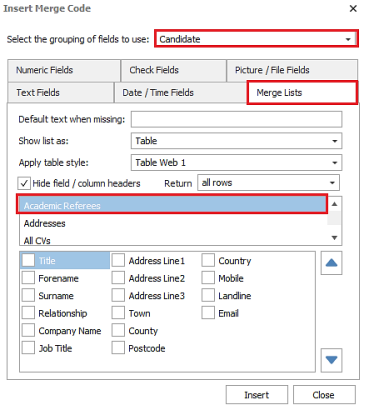
There are new merge lists available for Academic and Voluntary referees in the candidate-related Comms Centres.
Enhancement 131757 Temp compliance check on Company TOB not sent
There is a new Temp Compliance check in Administration / Global Temp Settings / Compliance tab to warn or prevent if the Company TOB are not sent when placing candidates.
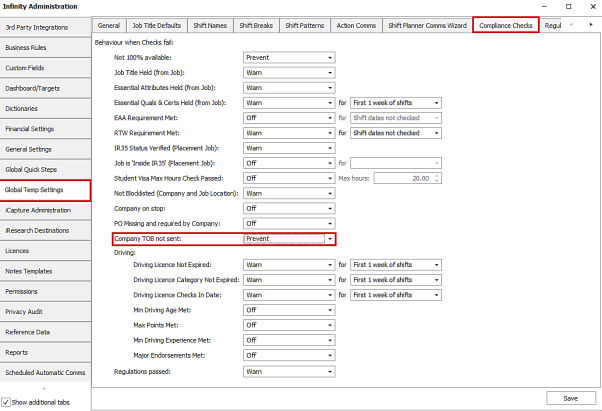
This setting is off as default.
When the compliance check is enabled, the following is checked:
- The job company TOB sent date field
- The job location TOB sent date field (if a placement already exists for the candidate, it uses the placement location TOB sent date field)
- The job main contact location TOB sent date field (if a placement already exists for the candidate, it uses the placement location TOB sent date field)
If TOB sent date is not populated in any of the above fields, the check will fail; if at least one is populated, the check will pass.
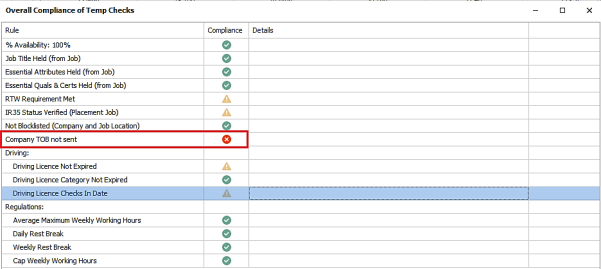
Temp compliance checks run as part of the following candidate placing processes:
- Shift Planner / Candidate results panel overall compliance check column, when job shifts are selected
- Shift planner / Candidate results panel when placing multiple candidates on a shift, using the ‘Place Candidate’ button and the interim check window displays
- Single / bulk placement extension wizard
- Place candidate wizard from the candidate and job page
- Temp job shortlist ‘Overall compliance’ button / column
Enhancement 131774 Shift Planner Mid-Office export log window size increased
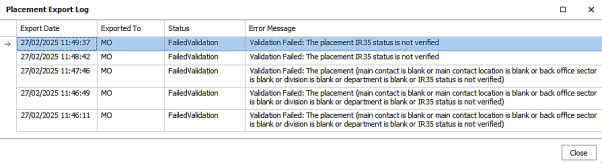
On databases with a Mid-Office licence, the ‘Placement Export Log’ window, launched from the Shift Planner, ‘MO Export Status’ column, has been increased in size, can be maximized and the error message word wrapped.
Enhancement 131872 Portal - search for documents in Infinity that are rejected
On candidate and re: job searches the ‘Portal Document (Adv) search field, in the Advanced Search section / Advanced menu has additional fields to search reject documents.
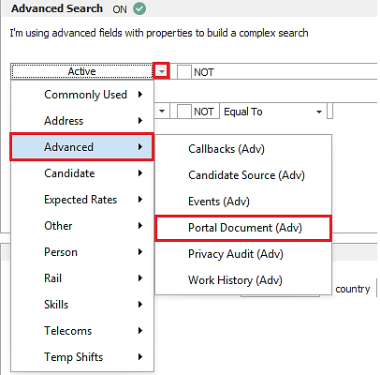
The fields available are as follows:
- Rejected
- Rejected by
- Rejected On
- Rejected Reason
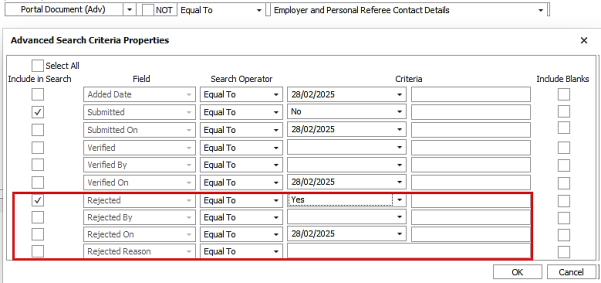
Note: to search for documents that are currently rejected and not those that were rejected and are now re-submitted and/or verified you need to qualify the search by adding Submitted equal to ‘No’.
Enhancement 131991 Portal - event logged when a candidate is revoked / unrevoked
When a candidate has their Portal access revoked an info event is logged on the candidate page.

When a candidate has their Portal access unrevoked an event is logged on the candidate page.

The event action type is 'Revoked Changed' and the details field state if it was revoked or unrevoked.
Enhancement 132012 Portal - revoked candidates not sent an email if address is changed
The Portal does not send an email if an email address is changed in Infinity and the candidate is revoked.
If the candidate is later unrevoked, the user will need to press 're-invite' for the email to be sent to the changed email address.
Enhancement 132152 Portal – new home screen icon on mobiles
There is a new field in Administration / General Settings / Website settings tab to configure a square logo. This logo is used as the icon when pinning the Portal website to the home screen on a mobile phone.
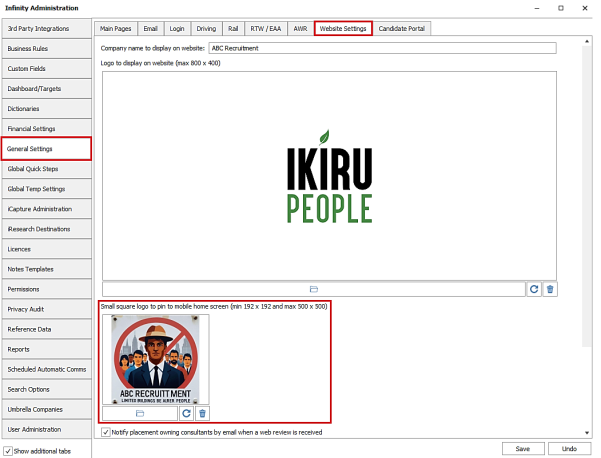
If the square logo is not configured, it works as per current portal functionality.
The pixel dimensions for the icon are min 192 * 192 and max 500 * 500. The pinned icon label uses the company name field in this screen.
Enhancement 132037 Portal - candidate can save additional document types
The following documents can be saved on the Portal by the candidate and completed later:
- Q&C single
- Q&C multiple
- Q&C A or B and C
- Driving Licence
- CV
During an Infinity upgrade, if these documents are submitted, they are automatically saved.
Enhancement 131990 Portal – candidate can replace rejected docs with different file types
If a Q&C upload document is rejected, the candidate can replace the file with one of a different type. Previously this had to be the same type as the rejected document.
Enhancement 132031 Portal - new referee types available
In Administration / General Settings / Candidate Portal tab, ‘Academic’ and ‘Voluntary’ referee types are shown in the referee document type field.
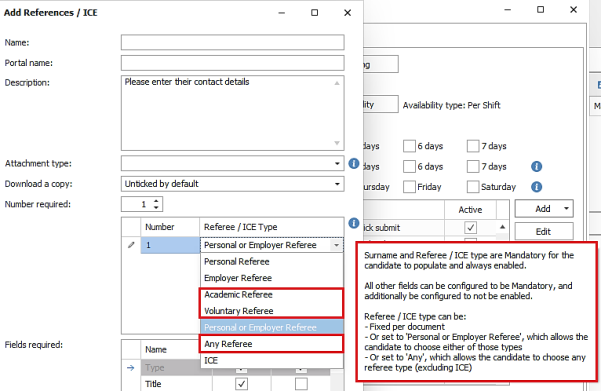
When selected in documents, they are displayed on the Portal.
The drop-down list is ordered Personal, Employer, Academic, Voluntary, Personal or Employer, Any, ICE.
There is a new type called 'Any Referee’; when selected, the list gives a choice of all referee types available to the candidate on the Portal, excluding ICE.
The ‘attachment type drop’ includes ’Academic Ref’ and ‘Voluntary Ref’ for the new referee types.
Documents created before this version continue to work after the upgrade.
Enhancement 131886 Portal – Example document grid changes
In Administration / General Settings / Candidate Portal tab, when selecting from ‘Example Documents’, the document grid displayed has been changed to have the same column headings and order as the main admin page document grid.
 Contact Details
If you require further assistance please contact Ikiru People using the details published on www.ikirupeople.com
Visit our Customer Portal at https://portal.ikirupeople.com/ for future events and clinics.
FeedbackIf you would like to make suggestions or have found any errors with this Help section please contact our Support team.
Copyright © 2026 Voyager by Ikiru People Ltd. All rights reservedVersion 4.87
Voyager Software is a brand of Ikiru People Ltd, a subsidiary of Dillistone Group Plc. The group is a leading global provider of software and services that enable recruitment agencies and in-house recruiters to better manage their selection process and address the training needs of individuals. Across its brands – which include Voyager Software (recruitment software UK & Australia), Dillistone FileFinder executive search software, GatedTalent, the global database of the world’s leading executives, Talentis.Global – the next generation of recruitment software and also ISV.Online, provider of online pre-employment skills testing and training tools. Dillistone Group serves thousands of clients worldwide. Ikiru People Ltd: Registration Number 02043300. Registered in England & Wales.
 |  |  |  |