Voyager Infinity – Release Notes
Version: 5.36
Release Date: 29th April 2026
What have we released?
- Infinity 5.36 has been released
Release overview
Here’s a snapshot of what we’ve delivered in this release:
- Windows 11 skin is the default for new users
- Administration screen layout changes
- Send to 2nd Timesheet Authoriser from Placement Comms Centre
- Optional confirmation prompt to exit Infinity
- Bulk delete candidates from search results
- Changes to delete location and company
- Scheduled Automatic Comms – Expiring Quals & Certs - send by candidate status
- Shift Planner – worker type field added to the placement ‘Info’ button
Contents
Enhancements
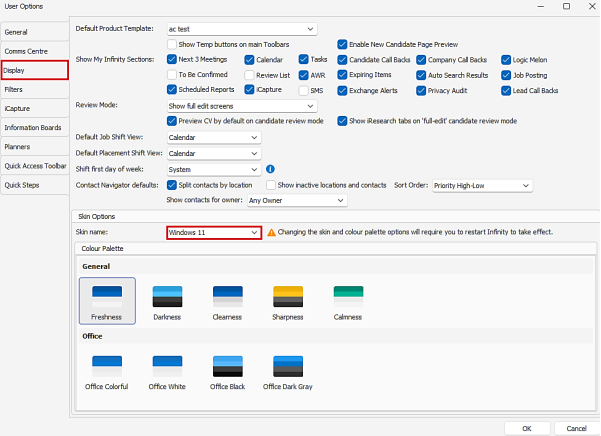
Enhancement 138285 Windows 11 skin is the default for new users
In User Options / Display tab, the ‘Windows 11’ skin is the default for new users.
Enhancement 138287 Administration screen layout changes
The Administration screen has had layout changes. Functionality remains the same.
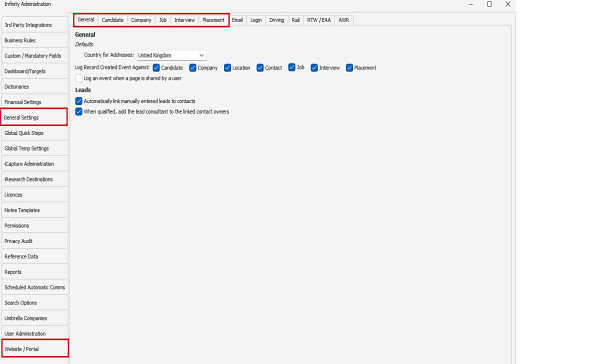
- Increased in height by 1 tab
- In the General Settings tab
- Main pages tab renamed to General and has general and leads settings on it
- New tab for each of the main pages and their settings are moved there:
- Candidate
- Company
- Job
- Interview
- Placement
- New main left-hand side tab created called ‘Website / Portal’ with the following tabs moved to it:
- Website Settings
- Portal Onboard / Avail
- Whatsapp Shift Offers
- Portal Placements
Enhancement 138174 Share job by email - more fields added
Additional fields have been added when sharing a job page by email.
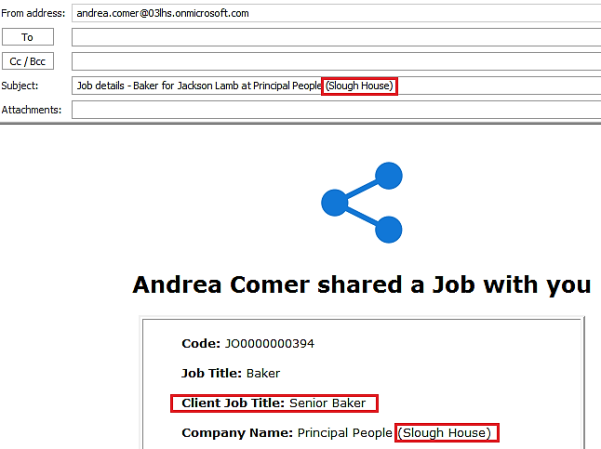
- The job share email has the job location name on the email subject and shows in brackets after the company name.
- The job share email has the job location name on the email body and shows in brackets after the company name.
- The job share email body has the Client Job Title as a new row under the Job Title field.
Enhancement 138249/138251 Placement Comms Centre send to 2nd Timesheet Authoriser
On contract and temp placements, comms can be sent from the Placement Comms Centre to the 2nd Timesheet Authoriser.
Placement page Comms Centre - select on the fly
‘Include’ field
When the ‘Contact’ radio button is selected, the 2nd timesheet authoriser is available to select in the ‘Include’ dropdown field.
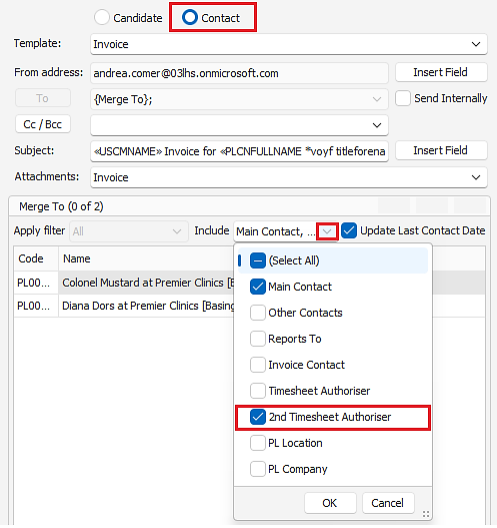
- When selected the 2nd Timesheet Authoriser is added to the merge to section
- They are sent the comms if they have the required merge to telecom
Cc/Bcc button
When the ‘Contact’ or ‘Candidate’ radio button is selected, the 2nd timesheet authoriser is available to select in the ‘Cc/Bcc button / Add / Related menu.
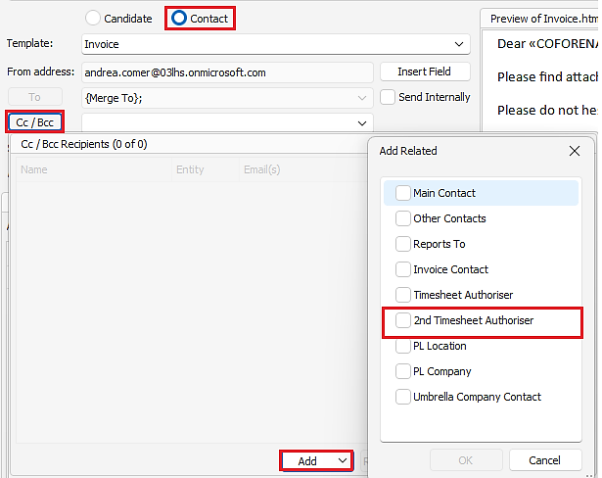
- When selected, the 2nd Timesheet Authoriser is added to the Cc/Bcc grid
- They are sent the comms if they have the required Merge To teleco
- If the 2nd timesheet authoriser exists with a ‘send as default’ email address, they are
- Cc/Bcc’d on the email
Comms Centre Template Admin - Placement Comms Centre - store with the template
‘Include’ field
When the ‘Contact’ radio button is selected, the 2nd timesheet authoriser is available to select in the ‘Include’ dropdown field.
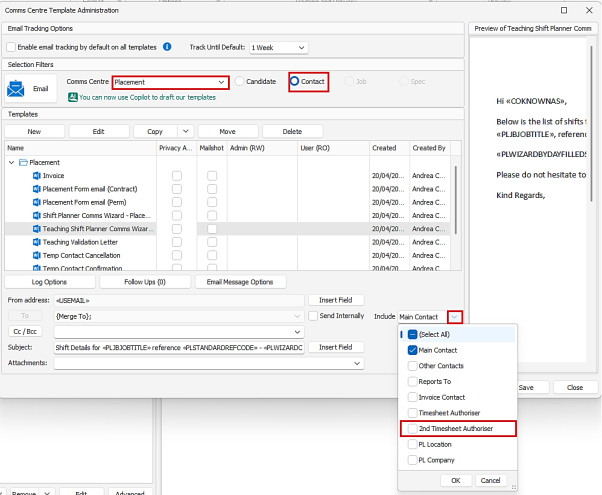
- When selected the setting is stored with the template
- When the template is sent manually by a user it merges and sends to the 2nd Timesheet Authoriser specific to each placement
- When the template is sent by Scheduled Automatic Comms it merges and sends to the 2nd Timesheet Authoriser specific to each placement
Cc/Bcc button
The ‘Cc/Bcc button’ / related menu in Email Comms, lists the 2nd Timesheet Authoriser.
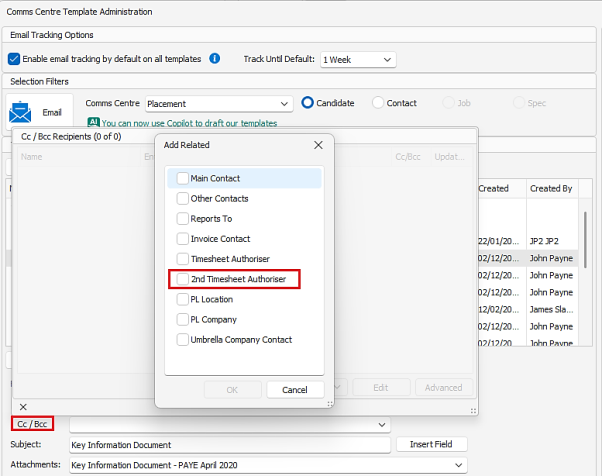
- When selected, the setting is stored with the template in the Cc/Bcc grid
- When the template is sent manually by a user it merges the details of the 2nd Timesheet Authoriser for each placement
- When the template is sent by Scheduled Automatic Comms it merges the details of the 2nd Timesheet Authoriser for each placement
- If the 2nd Timesheet Authoriser exists with a ‘send as default’ email address, they are Cc/Bcc’d on the email
- If the 2nd Timesheet Authoriser doesn't exist or has no email address, the entity is not Cc/Bcc’d
Enhancement 138455 New User Option to prompt when closing Infinity
In User Options / General / Startup / Exit tab there is a new setting to prompt the user ‘Are you sure?’ when closing Infinity.

The setting is off as default.
When enabled and the user hits the Infinity window ‘cross’ icon to close Infinity and no tabs need saving, the user is prompted 'Are you sure you want to exit Infinity?’.
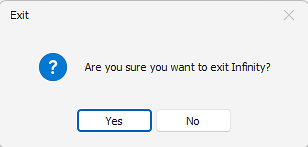
- Yes - exits Infinity
- No - returns the user to previous location and doesn't exit Infinity
Enhancement 137932 Bulk delete candidates from search results
Users with the existing permission ‘Bulkupdategeneral’ can bulk delete candidates from search results. In the bulk update menu, there is a new menu option called Delete Candidate(s).
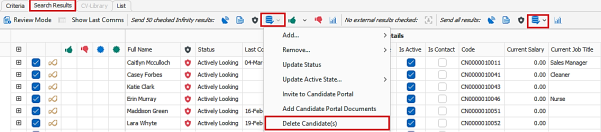
- Users can select / tick candidate results individually and bulk delete
- Users can use the ‘Send all results’ bulk delete menu option to delete all candidates on the results
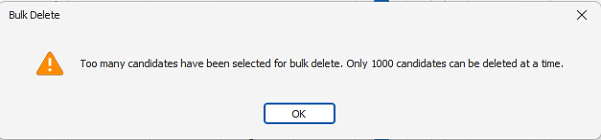
Up to 1000 candidates can be deleted and the user is prevented if more are selected.
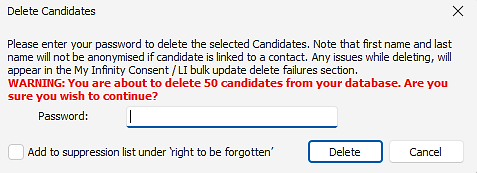
If less than 1000 are selected, the user is given a big warning and must confirm their password to proceed.
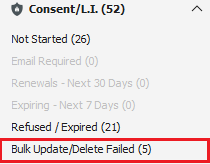
The user is informed that any deletion failures (e.g., cannot be deleted because they have current interviews) will appear in Apps menu / My Infinity Consent /LI - Bulk Update / Delete Failed link.
The candidates to be deleted can optionally be added to the suppression list as per existing delete candidate functionality.
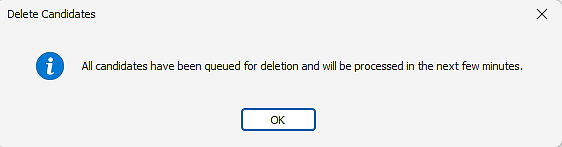
If the user proceeds to delete, the records are sent to the back-end service for processing and the user is informed.
Deletion checks are done as per the existing bulk delete process from LI / Consent Refused / Expired toolbar and cannot be deleted if they have current interviews and placements.
Candidates that cannot be deleted are sent as a notification to Apps menu / My Infinity Consent / LI - Bulk Update / Delete Failed link for the user who requested the deletion.

Enhancement 138387 Delete location changes
In addition to the existing location deletion checks, if a user deletes a location that has contacts that are assigned to company financials, jobs, interviews or placements, they are prevented. This includes if the contact is linked to other companies that have jobs, etc...

The user is advised to make the location inactive or delete the contacts.
If the location is deleted, all contacts are deleted.
Contacts linked to other company locations (including other locations at the same company) are deleted from just the location being deleted, as per the existing single contact delete option.
The location and its contacts are removed from the company contact navigator panel once deleted.
Enhancement 138388 Delete company changes
In addition to the existing company deleting checks, if a user deletes a company that has contacts that are assigned to other company financials, jobs, interviews or placements, they are prevented.

The user is advised to make the company inactive or delete the contacts.
If the company is deleted, all locations and contacts are deleted.
Contacts linked to other company locations are deleted from just the company being deleted as per existing single contact delete option.
Enhancement 138297 Scheduled Comms - Expiring Quals & Certs - send by candidate status
In Administration / Scheduled Automatic Comms tab, the candidate status field has been added to the candidate page condition 'Active and has an expiring quals&cert due for review'.
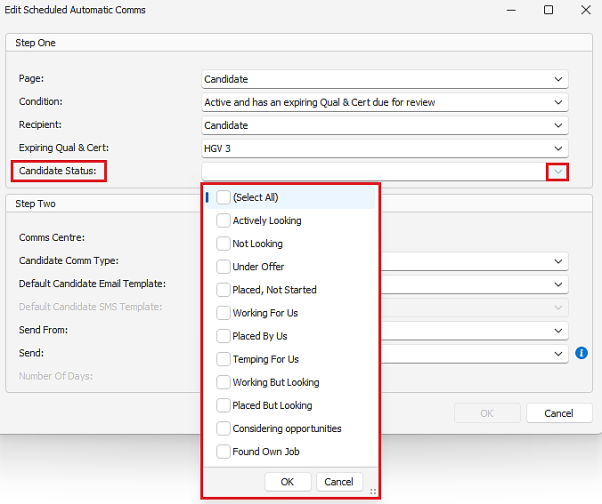
- Shows all 'active' statuses
- User can multi select status, e.g,, Working for Us and Temping for Us
- No statuses selected = all statuses selected
When selected, Infinity additionally searches for candidates at those statuses only and sends the comms as per existing functionality.
Enhancement 138537 Deleted tasks are removed from Exchange
When a parent page is deleted, e.g., candidate that has tasks belonging to a synchronising user, the tasks are deleted from their Exchange mailbox.
Enhancement 136756 My Infinity – more sections get instant updates
The following My Infinity sections no longer refresh periodically and instead update within ten seconds when changes occur. This updates the section numbers and any opened hyperlink screens. The My Infinity ‘Refresh’ button will no longer have any effect on these sections. The sections are also updated as per existing functionality when the user logs in, or switches to a different My Infinity user.
Contractual / Legal
Refreshes with Signal R when:
- User owns the candidate and the past expiry is set to the future by changing the pl dates (decreases count)
- User owns the candidate and the past expiry is cleared by setting the basis to "N/A" (decreases count)
- User is removed as an owner of a candidate with a past expiry (decreases count)
- User is added as an owner of a candidate with a past expiry (increases count)
- User owns the candidate with a past expiry and the candidate is deleted (decreases count)
Consent / LI
Refreshes with Signal R when:
- Owners changed on a candidate that is in any of the counts
- Manually restricted changed on a candidate in the not started, email required, renewals or expiring counts
- Lawful basis status changed on a candidate in the not started, email required, renewals, expiring or refused/expired counts
- Contractual legal changed on a candidate in the refused/expired count
- Request fails for a candidate you own
- Request failure notification is removed for a candidate the user owns
Enhancement 135565 Temp placements can be deleted with future shifts
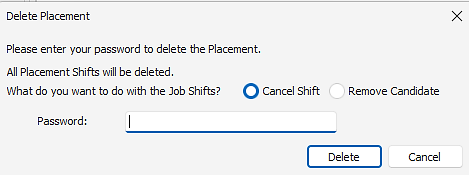
Infinity allows the user to delete Temp placements with current and future shifts.
The user is prompted to cancel/remove shifts as part of the deletion process as per existing functionality when deleting a placement with old shifts.
Enhancement 138556 Shift Planner - placement worker type added to the info button
In the Shift Planner, the placement worker type field has been added to the info button on the placement row.
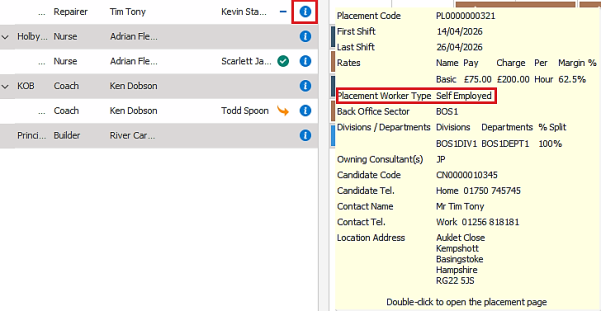
In Use Options / Planners tab, if the user is set to include ‘Info’ fields on Shift Planner Export the placement worker type is included.
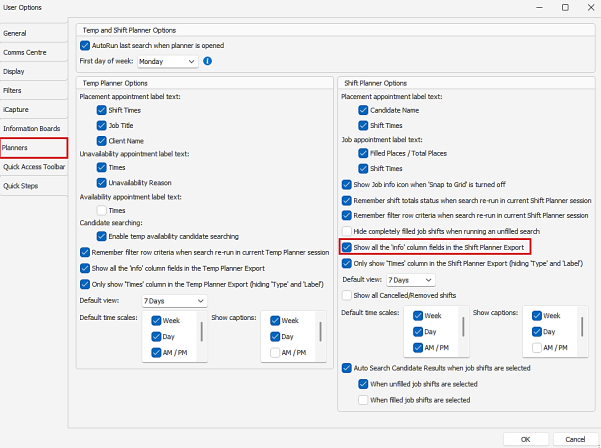
When exported, this appears as a column in Excel in the same position as on the Info screen.

Enhancement 138253 Temp compliance checks order change in Administration
In Administration / Global Temp Settings / Compliance Checks tab, the 'Last Minute Shifts’ check has been moved below the 'Essential Quals & Certs' check.
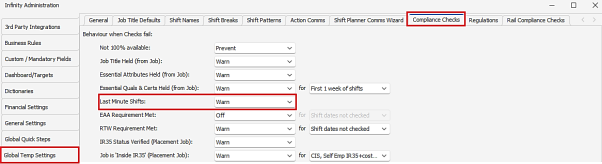
Enhancement 138544 'Last minute shifts' renamed
Candidate page / Personal/Financial window field 'Last minute shift offers opt-out' has been renamed to 'Last minute shifts opt-out'.
Enhancement 138300 WhatsApp Shift Offers – info details update in Administration
In General Settings / WhatsApp Shift Offers tab, the 'Send WhatsApp notification message when candidate applies' info button details have been updated on the ‘Send to’ and ‘Send from’ fields.
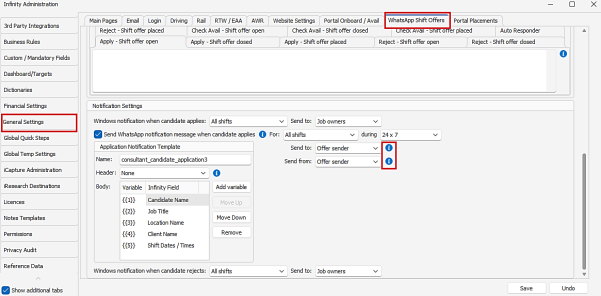
'Send to' tooltip is changed to the following:
“Sets the consultant that receives the WhatsApp message when a candidate applies.
If job owner is selected, only one job owner will be sent the WhatsApp message.
The relevant users must have a valid UK mobile number configured in User Admin to receive a WhatsApp message.”
'Send from' tooltip is added as follows:
“Sets the consultant the email is from, if Action Comms is configured to automatically send when a shift is confirmed.”
Enhancement 138016 Rail - Sub Contractors pass some rail and non-rail compliance checks
If placing on a rail job, and the candidate sponsor type is set to 'sub contractor', then compliance checks work as follows:
|
Compliance Check Type |
Compliance Check |
Functionality for ‘Sub Contractor’ candidates |
|---|---|---|
|
General |
Not 100% available |
No change in functionality |
|
General |
Job Title Held (from Job) |
Passes |
|
General |
Essential Attributes Held (from Job) |
Passes |
|
General |
Essential Quals & Certs Held (from Job) |
Passes |
|
General |
EAA Requirements Met |
Passes |
|
General |
RTW Requirements Met |
Passes |
|
General |
IR35 Status Verified (Placement Job) |
Passes |
|
General |
Job is ‘Inside IR35’ (Placement Job) |
Passes |
|
General |
Student Visa Max Hours Check Passed |
Passes |
|
General |
Not Blocklisted (Company and Job Location) |
No change in functionality |
|
General |
Company on stop |
No change in functionality |
|
General |
PO Missing and required by Company |
No change in functionality |
|
General |
Company TOB not sent |
No change in functionality |
|
General |
Company TOB expired |
No change in functionality |
|
General |
Last Minute Shifts |
No change in functionality |
|
Driving |
Driving Licence Not Expired |
No change in functionality |
|
Driving |
Driving Licence Category Not Expired |
No change in functionality |
|
Driving |
Driving Licence Check In Date |
No change in functionality |
|
Driving |
Min Driving Age Met |
No change in functionality |
|
Driving |
Max Points Met |
No change in functionality |
|
Driving |
Min Driving Experience Met |
No change in functionality |
|
Driving |
Major Endorsements Met |
No change in functionality |
|
General |
Regulations passed |
No change in functionality N/A for Rail Jobs |
|
Rail |
Sponsor Type |
No change in functionality Sub Contractor candidates already pass the check and do not require approval. |
|
Rail |
Compliant From |
Passes |
|
Rail |
Upper Max Hours a Week |
Passes without Requiring Approval |
|
Rail |
Lower Max Hours a Week |
Passes without Requiring Approval |
|
Rail |
Max Door-To-Door |
Passes without Requiring Approval |
|
Rail |
Rest Between Shifts |
Passes without Requiring Approval |
|
Rail |
Max Shift Length |
Passes |
|
Rail |
Max Consecutive Shifts |
Passes |
Each compliance check that passes automatically, have the following in a tooltip next to the check in the admin screen:
‘Rail Jobs with a Candidate who has a ‘Sub Contractor’ sponsor type will always pass this check’.
The ‘Sponsor Type’ field also has the above tooltip.
Enhancement 138570 Rail - Sub Contractors Approval Log
An entry is made into the placement approval log if a ‘Sub Contractor’ candidate is placed on a rail job as follows:
|
Column |
Data Added |
|
Type |
Sponsor Type |
|
Comments |
Sub Contractors automatically pass most candidate compliance checks without requiring approval, and an entry is added in the Approval Log for auditing purposes. |
|
Shift Date/Times |
Shifts being placed on |
|
Sponsor Type |
Sub Contractor |
|
Date |
Date the candidate was placed on the shifts |
|
Consultant |
The user who placed the candidate on the shifts |
Enhancement 138571 Rail - Sub Contractors Approval Log Report
As per other approval log entries, the following columns are populated in the Approval Log Report, if a ‘Sub Contractor’ candidate is placed on a rail job:
|
Column |
|
Type |
|
Forename |
|
Surname |
|
Sentinel Number |
|
Sponsor Type |
|
Date Placed on Shifts |
|
Consultant |
|
PO Number |
|
Company |
|
Location |
|
Job Title |
|
Shift Dates & Times |
|
Comments |
|
Placement Code |
|
Job code |
The approval log report description has the following added before the text ‘This report is specific to the Rail industry’:
‘Also, a list of Sub Contractors placed’.
 Contact Details
If you require further assistance please contact Ikiru People using the details published on www.ikirupeople.com
Visit our Customer Portal at https://portal.ikirupeople.com/ for future events and clinics.
FeedbackIf you would like to make suggestions or have found any errors with this Help section please contact our Support team.
Copyright © 2026 Voyager by Ikiru People Ltd. All rights reservedVersion 4.87
Voyager Software is a brand of Ikiru People Ltd, a subsidiary of Dillistone Group Plc. The group is a leading global provider of software and services that enable recruitment agencies and in-house recruiters to better manage their selection process and address the training needs of individuals. Across its brands – which include Voyager Software (recruitment software UK & Australia), Dillistone FileFinder executive search software, GatedTalent, the global database of the world’s leading executives, Talentis.Global – the next generation of recruitment software and also ISV.Online, provider of online pre-employment skills testing and training tools. Dillistone Group serves thousands of clients worldwide. Ikiru People Ltd: Registration Number 02043300. Registered in England & Wales.
 |  |  |  |