Voyager Infinity – Release Notes
Version: 5.34
Release Date: 2nd April 2026
What have we released?
- Infinity 5.34 has been released
Release overview
Here’s a snapshot of what we’ve delivered in this release:
- Company Terms of Business (TOB) - expiry date and tracking in My Infinity / Apps menu
- Candidate Page (preview) – more improvements
- Mandatories – set individual address fields and setting to run on recent candidates only
- Perm placements that are finished have an ‘End date’ field
- Deletion changes on Company, Location, Contact and Jobs
- WhatsApp Shift Offers – various enhancements See details
- Shift Planner – positive availability is for the whole shift rather than partial
- Temp compliance checks for ‘Last minute shifts’
Contents
Enhancements
Enhancement 138062 Company TOB Expiry date
There is a new expiry date field in Company page Financials / Terms of Business tab.

- User must have the TOBChangefields permission to edit
- This is blank as default
There is a new expiry date field in Location page Financials / Terms of Business tab.

- Enables if the location is set to override company TOBs
- User must have the TOBChangefields permission to edit
- This is blank as default
Enhancement 137818/137842/137819 Company TOB tracking in My Infinity / Apps menu
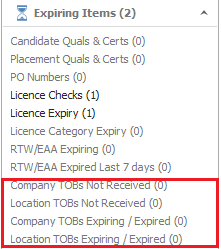
Company TOB tracking (sent but not received and expired/expiring soon) can optionally show in My Infinity / Apps menu ‘Expiring items’ section.
Administration
In Administration / General Settings / Main Pages tab / Company / ‘Track Company TOBs in Expiring Items’ section the required tracking can be enabled.
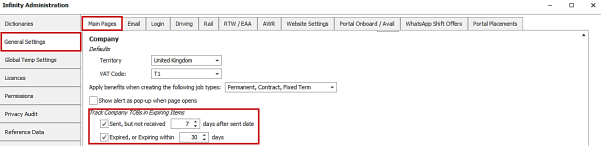
Both settings are off as default.
When ‘Sent but not received’ is ticked, a further option is available to set how many days after the TOBs are sent they should show in expiring items.

- Day values can be 1-30
- Default is 7 days
When ‘Expired, or Expiring within’ is ticked, a further option is available to set the number of days the TOBs are expiring within for them to show in expiring items.

- Day values 1-90
- Default is 30 days
My Infinity / Apps menu – Company TOBs not received
My Infinity
If enabled in Admin, there is a new hyperlink for the Company TOB Not Received in My Infinity Expiring Items section.

- This counts the number of companies where the TOB sent date is > X days ago as configured in admin but less than 1 year ago, and the received date is blank or before sent date
- User is owner of the company
- Company is active
- Company is not deleted
- The count is included in the section heading count
Clicking the hyperlink lists the companies in a grid.

The following columns are shown:
- Company name
- is a hyperlink to open the page
- Type
- Business sector
- Sent Date
The columns are ordered by Sent Date, oldest at top.
The grid has a toolbar with Refresh, Company Comms Centre, Log event and Review mode functionality.
Apps menu
The Apps menu ‘Expiring Items’ has the same menu option.
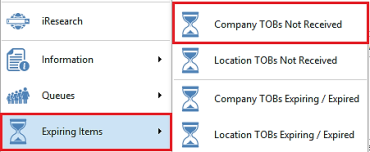
- Loads the same toolbar and grid but for all company owners
- The consultant column appears as the last column in the grid
My Infinity / Apps menu – Location TOB Not Received
My Infinity
If enabled in Admin, there is a new hyperlink for the Location TOB Not Received in My Infinity Expiring Items section.

- This counts the number of company locations that override company TOBs where the location TOB sent date > X days ago as configured in admin but less than 1 year ago, and the received date is blank or before sent date
- User is owner of the company
- Company is active
- Company is not deleted
- Location is active
- Location is not deleted
- The count is included in the section heading count
Clicking the hyperlink lists the location records in a grid.

The following columns are shown:
- Location Name
- is a hyperlink to open the page
- Company name
- is a hyperlink to open the page
- Company Type
- Company Business sector
- Location TOB Sent Date
The columns are ordered by Sent Date, oldest at top.
The grid has a toolbar with Refresh, Company Comms Centre (populates the location record in the ‘Merge to’ section), location Log Event and location Review Mode functionality.
Apps Menu
The Apps menu ‘Expiring Items’ has the same menu option.
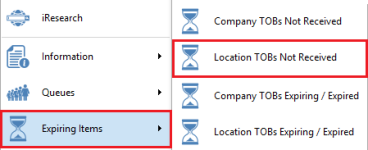
- Loads the same toolbar and grid but for all company owners
- The consultant column is the location’s company owners and appears as the last column in the grid
My Infinity / Apps menu - Company TOB Expired / Expiring soon
My Infinity
If enabled in Admin, there is a new hyperlink for the Company TOB Expired / Expiring soon in My Infinity Expiring Items section.

- This counts the number of companies where the TOB expiry is in the past but less than 1 year ago or in next X days as configured in admin
- User is owner of the company
- Company is active
- Company is not deleted
- The count is included in the section heading count
Clicking the hyperlink lists the companies in a grid.

The following columns are shown:
- Company name
- Is a hyperlink to open the page
- Type
- Business sector
- Expiry Date
The columns are ordered by Expiry Date oldest at the top.
The grid has a toolbar with Refresh, Company Comms Centre, Log Event and Review Mode functionality.
Apps Menu
The Apps menu ‘Expiring Items’ has the same menu option.
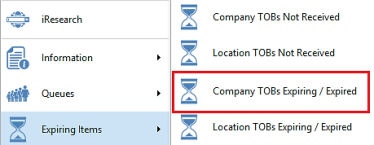
- Loads the same toolbar and grid but for all company owners
- The consultant column appears as the last column in the grid
My Infinity / Apps menu - Location TOB Expired / Expiring soon
My Infinity
If enabled in Admin, there is a new hyperlink for the Location TOB Not Received in My Infinity Expiring Items section.

- This counts the number of company locations that override company TOB where the location TOB expired date is in the past but less than 1 year ago, or in next X days as configured in admin
- User is owner of the company
- Company is active
- Company is not deleted
- Location is active
- Location is not deleted
- Count is included in the section heading count
Clicking the hyperlink lists the company location records in a grid.

The following columns are shown:
- Location name
- Is a hyperlink to open the page
- Company name
- Is a hyperlink to open the page
- Company Type
- Company Business sector
- Location TOB Expiry Date
The columns are ordered by Expiry Date, oldest at the top.
The grid has a toolbar with Refresh, Company Comms Centre – populates the location record in the ‘Merge to’ section, location Log Event and location Review Mode functionality.
Apps Menu
The Apps menu ‘Expiring Items’ has the same menu option.
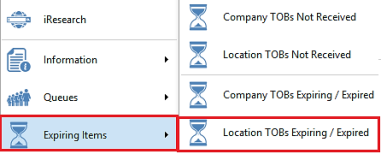
- Loads the same toolbar and grid but for all company owners
- The consultant column appears as the last column in the grid
- For location TOBs the consultant column is the company consultants
Enhancement 137829 P/C/FT Business rule on Company TOB expired
In Administration / Business Rules tab / Perm, Contract, Fixed Term Rules, there is a new Terms of Business Expired business rule on the Company/Location tab.
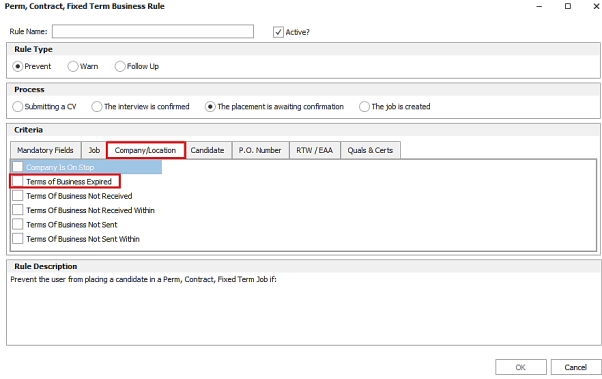
This is available for the following processes:
- Submit cv
- Interview confirmed
- Placement is awaiting confirmation
When enabled it runs for the configured processes and warns/prevents accordingly as per existing business rules.
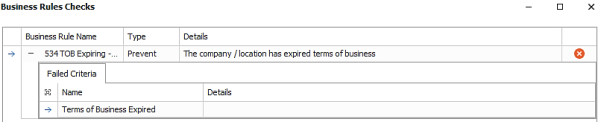
- Checks whether the location TOBs exist (override company TOBS is ticked), else company TOBs are used
- Checks for TOBs existing in the following order and uses the first match found:
- Contact's location (if contact exists)
- Location (if location exists)
- Company
- If placement process, uses placement contact/location/company as per the above order
- If interview process, uses job contact/location/company as per the above order
- If submit CV process uses job contact/location/company as per the above order
- If spec submit process uses the contact/location/company that they are sending to as per the above order
- Checks whether the TOB expiry date is today or in past
- The check fails if the TOB matches the criteria and warn/prevents the user as configured
Enhancement 137830 Temp Compliance check on Company TOB expired
In Administration / Global Temp Settings / Compliance Checks tab there is a new Terms of Business Expired check.
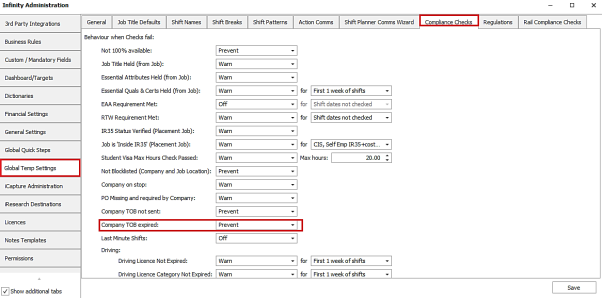
The check is off as default.
When enabled it runs when placing a candidate on temp shifts and warns/prevents accordingly as configured and as per existing checks.
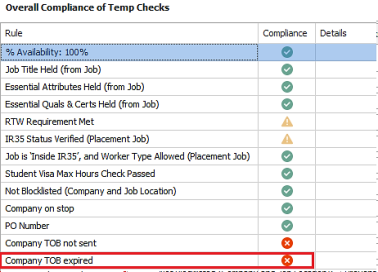
- Checks whether the location TOBs exist (override company TOBs is ticked), else company TOBs are used.
- Checks for TOBs existing in the following order and uses the first match found:
- the placement main contact’s location (if exists)
- the placement location (if exists)
- the placement company
- If a placement doesn’t exist, uses job contact/location/company as per the above order
- Checks whether the TOB expiry date is today or in past
- The check fails if the TOB matches the criteria and warn/prevents the user as configured
Enhancement 138066 Search Company/Location TOB not sent
On Company search / Advanced Search section / Company menu, there is a new search field called ‘TOB not sent’.
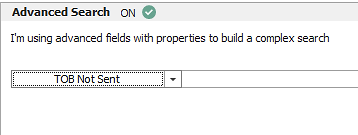
- This returns companies with a TOB sent date not populated
On Location search / Advanced Search section / Location menu, there is a new search field called ‘TOB not sent’.
- This returns locations that override company TOBs, with a TOB sent date not populated
Enhancement 138207 Candidate page (preview) is on as default for new users
In User Options / Display tab, the ‘New Candidate Page Preview’ setting is on as default for new users.
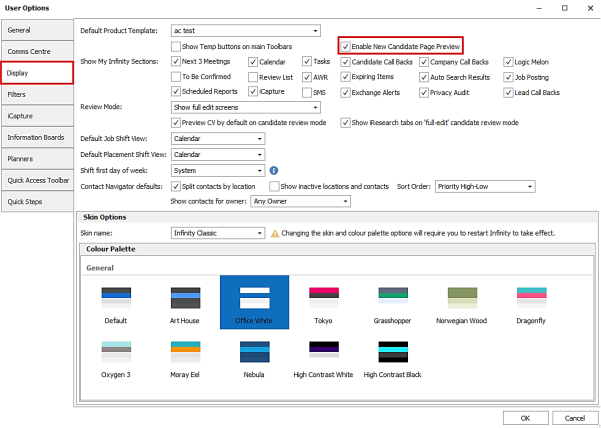
Enhancement 138203 Candidate page (preview) - changes to preferred telecom
On the new candidate page (preview) profile, the display of the preferred telecom has been changed.
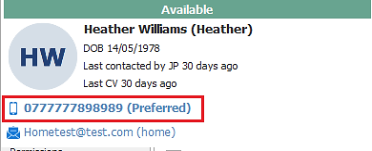
- Mobile field shows Preferred mobile if it exists else the latest created mobile
- Email field shows Preferred email if it exists else the latest created home email
Enhancement 137750 Candidate page (preview) - change the height of events / summary
There is a new User Option to set the % split in height across the ‘Summary’ group of tabs section and the ‘Events’ group of tabs section on the candidate page (preview).
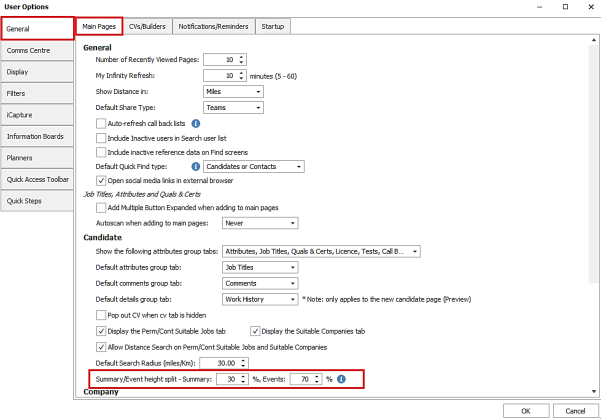
- The default setting is Events 45% - Summary 55% as per previous versions and supports users on minimum and 125% zoom modes resolutions
- For users on high resolutions the Events % can be increased to display more events on the page
- User can type a value between 0-100 % in each field
- The sum of the two fields must equal 100
- There is an Info button giving further details
- Once the setting is saved, the user must open a new candidate tab to see the % split applied
Enhancement 137473 Option to format the age on the candidate main page
In Administration / Main Pages tab / candidate section, there is a new option to format the display of the age on the candidate main page (if enabled).
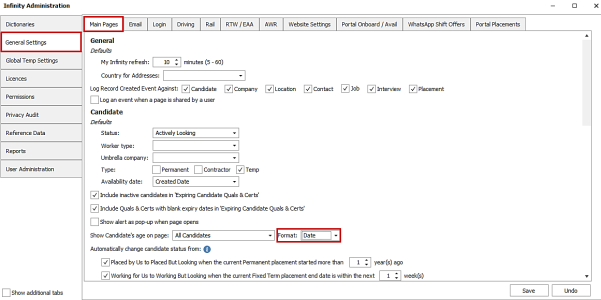
The default is ‘Age’ as per existing functionality, e.g., 32 years and 11 months
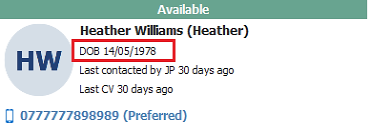
If ‘Date’ is selected the candidate page shows the label ‘DOB’ then the birth date in format DD/MM/YYYY.
Enhancement 137131 Mandatory fields – select which address fields are mandatory
In Administration / Custom / Mandatory fields / Candidate Mandatory Fields tab, the existing 'At least 1 Address' setting has further options to set the address fields that are mandatory.
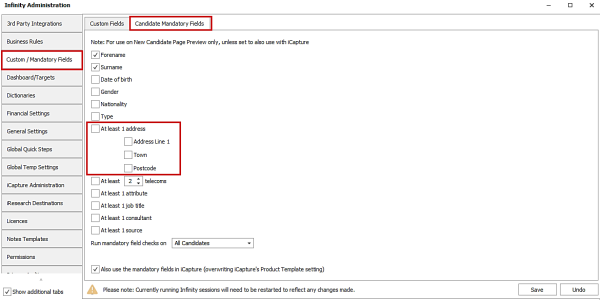
The address fields available are as follows:
- Address line 1
- Town
- Postcode
If ‘At least 1 address’ is ticked, then:
- All the address fields are ticked as default
- At least one address field must ticked
As per existing functionality, when enabled, it’s mandatory for the selected address fields to be populated on at least one address type when the new candidate page (preview) is saved. If the check fails, the user is informed which address fields are missing.
As per existing functionality, if the mandatories are applied to iCapture, it’s mandatory for the selected address fields to be populated on the iCapture candidate address when saved. If the check fails, the user is informed which address fields are missing.
Note:Upon upgrade, databases that previously had address ticked as mandatory will have it unticked. The setting will need to be configured again with the required mandatory address field(s).
Enhancement 137815 Mandatory fields – option to run on new/recent candidates only
In Administration / Custom / Mandatory fields / Candidate Mandatory Fields tab, there is a setting for mandatory checks to run on all candidates or candidates created after a specified date.
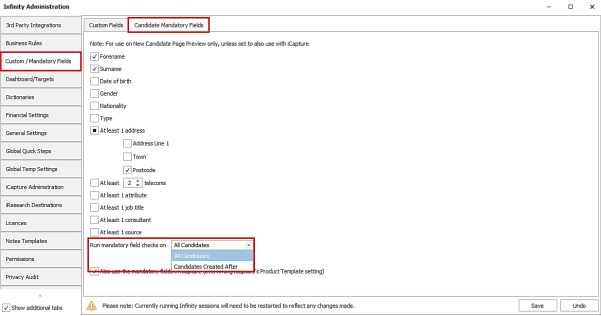
The default is 'All candidates' as per existing functionality.
If 'Candidates Created After' is selected, a date field enables.

- It defaults the date to today
- User can configure the date as required
When enabled, only candidates created in Infinity (using the new candidate page (preview)), on or after that date have mandatory fields checked when saved.
When enabled, if the mandatories are applied to iCapture, only candidates created in iCapture on or after that date have mandatory fields checked when saved.
Enhancement 137823 Permanent placements have an end date when finished
Permanent placements have an end date field below the start date, if the placement is set to ‘Finished’.
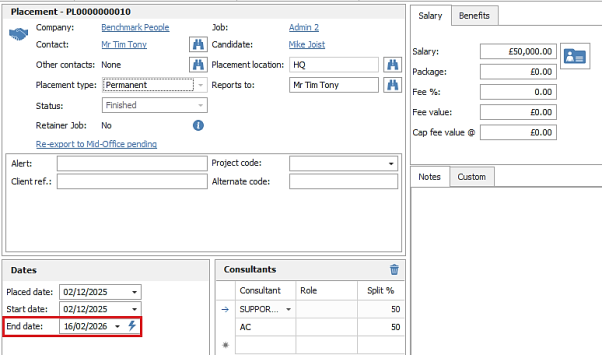
- As per existing functionality when a permanent placement is finished the end date default to that date
- User can set the end date as required
Users have been prevented from updating the start and end date fields in work history entries (on the old and new candidate page (preview)) that are linked to placements. The dates should always be updated on the placement page instead.
Enhancement 137927 Delete job changes
When the user deletes a job, they are prevented if the job has interviews and placements of any status.
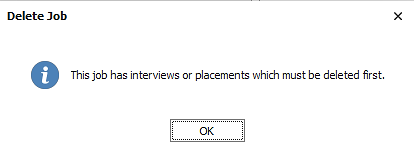
This replaces the existing check that looks at current interviews and placements only.
To delete the job, the interviews or placements must be deleted.
Any other job deletion checks run as per existing functionality.
Enhancement 137928 Delete contact changes
When the user deletes a contact, they are prevented if the contact (including any other company and location they are linked to) is assigned to company or location financial information or has jobs, interviews and placements of any status.

This replaces the existing check that looks at current jobs, interviews and placements only.
To delete the contact, they must be removed from financial information and the jobs, interviews and placements deleted. It is strongly recommended that the contact is marked as inactive instead.
The following is checked:
Company
- Invoice contact
- Timesheet authoriser 1 or 2
Location Financials that override company
- Invoice contact
- Timesheet authoriser 1 or 2
Job
- Main contact
- Reports to
- Other
Interview
- Main contact
- Interviewee
- Other contacts
- Reports to
Placement
- Main contact
- Reports to
- Other contacts
- Invoice contact
- Timesheet authoriser 1or 2
Any other contact deletion checks run as per existing functionality.
Enhancement 137929 Delete location changes
When the user deletes a location, they are prevented if:
- The location is assigned to contacts that are assigned to company or location financial information or have jobs, interviews and placements of any status.
- The location is assigned to jobs, interviews and placements of any status.

This replaces the existing check that looks at current jobs, interviews and placements only.
To delete the location, they must be removed from financial information and the jobs, interviews and placements deleted. It is strongly recommended that the location is marked as inactive instead.
The following is checked for the location being assigned to contacts:
- Company
- invoice contact
- timesheet authoriser 1 or 2
- Location Financials that override company
- Invoice contact
- Timesheet authoriser 1 or 2
- Job
- Main contact
- Reports to
- Other
- Interview
- Main contact
- Interviewee
- Other contacts
- Reports to
- Placement
- Main contact
- Reports to
- Other contacts
- Invoice contact
- Timesheet authoriser 1 or 2
The following is checked for the location:
- Job location
- Interview location
- Placement Location
Any other location deletion checks run as per existing functionality
Enhancement 137930 Delete company changes
When the user deletes a company, they are prevented if it has job, interviews and placements of any status.
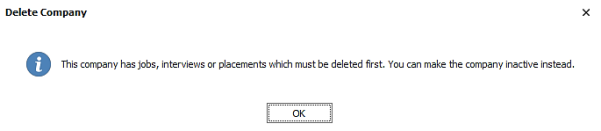
This replaces the existing check that looks at current jobs, interviews and placements only.
To delete the company, the jobs, interviews and placements must be deleted. It is strongly recommended that the company is marked as inactive instead.
Any other company deletion checks run as per existing functionality
Enhancement 137811 Double click on licence category and endorsements to edit
On the candidate page licence tab, the user can double click on a category or endorsement entry in the grid, to open the edit screen.
Enhancement 137698 Manage Duplicate Candidate Screen / Export - extra fields
In Apps menu / Data Management / Manage Duplicate Candidate screen, extra columns have been added to the screen.

- The new columns appear on the ‘child’ grid, i.e., per potential duplicate candidate Infinity record
- The new columns are not displayed by default
- They are available from the column chooser
- You will be able to save the column chooser layout
The new columns are as follows:
- Created Date
- Candidate Created Date
- e.g., 01/01/2025
- Active
- e.g., Yes
- e.g., No
- Ok to mailshot (Email)
- Note: This field is per telecom, and not per candidate
- All email fields are marked as OK to mailshot
- e.g., Yes
- e.g., No
- Ok to SMS
- Note: This field is per telecom, and not per candidate
- All mobile fields are marked as OK to SMS
- e.g., Yes
- e.g., No
- Ok to mailshot (SMS)
- Note: This field is per telecom, and not per candidate
- All mobile fields are marked as OK to mailshot
- e.g., Yes
- e.g., No
- Ok to mailshot (Address)
- Note: Only one address can be marked as OK to mailshot
- e.g., Yes
- e.g., No
- Sentinel Card
- Only databases with rail enabled in Infinity Administration will have this field available
- e.g., Yes
- e.g., No
- Sentinel Card Number
- Only databases with rail enabled in Infinity Administration will have this field available
- e.g., 3124352345
- Sponsor Type
- Only databases with rail enabled in Infinity Administration will have this field available
- e.g., Primary Sponsored
- Perm
- Perm Expected rates tick-box
- e.g., Yes
- e.g., No
- Perm Min
- Value to two decimal places, with no currency symbol
- e.g., 12000.00
- Perm Max
- Value to two decimal places, with no currency symbol
- e.g., 12000.00
- Perm Period
- e.g., Year
- Cont
- Cont Expected rates tick-box
- e.g., Yes
- e.g., No
- Cont Min
- Value to two decimal places, with no currency symbol
- e.g., 50.00
- Cont Max
- Value to two decimal places, with no currency symbol
- e.g., 50.00
- Cont Period
- e.g., Hour
- Temp
- Temp Expected rates tick-box
- e.g., Yes
- e.g., No
- Temp Min
- Value to two decimal places, with no currency symbol
- e.g., 50.00
- Temp Max
- Value to two decimal places, with no currency symbol
- e.g., 50.00
- Temp Period
- e.g., Hour
- Currency
- 3 letter currency
- e.g., GBP
The columns that appear in the ‘Duplicate Candidates’ screen, are the columns that appear in the export report. The report is generated by the ‘Export to Excel’ button on the toolbar. To add/remove a column from the report, the columns must be added/removed from the screen beforehand. The columns appear in a fixed order on the report and not in the order shown on-screen. The order is as follows (new columns are in bold):
- ID
- Candidate Name
- # of High Matches
- # of Medium Matches
- # of Low Matches
- Code
- Name
- Created Date
- Active
- Status
- Ok to mailshot (Email)
- Mobiles
- Ok to SMS
- Ok to mailshot (SMS)
- LinkedIn Url
- Other Telecoms
- Address Line 1
- Postcode
- Ok to mailshot (Address)
- Date of Birth
- Last CV
- Last Contacted
- Is Contact?
- # of EV
- # of SL
- # of IV
- # of PL
- Consultants
- Sentinel Card
- Sentinel Card Number
- Sponsor Type
- Perm
- Perm Min
- Perm Max
- Perm Period
- Cont
- Cont Min
- Cont Max
- Cont Period
- Temp
- Temp Min
- Temp Max
- Temp Period
- Currency
Enhancement 137908 Permission to post from iCapture if they are a potential duplicate
In Administration / Permissions / Permissions tab a new iCapture permission has been added called ‘iCapturePostIfPotentialDuplicatesFound’.
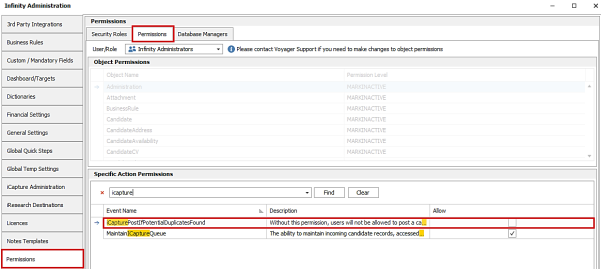
The permission description is ‘Without this permission, users will not be allowed to post a candidate to Infinity if there is a matching record above the ‘Existing candidate threshold’, unless the iCapture record is linked to an existing Infinity record.
The permission is on by default for all existing security roles and the dbmanager user.
If the user does not have the permission, they are not allowed to post a candidate to Infinity if there are matching candidates (potential duplicates in Infinity) above this threshold, unless the candidate is linked to one of those.
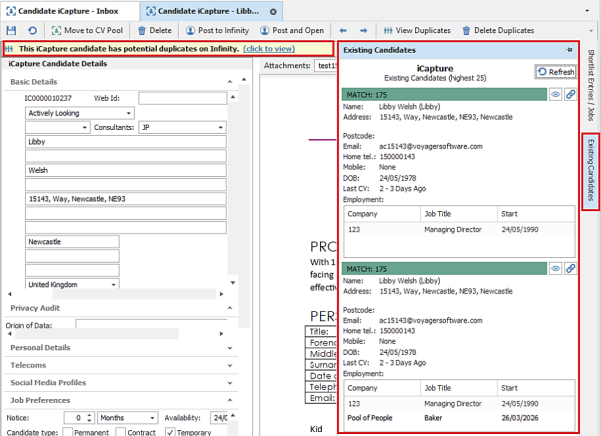
If the user tries to post, they are prevented and given a notification.

This is via both ‘Post To Infinity’ buttons:
- From the candidate record in iCapture (posting one candidate at a time)
- From the candidate iCapture inbox (potentially posting multiple candidates at a time)
If iCapture is configured to post directly into the database, this permission has no effect. This includes if ‘parse and open’ is configured to post directly into the database.
If the candidate is matched and linked to an existing Infinity record, the user is allowed to post the candidate.
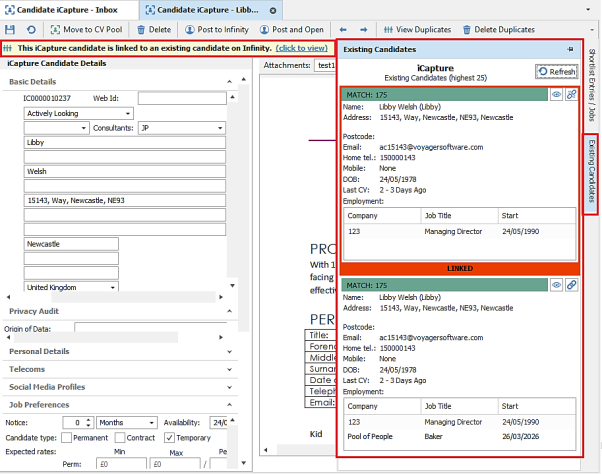
Enhancement 136756 My Infinity – more sections get instant updates
The following My Infinity sections no longer refresh periodically and instead update within ten seconds when changes occur. This updates the section numbers and any opened hyperlink screens. The My Infinity ‘Refresh’ button will no longer have any effect on these sections. The sections are also updated as per existing functionality when the user logs in, or switches to a different My Infinity user.
My Jobs
- My Jobs is refreshed for the job owners when a new non-spec perm job is created if it has an open status
- My Jobs is refreshed for the job owners when a new non-spec contract job is created if it has an open status
- My Jobs is refreshed for the job owners when a new non-spec fixed term job is created if it has an open status
- My Jobs is refreshed for the job owners when a non-spec job is deleted if it has an open status
- My Jobs is refreshed for the job owners when a non-spec job has its status changed from open to closed
- My Jobs is refreshed for the job owners when a non-spec job has its status changed from closed to open
- My Jobs is refreshed for the job owners when a non-spec job is changed to a spec job if it has an open status
- My Jobs is refreshed for the job owners when a spec job is changed to a non-spec job if it has an open status
- My Jobs is refreshed for new job owners when a non-spec job's consultants are changed if it has an open status
- My Jobs is refreshed for removed job owners when a non-spec job's consultants are changed if it has an open status
- Temp Shortlist is refreshed for the job owners when a new shortlist temp job is created if it has a current shift (today or in the future)
- Temp Shortlist is refreshed for the job owners when a shortlist temp job is deleted if it has a current shift (today or in the future)
- Temp Shortlist is refreshed for the job owners when a shortlist temp job has a current shift added if all previous shifts were in the past
- Temp Shortlist is refreshed for the job owners when a shortlist temp job has a current shift removed if all other shifts are in the past
- Temp Shortlist is refreshed for the job owners when a shortlist temp job is changed to a non-shortlist job if it has a current shift
- Temp Shortlist is refreshed for the job owners when a non temp shortlist job is changed to a shortlist job if it has a current shift
- Temp Shortlist is refreshed for new job owners when a shortlist temp job's consultants are changed if it has a current shift
- Temp Shortlist is refreshed for removed job owners when a shortlist temp job's consultants are changed if it has a current shift
AWR
- Requires assigning count is refreshed for placement owners, when a placement that requires assigning is added to a new clock
- Requires assigning count is refreshed for placement owners, when a placement that requires assigning is added to an existing clock
- Requires assigning count is refreshed for candidate owners, when a work history that requires assigning is added to an existing clock
- Requires assigning count is refreshed for candidate owners, when a work history that requires assigning has its notification removed
- Requires assigning count is refreshed for placement owners when a placement that requires assigning is deleted
- Requires assigning count is refreshed for new placement owners when a placement that requires assigning has its owners updated
- Requires assigning count is refreshed for removed placement owners when a placement that requires assigning has its owners updated
- Requires assigning count is refreshed for candidate owners when a candidate that has work history that requires assigning is deleted
- Requires assigning count is refreshed for new candidate owners when a candidate that has work history that requires assigning has its owners updated
- Requires assigning count is refreshed for removed candidate owners when a candidate that has work history that requires assigning has its owners updated
- 10 - 12 weeks count is refreshed for all placement owners of all linked placements when a clock between 10 - 12 weeks is marked as checked
- 10 - 12 weeks count is refreshed for all placement owners of all linked placements when a clock between 10 - 12 is marked as not checked
- 10 - 12 weeks count is refreshed for new placement owners when a placement linked to the clock has its owners updated
- 10 - 12 weeks count is refreshed for removed placement owners when a placement linked to the clock has its owners updated
- Over 12 weeks count is refreshed for all placement owners of all linked placements when a clock over 12 weeks is marked as checked
- Over 12 weeks count is refreshed for all placement owners of all linked placements when a clock over 12 weeks is marked as not checked
- Over 12 weeks count is refreshed for new placement owners when a placement linked to the clock has its owners updated
- Over 12 weeks count is refreshed for removed placement owners when a placement linked to the clock has its owners updated
Exchange Alerts
- Exchange Alerts is refreshed when an email item fails to sync
- Exchange Alerts is refreshed when a calendar item fails to sync
- Exchange Alerts is refreshed when a task item fails to sync
- Exchange Alerts is refreshed when an alert is deleted from My Infinity and it was created within the last 7 days
Back Office Alerts
- Astute - Alerts count is refreshed for placement owners if placement export failed
- Astute - Alerts count is refreshed for placement owners if failed placement is saved for re-export
- Tempaid - Alerts count is refreshed for placement owners if placement export failed
- Tempaid - Alerts count is refreshed for placement owners if failed placement is saved for re-export
- TimesheetPortal - Alerts count is refreshed for placement owners if placement export failed
- TimesheetPortal - Alerts count is refreshed for placement owners if failed placement is saved for re-export
- Tempest - Alerts count is refreshed for placement owners if placement export failed
- Tempest - Alerts count is refreshed for placement owners if failed placement is saved for re-export
- MidOffice - Alerts count is refreshed for placement owners if placement export failed
- MidOffice - Alerts count is refreshed for placement owners if temp placement export failed validation
- MidOffice - Alerts count is refreshed for placement owners if failed placement is saved for re-export
- MidOffice - Alerts count is refreshed for placement owners if failed validation temp placement is saved for re-export
- Alerts count is refreshed for new placement owners if failed placement owners are edited
- Alerts count is refreshed for removed placement owners if failed placement owners are edited
Approval Requests
- Updates when Placement Approval is on in admin and a placement is set from any other status to "Awaiting Confirmation"
- Updates using SignalR when Placement Approval is on in admin and a placement is set from "Awaiting Confirmation" to any other status
Not Confirmed
- Updates for placement owners when Placement Approval is on in admin and the placement approval is set from "Awaiting Confirmation" to "Not Confirmed"
- Updates for placement owners when Placement Approval is on in admin and the placement approval is set from "Not Confirmed" to "Awaiting Confirmation"
- Updates for removed placement owners when Placement Approval is on in admin and the approval of the placement is currently at "Not Confirmed"
- Updates for added placement owners when Placement Approval is on in admin and the approval of the placement is currently at "Not Confirmed"
Temp Shortlist
- My Infinity Temp Shortlist section updates using SignalR for interview owners when
- Temp shortlist job interview set as "Awaiting Confirmation"
- Temp shortlist job interview was set as "Awaiting Confirmation" and changed to another status
- Temp shortlist job interview was set as "Awaiting Confirmation" and deleted
- Temp shortlist job interview was set as "Awaiting Confirmation" and candidate was placed
- Temp shortlist job interview was set as "Awaiting Confirmation" and future shifts are removed (no longer current)
- Temp shortlist job interview was set as "Awaiting Confirmation" and future shifts are added (is now current)
- Temp shortlist job interview set as "Awaiting Feedback"
- Temp shortlist job interview was set as "Awaiting Feedback" and changed to another status
- Temp shortlist job interview was set as "Awaiting Feedback" and deleted
- Temp shortlist job interview was set as "Awaiting Feedback" and candidate was placed
- Temp shortlist job interview was set as "Awaiting Feedback" and future shifts are removed (no longer current)
- Temp shortlist job interview was set as "Awaiting Feedback" and future shifts are added (is now current)
- My Infinity Temp Shortlist section updates using SignalR for new interview owners when
- Temp shortlist job has any interview that was set as "Awaiting Confirmation"
- Temp shortlist job has any interview that was set as "Awaiting Feedback"
- My Infinity Temp Shortlist section updates using SignalR for deleted interview owners when
- Temp shortlist job has any interview that was set as "Awaiting Confirmation"
- Temp shortlist job has any interview that was set as "Awaiting Feedback"
- My Infinity Temp Shortlist section updates using SignalR for cv submit reviewer when
- Summary submit completed
- Summary submit was set as completed and changed to rejected
- Summary submit was set as completed and shortlist row deleted
- Summary submit was set as completed and future shifts are removed (no longer current)
- Summary submit was set as completed and future shifts are added (is now current)
- CV submit completed
- CV submit was set as completed and changed to rejected
- CV submit was set as completed and shortlist row deleted
- CV submit was set as completed and future shifts are removed (no longer current)
- CV submit was set as completed and future shifts are added (is now current)
Expiring Items
- RTW/EAA Expiring updates when
- RTW expiry is set within warning range (after today and before warning days setting)
- RTW expiry is set outside warning range (today or before today or after warning days setting or blanked)
- Candidate owner changed
- Candidate active changed
- Candidate deleted
- RTW/EAA Expired Last 7 days updates when
- RTW expiry is set to expired within warning range (within last 7 days including today)
- RTW expiry is set to expired outside warning range (8 days or over in the past)
- RTW expiry is set to not expired (in the future or blanked)
- Candidate owner changed
- Candidate active changed
- Candidate deleted
- Licence checks updates when
- Last checked within warning range (last checked + 3 months - warning weeks < today)
- Last checked set outside warning range (set last checked today or blank)
- Candidate owner changed
- Candidate active changed
- Candidate deleted
- Licence expiry updates when:
- Expiry within warning range (in the past or within the next 4 weeks)
- Expiry set outside warning range (set over 4 weeks in the future or blank)
- Candidate owner changed
- Candidate active changed
- Candidate deleted
- Licence Category Expiry updates when:
- Category valid to within warning range (in the past or within the next 4 weeks)
- Category valid to set outside warning range (set over 4 weeks in the future or blank)
- Candidate owner changed
- Candidate active changed
- Candidate deleted
- Candidate Q&C updates when
- Review date of a qual (with expires flag) is set in the past or blank
- Review date of a qual (with expires flag) is set from the past to the future
- Candidate owner changed
- Candidate active changed
- Candidate deleted
- Placement Q&C updates when
- Same as candidate but
- Linked placement owner changed
- Linked placement deleted
- PO Numbers refresh when:
- Company owners changed
- Valid To Date changed
- Value changed
- Warnings changed
- Marked as read
- TOBs update when
- Send / Received / Expired dates changed and they were within the range of 1 year in past and x days in future as configured in admin
- Location inactive / deleted (and it has TOBs within date range)
- Company inactive / deleted (and it has TOBs within date range)
- Company owners changed (and it has TOBs within date range)
Enhancement 138079 iCapture – use of customers’ dictionaries support withdrawn
iCapture has been upgraded and the integrated CV parsing software no longer supports the use of customers’ Infinity dictionaries when scanning for skills in CVs.
SaaS platform customers have been moved over to the new parser settings and no action is necessary.
On Premise customers have been contacted to upgrade/move over to the new parser settings. Customers remaining on older versions of Infinity still set to the legacy option will have CV parsing but no scanning for skills via iCapture.
Enhancement 138008 Jobs posted to own website removed if deleted
In Administration / 3rd party Integrations / Job Posting tab, when Infinity is configured to "Auto-remove closed and cancelled jobs" for own website job posting, if the job is then deleted and the advert has not already been removed, Infinity sends a deletion request.
Own Site tab field label has been changed to "Auto-remove closed, cancelled and deleted jobs".
Enhancement 137916 Shift Planner candidate positive availability is for the whole shift
In Shift Planner candidates results panel, the highlighting of positive availability has been changed to be for the whole shift instead of any of the shift.

- The +Avail Shift Planner candidate results column, lists how many shifts the candidate has positive availability for (e.g. 3/3), when the candidate is positively available for the whole shift.
- Mid-green Shift Planner candidate results highlighting indicates availability for all the selected job shifts, when the candidate is positively available for the whole shift
- Light green Shift Planner candidate results highlighting indicates availability for some selected job shifts, when the candidate is positively available for the whole shift
Enhancement 138078 Positive availability searching is for the whole shift
Temp Planner positive availability searching only returns results if the candidates are positively available for the whole shift.
Candidate Search / Temp Availability section 'has positive availability' only returns results if the candidates are positively available for the whole shift. The ‘info’ tooltip has been updated.
Enhancement 137909 Temps compliance check – Last Minute Shifts
In the candidate page Personal / Financial screen, the 'Last minute shift offers op-out' field is available on all databases and not just those licenced for Shift Offers.
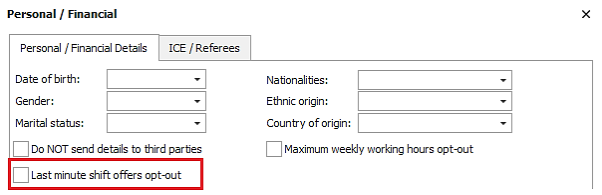
This is unticked as default.
In Administration / Global Temp Settings / Compliance Checks tab there is a new check for ‘Last Minute Shifts'.
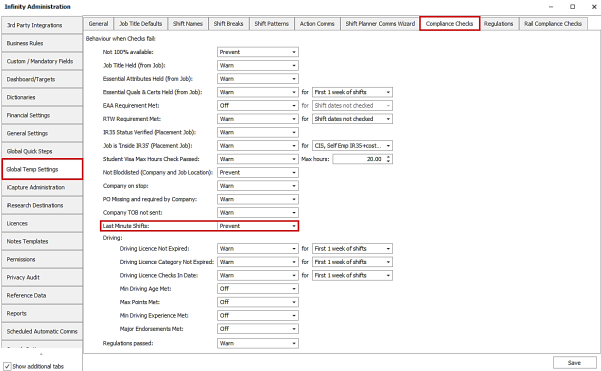
The check can be set to the following:
- Off (default)
- Warn
- Prevent
When a candidate is placed, the candidate is warned/prevented as appropriate, if enabled.
- ‘Last minute shifts’ are defined as placements where the first shift occurs on the same day the candidate is placed
- If candidates have ‘Last minute shift offers opt-out’ ticked, they fail the check if they are being placed on a last minute shift
The ‘Overall compliance’ column includes the new 'Last Minute Shifts' compliance check if enabled.
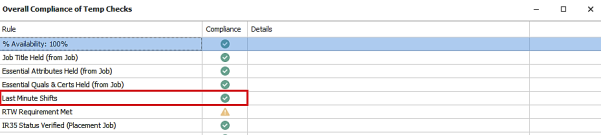
- If set to 'prevent' the candidate cannot be placed
- If set to 'warn', the candidate can be placed
WhatsApp Shift Offers
On databases licensed for WhatsApp Shift Offers, when a candidate is sent a shift offer, the 'Last Minute Shifts - Shift Offer Check' is no longer run but the 'Last Minute Shifts’ compliance check is run if enabled.
- If set to 'prevent' the candidate cannot be sent the shift offer
- If set to 'warn', the candidate can be sent the shift offer
Enhancement 137793 WhatsApp Shift Offers - shifts to include the day of week
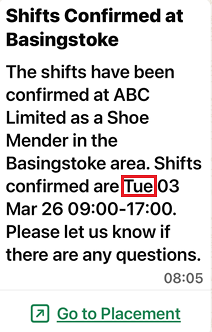
In Administration / General Settings / WhatsApp Shift Offers tab, the template merge codes 'Shift Dates Only' and 'Shift Date / Times' have been changed to merge the day of the week as well as the date and time.
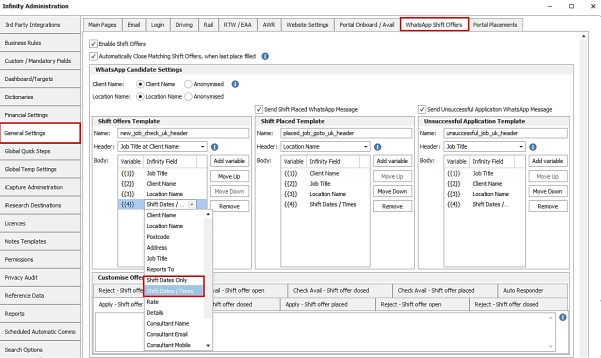
The WhatsApp message shows the day of week with the shift dates and times.
These merge codes are available on the following templates:
- Shift Offers
- Shift Placed
- Unsuccessful Application
- Application Notification
Enhancement 137795 WhatsApp Shift Offers - windows notification for rejected offers
When a candidate rejects a shift offer the consultant can receive a windows notification.
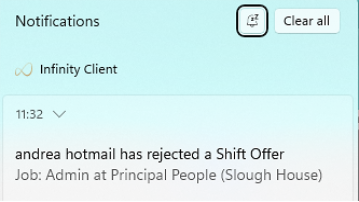
In Administration / General Settings / WhatsApp Shift Offers tab / Notification Settings there is a setting to enable the notification.
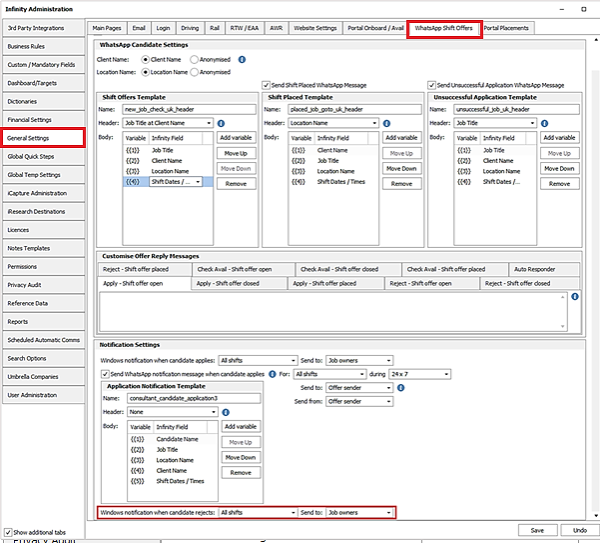
The setting is off by default.
- Rejection can be for: (as per applications)
- All Shifts
- Last minute shifts only
- No shifts (this is the equivalent of disabling)
- Notification can be sent to: (as per applications)
- Job owners
- Selected users
The rejection notification contains the following information:
- Job, Client, Location, Shifts
Enhancement 137920 WhatsApp Shift Offers – notifications on consultant failed messages
If a 'Candidate Applied Consultant WhatsApp' message fails, the users are notified in My Infinity - Failures 7 days and the main Shift Offers screen when pressing the "Show failures only" filter.
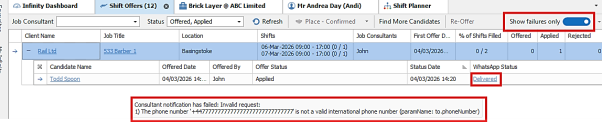
The WhatsApp status says 'delivered' because that's the candidates WhatsApp status and the tooltip shows the reason the consultant notification has failed.
Enhancement 137905 WhatsApp Shift Offers – ‘Send from’ option for auto comms
When a consultant confirms a placement via WhatsApp, they can control which user the Action Comms auto confirmation email / SMS is sent from.
In Administration / General Settings / WhatsApp Shift Offers tab / Notification Settings there is a setting to configure the user.
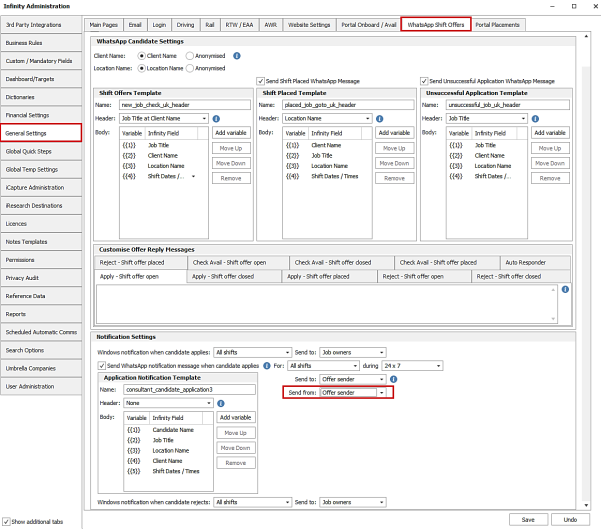
The following options are available:
- Offer Sender (default)
- Job Owner
- Selected User
Enhancement 138060 WhatsApp Shift Offers – ‘Out of hours’ changes to default times
In Administration / General Settings / WhatsApp Shift Offers tab the 'Send WhatsApp notification message when candidate applies - during' field always defaults to start 17:00 – end 09:00 when set to 'Non Office Hours'.
The seconds have been removed from the time fields.
Enhancement 138057 WhatsApp Shift Offers – Confirmation Action Comms tooltip update
In Administration / Global Temp Settings / Action Comms tab the 'Auto Comms - Placement Confirmation’ tooltip has been updated as follows:
“Placements made from WhatsApp via a consultant WhatsApp Shift Offer message, only send Action Comms if set to 'Auto' and have a default shift status of 'Confirmed'. Emails that contain Post Comms Centre template attachments cannot be sent and will fail validation when sending”.
Enhancement 137965/138061 WhatsApp Shift Offers - Rail candidates with approval req’d
Placing via WhatsApp ‘Place Candidate’ button
When placing a candidate in a rail job via the WhatsApp 'Place Candidate' button, where at least one of the checks requires approval (warning triangle), the consultant is informed that the check has failed and the placement is not created.
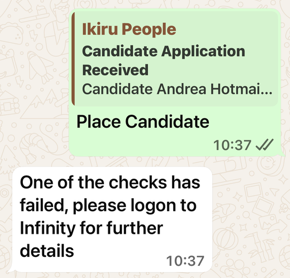
The following checks can be configured to ‘Requires approval’:
- Sponsor type
- Upper max hours a week
- Lower max hours a week
- Max door-to-door
- Rest between shifts
Placing via Shift Offers in Infinity
When placing from a shift offer in Infinity, if rail approval is required, only one candidate can be placed at a time (even if only one of the candidates requires approval).
If multiple candidates are selected the user is informed in the Bulk Place Candidate Wizard and the ‘Place’ button is disabled.
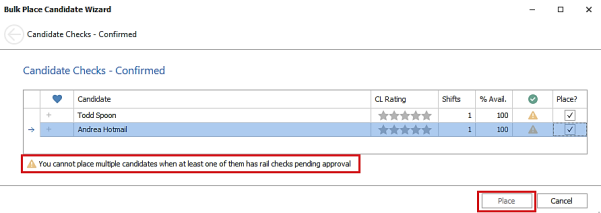
The candidate approval checks are listed as warn (yellow triangle), in previous versions they were listed as 'prevent' with a note 'Bulk approval not supported'.

When one candidate is selected and the 'Place' button is pressed, the approval checks all run as appropriate, and pop-up in front of the wizard screen.
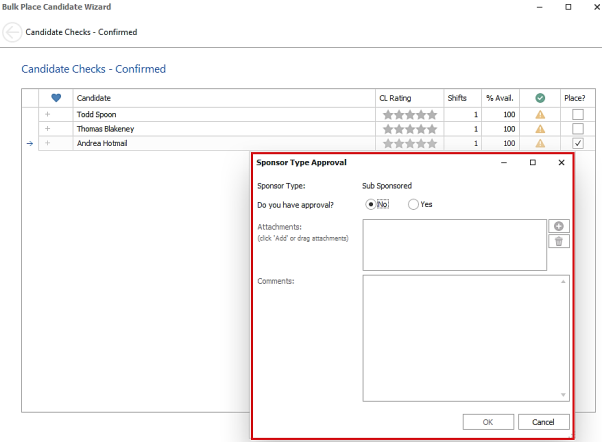
The following checks can be configured to ‘Requires approval’:
- Sponsor type
- Upper max hours a week
- Lower max hours a week
- Max door-to-door
- Rest between shifts
There are two ways to place from a shift offer:
- Shift Offer Screen
- Shift Planner 'Shift Offers' grid
The above functionality also affects the 'Bulk Place wizard' when it is used to place candidates not from a shift offer. (e.g. Shift Planner - candidate search results).
 Contact Details
If you require further assistance please contact Ikiru People using the details published on www.ikirupeople.com
Visit our Customer Portal at https://portal.ikirupeople.com/ for future events and clinics.
FeedbackIf you would like to make suggestions or have found any errors with this Help section please contact our Support team.
Copyright © 2026 Voyager by Ikiru People Ltd. All rights reservedVersion 4.87
Voyager Software is a brand of Ikiru People Ltd, a subsidiary of Dillistone Group Plc. The group is a leading global provider of software and services that enable recruitment agencies and in-house recruiters to better manage their selection process and address the training needs of individuals. Across its brands – which include Voyager Software (recruitment software UK & Australia), Dillistone FileFinder executive search software, GatedTalent, the global database of the world’s leading executives, Talentis.Global – the next generation of recruitment software and also ISV.Online, provider of online pre-employment skills testing and training tools. Dillistone Group serves thousands of clients worldwide. Ikiru People Ltd: Registration Number 02043300. Registered in England & Wales.
 |  |  |  |