Voyager Infinity – Release Notes
Version: 5.32
Release Date: 5th March 2026
What have we released?
- Infinity 5.32 has been released
Release overview
Here’s a snapshot of what we’ve delivered in this release:
- WhatsApp Shift Offers
- Send offers from the temp job page
- Consultants can place shift offer applications from their phone - See details
- Candidate Page (preview) minor enhancements
- Submit CV – more filename options added
- Making a record inactive/active logs an event
- Reviews
- Notify more users when a web review is received
- Merge the latest candidate review details from the placement page
- Task Page user option to set the default view
- iCapture improvements when detecting CVs attached to emails
- Shift Planner
- New candidate results column for ‘worked at that location before’
- Comms Wizard summaries can merge candidate review links
- Portal Onboarding
- Candidate status filter added to the Onboarding grid
- Optionally expire Portal documents
Enhancements
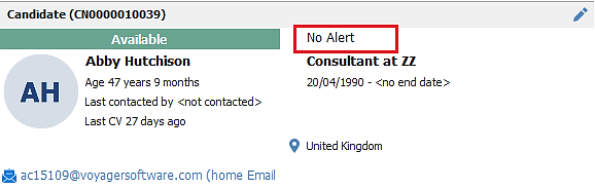
Enhancement 137464 Candidate page (preview) exclamation removed from blank alerts
When the candidate alert field is blank, the field is no longer prefixed with the exclamation mark.
Enhancement 137042 Candidate page (preview) licence layout change and events increased
On the new candidate page (preview) Licence tab, the licence expiry and last checked fields have been moved after the driving licence number field.
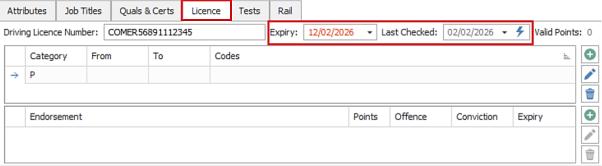
The height of this section has been decreased by one row and the Events group of tabs section has been increased by one row.
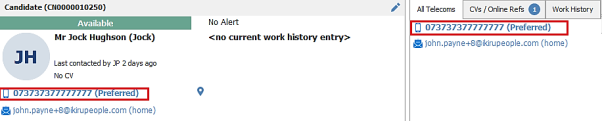
Enhancement 137738 Candidate page (preview) preferred telecom in bold
On the new candidate page (preview) the preferred telecom is displayed in bold font on the candidate profile area and ‘All Telecoms’ tab.
Enhancement 137745 Candidate page (preview) inactive display changes
When the new candidate page (preview) is made inactive. the page is disabled and no longer displays the text ‘Record Inactive’ across the page.
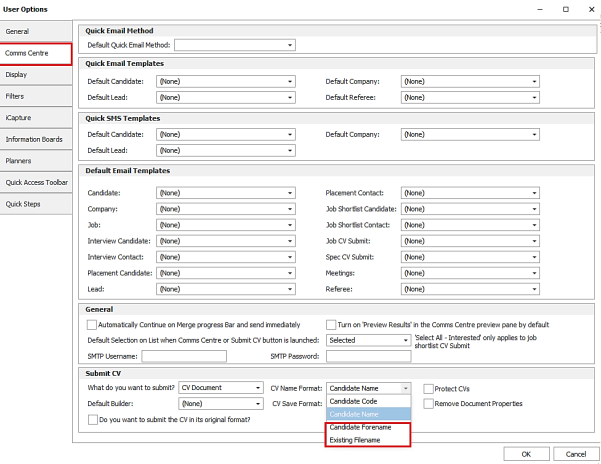
Enhancement 137736 Submit CV - more filename options added
CV submissions have additional 'Name format' values to select from in the Submit CV screen.
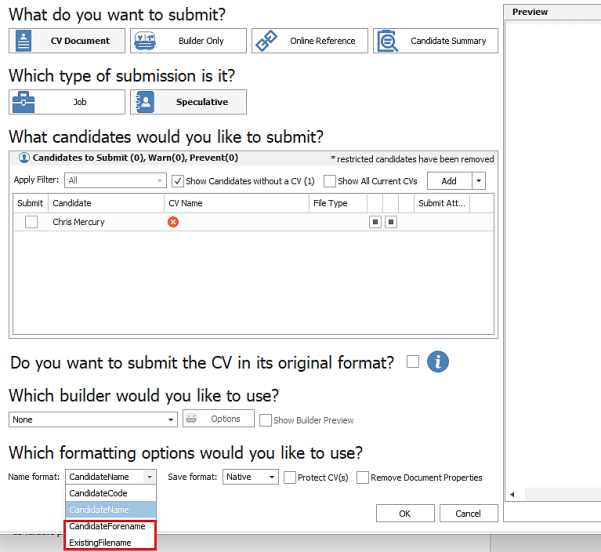
- 'Candidate Forename' - This submits the CV using the candidate's forename for the filename
- 'Existing Filename' - This submits the CV using the existing CV filename as per stored on the candidate page
In User Options / Comms Centre tab / Submit CV section, where the defaults can be set, the new name formats are included in the ‘CV Name format’ field.
Enhancement 137449 Making a record inactive/active logs an event
An event is logged when a candidate, company, contact or location is made inactive or active.

- The event ‘By’ field is the user that performed the action
- The event action is system reference data:
- ‘Deactivated’ if made inactive
- ‘Reactivated’ if made active
- The event cannot be deleted
Upon upgrade, if the event action name already exists it is prefixed with an asterisk.
Enhancement 137627 Reviews – notify more users when a web review is received
In Administration / General Settings / Website settings tab, there is a new field to notify additional users when a web review is received.
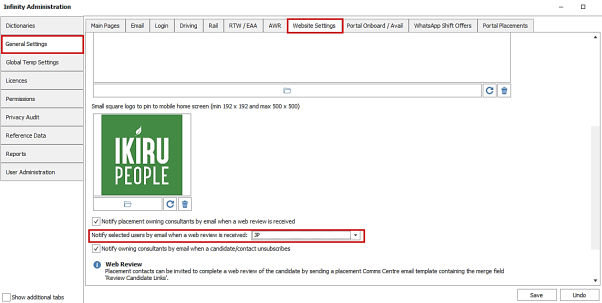
- This is a multiselect field of active consultants
- Consultants are displayed in short name format
- No consultants are selected as default
When users are selected, they are sent the notification email if they have an email address when a web review is received. This uses the user's email address field from the User Admin screen or ‘Email other’ field if the former is blank.
Enhancement 137531 Reviews – Merge the latest review of the candidate from placement
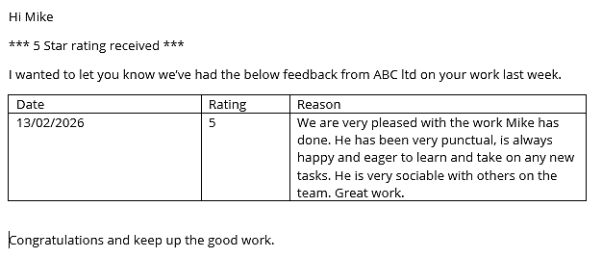
In the Placement Comms Centre, there is a new merge list for the latest review of the candidate linked to that placement.
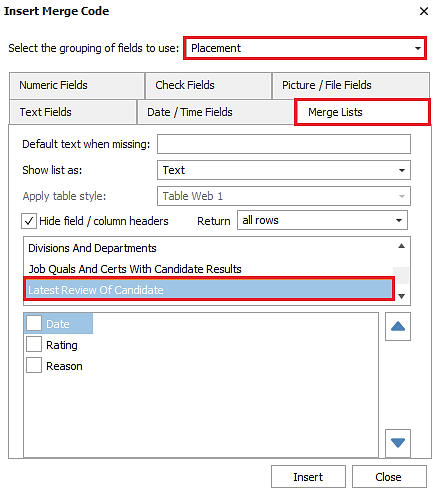
Column choosers are:
- Date
- Rating (number)
- Reason
Merges the columns selected, as per the latest review for that placement shown on the candidate / company page review window.
Enhancement 137450 Tasks – set the default task view
The Task Page has a new User option button to set the default view when opened.
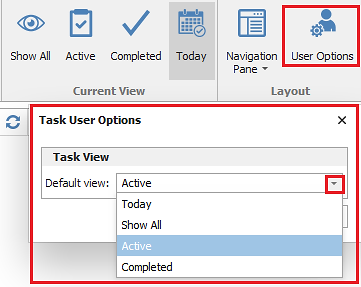
The user can set the default view to one of:
- Show all
- Active
- Completed
- Today
The defaults is ‘Today’ as per existing functionality.
Enhancement 137447 iCapture improved CV detection on emails
When emails are processed by iCapture (via Outlook Button or Exchange data sources), additional checking is performed on the file attachments to identify which is the CV document to be parsed.
The following words are scanned for in the filename of non-image attachments.
- CV
- Vitae
- Curriculum
- Resume / Résumé
Matches are processed as follows:
- If there are no attachment matches, the first non-image attachment is identified as the CV (as per existing functionality)
- If a single attachment is matched, this is identified as the CV
- If multiple attachments are matched, the first match is identified as the CV
Enhancement 136776 My Infinity - Job Posting section gets instant updates
My Infinity Job Posting section no longer refreshes periodically and instead updates within 10 seconds when changes occur. This updates the section numbers and any opened hyperlink screens. The My Infinity ‘Refresh’ button will no longer have any effect. The section updates as per existing functionality when the user logs in or selects a different My Infinity user account.
The Job Posting section in My Infinity will refresh when any of the below fields are changed that cause a full criteria match, or if there is no longer be a full criteria match:
Failed - Today
- User has posted the job at least once then failed
- Job status is type current
- Job advert failed to post today
- Job advert is not deleted
Failed - last 7 days
- User has posted the job at least once then failed
- Job status is type current
- Job advert failed to post in last 7 days not including today
- Job advert is not deleted
Enhancement 136790 My Infinity - Broadbean / Logic Melon section gets instant updates
My Infinity Broadbean / Logic Melon section no longer refreshes periodically and instead updates within 10 seconds when changes occur. This updates the section numbers and any opened hyperlink screens. The My Infinity ‘Refresh’ button will no longer have any effect. The section updates as per existing functionality when the user logs in.
The Broadbean / Logic Melon section in My Infinity will refresh when any of the below fields are changed that cause a full criteria match, or if there is no longer be a full criteria match:
Failed Posts - Today
- User is 1st or last to post the job
- Job status is open
- Job is not deleted
- Job advert failed to post today
Failed Posts - last 7 days
- User is 1st or last to post the job
- Job status is open
- Job is owned by the user
- Job is not deleted
- Job advert failed to post in last 7 days
Applications - Today
- User is 1st or last to post the job
- Job is not deleted
- Applications that have been received today
- Application has not been sent to iCapture
Applications - last 7 days
- User is 1st or last to post the job
- Job is not deleted
- Applications received in the last 7 days
- Application has not been sent to iCapture
Enhancement 137497 Shift Planner Comms Wizard summaries merge candidate review links
In the Shift Planner Comms Wizard, a new column is available in the ‘Wizard by Day Filled Shifts’ merge list for the recipient to leave a web review of the candidate for that placement.
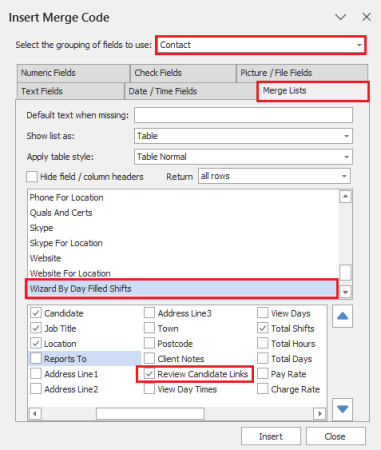
This is available in Job and Company (contact group) Comms Centre.
Merges the placement candidate review link for each placement row being merged, in picture format showing 1-5 stars, as per existing functionality.
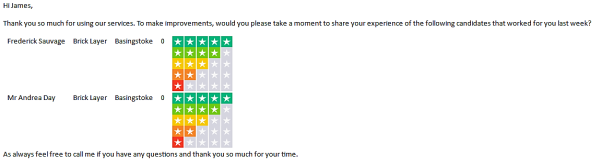
The recipient can click a star rating against each placement candidate to leave a web review as per existing functionality.
Enhancement 137380 Shift Planner - candidate results column for ‘worked at that location’
The Shift Planner / Candidate Search results panel has an additional column to indicate if the candidate has worked at that location in a temp placement before.
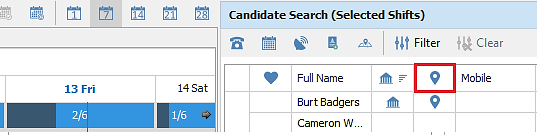
This is locations that are on the company page and does not cover placement custom locations.
The icon has also been changed to the Company one for the existing column that indicates if the candidate has worked at that company in a temp placement before.
Enhancement 137087 Portal Onboarding - candidate status filter added to the grid
'Status' on the onboarding grid toolbar has been renamed to 'Onboarding Status' and a new field added for 'Candidate Status'.
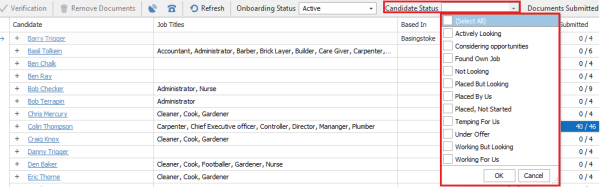
- This defaults to blank (all statuses)
- Multiple statuses can be selected
- Changes to 'Candidate Status' reload the data (rather than filter), to only display candidates of the selected statuses
Enhancement 137088 Portal Onboarding – optionally expire non complete documents
On databases configure for Onboarding, in Administration / General Settings / Portal Onboard / Avail tab there is a setting to Expire portal documents not completed after x days.
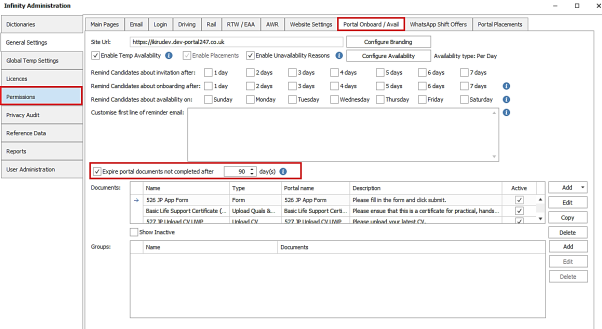
The setting is off as default for existing databases and on for new databases.
When enabled:
- Default = 90 days
- Allowed Values = 90 - 365
- Documents that are 'not submitted' or 'rejected' and not completed are expired
- Candidates with all their documents verified or expired, do not show on the Onboarding screen by default
- There is an information button giving details on the setting
Onboarding Documents
- Onboarding Documents that have not been submitted within x days of the document being added to their page, are marked as expired on the candidate page Portal screen.
- Onboarding Documents that have been rejected and not re-submitted within x days of being rejected are marked as expired on the candidate page Portal screen.
Onboarding Screen
'Onboarding Status' filter works as follows: (bold indicates changes to the functionality)
- Active (Default)
- All candidates invited for onboarding who have not completed the process
- 'Expired documents' are classed as 'completed'
- Required Verification
- All candidates who have at least one document that requires verification
- This includes all info documents
- Closed
- All candidates who have all their documents verified
- This excludes ‘View Document’ which does not require verification
Expired documents do not appear on the Portal.
There is no 'un-expire' functionality. The candidate will need the appropriate documents added to their page.
Enhancement 136626 WhatsApp Shift Offers – send offers from the temp job page
On databases configured for WhatsApp Shift Offers, offers can be sent to a candidate from the temp job page.
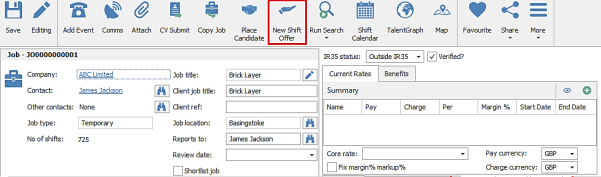
When clicking the ‘New Shift Offer’ button on the toolbar, the Candidate / Contact find window is launched for the user to select the candidate.
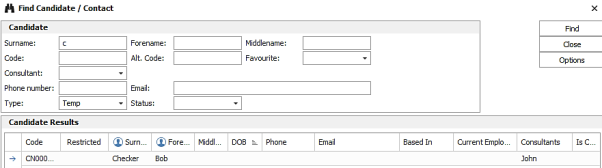
Once a candidate is selected, the ‘Offer Shifts to Candidates’ wizard is automatically launched for the user to select existing or paint new job shifts to offer.
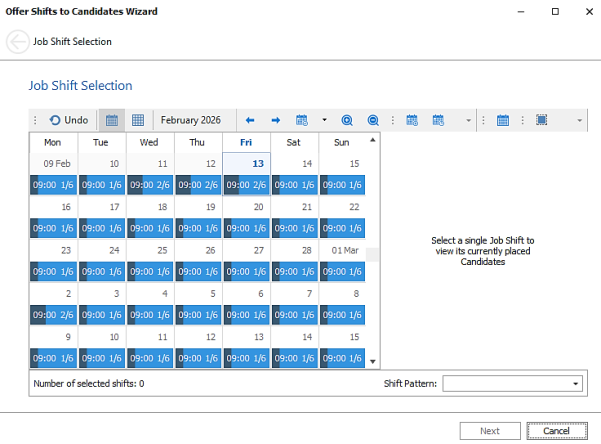
When the user clicks ‘Next’ the compliance and offer checks are run.
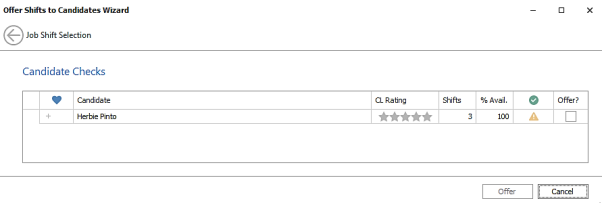
As per existing functionality, if the checks do not fail the shifts can be offered and sent to the candidate on WhatsApp.
Enhancement 137630 WhatsApp Shift Offers - place shift offer applications from a phone
On databases configured for WhatsApp Shift Offers, the system can be set up to notify consultants via a WhatsApp message, that a candidate has applied for a shift offer.
From the WhatsApp notification message, the consultant can place the candidate on the shifts if compliance checks pass and send placement confirmation details if configured to do so.
Charges
The functionality is chargeable as follows:
- When a 'Candidate applies' WhatsApp message is sent, if the consultant clicks one of the buttons ‘Place Candidate’, ‘Candidate Unsuccessful’, then a 24-hour window is opened
- During the 24-hour window, all other messages to that consultant are non-chargeable
- If the consultant clicks another button ‘Place Candidate’, ‘Candidate Unsuccessful’ during the 24-hour window, the window is reset
- Chargeable messages are those sent that are not in a 24-hour window
You can monitor the number of WhatsApp messages that are sent from Administration / Licences tab ‘Show WhatsApp Template Usage button.
Administration
In Administration / WhatsApp Shift Offers tab / Notification Settings section, there is a new setting called ‘Send WhatsApp notification message when candidate applies’.
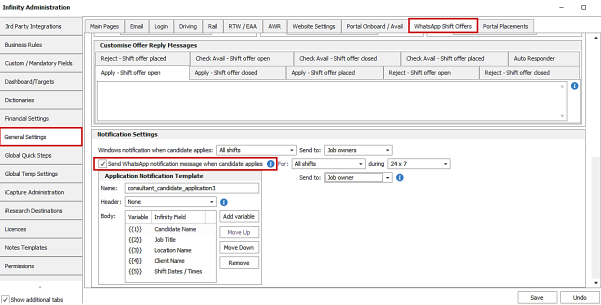
This setting is off by default.
There is an information button giving details about the functionality:
- Consultants are sent a WhatsApp message
- Placements made from WhatsApp via a consultant WhatsApp Shift Offer message, have their shift status set to 'Awaiting Confirmation / Confirmed' as per the 'Temp placement default shift status' admin setting.
- Placements made from WhatsApp via a consultant WhatsApp Shift Offer message are only sent an 'Action Comms - Placement Confirmation email/SMS' if they are set to 'Auto', and the Shift Status is 'Confirmed'.
- 'Action Comms - Placement Confirmation email/SMS' from WhatsApp that contain Post comms centre template attachments cannot be sent and will fail validation when sending.
When enabled, additional fields are available to configure the WhatsApp notification.
For - the shifts that the candidate applies for
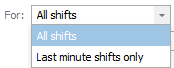
- 'All shifts' (default)
- 'Last minute shifts only' – where the first shift occurs on the same day the Shift Offer is sent
During - the time the notifications are sent

- ‘24 x 7’
- ‘Non Office Hours’ (default)
- Start time (default 5.30pm)
- End time (default 9.00am)
- Sat & Sun are always 'Non Office Hours'
- If set to 'Non Office Hours', the times cannot be blank
- Hours are always UK time (inc. BST in the summer)
Send to - the consultants / mobile the notification is sent to
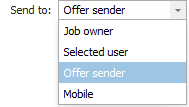
- 'Offer sender'
- The relevant users must have a valid UK mobile number configured in User Admin to receive a WhatsApp message
- 'Job owner'
- The first job owner in the list will be sent the WhatsApp message
- The relevant users must have a valid UK mobile number configured in User Admin to receive a WhatsApp message
- 'Selected user

- Allows the selection of one active user with a valid UK mobile number configured in User Admin
- If the selected user doesn’t have a valid UK mobile number, the user is informed and value cannot be saved
- There is an information button giving details about the setting
- 'Mobile'

- Allows the entry of a valid UK mobile number
- If a valid UK mobile number is not entered, the user is informed and value cannot be saved
- There is an information button giving details about the setting
Application Notification Template - templates are created by Ikiru People
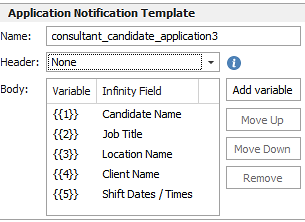
- Templates can be customised but must follow Meta guidelines
- As per existing functionality if marketing messages are sent, dbmanagers and job owners are warned via email as these have a higher cost
- Template name (as per candidate WhatsApp templates)
- Template Header variable (as per candidate WhatsApp templates)
- Is a maximum of 60 characters
- The Address merges the full address including postcode
- Rates merge only one GBP rate per placement
- There is an information button giving details about the setting
- Template Body variables (as per candidate WhatsApp templates)
- Variables are as per the Candidate WhatsApp template
- Candidate Name (i.e. forename surname e.g. Fred Smith) only relevant to the consultants WhatsApp
Existing WhatsApp Template administration settings have been reworded to make it clear they're going to the candidate
Existing Notification administration settings have been reworded to indicate it's a windows notification.
An information button has been added to Administration / Global Temp Settings / Actions Comms tab / Placement Confirmation setting.
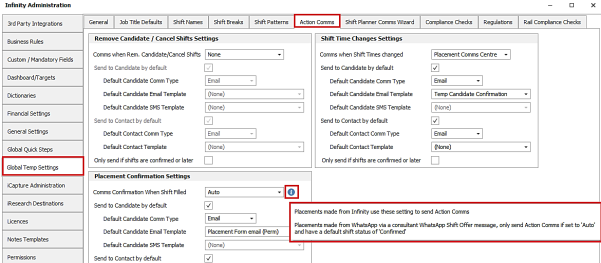
This gives details about the functionality:
- Placements made from Infinity use these setting to send Action Comms
- Placements made from WhatsApp via a consultant WhatsApp Shift Offer message, only send Action Comms if set to 'Auto' and have a default shift status of 'Confirmed'
WhatsApp message sent to consultant
If enabled, the WhatsApp message is sent as soon as the candidates WhatsApp application is received.
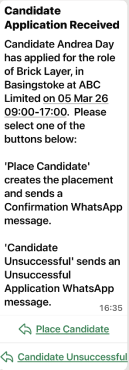
Which shifts
- If set to 'All Shifts' a WhatsApp message is sent
- If set to 'Last minute shifts only', A WhatsApp message is only sent for shift offers where the first shift occurs on the same day the Shift Offer is sent
When sent
- If set to '24 x 7', a WhatsApp message is sent
- If set to 'Non Office Hours':
- Applications received during Non Office Hours, have WhatsApp messages sent to the relevant consultant
- Applications received during 'Office Hours', do not have a WhatsApp message sent
- Sat & Sun are always 'Non Office Hours'
- Hours are always UK time (inc. BST in the summer)
Which consultant
- If set to 'Offer Sender'
- The person who sent the shift offer receives the WhatsApp message
- If the offer sender is inactive, it is not sent
- If set to 'Job Owner'
- only one job owner is sent the WhatsApp message
- It is the first job owner added to the job page
- If the job owner is inactive, it is not sent
- If set to 'Selected User'
- That specific user is sent the WhatsApp message
- If that specific user is inactive, it is not sent.
- If set to 'Mobile'
- That specific mobile is sent the WhatsApp message
- Note - If this setting is used and auto-comms enabled, it sends the email from the offer sender
WhatsApp Place Candidate Button

When the button is pressed, checks are run:
- There is at least one place remaining on all shifts in the shift offer
- The candidate has not already been placed on the shift offer
- All relevant placement compliance checks
- Offer Checks:
- WhatsApp merge data
- All other offer checks are not relevant
- Note - This is not relevant if WhatsApp shift confirmations to the candidate are disabled
When checks fail
If checks fail, a session message is returned to the consultant.
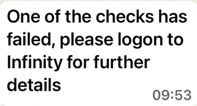
- One of the checks has failed, please logon to Infinity for further details
When checks pass
If checks pass, a placement is created/updated in Infinity
- The shifts are 'awaiting confirmation' or 'confirmed' as per the 'Temp Placement Default Shift Status' admin setting
If checks pass, the candidates receive a 'shift confirmation' WhatsApp message (if enabled)
- A message is sent regardless of shift status
If checks pass and 'Action comms - Placement Confirmation' is enabled, Comms are sent as configured:
- If set to Auto, and the Shift Status is 'confirmed' - action comms are sent
- If set to None, Prompt or comms centre - action comms are not sent
- If the Shift Status is 'Awaiting Confirmation' - action comms are not sent
- If the WhatsApp was sent to a specific mobile, the ‘Action Comms Email’ comes from the ‘offer sender’
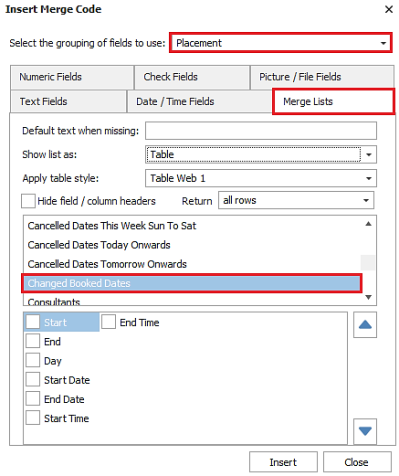
Tip – you can merge just the shifts that the candidate is being placed on by using the ‘Changed Booked Dates’ merge list in the ‘Action comms - Placement Confirmation’ template.
If checks pass, a session message is returned to the consultant.
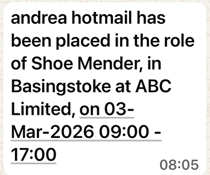
- Candidate_Name has been placed in the role of job_title, in location_name at client_name, on shift_dates/times
- Italics indicate variables
If all shifts/places are filled, the other candidates have their shift offers closed
- Applied Shift Offers are changed to 'Unsuccessful Application'
- Offered Shift Offers are changed to 'Offered : Closed'
- Rejected Shift Offers are changed to 'Rejected : Closed'
- Applied but not placed candidates receive a 'shift unsuccessful' WhatsApp message
WhatsApp Candidate Unsuccessful button
When the button is pressed, checks are run:
- The candidate has not already been placed on the shift offer
When checks fail
If checks fail, a session message is returned to the consultant.
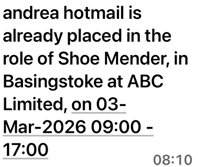
- Candidate_Name is already placed in the role of job_title, in location_name at client_name, on shift_dates/times
When checks pass
If checks pass, Applied Shift Offer is changed to 'Unsuccessful Application', for that candidate.
- Applied but not placed candidates receive a 'shift unsuccessful' WhatsApp message
If checks pass, a session message is returned to the consultant.
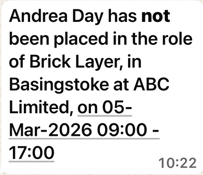
- Candidate_Name has not been placed in the role of job_title, in location_name at client_name, on shift_dates/times
The Shift Offer icon on the Shift Planner is updated if applicable.
Note - It is possible to press the 'Not Place' button followed by the 'Place button' to place the candidate.
Enhancement 137196 WhatsApp Shift Offers default reply changes
In Administration / General Settings / WhatsApp Shift Offers tab, the WhatsApp default replies have been updated.
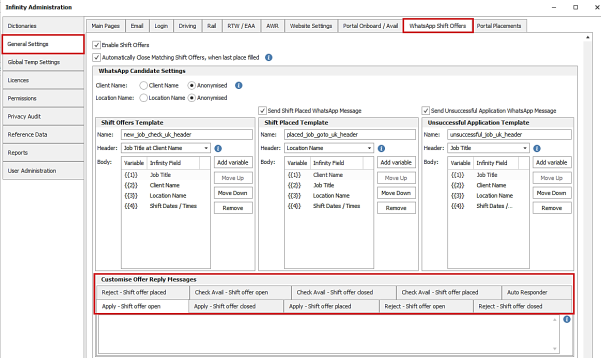
The default replies are used, when no other replies have been entered into the screen.
WhatsApp default replies are as follows:
- Apply open – Thank you for your interest, we will let you know as soon as possible if you have been successful.
- Apply closed – Thank you for your interest, unfortunately the booking has been filled. We will be in touch as soon as something else suitable comes in.
- Apply already placed – You have already been placed in these shifts. Please call the office if you have any questions.
- Reject open – Thank you for letting us know you are not interested in these shifts.
- Reject closed – Thank you for letting us know you are not interested in these shifts.
- Reject already place – It is not possible to reject a shift via WhatsApp after you have been booked for it. If you wish to discuss these shifts, please call the office.
- Check avail open – Yes, these shifts are still available for you to accept.
- Check avail closed – Unfortunately these shifts have now been covered. Thank you for checking.
- Check avail already place – You have already been placed in these shifts. Please call the office if you have any questions.
- Auto responder - Thank you for your message. Unfortunately, we are unable to respond via WhatsApp. If you wish to contact us, please call the office.
The information button gives details on all 10 replies.
 Contact Details
If you require further assistance please contact Ikiru People using the details published on www.ikirupeople.com
Visit our Customer Portal at https://portal.ikirupeople.com/ for future events and clinics.
FeedbackIf you would like to make suggestions or have found any errors with this Help section please contact our Support team.
Copyright © 2026 Voyager by Ikiru People Ltd. All rights reservedVersion 4.87
Voyager Software is a brand of Ikiru People Ltd, a subsidiary of Dillistone Group Plc. The group is a leading global provider of software and services that enable recruitment agencies and in-house recruiters to better manage their selection process and address the training needs of individuals. Across its brands – which include Voyager Software (recruitment software UK & Australia), Dillistone FileFinder executive search software, GatedTalent, the global database of the world’s leading executives, Talentis.Global – the next generation of recruitment software and also ISV.Online, provider of online pre-employment skills testing and training tools. Dillistone Group serves thousands of clients worldwide. Ikiru People Ltd: Registration Number 02043300. Registered in England & Wales.
 |  |  |  |